Apple Pay makes spending effortless. Too effortless, sometimes. A double-click, a glance at your phone, and the money is gone. The transaction barely registers in your brain, which is exactly why tracking Apple Pay spending has become one of the most common personal finance challenges.
The built-in Wallet app shows transaction history, but it does not categorize, budget, or analyze anything. You need a dedicated tracker. The question is which approach actually works: automatic tap-to-pay tracking, bank sync, or manual logging?
We tested every viable method and found clear winners. For a broader comparison of expense tracking tools, check out our guide to the best money tracker app in 2026.
The Problem with Tracking Apple Pay
Apple Pay transactions are fast and forgettable. You tap, you walk away, and by the end of the week you have no idea where $200 went. The Wallet app logs the merchant name and amount, but offers no spending categories, trends, or budgets. We break down exactly what the Apple Wallet spending summary misses and what to add in a separate guide.
Most people try one of three approaches:
- Check their bank statement at the end of the month. By then, the context is gone. You see "$12.47 at STORE #4829" and have no idea what you bought.
- Use a bank-linked app that imports everything. This works but comes with sync delays, privacy concerns, and the inability to add context to transactions.
- Manually log every purchase. Accurate but tedious. Most people quit within two weeks.
There is a fourth option that solves the core problem: automatic logging at the exact moment of payment, powered by Apple's built-in automation.
How Automatic Apple Pay Tracking Works
Your iPhone already knows when you tap to pay. Starting with iOS 17, Apple opened this up so apps can listen for the moment a payment happens and act on it instantly.
Here is Tap to Track logging an Apple Pay purchase automatically:
When you tap to pay, your iPhone automatically captures:
- The card you used
- The merchant name
- The transaction amount
An expense tracking app can use this to instantly create an expense entry every time you tap to pay. No manual input. No bank sync delay. No forgetting.
The catch: this only works for in-store tap-to-pay purchases. Online Apple Pay purchases do not trigger the automation. But for daily spending like groceries, coffee, and transit, it covers the majority of transactions.
Best Apps for Tracking Apple Pay Spending
Finny: Best Automatic Apple Pay Tracking
Finny's Tap to Track feature is the most complete Apple Pay tracking solution available. It instantly captures every in-store Apple Pay purchase the moment you tap to pay.
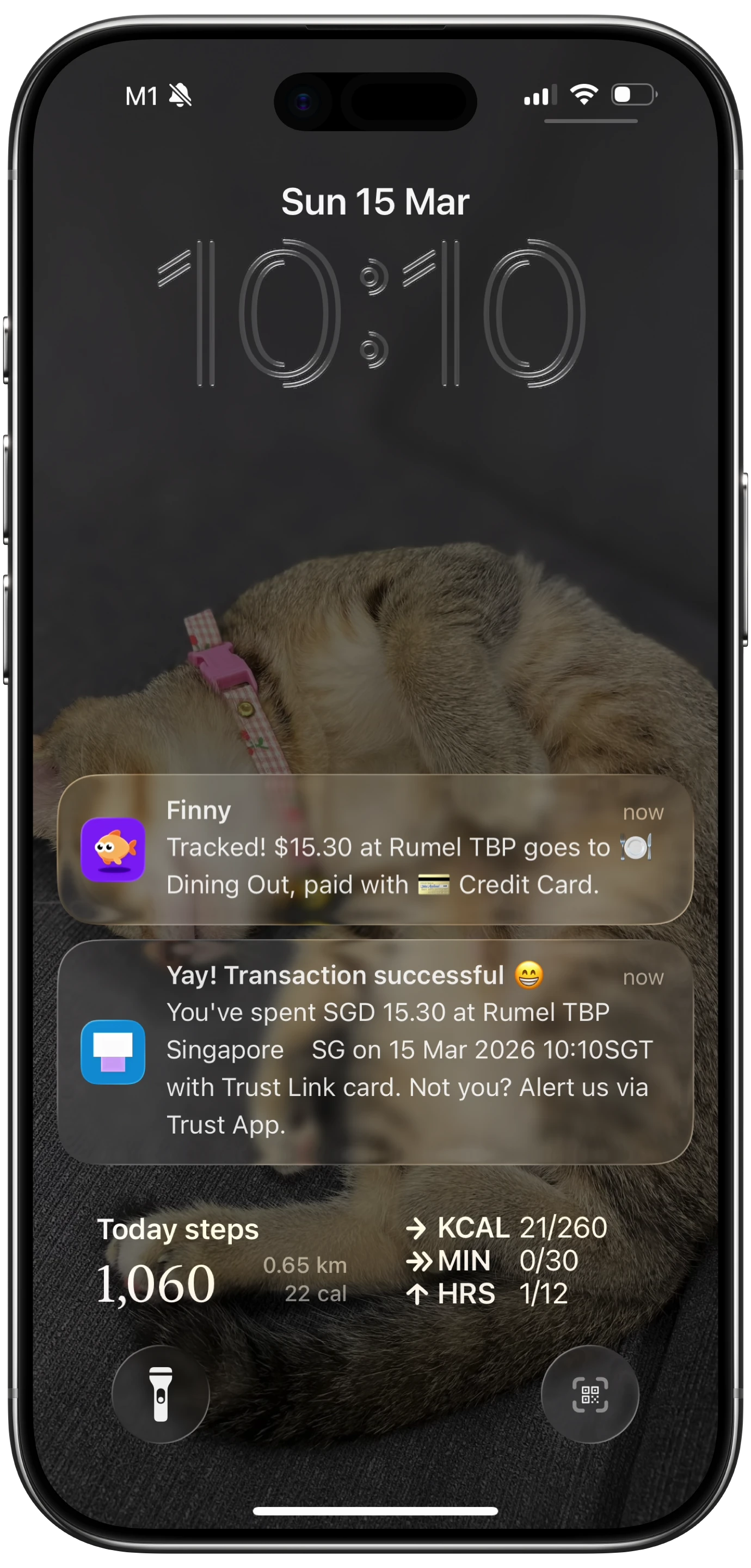
Here is what makes it different from other apps:
Instant AI categorization. When a transaction is captured, Finny's AI automatically assigns a category based on the merchant name. A purchase at Whole Foods goes to Groceries. Starbucks goes to Coffee. You do not need to categorize manually after every purchase.
Context preservation. The original currency, merchant name, and timestamp are all captured. If you are traveling and pay in euros, the transaction stays in euros while your dashboard shows the converted total in your home currency.
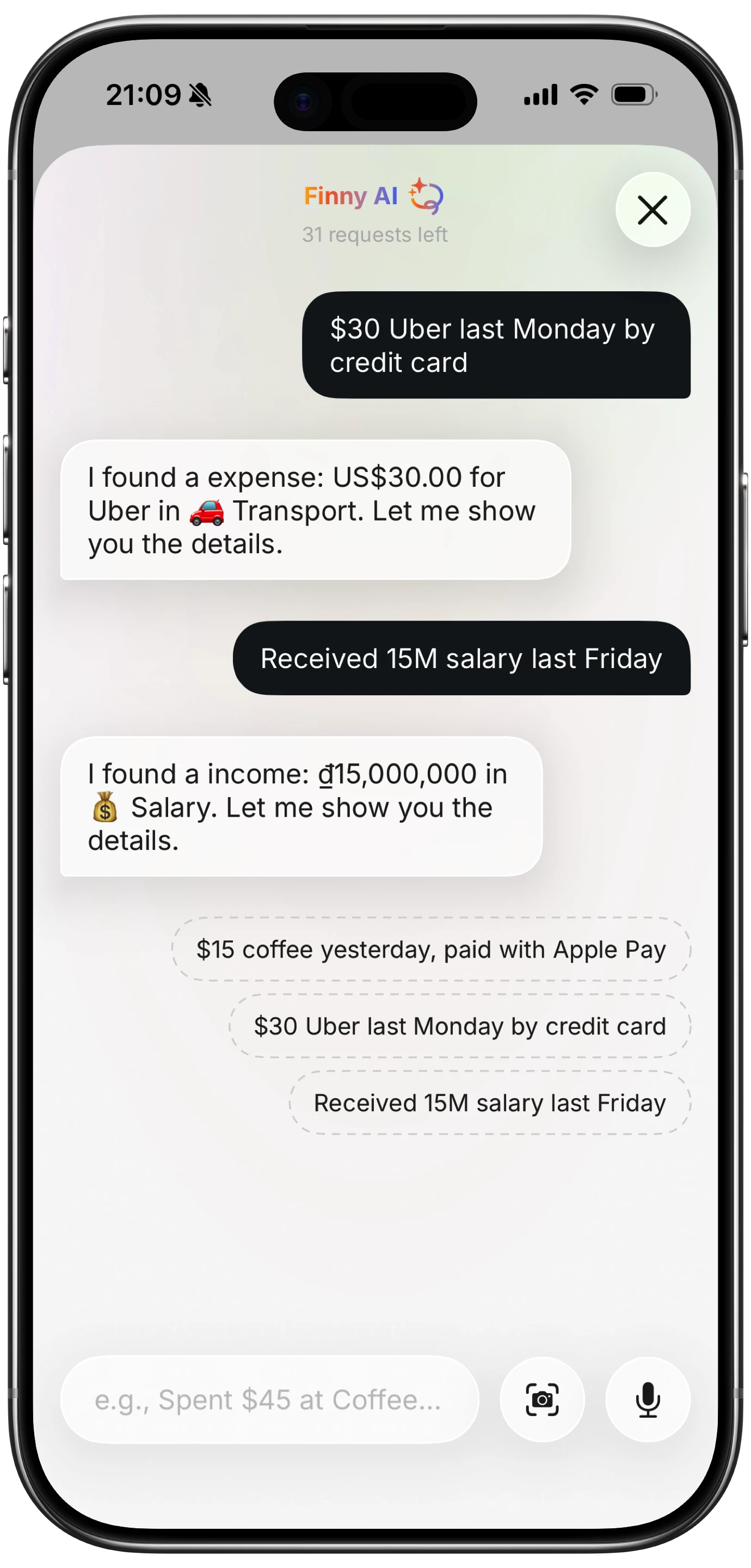
Fills the gaps with AI input. For online Apple Pay purchases and cash transactions that automatic tracking cannot capture, Finny offers five AI input methods: text, voice, receipt scanning (up to five photos at once), statement screenshot import, and chat. Between Tap to Track and AI input, virtually every purchase gets logged.
Offline-first. Transactions log even without internet. Everything syncs when you reconnect.
At a low monthly or yearly price, Finny costs less per year than most competitors charge per month. The 50 daily AI requests are generous enough to handle any level of spending activity.
Best for: Anyone who uses Apple Pay regularly and wants automatic, categorized tracking without bank connections.
Copilot: Best Bank-Linked Apple Pay Tracker
Copilot takes the traditional approach: connect your bank accounts and credit cards, and transactions appear in the app after your bank processes them. Since Apple Pay charges go through your linked card, they show up alongside all your other spending.
The design is excellent. Copilot's transaction list, spending insights, and monthly snapshots are among the best-looking in any finance app. Categorization improves over time as the app learns your habits.
The drawbacks for Apple Pay tracking specifically: transactions appear with a delay (usually 1-2 days), you lose the real-time awareness that comes with instant logging, and you need to share your bank credentials. At $13/month ($95/year), it is also significantly more expensive than alternatives.
Best for: iOS users who want all financial accounts in one place and do not mind bank sync delays.
Monarch Money: Best for Full Financial Picture
Monarch Money tracks Apple Pay transactions the same way Copilot does: through bank account sync. Your card charges, including Apple Pay purchases, import automatically after processing.
Monarch's strength is breadth. It connects to banks, credit cards, investments, and loans. Net worth tracking, collaborative budgets, and financial planning tools make it more than an expense tracker. For households managing multiple accounts, this comprehensive view is valuable.
For Apple Pay tracking alone, Monarch is overkill. At $14.99/month ($99.99/year) with no free tier, you are paying for features beyond expense tracking. Transactions still arrive with bank sync delays, and there is no way to instantly capture a payment at the point of sale.
Best for: Households that want Apple Pay tracking as part of a complete financial dashboard.
TravelSpend: Best Travel-Focused Option
TravelSpend has added Apple Pay automation support through Apple's built-in automation, making it one of the few travel apps that can auto-log tap-to-pay transactions. For travelers who use Apple Pay abroad, this is a useful combination.
The app is designed around trips. You set a daily or trip budget, log expenses in any currency, and see whether you are on track. Group expense splitting and photo attachments add convenience for travel groups.
The limitation is scope. TravelSpend is built for travel, not daily life. Using it as your primary expense tracker feels awkward outside of a trip context. The automation also lacks the AI categorization layer that Finny provides.
Best for: Travelers who want automatic Apple Pay logging during trips.
Manual Tracking Apps (Goodbudget, Buddy, DailyBean)
Several manual expense trackers can work alongside Apple Pay, though none offer automatic transaction capture. You pay with Apple Pay, then open the app and log the expense yourself.
Goodbudget uses envelope budgeting and is free for basic use. Buddy focuses on shared budgets for couples. Both require you to remember and manually enter every transaction.
This approach works for disciplined trackers but defeats the purpose of trying to capture spending automatically. If you are going to manually log, you might as well use an app with AI input that makes the process faster.
For a deeper look at why manual tracking often fails, see our article on AI expense tracking vs. manual methods.
Why Tap to Track Wins
The best tracking happens at the moment of the transaction. Not a day later when your bank syncs. Not at the end of the week when you review your statement. Right when you pay.
Finny's Tap to Track captures that moment because it detects the instant you tap to pay. The expense is logged, categorized, and visible in your spending dashboard before you leave the register. Bank-linked apps cannot match this speed. Manual apps cannot match this convenience.
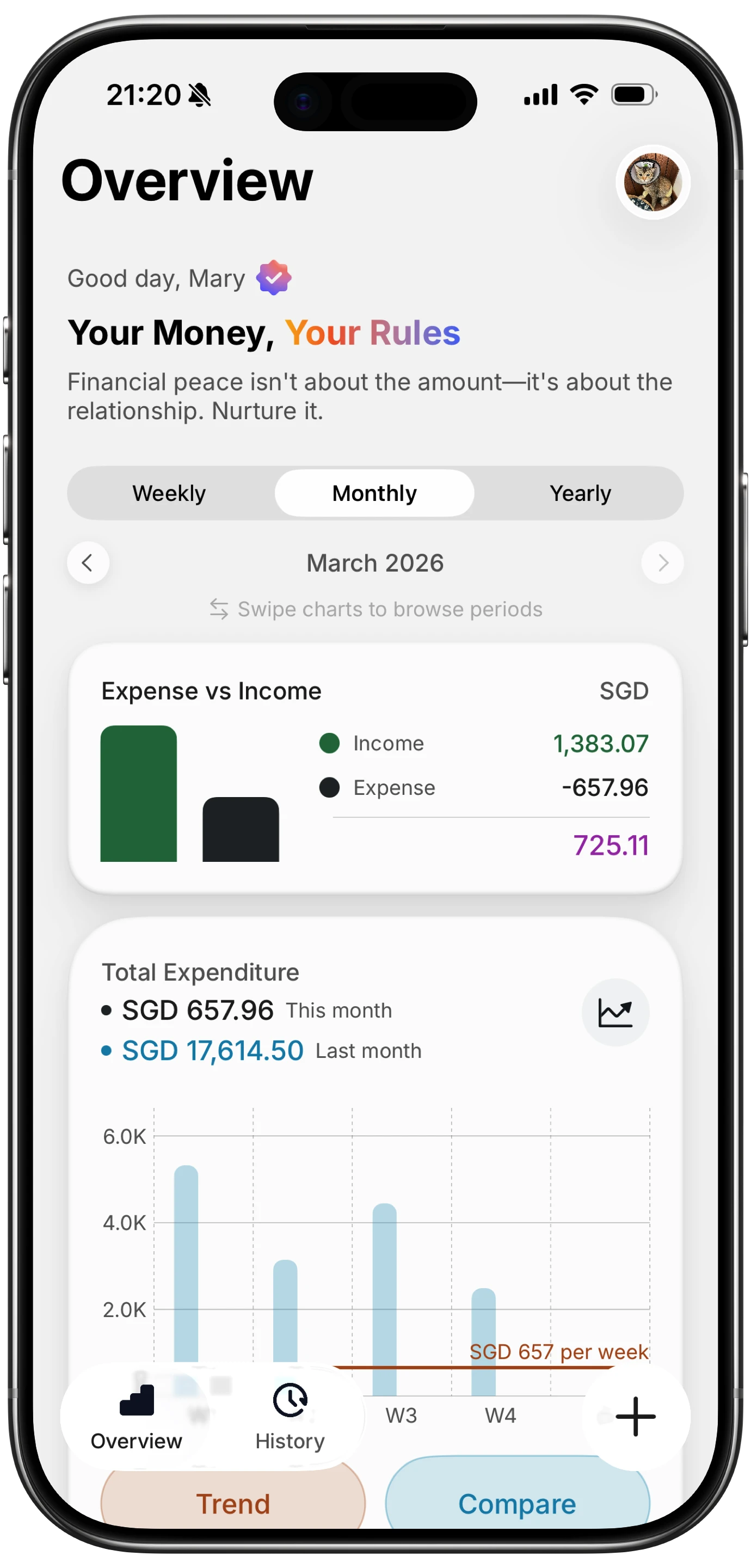
For the transactions that automatic tracking cannot capture (online purchases, cash, transfers), Finny's AI input methods fill every gap. Voice a quick "ordered shoes online $85" and it is logged. Snap a receipt photo and the details are extracted. The combination of automatic tap-to-pay logging and AI-assisted manual input covers essentially 100% of spending.
If you want your expense tracking to work offline too, read our guide on offline expense tracking.
Comparison: Approaches to Apple Pay Tracking
| Approach | Speed | Coverage | Privacy | Cost |
|---|---|---|---|---|
| Tap to Track (Finny) | Instant | In-store Apple Pay + AI for rest | No bank login needed | a low monthly price |
| Bank sync (Copilot, Monarch) | 1-2 day delay | All card transactions | Requires bank credentials | $13-15/mo |
| Manual logging | Depends on you | Only what you remember | Full privacy | Varies |
| Apple Wallet only | N/A | View only, no tracking | Full privacy | Free |
Frequently Asked Questions
Can I track Apple Pay spending without connecting my bank?
Yes. Finny uses Apple's built-in automation to log Apple Pay transactions automatically without any bank connection. Your iPhone's built-in payment detection captures the merchant, amount, and card used at the point of sale.
Does Apple Pay tracking work for online purchases?
Tap to Track only captures in-store tap-to-pay transactions. Online Apple Pay purchases need to be logged through bank sync or manual/AI input. Finny covers both scenarios: Tap to Track for in-store, AI input for everything else.
Which app is cheapest for tracking Apple Pay?
Finny at a low monthly price is the most affordable option with automatic Apple Pay tracking. Bank-linked alternatives like Copilot ($13/month) and Monarch ($14.99/month) cost significantly more. Apple's built-in Wallet app is free but offers no categorization or analysis.
How do I set up Apple Pay automation on my iPhone?
Finny handles the setup automatically during onboarding with a quick one-time configuration. It takes less than a minute, and from that point on, every Apple Pay purchase is tracked instantly. For a step-by-step walkthrough of the entire process, see our guide on how to automatically track Apple Pay.
Stop Guessing Where Your Money Went
Apple Pay should not mean invisible spending. With the right tracking app, every tap becomes a data point that helps you understand and control your finances.
Download Finny and set up Tap to Track in under a minute. Your next Apple Pay purchase will be logged, categorized, and ready to analyze before you walk out the door.