
Apple Wallet Spending Summary Isn't Enough: What to Add
If you pay for almost everything with Apple Pay, the Wallet app already gives you a tidy snapshot of where your money goes. Open the Apple Card section, scroll down, and you see a clean monthly total split into categories like Food, Shops, and Transportation. For a lot of people, that view is the only spending review they ever do.
It is a good starting point. It is not a full picture. The apple wallet spending tracker answers the question "how much did I spend in this category last month" but goes quiet when you ask "where exactly did that money go," "which subscriptions auto-renewed," or "how does this combine with my other cards and cash." This guide walks through what the Apple Card spending summary does well, where it stops, and how to add a thin operational layer on top so your numbers actually match your life. For a broader overview, see our best money tracker apps in 2026 guide.
What the Apple Wallet spending summary actually shows
The Wallet app, when paired with an Apple Card, displays a weekly and monthly spending wheel. Transactions are grouped into a fixed set of merchant categories pulled from the card network. Tap a category and you see the largest contributors, plus the option to view all transactions for that period. Apple Cash transactions appear in their own ledger, and Apple Pay charges from other cards appear inside the issuing bank's app, not Wallet itself.
This setup has real strengths. There is no setup required. Categories appear automatically. Privacy is solid because the data lives on device and Apple does not sell it. For a single Apple Card user who only wants a high-level pulse check, the built-in view is honestly enough. The friction starts when you try to do anything operational: budgeting, splitting categories, tagging trips, or reconciling with cash receipts.
What the Apple Card spending summary does not show
Here is where the apple card spending summary stops being enough for most households. The gaps are not bugs. They reflect that Wallet is a card statement viewer first and a budgeting tool second.
- No per-merchant breakdown beyond the most recent transactions in each category.
- No custom categories. You cannot split "Shops" into "Groceries" and "Home Goods."
- No view of recurring subscriptions or upcoming auto-renewals.
- No combined total across Apple Card, other credit cards, debit, and cash.
- No goals, budgets, or alerts when you are about to exceed a category.
- No shared visibility with a partner unless you both share an Apple Card account.
- No tagging for trips, business expenses, or reimbursable items.
- No export to CSV or accounting tools without going through Apple Card statements.
If you have ever stared at the Wallet category wheel and thought "okay but where did the $612 in Food actually go," you have hit the ceiling. The same goes for anyone tracking shared rent, freelance receipts, or a travel budget across two currencies.
A layered setup: keep Wallet, add a tracker on top
The most sensible approach is not to replace Wallet. It is to use it as the high-level dashboard and add a dedicated tracker for the operational layer underneath. That way you keep the privacy-friendly snapshot Apple gives you and gain the merchant detail, custom categories, and cross-card view it does not.
A working layered setup usually looks like this:
- Wallet stays as the monthly pulse check. Glance at the spending wheel once a week to confirm nothing is wildly off.
- A dedicated tracker handles day-to-day logging. Every Apple Pay tap, every cash purchase, every recurring charge gets recorded in one place with a real category.
- Statements get reconciled monthly. Apple Card statements are exported as PDF or viewed in Wallet, then matched against the tracker to catch anything missed.
The point of the second layer is to answer the questions Wallet cannot: which coffee shop took the most this month, which subscriptions renewed last week, and what your total spend was across every payment method, not just the Apple Card.
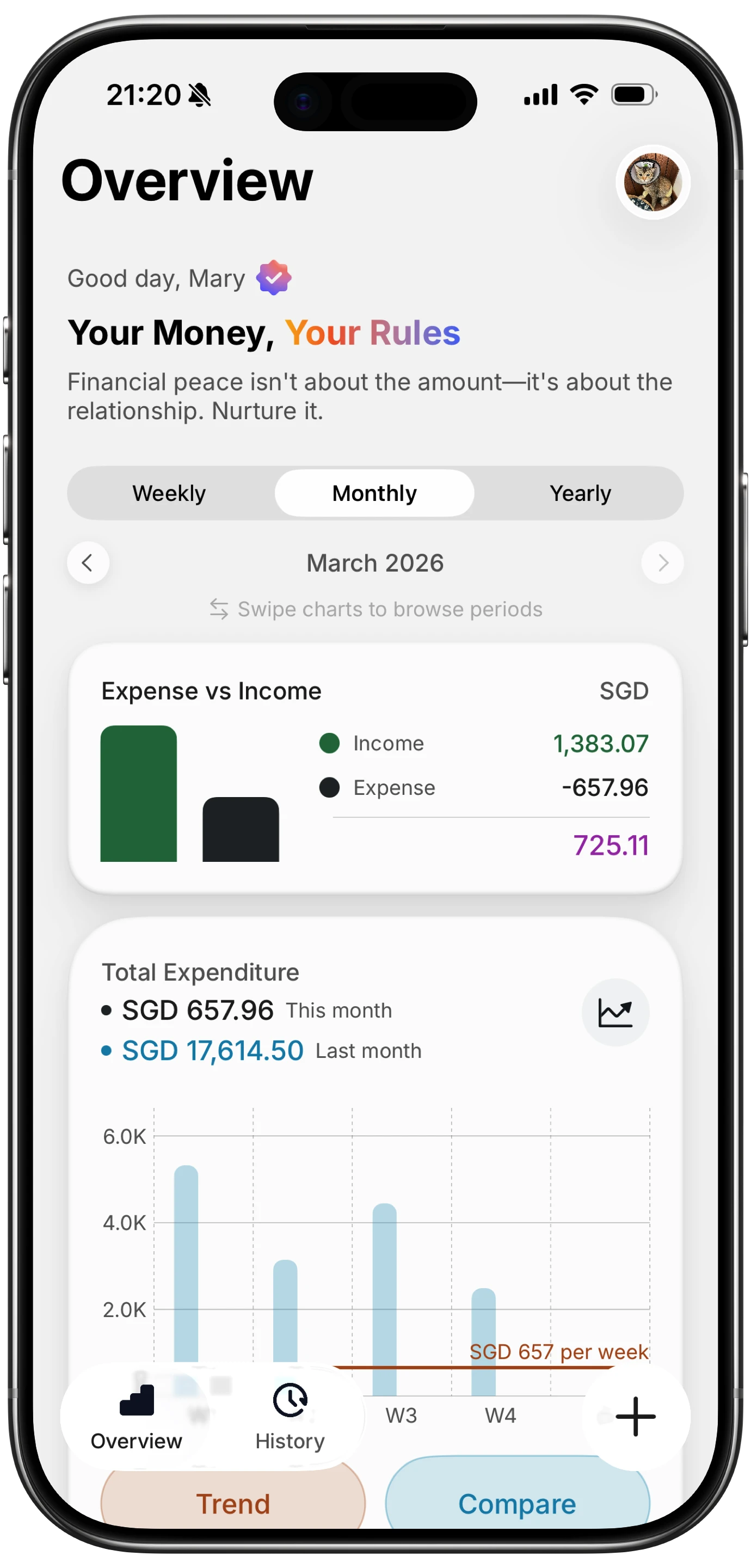
Finny app's Overview feature
Closing the Apple Pay logging gap
The hard part of any layered setup is the logging. If recording an Apple Pay transaction means opening another app and typing it in after every tap, most people quit within a week. The friction is too high. This is where a small piece of automation makes the difference between a system you keep and one you abandon.
On iOS, the cleanest approach is an app that captures the purchase for you at the moment you pay, so the entry exists before you have put your phone away. No bank login, no statement waiting period, no manual app switching. We cover what that reaches in our guide on how to automatically track Apple Pay and a deeper walkthrough of Apple Shortcuts expense tracking automations for 2026.
Finny is the only iOS expense tracker that bakes this directly into the app through a feature called Tap to Track. You set up the Shortcut once, place an NFC tag near your wallet or phone stand, and every Apple Pay purchase becomes a two-tap log: tap the tag, confirm the amount. It is the closest thing to an automatic feed without surrendering bank credentials. If you want a comparison of options that handle this well, the roundup of best apps to track Apple Pay spending in 2026 is a good next read.
Custom categories, recurring view, and cross-card totals
Once logging stops being painful, the next layer is making the data useful. Three things tend to matter most for people coming from the Wallet view:
Custom categories. Wallet's "Shops" bucket might cover groceries, hardware, electronics, and gifts. A dedicated tracker lets you split those into separate lines so a $400 grocery month does not get confused with a $400 month of online shopping.
This changes somewhat in iOS 27, which adds an Insights feature pulling spending and recurring charges from connected accounts into Wallet itself, alongside AI bill splitting. We cover what it does and does not reach in iOS 27 Wallet: bill splitting, Insights, and the gaps left.
Recurring and subscription visibility. Wallet does not flag subscriptions. A tracker that detects or lets you tag recurring charges shows you exactly what auto-renews each month, which is usually where leaks hide.
Cross-card and cash totals. Most people do not pay for everything with one card. A tracker that accepts manual entries, voice input, or receipt scans alongside Apple Pay logs gives you a single total across every payment method, including cash.
The combination of these three is what turns the apple wallet spending tracker from a card statement into a real picture of your month. It is also where Apple's built-in tools, by design, stop trying.
Privacy and the no-bank-login question
One of the quiet reasons people stick with Wallet is that they do not want to hand bank credentials to a third-party budgeting app. That instinct is sensible. Plaid-style aggregators ask for your online banking password, store a token, and pull transaction history on a schedule. Even when implemented well, that is a meaningful surface area.
A layered setup avoids this entirely. Wallet keeps doing its thing on device. The tracker on top can be an offline-first app that never asks for a bank login, stores data locally, and only syncs if you opt in. This is one of the reasons readers often look for a system that lets them track purchases without opening the app at the moment of payment, then review later. Privacy and convenience stop being a tradeoff when the logging itself is automated through Shortcuts rather than a bank feed.
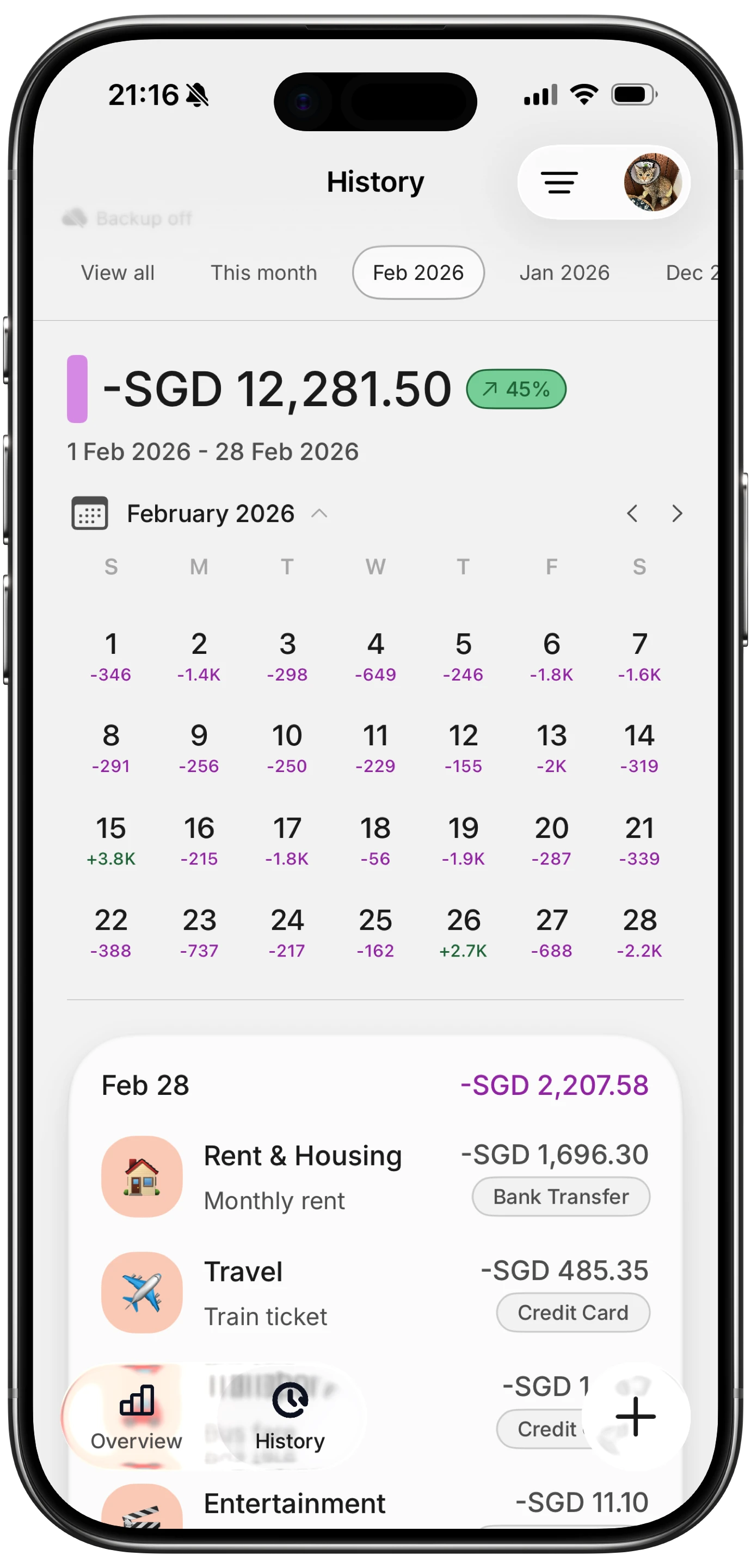
Finny app's History calendar feature
Travel, multi-currency, and shared spending
Three edge cases push past Wallet's design:
Travel. When you tap your Apple Card abroad, Wallet shows the converted amount in your home currency but loses the original. If you are tracking a trip budget, you usually want both. A tracker with a Unified Currency View keeps the original currency on the line item and converts totals at the rate of the day.
Multi-currency life. Freelancers paid in USD, EUR, or GBP, or anyone living across two countries, need totals that respect the source currency. Wallet cannot do this.
Shared visibility. Apple Card lets you share an account, but only with select participants on the same plan. A tracker layer can be as simple or as shared as you want, and works regardless of who holds which card.
For readers comparing app options that handle these cases, our list of best iOS budget apps for 2026 walks through the tradeoffs.
How to choose what to add
If you are already happy glancing at Wallet once a month and you do not need budgets, custom categories, or shared visibility, you do not need anything else. The built-in view is fine.
If any of the following describe you, the layered setup is worth the small amount of effort to put in place:
- You pay across more than one card or use cash regularly.
- You want categories that match your life, not the merchant code.
- You want to see subscriptions and recurring charges in one list.
- You travel and care about the original currency of each charge.
- You share a household budget with a partner who is not on your Apple Card.
- You want to log a purchase the moment it happens, not days later.
For most of these, the right complement is an iOS-native tracker that supports Shortcuts-based logging, custom categories, and offline storage. The setup we recommend for Apple Pay heavy users is described step by step in our Apple Pay and Finny expense tracking setup guide.
The bottom line
Apple Wallet's spending summary is a clean, private, zero-setup view of your Apple Card month. It is a good first layer. It is not a budget, not a subscription tracker, and not a cross-card view. The honest move is to keep it for what it does well and add a thin operational layer on top for everything it does not.
The real unlock is automation at the moment of payment. Once logging an Apple Pay tap takes two seconds instead of two minutes, the rest of the system stays alive. After that, custom categories, recurring views, and shared totals are just configuration.
Common Questions About Apple Wallet Spending
What does the Apple Wallet spending summary actually track?
It tracks Apple Card purchases grouped into broad merchant categories like Food, Shops, and Transportation, with weekly and monthly totals. It does not track other credit cards, debit cards, cash, or upcoming subscription renewals. Apple Cash has its own ledger, and Apple Pay charges made on non-Apple cards live inside the issuing bank's app, not in Wallet.
Why is the Apple Card statement not detailed enough for budgeting?
The Apple Card statement is built to summarize a billing period, not to support budgeting. It uses fixed merchant categories you cannot rename or split, shows only the largest contributors per category, has no recurring view, and does not combine with other accounts. Budgeting needs custom categories, alerts, and a single total across every payment method, which the statement was never designed to provide.
How do I see where my Apple Pay money actually goes?
The fastest way is to use a tracker that captures each Apple Pay purchase as it happens, so the entry is created without you doing anything. That gives you per-merchant detail, custom categories, and a running total without waiting for a bank statement.
Can I categorize Apple Pay spending with custom categories?
Not inside Wallet itself. Wallet uses a fixed set of merchant categories pulled from the card network. To get custom categories, you need a separate tracker that accepts your Apple Pay logs and lets you define your own buckets, such as splitting "Shops" into groceries, electronics, and gifts.
Do I need to link my bank to track Apple Pay spending properly?
No. A Shortcuts-based logging setup captures each tap at the moment of payment, with no bank login required. This keeps your banking credentials private and avoids the lag of waiting for a statement. The tradeoff is that you confirm each transaction once at the time of purchase, which most people prefer over surrendering bank credentials.
Ready to track expenses with less friction?
Download Finny to log expenses using AI, receipts, or text. No bank connections, offline support, and full control over your financial data.