
You tap your iPhone to pay for coffee. The transaction goes through Apple Pay. Then what? Unless you manually open an app and type the amount, that expense disappears into your bank statement, unseen until the end of the month.
Automatically tracking Apple Pay purchases has been one of the most requested features in personal finance. Apple built payment detection directly into the iPhone, but until recently, no budgeting app took full advantage of it.
Finny's Tap to Track feature changes that. The moment you tap to pay, your expense is instantly captured and logged. No bank connection needed. No credential sharing. Just tap and go.
This guide walks you through exactly how to set it up, how it works behind the scenes, and why it solves the biggest problem in expense tracking: consistency. For more on building a tracking habit, see our guide on how to track expenses.
The Problem with Manual Expense Tracking
Most people who try to track their expenses follow the same pattern. They download an app, log expenses diligently for a few days, then gradually forget. By week two, they are three days behind. By week three, they have stopped entirely.
The failure point is always the same: manual entry. Every purchase requires you to:
- Remember you made a purchase
- Open your tracking app
- Type the amount, merchant, and category
- Save the entry
That is four steps per transaction. If you make 5 to 10 purchases a day, you are looking at 20 to 40 manual actions daily. No wonder people give up.
Bank-linked apps solve this by importing transactions automatically, but they introduce privacy concerns. You share your bank login credentials with a third-party service, transactions can take days to sync, and categorization is often wrong. For a detailed comparison of approaches, read our guide on AI expense tracking vs. manual methods.
Tap to Track offers a third option: automatic logging without bank connections.
What Is Tap to Track?
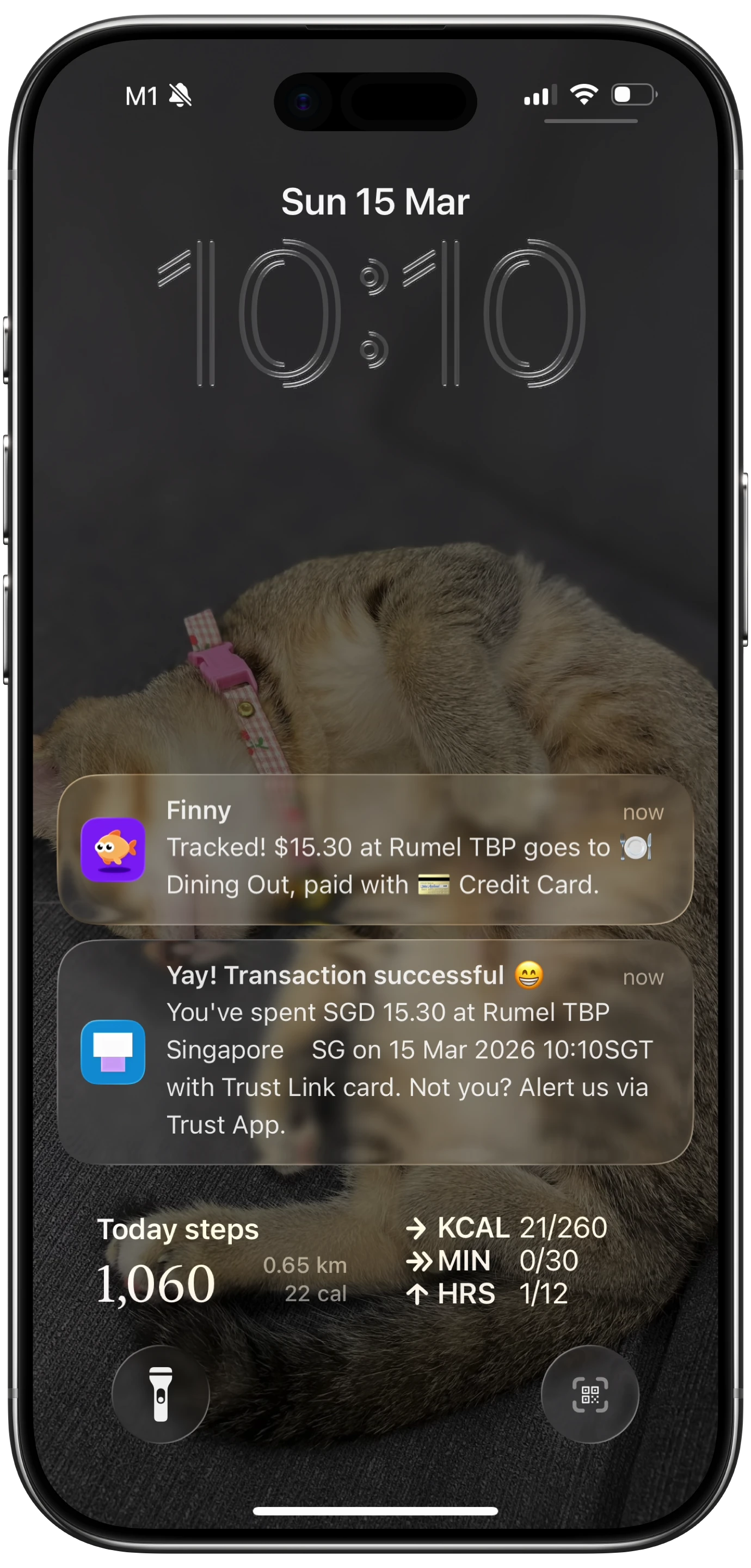
Tap to Track is Finny's feature that automatically logs expenses the instant you pay with Apple Pay. It feels like magic.
This short demo shows Tap to Track logging an Apple Pay purchase the instant you tap:
Here is the flow:
- You tap your iPhone (or Apple Watch) to pay at a terminal
- Apple Pay processes the transaction
- Your iPhone instantly detects the payment
- Finny receives the transaction details
- The expense is logged and categorized by AI
The entire process happens in seconds, with zero manual input from you. You pay like you normally would, and Finny handles the tracking.
This works because your iPhone already knows when you tap to pay. Finny listens for that moment and turns it into a categorized expense entry using AI.
How to Set Up Tap to Track
Setting up Tap to Track takes about two minutes. Here is the step-by-step process.
Step 1: Install Finny
Download Finny from the App Store if you have not already. Create an account using Apple Sign-In for cloud sync, or use the app locally.
Step 2: Follow Finny's Guided Setup
Finny walks you through a quick one-time setup to connect to Apple's built-in payment detection. You will choose which cards to track, and Finny handles the rest.
You can configure tracking for:
- Any card in your Apple Wallet
- A specific card (useful if you only want to track one credit card)
- Transactions above a certain amount (to skip small purchases)
For most users, selecting "Any Card" captures the broadest set of transactions.
Step 3: Tap to Pay Once and Check
The setup finishes with capture running silently, so there is no confirmation to tap at the terminal. Make one payment, then open Finny and look at your history. If the entry is there, you are done and you never think about it again.
From then on, every Apple Pay transaction is logged for you.
What Gets Captured
Tap to Track captures the key data points from each Apple Pay transaction:
Always captured:
- Transaction amount
- Date and time
- Card used
Usually captured (depends on terminal):
- Merchant name
- Location data
Added by Finny's AI:
- Expense category (groceries, dining, transport, etc.)
- Smart tagging based on patterns
When merchant data is available, Finny's AI uses it to assign an accurate category. If the merchant name is generic or missing, Finny prompts you with its best guess and lets you confirm or adjust with a single tap.
The Before and After
To understand the impact, compare a typical day of expense tracking with and without Tap to Track.
Without Tap to Track
- 7:30 AM: Buy coffee. Forget to log it.
- 12:15 PM: Lunch with a colleague. Open the app 2 hours later, try to remember the exact total.
- 3:00 PM: Grab a snack. Decide to log it later.
- 6:30 PM: Groceries. Too tired to open the app.
- 9:00 PM: Try to reconstruct the day. Miss the snack. Estimate the coffee. Give up on the exact lunch total.
Result: 4 transactions, maybe 2 logged accurately.
With Tap to Track
- 7:30 AM: Tap to pay for coffee. Finny logs it.
- 12:15 PM: Tap to pay for lunch. Finny logs it.
- 3:00 PM: Tap to pay for a snack. Finny logs it.
- 6:30 PM: Tap to pay for groceries. Finny logs it.
- 9:00 PM: Open Finny. All 4 transactions are there, categorized and accurate.
Result: 4 transactions, 4 logged automatically. Zero effort.
The difference is not just convenience. It is accuracy. Manual tracking introduces estimation errors and forgotten transactions. Automatic tracking captures everything at the exact amount, every time.
What About Cash and Non-Apple Pay Transactions?
Tap to Track covers Apple Pay transactions. But not everything goes through Apple Pay. Cash purchases, Venmo transfers, online orders paid by card number, and transactions at terminals that do not accept contactless payment all need a different approach.
For those, Finny offers multiple input methods:
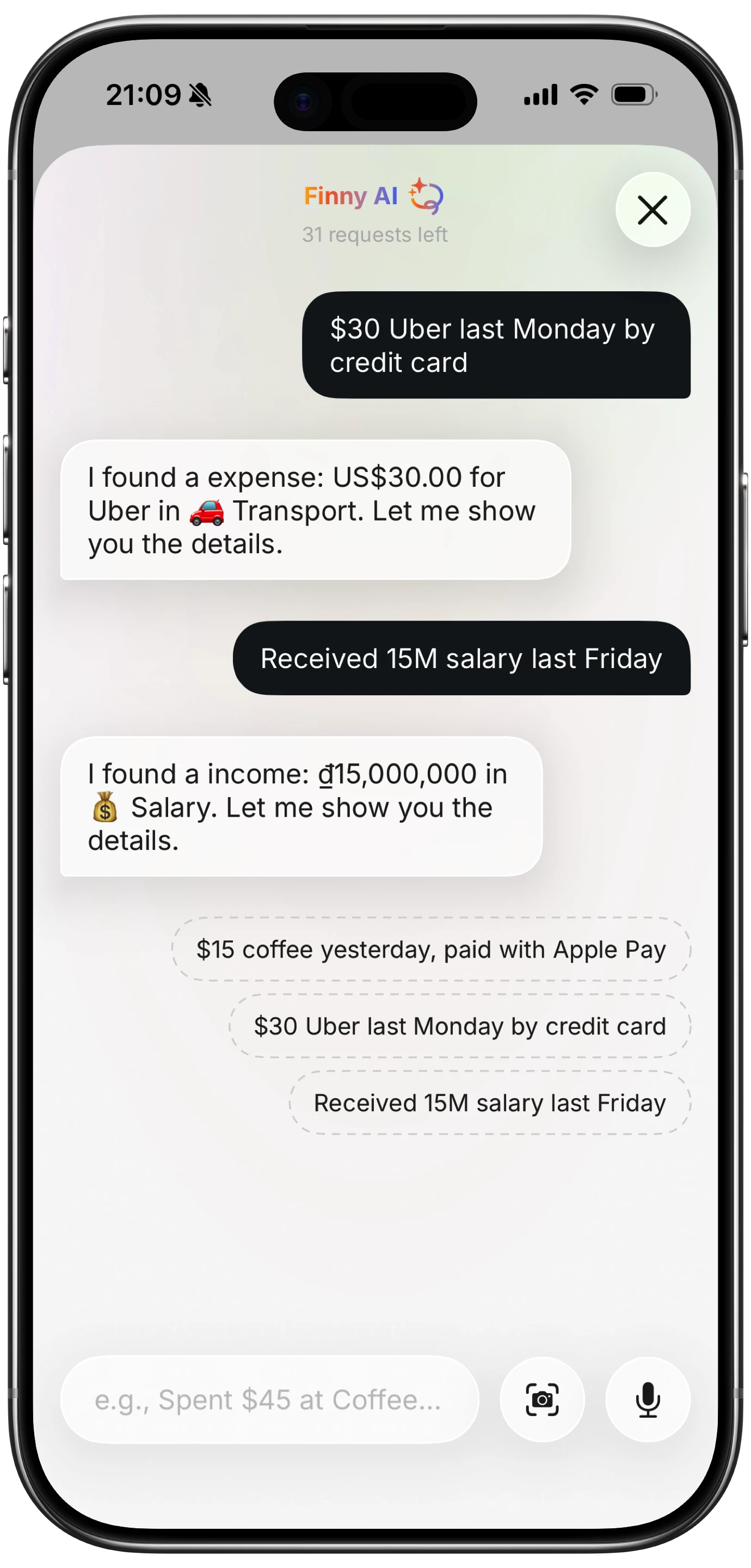
- AI text input: Type "lunch $12.50 with Sarah" and the AI parses it
- Voice input: Say your expense out loud and Finny transcribes and categorizes it
- Receipt scanning: Snap a photo of a receipt (or batch-scan up to 5 at once)
- Share Extension: Share a receipt screenshot from any app directly to Finny
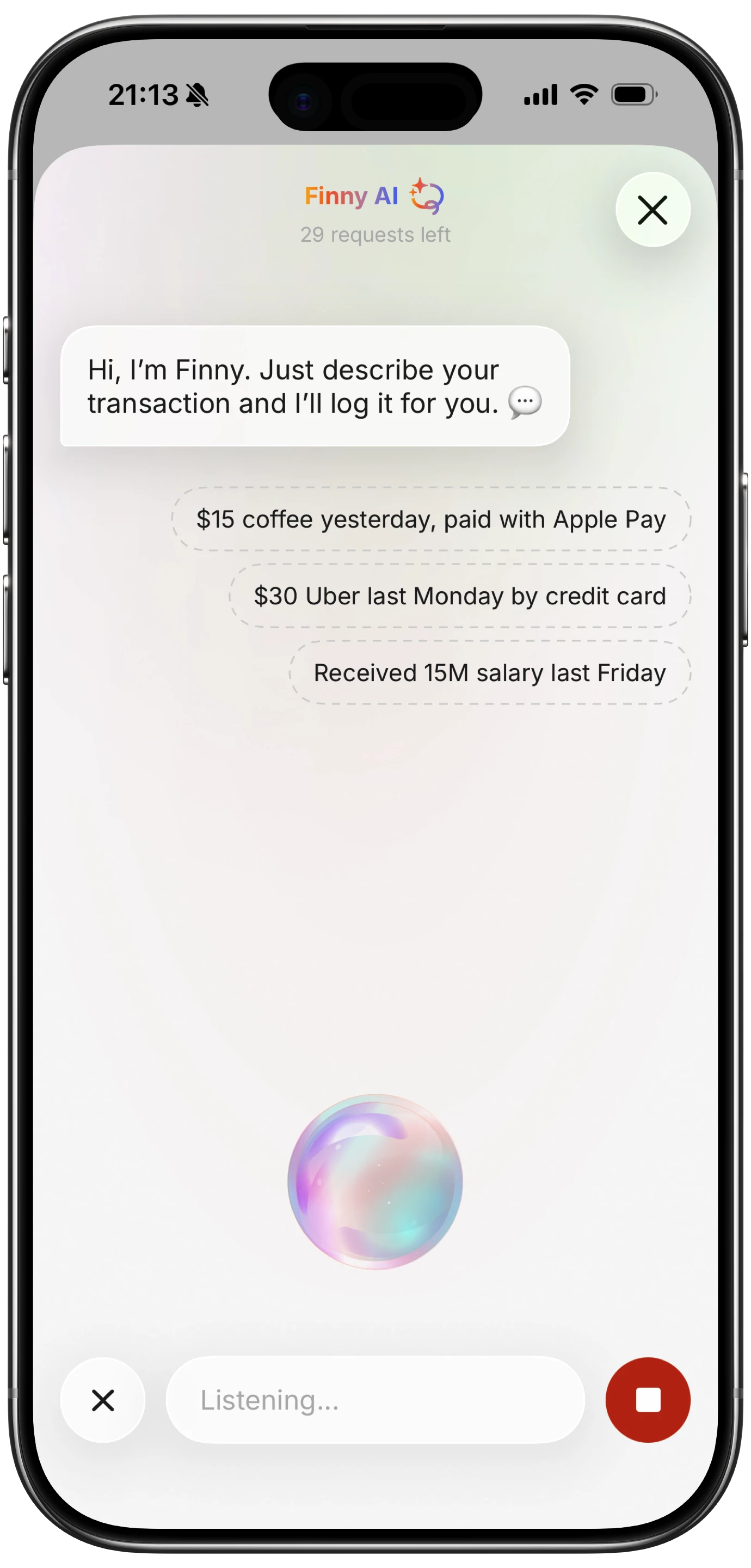
The combination of Tap to Track for Apple Pay and AI input for everything else covers nearly all your transactions with minimal effort. For a walkthrough of the initial configuration, see our guide on setting up Apple Pay with Finny for expense tracking. For more on how offline tracking fills the remaining gaps, read our offline expense tracking guide.
Tips for Getting the Most Out of Tap to Track
Use Apple Pay Everywhere You Can
The more transactions you run through Apple Pay, the more Tap to Track captures automatically. Most major retailers, restaurants, grocery stores, and transit systems accept Apple Pay in 2026. Make it your default payment method. For a roundup of tools that work well with Apple Pay, check out our list of best apps to track Apple Pay spending in 2026.
Review Transactions Weekly
Even with automatic logging, a quick weekly review helps catch any miscategorized expenses. Open Finny on Sunday, scroll through the week, and adjust any categories that look wrong. This takes 2 to 3 minutes and keeps your data clean.
Combine with Receipt Scanning for Big Purchases
For significant purchases where you want the receipt details (itemized groceries, business expenses), use Finny's receipt scanner after the Tap to Track logs the total. This gives you both the automatic log and the detailed breakdown.
Set Up Multiple Cards
If you use different cards for different purposes (one for personal, one for business), you can create separate automations for each card. This lets you tag transactions by card automatically.
Privacy and Security
A common concern with automatic expense tracking is privacy. Here is how Tap to Track handles it:
- No bank connection: Finny never connects to your bank. Transaction data comes from the payment event on your own device, not from a bank API.
- On-device processing: Data is processed locally on your iPhone.
- No credential sharing: You never share bank login details with Finny or any third party.
- You stay in control: Capture runs on your device, and you can turn it off at any time from Finny's Settings.
This is fundamentally different from apps like Monarch, Copilot, or PocketGuard that require bank connections. With Tap to Track, the data flow stays on your device.
FAQ
Does Tap to Track use my AI credits?
Yes, each automatically logged transaction uses one AI request from your daily allowance of 50. For most people, that leaves plenty of credits for receipt scanning, voice input, and other AI features throughout the day.
Does it work with Apple Watch?
Yes. Apple Pay purchases made from an Apple Watch are still captured through your paired iPhone, and the transaction gets logged to Finny.
What if I pay with a physical card instead of Apple Pay?
Physical card swipes and chip insertions produce no payment event on your iPhone, so there is nothing to capture. For those transactions, use Finny's AI text input, voice input, or receipt scanning to log the expense. It takes a few seconds.
Can I track transactions from specific cards only?
Yes. During the one-time setup, you can select specific cards from your Apple Wallet instead of "Any Card." This lets you track only certain cards while ignoring others.
Does it work without internet?
Finny is offline-first. If you make an Apple Pay transaction while offline, the capture still happens locally and Finny stores the expense on your device. It syncs to the cloud when you reconnect.
Stop Forgetting Your Expenses
The biggest barrier to expense tracking is not motivation. It is friction. Every manual step between spending money and recording it creates an opportunity to forget, procrastinate, or estimate.
Tap to Track removes those steps entirely. You pay with Apple Pay like you always do, and Finny handles the rest. No bank connections, no credential sharing, no manual entry.
Download Finny today and set up Tap to Track in two minutes. Your expenses will finally track themselves.