
You check your credit card statement at the end of the month and wonder where $400 went. The transactions are all there, but none of them are organized, categorized, or connected to a budget. That is the gap an expense tracker that imports credit card transactions is designed to fill.
The best apps in this category pull your credit card purchases into a single dashboard where you can see patterns, set limits, and actually understand your spending. But the way they import those transactions varies widely: some connect directly to your bank through Plaid, others accept CSV or OFX file uploads, and a few use AI to extract transactions from statement screenshots or receipts.
This guide compares six popular options, explains the different import methods, and helps you choose the right approach for your situation. For a broader look at tracking tools beyond credit card imports, see our roundup of the best expense tracker apps in 2026. If you want to see charges as they happen rather than after an import, read how to track credit card spending in real time.
How Credit Card Transaction Import Works
Before comparing apps, it helps to understand the three main ways expense trackers bring in credit card data.
Direct Bank Sync (Plaid, Finicity, MX)
Most popular finance apps use a data aggregator like Plaid, Finicity, or MX to connect to your bank or credit card issuer. You enter your login credentials through the aggregator's interface, and the app pulls transactions automatically, usually within a few hours of each purchase clearing.
The advantage is convenience: transactions appear without any effort on your part. The trade-off is privacy. Your bank credentials pass through a third-party service, and the aggregator retains access to your transaction history. Plaid paid $58 million in 2022 to settle a class action lawsuit alleging it harvested consumer data without proper consent.
File-Based Import (CSV, OFX, QFX, QIF)
Some apps let you download a transaction file from your credit card issuer's website and upload it directly. Common formats include CSV (comma-separated values), OFX (Open Financial Exchange), QFX (Quicken Web Connect), and QIF (Quicken Interchange Format).
This method keeps your bank credentials private because you never share them with a third party. The downside is that it requires a manual step: you log into your bank, download the file, and upload it to the app. For most people, doing this weekly or biweekly is manageable.
AI-Powered Statement Scanning
A newer approach uses AI to extract transaction data from screenshots of your credit card statement. You take a screenshot in your banking app and share it with your expense tracker, which reads the merchant names, amounts, and dates automatically.
This method is faster than file-based import and more private than direct bank sync. It works well for people who check their banking app regularly and want to import transactions without sharing credentials. For more on tracking without bank connections, read our guide on how to track expenses without linking your bank.
Quick Comparison Table
| App | Import Method | File Formats | Auto-Categorization | Offline | Price |
|---|---|---|---|---|---|
| Finny | Statement screenshots, CSV | CSV | AI-powered | Yes | a low monthly price |
| Monarch Money | Bank sync, CSV | CSV | Rules-based | No | $14.99/mo |
| YNAB | Bank sync, file import | CSV, OFX, QFX, QIF | Manual review | No | $14.99/mo |
| Copilot | Bank sync | None | AI-powered | No | $13/mo |
| PocketGuard | Bank sync, CSV | CSV | Automatic | No | $12.99/mo |
| Wallet by BudgetBakers | Bank sync, import | CSV, XLS | Automatic | Partial | $4.49/mo |
The Best Expense Trackers for Credit Card Transactions
Finny: Best for Statement Screenshot Import
Finny takes a different approach to credit card transaction import. Instead of connecting to your bank through Plaid, it uses AI to read statement screenshots. You open your banking app, screenshot your recent transactions, and share the image with Finny. The AI extracts each transaction's merchant name, amount, and date, then logs them as individual expenses.
This method is faster than downloading and uploading CSV files, and it avoids sharing your bank credentials with any third party. Finny's Batch Snap and Log feature lets you import up to five statement screenshots at once, which means you can capture an entire month of credit card transactions in under a minute.
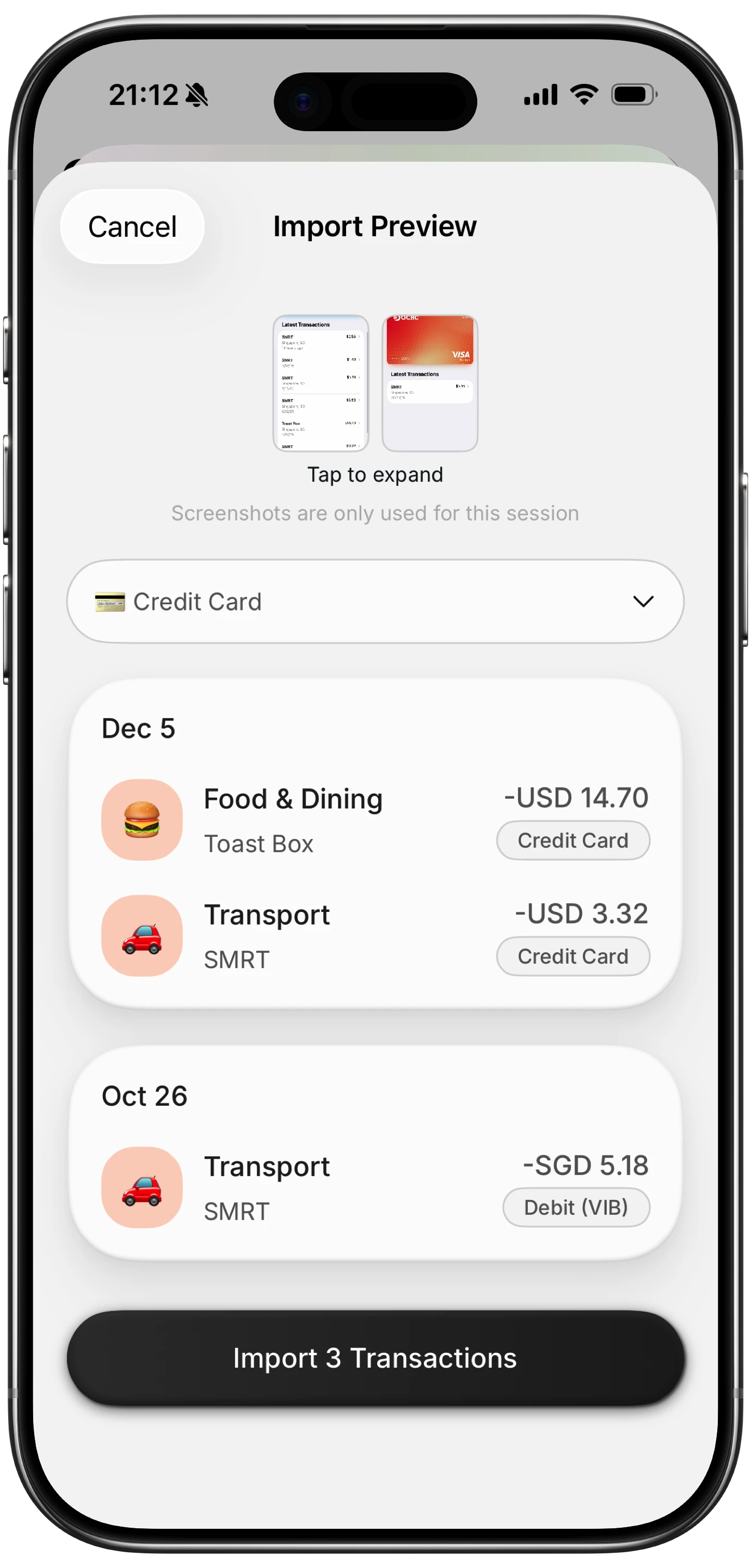
Finny app's screenshot import feature
Beyond statement import, Finny supports CSV import for bulk transaction uploads. You can also log individual purchases using AI text input (type "coffee at Starbucks $5.75"), voice dictation, or receipt scanning. The Tap to Track feature auto-logs Apple Pay transactions the moment they happen, which effectively captures credit card spending in real time if you use Apple Pay.
The app works fully offline, supports 150+ currencies with a unified currency view, and costs a low monthly or yearly price with 50 AI requests per day. That price point is notable when every competitor in this guide charges $4 to $15 per month.
Import methods: Statement screenshots (AI), CSV, receipt scanning, Tap to Track (Apple Pay)
Best for: People who want credit card transaction import without sharing bank credentials.
Monarch Money: Best for Automatic Bank-Linked Import
Monarch Money connects to over 14,000 financial institutions through three data providers: Plaid, Finicity, and MX. Once linked, your credit card transactions flow in automatically and appear in a unified financial dashboard alongside checking accounts, investments, and loans.
The automatic import works well for most major credit cards. Transactions typically appear within hours of clearing, and Monarch's rules-based categorization lets you set up patterns so recurring merchants are always assigned to the right category.
For situations where bank sync fails or for accounts that do not support direct connections, Monarch accepts CSV file uploads. The importer uses keyword-based column mapping, so it can handle CSVs from most credit card issuers without requiring a specific format. A community tool called Manual Monarch also helps convert non-standard bank exports into Monarch-compatible format.
At $14.99/month ($99.99/year), Monarch is a premium product with no free tier. The 7-day trial is short. The app requires internet access for all core functions and does not work offline.
Import methods: Plaid/Finicity/MX bank sync, CSV upload
Best for: Households that want all credit cards, bank accounts, and investments in one dashboard.
YNAB: Best File-Based Import for Budgeters
YNAB (You Need a Budget) supports the widest range of file-based import formats: CSV, OFX, QFX, and QIF. If your credit card issuer exports in any of these formats, you can drag and drop the file into YNAB and have transactions appear in your budget within seconds.
The OFX and QFX formats carry metadata that helps YNAB match and deduplicate transactions, which makes them more reliable than CSV imports. If you also use YNAB's direct bank sync through Plaid, file-based import serves as a backup for when connections break, which happens more often than most people expect.
Where YNAB stands out is what happens after import. Every transaction must be assigned to a budget category, which forces you to make intentional decisions about every dollar. This zero-based budgeting philosophy is YNAB's core value proposition and the reason it has a dedicated user base.
The drawback is effort. YNAB does not auto-categorize transactions. Every imported credit card charge requires manual review. At $14.99/month ($109/year), the combination of manual review work and premium pricing makes YNAB a hard sell for people who just want their credit card spending organized.
Import methods: Plaid bank sync, CSV, OFX, QFX, QIF file import
Best for: Zero-based budgeters who want detailed control over every imported transaction.
Copilot: Best AI Categorization for Imported Transactions
Copilot connects to your credit card accounts through Plaid and imports transactions automatically. What sets it apart is the AI categorization engine: each user gets a private machine learning model that learns from your corrections and improves over time.
In testing, Copilot's AI correctly categorized about 93% of transactions on the first pass. The model considers the transaction name, amount, day of week, card used, and your previous categorization patterns. After a few weeks of corrections, accuracy improves further.
The app also supports Apple Card integration with detailed transaction data. Copilot's Adaptive Budgets feature analyzes your imported transactions to suggest realistic spending limits based on actual habits rather than arbitrary targets.
The significant limitation is the lack of file-based import. Copilot does not accept CSV, OFX, or any other file format. If your credit card issuer does not work with Plaid, you cannot import those transactions. At $13/month ($95/year), Copilot is iOS-only and has no Android or web version.
Import methods: Plaid bank sync only
Best for: iOS users who want the smartest auto-categorization for bank-synced credit card transactions.
PocketGuard: Best for Simple Spending Limits
PocketGuard connects to credit card accounts through Plaid and Finicity, supporting roughly 18,000 financial institutions. The app's signature feature is "In My Pocket," which calculates how much you can safely spend after accounting for bills, savings goals, and necessities.
For credit card users, this is genuinely useful. You see your imported transactions and immediately know whether you are within budget or trending toward overspending. The app also identifies recurring charges and subscriptions, which helps catch forgotten trial memberships or price increases.
PocketGuard accepts CSV imports for credit card transactions from a wide list of financial institutions. If your bank is not on the list, a generic CSV option handles most standard formats.
The free tier connects up to two accounts. PocketGuard Plus ($12.99/month or $74.99/year) unlocks unlimited connections, debt payoff planning, and custom categories. There is no AI input, no receipt scanning, and no offline support.
Import methods: Plaid/Finicity bank sync, CSV upload
Best for: People who want a simple "can I afford this" answer from their imported credit card data.
Wallet by BudgetBakers: Best for International Credit Cards
Wallet by BudgetBakers connects to over 15,000 banking institutions worldwide, making it one of the best options for importing credit card transactions from international issuers. The app uses open banking APIs in supported regions and Plaid or other aggregators elsewhere.
When you first connect a credit card, Wallet downloads 90 to 180 days of transaction history depending on your issuer. Ongoing transactions sync automatically. The web app also supports manual import of older transactions via CSV and XLS files.
A new REST API (released in beta in March 2026) adds programmatic access to your data, which appeals to users who want to build custom dashboards or automate transaction processing.
Wallet Premium ($4.49/month or $34.99/year) unlocks bank sync, data export, and advanced reports. The free tier supports manual entry with basic budgeting features but no bank connections.
Import methods: Bank sync (open banking + aggregators), CSV, XLS import
Best for: Users with credit cards from international banks that other apps do not support.
How to Choose the Right Import Method
The best import method depends on how you balance convenience against privacy.
If convenience is your priority: Bank sync through Plaid or Finicity gives you automatic imports with no effort after initial setup. Monarch, Copilot, and PocketGuard are strong choices here. Be aware that you are sharing bank credentials with a third-party aggregator.
If privacy matters most: Statement screenshot import (Finny) or file-based import (YNAB) let you bring in credit card transactions without sharing credentials. Finny's AI scanning is faster than manual file downloads, while YNAB supports the widest range of file formats.
If you want both: Several apps offer a hybrid approach. PocketGuard and Monarch support both bank sync and CSV import, so you can use whichever method suits each account. For a complete guide to how to track expenses across different methods, we have a dedicated walkthrough.
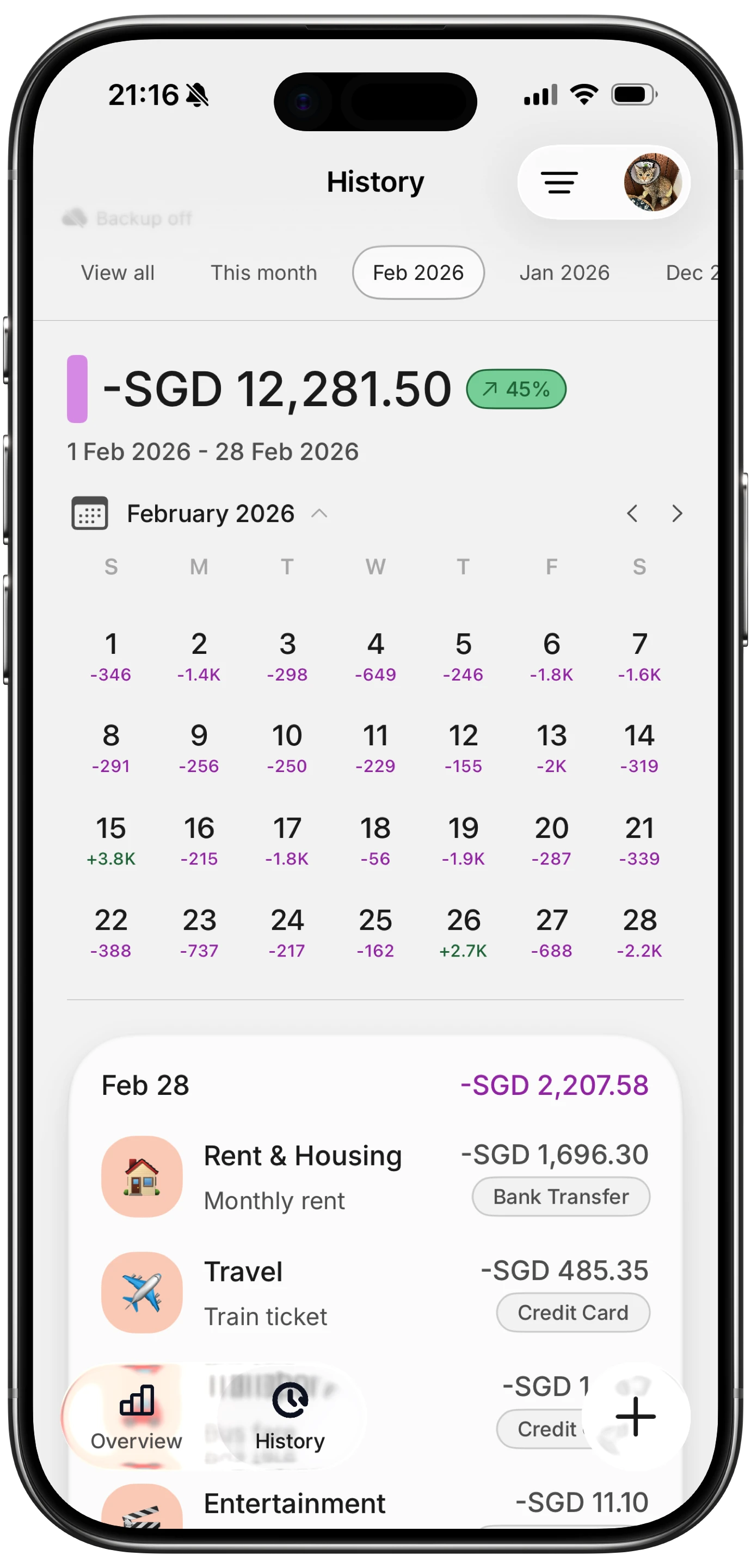
Finny app's History calendar feature
What About Automatic Categorization?
Importing transactions is only half the job. The other half is organizing those transactions into meaningful categories so you can see where your money goes.
Copilot leads in automatic categorization with a per-user AI model that improves over time. Monarch uses customizable rules that apply consistent categories to recurring merchants. PocketGuard and Wallet by BudgetBakers offer basic auto-categorization. YNAB intentionally requires manual categorization as part of its budgeting philosophy.
Finny's AI handles categorization during the import step itself: when it reads your statement screenshot, it assigns categories based on merchant names. You can also set up custom categories to match your personal system. For a deeper look at this feature, read our guide to automatic expense categorization.
Frequently Asked Questions
Can I import credit card transactions without linking my bank account?
Yes. YNAB supports file-based import in CSV, OFX, QFX, and QIF formats, so you can download transactions from your credit card issuer and upload them directly. Finny takes this further with AI-powered statement screenshot import: you take a screenshot of your credit card transactions in your banking app and Finny extracts the data automatically. Both methods keep your bank credentials private.
How often should I import credit card transactions?
For bank-synced apps, transactions import automatically within hours. For file-based or screenshot import, weekly or biweekly works well. More frequent imports keep your budget current and make it easier to catch unauthorized charges early. Most people find that a weekly import takes less than two minutes once you establish the habit.
Do imported credit card transactions get categorized automatically?
It depends on the app. Copilot uses an AI model that categorizes about 93% of transactions correctly on the first attempt and improves with use. Monarch and PocketGuard apply rule-based categorization. YNAB requires you to manually assign every transaction to a budget category. Finny categorizes transactions during the AI import step based on merchant name recognition.
What file format is best for importing credit card transactions?
OFX and QFX formats carry the most metadata and support automatic duplicate detection, making them the most reliable choice when available. CSV is universally supported but requires more manual mapping. If your credit card issuer offers OFX or QFX downloads, prefer those over CSV. If you want to skip file downloads entirely, Finny's screenshot import or Plaid-based bank sync are faster alternatives.
Are there security risks with importing credit card transactions through Plaid?
Plaid encrypts data in transit and at rest, and it is used by thousands of financial apps. However, linking through Plaid means a third party holds your bank credentials and has access to your transaction history. Plaid settled a $58 million class action in 2022 over data handling practices. If this concerns you, file-based import or screenshot-based import methods offer the same data without credential sharing.
Start Importing Smarter
Getting your credit card transactions into an expense tracker should not require handing over your banking credentials or spending 20 minutes on manual data entry. The right app and import method can make this process fast, private, and painless.
Download Finny to log expenses using AI, receipts, or text. No bank connections, offline support, and full control over your financial data.