Best iPhone Lock Screen Budget Widgets for Expense Tracking (2026)
Most people forget what they have already spent by the time they unlock their phone. The data is in the app, but looking at it requires intent, and most days that intent never forms. A widget sitting on the lock screen removes that barrier completely: the number is visible before you even enter a passcode.
This guide covers how to set up and choose an iphone lock screen budget widget, compares the apps that support them best, and walks through a practical setup. It also covers StandBy, Focus modes, and the real limits of widget data freshness.
Why Lock Screen Visibility Changes Budget Habits
Behavioral researchers describe a concept called passive accountability: the idea that you do not need to actively think about a rule for it to shape behavior. A number on your lock screen works the same way. Every time you reach for your phone, which most people do over a hundred times a day, you see how much you have spent. You do not need to open anything. The data registers at a glance.
Home screen widgets require navigating to the right page. App notifications require tapping a banner. Lock screen widgets require nothing. They are always on the first surface you see.
The effect compounds when the widget shows a budget limit alongside the current total. Seeing "Spent $63 of $120" is more useful than seeing "$63 spent" because it answers the question you actually care about. A good budget widget makes that comparison unavoidable.
For a deeper look at reducing the friction of logging in the first place, see how to track purchases without opening an app.
How to Add Budget Widgets to Your Lock Screen
Adding a lock screen widget on iOS 17 and later takes about thirty seconds.
- Long-press the lock screen until the "Customize" button appears at the bottom.
- Tap "Customize," then tap the lock screen itself (not the wallpaper option).
- Tap the widget area directly below the clock. A picker slides up showing available widgets from installed apps.
- Find your budget app in the list and tap the widget you want. Most apps offer a small circular widget (for the row beneath the clock) and a rectangular version.
- Tap the X on any widget you are replacing, then tap Done and Set as Wallpaper Pair.
Home screen widgets follow the standard long-press and jiggle mode flow. To reach the widget picker, tap the plus icon in the upper-left corner after entering jiggle mode.
One practical note: lock screen widget slots are limited. You get one row of small or inline widgets beneath the clock. Most apps offer two or three widget sizes. The small circular widget typically shows a single number. Rectangular widgets can show a label and a number side by side, which is more useful for budget tracking.
Best Apps With Lock Screen Budget Widgets
The comparison below reflects features available as of May 2026. Lock screen widget support, customization depth, and free tier availability vary by app. Refresh rates are governed by iOS WidgetKit and are estimated ranges, not guarantees from any vendor.
| App | Lock Screen Widget | Customization | Free Tier | Est. Refresh Rate |
|---|---|---|---|---|
| Finny | Yes (spending + budget) | Moderate | Yes, with charts | Every 15-60 min |
| YNAB | Yes (available to spend) | Limited | No ($14.99/mo) | Every 15-60 min |
| Copilot Money | Yes (spending summary) | Moderate | No ($7.99/mo) | Every 15-60 min |
| Monarch Money | Yes (budget progress) | Limited | No ($9.99/mo) | Every 30-60 min |
| PocketGuard | Yes (in my pocket) | Limited | Yes (basic) | Every 30-60 min |
A few notes on this table. YNAB's lock screen widget shows your "ready to assign" or category balance, which fits its zero-based method well but can be confusing out of context. Copilot's widget is polished visually but requires an active bank connection to show live data. Monarch's widget reflects budget categories but updates less aggressively. PocketGuard's "in my pocket" number is its core feature and translates naturally to a widget.
Setting Up a Lock Screen Widget in Finny
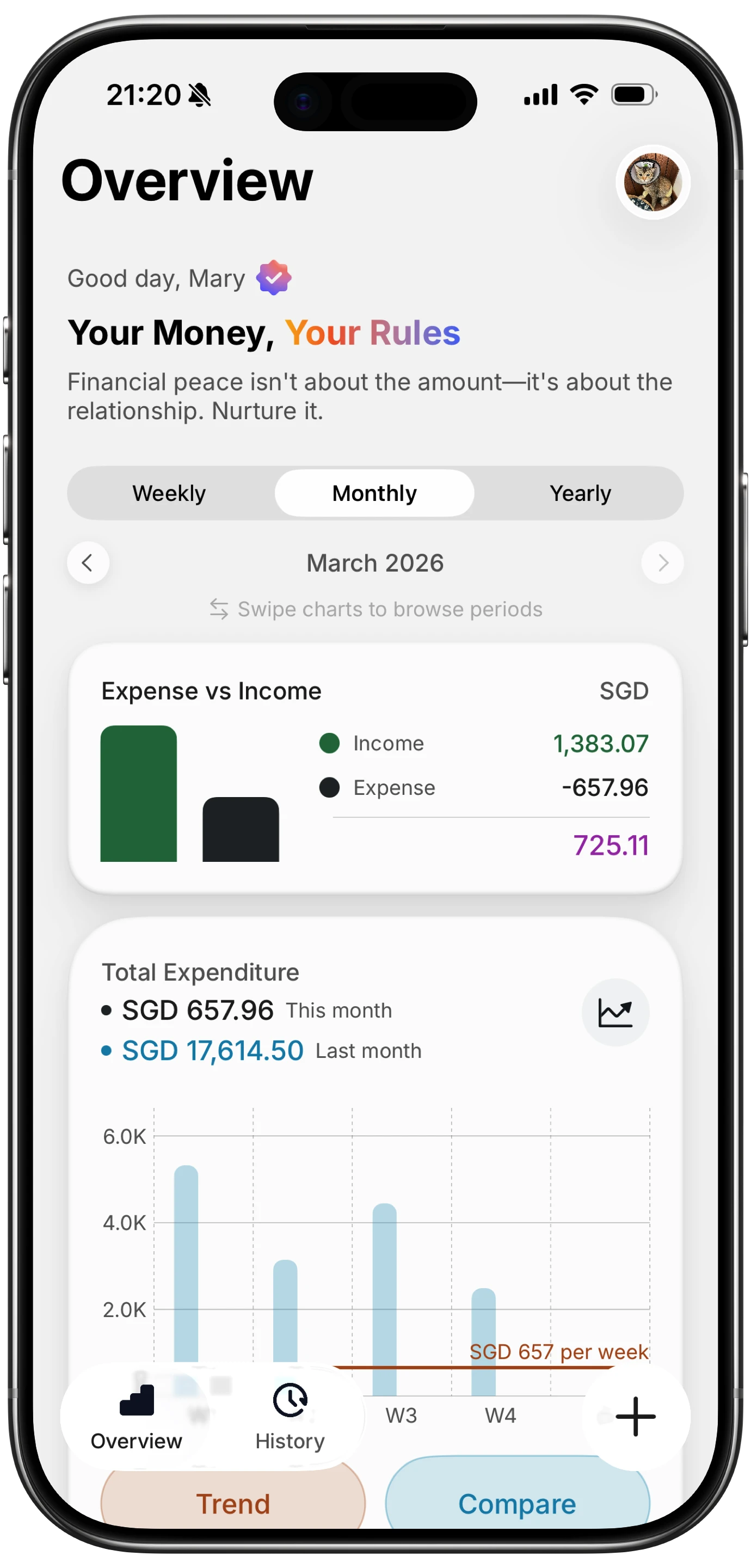
Finny is a privacy-first expense tracker that stores data on-device, which means its widget does not depend on a server sync before displaying your numbers. Here is the setup from scratch.
Step 1: Log at least a few expenses. Finny's Tap to Track feature lets you log a purchase in two taps. The widget pulls from your local data, so the more you log, the more accurate the widget will be.
Step 2: Open the lock screen customization editor. Long-press the lock screen and tap Customize.
Step 3: Tap the widget row. Finny should appear in the app list. Choose the budget widget that shows current spending against a category limit.
Step 4: Set a budget in the app. Navigate to the Budgets tab and create a monthly or weekly budget for the category you want on your lock screen. The widget updates to reflect that limit automatically.
Step 5: Verify the widget is pulling the correct period. Finny lets you scope widgets to daily, weekly, or monthly totals. Tap the widget in the editor to see configuration options.
Because Finny is offline-first, the widget reflects whatever is logged locally. There is no bank sync latency. The tradeoff is that you must log expenses yourself, but features like AI text input and Batch Snap make that faster than opening a traditional form.
For ideas on automating the logging side of this setup, see Apple Shortcuts expense tracking automations.
Focus Modes, StandBy, and the Action Button
Lock screen widgets are one piece of a larger iOS system. Three other features interact with budget tracking in useful ways.
Focus modes. iOS allows you to assign different lock screens to different Focus modes. If you have a Work Focus with a stripped-down lock screen, you can assign your budget widget lock screen to Personal Focus only. When you switch to Personal, the budget widget appears automatically. This separation is useful if you do not want spending data visible during work calls or screen shares.
StandBy. When an iPhone running iOS 17 or later is placed on its side while charging, it enters StandBy mode, a persistent display that shows large-format widgets. Any app that supports home screen widgets can surface data in StandBy. Budget apps with widget support should appear in the StandBy widget picker. The large format is more readable across a room, which makes it useful as a bedside or desk display showing the day's spending total. Note that the specific appearance in StandBy depends on how the developer has configured their widget sizes. Confirm the app you choose displays cleanly in this mode before relying on it.
Action Button. On iPhone 15 Pro and later, the Action Button on the left side of the device can trigger a Shortcut. You can configure it to open a specific app directly to the logging screen, run a voice input Shortcut, or launch a custom expense flow. Combined with a lock screen widget showing the current total, the Action Button creates a two-part system: glance at the widget to see where you stand, press the button to log the next purchase. For more on this pattern, see logging expenses without typing.
Limits of Widget-Based Expense Tracking
Widgets are useful, but they have constraints worth understanding before you rely on them.
Refresh delays. WidgetKit, the iOS framework that powers home screen and lock screen widgets, gives each widget a budget of roughly 40 to 70 refreshes per day in production. That translates to a refresh roughly every 15 to 60 minutes depending on system conditions, battery state, and how often you view the widget. The number you see on your lock screen may not reflect an expense you logged two minutes ago. If you need immediate confirmation, open the app.
Manual logging dependency. Apps like Finny that do not connect to bank accounts show only what you log. The widget is accurate to your data, not to your actual spending. Apps with bank connections can show more complete data automatically, but they depend on sync cycles from the aggregator, which adds its own latency and connectivity requirements.
Screen time and glance fatigue. A widget that shows a stressful number every time you pick up your phone can increase financial anxiety for some users. If you find yourself dreading the widget rather than feeling informed by it, consider changing the widget to show a weekly total rather than a daily one, which updates more slowly and feels less punishing.
Privacy on the lock screen. Any data visible on the lock screen is visible to anyone who looks at your phone before you enter your passcode. If you share close physical space with others and prefer financial privacy, consider using a home screen widget instead, which is only visible after unlocking.
For a broader look at your options, see best money tracker app in 2026 and best budget planner apps in 2026.
Frequently Asked Questions
Do all iPhone budget apps support lock screen widgets?
No. Lock screen widget support requires the developer to implement it using WidgetKit with the correct widget families, specifically the accessoryCircular, accessoryRectangular, and accessoryInline families introduced with iOS 16. Apps that have not updated their widget code, or that rely solely on web-based architecture, will not appear in the lock screen widget picker. Always check the app's App Store page or settings before assuming it works.
How often does a budget widget update on iPhone?
iOS manages widget refresh through WidgetKit's budget system. A frequently viewed widget typically refreshes every 15 to 60 minutes. The system adjusts this based on battery level, usage patterns, and whether Low Power Mode is active. Developers can request more frequent updates, but iOS may throttle them. Do not expect real-time data from any lock screen budget widget.
Can I show multiple budget categories in one lock screen widget?
It depends on the app. Most lock screen widgets are small enough to show only one number or one category at a time. Some apps let you cycle through categories by tapping the widget in the lock screen editor and selecting which category to display. Home screen widgets in medium or large sizes can show multiple categories side by side, but those are not available on the lock screen itself.
Does StandBy mode work with budget widgets?
StandBy mode, available on iPhone with iOS 17 or later, supports home screen-compatible widgets displayed in a large format when the phone is charging on its side. Budget apps that support widgets should appear in the StandBy widget picker. However, the display quality varies. Apps that have optimized for large widget sizes will look better in StandBy than those that simply scale up a small widget. Check each app individually to confirm the experience.
Is it safe to show spending data on the lock screen?
The data is accessible to anyone who can see your screen before you enter your passcode. iOS does not restrict lock screen widget visibility to authenticated users by default. If you handle your phone in shared spaces or are concerned about financial privacy, use a home screen widget instead, which requires Face ID or a passcode to view. Apps like Finny that store data on-device do not expose spending data to third-party servers regardless of widget placement.
Start Seeing Your Budget Before You Unlock
A lock screen budget widget is one of the lowest-effort habit changes available to anyone trying to spend more intentionally. The setup takes under two minutes and the daily reminder is automatic from that point forward.
Finny offers a free tier with charts and a Pro plan at a low monthly price, well below the cost of YNAB, Copilot, or Monarch. Its offline-first design means the widget reflects your actual logged data without waiting on a bank sync. Download it, set a budget in one category, add the lock screen widget, and see whether the passive visibility changes how you think about spending.