Migrate from Android to iPhone: Best Money Apps for the Switch (2026)
Switching from Android to iPhone is one of the smoothest hardware transitions you can make in 2026. The friction shows up later, when you open your budget app and realize your transaction history, categories, and recurring bills did not come with you. Most personal finance apps treat cross-platform data portability as an afterthought.
This guide covers the best money apps android to iphone switchers should consider, along with a pre-migration checklist, a comparison table, and a walkthrough of common pitfalls. The goal is to land on iPhone with your financial tracking intact rather than starting from zero.
What Breaks When You Switch
The core problem is that most budget apps store data on their own servers, not on your device. That sounds like good news for cross-platform access, but the reality is inconsistent. Some apps offer CSV export from their Android version but no CSV import on iOS. Others sync via a shared account login, which works fine until the app has platform-specific features that do not carry over.
A few things that commonly break:
- Transaction history. If the app does not offer a CSV or spreadsheet export, you may lose months of records.
- Categories and rules. Custom categories, split rules, and merchant mappings are rarely portable even within the same app.
- Recurring bill tracking. Apps that detect recurring bills from bank feeds may need to re-learn your patterns on iOS.
- Bank connections. Some third-party bank-link providers have different institution coverage between Android and iOS. Your connection may need to be re-authorized or re-linked.
Pre-Migration Checklist
Before you activate Move to iOS or restore from a backup, spend thirty minutes on this list inside your current Android app.
- Export your transaction history. Look for a CSV or Excel export option in settings. Not all apps offer this, but the ones that do let you keep a searchable record even if you switch apps entirely.
- Screenshot your recurring bills. Write down the amount, billing date, and category for every subscription or recurring charge. Most budget apps do not export this structured data.
- List your custom categories. Take a screenshot of your category tree. You will need to recreate it on whatever iOS app you choose.
- Note your budget amounts. Copy each budget line, the period (monthly, weekly), and any rollover settings.
- Record your account balances. If the app tracks net worth, write down the current balances per account so you can verify your setup after the move.
- Identify which apps have an iOS version. Some Android apps either do not exist on iOS or have a significantly reduced feature set. This is the time to decide whether to stay with the same app or switch to something iOS-native.
The Move to iOS app handles contacts, photos, and media well. It does not migrate third-party app data, so financial apps require manual attention regardless of how you transfer the rest of your phone.
Best Money Apps for iPhone After the Switch
The table below covers apps worth considering in 2026 for someone moving from Android. Data import support refers to CSV transaction import, not bank-feed re-sync. Pricing is per month billed annually unless noted.
| App | Android-to-iOS Data Import | Free Tier | AI Input | Apple Watch | Price |
|---|---|---|---|---|---|
| YNAB | Manual CSV import supported | No | No | Yes | $14.99/mo |
| Monarch Money | Account sync carries over via login | No | Yes | No | $14.99/mo |
| Copilot | iOS-only, no Android version | No | Yes | Yes | $12.99/mo |
| Finny | Manual entry; CSV import in Pro | Yes | Yes | Yes | Free / $2.99 mo |
| PocketGuard | CSV export on Android; limited iOS import | Yes (limited) | No | No | Free / $7.99 mo |
| Spendee | Shared account login; wallet data syncs | Yes | No | No | Free / $2.99 mo |
| Goodbudget | Login-based sync; envelope data carries over | Yes (10 envelopes) | No | No | Free / $10/mo |
A few notes on this table. Monarch Money's cross-platform sync is the cleanest option if you want to keep the same app with no manual re-entry, provided you were already a Monarch user on Android. YNAB requires you to re-import transactions via CSV and re-enter your budget amounts, but the import format is well-documented. Copilot is iOS-only, so it is not an option for current Android users, but it is worth knowing because switchers sometimes consider it after the move.
For a broader comparison of iOS budget tools, see Best iOS Budget Apps in 2026 and Best Personal Finance Apps for 2026.
Apps That Do Not Survive the Switch
A few categories of apps are worth dropping during the migration rather than trying to carry forward.
Android-only apps are the obvious case. If there is no iPhone version, you have no choice but to switch apps. The silver lining is that migration is a natural moment to reassess whether the app was actually serving you.
Apps with weak iOS versions. Some apps are genuinely cross-platform in name but prioritize their Android build. Features like widgets, lock screen access, and wearable support may be missing or months behind on iOS. Check App Store reviews specifically from the past six months before committing.
Apps that relied heavily on Android-specific integrations. Certain Android budgeting tools used Google Pay transaction data or Google Wallet notifications as an automatic logging trigger. That pipeline does not exist on iPhone. If your tracking relied on those hooks, you will need to replace them with an Apple-native equivalent.
Apps with poor Apple Watch support. If you wear an Apple Watch or plan to, check whether the app has a native Watch app before migrating. Adding expenses from your wrist is a common workflow that some cross-platform apps skip entirely.
For context on what to look for in a Mint replacement (if you were previously on that platform), see Best Mint Alternatives in 2026.
Migration Walkthrough
Once you have completed the checklist and chosen your iPhone app, work through these steps in order.
Step 1: Set up your new app before anything else. Create your account, connect or add accounts manually, and configure categories before you import any transactions. Getting the structure right first means imports or manual entries slot into the correct buckets.
Step 2: Import or enter historical transactions. If your Android app exported a CSV, check whether your iOS app supports import. If not, decide how far back your history needs to go. Most people only need the current month for budgeting purposes. Older records can live in a spreadsheet if needed.
Step 3: Recreate recurring bills. Use the screenshots from your checklist. Add each bill with its amount and due date. Some apps will detect recurring patterns after a few months of bank feed data, but do not rely on that for the first billing cycle.
Step 4: Set up budgets. Re-enter your budget amounts by category. If you were doing zero-based budgeting on Android, the same structure should be available in most iOS apps.
Step 5: Test for one full billing cycle. Run the new setup for at least one month before declaring the migration complete. A full cycle will surface any bills you forgot, categories that need splitting, and any bank connections that need attention.
For a broader look at tracking options across different styles, see Best Money Tracker App in 2026 and Best Budget Planner Apps in 2026.
Apple-Only Features Worth Using Once You Are On iPhone
One of the real gains from switching to iPhone for money tracking is access to features that simply do not exist on Android.
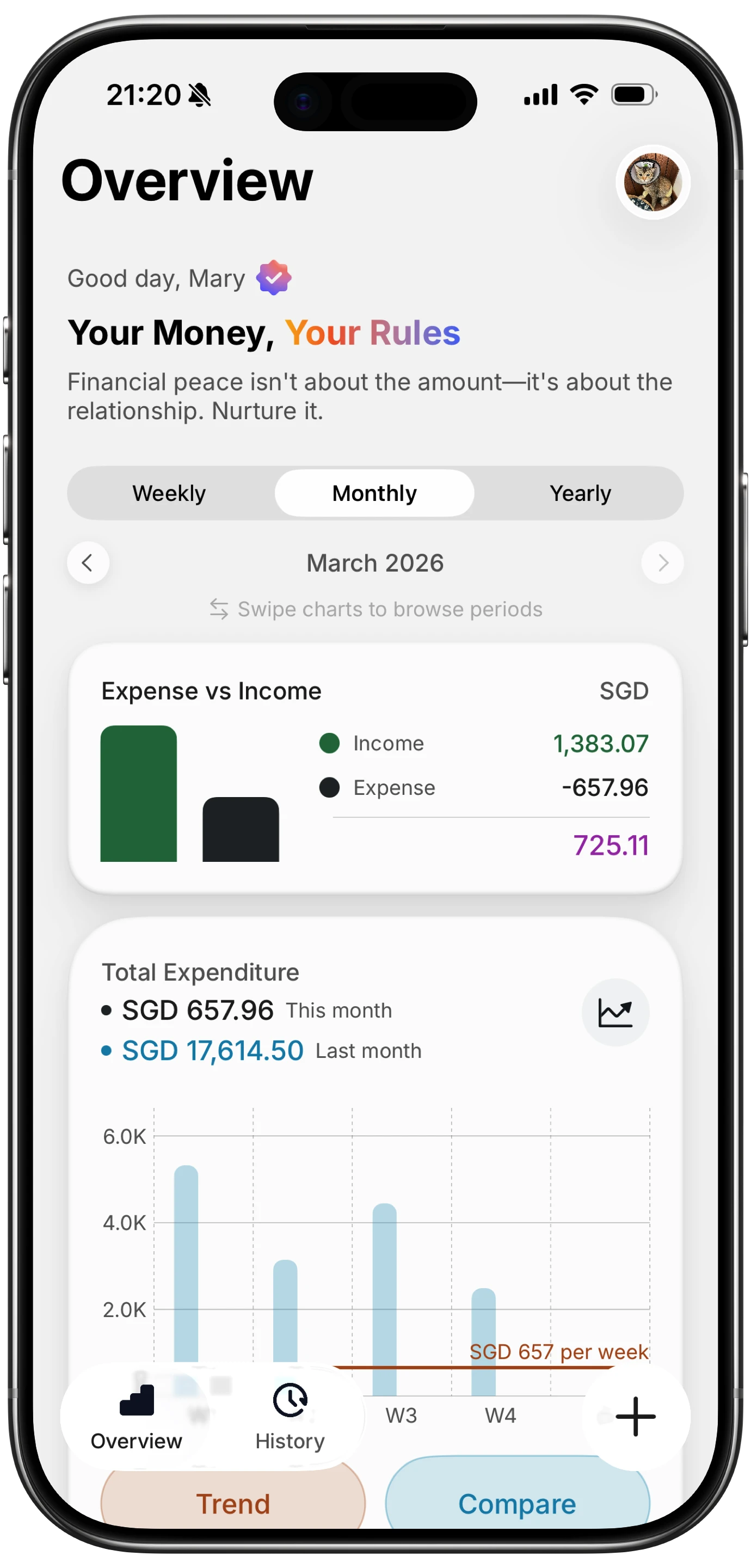
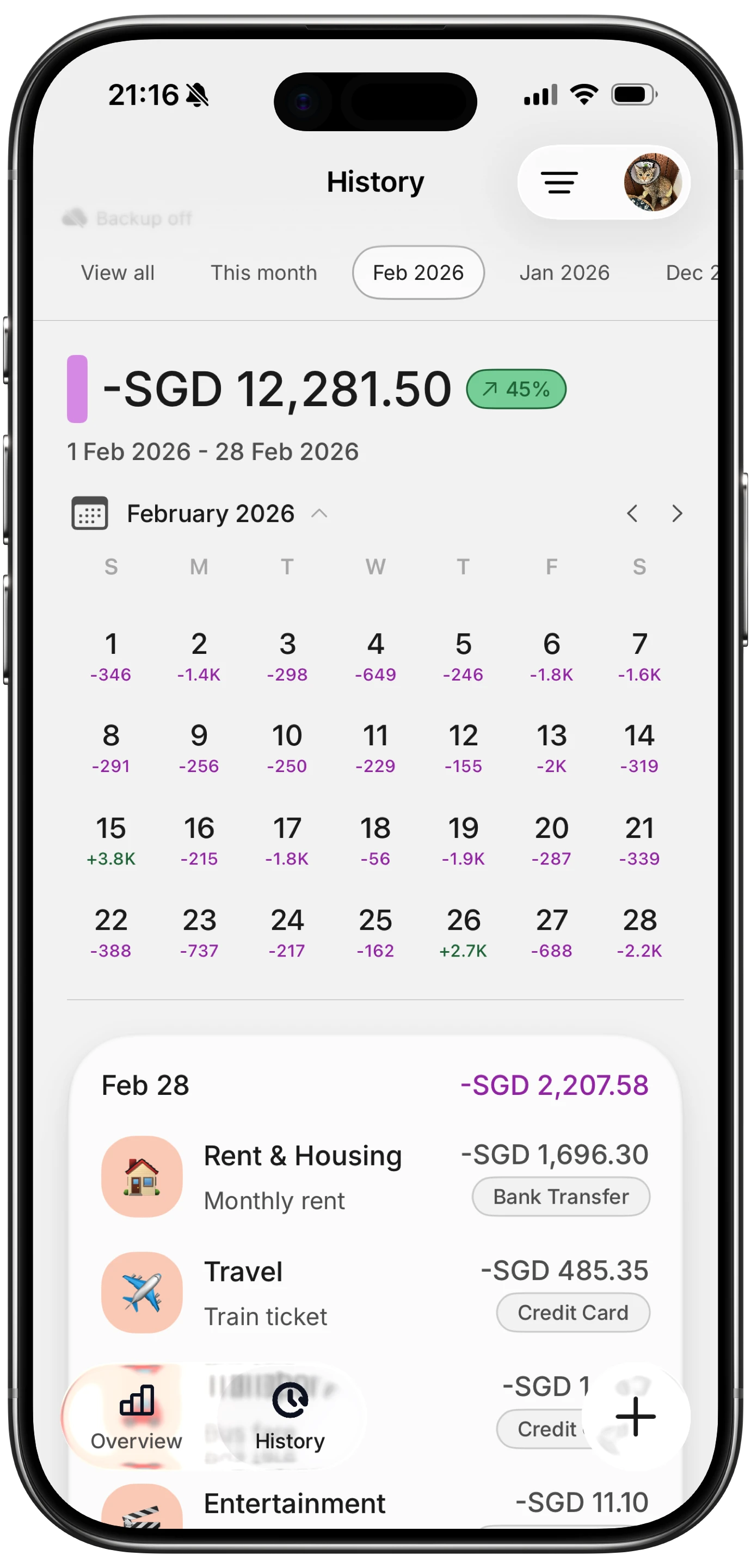
Tap to Track. When you pay with Apple Pay, your iPhone can instantly log the transaction without you opening any app. Finny's Tap to Track uses this system-level notification to capture the merchant and amount the moment you tap. For someone re-learning their logging habits on a new phone, this kind of zero-friction capture removes a major obstacle. More detail on setup is in Apple Pay and Finny: Expense Tracking Setup.
Shortcuts automation. Apple Shortcuts lets you build personal automations tied to location, time, or NFC tags. You can create a shortcut that opens your budget app every time you arrive home, or one that prompts you to log cash spending at the end of each day.
Lock screen and StandBy widgets. iOS 17 and later allow budget app widgets on the lock screen and in StandBy mode, which is the always-on display shown when your iPhone charges on its side. Glancing at your remaining grocery budget from a nightstand without unlocking your phone is a small but genuinely useful shift in habit.
Apple Watch complications. A native Watch app lets you add expenses from your wrist while your phone stays in your pocket. This is useful at markets, coffee shops, or anywhere pulling out your phone feels disruptive.
Common Pitfalls and How to Avoid Them
Assuming the same app works equally well on both platforms. It often does not. Spend ten minutes reading recent iOS App Store reviews before you commit to a cross-platform app.
Skipping the CSV export step. Once you hand in your Android phone or factory reset it, that data is gone unless you exported it first. Do this before switching.
Choosing a paid plan before testing. Several iOS budget apps offer a free tier or a trial period. Use it. Your habits may change on iPhone, particularly if you start using tap-to-pay more frequently, and the app that felt right on Android may not be the best fit once you are using Apple Watch and lock screen widgets.
Forgetting to update notification permissions. iOS requires explicit permission for each app to send notifications. Budget apps often use notifications for bill reminders and overspending alerts. After installing your new app, go to Settings and confirm notifications are enabled.
Re-connecting every bank account manually. Take this as an opportunity to review which accounts actually need to be connected. If you have accounts you no longer use, skip them.
For a comparison of how these apps stack up against each other beyond the migration context, see Best Budget Planner Apps for 2026.
Frequently Asked Questions
Can I transfer my budget app data when switching from Android to iPhone?
It depends on the app. Apps like Monarch Money and Goodbudget use login-based account sync, so your data carries over automatically when you log in on iOS. Apps like YNAB support CSV import, which requires an extra step but preserves your history. Many apps do not offer structured import at all, meaning you start fresh. Check your specific app's export settings before migration day.
Does Move to iOS transfer finance app data?
No. Move to iOS migrates media, contacts, calendars, and some app data for supported apps, but third-party finance apps are not included. Your budget history, categories, and recurring bills need to be handled separately, either by exporting from the Android app or by manually recreating your setup on iOS.
Which budget apps are cross-platform with the best data continuity?
Monarch Money and YNAB have the strongest cross-platform continuity in 2026. Monarch syncs via account login and carries over transactions from bank feeds. YNAB supports CSV import and has an identical feature set on iOS and Android. Spendee and Goodbudget also sync via login, though their free tiers are more limited.
Is there a budget app that is only available on iPhone?
Yes. Copilot Money is iOS-only and does not have an Android version, so it is not an option for active Android users. However, it is a strong choice to consider once you complete the switch. Several other apps, including Finny, are built primarily for iOS and take better advantage of Apple-specific features like Tap to Track, Shortcuts, and Apple Watch.
What should I do if my Android app does not export data?
Take screenshots of your current month's transactions, your budget amounts, and any recurring bills before you switch. This gives you a manual reference. Then start fresh on iPhone, recreating your budget structure in the new app. It takes about an hour but ensures accuracy. If you only need aggregate data, most apps let you view monthly totals that you can note down before leaving.
Make the Switch Count
Migrating to iPhone is a good moment to revisit whether your current budget app is actually working for you. The break in continuity, while inconvenient, also removes the inertia that keeps most people in apps they have outgrown.
If you want to start with a low-friction option built specifically for iPhone, Finny is free to start, supports AI-assisted expense entry, and includes Tap to Track for Apple Pay. No bank connection required.