
Apple Shortcuts for Expense Tracking: 10 Automations Worth Installing in 2026
Most people who quit expense tracking quit for the same reason: the gap between spending money and logging it is too wide. Opening an app, tapping through menus, typing an amount, picking a category. By the time you finish, you are already on to the next thing and the next three expenses are forgotten by dinner.
Apple Shortcuts expense tracking closes that gap. A Shortcut can fire from a Siri phrase, an NFC tap, a Focus mode, a calendar event, or a Home Screen widget. It runs in under two seconds and writes to whatever app you already use: Finny, Numbers, Reminders, Notes, Google Sheets. Below are ten real automations worth building this week, arranged roughly from easiest to most ambitious.
If you are new to the broader landscape, skim our best iOS budget apps in 2026 and best AI budget apps in 2026 roundups first so you know which target app fits your style.
Why Shortcuts Beat Installing Another Finance App
Three reasons.
Privacy. Shortcuts run on-device. No aggregator, no bank credentials, no third party reading your transaction history.
Speed. An NFC tap or a Siri phrase goes from trigger to saved entry in under two seconds. Most apps take longer just to launch.
Consistency. You can only track what you actually log. Removing friction is the single biggest predictor of whether a tracking habit sticks.
What You Need Before You Start
- An iPhone on iOS 17 or later (iPhone 15 Pro or newer unlocks the Action Button)
- The Shortcuts app (pre-installed; re-download if you deleted it)
- A target app that exposes Shortcut actions. Finny, Notes, Numbers, Reminders, Drafts, Bear, Google Sheets, and Things all work. Apps without Shortcut support can still receive data via the share sheet
- Optional: a pack of programmable NFC stickers (about $15 for ten)
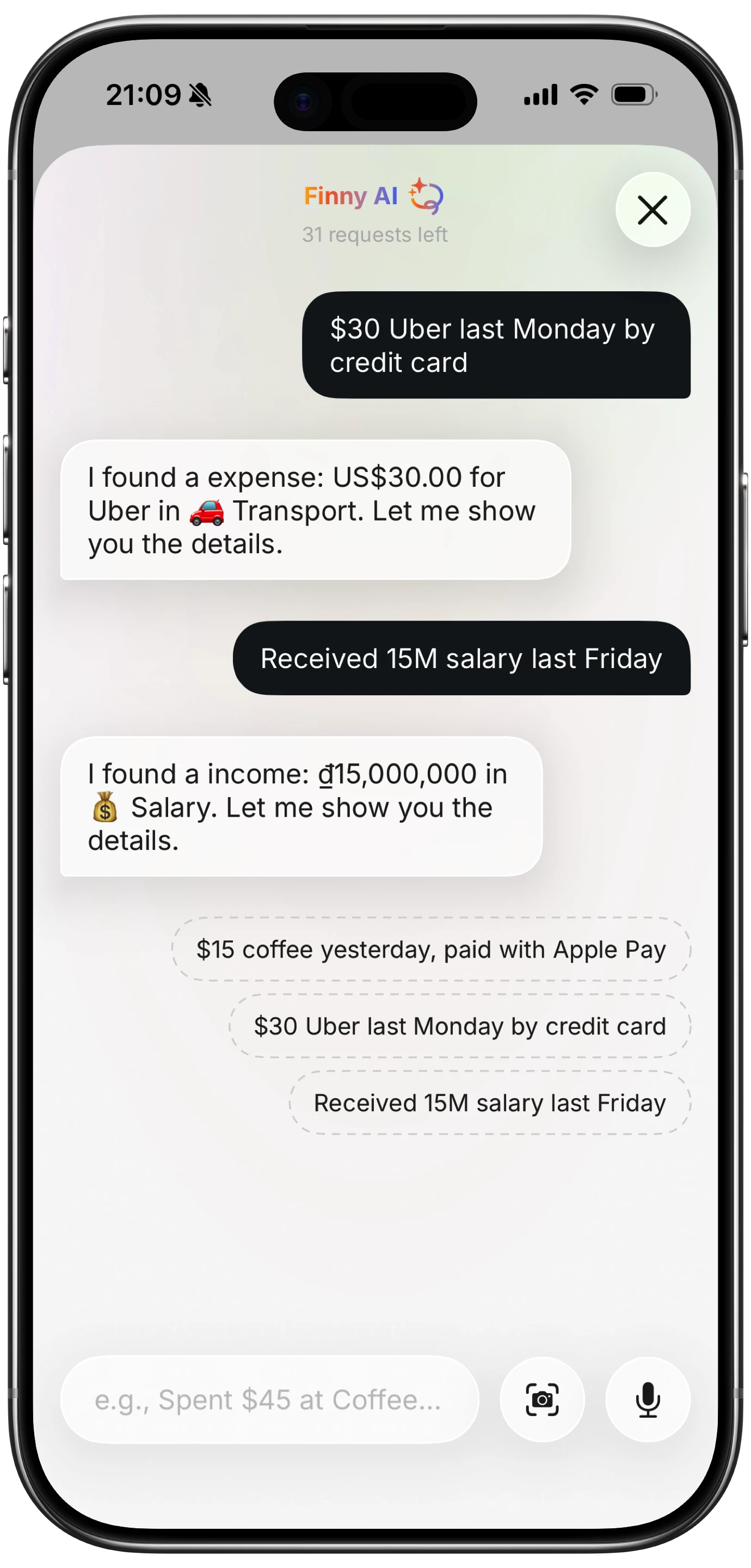
Finny app's AI chat feature
10 Apple Shortcuts for Expense Tracking
Each automation is independent. Build the ones that fit your spending pattern.
1. Say It to Siri
- Trigger: Voice phrase ("Hey Siri, log expense")
- Target: Finny, Drafts, or Numbers
- For: Anyone who talks faster than they type
Create a Shortcut that prompts for text input, then pipes the result into your target app's log action. Test it once with "Hey Siri, log expense" and speak "twelve bucks coffee." The AI input in most modern finance apps parses that cleanly into amount, merchant, and category.
2. Action Button or Home Screen Widget
- Trigger: Action Button (iPhone 15 Pro and later) or a Shortcuts widget
- Target: Any
- For: Power users who want sub-second logging
Build the same prompt Shortcut as #1 and bind it to the Action Button under Settings → Action Button → Shortcut. Not on a Pro? Add the Shortcuts widget to your Home Screen or Lock Screen. One long press or one tap, speak or type, done. For a step-by-step setup covering the three main Action Button variants (voice, NFC confirm, photo capture), see our Action Button expense tracker setup for iPhone 15 Pro and 16 Pro guide.
3. NFC Tag on Your Wallet
- Trigger: NFC tag on your wallet or phone case
- Target: Finny or your preferred tracker
- For: People who pay mostly with Apple Pay
Stick a programmable NFC tag on the back of your wallet. In Shortcuts → Automation → NFC, scan the tag and attach the log action. After each Apple Pay purchase, tap your phone to the wallet to confirm the amount. This is the manual cousin of Finny's Tap to Track setup, which fires automatically at the moment of payment.
For a look at the automatic version of this, here is Tap to Track capturing a tap-to-pay purchase on its own:
4. NFC Tag on the Car Dashboard
- Trigger: NFC tag on dashboard or console
- Target: Numbers sheet titled "Mileage Log"
- For: Freelancers, realtors, and anyone claiming business miles
Add columns for date, odometer, and purpose. Tap the dashboard tag at the start and end of each drive. No paper log, no app running in the background, no GPS battery drain. This is not IRS-grade route logging, but it meets the contemporaneous-record bar for most solo filers.
5. Location Prompt: Leaving the Supermarket
- Trigger: Leave Location
- Target: Your Log Expense Shortcut from #1
- For: Weekly grocery shoppers
Set up a Location automation for your usual supermarket with a "Log grocery spend?" alert. You walk out, your phone asks once, you tap Yes and speak the total. Run it with "Ask Before Running" for the first week until you trust it, then switch to Run Immediately.
6. Monthly Subscription Auto-Log
- Trigger: Time of day, monthly (for example, 9am on the 14th)
- Target: Your expense app
- For: Anyone with predictable subscriptions
If Netflix hits on the 14th at $15.49, you do not need a bank sync to track it. Schedule a Time of Day automation, fire the log action with the fixed amount and merchant, and add a notification so you catch price changes when the charge hits your card. Duplicate per subscription.
7. Calendar Event: New Trip Sheet
- Trigger: Event Starts, filtered by title contains "Flight"
- Target: Numbers (new sheet per trip)
- For: Digital nomads, consultants, anyone with travel reimbursements
Every time a flight event starts on your calendar, this automation spins up a new Numbers spreadsheet named for the trip. Pair with Shortcut #1 so voice logging writes to the active trip sheet. Multi-currency travelers should still use a dedicated app for conversion, but the trigger gives you a clean slate per trip.
8. Share Sheet: Receipt to Expense
- Trigger: Share from Photos
- Target: Finny or a text file
- For: Anyone who screenshots Apple Pay confirmations or receipts
Enable Show in Share Sheet on a new Shortcut, accept Images, and use the built-in "Extract Text from Image" action. Pipe the result into your expense app. Select a receipt in Photos, tap Share, pick the Shortcut. OCR happens on-device.
9. Share Sheet: Statement Screenshot to Transactions
- Trigger: Share from Photos
- Target: A Numbers sheet or your tracker's bulk import
- For: Anyone who tracks spending from bank statement screenshots
Similar to #8, but built for multi-transaction screenshots. Extract Text, then use "Match Text" with a regex like \$?\d+\.\d{2} to pull every amount. For a full walkthrough of the bank statement workflow, see our track personal expenses from bank statements guide.
10. Focus Mode: Recurring Work Expenses
- Trigger: Work Focus turns on
- Target: Numbers or your expense app
- For: Hybrid workers with consistent daily spend
If your Work Focus turns on every weekday morning and you grab the same coffee on the way in, log it automatically. Add the fixed amount to a "Work Expenses" sheet when the Focus activates. Use it only for genuinely recurring items, and skip the day manually when you change routine.
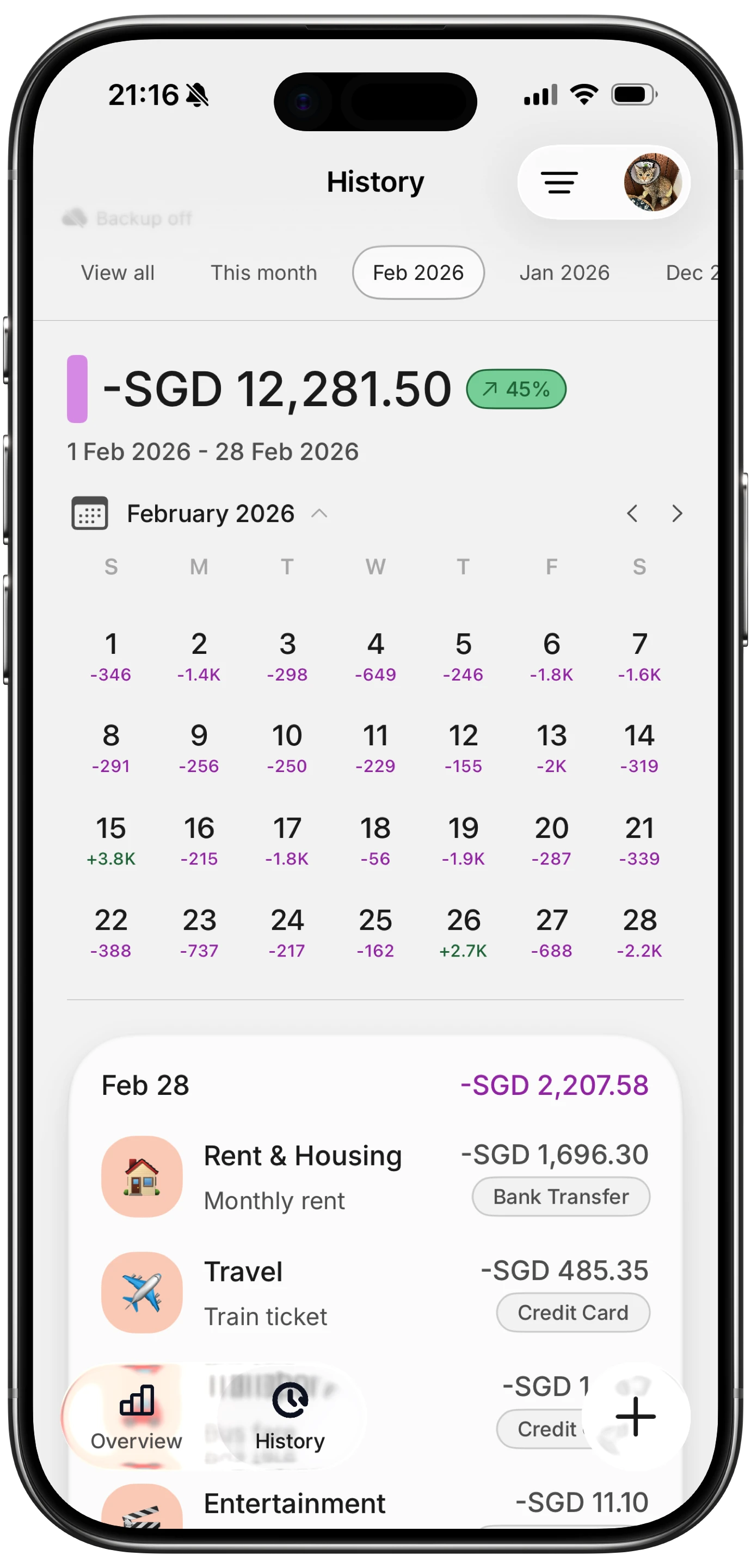
Finny app's History calendar feature
How to Share Shortcuts With Your Team
Tap the Shortcut, hit the share icon, choose Copy iCloud Link. Anyone on iOS who opens the link gets a preview of every action and a one-tap Add Shortcut button. No App Store submission, no subscription, no sideloading.
For freelancer groups or small teams this is a real workflow unlock. Bookkeeping communities can publish mileage and subscription packs. Consultancies can standardize how contractors log billable expenses.
Two rules before you share:
- Strip personal data. Replace specific merchant names, amounts, or Numbers sheet references with "Ask for Input" actions so the Shortcut works for any recipient.
- Warn recipients to review automations set to Run Immediately before enabling. You are letting someone else's script write to your files.
Limits: What Shortcuts Cannot Do
Shortcuts are powerful, but they are not a full finance platform.
- No GPS mileage tracking. Location triggers fire on arrival or departure, not mid-route. For IRS-grade mileage logs you still need a dedicated app.
- No bank sync. Shortcuts do not read bank APIs. Everything is captured at the point of spend or from a screenshot.
- No multi-user budgets. Shortcuts are device-scoped. Household sharing needs a shared Numbers file or a multi-user app.
- No running totals across automations. Each Shortcut is a snapshot. Dashboards live in the target app.
- No heavy AI parsing by themselves. On-device OCR and App Intents work, but ambiguous input ("lunch with M.") needs the destination app's intelligence.
For the gaps Shortcuts leaves, a lean expense app fills in. Finny's AI input, offline-first design, and low-cost Pro tier pair well with the automations above, but the premise of this post stands: you can build most of the tracking stack yourself with apps already on your phone.
Frequently Asked Questions
Can I build apple shortcuts expense tracking without any third-party app?
Yes. Numbers and Reminders are both Apple apps with Shortcut actions. Build a Numbers sheet with columns for date, amount, category, and merchant, and use "Add Row" as the final action in every automation above. You lose AI categorization and multi-currency totals, but you gain total control and zero subscription cost.
Do these Shortcuts work on Apple Watch?
Most do. Siri-triggered and Home Screen Shortcuts run on Apple Watch. NFC automations fire on the paired iPhone, not the watch itself. Action Button Shortcuts are iPhone 15 Pro and later only. Apple Watch Ultra complications give you another one-tap entry point, useful when your phone is in a bag.
Will running multiple automations drain my battery?
No. Shortcuts fire on discrete events (NFC, time, Focus, location, share sheet) and exit once the action list finishes. There is no continuous polling. Real-world impact across ten active automations is under one percent of daily battery for most users.
Can Shortcuts fully replace a dedicated budget app?
For simple trackers, yes. A Shortcuts-plus-Numbers setup works if your goal is to record and review weekly. For envelope budgeting, rule-based categorization, multi-currency conversion, or shared household budgets, a dedicated app still does the heavy lifting. Use Shortcuts as the input layer and let the app handle analysis.
Which Shortcut should I build first?
Number 2 (Action Button or Home Screen widget). It is the one that earns back the most time in the first week. Once a logged expense takes under two seconds, you stop forgetting them, and everything else becomes optional.
The point of apple shortcuts expense tracking is not to replace every finance app. It is to make logging so cheap in time and attention that you actually do it. Pick two automations from this list, build them this weekend, and see how your tracking changes. For the zero-tap Apple Pay capture that sits on top of these patterns, see our how to automatically track Apple Pay guide. And once your Shortcuts are built, our iPhone home screen setup for budgeting guide covers where to place them so they actually get used. For a curated shortlist of the ones worth building first, see our best money shortcuts for iPhone roundup, and if you are choosing between apps to receive them, our Finny vs Toshl vs Lunch Money comparison breaks down the options.