
The number one reason people stop tracking expenses is friction. Opening an app, tapping fields, typing amounts, selecting categories, and saving the entry takes 30 to 60 seconds per transaction. Multiply that by ten or fifteen daily purchases, and expense tracking starts to feel like a second job.
Logging expenses without typing removes the biggest barrier to consistent tracking. When you can record a purchase in under five seconds, without touching your keyboard, you actually do it. Every time.
Finny is the only expense tracker that offers five distinct no-typing input methods, each designed for different situations. This guide walks through all five, explains when each one works best, and shows how they fit into a frictionless tracking workflow. For a complete look at expense tracking methods, see our guide on how to track expenses.
1. Tap to Track: Auto-Log Apple Pay Transactions
This is the one no other finance app offers.
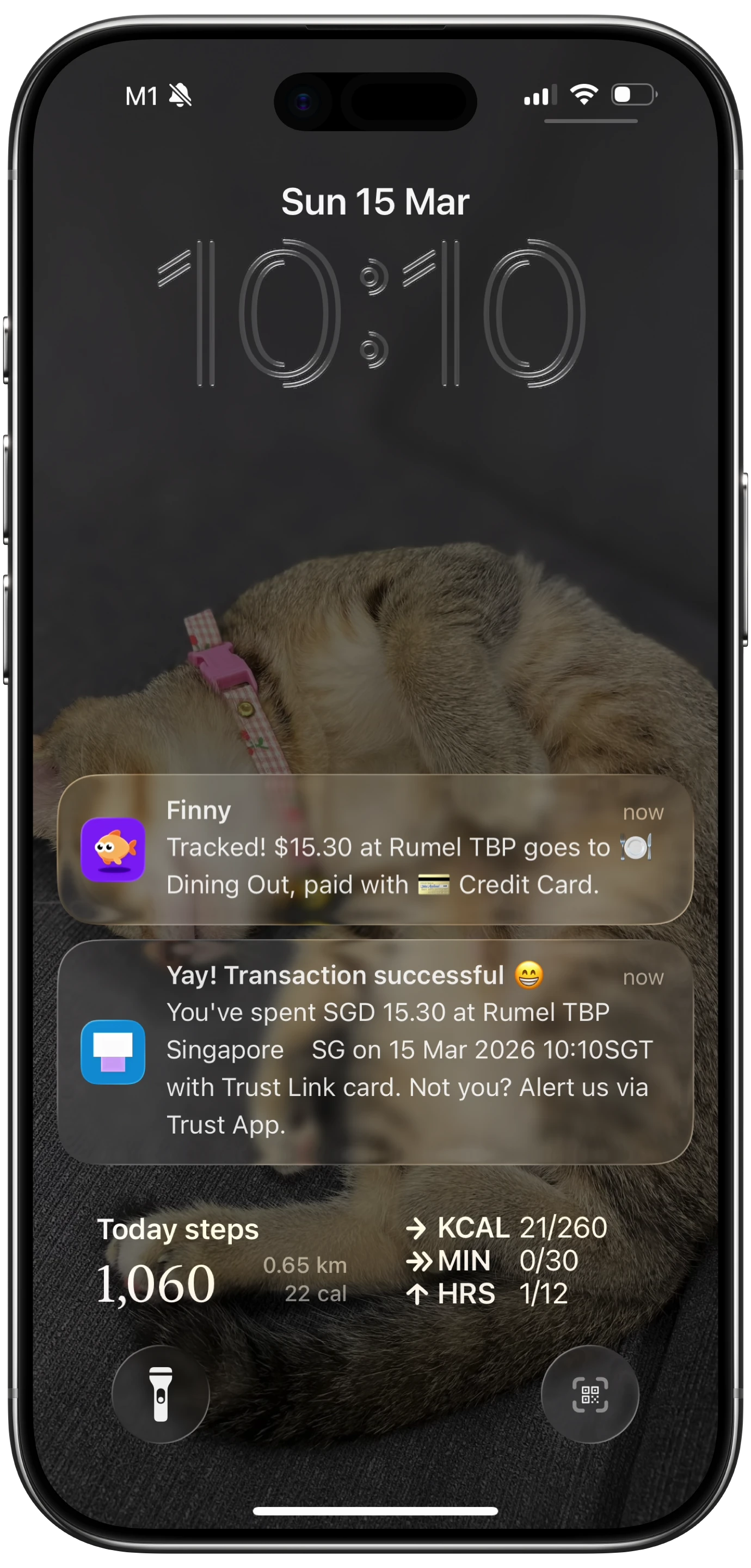
Tap to Track instantly captures your Apple Pay transactions the moment they happen. You pay at a terminal, and the expense appears in Finny without any additional action from you.
How It Works
When you make an Apple Pay purchase, Finny detects the payment instantly. It captures the transaction details, including the merchant and amount, and logs them automatically. The expense appears in your log within seconds of tapping your phone or watch at the register.
There is no manual step. No opening the app. No typing anything. The transaction is recorded as a natural byproduct of paying.
When to Use It
Tap to Track is ideal for daily purchases at stores, restaurants, coffee shops, and anywhere that accepts Apple Pay. It works for every contactless payment, which covers the majority of in-person transactions for most people.
This method is especially powerful for small, forgettable purchases. The $4 coffee, the $2 parking meter, the $7 sandwich. These are the transactions most people skip when tracking manually, but they add up to hundreds of dollars per month.
Why It Matters
Automatic logging eliminates the most common point of failure in expense tracking: the gap between purchase and recording. Even a five-minute delay reduces the chance of logging by roughly half. Tap to Track closes that gap to zero.
For more on why automatic tracking outperforms manual methods, see our comparison of AI expense tracking vs. manual tracking.
2. Voice Input: Speak Your Expense
Your hands are full of grocery bags. You just paid for parking and you are walking to the office. You are cooking dinner and remembered you spent $15 at the farmer's market this morning.
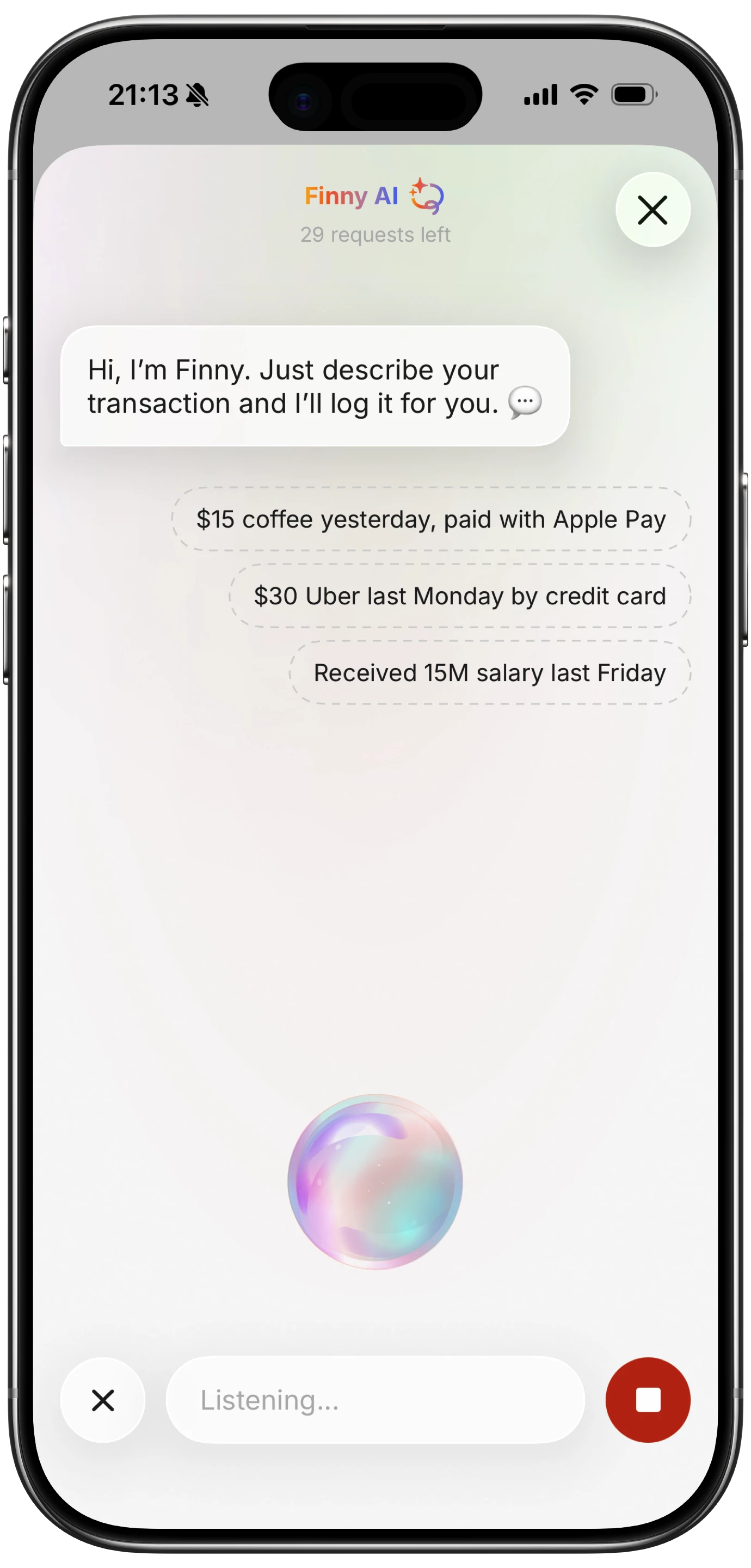
Voice input handles all of these situations. Open Finny, tap the microphone, and say what you spent. "Twelve dollars on lunch" or "Forty-five dollars, grocery store" is enough.
How It Works
Finny's AI listens to your natural speech and extracts the key details: amount, category, merchant, and date. You do not need to follow a rigid format or answer multiple prompts. Just speak the way you normally would.
The parsed transaction appears on screen for quick confirmation. Glance at it, tap confirm, and you are done.
When to Use It
Voice input is best when your hands are occupied, when you are in motion, or when you need to log multiple small expenses in quick succession. It is also useful for transactions that happened earlier. "Twenty dollars on gas this morning" works just as well as logging in real time.
Tips for Better Voice Logging
Speak clearly but naturally. Include the amount and a brief description. Finny's AI is trained to understand casual phrasing, so "coffee five bucks" works as well as "five dollars at the coffee shop."
3. Receipt Scanning: Snap and Done
Paper receipts are still everywhere. Rather than typing every line item from a grocery receipt or restaurant bill, just take a photo.
How It Works
Point your camera at a receipt and snap a picture. Finny's AI reads the receipt image, extracts the total amount, merchant name, date, and individual line items where available. It creates a transaction entry and presents it for your review.
The powerful part: you can scan up to five receipts at once. Came home from a shopping trip with a handful of receipts? Take photos of all of them in one session and let the AI process them as a batch.
When to Use It
Receipt scanning is perfect for cash purchases (where there is no digital record), restaurants, grocery stores, and any situation where you have a physical receipt. It is also useful for reimbursable business expenses where you need to keep receipt records.
Accuracy Considerations
AI receipt scanning handles most standard receipts well, including printed thermal receipts, restaurant checks, and retail receipts. Handwritten receipts or heavily faded thermal prints may need manual adjustment. The confirmation step lets you correct any misread amounts before saving.
4. Statement Screenshot Import: Batch Process Your Bank Statements
Sometimes you fall behind on tracking. A week goes by, and you have a dozen unlogged transactions sitting in your bank app. Typing each one manually is exactly the kind of tedious work that makes people quit.
Statement screenshot import solves this by letting you capture your bank statement screen and import multiple transactions at once.
How It Works
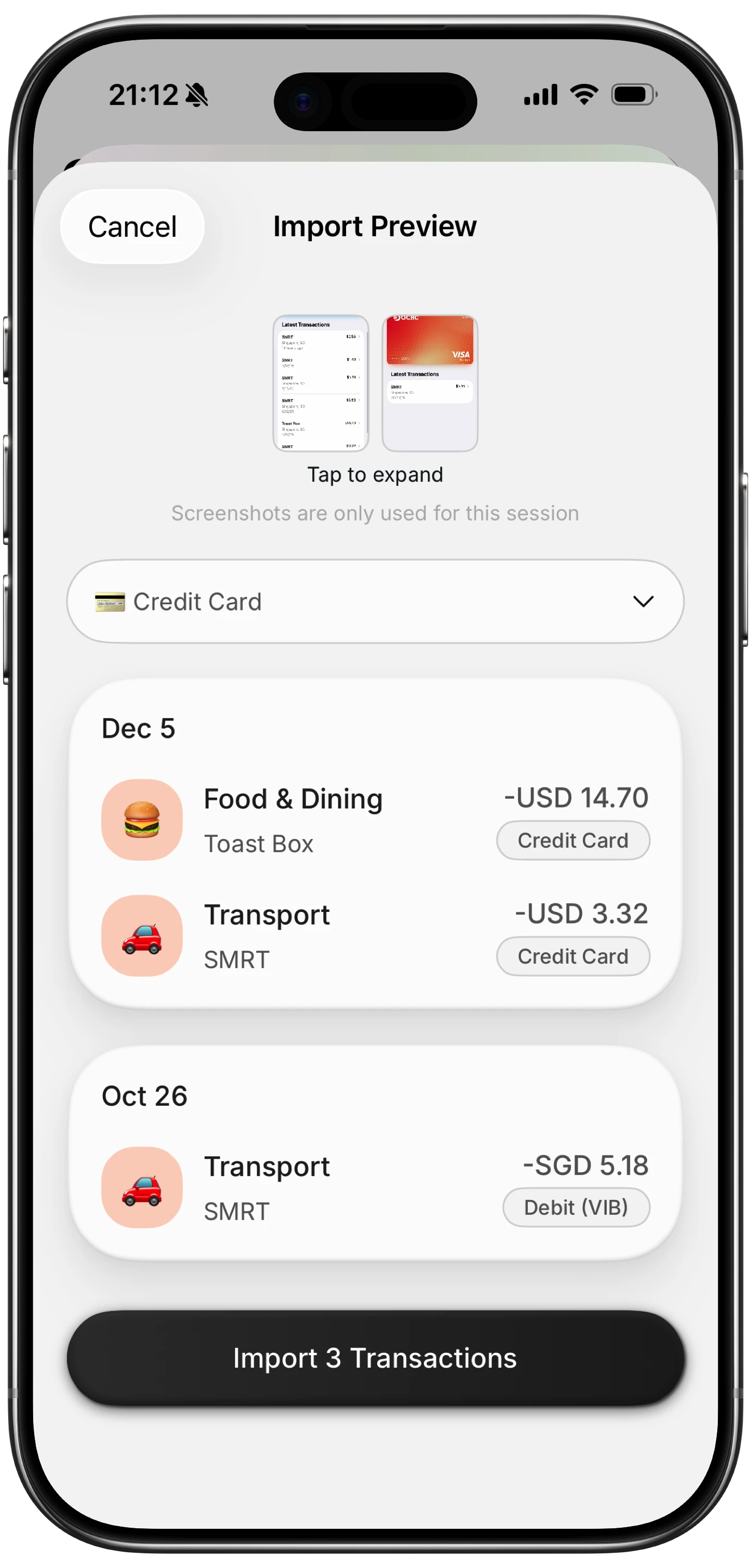
Open your banking app, take a screenshot of your recent transactions, and share it with Finny. The AI reads the screenshot, identifies individual transactions, and creates entries for each one. Amounts, dates, and merchant names are extracted automatically.
This works with statements from virtually any bank app, credit card app, or e-wallet. The AI is trained to recognize common statement formats.
When to Use It
Use this method when you need to catch up on several days of untracked spending, when you want to import transactions from an account you do not regularly track, or when you switch to Finny from another app and want to bring over recent history.
It is also useful for tracking transactions from accounts that do not support Apple Pay, like certain debit cards or international bank accounts.
The Privacy Advantage
Unlike apps that require you to link your bank account directly, statement screenshot import keeps your banking credentials private. You control exactly which transactions Finny sees by choosing what to screenshot. No OAuth connections, no third-party data aggregators, no stored passwords. For more on tracking without bank connections, see our guide on offline expense tracking.
5. Share Extension: Send Receipts From Your Photos App
You took a photo of a receipt two days ago. It is sitting in your camera roll. Now you want to log it without opening Finny, finding the photo, and going through the scanning process.
The Share Extension lets you send receipt images directly from your Photos app (or any app that supports iOS sharing) into Finny.
How It Works
Find the receipt photo in your camera roll. Tap the share button. Select Finny from the share sheet. The image is sent to Finny's AI for processing, and a transaction entry is created from the receipt data.
This also works from messaging apps. If someone texts you a photo of a shared dinner receipt, you can share it directly to Finny without saving it to your camera roll first.
When to Use It
The Share Extension is ideal for receipts you have already photographed, screenshots of digital receipts from email, and receipt images shared by friends for split expenses. It fits naturally into how you already use your phone, without requiring you to switch apps or change your workflow.
Combining Methods for Complete Coverage
Each of these five methods covers a different tracking scenario. Used together, they eliminate virtually every situation where you might skip logging an expense.
| Method | Best For | Speed | Requires |
|---|---|---|---|
| Tap to Track | Apple Pay purchases | Instant (automatic) | Apple Pay setup |
| Voice Input | Hands-busy moments, quick logging | 5-10 seconds | Microphone |
| Receipt Scanning | Paper receipts, cash purchases | 10-15 seconds | Camera |
| Statement Import | Catching up on missed transactions | 30 seconds per batch | Screenshot |
| Share Extension | Photos already in camera roll | 5 seconds | Receipt image |
A typical day might look like this: your morning coffee is auto-logged via Tap to Track. You voice-log the parking meter on the way to work. At lunch, you scan the restaurant receipt. In the evening, you catch up on a few missed transactions by screenshotting your bank statement. And that receipt photo your partner texted you from the grocery store gets shared directly to Finny.
No typing required for any of it. For a broader look at how these methods let you track purchases without even opening an app, see our dedicated guide.
Why Multiple Input Methods Matter
Single-input apps force you to adapt your behavior to the app. If the app only supports typing, you have to type. If it only supports receipt scanning, you need a receipt for every purchase.
Finny adapts to you. The right input method depends on the moment, and having five options means there is always a low-friction way to log whatever just happened.
This flexibility is the difference between tracking 60% of your expenses (which leaves gaps large enough to miss meaningful spending patterns) and tracking 95%+ of your expenses (which gives you the data you need to make real financial decisions).
For more context on why consistent tracking matters, see our guide on the best money tracker app in 2026.
Frequently Asked Questions
Does Tap to Track work with all Apple Pay transactions?
Tap to Track works with Apple Pay transactions at physical terminals, covering in-store contactless payments. Online Apple Pay transactions are not captured by this method but can be logged via statement screenshot import or text input.
How accurate is voice input for expense logging?
Finny's AI handles natural speech well for most expense descriptions. It correctly parses amounts, currencies, and categories from casual phrasing in most cases. For ambiguous entries, the confirmation screen lets you adjust details before saving. Accuracy improves over time as you use consistent descriptions.
Can I scan receipts in languages other than English?
Yes. Finny's AI receipt scanner processes receipts in multiple languages. It extracts amounts and merchant information regardless of the language on the receipt, which is particularly useful for travelers. See our guide on tracking expenses in multiple currencies for more on international use.
Do these methods work offline?
Finny is offline-first. Voice input, receipt scanning, and manual entry all work without an internet connection. Transactions sync to the cloud when you reconnect. Tap to Track requires the initial Apple Pay transaction to process, but the logging itself works locally.
Stop Letting Friction Win
Every expense you skip logging is a gap in your financial picture. When logging takes 30 seconds of typing, you will skip plenty. When it takes zero effort (Tap to Track), five seconds (voice or Share Extension), or a quick photo (receipt scanning), you actually do it.
Download Finny and start logging expenses the way that fits your life, no keyboard required.