
How to Track Purchases Without Opening an App
The biggest reason people stop tracking expenses is friction. You buy something, you tell yourself you will log it later, and later never comes. By the time you open your tracking app that evening, you have forgotten half the details. Was that coffee $4.50 or $5? Did you tip?
The solution is not willpower. It is removing the step that causes failure: opening the app.
Track purchases without opening an app by using background automation, system-level shortcuts, and share extensions. In 2026, Finny offers three distinct methods to log expenses without launching the app itself. Each one handles a different scenario, and together they cover nearly every purchase you make.
This guide walks through all three methods step by step. If you are new to expense tracking in general, start with our guide on how to track expenses for the basics.
Method 1: Tap to Track (Apple Pay Auto-Logging)
This is the closest thing to invisible expense tracking. You pay with Apple Pay, and the transaction appears in Finny automatically. No tapping. No typing. No opening any app.
How It Works
Tap to Track works through your iPhone's built-in payment detection. When your iPhone or Apple Watch completes an Apple Pay transaction, an automation runs in the background that sends the transaction details to Finny. The expense is logged with the amount, merchant, and timestamp before you even put your phone back in your pocket.
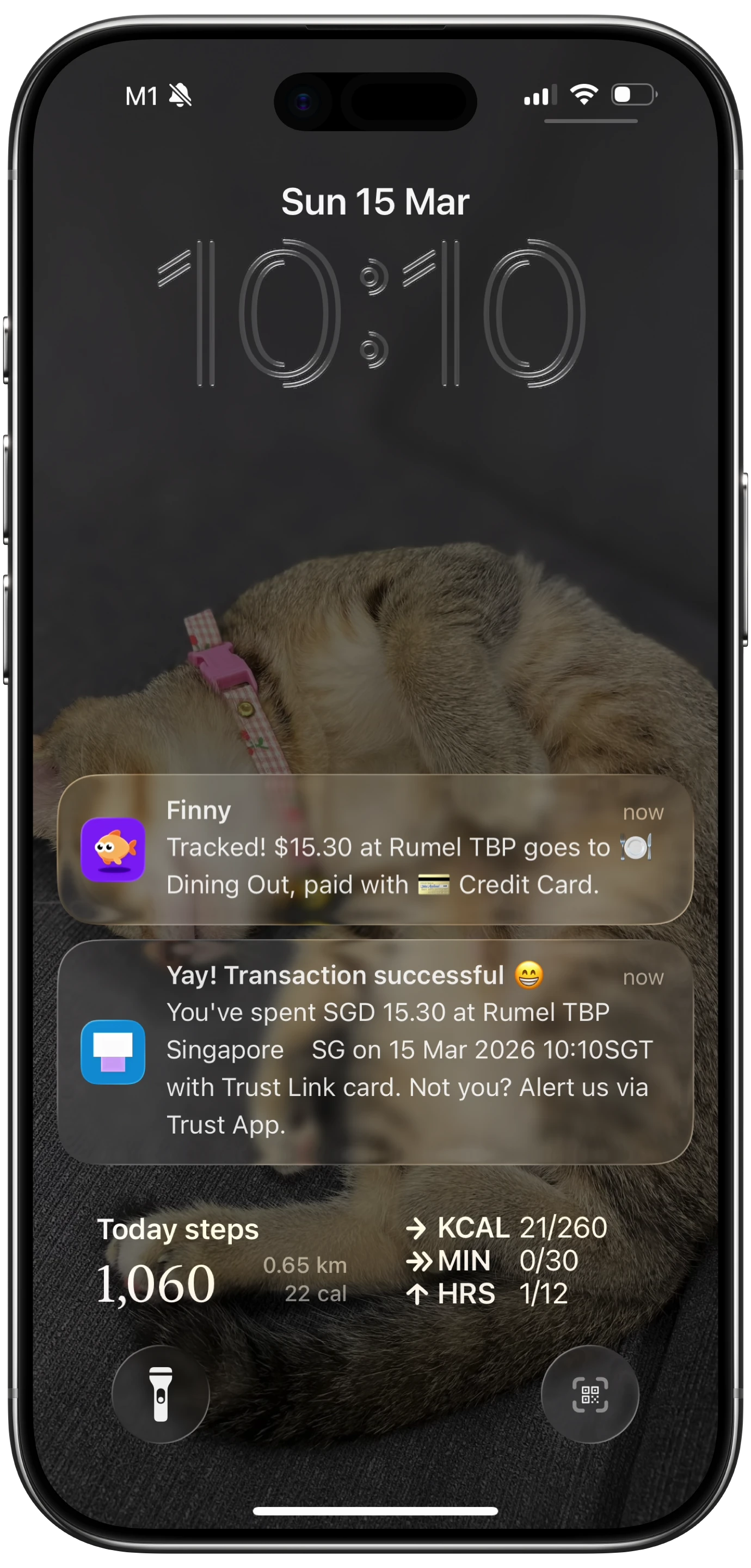
No other finance app offers this capability. Bank-linked apps import transactions hours or days later through third-party aggregators. Finny captures the data at the exact moment of payment.
Setup Steps
- Open Finny and go to Settings
- Navigate to the Tap to Track section
- Follow the prompts to set up the automation
- The automation configures itself to trigger on Apple Pay transactions
- Make a test purchase with Apple Pay to confirm it works
Once configured, Tap to Track runs silently. You will see a brief notification confirming the expense was logged, but no interaction is required. The transaction appears in your Finny history immediately.
What Gets Captured
Tap to Track logs the payment amount and the time of transaction. Finny's AI then suggests a category based on the merchant information. You can review and adjust categories later during your weekly review, or leave the AI suggestions as-is if they are accurate.
When to Use It
Tap to Track is ideal for everyday purchases where you use Apple Pay: coffee shops, grocery stores, restaurants, transit, and retail. It handles the high-volume, low-thought transactions that are the hardest to log manually.
For cash transactions, online orders, or payments where you do not use Apple Pay, you will need one of the other two methods.
Method 2: Share Extension (Receipt Photos)
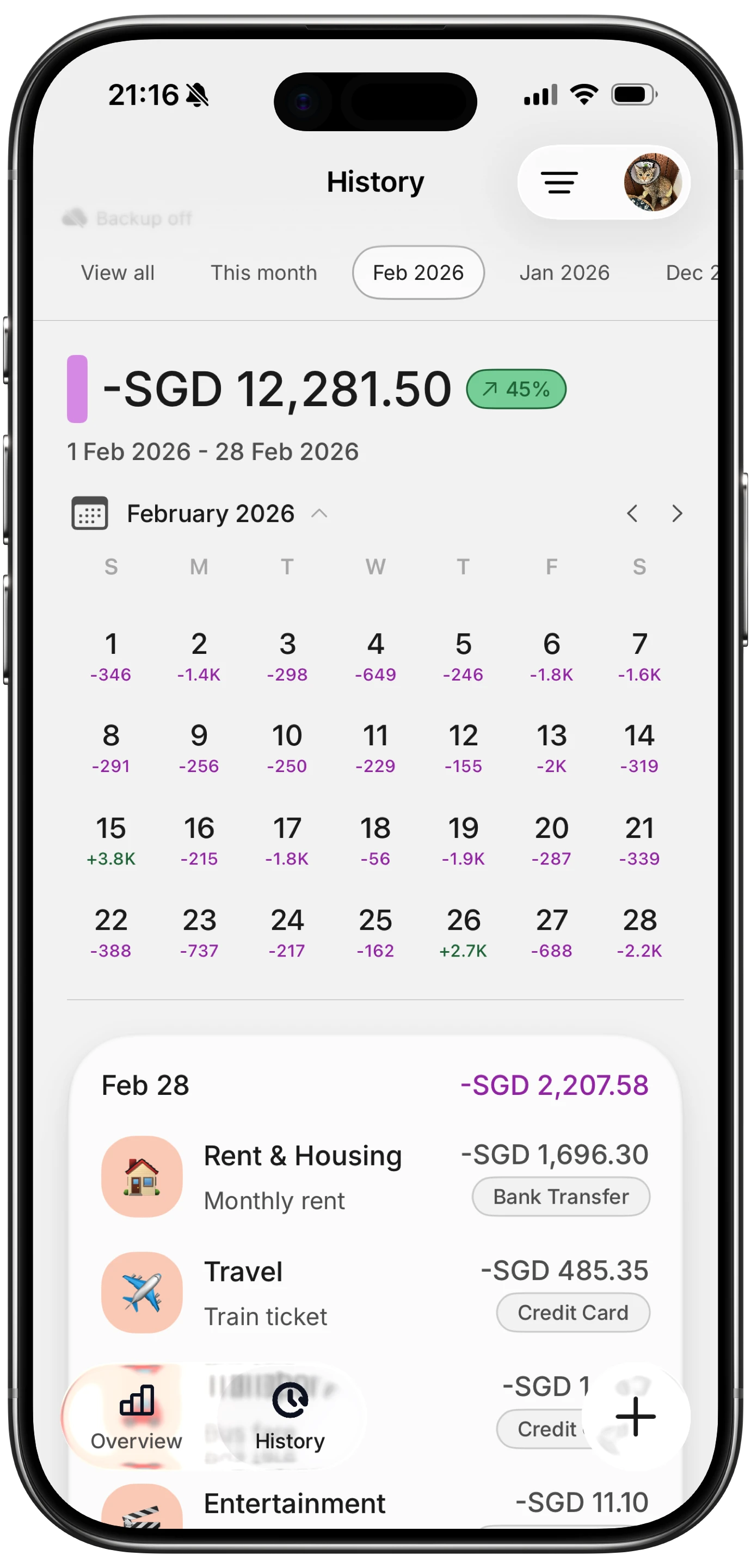
You took a photo of your receipt. Maybe out of habit, maybe because you need it for a return. That photo is sitting in your camera roll. With Finny's Share Extension, you can turn it into a logged expense without opening Finny directly.
How It Works
Finny registers a Share Extension with iOS. This means Finny appears as an option in the system share sheet, the same menu you see when you share a photo via Messages, AirDrop, or email. When you share a receipt photo to Finny, the app's AI processes the image in the background, extracts the merchant, total, date, and line items, and creates a transaction.
Setup Steps
- Open the Photos app and select any image
- Tap the Share button (the square with an arrow)
- Scroll through the app icons and look for Finny
- If Finny does not appear, tap "More" and enable Finny in the share sheet options
- That is it. Finny is now available as a share target for any image
Using It Day to Day
Here is the typical workflow:
- You pay at a restaurant and the server hands you a receipt
- You snap a photo of the receipt (something many people already do)
- Later, when you are scrolling through your photos, you see the receipt
- Tap Share, tap Finny
- Finny's AI scans the receipt and creates the transaction
- You get a confirmation notification
The entire process after taking the photo requires two taps. You never open Finny. The AI handles the data extraction. You can batch-process multiple receipts this way by sharing them one after another.
What Gets Captured
Finny's receipt scanning AI extracts:
- Merchant name
- Transaction date
- Total amount (including tax and tip if visible)
- Individual line items (when the receipt is clear enough)
- Suggested category based on the merchant
The AI handles standard printed receipts reliably. Handwritten receipts or heavily faded thermal paper may require manual correction. You can scan up to 5 receipt photos at once when working inside the app, but the Share Extension processes one image per share action.
When to Use It
The Share Extension works best for:
- Restaurant receipts you photograph out of habit
- Store receipts for items you might return
- Receipts shared with you by friends splitting a bill
- Any physical receipt you want to digitize quickly
It bridges the gap between "I have a photo" and "I have a logged expense" with minimal effort. For a comparison of how AI handles receipts vs. manual entry, see our AI expense tracking vs manual breakdown.
Method 3: Siri Voice Commands (Voice Logging)
Sometimes you cannot look at your phone at all. You are driving, cooking, carrying groceries, or walking the dog. Siri voice commands let you log an expense with your voice without touching your phone.
How It Works
Finny integrates with Siri to accept voice commands. You say something like "Hey Siri, log expense" followed by the details, and Finny creates a transaction from your spoken input. The AI parses the natural language to extract the amount, merchant, and category.
Setup Steps
- Open Finny and go to Settings
- Navigate to the Siri section
- Tap "Add to Siri" for expense logging
- Record a custom trigger phrase (e.g., "Log expense" or "Track spending")
- Confirm the voice command is active
You can also set this up manually through Apple's built-in automation if you want more control over the trigger phrase or want to chain it with other automations. For step-by-step examples, see our Apple Shortcuts for expense tracking guide.
Using It Day to Day
After setup, here is how it works:
- You buy a coffee for $4.50
- You say: "Hey Siri, log expense"
- Siri activates the Finny shortcut
- You say: "Coffee at Blue Bottle, four fifty"
- Finny's AI parses your speech and creates the transaction
- Siri confirms the expense was logged
The whole interaction takes about 10 seconds. Your phone can stay in your pocket for most of it. This works with AirPods, CarPlay, Apple Watch, and HomePod, anywhere Siri is available.
Tips for Better Voice Logging
- State the amount clearly. "Four dollars and fifty cents" is more reliable than "four fifty"
- Include the merchant name when you can. "Coffee at Starbucks" helps the AI categorize correctly
- Keep descriptions short. "Lunch, twelve dollars" works better than a long sentence
- Quiet environments produce better transcription. Noisy streets may cause errors
When to Use It
Siri voice commands work best when:
- Your hands are occupied (driving, cooking, carrying bags)
- You want to log immediately after paying but cannot look at your phone
- You are wearing AirPods or an Apple Watch and want hands-free logging
- You prefer speaking over typing
Combining All Three Methods
The real power of these features is not using one method exclusively. It is using the right method for each situation:
| Situation | Best Method | Effort Required |
|---|---|---|
| Apple Pay purchase | Tap to Track | Zero (automatic) |
| Receipt in camera roll | Share Extension | Two taps |
| Hands-free logging | Siri voice commands | Voice command |
| Cash purchase, no receipt | Siri voice commands or AI text | Voice or quick type |
| Batch receipt processing | Share Extension | Two taps per receipt |
With all three methods configured, you can realistically track every purchase you make without opening Finny more than once a week for review. The app-opening step shifts from "log expenses" to "review expenses," which is a much lighter cognitive load.
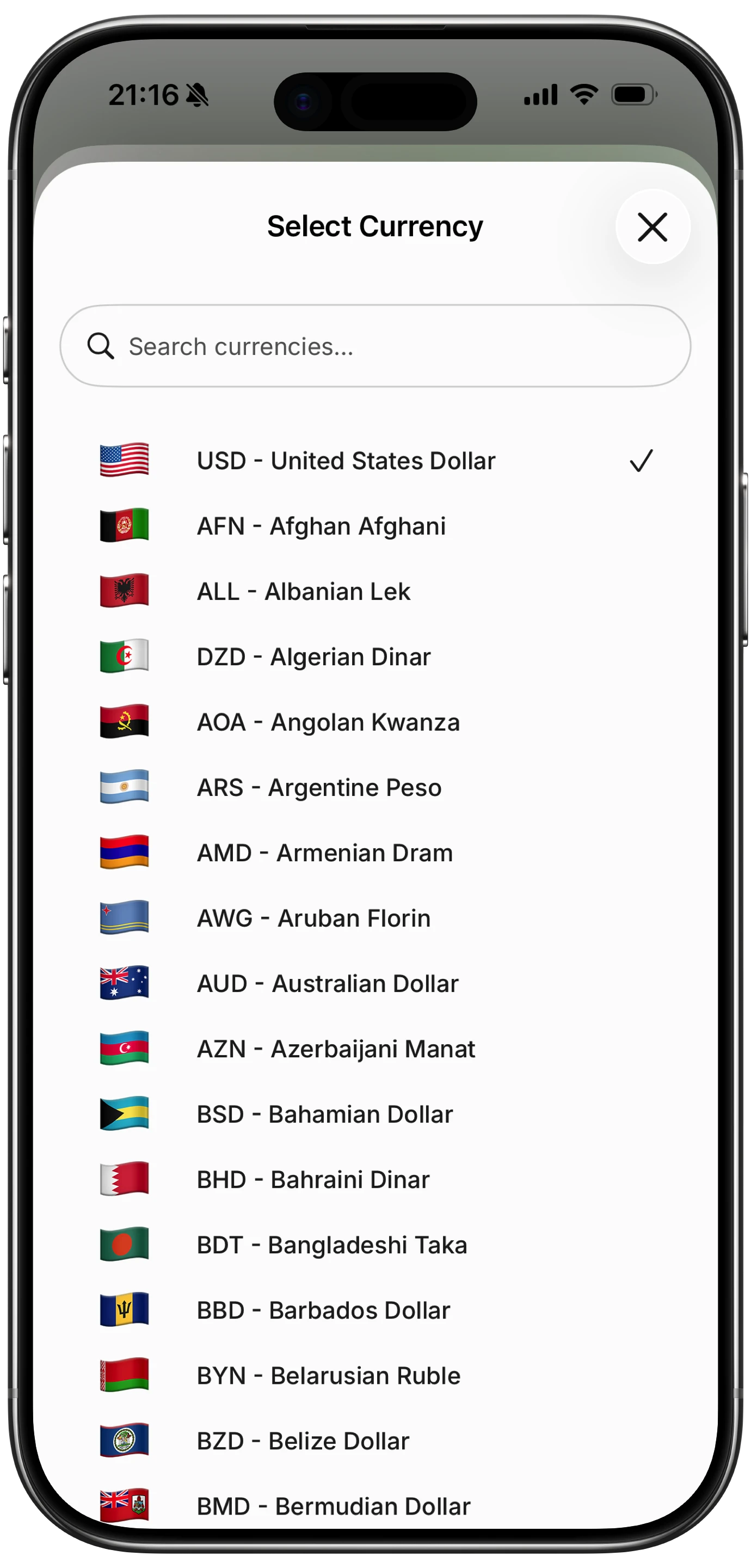
For people who travel internationally, all three methods work with Finny's multi-currency support. Tap to Track logs the local currency amount. Voice and receipt inputs handle foreign currencies automatically. Your dashboard converts everything to your default currency using the unified currency view, a feature that is included free. For more on how offline-friendly tracking helps travelers, see our offline expense tracking guide.
Why This Approach Works
Traditional expense tracking fails because it requires a context switch. You stop what you are doing, open an app, navigate to the input screen, and manually enter data. That interruption feels small once, but across 10-20 daily transactions, it adds up. Most people give up within two weeks.
Removing the app-opening step changes the equation. Tap to Track requires zero effort. The Share Extension requires two taps in an app you were already using. Siri requires a brief voice command. None of these methods interrupt your flow.
The result is that tracking becomes something that happens alongside your life, not something you schedule time for. That is the difference between a tracking habit that lasts two weeks and one that lasts two years.
For a deeper look at what separates effective tracking methods from ones people abandon, check out our best money tracker apps in 2026 guide.
Frequently Asked Questions
Does Tap to Track work with all stores?
Tap to Track works everywhere Apple Pay is accepted. It triggers the moment you pay, not based on specific merchants. If you can pay by holding your iPhone or Apple Watch near the payment terminal, Tap to Track will log it.
Can I use the Share Extension with screenshots from my bank app?
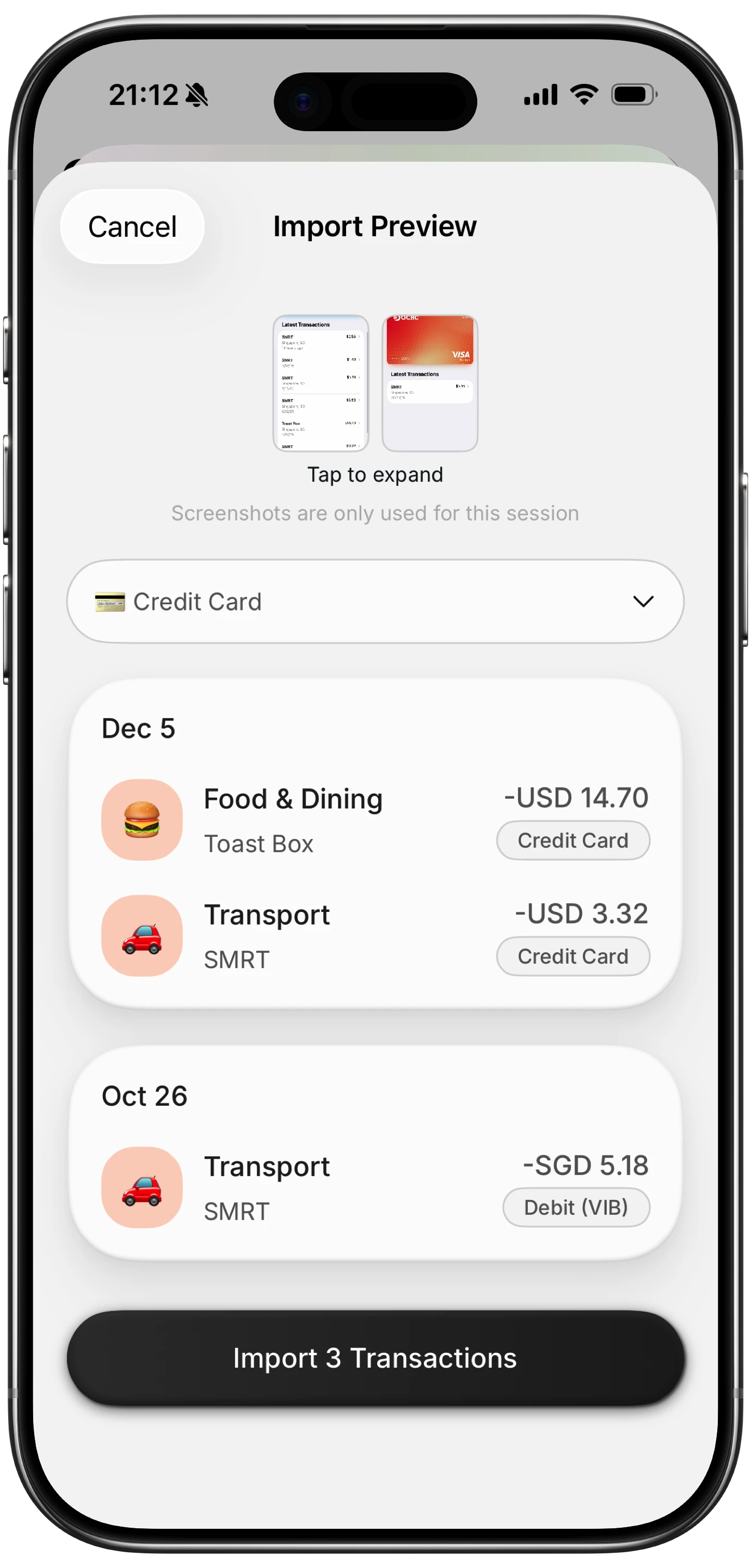
Yes. Finny's AI can process bank statement screenshots shared via the Share Extension. It extracts transaction details from the screenshot image. This lets you capture bank transactions without giving Finny your bank login credentials.
Do Siri voice commands work with Apple Watch?
Yes. You can trigger Finny's expense logging from your Apple Watch using Siri. Say your trigger phrase, state the expense details, and the transaction is logged to Finny on your iPhone via the paired connection.
Do I need an internet connection for these methods?
Finny works offline for core tracking features. Tap to Track logs transactions locally and syncs when you reconnect. Siri voice commands require an internet connection for voice processing. The Share Extension processes receipt images using AI, which needs a connection. Logged expenses sync across devices via Apple Sign-In when you are back online.
Download Finny and set up all three tracking methods in under five minutes. Track every purchase without opening the app. Starting at a low monthly price.