Apple Cash vs Apple Pay: How to Track Both on iPhone (2026)
Most iPhone users treat Apple Cash and Apple Pay as interchangeable. They are not. One is a stored-value account that holds a balance. The other is a passthrough for cards you already own. Because they work differently, they show up in different places, and combining them into a single spending picture requires a deliberate setup.
This guide focuses on helping you track Apple Cash and Apple Pay without double-counting or missing transactions. Whether you use both regularly or just occasionally, the approach below applies to any tracking workflow in 2026.
What Apple Cash and Apple Pay Actually Are
Before tackling the tracking problem, a quick ground-level refresher is worth the two minutes.
Apple Cash is a digital debit account managed by Green Dot Bank. When someone sends you money via iMessage, it lands in your Apple Cash balance. When you spend that balance at a store or online, it processes as a Visa Debit charge. You can also transfer it to a bank account. The Apple Cash card lives in your Wallet app alongside everything else, but it has its own balance, its own statement, and its own transaction history inside the Wallet app's Apple Cash section.
Apple Pay is not an account. It is a secure payment method that tokenizes whatever card you point it at, whether that is a credit card, debit card, or your Apple Cash card. When you pay at a terminal with Apple Pay using your Chase Visa, the charge shows up on your Chase statement. When you pay with your Apple Cash card via Apple Pay, the charge draws from your Apple Cash balance. Apple Pay itself does not hold money.
This distinction matters enormously for tracking. Apple Pay charges flow to whatever underlying account funded the payment. Apple Cash charges flow to one place: your Apple Cash balance.
Where Transactions Show Up
Understanding the ledger for each payment type is the foundation of accurate tracking.
Apple Cash transactions appear in two places. First, inside the Wallet app: open Wallet, tap your Apple Cash card, and you see a full transaction list including peer-to-peer sends and receives, refunds, and purchases. Second, if you have moved Apple Cash onto an Apple Card, that transfer appears in the Apple Card statement. Apple Cash does not show up in your bank's transaction history unless you initiate a manual transfer to your bank account.
Apple Pay transactions appear wherever the underlying card statement lives. A charge made with your Apple Card via Apple Pay appears in the Apple Card section of Wallet. A charge made with a Citi card via Apple Pay appears on your Citi statement, not in the Apple Pay section of Wallet. The Wallet app's spending summary only reflects Apple Card and Apple Cash transactions. Non-Apple-Card Apple Pay charges are invisible to Wallet's summary view.
This fragmentation is why Apple Wallet's built-in reporting often feels incomplete. For a deeper look at that limitation, see Apple Wallet Spending Summary Isn't Enough: What to Add.
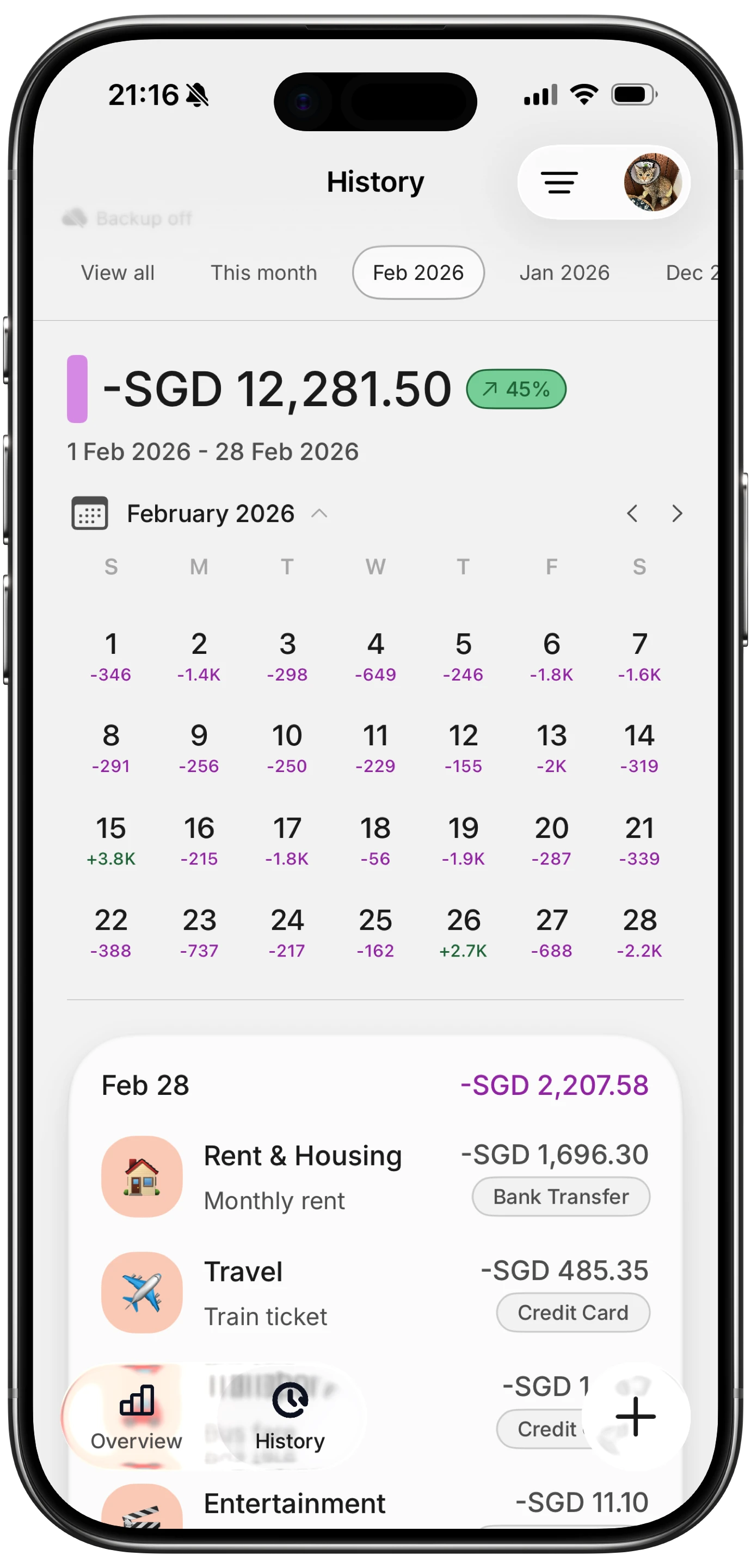
Apple Cash vs Apple Pay: Side-by-Side
The table below covers the properties that matter most for budgeting and tracking.
| Feature | Apple Cash | Apple Pay |
|---|---|---|
| What it is | Stored-value debit account (Green Dot Bank) | Passthrough payment method, not an account |
| Where transactions appear | Wallet app, Apple Cash section | Issuing card's own statement and app |
| Peer-to-peer support | Yes, via iMessage and Contacts | No |
| Merchant payment support | Yes, via Apple Cash Visa Debit | Yes, for all linked cards |
| Bank statement visibility | Only on manual transfer to bank | Depends on which card was used |
| Recommended tracking approach | Manual log or AI input for P2P notes; Tap to Track for purchases | Tap to Track, Shortcuts automation, or bank import |
The Double-Counting Trap
This is the most common budgeting mistake for people who use both regularly.
Suppose a friend pays you $40 via Apple Cash for dinner. You later spend that $40 at a grocery store using your Apple Cash card via Apple Pay. If you track the incoming $40 as income and then also log the $40 grocery purchase, you have counted $80 of activity when only $40 left your net worth. The grocery purchase is the real expense. The peer-to-peer receive is a transfer, not new income.
The same logic applies in reverse. If you send a friend $30 via Apple Cash and they then pay a shared bill, logging the $30 send as an expense and then also logging your portion of the bill creates a duplicate.
The fix: treat Apple Cash peer-to-peer receives as transfers, not income. Only log the outbound purchase as an expense. If you are reconciling Apple Cash sends, log the send amount against whatever category the spending represents, not as a generic transfer. This keeps your category totals clean.
For more on avoiding import-related duplication, see best expense trackers that import credit card transactions.
Three Approaches to Tracking Both
There is no single best method. The right approach depends on how many transactions you have and how much automation you want.
Approach 1: Manual Log
Log every Apple Cash transaction and Apple Pay charge by hand as it happens. Open your tracker, add the amount, category, and merchant. This works well for low-volume users, maybe 5 to 15 transactions a week, and gives you full control over categorization. The drawback is that manual entry degrades over time. Most people forget to log 30 to 50 percent of transactions within a month.
For Apple Cash peer-to-peer notes specifically, AI input can remove the tedium. Finny's AI input field lets you type or paste the transaction description in plain language, for example "paid Jake $28 for lunch," and the app parses it into the correct category automatically. No bank connection needed. No sharing Apple Cash credentials anywhere.
Approach 2: Shortcuts Automation
Apple Shortcuts can trigger expense logging the moment an Apple Pay notification fires. You build a shortcut that watches for payment notifications, extracts the merchant and amount, and creates a new expense entry. This requires a one-time setup of about 15 to 20 minutes but runs invisibly after that.
Apple Cash peer-to-peer transactions do generate notifications, so you can extend the same shortcut to catch those too. The challenge is distinguishing incoming transfers from outgoing purchases at the automation layer. One approach is to route all Apple Cash notifications into a review inbox and confirm or discard each one manually at the end of the day.
For detailed setup instructions, see Apple Shortcuts expense tracking automations 2026.
Approach 3: Hybrid Receipt Scan
For merchant purchases made via Apple Pay, capture the receipt at point of sale using a receipt scanner. For Apple Cash peer-to-peer activity, log manually or via AI input. This hybrid approach works well for people who want merchant-level accuracy on purchases but do not want to set up Shortcuts automation.
The receipt scan method also serves as a useful backup when notification-based automations miss a transaction, which happens with some in-app purchases and certain international merchants.
For a comparison of apps with receipt scanning support, see app that scans receipts for budget tracking.
Recommended Workflow
For most iPhone users who use both Apple Cash and Apple Pay regularly, this workflow balances automation with accuracy.
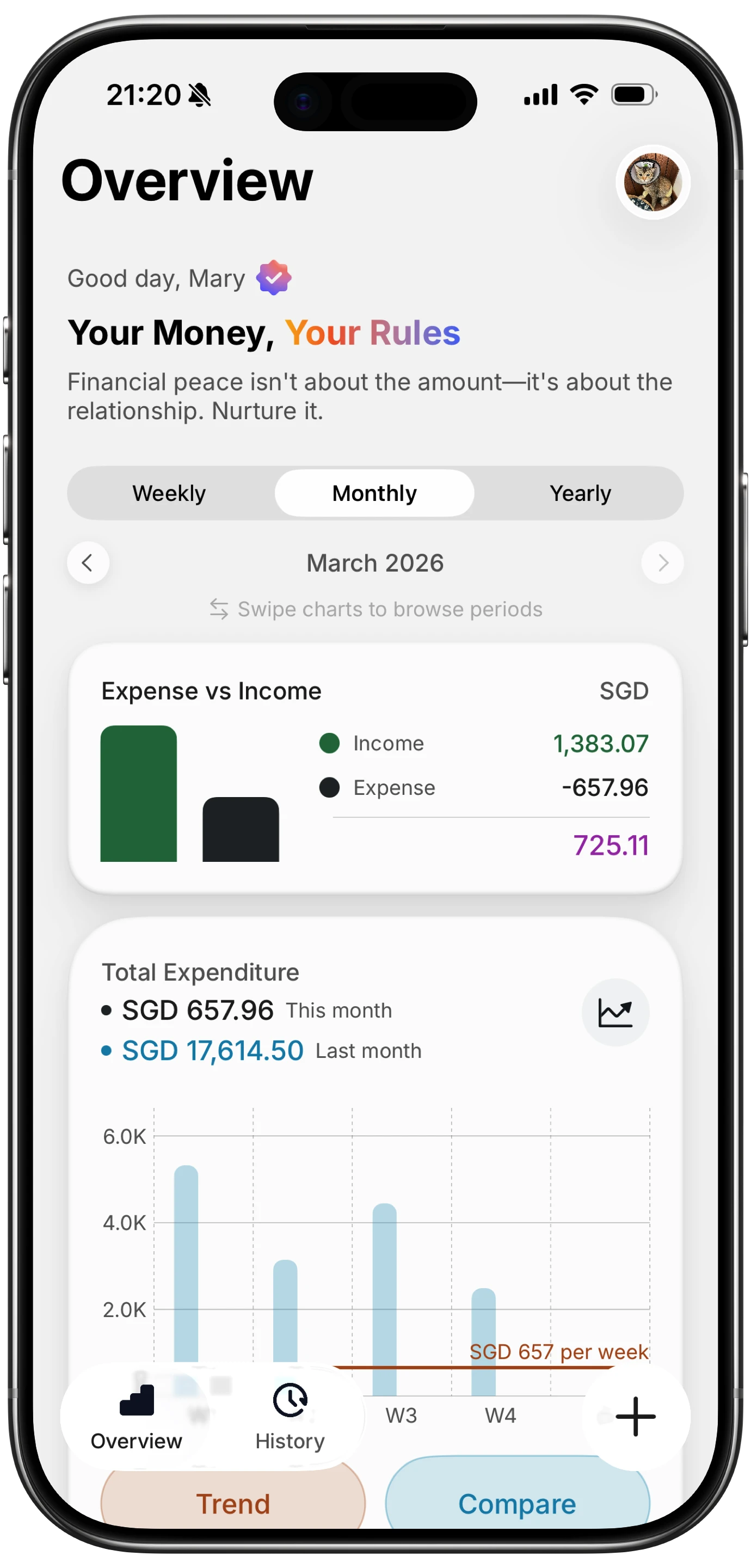
Step 1. Set up Tap to Track for all Apple Pay purchases. The moment you tap to pay at a terminal or in-app, Finny captures the transaction without manual input. This covers the majority of purchase activity for most people. For full setup instructions, see Apple Pay + Finny expense tracking setup.
Step 2. Handle Apple Cash peer-to-peer activity separately. At the end of each day or week, open your Apple Cash transaction history in Wallet and review any sends or receives not already logged. Use AI input to batch-add them with plain-language descriptions. Mark incoming transfers as transfers, not income, to avoid inflating your totals.
Step 3. Once a week, cross-reference your Apple Cash balance in Wallet against your logged Apple Cash total in your tracker. If the numbers are off by more than a few dollars, one or more transactions were likely missed or categorized incorrectly.
Step 4. For Apple Pay charges on non-Apple-Card cards, check each card's app or statement at the same weekly review. These will not appear in Wallet's summary, so they require a separate pass. If you want to reduce this friction, see how to automatically track Apple Pay for Shortcuts-based options.
This four-step routine takes less than ten minutes weekly once the initial automation is live. Privacy stays intact throughout because no bank credentials are shared and Apple Cash data never leaves the Wallet app.
Frequently Asked Questions
Does Apple Pay show up in my bank statement?
It depends on which card you used. If you paid with an Apple Card via Apple Pay, the charge appears in the Apple Card section of Wallet and on your Apple Card statement. If you paid with a third-party card via Apple Pay, the charge appears only on that card's statement, not in Wallet's summary view. Apple Pay itself does not generate a separate statement.
Can I export Apple Cash transactions to a spreadsheet?
As of early 2026, Apple does not offer a direct CSV export from the Apple Cash transaction history inside Wallet. You can view the history in the app and manually copy transactions. Some users use the Shortcuts app to automate copying Apple Cash notification data into a spreadsheet. For a fully native export, Apple Card statements can be downloaded as CSV from the Wallet app settings, but Apple Cash activity is listed separately and the export format may vary by iOS version.
Is Apple Cash linked through Plaid or a bank aggregator?
No. Apple Cash is managed by Green Dot Bank and does not connect through Plaid or similar aggregators. Most expense trackers cannot pull Apple Cash data automatically because there is no standard bank feed. This is also why privacy-first trackers like Finny work well for Apple Cash: you log transactions on your terms without handing credentials to a third party.
What is the difference between paying with Apple Cash vs Apple Pay?
Apple Cash is the funding source. Apple Pay is the delivery method. You can use Apple Pay to pay with your Apple Cash balance, your Apple Card, or any other card in your Wallet. When you "pay with Apple Pay," the actual charge goes to whichever card is selected at payment time. When you "pay with Apple Cash," you are specifically drawing from your stored Apple Cash balance, delivered via Apple Pay.
How do I avoid double-counting Apple Cash peer-to-peer transfers?
Log incoming Apple Cash transfers as transfers between accounts, not as income. Only log the outbound purchase or expense when money leaves your net worth. If a friend pays you back $20 and you later spend that $20 at a restaurant, the restaurant charge is the expense. The $20 receive is just a movement of funds. Most expense trackers let you mark transactions as transfers to handle this correctly.
Final Thoughts
Apple Cash and Apple Pay are genuinely useful payment tools for iPhone users. The tracking challenge is not complexity. It is awareness: they live in different ledgers and require slightly different logging strategies.
The comparison table and workflow in this guide cover most common scenarios. For deeper automation, the Shortcuts and Tap to Track approaches reduce weekly overhead to a quick review rather than active data entry.
If you want to try the full setup on iOS, Finny handles both Apple Pay capture and AI-assisted Apple Cash logging without connecting your bank or sharing any credentials. Privacy-first and ready to go in a few minutes.
For a broader comparison of apps that handle Apple Pay tracking well, see best apps to track Apple Pay spending in 2026.