
Best StandBy Mode Finance Widgets for iPhone (2026)
Every night your iPhone sits on its charging stand doing nothing. That idle time is actually a passive review window: a moment you can glance at your spending without opening a single app. Apple's StandBy Mode was designed for exactly this, and finance widgets make it genuinely useful.
This guide covers how to use StandBy Mode finance widgets to build a persistent budget dashboard on your iPhone, which apps support it well, and how to set up loadouts for three common situations.
What StandBy Mode Is and Why It Matters for Budgets
StandBy Mode activates when your iPhone is charging, locked, and turned sideways in landscape orientation. The screen displays full-screen widgets, clocks, or photos instead of going dark. On iPhone Pro models with Always-On Display (iPhone 15 Pro and later), the screen stays on at reduced brightness even when you walk away. On other iPhones, the display wakes when the room gets brighter or you tap it.
From a personal finance standpoint, StandBy creates a passive review window. You are not interrupting your workflow to check your budget. You are just looking at your charging stand while you reach for your coffee. Studies on habit formation suggest that ambient cues, information that enters your field of view without requiring active retrieval, reinforce awareness more consistently than scheduled check-ins. A StandBy finance widget is an ambient cue.
StandBy requires iOS 17 or later and works on iPhone 14 and newer (MagSafe or any Lightning or USB-C charger in landscape). Always-On Display is available on Pro models from iPhone 15 Pro onward.
For a broader look at how passive tracking fits into a budgeting workflow, see our guide on how to track purchases without opening an app.
Where StandBy Fits in Your Day
Three placement patterns come up repeatedly.
Bedside. You plug in at night, the phone tilts on a stand, and the last thing you see before sleep is your current spending versus your monthly target. No action required. If the number is fine, you sleep. If it is off, you note it for the morning.
Work desk. A charging pad next to your monitor keeps StandBy visible during the day. A daily-spend widget catches impulse purchases before they compound. Knowing your number is already logged removes the mental load of trying to remember what you spent at lunch.
Kitchen counter. This is the grocery and household category spot. A widget showing food and household spend for the week gives you a figure before you leave for the store.
Each placement benefits from a slightly different widget configuration, which the loadout section below covers in detail.
Best Apps With StandBy-Friendly Finance Widgets
Not every budgeting app ships a widget designed to work in StandBy's landscape, full-bleed layout. Some widgets that look fine in portrait Home Screen grids look clipped or awkward in StandBy. The table below reflects testing as of mid-2026. Widget behavior can change with app updates, so verify in your own setup before committing.
| App | StandBy Widget | Dark Mode | Info Density | Refresh | Price |
|---|---|---|---|---|---|
| Finny | Yes (offline-first) | Yes | Medium: daily total + category bar | On open / background | Free + Pro |
| YNAB | Yes | Yes | High: category targets + available amounts | Periodic (requires sync) | $14.99/mo |
| Copilot | Yes | Yes | High: balance + recent transactions | Periodic (requires bank sync) | $13.99/mo |
| Monarch | Yes (reported) | Yes | Medium: net worth or budget summary | Periodic (requires sync) | $14.99/mo |
| PocketGuard | Yes | Yes | Low-Medium: "in my pocket" number | Periodic (requires sync) | Free + Plus |
A few notes on this table. Finny's widget is offline-first: the figure displayed is what is stored locally, so it appears instantly and accurately even if your phone has not connected to the internet recently. Apps that rely on bank sync (Copilot, YNAB, Monarch, PocketGuard) may show a stale figure if the last sync was hours ago. That is worth knowing if you want real-time accuracy at a glance.
Monarch's StandBy widget support was reported in community forums as of early 2026 but has not been confirmed in official documentation at the time of writing. Test it before building a workflow around it.
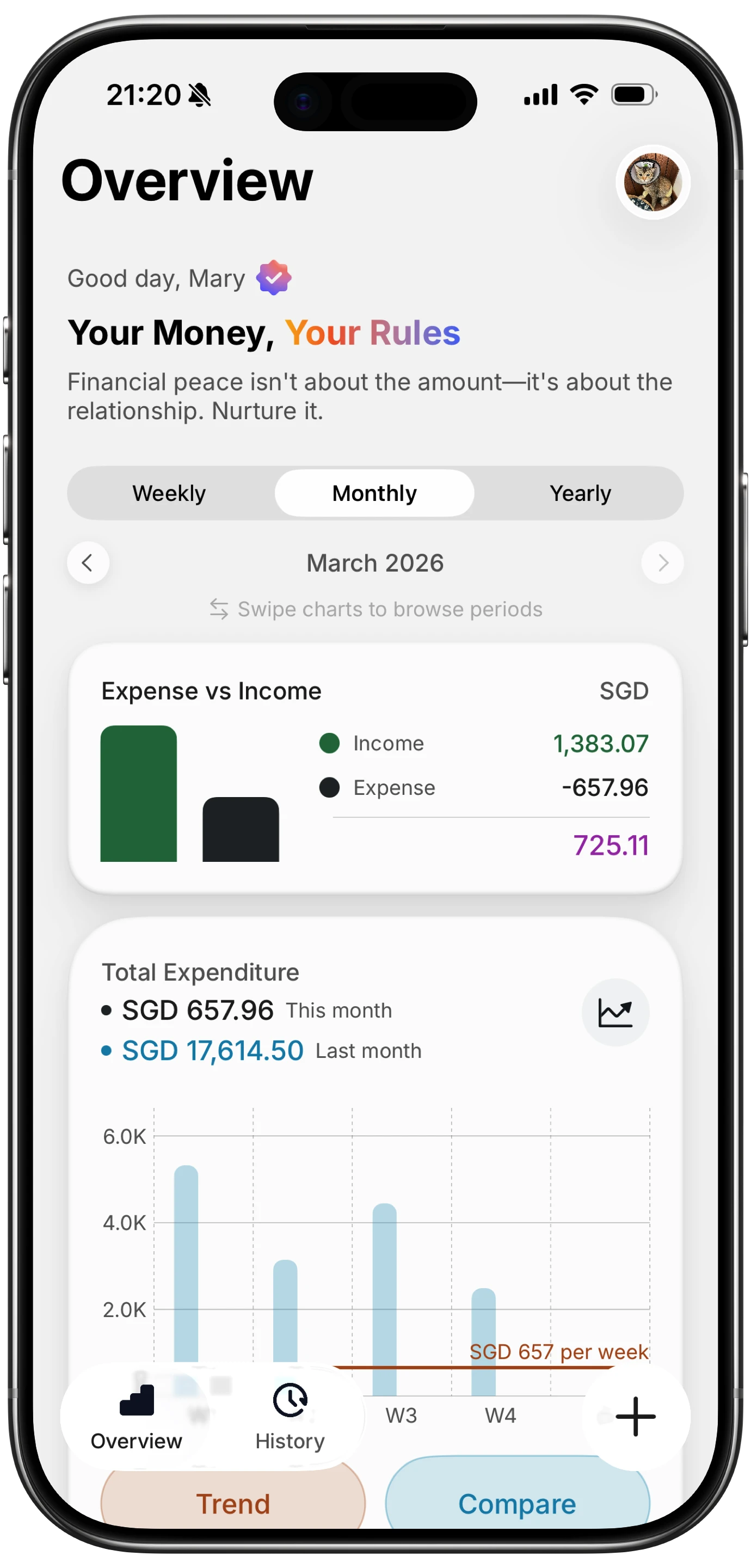
Finny app's Overview feature
Recommended StandBy Loadouts
A "loadout" is simply a saved widget configuration you return to depending on where you are. iOS lets you long-press in StandBy to switch widget pages, and some third-party apps let you pin specific views.
Night dashboard. Goal: frictionless end-of-day review. Widget 1: monthly budget progress (total spent vs. target). Widget 2: clock with date. Set screen brightness low. On Pro models, Always-On handles this automatically. You wake up with a number already visible.
Work-from-home dashboard. Goal: daily spending awareness during work hours. Widget 1: today's spend. Widget 2: top category this week. This loadout is most useful when you are ordering lunch delivery or making quick online purchases during the day.
Kitchen review dashboard. Goal: grocery and household awareness before shopping. Widget 1: food and household category week total. Widget 2: last few entries in that category. Finny's history view works well here because entries are offline and appear without a network request.
For users who want even more ambient financial data, pairing StandBy with Live Activities gives you near-real-time feedback during active tracking sessions. More on that in the final section.
How to Set Up StandBy Finance Widgets
Setup takes about three minutes.
- Make sure your iPhone is on iOS 17 or later. Go to Settings, General, Software Update if you are not sure.
- Enable StandBy: Settings, StandBy, toggle on.
- Plug your iPhone into a charger and rotate it to landscape. StandBy activates automatically.
- Long-press anywhere on the StandBy screen to enter edit mode.
- Swipe to the widget panel (the one that does not show a clock or photos).
- Tap the plus icon to add a widget. Search for your finance app, select the widget size and type, tap Add Widget.
- Drag to reorder. Swipe left or right on the widget area to see different stacks.
If a finance app does not appear in the widget picker, it either does not support StandBy widgets yet or needs an update. Check the App Store for a pending update and try again.
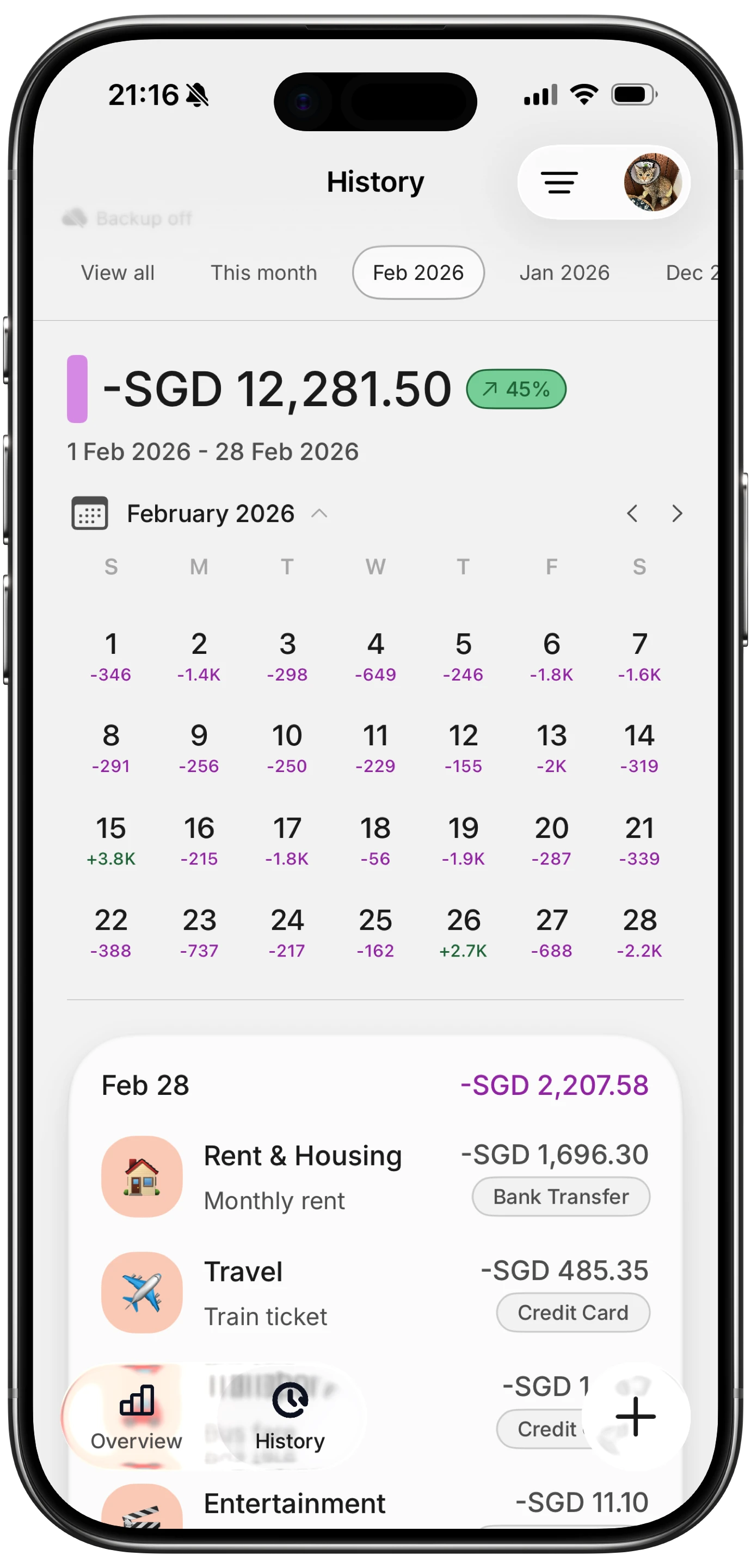
Finny app's History calendar feature
For a connected approach that extends beyond StandBy, see our overview of Apple Shortcuts expense tracking automations. Shortcuts can log entries automatically so your StandBy widget always reflects accurate data.
Limits of StandBy to Know Before You Commit
StandBy has constraints that affect how useful it is as a finance dashboard.
Requires charging and landscape orientation. The moment you unplug or tilt the phone to portrait, StandBy exits. This is intentional Apple behavior. It means StandBy is a stationary-context tool, not a carry-around one.
Screen may dim or sleep. Non-Pro iPhones dim quickly and the display turns off if no motion is detected. If you walk out of the room and return ten minutes later, you may need to tap the screen to wake it. Pro models with Always-On Display stay visible at low brightness.
Widget data can be stale. Apps that pull from bank APIs refresh on their own schedule. If the app last synced at 9 AM and it is now 3 PM, the widget may not reflect afternoon transactions. Manual-entry apps like Finny avoid this because the data lives on device.
No interaction. You cannot tap into an app from StandBy without unlocking. It is read-only. This is a feature for awareness, not entry. For the entry side of the workflow, see how best budget planner apps handle quick logging.
Pairing StandBy With Widgets and Live Activities for Full Coverage
StandBy handles the passive, charging-stand moments. Two other iOS features cover the gaps.
Home Screen and Lock Screen widgets. A small widget on your Lock Screen shows spending at a glance when you pick up your phone during the day. A medium widget on your Home Screen can show category totals. These work in portrait, unlocked or locked.
Live Activities. Some apps surface a Live Activity during an active budget period, similar to how a workout or food delivery shows a persistent banner. Finance Live Activities are less common than StandBy widgets, but they extend visibility to your Dynamic Island or Lock Screen even when you are not charging.
Together, StandBy plus Lock Screen widgets plus Live Activities give you ambient financial awareness across three different phone states: charging at rest, locked in hand, and unlocked in use. No single feature covers all three states. Using all three requires apps that support each layer, which is worth checking before you download.
For a full comparison of apps that perform well across these layers, see our best iOS budget apps in 2026 and best money management apps in 2026 roundups.
Frequently Asked Questions
Which iPhones support StandBy Mode?
StandBy Mode requires iOS 17 or later and a compatible charging setup (landscape orientation while plugged in). It is available on iPhone 14 and newer. Always-On Display, which keeps the StandBy screen visible at low brightness without requiring a tap, is available on iPhone 15 Pro, iPhone 15 Pro Max, and later Pro models. Earlier or non-Pro iPhones still support StandBy but the screen dims and sleeps after a short period.
Do finance apps need special support for StandBy, or do regular widgets work?
Standard iOS widgets technically display in StandBy, but they were designed for portrait Home Screen grids. Apps that build StandBy-specific widget layouts tend to look cleaner, use darker backgrounds, and use larger type suited for reading from a desk or nightstand distance. The table above focuses on apps that provide a good StandBy experience specifically, not just any app with a widget.
Will my data be accurate if the app uses bank sync?
It depends on when the app last synced. Apps that pull from financial institutions on a schedule (every few hours or on demand) may show data that is several hours old. If you logged a purchase manually an hour ago, it should appear. If the app auto-imported a transaction from your bank and the sync has not run, it will not. Manual-entry and offline-first apps display whatever you have logged locally, which is always current.
Can I have different StandBy widget setups for different locations?
Not natively by location. iOS does let you save multiple widget stacks and swipe between them in StandBy edit mode. You can set up separate widget pages and switch to the relevant one when you place your phone in a new spot. It takes two swipes and is a reasonable workaround until iOS adds location-aware StandBy profiles.
Does StandBy work with MagSafe only?
No. StandBy works with any charging method as long as the phone is in landscape orientation. MagSafe stands are popular because they hold the phone at the right angle automatically, but a Lightning or USB-C cable with any stand works the same way. The MagSafe requirement only applies to certain features like remembering your widget layout per charger, which some users report works better with MagSafe.
StandBy Mode is one of the most underused iPhone features for personal finance. The charging window is already part of your routine. Putting a budget widget in that window requires about three minutes of setup and nothing after that.
If you want a widget that loads instantly without waiting for a bank sync, Finny is built offline-first so the number is always there when you look. The AI input makes logging fast when you do pick up the phone, which keeps the widget accurate.
For more on building a low-friction tracking setup, see our guides on best money tracker apps in 2026 and best budget planner apps in 2026.