There is a way to track every Apple Pay purchase automatically, without connecting your bank, without opening an app, and without typing a single thing. Most people have no idea it exists.
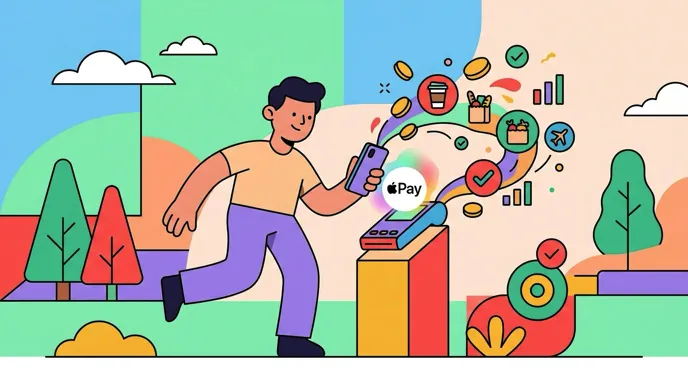
It is called Tap to Track, and it is built into Finny. The moment you tap to pay, the transaction is captured and logged. Your iPhone already knows when you pay at a terminal. Finny just listens.
Two weeks of using it produced 47 logged transactions with no thought given to any of them. Here is how it works, what it captures, and where it stops.
Why This Matters
Most expense tracking apps ask you to do one of two things: connect your bank account so they can pull transactions automatically, or type every expense manually. Both approaches have serious trade-offs.
Bank syncing means sharing your credentials with a third-party aggregator like Plaid. It introduces lag (transactions can take 1 to 72 hours to appear), and it gives the app access to your full financial picture: balances, transaction history, account numbers. For many people, that is more access than they are comfortable with.
Manual entry means remembering to log things. Which means forgetting to log things. The average manual tracker captures only 40% to 60% of actual spending.
Tap to Track offers a third path: instant, automatic, and completely private. No bank credentials shared. No waiting for sync. No manual input required.
For a broader look at how this compares to other tracking methods, see our guide on AI expense tracking vs manual methods.
How Your iPhone Knows You Paid
The mechanism is Finny's own, but what it does is simple to describe.
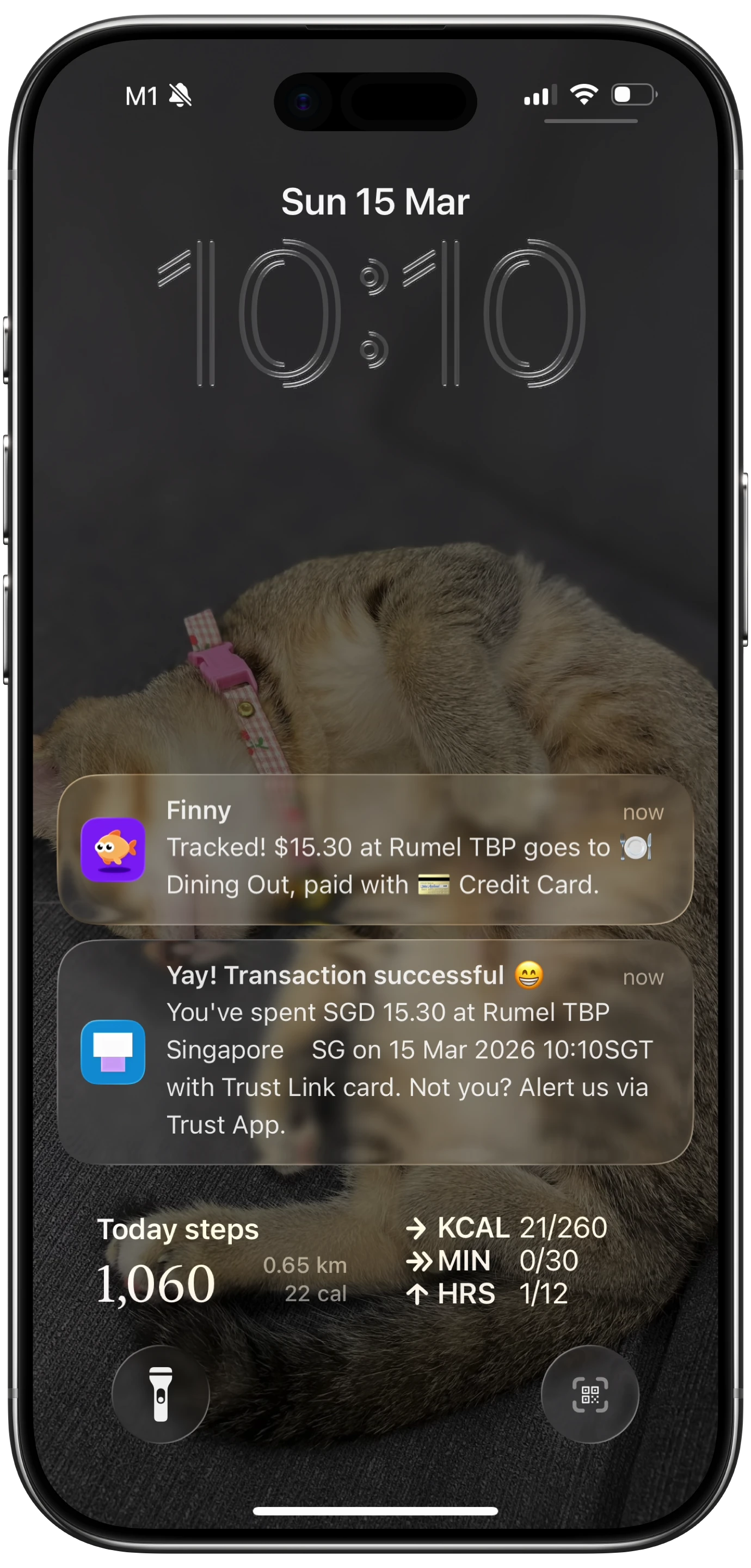
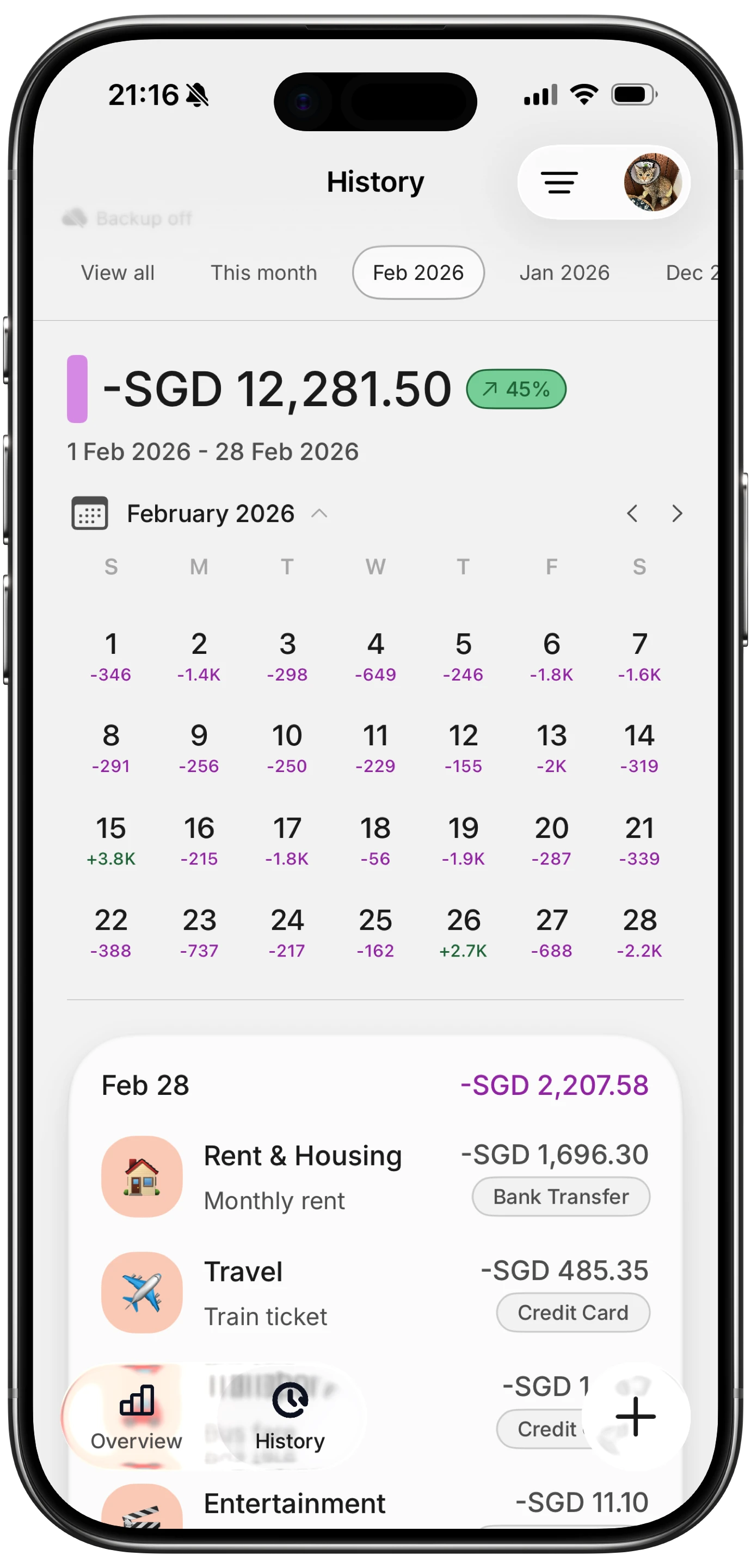
Here is what that invisible logging looks like when Tap to Track catches an Apple Pay purchase:
The Moment You Pay
Every time you hold your iPhone near a payment terminal and authenticate with Face ID or a fingerprint, your iPhone processes the payment through Apple Wallet. Your iPhone knows the instant that happens.
Tap to Track listens for that moment. Nothing polls, nothing runs in the background waiting, and nothing watches your accounts. There is a payment, and then there is an entry.
Instant, Invisible Logging
After a one-time setup inside Finny, the logging happens on its own. You do not see a pop-up, you do not confirm anything at the terminal, and Finny does not need to be open. The transaction record is created silently and stored on your device.
If a payment ever arrives without enough detail to log cleanly, it is not dropped. It waits in your history as a chip you can tap to complete, so a missed capture becomes a five-second fix rather than a hole in your month.
Your Data Stays on Your Device
Here is the part that makes this different from bank syncing: the data never leaves your device during this process. Finny stores the transaction on your iPhone. No server receives your purchase data in real time. No aggregator sits between you and your money.
If you have iCloud sync enabled through Apple Sign-In, Finny will sync the transaction to your other Apple devices. But that sync goes through Apple's infrastructure, not a third-party financial data company.
Setting It Up
Setup takes about two minutes and happens inside Finny, not in a maze of external steps.
Download Finny from the App Store. Sign in with Apple for cloud sync, or use the app with no account at all for fully local storage.
Open the Tap to Track setup in Settings. Finny walks you through it with a short video of the feature working first, so you can see what you are turning on before you turn it on. The guide is open to everyone, not just subscribers.
Choose which cards it covers. If you use one card for most purchases, point it at that one. If you split personal and business spending across cards, you can cover both.
Tap to pay at the next opportunity, then check your history. That is the only verification worth doing. If the entry is there, you are done and you never think about it again.
What Happens When You Tap to Pay
Let's walk through a real scenario. You are at a coffee shop. You order a latte for $5.50. You hold your iPhone near the terminal and authenticate with Face ID. Here is what happens in the next two seconds:
- Apple Wallet processes the payment.
- Your iPhone registers that a payment happened.
- Finny receives the transaction.
- A record is created: $5.50, today's date, and the available context.
- The transaction appears in your Finny history.
You pick up your latte and walk away. The expense is already tracked.
Why No Other App Does This
A fair question. Three reasons.
It Requires Deep Integration with Apple's Ecosystem
Making Tap to Track work seamlessly, silently and reliably at the moment of payment took real engineering, and it is not where most finance apps spend their effort. They put it into bank syncing and dashboards instead.
It Conflicts with the Bank Syncing Model
Apps like Monarch Money ($14.99/mo), YNAB ($14.99/mo), and Copilot ($13/mo) have built their entire transaction pipeline around Plaid and bank connections. Adding a parallel local-first tracking system would mean maintaining two separate data architectures. It is simpler for them to tell users to connect their bank.
Rocket Money (premium $7-14/mo) similarly routes all transaction data through bank syncing. Their value proposition is built on having full access to your financial accounts for subscription detection and bill negotiation.
Finny was built from the ground up without bank syncing as a dependency. That architectural decision is what makes Tap to Track possible.
It Requires a Privacy-First Design
Tap to Track only works well if the app is designed to function without bank data. Finny's entire tracking system, including AI categorization, multi-currency support, and reporting, works with locally captured data. There is no "connect your bank for the full experience" upsell because the full experience does not require bank access.
Pairing Tap to Track with Other Input Methods
Tap to Track handles every Apple Pay transaction automatically. But not every purchase goes through Apple Pay. Cash, Venmo, Zelle, online orders, and subscriptions need other methods.
Finny offers several input paths that pair with it:
Screen Log. When a payment is visible on your screen, a bank app, an order confirmation, a receipt, a statement, one press captures it. This is the one that reaches the credit cards that never send a notification.
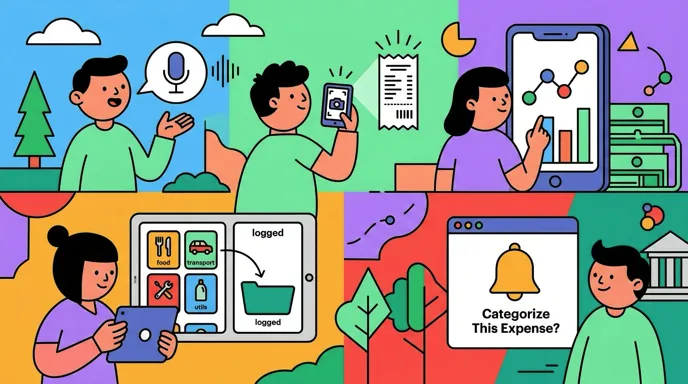
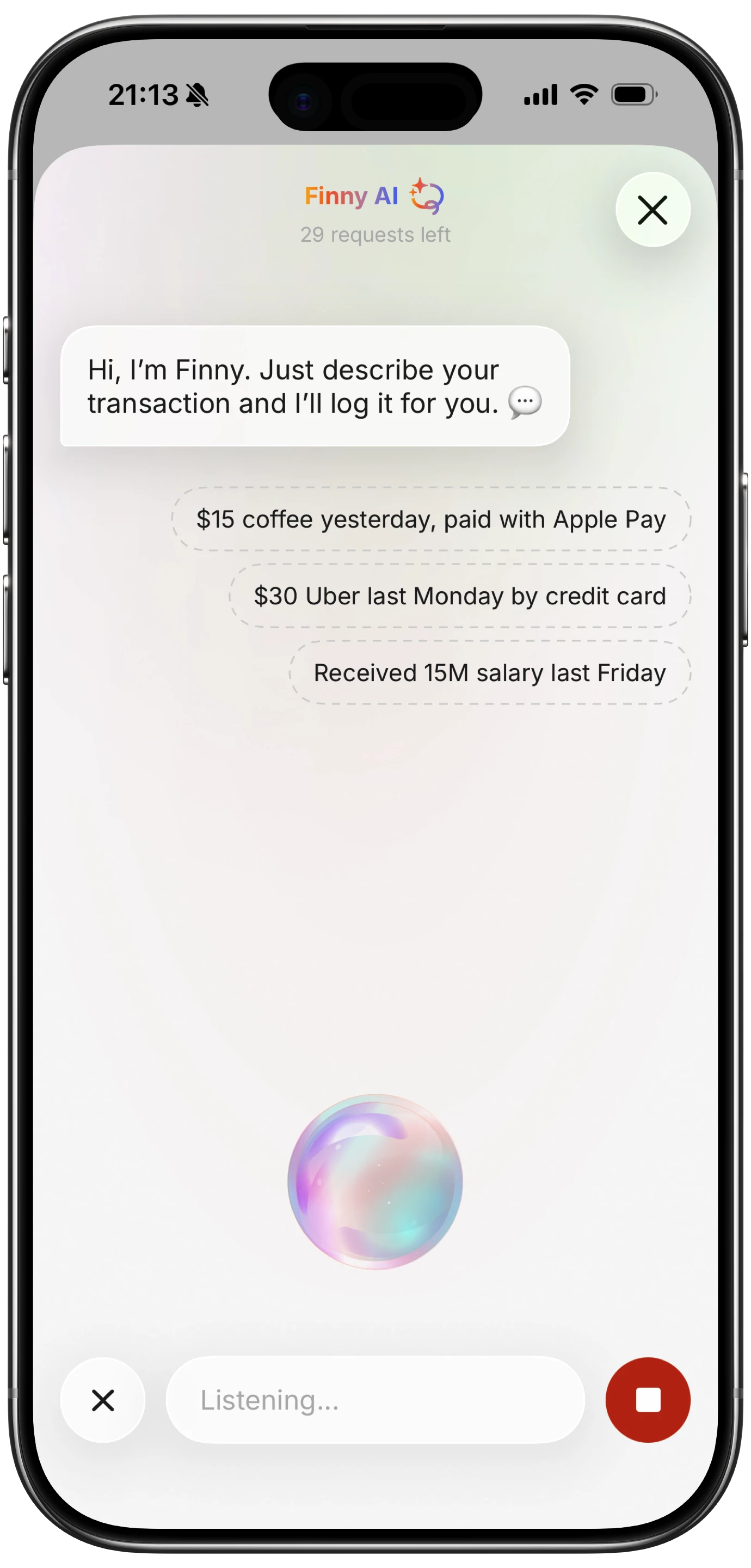
Voice input. For cash transactions and peer-to-peer payments, say "Spent twenty dollars on lunch" and Finny's AI creates the entry. See our voice expense tracker guide for more detail.
Receipt scanning. Snap a photo of any receipt (up to five at once) and the AI extracts amount, date, and merchant data.
Statement screenshot import. Screenshot your bank statement and share it into Finny. The AI reads and imports every transaction on screen.
Quick Log. A no-AI, free entry path for the times you just want to record a number in a couple of seconds.
Combined, these methods cover virtually 100% of transactions. Tap to Track handles the daily tap-to-pay purchases, and the others fill in everything else.
For a real-world example of using several methods together, read our post on tracking 200 expenses without typing.
Real Usage: Two Weeks In
After Tap to Track was set up, daily purchases stopped requiring any thought at all. Here is what a two-week breakdown looked like:
- 31 Apple Pay transactions logged automatically via Tap to Track
- 9 voice-logged cash and Venmo transactions
- 4 receipt scans from restaurants
- 3 transactions from a statement screenshot import
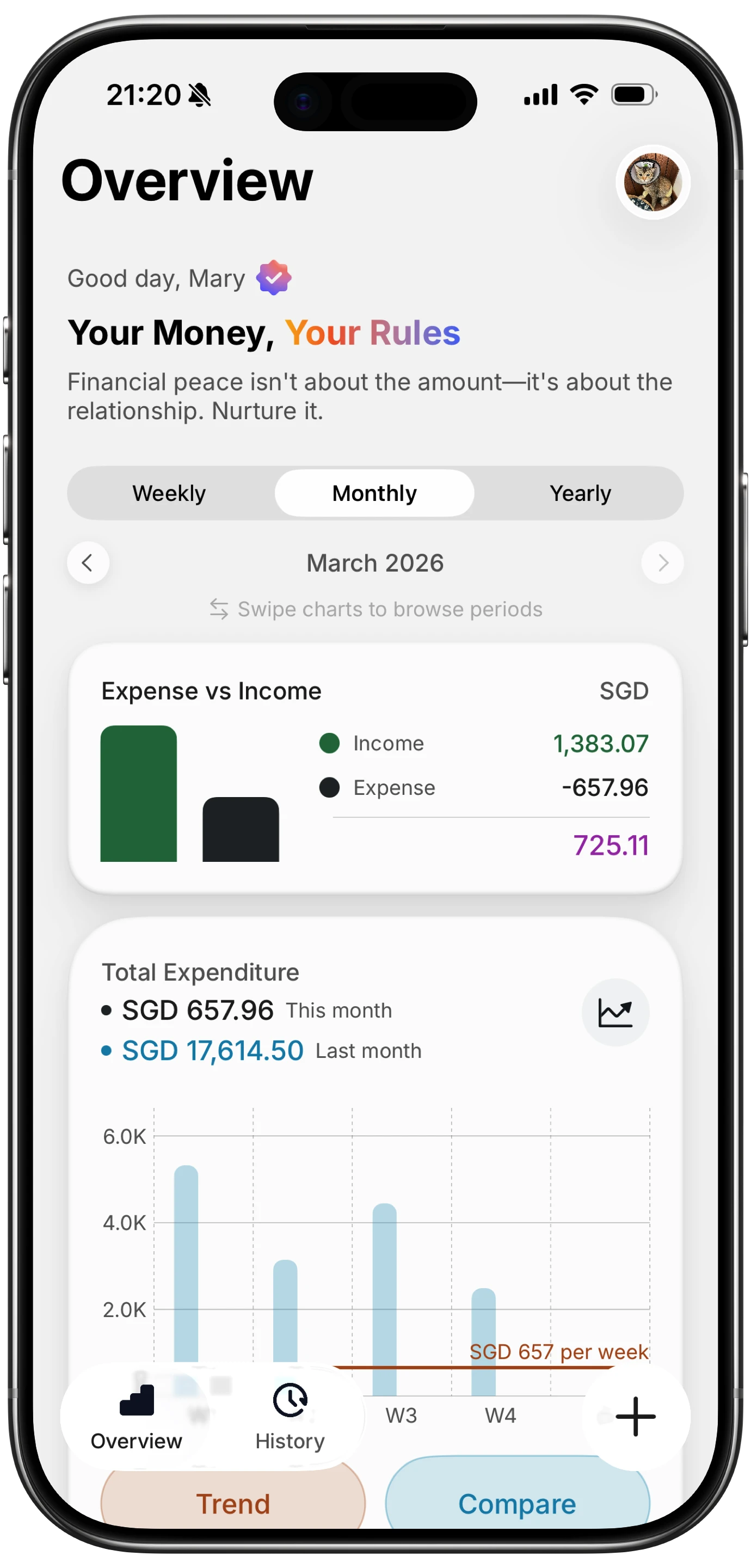
That is 47 transactions in 14 days, with the manual entry form opened zero times. The dashboard showed spending by category, and the numbers were complete for the first time in months.
The price for this experience: a low monthly price. Compare that to Monarch at $14.99/mo, YNAB at $14.99/mo, or Copilot at $13/mo, none of which offer instant tap-to-pay tracking without bank connections.
Privacy Advantages
Tap to Track is not just about convenience. It is fundamentally more private than bank syncing.
With bank syncing, a third party (typically Plaid) stores your bank login credentials and maintains persistent access to your accounts. They can see every transaction, your balance, your account numbers, and in some cases your employment and income data.
With Tap to Track, the data flow is: Apple Wallet, to your iPhone, to Finny on your device. No third-party aggregator. No stored credentials. No persistent access to your bank. The transaction data exists only on your iPhone (and your other Apple devices if you use iCloud sync).
For more on privacy-first expense tracking, see our guide on offline expense tracking.
Limitations to Know About
Tap to Track is not a silver bullet. Here are the honest limitations.
Apple Pay only. If you pay with a physical card, there is no payment event to catch, so Tap to Track only covers transactions where you use Apple Pay at a terminal. If you also use Apple Cash for peer-to-peer transfers, those land in a different ledger; for the full picture, see our Apple Cash vs Apple Pay tracking guide.
In-person only. Online purchases made through Apple Pay on the web are not captured this way. Use Screen Log or statement import for those.
iOS only. This depends on capabilities that exist on iPhone and not on Android. Finny's other input methods work regardless.
Categorization is basic. The payment event provides limited merchant data. Finny's AI adds category suggestions based on context, but you may need to adjust categories for some transactions. Over time, accuracy improves.
These limitations are real, and they are why Finny offers several input methods instead of one. Tap to Track handles the majority of daily purchases. The others handle everything else.
FAQ
Does Tap to Track work with Apple Watch?
Yes. Apple Pay purchases made from an Apple Watch can be covered too, and the setup is the same.
Will this drain my battery?
No. Nothing polls and nothing monitors continuously. It does its work only at the moment you pay, so the battery impact is negligible.
Can I set up Tap to Track for multiple cards?
Yes. You choose which cards are covered during setup, and you can cover several. If you split personal and business spending across different cards, both can be tracked.
Is my data shared with anyone during Tap to Track?
No. The capture happens on your device, with no third-party aggregator and no cloud processing of the initial transaction. If you enable iCloud sync, your data syncs through Apple's encrypted infrastructure, but it is never sent to a financial data company. See our guide on the best money tracker app in 2026 for more on how privacy-first apps compare.
Download Finny and turn on Tap to Track in about two minutes. Every Apple Pay tap, tracked automatically, no bank connection required.