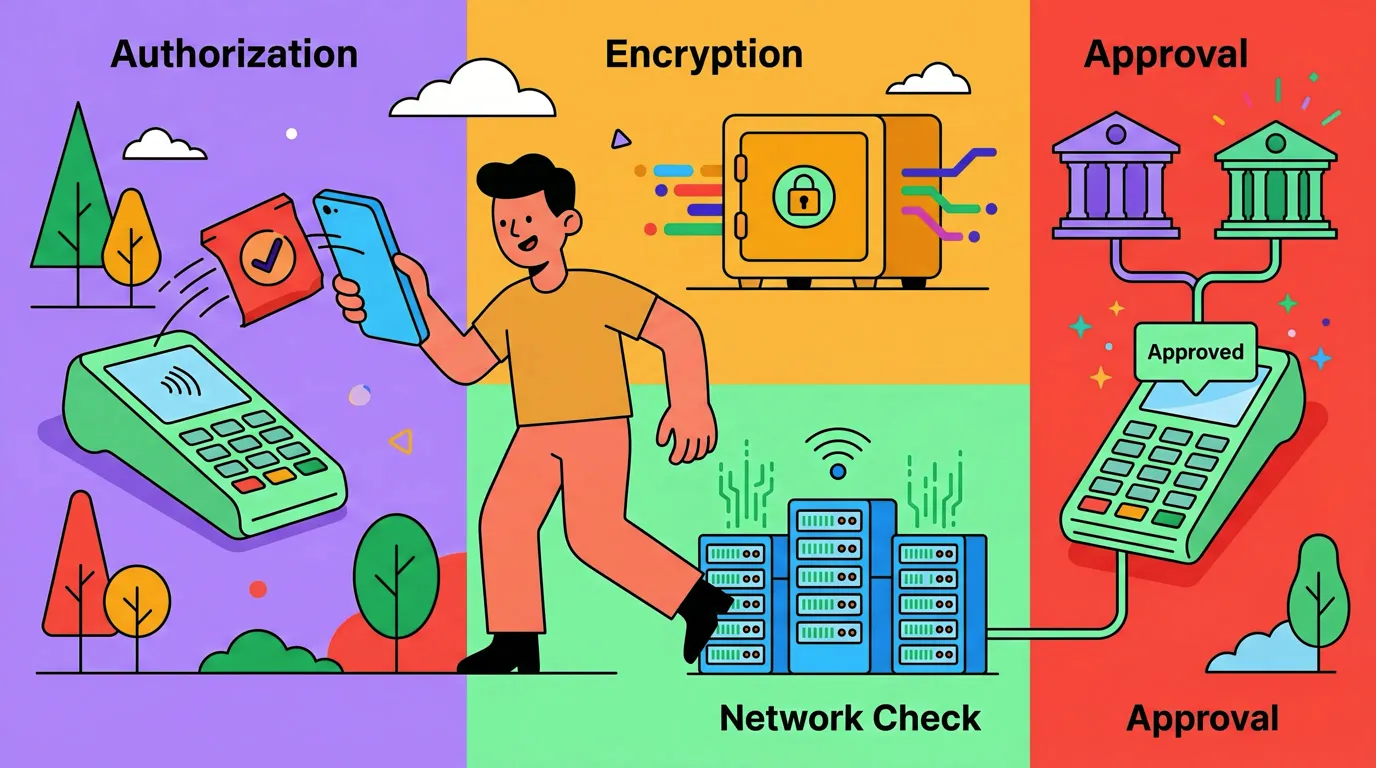
You tap your phone at the register, send money to a friend, and top up your transit card. Each transaction happens instantly, but none of them show up in your budget. By the end of the month, you have no clear picture of where your money went.
Track e-wallet spending is the missing link for anyone who uses digital wallets regularly. Whether you rely on GrabPay in Southeast Asia, PayPay in Japan, Venmo in the US, or Apple Pay everywhere, the core problem is the same: these wallets operate outside traditional budget apps. This guide covers practical methods to bring scattered e-wallet transactions into one place, including screenshot import and multi-currency tools. If Venmo and Zelle are your main wallets, our US guide to tracking Venmo and Zelle payments covers them specifically.
For a broader look at tracking tools, see our guide on best money tracker apps in 2026.
Why E-Wallet Spending Is Hard to Track
E-wallets are designed for speed, not budgeting. You load money in, tap to pay, and the balance drops. Most wallets show a transaction list, but they don't categorize spending, set limits, or connect to your broader financial picture. For a closer look at exactly what these wallets do and do not record, see do digital wallets track your spending.
The problem compounds when you use more than one wallet. Many people carry two or three: one for peer-to-peer payments, one for transit, and one tied to their phone's default payment system. Each wallet has its own app, its own history, and its own currency format.
Traditional budget apps solve this for bank accounts by linking directly to your bank. But most e-wallets don't support open banking APIs. GrabPay, GoPay, and PayPay have no standard way to share transaction data with third-party apps. Even wallets like Venmo and Cash App, which connect to bank accounts, don't expose their internal transaction feeds to budgeting tools.
This leaves you with two options: manually re-enter every transaction, or find a smarter way to import them.
The Manual Entry Problem
Manual logging works in theory. You open your budget app after each purchase and type in the amount. But e-wallet payments are often small and frequent. A coffee here, a grab ride there, a quick transfer to split lunch. The volume makes manual entry exhausting.
Most people who try manual tracking with e-wallets give up within two weeks. The friction is too high for the transaction frequency. You need a method that captures transactions in bulk without requiring you to type each one individually.
If you're new to tracking expenses in general, our budgeting for beginners guide covers the fundamentals before diving into wallet-specific strategies.
Screenshot Import: The Practical Solution
The most reliable way to capture e-wallet transactions is to screenshot your wallet's transaction history and let an AI-powered app parse the data. This approach works regardless of which wallet you use, because every wallet displays a transaction list on screen.
Here is how the process works:
- Open your e-wallet app and navigate to the transaction history.
- Screenshot the list of recent transactions. Take multiple screenshots if the list is long.
- Import the screenshots into your expense tracker app.
- Review the parsed transactions. The AI extracts amounts, dates, and merchant names from the screenshot.
- Confirm each transaction and assign categories as needed.
This batch approach is far more efficient than manual entry. Instead of logging 30 transactions one at a time, you capture them all in two or three screenshots and review them in a single sitting.
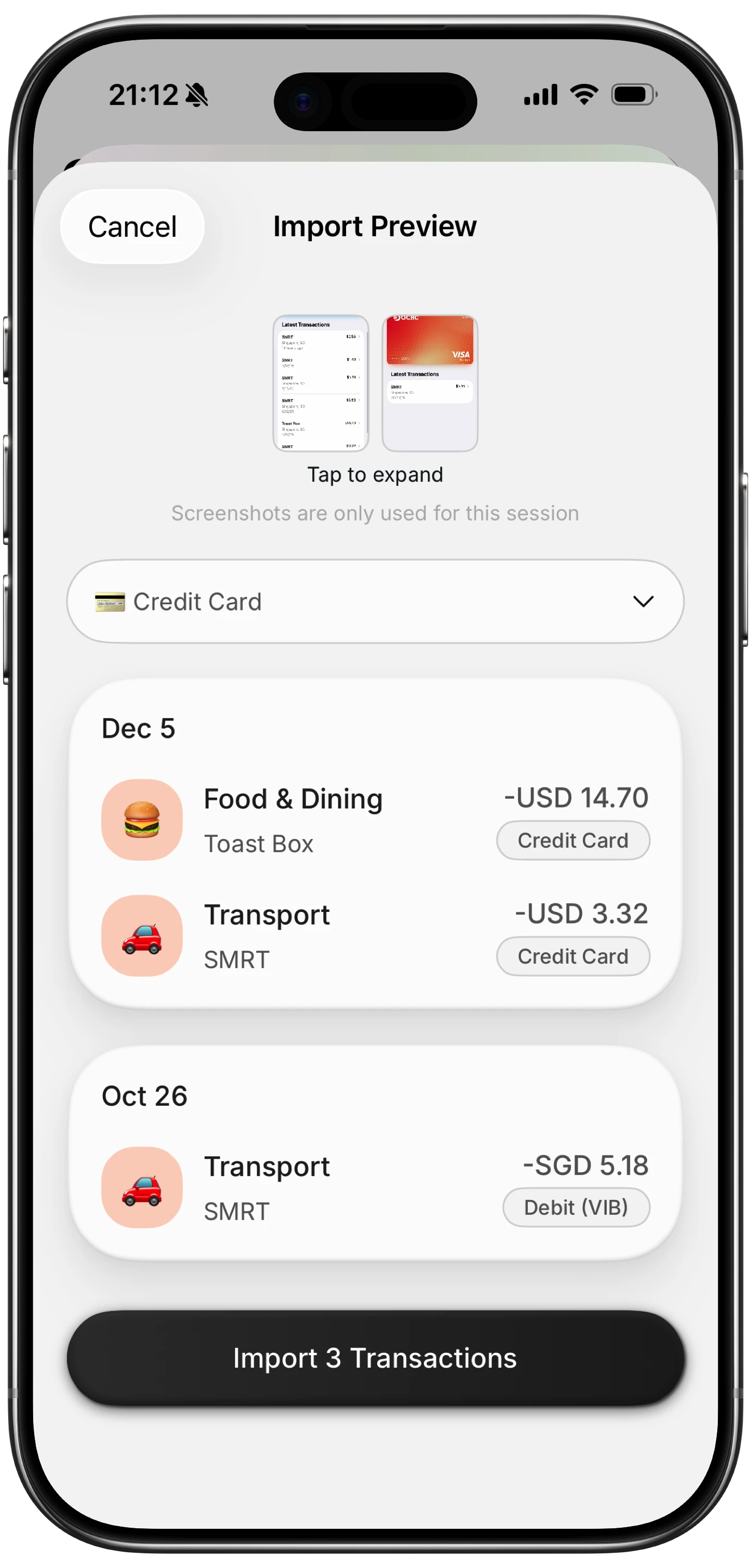
Finny app's screenshot import feature
Finny supports this workflow natively. Its screenshot import feature uses AI to read transaction data from your e-wallet screens, parse each line item, and present them for your confirmation. You stay in control of categorization while the app handles the tedious data extraction.
Supported E-Wallets and How They Differ
Not all e-wallets present transaction data the same way. Here is a quick reference for the most popular wallets and what to expect when importing.
| Wallet | Region | Currency | Transaction Format |
|---|---|---|---|
| GrabPay | Southeast Asia | MYR, SGD, PHP, THB, VND | Clean list with amounts and merchants |
| GoPay | Indonesia | IDR | List with merchant codes, sometimes abbreviated |
| PayPay | Japan | JPY | Clear list, Japanese text with amounts |
| Venmo | US | USD | Social feed format, amounts visible |
| Cash App | US | USD | Simple list with notes and amounts |
| Apple Pay | Global | Local currency | Transaction list via Wallet app |
The key takeaway: regardless of the wallet, the transaction screen contains the data you need. AI-based screenshot parsing can handle different layouts, languages, and currency formats.
Multi-Currency E-Wallet Tracking
If you travel frequently or live in a region where multiple currencies circulate, your e-wallet spending spans more than one currency. A GrabPay user in Southeast Asia might pay in Thai Baht one week and Malaysian Ringgit the next. A digital nomad might use Venmo in USD and GoPay in IDR within the same month.
Most budget apps handle only one currency, forcing you to convert everything manually. A proper e-wallet expense tracker should support multiple currencies natively, showing each transaction in its original currency while giving you a unified view of total spending.
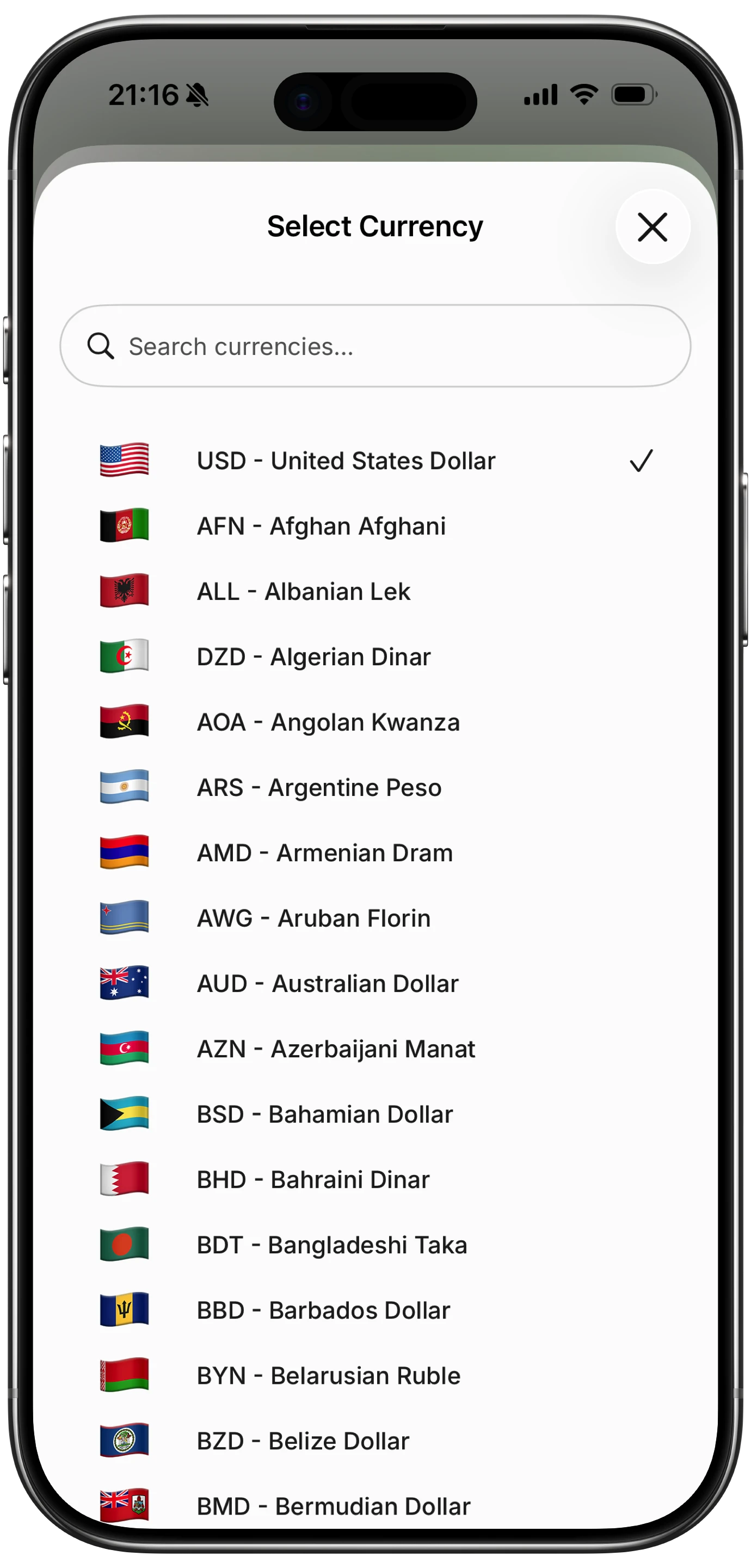
Finny app's multi-currency feature
For a deeper look at managing expenses across borders, see our guide on multi-currency expense tracking for digital nomads.
Comparing Approaches to E-Wallet Tracking
Manual Entry in a Spreadsheet
The simplest approach, but the least sustainable. You open a Google Sheet, type in each transaction, and manually tag categories. It works for five transactions a week. It falls apart at fifty.
Wallet by BudgetBakers
Wallet supports manual entry and some bank connections. However, it does not parse e-wallet screenshots. You would still need to enter each e-wallet transaction by hand. It handles multiple currencies, which is a plus for travelers.
Spendee
Spendee offers shared wallets and bank syncing in supported regions. Its coverage for Asian e-wallets like GrabPay and GoPay is limited. If your wallet isn't supported for direct sync, you are back to manual entry.
Finny (Screenshot Import + AI)
Finny takes a different approach by letting you import screenshots from any e-wallet. The AI parses transaction data from the image, regardless of the wallet provider or language. Combined with multi-currency support and offline functionality, it handles the full range of e-wallet tracking needs without requiring bank connections.
Building a Routine for E-Wallet Budgeting
Tracking e-wallet spending works best as a weekly habit rather than a daily chore. Here is a practical routine:
- Pick one day per week for your e-wallet review. Sunday evenings work well for many people.
- Open each e-wallet and screenshot the past week's transactions.
- Import all screenshots into your tracking app in one batch.
- Review and categorize the parsed transactions. This typically takes five to ten minutes.
- Check your spending against your budget categories to see if you're on track.
This weekly batch approach takes less total time than daily manual entry, and it captures everything. You can also set a simple spending limit for each wallet to keep things in check. Our guide on optimizing spending categories can help you set up categories that match your actual e-wallet usage.
Privacy Considerations for E-Wallet Data
E-wallet transaction data includes merchant names, amounts, and timestamps. When you import this data into a budget app, you want to know where it goes and who can see it.
Apps that require bank linking transmit your data to third-party aggregators. Screenshot-based import avoids this entirely. The image stays on your device, the AI parses it locally or in a secure pipeline, and the extracted data is stored under your control.
For a detailed comparison of privacy approaches in finance apps, see our guide on finance app security and privacy.
The Bottom Line
E-wallets make spending easy, but they make tracking hard. The lack of standard integrations means budget apps can't pull your data automatically. Manual entry doesn't scale when you're making dozens of small digital payments each week.
Screenshot import bridges this gap. It works with any wallet, handles multiple currencies, and reduces the time you spend on data entry. Paired with a weekly review habit, it gives you full visibility into your digital wallet spending without the friction.
If you use one wallet, the process is straightforward. If you use several across different currencies, look for an app that supports multi-currency views and batch import. The goal is a single, clear picture of all your spending, regardless of how you paid.
Common Questions About E-Wallet Expense Tracking
How do I track e-wallet spending if my wallet has no export feature?
Screenshot your transaction history and import it into an app that supports AI-based image parsing. This works with any wallet that displays a transaction list, regardless of whether it offers CSV export or API access.
Can I track multiple e-wallets in one app?
Yes. Apps with screenshot import can handle transactions from different wallets in the same account. Look for multi-currency support if your wallets operate in different currencies.
Is it safe to screenshot my e-wallet transactions?
Screenshots stay on your device until you choose to import them. Apps that process images locally or through secure pipelines avoid exposing your data to third parties. This is generally safer than linking your wallet account directly to a third-party service.
What is the best e-wallet expense tracker in 2026?
The best option depends on which wallets you use and how many currencies you deal with. For broad compatibility across wallets and regions, a screenshot-based tracker with AI parsing and multi-currency support offers the most flexibility.
Ready to bring your e-wallet spending under control?
Download Finny to import transactions from any e-wallet using screenshots, track multiple currencies in one place, and keep your budget accurate without manual data entry.