
How to Track Personal Expenses From Your Bank Statement in 2026
Most budgeting apps open with the same request: link your bank account. For a lot of people, that is a non-starter. Privacy-conscious users do not want a third-party aggregator holding their credentials. Expats and digital nomads have foreign accounts that Plaid and MX do not support. Employees of banks, government agencies, and certain contractors are barred by policy from connecting accounts to outside apps. Small credit unions and newer fintechs often sit outside the aggregator network entirely.
The good news is that you can track personal expenses from a bank statement without ever linking an account. Your bank already gives you the source of truth every month: the statement itself, in PDF, CSV, or app screenshot form. The only question is how you get that data into a tracker. This guide walks through the three methods that actually work in 2026, how they compare on accuracy and speed, and which one fits different user profiles. For a broader look at private-first tracking, see our track expenses without linking bank guide. If an account has no downloadable statement, you can log transactions from screenshots of its app instead.
Why Track Personal Expenses From a Bank Statement Instead of Linking?
Linking a bank account is not inherently bad. It is just not the only option, and for a meaningful slice of users, it is not a workable one.
Privacy and Data Minimization
Aggregators like Plaid, MX, and Finicity sit between your bank and your budgeting app. They typically hold credentials or long-lived tokens that grant ongoing access to your accounts. In 2022, Plaid settled a class-action lawsuit for $58 million over allegations that it collected more user data than people expected. You do not have to assume bad intent to prefer keeping that middle layer out of the picture.
Working from a statement lets you share exactly what you choose with your tracker: the transactions on the statement, and nothing else. No balance information, no linked savings account, no investment positions.
Universal Bank Support
Aggregator coverage varies by country, bank size, and account type. A checking account at a small rural credit union, a business account at a European neobank, or a brokerage cash account at a regional firm may not connect at all. But every one of those institutions produces a monthly statement. If you can read it, you can track it.
Corporate and Compliance Restrictions
Many workplaces restrict connecting corporate or personal bank accounts to third-party apps. Military personnel, federal employees, and staff at financial institutions often fall under these policies. A statement-based workflow keeps you compliant while still letting you budget. For more on the security side, read finance app security and privacy.
Expat and Multi-Currency Accounts
If you hold accounts in multiple currencies or countries, aggregator support thins out quickly. Expats and nomads often rely on manual or statement-based tracking by necessity. Our guide on the best multi-currency expense tracker in 2026 covers this use case in more depth.
Three Ways to Track Personal Expenses From Your Bank Statement in 2026
There are really only three methods that work reliably, and each has a different balance of accuracy, speed, and friction.
- Typing transactions manually from a PDF or paper statement.
- Exporting a CSV from your bank and importing it into an app or spreadsheet.
- Screenshotting your statement and letting an AI tracker parse it into transactions.
The first is the most accurate and the most painful. The second is fast but depends on what your bank supports. The third is the newest option and the fastest to set up, with a real tradeoff on accuracy for unusual formats.
Method 1: Manual Typing From Your Statement
The classic approach. You open your PDF or paper statement, then type each line into your tracker. No AI, no export, no middleware.
How to Do It
- Download your statement as a PDF from your bank's online portal.
- Open a manual tracker, spreadsheet, or envelope-based app.
- For each transaction on the statement, enter the date, merchant, amount, and category.
- Reconcile the total at the end against the statement's ending balance.
Honest Pros and Cons
Manual typing gives you full control and perfect privacy. Nothing leaves your device, no format quirks trip you up, and you get a close reading of every transaction, which sometimes surfaces charges you would otherwise miss.
The cost is time. A month with 60 transactions takes roughly 20 to 30 minutes to type in carefully. You also have to catch your own typos, and the data is only as accurate as your attention span at minute 25.
When This Method Wins
Manual entry is the right pick if you have fewer than about 30 transactions a month, if you want the meditative ritual of reviewing spending line by line, or if you use a tool like Goodbudget that is built around the envelope method. Goodbudget charges $10 per month or $80 per year for Plus, with a free tier capped at 10 envelopes and one account. There is no AI parsing, no receipt scanning, no voice input. Every entry is a form.
Method 2: CSV Export From Your Bank, Then Import
This is the spreadsheet-user's method. Most online banking portals let you download a CSV, OFX, or QFX of recent transactions. You then feed that file into a tracker that supports imports.
How to Do It
- Log in to your bank's web portal. Navigate to transactions or statements.
- Select a date range and export as CSV.
- Open the file and confirm columns: date, description, amount, and sometimes category.
- Import the file into your tracker.
Which Apps Support CSV Import
YNAB (You Need A Budget)
YNAB supports file-based import at $14.99 per month or $109 per year. You drag a CSV into the account, and YNAB maps columns to date, payee, memo, and amount. The support docs recommend YYYY-MM-DD dates and UTF-8 encoding. YNAB also accepts OFX and QFX. The process works, but every bank's CSV layout is slightly different, and the community has built third-party converters like bank2ynab to handle the edge cases.
Wallet by BudgetBakers
Wallet offers free CSV import through its web app, with a 1,000-row cap per file and a strict column order (date in ISO 8601, note, income, expense). The export feature is premium, but import stays free. It is a reasonable choice if your bank gives you a clean file.
Tiller
Tiller is spreadsheet-based tracking in Google Sheets or Excel. Its CSV Importer, released October 2025, automates historical data import with column mapping. Tiller costs $79 per year and is the best fit if you already live in spreadsheets and want full control over formulas and categorization.
Honest Pros and Cons
CSV import is fast once it works. Importing 90 days of transactions can take under a minute. Column mapping is a one-time setup per bank.
The weak points are real. Many banks still make you log in to get the CSV, which defeats part of the privacy benefit. Some banks do not export at all, or only as a PDF without tabular data. International bank exports frequently use different date formats, decimal separators, and currency symbols, which can break imports or corrupt amounts. And transaction descriptions are often cryptic codes rather than human-readable merchants, so you still end up recategorizing.
Method 3: Screenshot Your Statement, Let AI Parse It
The newest method, and the one that has changed most in the last two years. Instead of typing or exporting, you screenshot your statement or your banking app, then let an AI-powered tracker extract the transactions.
How to Do It
- Open your banking app or statement PDF on your phone.
- Take screenshots of the transaction list. Most users need two to five images to cover a month.
- Share or upload the screenshots into an AI expense tracker.
- The app runs OCR on the image, then a language model structures the text into dated transactions with amounts and merchant names.
- Review the parsed list, fix any errors, then save in batch.
Apps Doing This in 2026
Finny supports multi-transaction statement import from screenshots through its AI parsing pipeline. It combines OCR with LLM parsing to extract date, merchant, and amount, then lets you review and confirm the batch in one screen. Finny costs a low monthly or yearly price and runs fully offline for manual entries, with cloud AI handling the parsing step. Expense Tracker Genius and moneasy are other 2026 iPhone apps in the same category, each with their own tradeoffs on pricing and batch size.
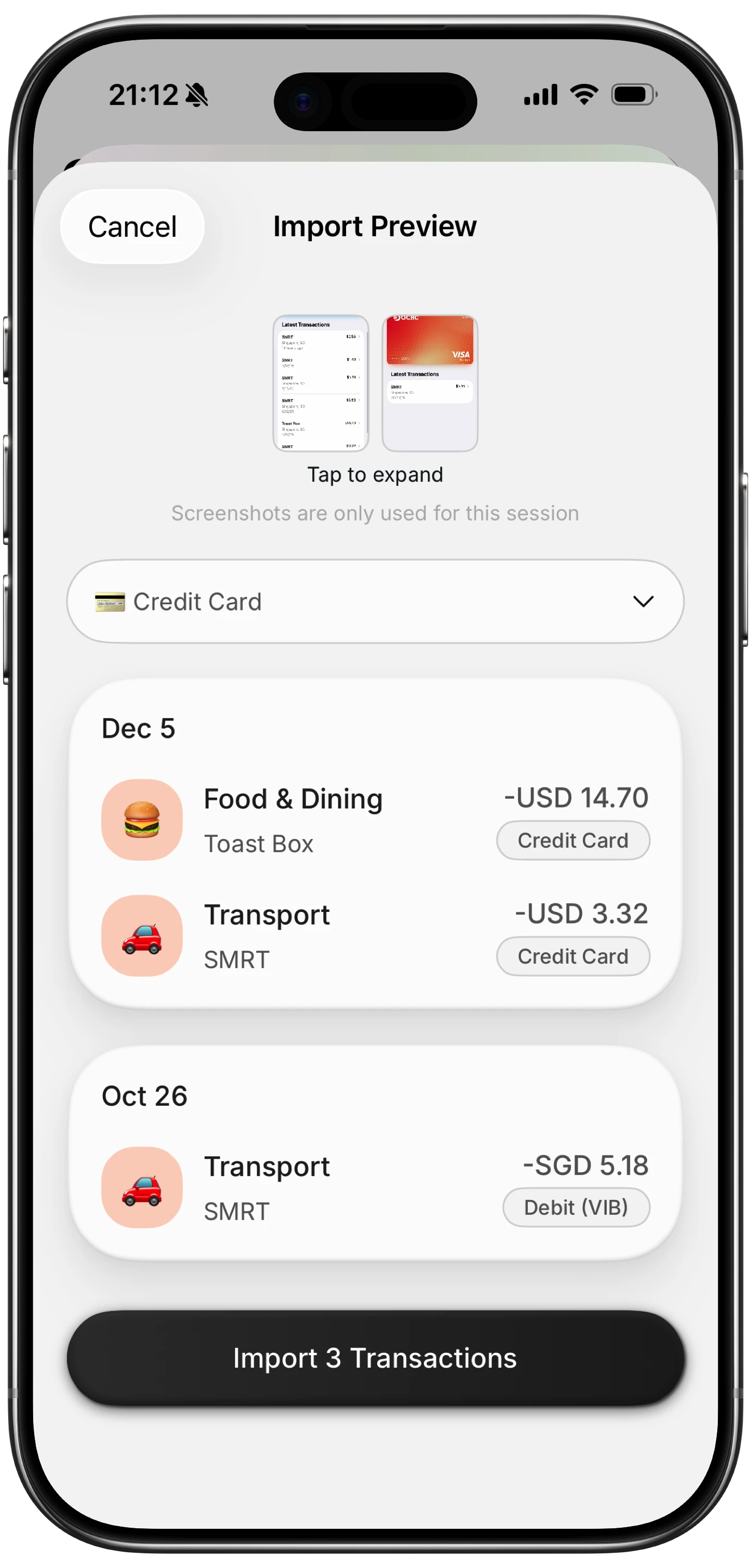
Finny app's screenshot import feature
Accuracy Expectations
This is where honesty matters. AI statement OCR works well, but it is not magic.
Clean statements in English, with consistent column layouts and clear date formats, parse reliably. Expect 90 to 95 percent accuracy on those. You will still see occasional errors on ambiguous merchant strings, split transactions, pending holds, or footer rows that get read as line items.
Statements that are harder: non-Latin scripts, heavy visual styling, foreign currency symbols, very small fonts, and multi-column layouts. Accuracy on those drops to 80 to 90 percent. The fix is the same either way: review each parsed transaction before saving. For more on how OCR works in this space, see our AI receipt scanner guide.
Accuracy: How Well Does AI Read Bank Statements?
A realistic range for modern AI statement parsing is 80 to 95 percent accuracy, depending on the statement and the app. That means if you feed in 60 transactions, you should expect somewhere between 3 and 12 to need correction.
Common Errors to Watch For
- Decimal and thousands separators flipped, turning $1,250.00 into $1.25.
- Merchant strings merged with reference codes, producing "AMZN MKTP US*A1B2C3" instead of "Amazon."
- Dates read as MM/DD when the statement uses DD/MM.
- Pending or reversed transactions duplicated.
- Currency symbols dropped on multi-currency statements.
- Header or footer rows parsed as transactions.
How to Verify
Always reconcile to the statement total. After importing, sum the expenses in your tracker and compare against the statement's total outflows. If the numbers match within a dollar or two, your import is likely clean. If they diverge, work backward through the list to find the miscount.
A good habit is to import one page at a time on the first pass, rather than a full quarter. It is easier to catch errors in a 30-transaction batch than a 300-transaction one.
A Note on Privacy When Screenshotting Statements
Screenshots of a bank statement contain sensitive data. A few precautions worth taking:
- Crop or blur your full account number before sharing images with anyone, including support agents.
- Remove balance and address fields from screenshots if possible.
- Do not store statement screenshots in shared cloud albums that your family or partner can browse.
- Delete the screenshots from your phone after importing. Most AI parsers only need the image for the few seconds it takes to parse.
- Prefer apps that process images ephemerally rather than storing them long-term.
None of this is about paranoia. It is about treating financial images the same way you already treat a physical paper statement: you do not leave copies on the coffee table.
Which Method Fits You
Different users have different constraints. Here is a rough decision matrix.
| User profile | Best method | Why |
|---|---|---|
| Privacy-first, low transaction volume | Manual typing | Zero data leaves your device, low volume makes it sustainable |
| Spreadsheet enthusiast | CSV export to Tiller | Full control, formulas, familiar environment |
| YNAB user with a supported bank | CSV export to YNAB | Reliable import, strong budgeting discipline |
| Expat with foreign accounts | Screenshot and AI parse | Aggregators do not cover many foreign banks |
| Freelancer tracking business expenses | Screenshot and AI parse | Fast batch import from multiple accounts |
| Casual tracker, high volume | Screenshot and AI parse | Best speed-to-accuracy ratio for most users |
| Corporate-restricted user | Manual or screenshot | Both methods avoid aggregator connections |
For most people with more than 20 transactions a month who do not live in spreadsheets, the screenshot-and-parse method is the winner in 2026. It is the only approach that gets you close to bank-link speed without the bank link. Once your expenses are in, our guide on how to match receipts to your bank statement covers the monthly check that keeps them accurate.
The Bottom Line
You can track personal expenses from a bank statement three different ways, and each is valid. Manual typing wins on privacy and precision at low volume. CSV export wins if your bank cooperates and you like spreadsheets. AI statement parsing wins on speed for everyone else.
The shift in 2026 is that AI statement parsing is finally good enough to be a first choice rather than a fallback. It is still not perfect, so reconcile against the statement total and review merchant names on the first pass. But for expats, privacy-conscious users, corporate-restricted employees, and anyone whose bank simply is not supported by Plaid, it collapses hours of manual work into minutes without handing credentials to an aggregator.
Frequently Asked Questions
Can I import a bank statement into an expense tracker?
Yes. Most modern trackers support at least one of three methods: manual entry from a PDF, CSV or OFX file import, and AI-powered screenshot parsing. CSV import works in YNAB, Wallet by BudgetBakers, and Tiller. Screenshot parsing works in Finny and a handful of other iPhone apps released in 2025 and 2026. Manual entry works everywhere and needs no special feature.
What is the best app to read bank statement screenshots in 2026?
Finny, Expense Tracker Genius, and moneasy all support AI-parsed statement screenshots on iPhone. Finny is the lowest-cost of the three at a low monthly price and includes batch review, multi-currency, and offline manual entry. The right pick depends on your volume, whether you need multi-currency, and whether you want a standalone tracker or a spreadsheet workflow.
Is it safe to screenshot bank statements?
Screenshotting your own statement is safe as long as you treat the image carefully. Do not share it through unencrypted channels, crop out your full account number before sending to anyone, and delete screenshots from your phone after importing. Choose an app that processes images and does not retain them long-term.
How accurate is AI OCR on bank statements?
Accuracy depends on statement format. Clean, English-language statements with clear column layouts parse at 90 to 95 percent accuracy. Statements with unusual fonts, multi-column designs, foreign currency symbols, or non-Latin scripts drop to 80 to 90 percent. Always reconcile the imported total against the statement's outflow total to catch misreads.
Can I track expenses from a bank statement without logging into my bank?
Only partially. To get a CSV, PDF, or screenshot, you still need to log in to your bank once to retrieve the file or capture the screen. The difference is that no third-party app receives your credentials or maintains ongoing access. You log in, grab the data, and log out.
Ready to track expenses from your bank statement without linking accounts?
Download Finny to import statement screenshots, scan receipts, and log expenses with AI text and voice input. No bank connection needed, offline-first, and your data stays under your control.