
Action Button Expense Tracker Setup for iPhone 15 Pro and 16 Pro
Most people abandon expense tracking within a week. The friction is rarely the app itself. It is the two or three steps standing between the moment money leaves your pocket and the moment it gets recorded. By the time you unlock your phone and navigate to the right screen, the moment is already gone.
The action button expense tracker setup described here cuts that gap to a single press. Whether you use a voice prompt, a text input dialog, or a photo of your receipt, the entire flow can complete in under two seconds. This guide covers compatible iPhones, the Shortcuts setup process, three distinct variants for different situations, and how Apple Intelligence parsing makes the whole system smarter.
Which iPhones Have the Action Button
The Action Button launched exclusively on the iPhone 15 Pro and 15 Pro Max in 2023. Starting with the iPhone 16 lineup, Apple extended it to every model in the series: 16, 16 Plus, 16 Pro, and 16 Pro Max. The iPhone 16e, released in early 2025, also includes an Action Button. Based on available information, the iPhone 17 family follows the same pattern.
If you are on an iPhone 15 (non-Pro), 14, or earlier, you do not have an Action Button. The closest alternative is a Back Tap shortcut configured in Settings under Accessibility. It is less reliable than the Action Button but uses the same Shortcuts framework described below. For a broader look at trigger options, see our guide on tracking purchases without opening an app.
What You Need Before You Start
- An iPhone 15 Pro, 15 Pro Max, any iPhone 16 model, or any iPhone 17 model
- The Shortcuts app (built into iOS, available from the App Store if removed)
- An expense tracking app with a URL scheme or share sheet support. Finny supports both.
- Optional: iOS 18 or later for Siri handoff improvements; iOS 26 for full Apple Intelligence integration in Shortcuts
You do not need to link a bank account for this to work. The setup captures your input and logs it immediately, locally, without any external sync required.
How to Set Up the Action Button as an Expense Tracker
This numbered sequence is the core setup. It takes under five minutes.
- Open the Settings app and scroll to Action Button.
- Swipe through the available options until you reach Shortcut.
- Tap Choose a Shortcut and select an existing shortcut or tap the plus icon to create one.
- In Shortcuts, tap the plus icon in the top-right corner to create a new shortcut.
- Tap Add Action and search for Ask for Input. Add it with the prompt "Amount and description" and input type set to Text.
- Add a second action: Open URLs or your tracking app's URL scheme action. For Finny, this passes the input text directly to the AI parser.
- Name the shortcut something short, like "Log Expense," and save.
- Return to Settings, confirm the new shortcut is selected under Action Button.
- Press the Action Button once to test. The input prompt should appear immediately.
- Enter "coffee 4.50" or "lunch 18" and confirm. Your app receives the text and categorizes it.
That is the baseline setup. The three variants below build on this foundation.
Three Setup Variants for Different Situations
Variant 1: Voice Prompt with AI Parsing
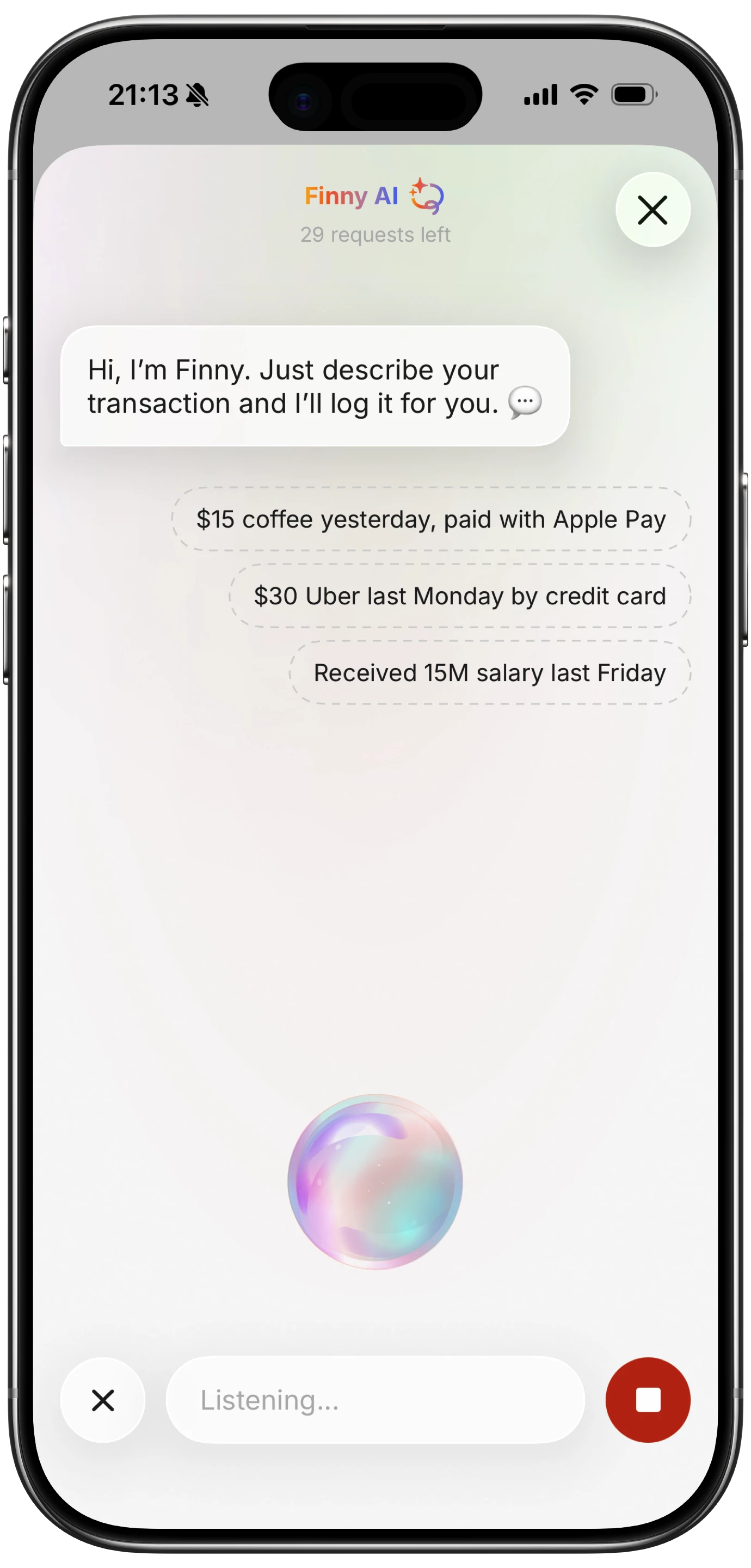
This is the fastest option when your hands are occupied, such as carrying bags out of a grocery store. Instead of the Ask for Input action, use Dictate Text or route the Action Button through Siri.
Press and hold the Action Button to invoke Siri directly (available as one of the built-in Action Button options), then say something like "Log 34 dollars at the pharmacy." If your tracking app supports Siri intents or has an Apple Intelligence integration, the phrase gets parsed and categorized automatically. If not, Siri can pass the transcribed text to your app's URL scheme.
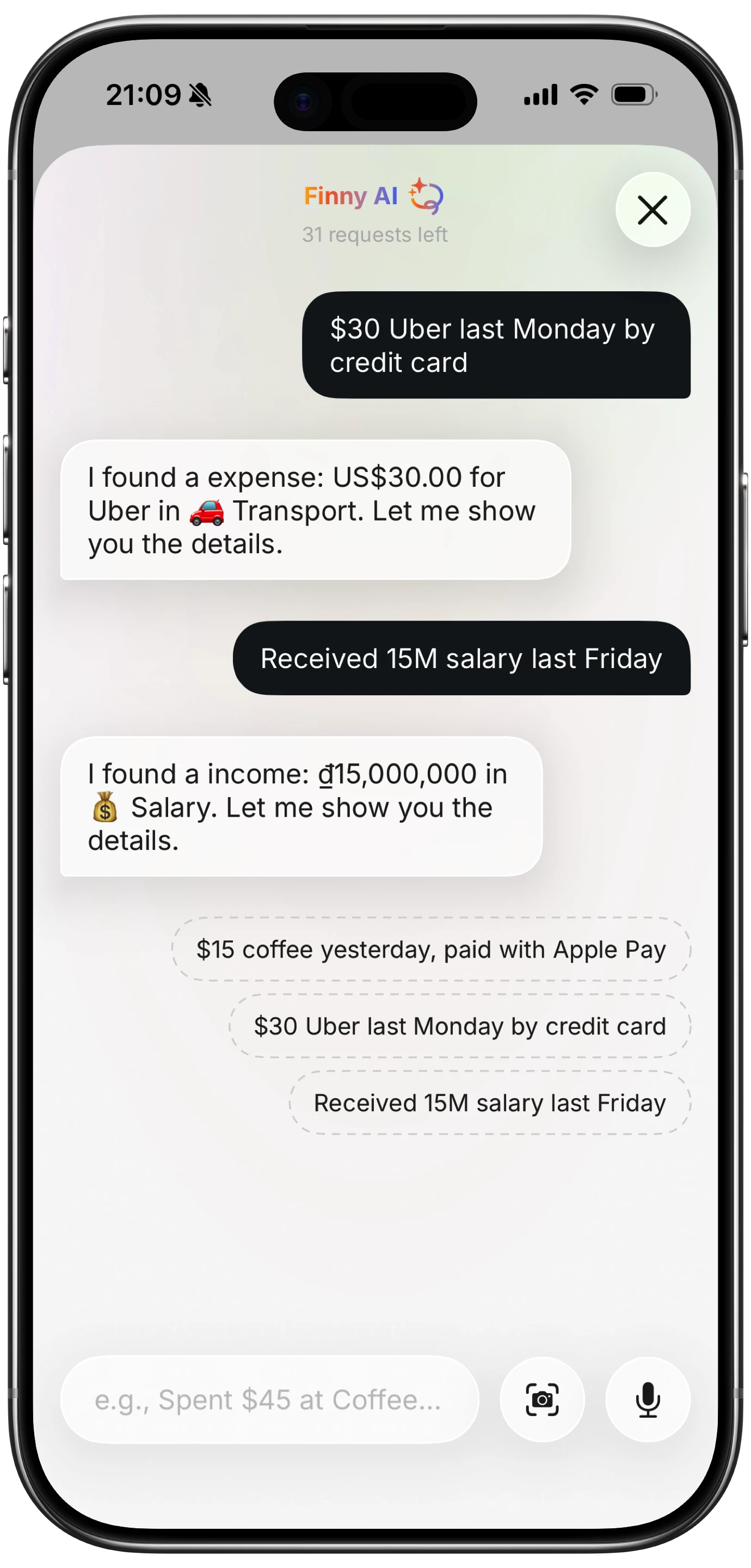
Finny's AI input layer handles natural language natively, so phrases like "split dinner 60 with two people" resolve correctly without any additional Shortcuts logic on your end. For more on voice-driven logging, see our voice expense tracker guide.
Variant 2: NFC Tag Confirmation
This variant works well for recurring locations: your usual coffee shop, gym, grocery store, or commute. Place an NFC sticker at a location and write a Shortcut URL to it. When you tap your phone to the sticker, the shortcut fires and either pre-fills the merchant and estimated amount or prompts you only for the total.
The Action Button itself is not involved in the NFC trigger, but you can combine both. The Action Button shortcut can include a step that checks your location or reads a stored NFC tag value and pre-populates fields accordingly. The result is a one-press log where most fields are already filled.
Variant 3: Photo Capture for Receipts
For receipts, restaurant checks, or itemized invoices, the photo route is cleaner than manual entry. Set up your Action Button shortcut to open the camera in scan mode, capture the image, and pass it to your tracking app or to an Apple Intelligence vision action.
In iOS 26, the Shortcuts "Use Model" action can accept an image and return structured text. A prompt like "Extract the total amount and merchant name from this receipt" feeds the model output directly into your expense log. This requires an iPhone 15 Pro or later for Apple Intelligence. The result is not always perfect on handwritten or partially obscured receipts, but for standard printed receipts it is reliable.
Pairing with Siri and Apple Intelligence
As of iOS 26, the Shortcuts app includes a native "Use Model" action that routes requests through on-device Apple Intelligence, Private Cloud Compute, or an extension model like ChatGPT. For expense parsing, the on-device model handles most cases without a network request, which matters when you are logging at a food truck with spotty service.
A useful pattern: set your Action Button shortcut to capture input text, then pass it through a "Use Model" step with a prompt like "Return only a JSON object with keys: amount (number), category (string), merchant (string), notes (string). Input: [your text]." The structured output can then populate your app's fields precisely.
Apple Intelligence also improves Siri's ability to understand spending-related phrases across sessions. If you consistently say "grabbed lunch" before a dollar amount, the system learns to categorize those as dining without explicit instruction. This is speculative based on current trajectory; exact behavior depends on your iOS version and device.
For a broader look at how Shortcuts and Apple Intelligence intersect for personal finance, see our Apple Shortcuts expense tracking automations guide.
Troubleshooting Common Issues
The shortcut does not fire when I press the Action Button. Go to Settings, tap Action Button, and confirm the Shortcut option is selected and the correct shortcut is assigned. If you recently renamed or deleted the shortcut, the assignment breaks silently. Reassign it.
The shortcut fires but the app does not receive the input. Check that your URL scheme is correctly formatted. Most apps require URL encoding for spaces and special characters. Test the URL directly in Safari to confirm it opens the app before adding it to a shortcut.
The wrong category is assigned. AI parsers infer category from context. If "coffee" keeps mapping to Groceries instead of Dining, check whether your tracking app allows category keyword rules. In Finny, the AI parser improves with corrections made through the history view.
Siri does not recognize my phrase. Siri's shortcut phrase recognition requires the shortcut to be added to Siri explicitly (tap the shortcut, then Add to Siri). Alternatively, trigger through the Action Button rather than a voice phrase to bypass this entirely.
The photo receipt variant misreads amounts. Ensure the receipt is well-lit and the image is not cropped before passing it to the model. Blurry or low-contrast images are the most common cause of parsing errors.
For additional automation ideas that work alongside this setup, see our post on logging expenses without typing.
Limits and When to Use a Different Trigger
The Action Button is a single button. It can hold one shortcut assignment at a time (though iOS does support chaining a menu step inside that shortcut to present multiple options). If you need to log to different budgets or accounts depending on context, a menu action inside the shortcut is more practical than trying to use multiple assignments.
The photo-to-parse flow adds two to four seconds compared to direct text entry. For most receipts that is acceptable, but if speed is the only goal, the text or voice variants are faster.
NFC tags are the right choice when you visit the same merchants repeatedly and want near-zero input. The Action Button is the right choice for spontaneous, anywhere logging. Combining both is covered in our Apple Pay and Finny tracking setup guide.
If you sometimes log expenses hours after they happen rather than at the moment of purchase, see how to track purchases without opening an app for passive capture options that do not rely on a trigger at all.
Frequently Asked Questions
Does the Action Button work with any expense tracking app?
Any app that supports URL schemes, the iOS share sheet, or Siri intents can receive input from an Action Button shortcut. Apps that also support Apple Intelligence actions can handle natural language parsing inside the shortcut before the data reaches the app. Check your app's documentation for its URL scheme format.
Can I assign two different expense shortcuts to the Action Button?
Not directly. The Action Button holds one shortcut assignment. However, you can assign a shortcut that opens a menu with two or three options (for example: Quick Log, Photo Receipt, Review Today). Each menu option then runs its own sub-flow. This keeps a single press as the entry point while supporting multiple logging modes.
Does this setup require an internet connection?
The basic text-input variant works offline. The Shortcut captures your text and passes it to a local app. The Apple Intelligence "Use Model" action can use the on-device model for simple parsing without a network request. The photo-to-parse flow using Private Cloud Compute or ChatGPT requires connectivity.
Is the Action Button expense setup compatible with iPhone 15 (non-Pro)?
No. The iPhone 15 and 15 Plus do not have an Action Button. The closest equivalent is Back Tap (Settings, Accessibility, Touch, Back Tap), which can trigger a Shortcut with a double or triple tap on the back of the phone. It is less reliable on cases with thick materials but uses the same Shortcuts workflow.
Does Finny support URL schemes for Shortcut integration?
Yes. Finny accepts natural language input via its AI text parser, which works well as the destination for an Action Button shortcut. You can pass the raw text from your shortcut directly to Finny without pre-formatting the amount or category. Finny parses the input and applies it to your log, and because Finny is privacy-first with no required bank link, the data stays on your device.
Start Logging in One Press
The Action Button is one of the most underused features on recent iPhones, and expense tracking is the use case that benefits most from it. A properly configured shortcut turns a habit that feels like work into a reflex that takes less than two seconds.
Finny is built for exactly this kind of quick, friction-free logging. At a low monthly price for Pro, it includes the AI input parser that makes natural language entry practical, no bank account required. Set up the shortcut, press the button once, and you are done.