Live Activities for Budget Tracking on iPhone (2026)
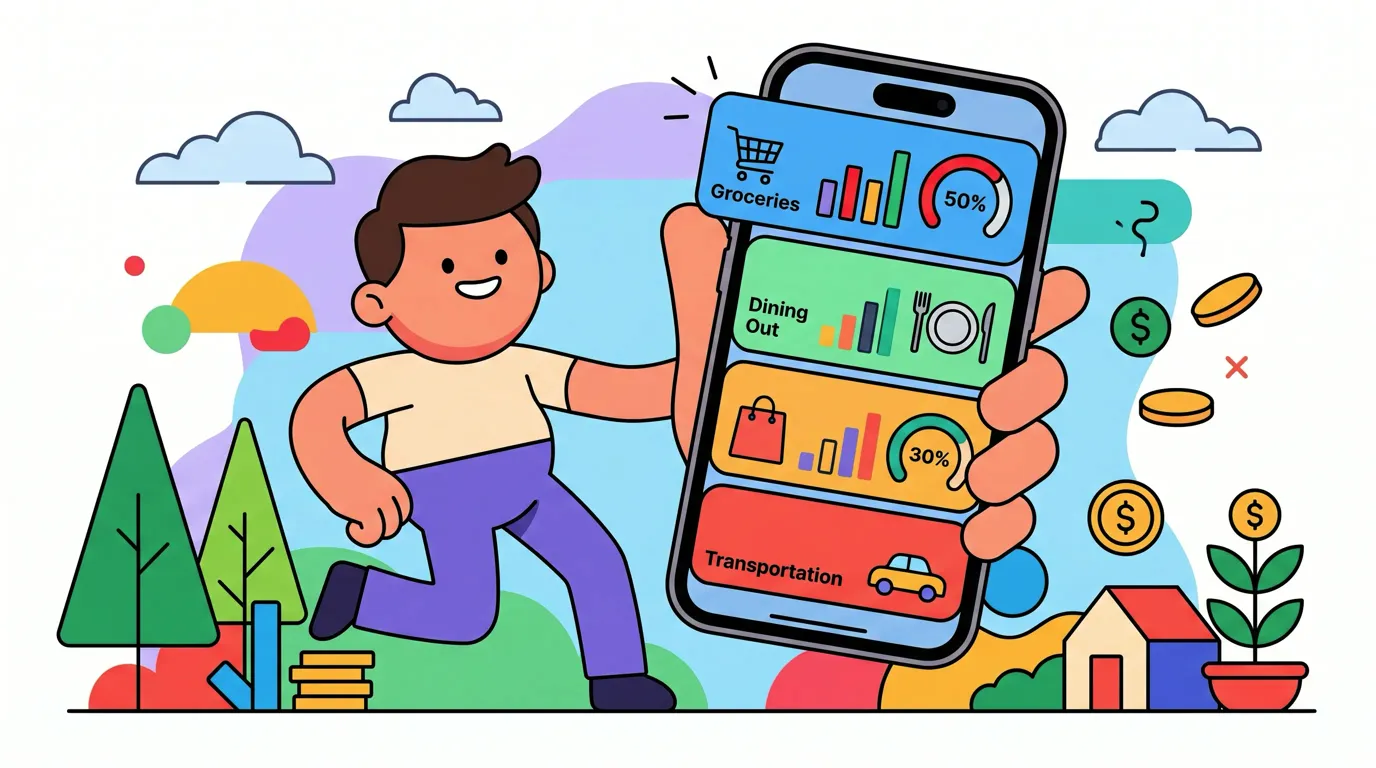
Your budget only helps when you can see it. A number buried inside an app is easy to ignore. A number visible on your Lock Screen or in the Dynamic Island, updating as you spend, is much harder to dismiss.
This guide covers how live activities budget tracking works on iPhone, which surfaces are available, what patterns actually change behavior, and how to set things up whether you prefer a dedicated finance app or a Shortcuts-based workflow.
What Live Activities Are and Why They Matter for Budgets
Live Activities are persistent, real-time UI elements that apps can display on the iPhone Lock Screen and, on supported hardware, in the Dynamic Island. They were introduced in iOS 16 and expanded significantly in iOS 17 and 18. As of iOS 18, apps can push updates to a Live Activity for up to 12 hours. After that window closes, the activity must be dismissed or relaunched.
For budgeting, the key insight is context. Most spending decisions happen outside an app. You are at a register, in a coffee shop, or browsing a store. A Live Activity puts your remaining budget in the same place you check the time or glance at notifications. That persistent context is what separates passive awareness from a meaningful behavioral nudge.
The mechanism matters too. A notification fires once and disappears. A widget updates on a schedule you cannot control. A Live Activity updates in near-real-time when the app pushes a change, which means a log entry made through tap-to-track or voice input can ripple up to the Lock Screen within seconds.
Dynamic Island vs Lock Screen: Different Surfaces, Different Jobs
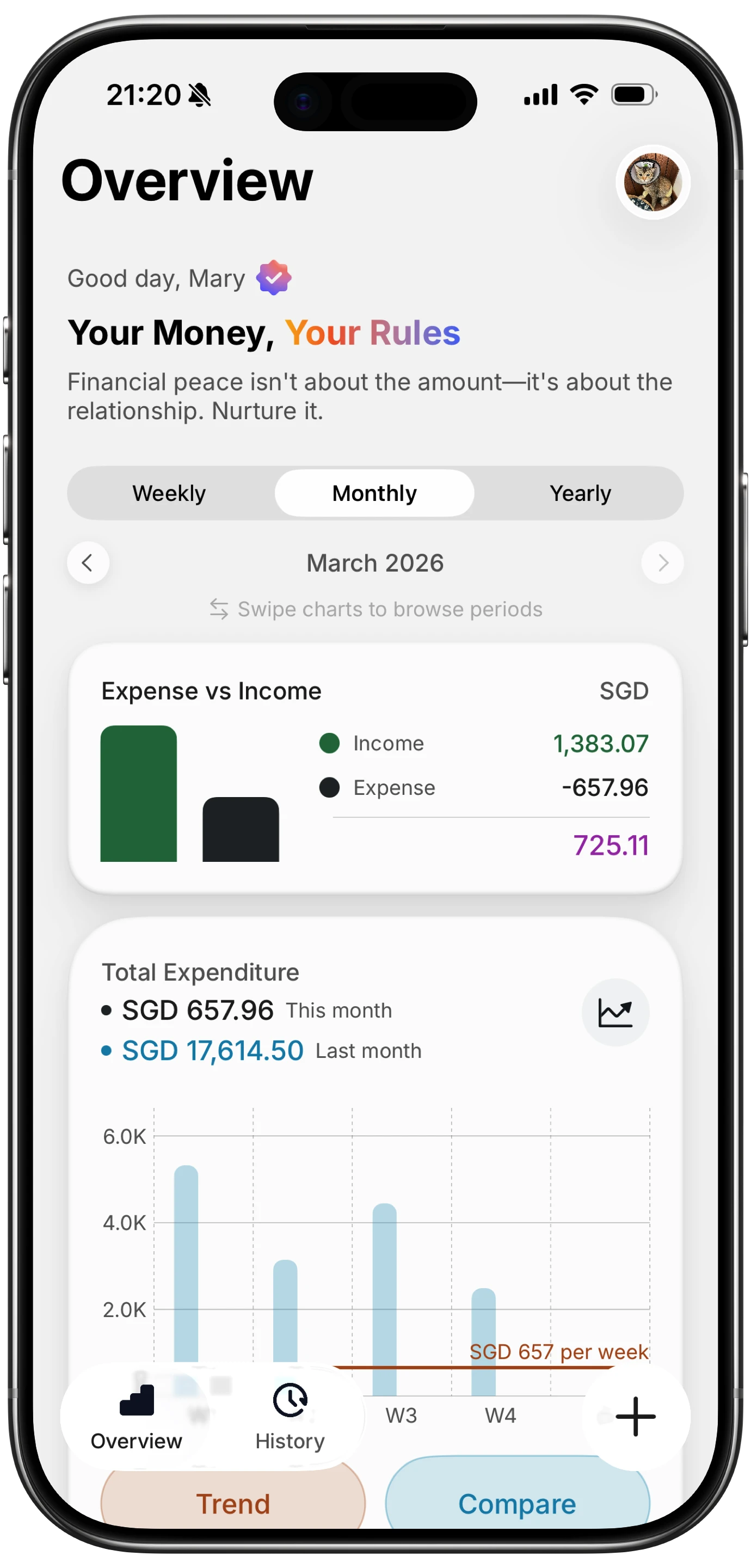
On iPhones with Dynamic Island (iPhone 15 Pro, iPhone 16, iPhone 16 Pro, and the iPhone 17 lineup expected to carry it across all models), a Live Activity appears in two places simultaneously: a compact view in the Dynamic Island pill at the top of the screen, and an expanded Lock Screen banner.
The Dynamic Island compact view is best for a single high-priority number: remaining budget today, or a percentage bar for a category cap. It is visible during normal phone use without unlocking, which keeps the figure in peripheral vision throughout the day.
The Lock Screen expanded view has more room. It can show a progress bar, a label, and a secondary figure like total spent versus budget. This is where a savings goal tracker or a multi-category summary makes sense.
On iPhones without Dynamic Island (iPhone 14 and earlier), Live Activities appear only on the Lock Screen. The persistent visibility is still useful, just limited to that one surface.
Choosing which pattern to use depends on what you want to stay aware of. A monthly burn rate is better on the Lock Screen where there is space for context. A single category cap warning, the kind you want to catch mid-purchase, is better suited to the compact Dynamic Island view.
Three Live Activity Patterns Worth Building
Monthly burn rate. Display a fraction: spent versus monthly budget. A progress bar works well here because the visual encoding, how full the bar is, communicates urgency without requiring mental math. Crossing 50 percent of your budget before the 15th reads differently at a glance than reading "USD 1,200 of USD 2,000 spent."
Category cap warning. Pick one category you regularly overspend, dining out or grocery runs or impulse purchases. Set a cap. Surface the remaining amount in the Dynamic Island compact view. The goal is not to block spending; it is to add one second of friction by making the number visible before you commit.
Savings goal progress. Savings goals work well as Lock Screen Live Activities because the emotional valence is positive. Watching a bar fill toward a vacation or emergency fund creates motivation rather than anxiety. Update it whenever you make a transfer or auto-save from a paycheck.
All three patterns share a common requirement: the Live Activity needs fresh data to be useful. That means the tracking loop has to be fast. If logging an expense takes two minutes, the Live Activity is always stale by the time it updates.
Which Finance Apps Ship Live Activities Today
As of mid-2026, Live Activity support in consumer finance apps remains uneven. Most major players have focused on widgets rather than Live Activities, likely because maintaining an accurate real-time figure requires either bank sync (which has latency) or manual entry (which depends on user behavior).
Copilot Money has been one of the more technically ambitious iPhone finance apps and has experimented with real-time account summaries. Check their current release notes to confirm Live Activity availability, as features shift between updates.
YNAB surfaces budget category balances prominently in their app but as of this writing relies on widgets for home screen presence. A Live Activity would be a natural extension of their envelope model.
Monarch Money, PocketGuard, Spendee, Goodbudget, and Honeydue each take different approaches to real-time visibility. Check their App Store listings for current iOS 18 features, because this space moves quickly.
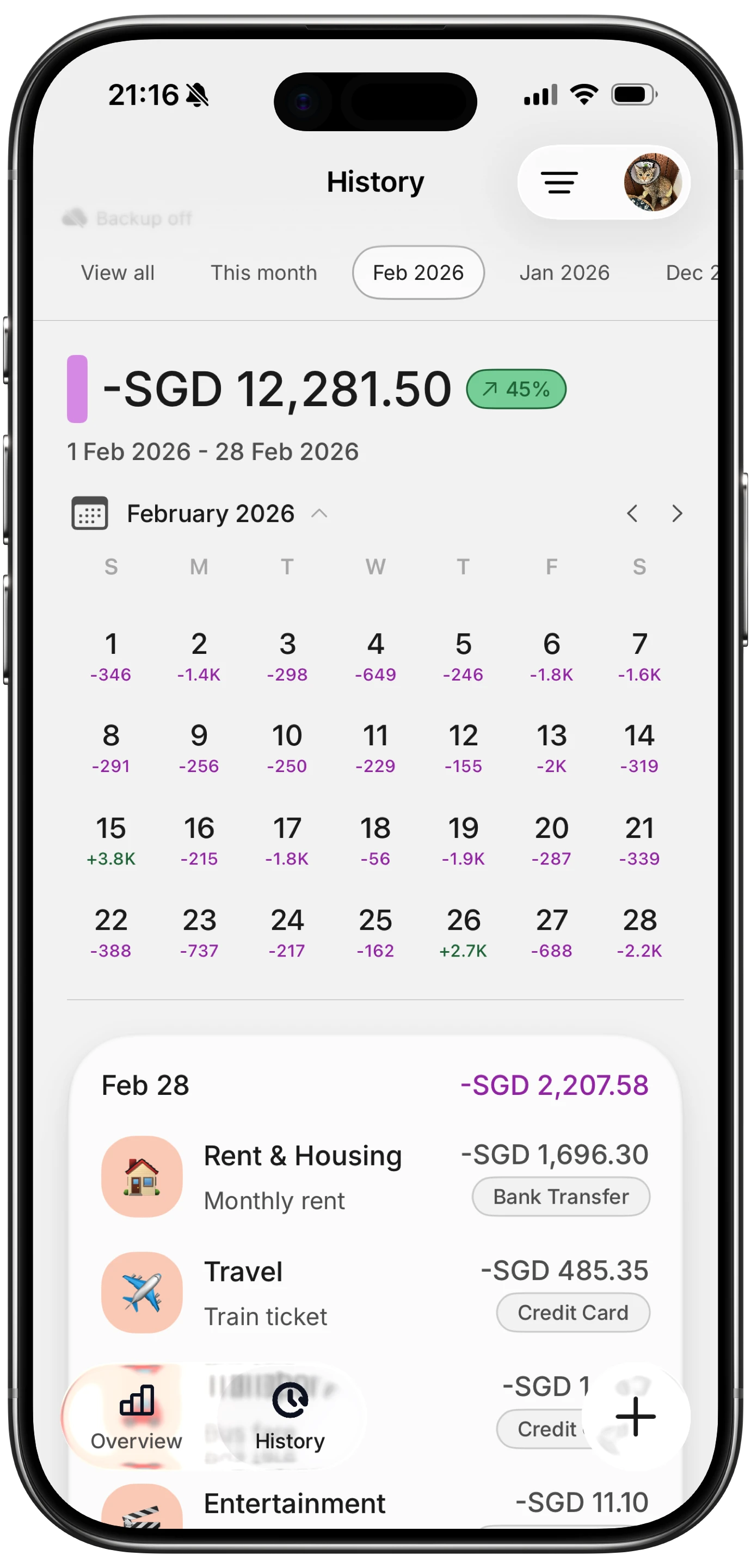
Finny pairs Tap to Track with AI-assisted entry so the moment you log a purchase, the underlying budget figure changes. That makes the Live Activity meaningful rather than decorative, because it reflects what you actually spent rather than what a bank sync eventually delivers.
DIY Workflow: Live Activities via Shortcuts
If your preferred app does not ship a Live Activity yet, a Shortcuts-based workaround gets you part of the way there.
The approach uses a combination of a Shortcut for logging, a Numbers or Google Sheets document for storage, and a widget (not a true Live Activity) to surface the current total. It is one step down from a native implementation, but it covers the most important pattern: making your running total visible without opening an app.
For the full automation stack, the Apple Shortcuts expense tracking guide walks through ten specific automations including NFC-triggered logging and Siri voice entry. Combining those automations with a widget that reads from the same sheet creates something close to a persistent budget display.
If your goal is to minimize friction on the logging side specifically, the track purchases without opening an app post covers the fastest input methods available on iPhone today.
For voice-first logging without any typing, log expenses without typing covers the full range of options from Siri to AI input to camera-based receipt scanning.
Live Activity vs Widget vs Notification: A Quick Comparison
| Feature | Live Activity | Widget | Notification |
|---|---|---|---|
| Updates in real time | Yes (push-driven) | No (system schedule) | Fires once |
| Visible without unlock | Dynamic Island only | Home Screen only | Banner, then gone |
| User can dismiss | Yes | No (always on) | Yes |
| 8-12 hour limit | Yes | No limit | No limit |
| Best for | Active tracking sessions | Daily summaries | One-time alerts |
The table above reflects current iOS behavior. Live Activities have a system-enforced time window, typically up to 12 hours per session, after which the app must relaunch the activity or let it expire. This means Live Activities are best treated as session-scoped tools rather than always-on dashboards.
Notification Etiquette and Avoiding Alert Fatigue
The fastest way to make any budget system useless is to make it annoying. Alert fatigue is real: if your phone buzzes every time you get close to a category limit, you will start ignoring the alerts within a week.
A few principles that help. First, limit active Live Activities to one at a time. Stacking three budget trackers on the Lock Screen creates visual noise and defeats the purpose of glanceable data. Second, set category warnings at 80 percent rather than 90 or 100. Getting an alert at 80 percent gives you time to adjust; getting one at 100 percent just confirms you already overspent. Third, let the Live Activity expire after your peak spending window, usually midday to dinner, rather than running it all night.
If you are struggling with the behavioral side of overspending rather than just the tracking mechanics, how to stop overspending covers the habit loops and psychological patterns behind impulse spending. The tools only help when the underlying behavior is legible.
Limits Worth Knowing
Live Activities are not always-on. iOS enforces an 8 to 12 hour active window. After that, the activity enters a stale state and is eventually dismissed. Apps can push updates during the active window, but update frequency is rate-limited by the system to prevent battery drain. Exact limits are subject to change with iOS updates; the current behavior is documented in Apple's ActivityKit framework documentation.
Live Activities also cannot collect data independently. The app itself must push an update. This means a fully automated Live Activity for banking data depends on the bank pushing a transaction event, which most US banks do not support in real time. Manual entry apps like Finny sidestep this because the update trigger is the user logging an expense, which is immediate.
For a full comparison of apps that handle this tradeoff differently, the best budget planner apps in 2026 roundup covers manual, hybrid, and fully automated options.
Frequently Asked Questions
Which iPhones support Dynamic Island Live Activities?
Dynamic Island is available on iPhone 15 Pro, iPhone 15 Pro Max, all iPhone 16 models, all iPhone 16 Pro models, and is expected on the full iPhone 17 lineup. Earlier models, including the standard iPhone 15, use the punch-hole camera design without Dynamic Island, so Live Activities appear only on the Lock Screen on those devices. Confirm your specific model in Settings, General, About.
How long does a Live Activity stay active?
iOS limits Live Activities to approximately 8 to 12 hours per session. After that window, the activity transitions to a stale ended state and is removed from the Lock Screen. Apps must programmatically end and restart an activity to continue beyond that window. This limit can change with iOS updates, so check Apple's ActivityKit documentation for the current spec.
Can a Live Activity update automatically when I spend money?
Only if the app is pushing the update. Live Activities are passive displays; they show whatever data the app sends. Apps with real-time bank sync can push an update when a transaction clears, but most bank data arrives with a delay of minutes to hours. Apps that rely on manual entry, like tap-to-track workflows, update immediately because the user action triggers the push.
Do Live Activities drain battery?
Apple rate-limits Live Activity updates to manage battery impact. The display itself has minimal draw on OLED screens because the background is typically dark. High-frequency updates, say more than once per minute sustained over hours, can add measurable battery cost, but a budget tracker updating a few times per day is unlikely to be noticeable.
Is there a privacy risk to showing budget data on the Lock Screen?
The Lock Screen is visible to anyone who picks up your phone. If you are concerned about financial data being visible, most apps that support Live Activities allow you to configure what is shown. Displaying a progress bar without a dollar amount is a reasonable middle ground: you get the behavioral nudge from the visual without exposing exact figures.
Closing
Live Activities are one of the most underused tools for financial awareness on iPhone. The friction they remove is not logging friction but awareness friction, the gap between what you intended to spend and what you actually spent before you check in at the end of the month.
If you want a tracker that closes that loop quickly, Finny is built around fast, privacy-first entry that feeds a live spending picture without connecting to your bank.
For the wider context on what iOS budget tools can do in 2026, the best iOS budget apps in 2026 roundup is a good next read.