
Best Apple Watch Expense Tracker Apps and Complications (2026)
Most expense tracking fails not because people forget to care, but because opening an app takes ten seconds they don't have at the register. By the time you're back at your desk, the $14 lunch is already gone from memory. The Apple Watch cuts that gap to a wrist raise and a tap.
This guide compares the best apps for wrist-based expense logging under watchOS 26, covers which complications are actually worth setting up, and explains where apple watch expense tracker workflows hit their limits so you can build a system that holds up in the real world.
Why Apple Watch Changes the Expense Tracking Habit
The single biggest driver of expense tracking failure is friction. Every extra step between "I just spent money" and "that expense is recorded" is a place where the habit breaks down. Research on behavior change consistently points to immediate action as the key to building routines, and the Apple Watch is the closest input device to your money moment.
With watchOS 26 running on Apple Watch Series 10 and Ultra 2, the watch is fast enough for a full app launch in under two seconds. Complications surface at-a-glance numbers without any launch at all. Siri on the watch now processes many requests on-device, which means voice logging works even in airplane mode or in areas with poor connectivity.
The practical result is that a budget check or a quick expense entry can happen while you're still at the payment terminal, before the context evaporates. That immediacy is the core argument for a watch-first logging workflow, not the novelty of it.
What an Apple Watch Expense Tracker Actually Does on the Wrist
"Apple Watch support" means different things across apps. Before comparing specific products, it helps to understand the four distinct levels of watch integration:
Complication only. The app pushes a number to your watch face, such as remaining daily budget or total spent today. You can glance at it without unlocking your phone. No input is possible from the wrist.
Companion app, read-only. A full watchOS app that shows balances, category breakdowns, and recent transactions. Useful for checking status without pulling out your phone, but still no entry.
Companion app with quick entry. The watch app includes a simple input flow, typically a category picker and a number pad. You log an amount in three to five taps. This is the most useful tier for active tracking.
Voice logging via Siri. Some apps expose Siri Shortcuts that work on the watch. You raise your wrist, say something like "Hey Siri, log $12 to food in [app]," and the expense is recorded. This is the fastest input method available.
The apps below vary across these tiers, and the right choice depends on which tier matches your actual use case.
Best Apple Watch Expense Tracker Apps Compared
| App | Watch Complication | Voice / Siri Input | Works Offline | Price | AI Input |
|---|---|---|---|---|---|
| YNAB | Yes, category balance | Via Shortcuts | Partial | $14/mo | No |
| Copilot | Yes, spending summary | Limited | No (bank sync required) | $13/mo | AI categorization |
| PocketGuard | Yes, "in my pocket" amount | Via Shortcuts | No | Free / $13/mo | No |
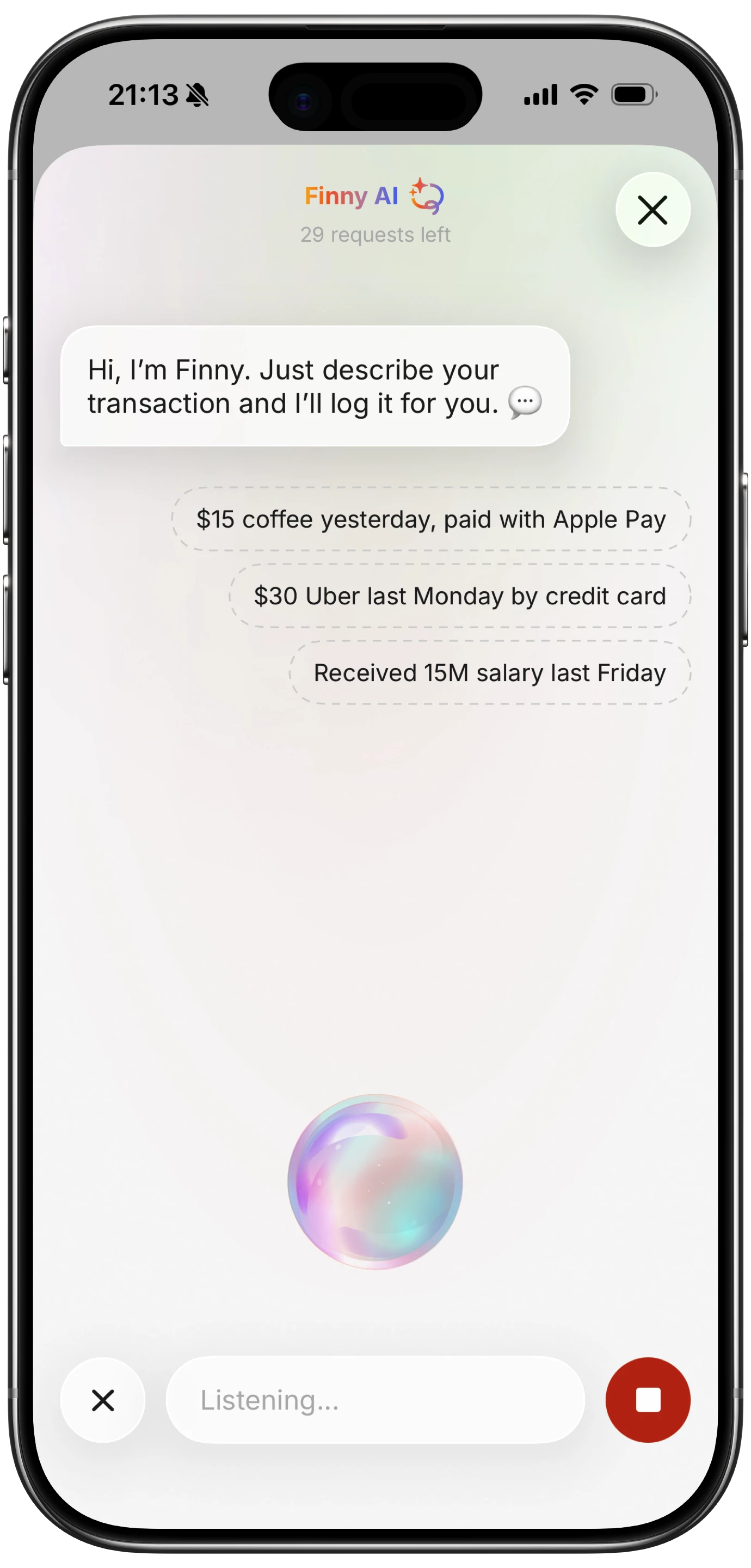
| Finny | Via Shortcuts complication | Yes, full AI voice | Yes, offline-first | Free / a low monthly price | Text, voice, receipt scan |
| Spendee | No native complication | No | Partial | Free / $2.99/mo | No |
A few notes on this table. Copilot's Apple Watch app shows spending summaries and recent transactions but relies on bank sync, so it is not useful in areas without connectivity. YNAB's complication shows category balance with a color indicator (green, orange, red) and is one of the more informative single-glance displays available. PocketGuard's "in my pocket" number (income minus bills minus savings) is a genuinely useful metric for impulse-spend decisions at the register.
Finny's watch workflow runs through Siri Shortcuts and works offline because the app stores everything locally on device. It does not require bank credentials, which removes the connectivity dependency entirely. At a low monthly price for Pro, it is substantially cheaper than the bank-connected alternatives.
Spendee lacks a native complication as of this writing, which limits its usefulness as a watch-first tool.
Best Complications Worth Setting Up
A complication that shows you a useful number every time you raise your wrist is more valuable than an app you have to actively open. Here are the setups that pay off in practice.
YNAB category balance. Set your most-pressure category (dining out, groceries, fun money) as the complication target. The color coding (green/orange/red) gives you a spending signal without reading a number. This is the most information-dense complication in this category.
PocketGuard "in my pocket." If you use envelope-style budgeting and want a single number that accounts for upcoming bills, this complication delivers it. The number updates when you add expenses through the phone app.
Shortcuts-triggered display. For apps that don't have native complications, you can use a Shortcuts widget complication to surface a budget status string. This requires more setup but works with nearly any app that exposes Shortcuts actions. The Apple Shortcuts expense tracking automations guide covers this workflow in detail.
The watch face that works best for expense tracking is one where the budget complication sits in the top or bottom position for maximum glanceability. The Modular and Infograph faces give you the most complication slots for pairing a budget number alongside activity rings and time.
Voice and Siri Logging on the Watch
Voice input is the fastest entry method on the watch, and it has gotten more reliable with watchOS 26's on-device Siri processing. The basic workflow is:
- Raise wrist or say "Hey Siri"
- State the expense: "Log eighteen dollars to restaurants"
- Siri routes the request through the app's Shortcut and confirms
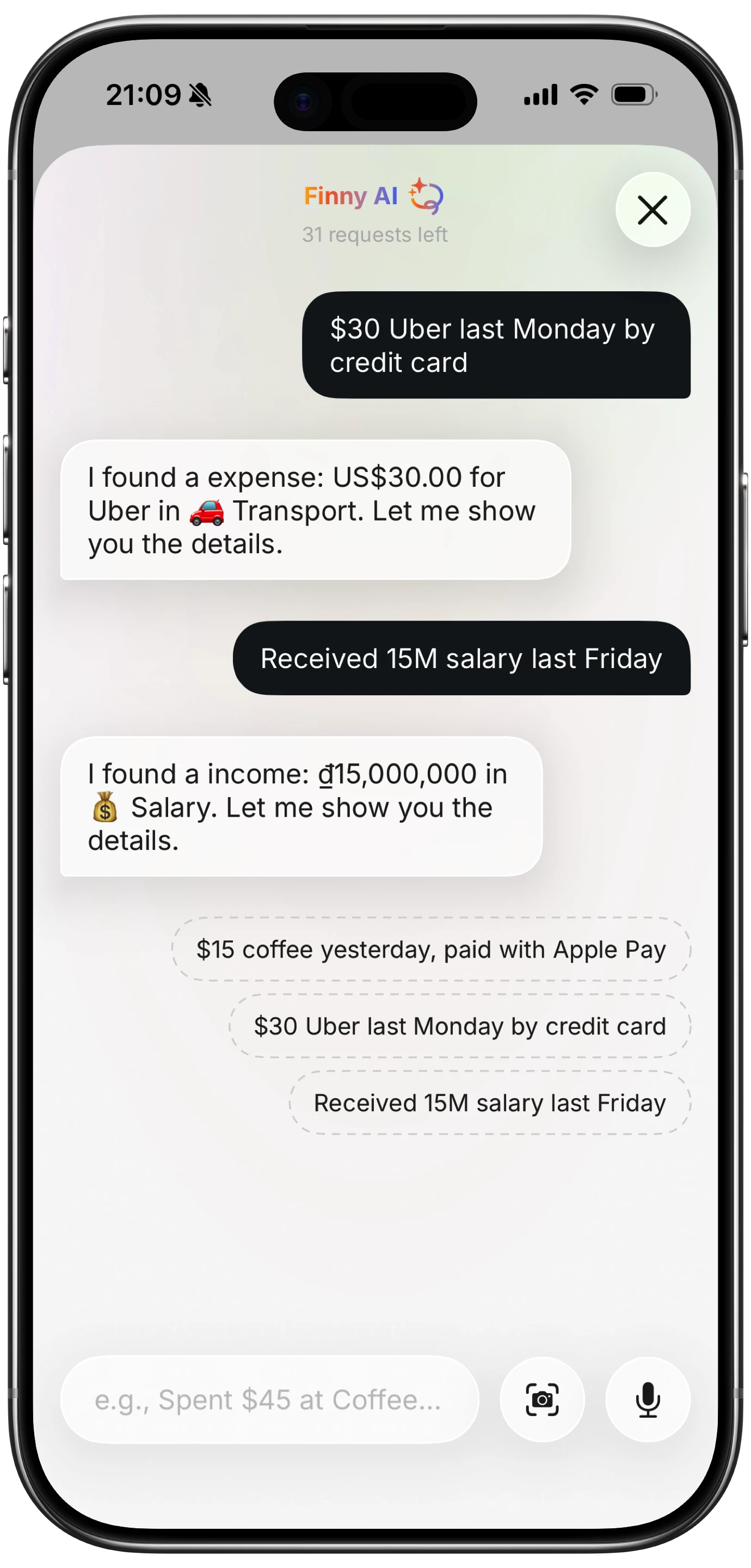
The catch is that this requires a pre-built Shortcut with the right parameters, and not every app exposes the variables you need. YNAB's Shortcuts integration is the most mature, allowing you to specify category, amount, and memo by voice. Finny supports a similar voice flow through its AI input layer, which can parse natural-language statements and assign categories automatically.
For a deeper look at voice-first logging workflows, the voice expense tracker guide covers setup steps for the most common apps. If you want to avoid typing entirely across phone and watch, the log expenses without typing guide is a useful companion.
One practical tip: keep your Shortcut phrases short and consistent. "Log coffee five dollars" is faster to say and less error-prone than "Please add a new expense of five dollars to the coffee category."
What Watch Tracking Cannot Do
Setting accurate expectations prevents the watch from becoming another abandoned tool. There are real gaps in what wrist-based tracking can accomplish.
No NFC tap-to-pay capture. Apple Watch can make Apple Pay payments, but no third-party expense app can intercept that transaction in real time due to iOS sandboxing. You still have to log the expense manually after paying. The track purchases without opening an app guide covers Shortcuts-based automations that get close to automatic capture, but they require a deliberate trigger step.
No large-screen review. Reviewing the month, comparing categories, or editing past entries is genuinely painful on a 45mm display. The watch is for input and quick checks. All analysis belongs on the phone or desktop.
No receipt scanning. The watch camera does not support document scanning. Batch receipt capture, like Finny's Batch Snap feature for processing multiple receipts at once, requires the iPhone camera.
Battery and connectivity constraints. Logging a long list of expenses in one session will drain a watch faster than expected. For travel days or high-transaction periods, the phone remains the primary input device.
How to Pair Watch and iPhone for Full Coverage
The most durable setup treats the watch and phone as complementary tools rather than alternatives. A practical pairing:
Watch: Point-of-sale logging (quick tap or voice after paying), at-a-glance budget checks via complication, Siri-triggered entries for simple transactions.
iPhone: Receipt scanning for paper receipts, category review and editing, monthly analysis, AI input for complex or multi-item entries.
If you spend most of your day away from your phone, prioritize apps with strong offline support and watch entry. If you primarily want to review and categorize rather than log, the complication tier is enough and a full watch app is not necessary.
For broader iPhone app context, the best iOS budget apps for 2026 and best AI budget apps for 2026 guides compare the full-featured phone-first options that pair well with any watch workflow.
The cleanest system is one where the watch lowers the barrier to entry just enough that you actually log things, and the phone handles everything that benefits from a larger screen.
Frequently Asked Questions
Does YNAB have an Apple Watch app?
Yes. YNAB has an Apple Watch companion app that shows category balances with a color-coded indicator: green means you have budget remaining, orange means you are getting close, and red means you have overspent or need to reassign funds. You can also add transactions through the watch app directly. YNAB's Shortcuts integration extends voice logging capability on the watch. It requires watchOS 8 or later.
Can I log expenses on Apple Watch without a phone nearby?
It depends on the app. Apps that require a live bank connection, like Copilot, will not sync new entries until your phone is in range. Offline-first apps that store data locally, like Finny, will accept entries and sync later. YNAB and PocketGuard support offline entry with background sync when connectivity returns.
What is the best Apple Watch complication for budgeting?
YNAB's category balance complication is the most information-dense option available. Its color coding (green/orange/red) lets you make a spending decision without reading a number. PocketGuard's "in my pocket" display is useful if you want a single all-in figure that accounts for upcoming bills and savings goals.
Can Apple Watch capture Apple Pay transactions automatically?
No. iOS sandboxing prevents third-party apps from intercepting Apple Pay transactions in real time. You have to log manually after paying. Some Shortcuts automations can prompt you immediately after a payment, but the expense amount and category still require your input. This is a platform limitation, not an app limitation.
Is an Apple Watch expense tracker worth it if I already use an iPhone app?
For most people, yes, with caveats. The watch adds value primarily if you have a habit of forgetting to log at the point of purchase. If you already log consistently on your phone immediately after paying, the watch adds convenience but not meaningfully better data. The complication alone (showing a budget number at a glance) is useful for almost everyone regardless of how you log.
Start Tracking from Your Wrist
The best expense tracker is the one you actually use, and the Apple Watch removes enough friction that many people log more consistently than they do with a phone-only workflow. If you want a lightweight, offline-first option that pairs well with the watch via voice and Shortcuts, Finny offers a free tier with unlimited manual tracking and Pro features including AI input and unified currency tracking for a low monthly price.