Batch Receipt Scanning: The Feature Most Expense Trackers Are Missing
You come home after a day of errands. There are four receipts in your pocket: groceries, gas, a pharmacy stop, and lunch. You open your expense tracker, photograph the first receipt, wait for it to process, review the parsed fields, confirm, then start again with the second receipt. By the third, you are already thinking about skipping it. By the fourth, you toss the receipt in a drawer and tell yourself you will log it tomorrow. You will not.
This is the logging friction problem, and it is the single biggest reason people stop tracking expenses. Batch receipt scanning solves it by letting you capture multiple receipts in one session and review them all at once. Yet most expense tracking apps still force you to scan one receipt at a time. For a broader look at how tracking methods compare, see our guide on the best way to track expenses. The same idea works for bank and e-wallet apps: see our guide on how to log transactions from screenshots.
The Real Cost of One-at-a-Time Scanning
Every expense tracker that supports receipt scanning follows roughly the same workflow: open the camera, photograph a receipt, wait for processing, review the extracted data, correct any errors, save. Then repeat for the next receipt.
The issue is not any single step. Each step is reasonable on its own. The problem is the repetition. When you have multiple receipts to log, the process multiplies:
| Receipts | One-at-a-Time (est.) | Batch Scanning (est.) |
|---|---|---|
| 1 | 45 seconds | 45 seconds |
| 3 | 2-3 minutes | 1 minute |
| 5 | 4-5 minutes | 2 minutes |
The time difference grows with volume, but time is not the real cost. The real cost is the decision to skip. Behavioral research on habit formation shows that the likelihood of completing a task drops sharply when the perceived effort exceeds a threshold. For expense logging, that threshold is about 60 to 90 seconds. Beyond that, people start postponing.
One-at-a-time scanning pushes past that threshold the moment you have more than one receipt. Batch scanning keeps you under it.
Why Most Expense Apps Do Not Offer Batch Scanning
Building batch receipt scanning is harder than building single-receipt scanning. There are technical and design challenges that explain why most apps have not implemented it.
Multiple Image Processing
Single-receipt scanning sends one image to an AI model and returns one set of parsed fields. Batch scanning requires the app to manage multiple images, send them for processing (either in parallel or sequence), and present results in a way that is easy to review. The backend complexity increases, and so does the potential for errors.
Review Interface Design
Showing parsed data for one receipt is straightforward: merchant, date, total, category, and a confirm button. Showing parsed data for five receipts requires a different interface. The user needs to see all results at a glance, edit any individual entry, and confirm the batch without losing context. Most apps have not invested in designing this experience.
Edge Cases
What happens when one receipt in a batch fails to parse? When two receipts have the same merchant? When the images are blurry or overlapping? Single-receipt scanning avoids these problems by limiting scope. Batch scanning must handle them gracefully.
These are solvable problems, but they require deliberate engineering effort. Most expense tracking apps prioritize other features, like bank syncing or budgeting dashboards, over reducing logging friction.
How Batch Scanning Should Work
A well-designed batch scanning workflow looks like this:
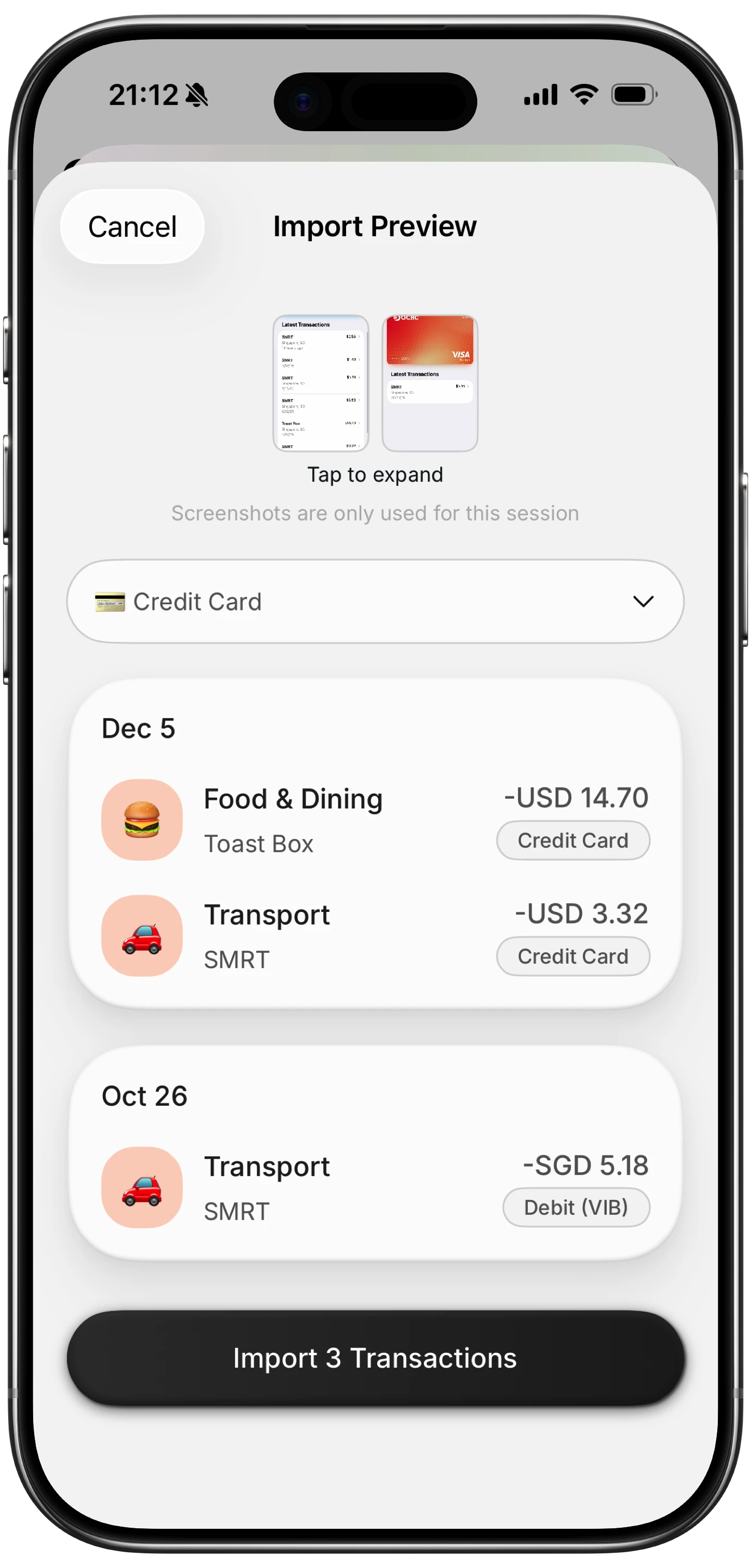
- Select multiple images. Open the camera or photo picker and select all the receipt photos you want to process. No need to exit and re-enter between captures.
- Process all at once. The app sends all images for AI parsing simultaneously. You wait once, not five times.
- Review on a single screen. All parsed results appear in a list. Each entry shows the merchant, date, total, and suggested category. You can tap any entry to edit it.
- Confirm the batch. One tap saves all entries to your expense log.
Finny app's screenshot import feature
This workflow respects the user's time by front-loading the effort (selecting images) and batching the wait (processing) and review (confirming). The total interaction time drops, and more importantly, the perceived effort drops even further.
The Friction Problem Beyond Receipts
Receipt scanning is one input method among several. The friction problem applies to every way you log expenses. Understanding this helps explain why batch thinking matters.
Text Input Friction
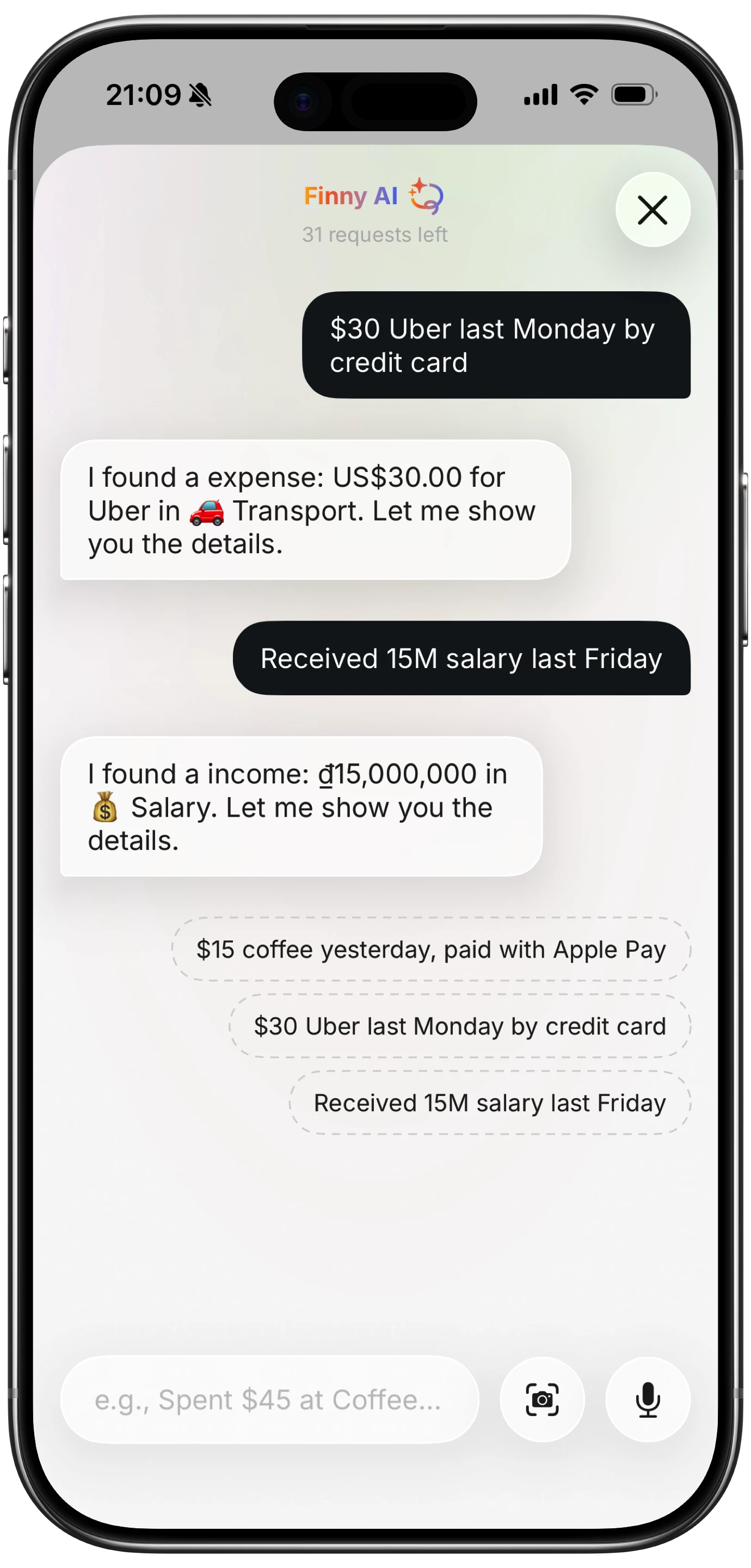
Typing "coffee $4.50" into an AI-powered parser takes about three seconds. That is fast enough for single entries throughout the day. But when you have forgotten to log several purchases and need to catch up, even text input becomes tedious if you are entering them one at a time.
Finny app's AI chat feature
Voice Input Friction
Voice input works well for one-off entries, especially when your hands are busy. But it is not practical for logging five missed expenses in a row. Speaking each one, waiting for parsing, confirming, and repeating is awkward in most settings.
Form-Based Entry Friction
Traditional expense apps with form fields (amount, category, date, note) are the slowest per entry. Five transactions means filling five forms. This is where most people give up.
The pattern is clear: any input method that works well for one entry can become a friction point when volume increases. Batch processing addresses this by changing the unit of work from "one expense" to "all my pending expenses."
What Makes Batch Scanning Different From Just Being Faster
Speed improvements help, but batch scanning is a fundamentally different approach, not just a faster version of single scanning.
Single scanning is transaction-oriented. You think about one receipt at a time. Open, scan, review, save, repeat. Each iteration carries cognitive overhead: switching between capture mode and review mode, waiting for processing, making decisions about categories.
Batch scanning is session-oriented. You think in terms of "I have receipts to process." Capture all of them, then review all of them. The cognitive mode switches once (from capture to review), not five times. This reduces decision fatigue and makes the whole process feel lighter.
This distinction matters because expense tracking is a habit, and habits survive on how easy they feel, not how fast they technically are.
Comparing Batch Support Across Apps
| App | Batch Scanning | Max Per Batch | Review Interface | Input Methods |
|---|---|---|---|---|
| Expensify | No | 1 | Single receipt | Receipt, manual |
| Wave | No | 1 | Single receipt | Receipt, manual |
| Smart Receipts | No | 1 | Single receipt | Receipt, manual |
| PocketGuard | No | N/A | Form-based | Manual, bank sync |
| Finny | Yes | 5 | Batch list view | Receipt, text, voice |
Most popular expense tracking apps do not support batch scanning at all. Expensify, Wave, and Smart Receipts all process one receipt per scan. PocketGuard and bank-linked apps like Monarch Money avoid receipt scanning entirely, relying on bank imports instead.
Finny is currently the only personal expense tracker that supports batch receipt scanning, processing up to five receipts in a single session with a unified review screen. For more on how Finny compares to other receipt scanners, see our AI receipt scanner comparison.
Building a Batch Scanning Routine
The best use of batch scanning is pairing it with a daily collection habit. Here is a practical routine:
- Collect receipts throughout the day. Keep them in one pocket, a wallet slot, or a small envelope. The goal is to not lose them before scanning.
- Scan once in the evening. After dinner, pull out all collected receipts and photograph them in one batch. This takes 30 seconds for the capture step.
- Review and confirm. Look through the parsed results. Check that totals, merchants, and categories are correct. Edit anything the AI got wrong. This takes about one minute for five receipts.
- Combine with text entries. Not every purchase produces a receipt. Cash payments, online orders, and small purchases are faster to log with text input ("coffee $4.50") or voice. Do this during the day as purchases happen. Our guide on tracking expenses without linking your bank covers how to combine input methods.
- Do a quick count. Before closing the app, mentally count the day's purchases and compare to logged entries. If the numbers do not match, you missed something.
Finny app's History calendar feature
This routine takes about three minutes total per day. That is roughly one third the time of scanning each receipt individually plus logging text entries separately.
When Batch Scanning Is Not Necessary
Batch scanning is most valuable when you regularly accumulate multiple receipts. It is less relevant in certain situations.
Digital-only spending. If most of your purchases are online or through e-wallets, you rarely have paper receipts. Text input or screenshot imports for e-wallet spending are more efficient.
Very few daily transactions. If you only make one or two purchases per day, single-receipt scanning is fast enough. The batch advantage emerges at three or more receipts per session.
Bank-linked tracking. If you use bank-linked apps and are comfortable with the privacy trade-off, transactions import automatically. Receipt scanning becomes supplementary, primarily for cash purchases or documentation. However, bank syncing comes with privacy and accuracy trade-offs that batch manual scanning avoids.
The Bottom Line
The reason most people stop tracking expenses is not laziness or lack of interest. It is friction. Every extra tap, every repeated workflow, every moment spent waiting for processing pushes users closer to quitting. Batch receipt scanning directly addresses the most common friction scenario: having multiple receipts to log and facing a repetitive, one-at-a-time process.
Most expense tracking apps have not prioritized this problem. They focus on bank syncing, budgeting dashboards, or accounting integrations. These features matter, but they do not solve the fundamental challenge of making manual logging fast enough to sustain as a daily habit.
If you track expenses manually, whether for privacy, accuracy, or because you value the awareness that comes with intentional logging, the speed of your input method determines whether the habit survives. Batch scanning is not a convenience feature. It is a retention feature.
Common Questions About Batch Receipt Scanning
How many receipts can I scan at once?
Most expense apps limit you to one receipt per scan. Finny supports batch scanning of up to five receipts at once, which covers a typical day's worth of paper receipts for most people.
Does batch scanning reduce accuracy?
No. Each receipt in a batch is processed individually by the AI model. The accuracy per receipt is the same whether you scan one or five. The difference is in the workflow, not the parsing quality.
Can I batch scan receipts offline?
With Finny, yes. Receipt images are processed with offline capability, so you can batch scan without an internet connection. This is useful when traveling or in areas with poor signal. For more on offline tracking, see our offline expense tracking guide.
Is batch scanning only for paper receipts?
Batch scanning works with any receipt image, including screenshots of digital receipts, e-wallet confirmations, and photos of handwritten invoices. If you can photograph it, you can include it in a batch.
What if one receipt in the batch fails to parse?
The other receipts in the batch are unaffected. You can manually enter the failed receipt or retake the photo and add it to your next batch.
Tired of scanning receipts one at a time?
Download Finny to batch scan up to five receipts at once with AI parsing. No bank connections, works offline, and all your data stays under your control.