
How to Track Apple Card Spending (2026 Guide)
Figuring out how to track Apple Card spending used to be frustrating, because Apple Card historically did not connect to the aggregators most budgeting apps rely on. That has changed. In 2026 you have four solid ways to keep tabs on your Apple Card: Wallet's built-in spending summary, direct sync to a few budgeting apps, exported statements, and real-time logging as you pay. This guide walks through each method, when to use it, and how to get a complete picture of your Apple Card spending.
Method 1: Wallet's Built-In Spending Summary
The fastest way to see your Apple Card spending is already on your iPhone, no extra app required.
Open the Wallet app, tap Apple Card, and under Card Balance tap the Monthly Activity spending summary. From there you can:
- See spending broken down by category, like food, shopping, and entertainment
- Compare spending against previous weeks, months, or years
- Scroll to Latest Card Transactions for recent purchases
- Scroll further to view previous months and years
This built-in view is genuinely useful for a quick check. Its limitation is that it only covers your Apple Card. If you also spend on other cards, cash, or another Apple Pay source, Wallet alone will not give you the full picture of your finances.
Method 2: Sync Apple Card to a Budgeting App
For years, the big gap was that Apple Card data would not flow into third-party budgeting apps. Apple changed this: recent versions of iOS opened up Apple Card, Apple Cash, and Savings data to approved third-party budgeting and financial health apps.
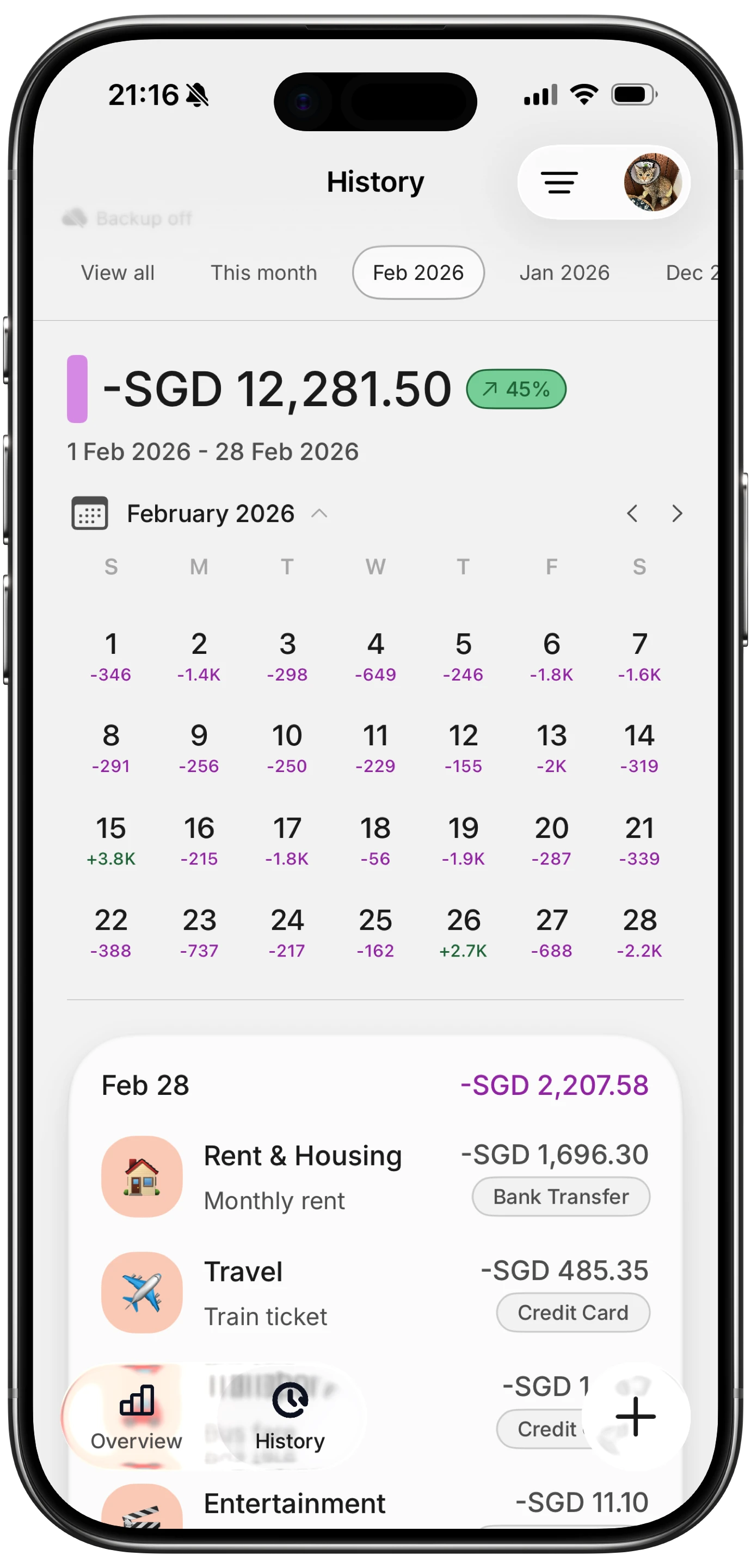
Finny app's History calendar feature
Several major apps have added Apple Card support, including Monarch, YNAB, and Copilot. When connected, these apps can automatically synchronize your Apple Card transactions, including live spending data, so you do not have to import a statement at the end of each month. Your Apple Card purchases show up alongside your other accounts for full-picture budgeting.
This is the best option if you want Apple Card spending combined with all your other accounts in one automated dashboard. The trade-off is the usual one: these apps require linking your financial accounts and are paid subscriptions. For a wider look, see our roundup of the best apps to track Apple Pay spending 2026.
Method 3: Export Apple Card Statements
If you prefer to work with your own records, or your budgeting tool does not support live Apple Card sync, you can export statements directly.
- On your iPhone, open Wallet, tap Apple Card, go to your statements, and download a statement
- You can also download statements from your Apple Card account online
- Statements are available as documents you can save, and transaction data can be imported into spreadsheets or apps that accept CSV files
Exporting is more manual, but it gives you a clean, official record of every Apple Card transaction for a billing period. It works well for people who reconcile their spending monthly or keep their own spreadsheet.
Method 4: Log Purchases in Real Time as You Pay
The methods above are all backward-looking: they show what you already spent. The most effective way to actually control spending is to log purchases the moment you make them, so you feel each expense as it happens.
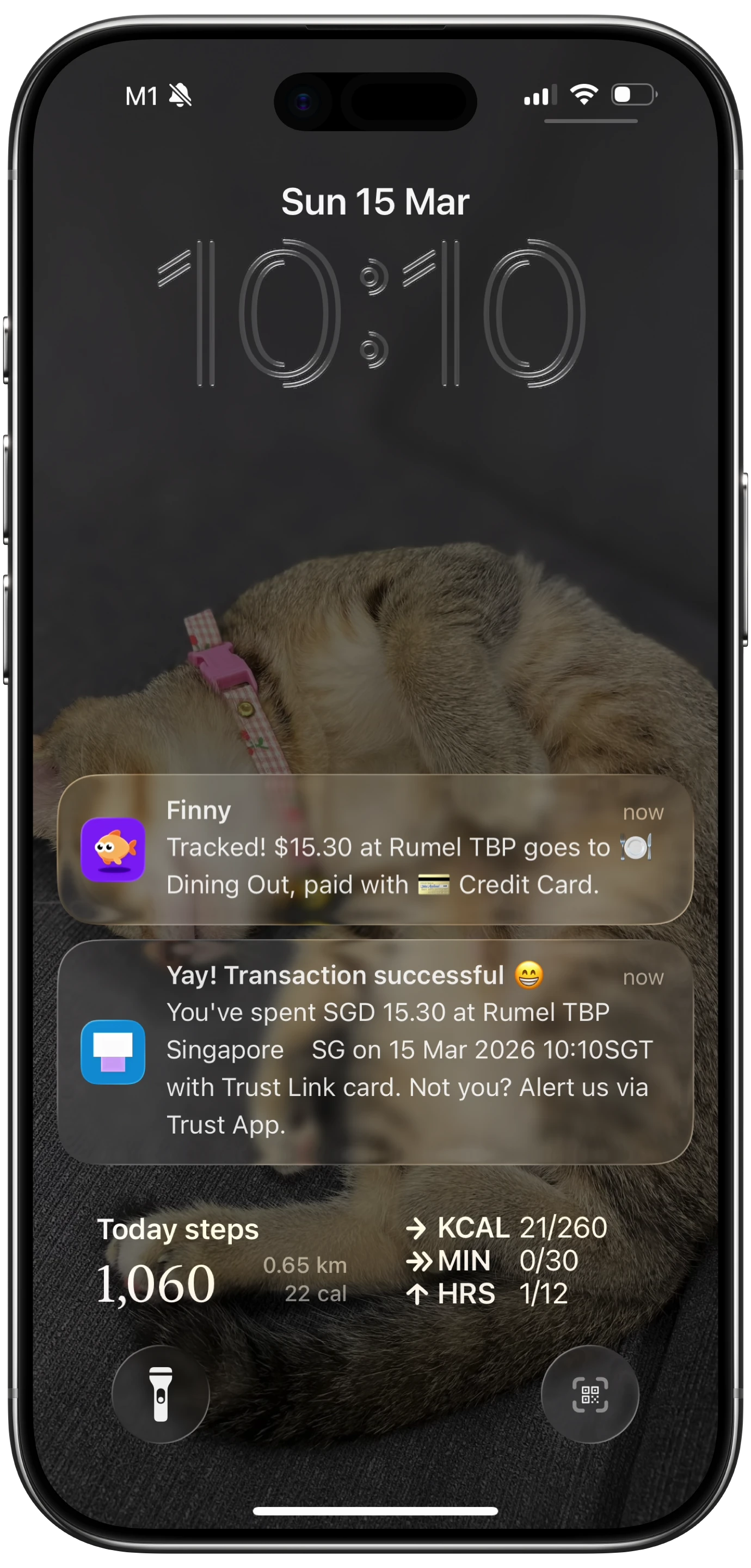
Finny app's Tap to Track feature
Because Apple Card is used through Apple Pay and your iPhone, you can capture purchases at the point of sale. Finny's Tap to Track is built for exactly this: when you pay with Apple Pay, you can log the expense in seconds, without waiting for a statement or linking your bank. You get a real-time running total and stay aware of your spending in the moment, which is where budgeting actually works.
Here is Tap to Track logging an Apple Pay purchase in seconds, no statement or bank link needed:
This approach has two advantages. First, it captures spending across every payment method, not just Apple Card, so your picture is complete. Second, it keeps your data private, because there is no bank or card connection involved. For setup details, see our guide on tracking Apple Pay spending automatically.
Which Method Should You Use?
The right method depends on what you want.
| Method | Best For | Effort | Full Picture? |
|---|---|---|---|
| Wallet summary | Quick Apple Card checks | None | Apple Card only |
| Budgeting app sync | Automated all-account dashboard | Low, after setup | Yes, if you link everything |
| Statement export | Monthly reconciliation, spreadsheets | Medium | Apple Card only |
| Real-time logging | Staying aware and controlling spending | Low, ongoing | Yes, all payment methods |
Many people combine two: Wallet's summary for a fast Apple Card glance, and a real-time tracker for full-picture awareness across all their spending. If your goal is not just to see spending but to change it, real-time logging is the method that actually moves the needle. See our guide to auto-capturing Apple Pay spending for more.
Frequently Asked Questions
How do I see my Apple Card spending?
Open the Wallet app on your iPhone, tap Apple Card, and tap the Monthly Activity spending summary under Card Balance. You will see spending by category and comparisons to previous periods, and you can scroll down to view recent and past transactions. This built-in view covers your Apple Card only, not your other accounts or payment methods.
Can Apple Card connect to budgeting apps?
Yes. Recent versions of iOS opened Apple Card, Apple Cash, and Savings data to approved third-party budgeting apps. Apps including Monarch, YNAB, and Copilot have added Apple Card support and can automatically sync your transactions, including live spending data, so you no longer have to import a monthly statement manually.
How do I export Apple Card transactions?
On your iPhone, open Wallet, tap Apple Card, go to your statements, and download the statement you want. You can also download statements from your Apple Card account online. Statements give you an official record of each transaction for a billing period, and the data can often be imported into spreadsheets or apps that accept CSV files.
What is the best way to track Apple Card spending in real time?
Log purchases the moment you make them rather than waiting for a statement. Because Apple Card runs through Apple Pay, you can capture each purchase at checkout. Finny's Tap to Track lets you log an Apple Pay expense in seconds without linking your bank, giving you a real-time total across every payment method, not just Apple Card.
Can I track Apple Card spending without linking my bank?
Yes. Wallet's built-in summary shows Apple Card spending with no linking required, and a real-time tracker like Finny lets you log purchases as you pay using Tap to Track, again with no bank or card connection. These approaches keep your data private while still giving you an accurate, up-to-date view of your spending.
Want a complete, private view of your spending across every card and currency? Download Finny and start free. Log Apple Pay purchases in seconds with Tap to Track, no bank linking required, and Pro costs a low monthly price for AI-assisted input.