Use Back Tap to Log Expenses Instantly (iPhone 2026)
You just paid for coffee. Log it now, before you walk three blocks away and the moment is gone. That tiny gap between spending and logging is where most tracking habits quietly die.
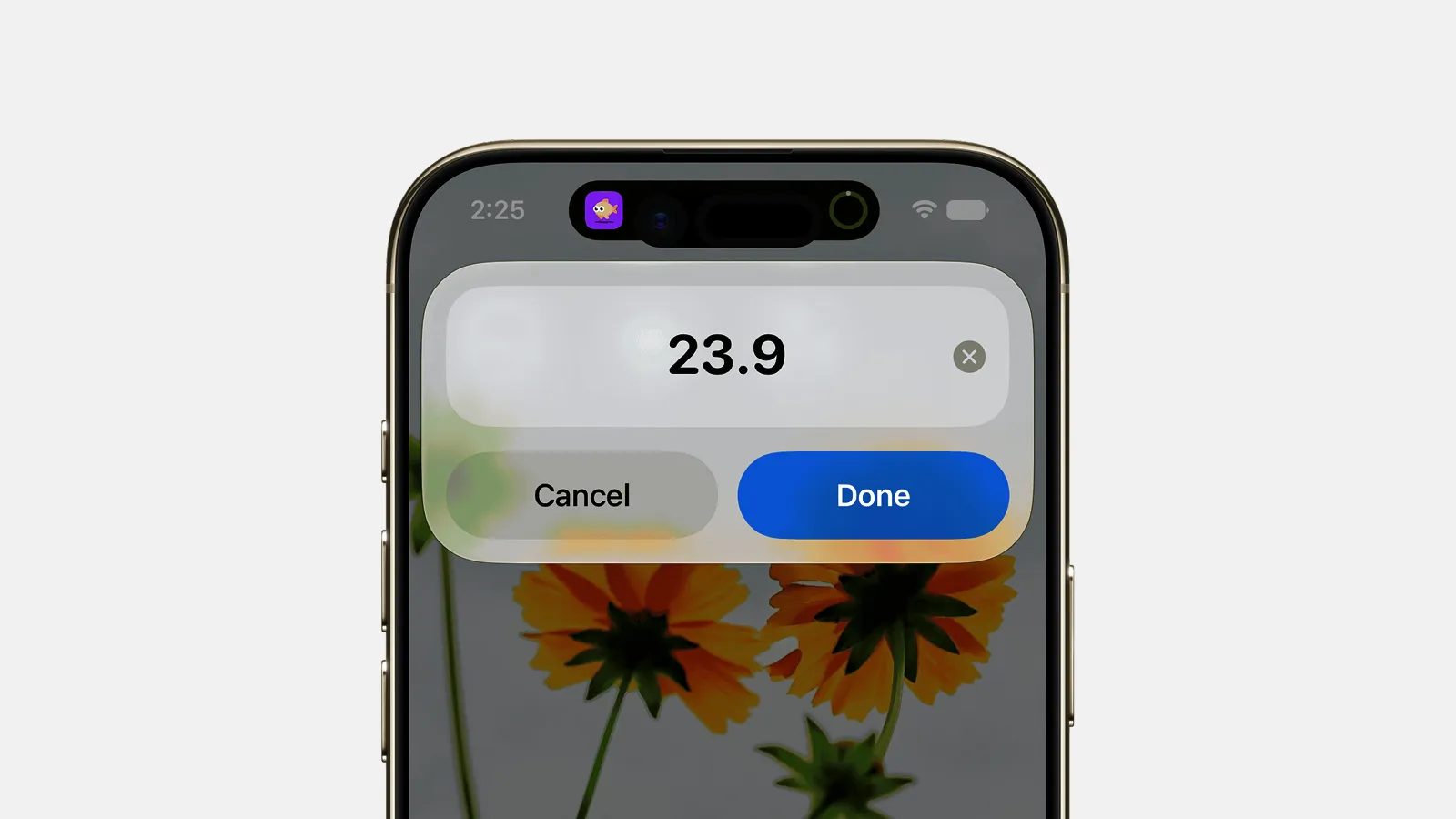
This guide shows you how to set up Back Tap to log expenses on your iPhone, so a double tap on the back of the phone opens a logging sheet. No unlocking, no hunting for an app icon, no Pro hardware. Setup takes about a minute, and you'll point Back Tap at Finny Quick Log: Finny's free, no-AI logger.
Quick Log is Finny's fast, free, on-device way to add an expense: an iOS Shortcut you can fire with a Back Tap, with no AI and no internet needed.
Back Tap is an iOS accessibility feature, shipped since iOS 14. It uses the iPhone's accelerometer to detect deliberate taps on the back panel and runs an action you assign. It works on iPhone 8 and later, so you get a physical trigger with no extra hardware. If you also use Spotlight, Siri, or the Action Button, see our roundup of ways to log an expense in seconds on iPhone to pick the right trigger for each situation.
Step 1: Get Finny Quick Log into your library
Do this first: it's the catch nobody warns you about, and the most common reason people give up on this setup.
The Back Tap picker only lists shortcuts that live in your Shortcuts library, the grid you see in the Shortcuts app. It does not show App Shortcuts, the ready-made actions Finny provides to the system automatically. Those appear instantly in Spotlight, Siri, and the Action Button, but Back Tap stays blind to them until the shortcut exists as a real, saved tile in your library.
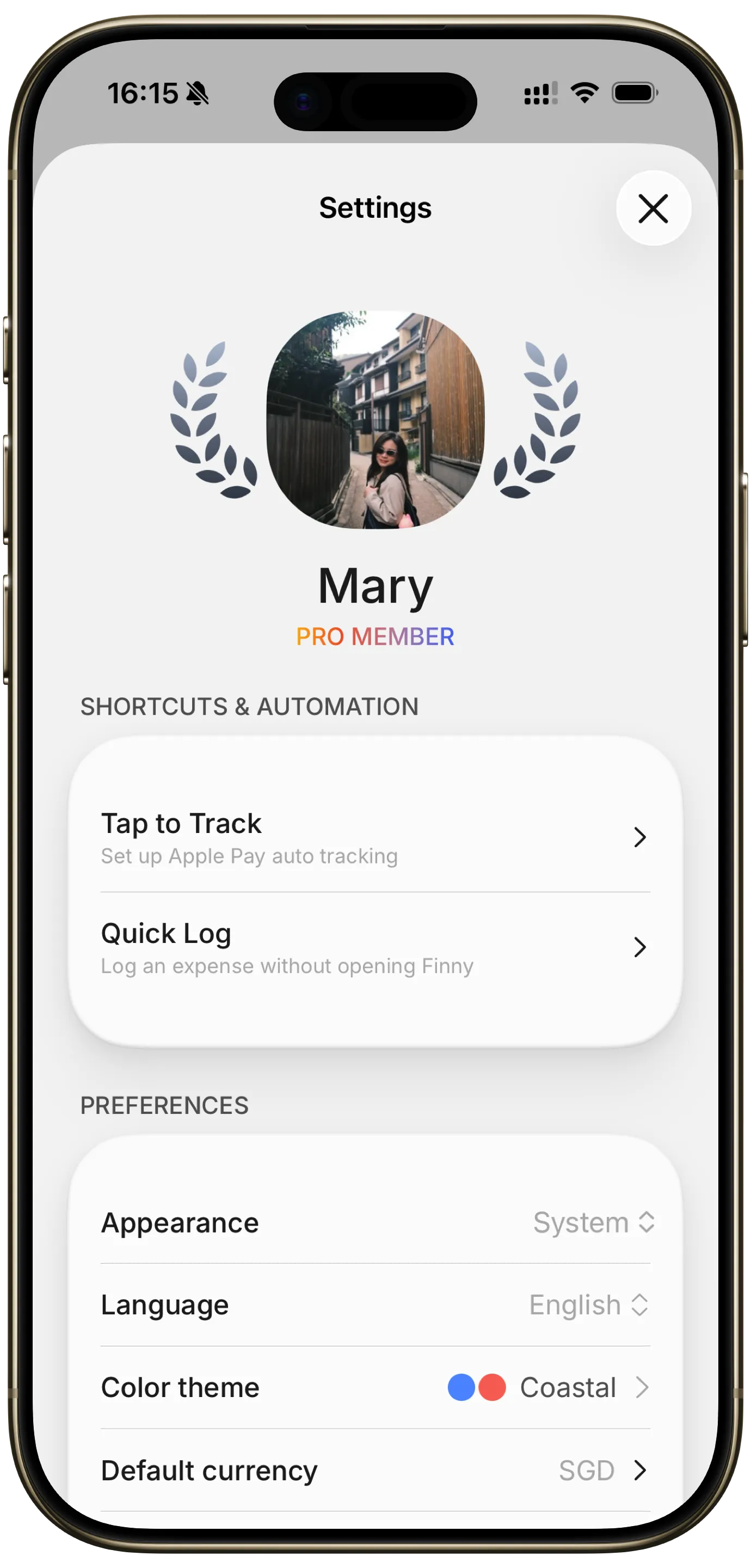
So add the saved shortcut once. Install Finny, then open Settings → Shortcuts & Automation → Quick Log to run the built-in setup guide and add the shortcut to your library. That's what makes it selectable in Back Tap.
Prefer to wire it up by hand? Open the Shortcuts app, tap + to create a new shortcut, tap Add Action, search for Finny, and add the Quick Log action. Name it something clear like "Quick Log" and save.

Either path puts a tappable Quick Log tile in your library. Here's why the step matters. Surfacing varies by trigger:
| iPhone trigger | Finds auto-provided App Shortcut? | Needs imported library shortcut? |
|---|---|---|
| Spotlight search | Yes | No |
| Siri (voice) | Yes | No |
| Action Button | Yes | No |
| Back Tap | No | Yes, add Quick Log to your library first |
Step 2: Set Back Tap to log expenses
Now assign the gesture. This lives in Settings, not the Shortcuts app, and takes under a minute.
- Open the Settings app.
- Tap Accessibility.
- Tap Touch.
- Scroll to the bottom and tap Back Tap.
- Tap Double Tap.
- Scroll to the Shortcuts group and select Finny Quick Log.
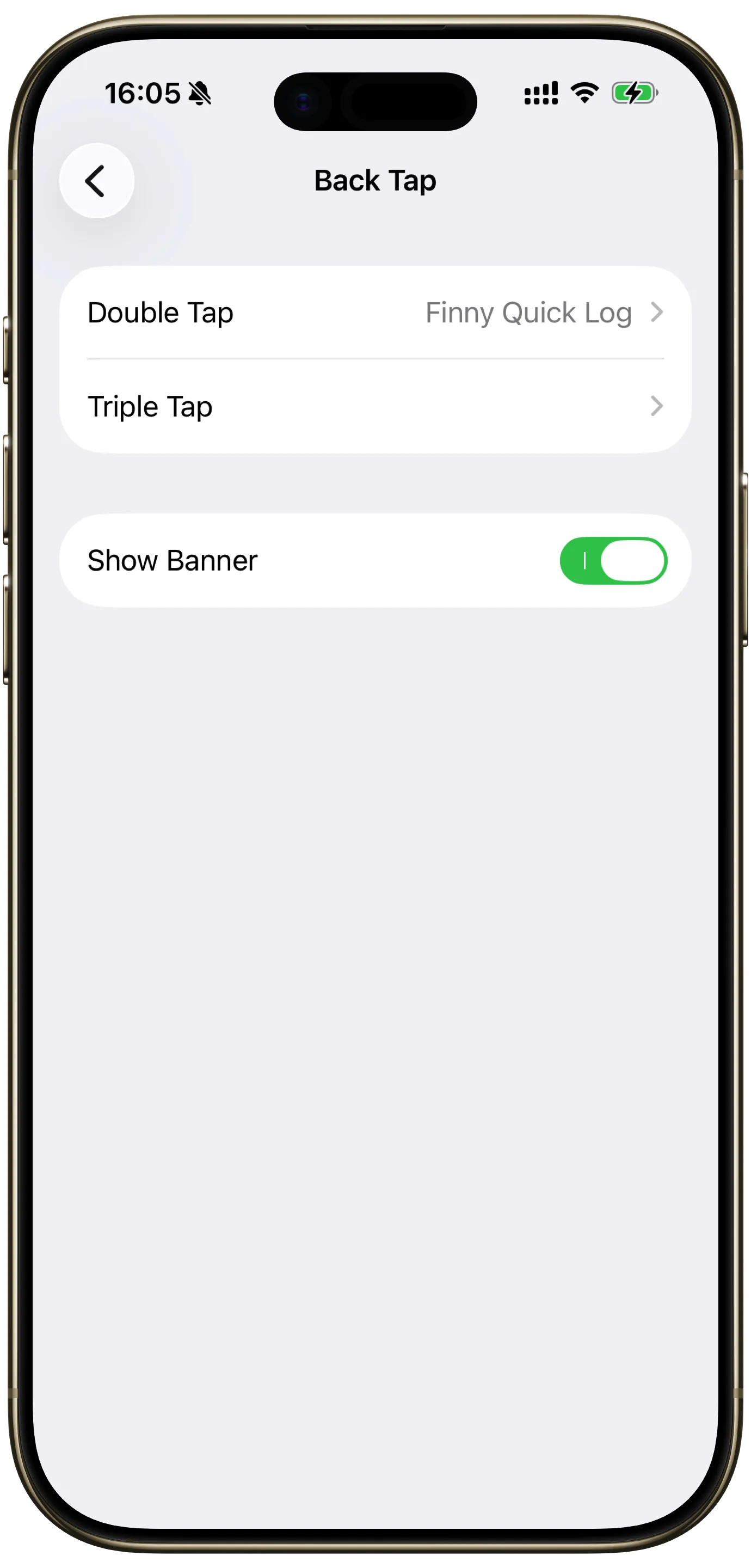
That's it. Tapping the back of your phone twice now runs Quick Log and brings up the entry sheet, even from the lock screen.
If Finny Quick Log isn't anywhere in that list, don't retap or restart. Go back to Step 1: Back Tap can't see the auto-provided App Shortcut, so you need the saved tile in your library first.
Step 3: Tap to log a purchase
Once it's wired up, the day-to-day flow is almost nothing:
- Tap the back of your phone twice (the screen can stay locked).
- The Quick Log sheet opens.
- Enter the amount on the keypad.
- Pick a category.
- Set the payment method.
- Add an optional note, or skip it.
- Tap Done: the entry is staged and merges next time you open Finny.
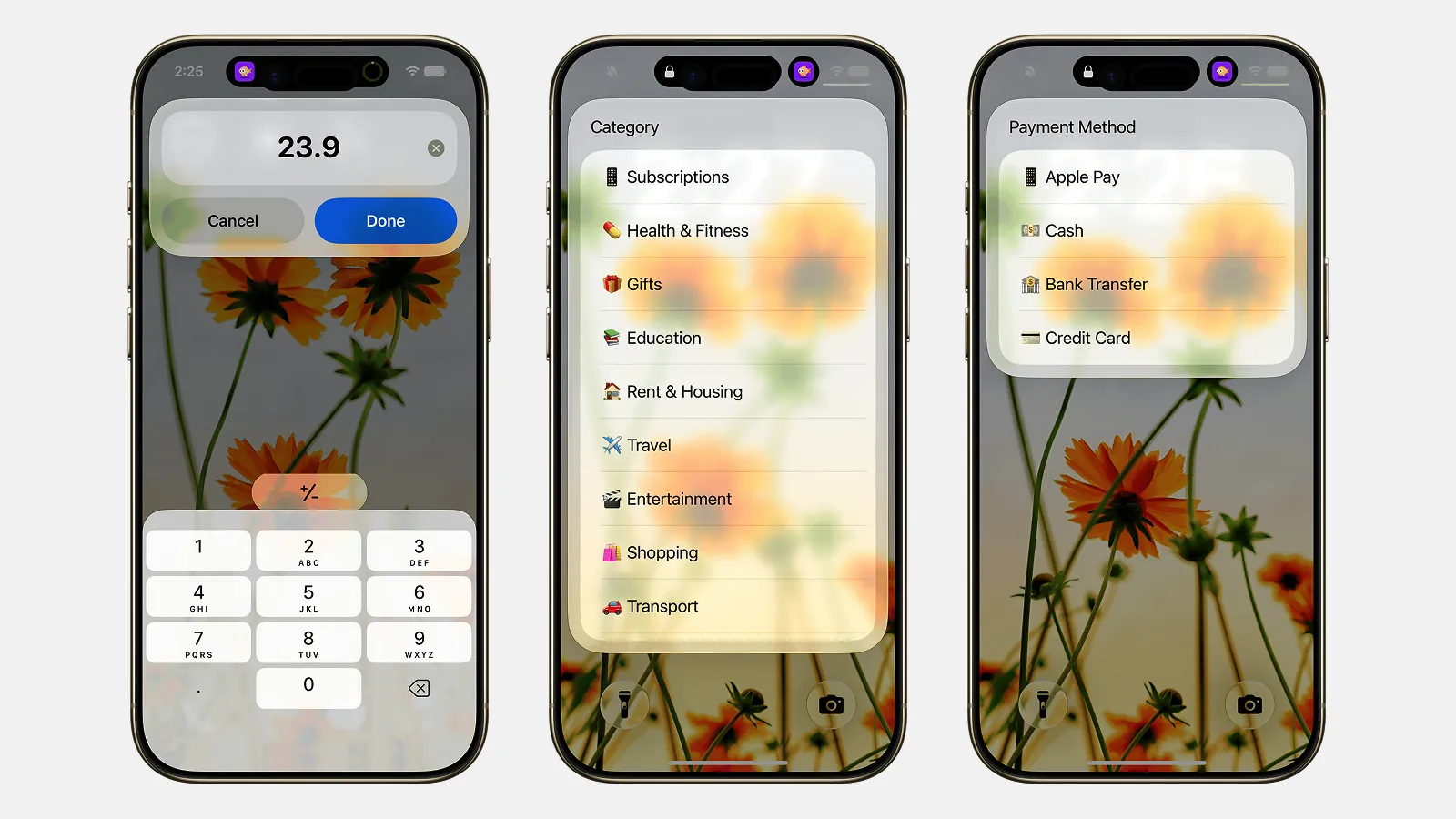
The whole thing takes a few seconds. Quick Log skips AI parsing entirely, so there's no model to wait on and no network needed. It's just a fast form, reliable in a parking garage or basement restaurant where signal drops.
Build the habit: tap-tap as you put the phone away after paying. Tying the gesture to the moment of payment is what makes it stick. If you'd rather capture spending passively, our piece on tracking purchases without opening the app covers the hands-off options.
Double tap vs. triple tap
Double Tap and Triple Tap both run Finny Quick Log the exact same way. Neither is required and neither is clearly better, so pick whichever you prefer. The only real difference is accidental triggers: setting the phone on a table or pulling it from a tight pocket can occasionally register as a double tap, while three deliberate taps are harder to set off by mistake. If you never get phantom logs, double tap works great; if you do, triple tap clears them up and costs almost no extra time. Either works. Go with whichever you trigger less by accident.
To set or change which gesture you use, return to Settings → Accessibility → Touch → Back Tap, tap Double Tap or Triple Tap, and select Finny Quick Log. For more ways to build and chain these into your routine, see our guide to Apple Shortcuts expense tracking automations.
Troubleshooting
The shortcut isn't in the Back Tap list. This is almost always the library issue. Back Tap won't show auto-provided App Shortcuts. Add Finny Quick Log as a saved shortcut (run the in-app guide under Settings → Shortcuts & Automation → Quick Log, or build it by hand in the Shortcuts app), then reopen the Back Tap screen.
A case or grip blocks the taps. Back Tap reads vibration through the back glass. Thick or heavily padded cases can dampen the signal so taps don't register. Tap a little more firmly, tap nearer the center of the back, or test briefly with the case off to confirm.
It fires by accident. If you get phantom logs, switch from Double Tap to Triple Tap: three deliberate taps are far harder to trigger by mistake while only adding a fraction of a second.
It worked, then stopped. If the shortcut runs inconsistently (sometimes firing, sometimes silent, or hanging on launch), that's usually a Shortcuts-level glitch, not a Back Tap problem. Our walkthrough on fixing flaky iOS Shortcuts and automations covers the resets that clear it up.
Both tap types feel unreliable. Older iPhones and some cases detect taps less consistently. If Back Tap stays flaky, the Action Button (on Pro and iPhone 16/17 models) or a Spotlight/Siri trigger is a sturdier alternative for the same Quick Log action.
Frequently Asked Questions
Can you use Back Tap to log an expense?
Yes. Back Tap can run any shortcut in your library, so you can assign Finny's Quick Log shortcut to a double or triple tap. After a one-time setup, tapping the back of your iPhone opens the log sheet (even from the lock screen) where you enter the amount, category, payment method, and an optional note. It needs no extra hardware and works on iPhone 8 and later, making it one of the cheapest fast-logging triggers available.
Why doesn't my shortcut show up in Back Tap?
Because the Back Tap picker only lists shortcuts saved in your Shortcuts library. It does not show the auto-provided App Shortcuts that Finny supplies to the system, even though those appear instantly in Spotlight, Siri, and the Action Button. The fix is to add Finny's Quick Log as a real saved shortcut in your library first (through Finny's Add to Shortcuts option or by building it in the Shortcuts app), and it will then appear in the Back Tap list.
Should I use double or triple tap?
Double tap is slightly faster and fine if you rarely get accidental triggers. Triple tap is more deliberate and much harder to set off by accident when the phone is jostled in a pocket or set down on a table. If you notice phantom log sheets popping up, switch to triple tap. The extra tap costs you almost no time and removes nearly all of the false triggers.
Does Back Tap work through a case?
Usually, yes. Back Tap detects taps through the back glass and tolerates most slim and standard cases. Very thick, rugged, or heavily cushioned cases can absorb enough of the tap that it does not register reliably. If yours is inconsistent, tap a bit harder toward the center of the back, or briefly remove the case to confirm whether it is the cause before changing your settings.
Make the back of your phone your fastest button
Expense tracking fails on friction, and the cure is a trigger you'll actually reach for. Using Back Tap to log expenses gives you a hidden hardware button you already own, available from the lock screen on nearly any modern iPhone with no Pro upgrade. Add a saved Quick Log shortcut to your library, point Back Tap at it, and switch to triple tap if it fires by accident.
Finny makes the destination free: Quick Log costs nothing, with no bank link and no AI required. If you later want receipt scanning, voice input, and Tap to Track, Finny Pro costs a low monthly or yearly price. Set it up once, then tap-tap as you pocket your phone. Your spending records itself.