Stop Logging Apple Pay by Hand: Auto-Capture Every Tap (2026)
You tap your iPhone, the terminal beeps, and you walk out with your coffee. The payment took half a second. Logging it later never happens. By tonight you have forgotten the total, the tip, and that you bought anything at all. Manual logging fails for one reason: it asks you to remember at the exact moment you are busiest. The fix is to let the tap log itself. This tutorial shows you how to automatically track tap to pay purchases on iPhone in about five minutes, with no bank login, plus a quick fallback for the taps a terminal misses.
Finny logs spending through iOS Shortcuts, not a bank feed: Tap to Track auto-logs every Apple Pay tap in the background, and Finny Quick Log is the one-tap manual backup for anything the tap misses.
Set up auto-capture: automatically track tap to pay
Finny's Tap to Track uses an iOS Shortcuts automation tied to Apple Pay's NFC payment. The instant your iPhone or Apple Watch finishes a tap, the automation fires and Finny logs the amount, time, and an AI-suggested category, without you opening anything. There is no bank connection and no credentials to hand over; the trigger lives on your device. Each captured tap uses one AI credit, since categorization runs on Finny's AI.
Watch Tap to Track auto-capture an Apple Pay tap with no manual entry:
Setup is a one-time thing the app walks you through. Here is the overview:
-
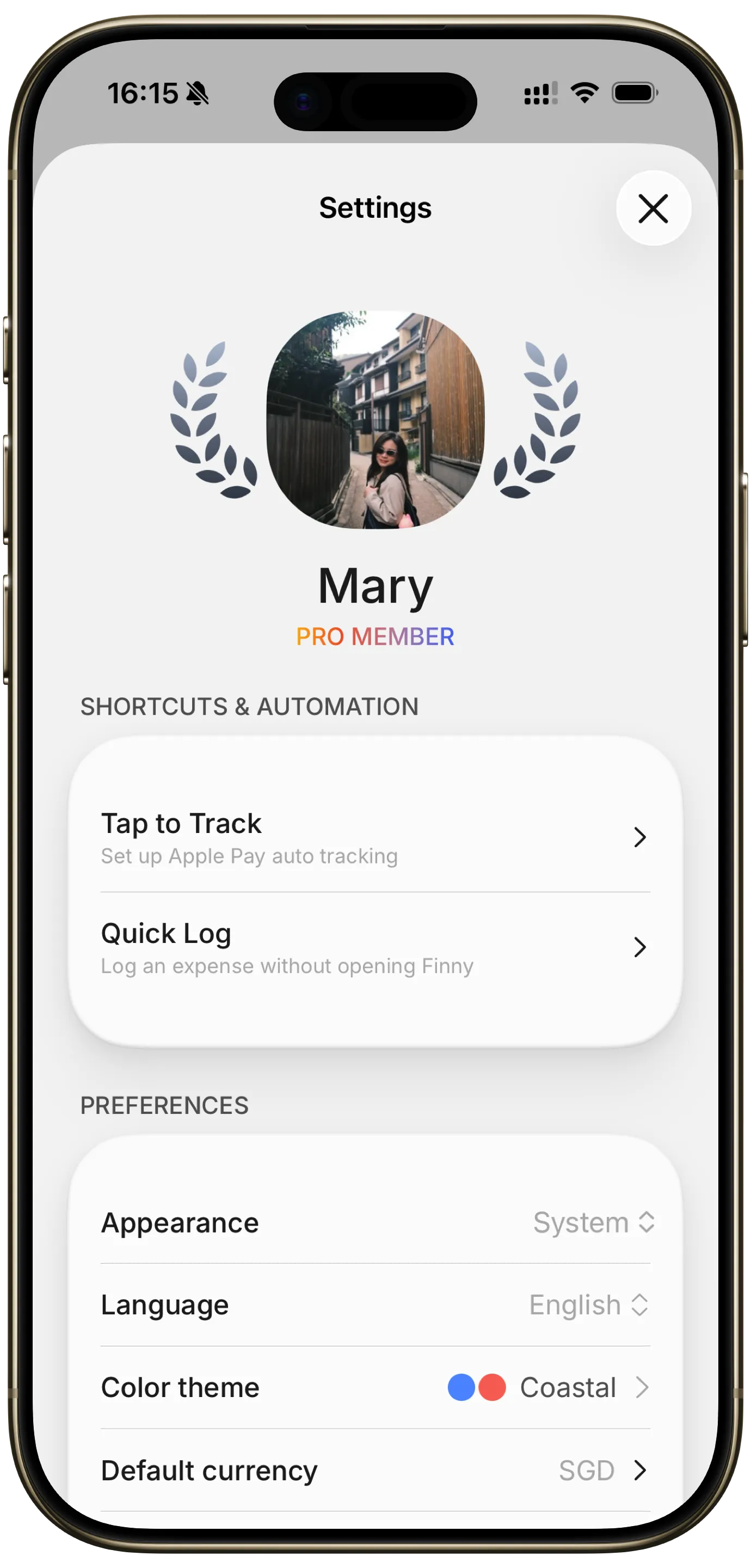
Install Finny and open the settings card. Install Finny, then open Settings → Shortcuts & Automation → Tap to Track and follow the built-in setup guide. It walks you through installing the Shortcut, choosing which cards to watch, and setting it to run silently.
-
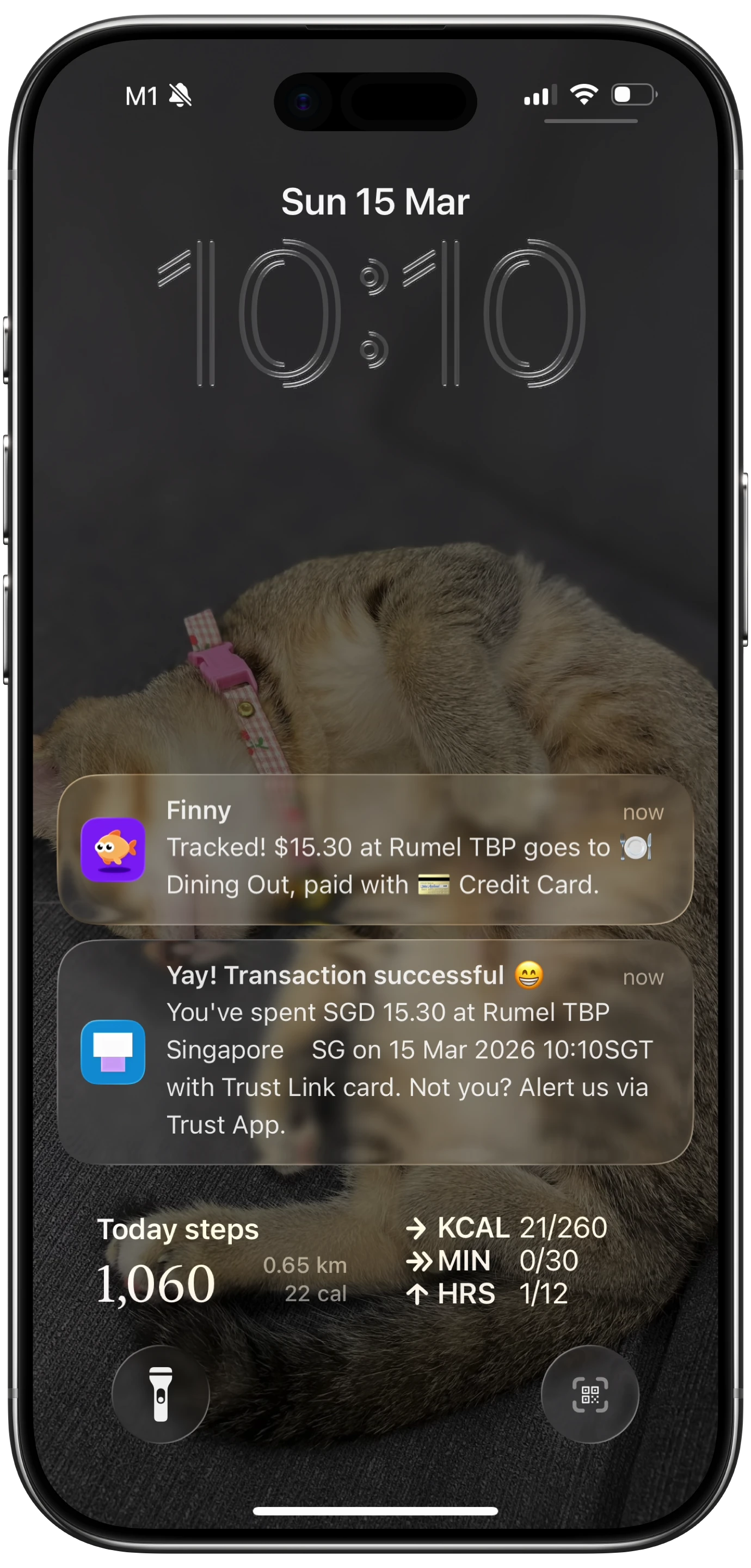
Pay like you already do. Once it is running, just tap to pay. The instant the terminal beeps, Tap to Track fires and logs the expense in the background, no app to open, no notification to dismiss.
-
Check your history. Open Finny and the purchase is already there: amount, time, and an AI category you can confirm or change in a single tap.
That is the whole loop: you tap, Apple Pay fires the automation, Finny logs and categorizes it.
Want the full screenshot-by-screenshot version? The complete how to automatically track Apple Pay purchases walkthrough covers every step. Prefer to avoid bank links across your whole setup? That fits a broader privacy-first approach we cover in tracking expenses without linking a bank.
Tap to Track and AI logging are part of Finny Pro (a low monthly or yearly price). Manual tracking and the Finny Quick Log fallback below are free.
What it captures, and what it doesn't
Auto-capture is excellent at the thing it is built for and limited in ways worth knowing before you rely on it.
What it reliably captures
- The transaction amount, the moment you tap
- The date and time
- An AI-assigned category you can confirm or change in a tap
What it does not capture
- Cash, online card-number purchases, or anything you do not run through Apple Pay
- Itemized receipt details (it logs the total, not each line)
- Reliable merchant names at every terminal, some pass rich data, some pass almost none
That last point matters most: auto-capture does not behave identically at every store. The same iPhone and the same card can log cleanly at one register and stay silent at the one next door. The deciding factor is the payment terminal and how it handles the contactless handshake, not your phone, and not a bug in the app. See why Tap to Track works at some stores but not others for real examples, so you do not blame the wrong thing when a tap goes uncaptured.
Treat auto-capture as the engine that handles the large majority of your in-person spending, not a guarantee that fires at every terminal on earth. Comparing it against bank-linked and manual tools? The best apps to track Apple Pay spending in 2026 lines them up side by side.
Add a fallback for every missed tap
No automation is perfect, so give it a safety net. Two cheap habits make auto-capture effectively complete:
-
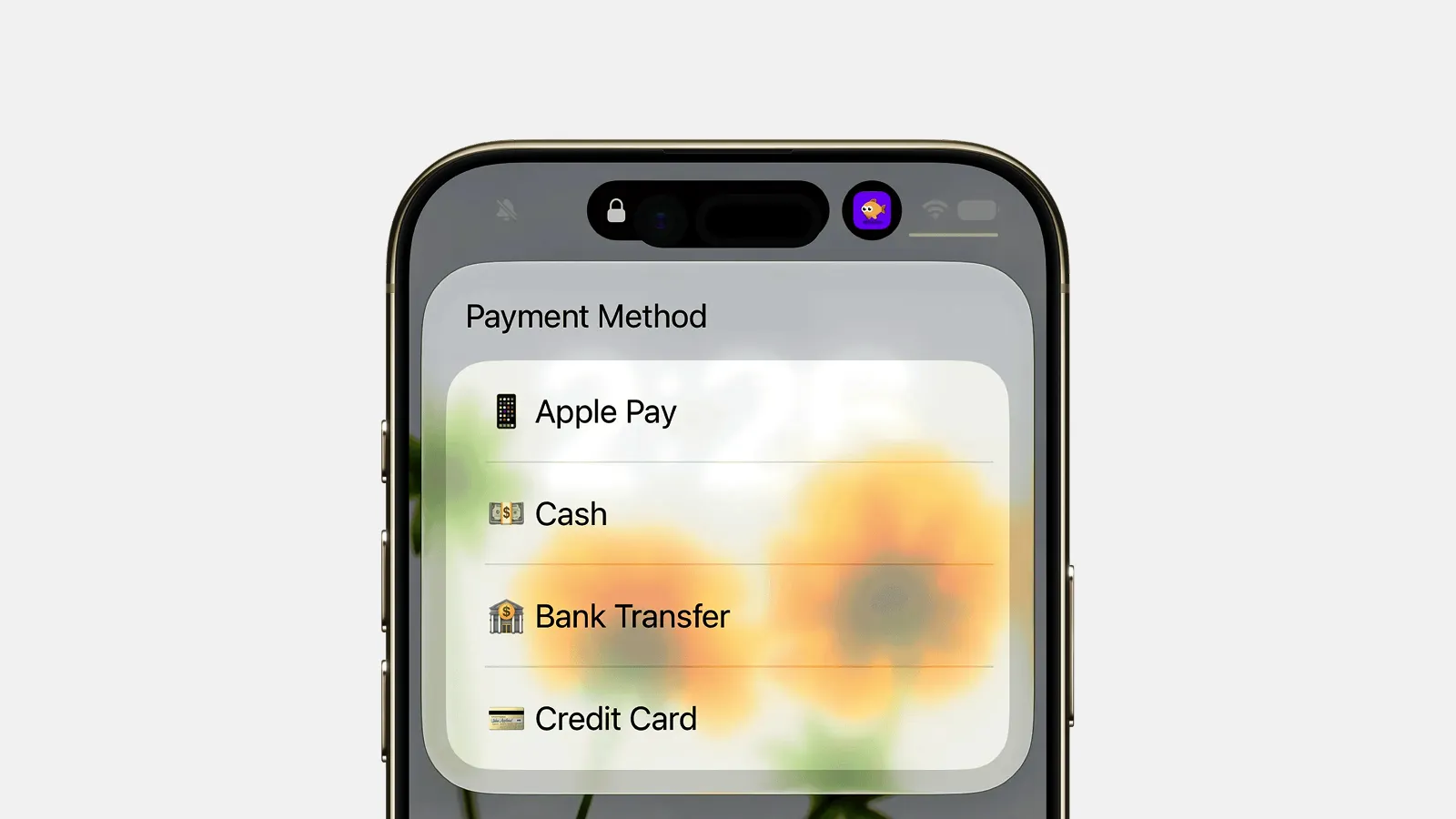
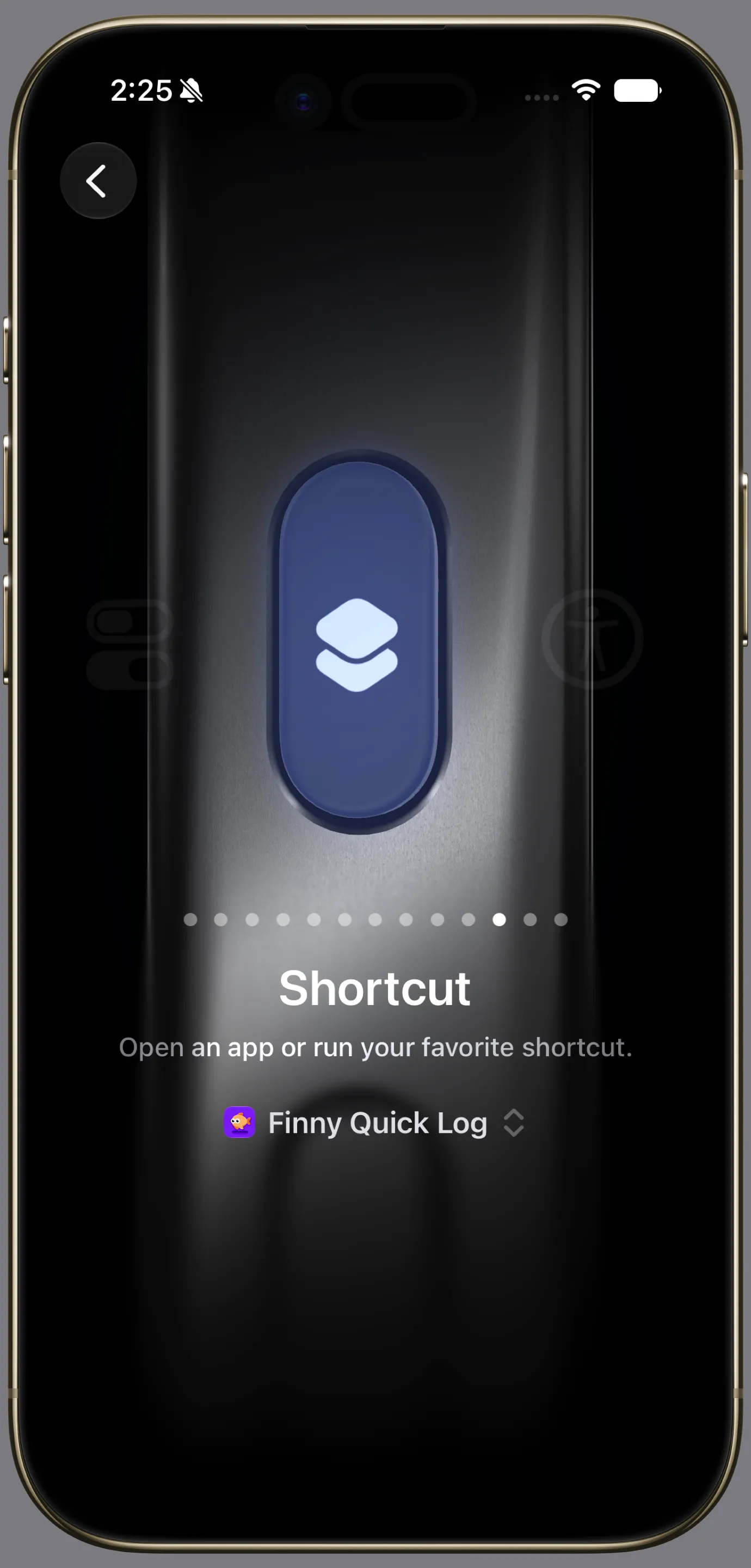
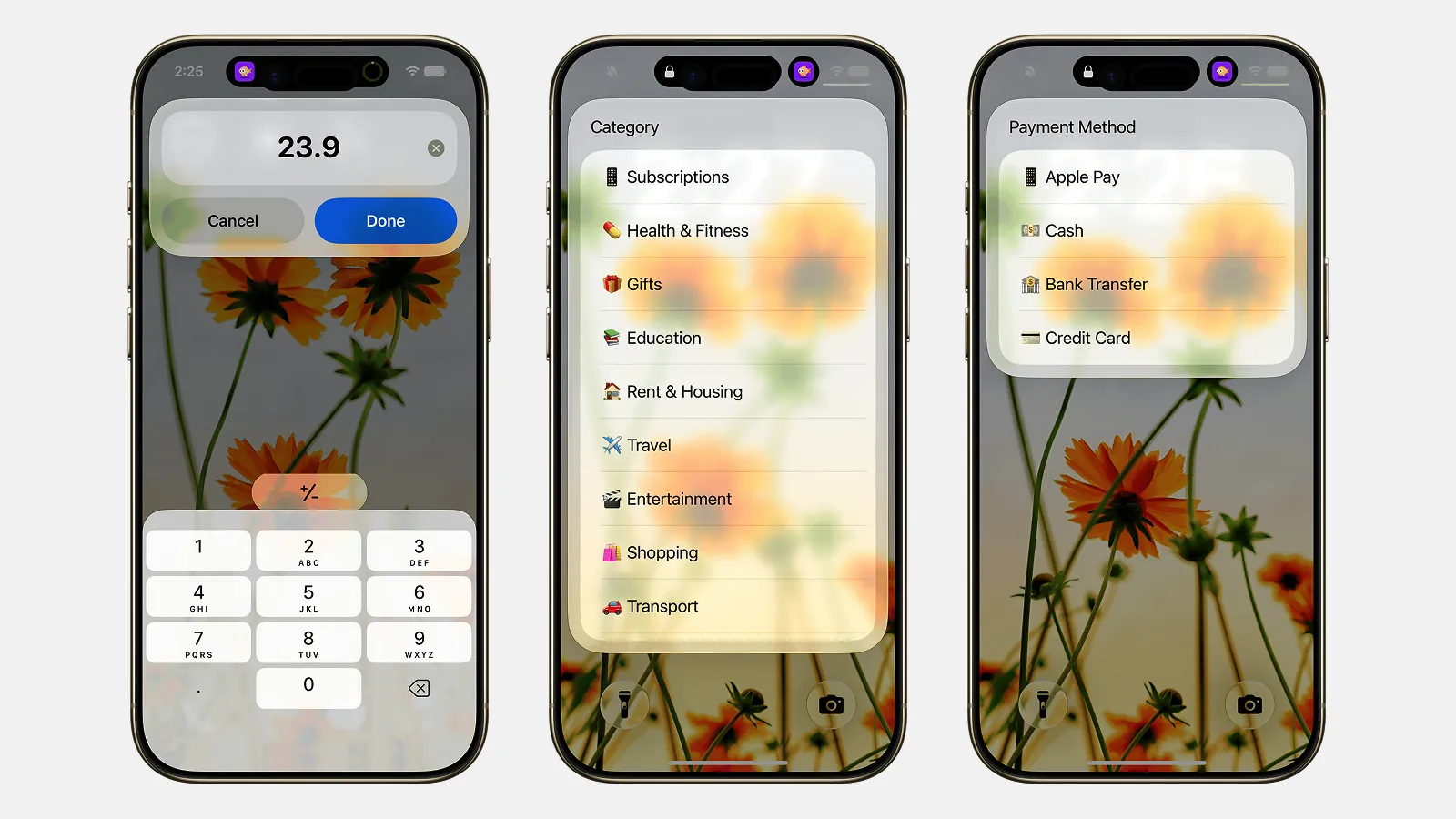
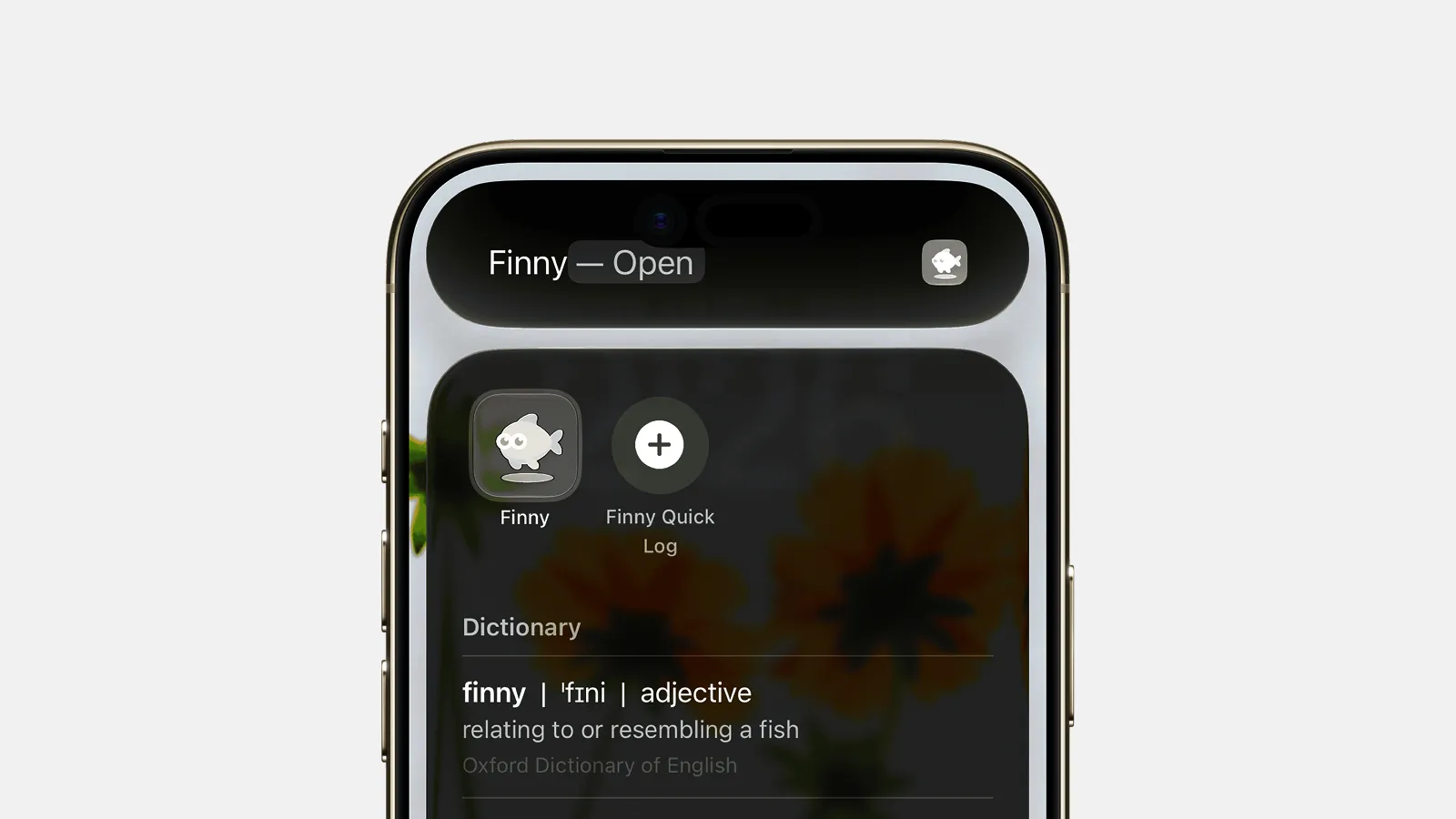
Use Finny Quick Log for anything the tap missed. Finny Quick Log is free and needs no AI. Log an expense in a couple of seconds from Spotlight search, Siri, the Action Button, or Back Tap, without opening the app. It walks you through amount, category, payment, and an optional note you can skip, then you are done. When you notice a tap did not land, or you paid in cash, fire off a Finny Quick Log on the spot while the amount is fresh.
-
Snap a receipt for the purchases that matter. For a big grocery run or a business expense where you want the details, scan the receipt. Finny's AI reads the total and merchant and gives you an itemized record instead of a lone number. This is also your recovery move for the rare terminal auto-capture cannot read.
The rule of thumb: let Tap to Track handle the routine taps silently, lean on Finny Quick Log when the automation misses, and scan a receipt when you want depth. A two-minute weekly glance to confirm categories keeps the data clean.
Frequently asked questions
Can Apple Pay purchases be tracked automatically?
Yes. On iPhone, an iOS Shortcuts automation can fire the instant an Apple Pay (NFC) payment completes. Finny's Tap to Track uses exactly this: when you tap to pay, it auto-logs the amount and time and assigns an AI category, with no manual entry and no bank connection. It is the most reliable way to capture in-person, contactless spending the moment it happens rather than trying to remember it later that night.
How do I auto-log tap-to-pay spending without linking my bank?
You use an on-device trigger instead of a bank feed. Finny's Tap to Track runs an Apple Shortcuts automation tied to Apple Pay, so the data comes from the tap on your own phone, never from your bank login. Set it up once by following the full Apple Pay tracking guide, pick which cards to watch, and let it run. Nothing is connected to your accounts and no credentials are shared.
Does auto-capture work at every store?
No, and any tool claiming otherwise is overstating it. Auto-capture depends on the store's payment terminal completing the contactless handshake in a way the automation can read. Most terminals work, but some pass little or no usable data, so a tap may go uncaptured at one register and log fine at another. It is the terminal, not your phone or card. The store-by-store explainer breaks down why.
What happens if a tap isn't logged?
You catch it with Quick Log. It is free, needs no AI, and runs from Spotlight, Siri, the Action Button, or Back Tap, so you can record the expense in a couple of seconds without opening the app. For purchases you want in detail, scan the receipt instead and the AI fills in the total and merchant. A quick weekly review of your transaction list is enough to spot and patch anything the automation missed.
The bottom line
When you automatically track tap to pay purchases, the act of spending becomes the act of recording, and the forgetting problem disappears. Set Tap to Track up once to handle your everyday Apple Pay taps with no bank login, keep Finny Quick Log ready for the gaps, and scan a receipt when you want detail. No single layer is perfect, but together they produce something manual tracking never could: a record that stays accurate without daily effort. Set it up once with Finny and let your taps log themselves.