6 Ways to Log an Expense in Seconds on iPhone (2026)
Most tracking habits die in the gap between spending and logging. By the time you unlock your phone, find the app, and tap through a couple of menus, the moment is gone, and three coffees later your budget is fiction.
This guide gives you six ways to log an expense fast on iPhone, each one a short how-to you set up once. Every method skips the app launcher and gets you from "I just paid" to "it's recorded" in seconds.
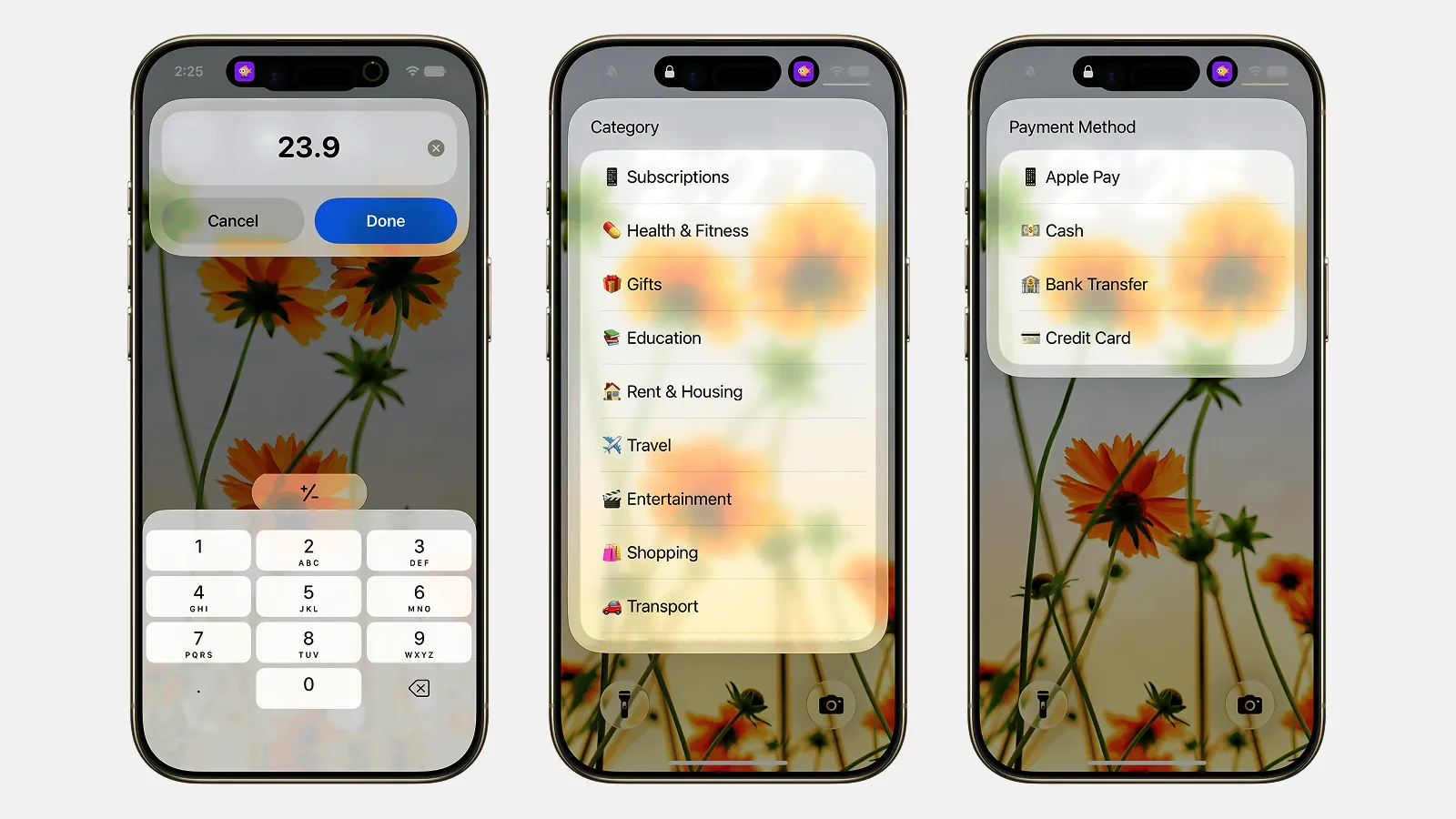
Finny Quick Log is the fastest, free, on-device way to add an expense via an iOS Shortcut. Four of these methods (Spotlight, Siri, the Action Button, and Back Tap) open the same Quick Log sheet, where you pick an amount, a category, a payment method, and an optional note (skip it if you're in a hurry). No AI parsing, nothing to configure. The other two are even more hands-off: Tap to Track captures Apple Pay automatically, and widgets drop you straight in. Learn the Quick Log sheet once, and the rest are just different ways to open it. Pick the trigger that fits how you move through your day.
1. Quick Log from Spotlight
The swipe-down search bar. It's the fastest path with zero setup, so start here.
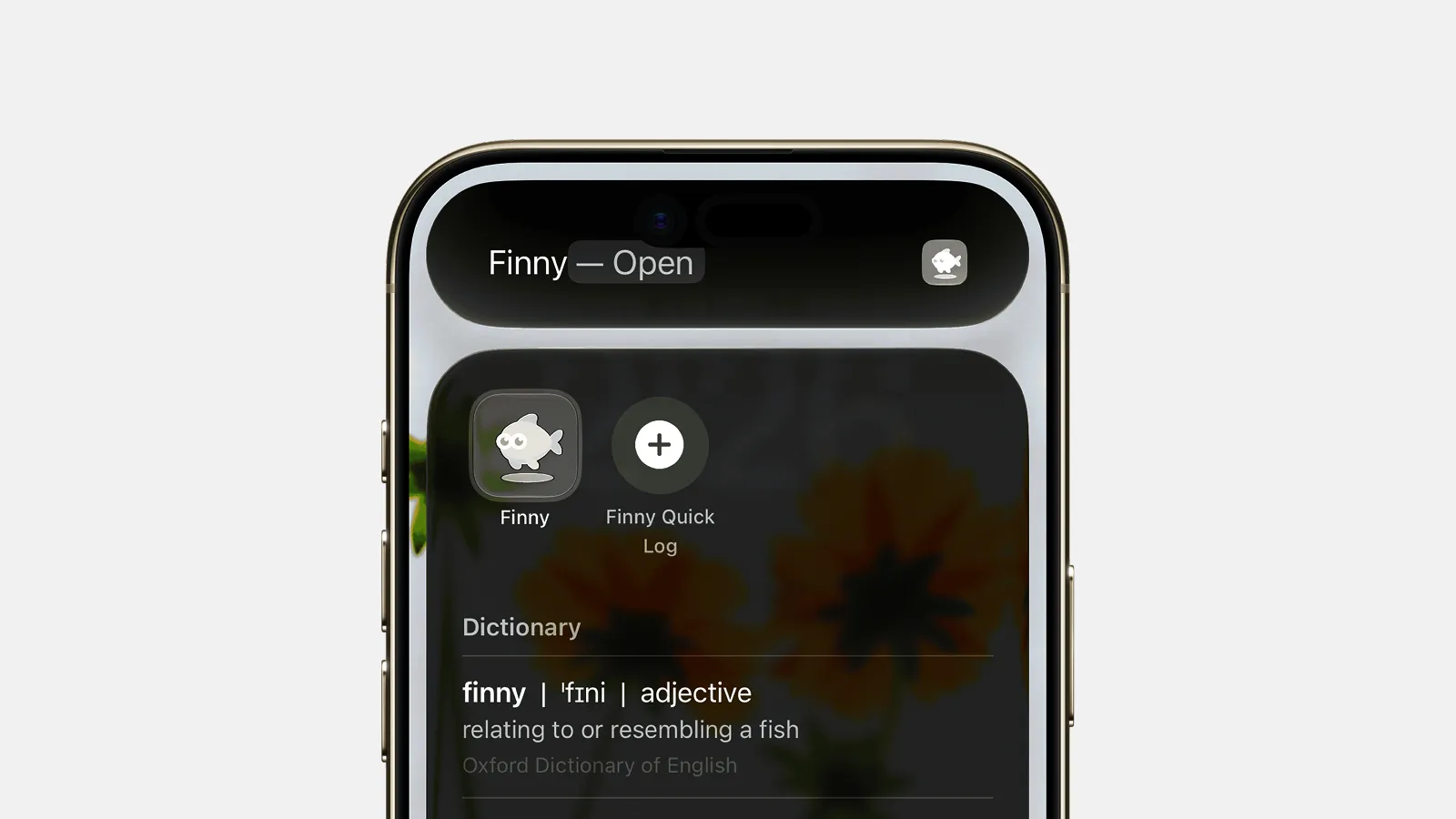
- Swipe down on the Home Screen to open Spotlight.
- Type "Finny Quick Log". It appears before you finish the phrase.
- Tap it to open the logging sheet.
iOS indexes Finny Quick Log automatically because it's an App Shortcut, so it surfaces the first time you search.
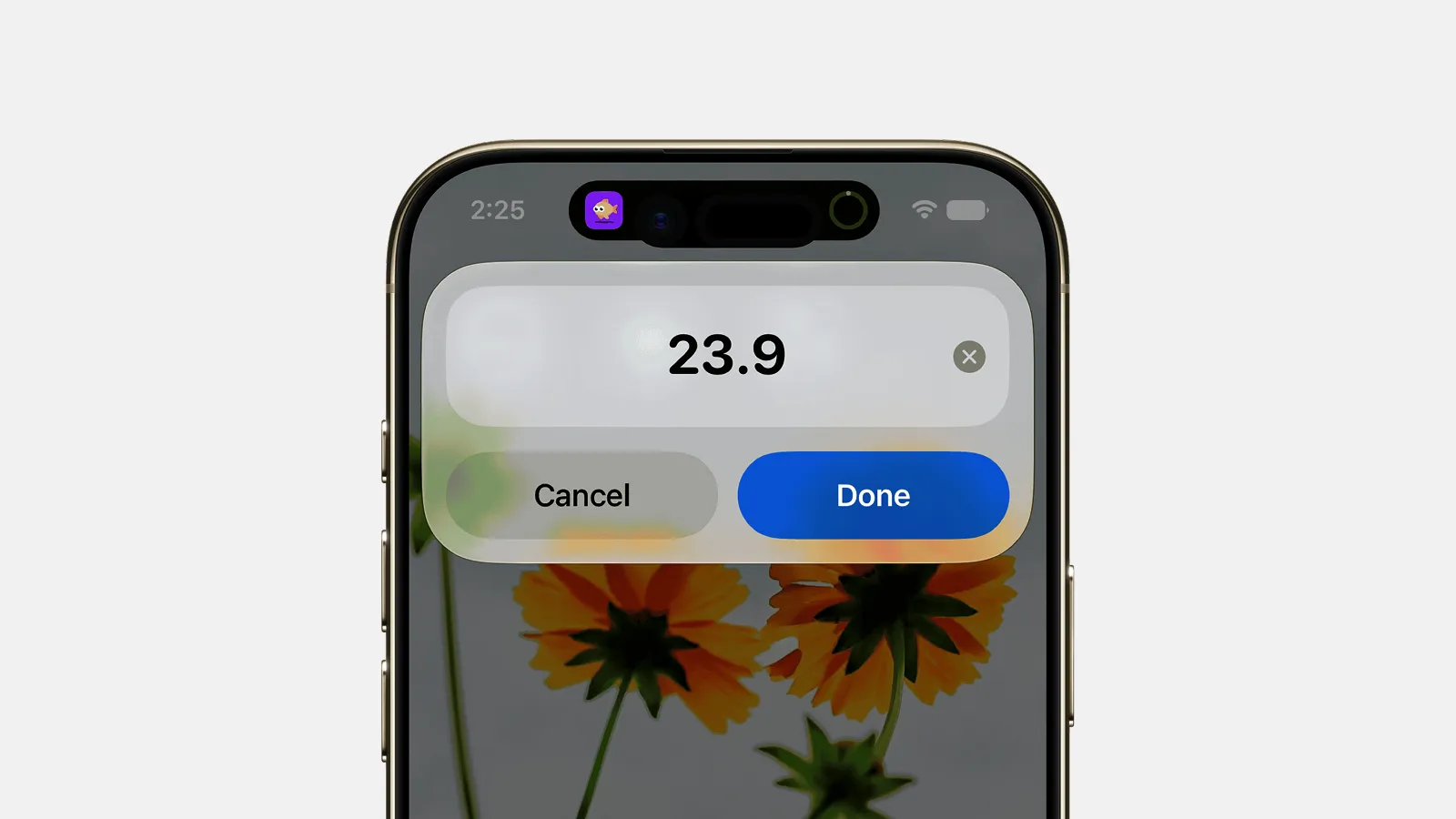
This is the same sheet the next three methods open, so learn it once. Type the amount on the keypad:
Then pick a category, choose a payment method, add an optional note, and tap Done:

2. Quick Log with Siri
Voice logging. Best when your hands are full and the phone is in your pocket.
- Say "Log an expense in Finny". "Hey Siri" and raise-to-speak both work.
- Siri opens Finny Quick Log without you touching the screen.
- Confirm the amount, category, and payment method with a tap, and add a note if you want.
It's free and burns no AI credits, since it uses Quick Log rather than the AI parser. For custom Siri phrases and fixes for when Siri mishears amounts, see logging expenses with Siri on iPhone.
3. Quick Log on the Action Button
A single press on the iPhone 15 Pro (or newer) side button. The most satisfying trigger on this list.
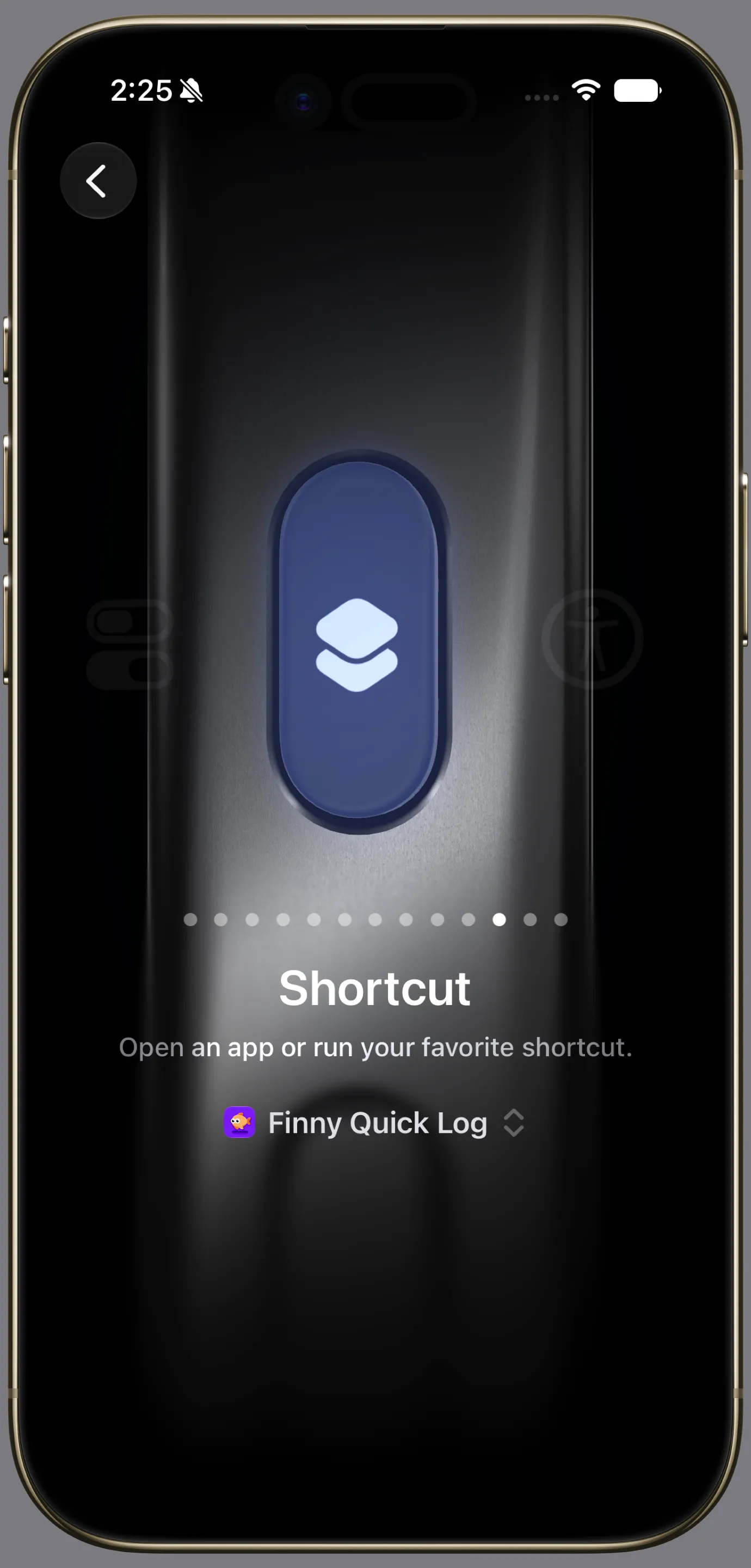
- Open Settings → Action Button.
- Swipe to the Shortcut option.
- Point it at Finny Quick Log.
Now one firm press drops you straight into the logger: no unlock, no search. It becomes muscle memory within a day and shines at checkout: tap to pay, press, enter the amount, done.
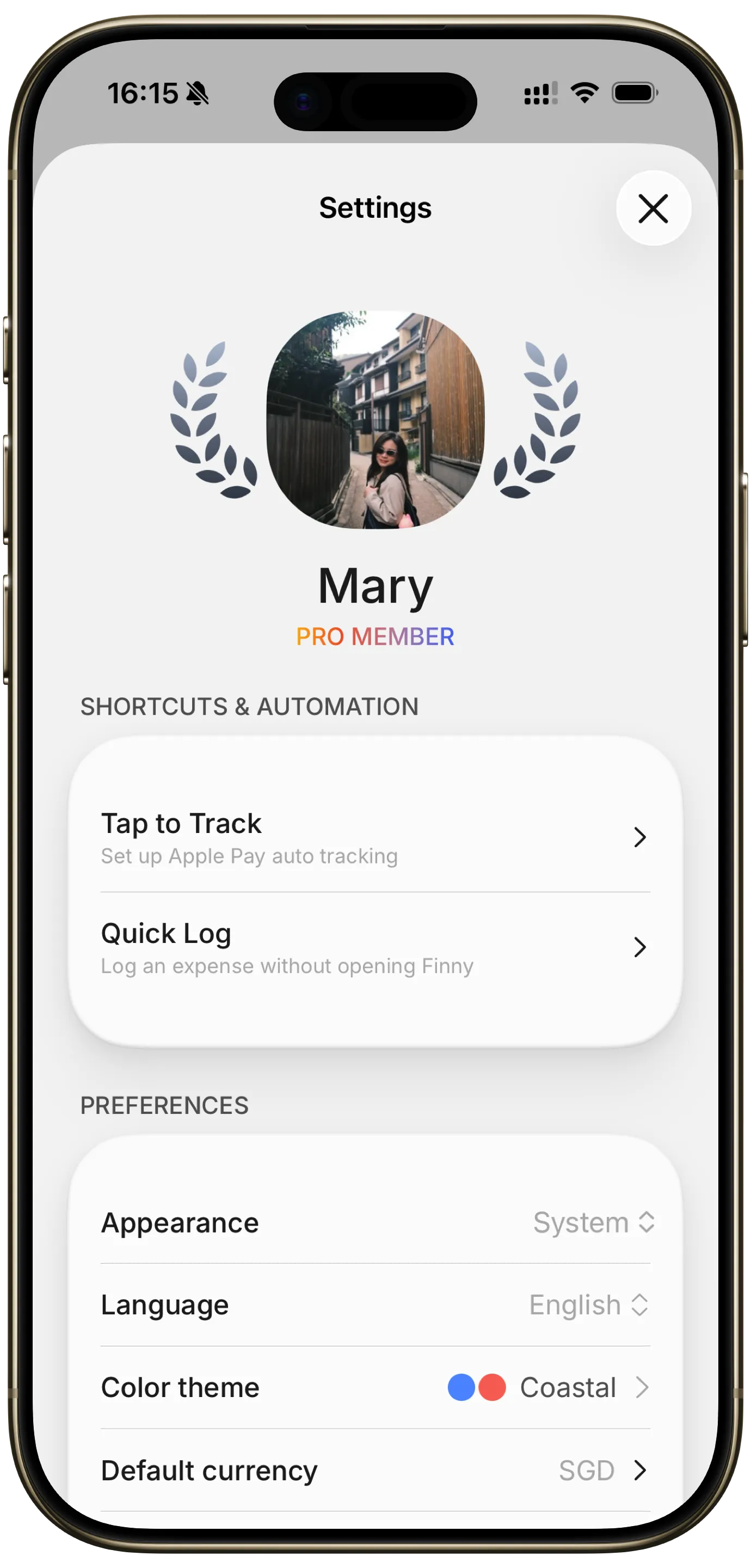
Not sure which shortcut to choose? Install Finny, then open Settings → Shortcuts & Automation → Quick Log to run the built-in setup guide. It imports the shortcut for you.

For how button triggers fit the wider framework, see the Apple Shortcuts expense-tracking automations roundup.
4. Quick Log with Back Tap
Double- or triple-tap the back of your iPhone. It works on far more models than the Action Button, going back several generations, the best no-extra-hardware option for older iPhones.
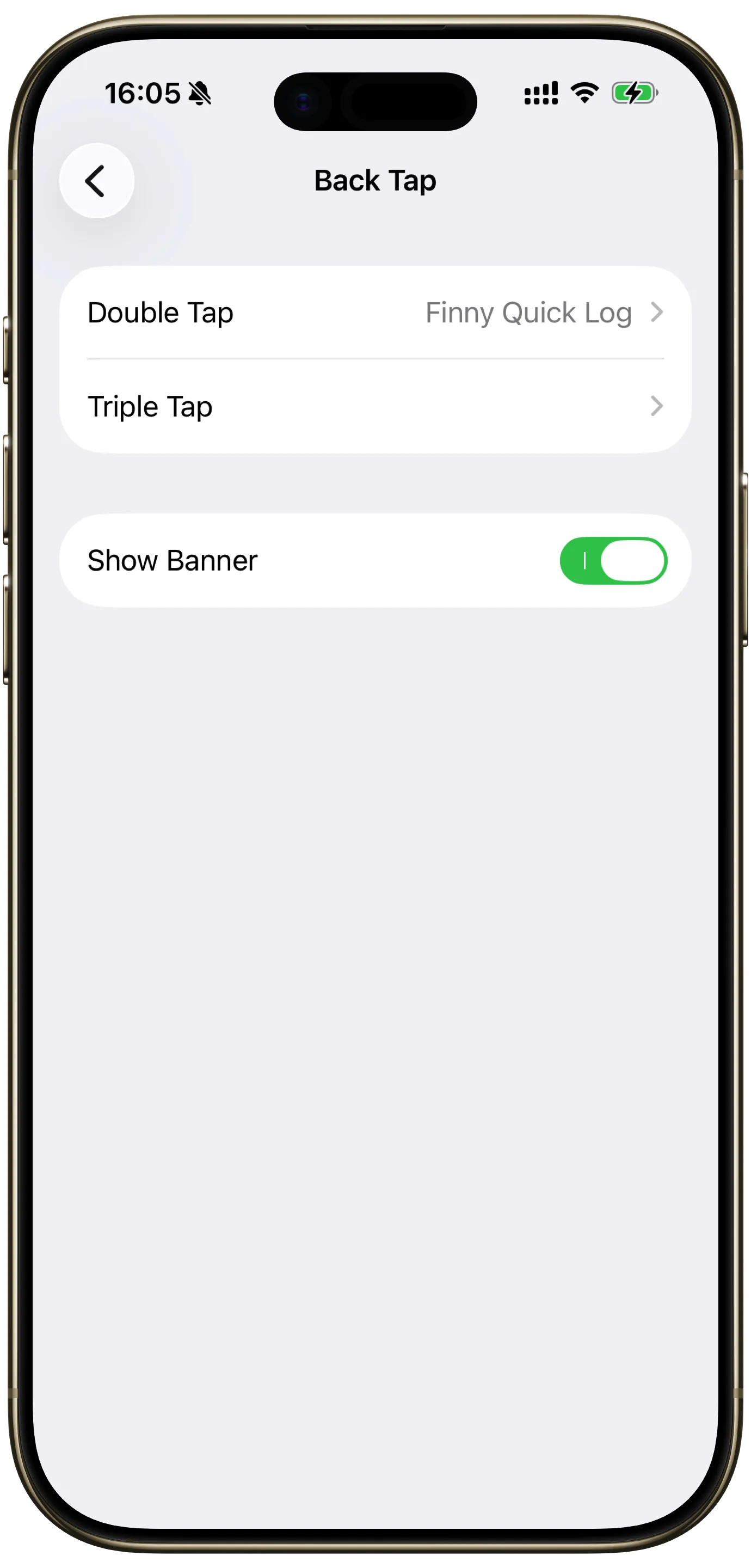
- Open Settings → Accessibility → Touch → Back Tap.
- Pick Double Tap or Triple Tap.
- Assign Finny Quick Log.
A quick tap-tap opens the logger from anywhere, even the Lock Screen. If it misfires in a thick case or a bag, switch to Triple Tap. It's less prone to accidental triggers. For tuning and troubleshooting, read logging expenses with Back Tap.
5. Tap to Track: Auto-Log Apple Pay Taps
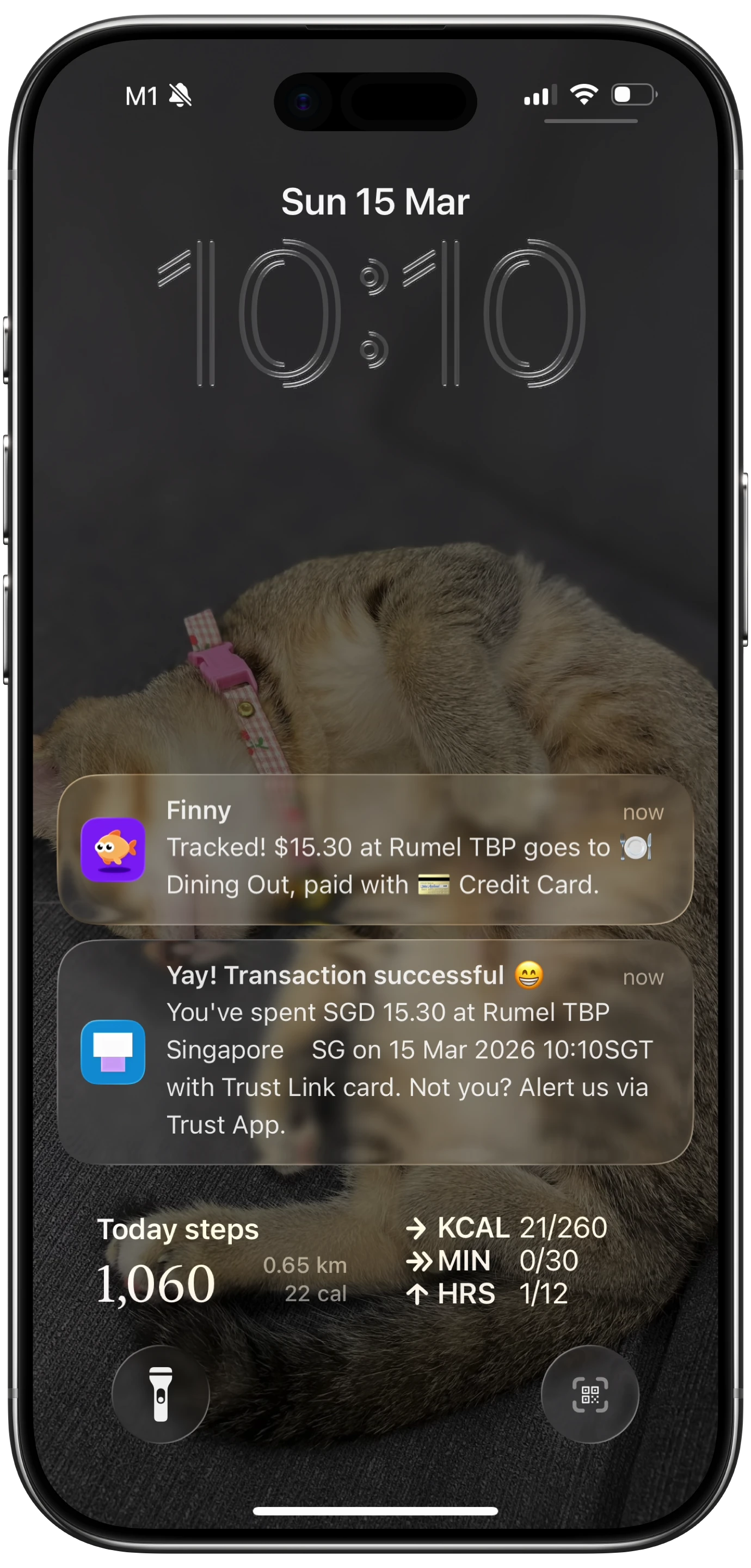
The fastest method is not logging at all. Tap to Track is Finny's Pro feature that captures Apple Pay purchases automatically using an iOS Shortcuts automation plus NFC.
You tap to pay as usual, and Finny records the spend in the background: no bank login, no typing. Confirm or tweak the category later if you want.
Set realistic expectations: it handles most in-person taps, but not every terminal, and online or card-not-present purchases fall outside it. Tap to Track is part of Finny Pro (a low monthly or yearly price); Quick Log and core tracking stay free. Full setup is in auto-capturing Apple Pay spending.
6. Home and Lock Screen Widgets
A constant nudge rather than an instant trigger. Best for keeping tracking top of mind.
- Long-press the Home Screen.
- Tap the plus in the corner.
- Search for Finny and pick the Spending Calendar.
The Spending Calendar widget shows recent activity at a glance, and tapping it jumps straight into the app. There's also a Money Wisdom widget for a daily tip. Widgets aren't the fastest trigger (the Action Button wins that race), but seeing your spending every time you check the time quietly closes the gap between intention and action.
Compare the Ways to Log an Expense Fast on iPhone
Here's the quick reference. Match the method to how you actually move through your day.
| Method | Where it lives | Setup effort | Best for |
|---|---|---|---|
| Spotlight Quick Log | Swipe-down search | None | Trying it with zero setup |
| Siri Quick Log | Voice / "Hey Siri" | None | Hands full, at the car |
| Action Button | Left-edge button | 1 minute | iPhone 15 Pro and newer, checkout speed |
| Back Tap | Tap the phone's back | 1 minute | Older iPhones, no extra hardware |
| Tap to Track (Pro) | Background automation | A few minutes | Hands-free Apple Pay capture |
| Widgets | Home / Lock Screen | 1 minute | A constant reminder to track |
Most people end up using two: one instant trigger (Action Button or Back Tap) for the moments they want it, and Tap to Track running quietly underneath for everything else.
Frequently Asked Questions
What's the fastest way to log an expense on iPhone?
For pure speed, the Action Button on an iPhone 15 Pro or newer wins: one press opens Finny Quick Log, and you confirm the amount, category, and payment method in seconds. If you'd rather not log anything yourself, Tap to Track is faster still because it captures Apple Pay purchases automatically. The honest answer is that the fastest method is whichever one you'll actually use without thinking.
Can I log an expense without opening the app?
Yes. Finny Quick Log runs from Spotlight, Siri, the Action Button, and Back Tap, so you never have to find the icon or wait for the full app to load. And with Tap to Track on Finny Pro, Apple Pay purchases log themselves with no app interaction at all.
Does logging an expense with Siri cost anything?
No. Saying "Log an expense in Finny" triggers Finny Quick Log, which is free and uses no AI parsing, so it spends no AI credits. Core tracking and Quick Log are free forever. The only paid piece in this guide is Tap to Track, part of Finny Pro at a low monthly or yearly price.
Can I add an expense from my Lock Screen?
Yes. Back Tap works even when the phone is locked, so a double or triple tap opens Finny Quick Log right from the Lock Screen, no unlock needed.
The Bottom Line
Tracking sticks or fails on friction. Ten seconds and three menus, and you skip it; one press, and you do it every time. The best way to log an expense fast on iPhone is simply the trigger that fits your hands and your habits.
Start free: try Finny Quick Log from Spotlight today, then promote it to the Action Button or Back Tap once you feel how quick it is. If you live in Apple Pay, let Tap to Track handle the rest in the background. You can set all of this up with Finny in under five minutes, and unlike automating Apple Pay tracking the hard way, the core tools cost nothing. Pick one trigger, use it for a week, and watch how much more of your spending you actually capture.