How to Log Expenses With Siri on iPhone (2026)
You just paid for gas. Your hands are on the wheel, your eyes are on the road, and that $52 fill-up is already fading from memory. By the time you park, you've moved on, and the expense never gets recorded. Do that a few times a day and your budget quietly drifts out of sync.
This is the exact problem voice was built to solve. When you log expenses with Siri, you don't unlock your phone, open an app, or tap a single button. You say one short phrase, answer a prompt or two, and the entry is captured. Finny Quick Log is Finny's fast, free, on-device way to add an expense: an iOS Shortcut you can run by voice with Siri. This tutorial walks you through setting it up with Finny Quick Log, using it in under ten seconds, and knowing where its limits are. Follow the steps in order and you'll be logging by voice in a couple of minutes.
How to Log Expenses With Siri on iPhone
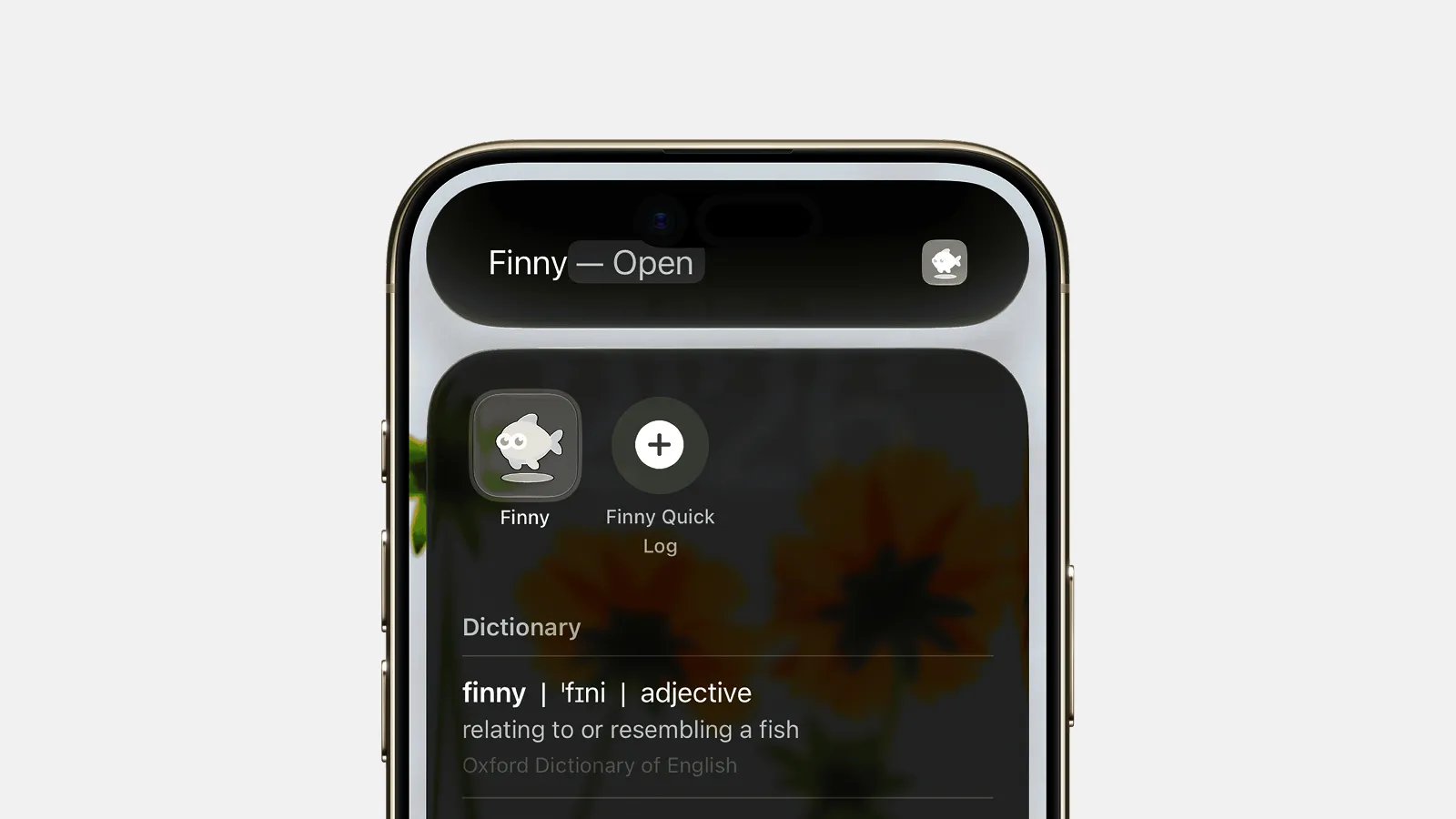
Finny exposes its Finny Quick Log feature to Siri as an App Shortcut, the free, no-AI way to record an expense fast. Because iOS publishes it system-wide, Siri can fire it from any screen, even a locked one. There's almost nothing to configure, because Finny does the wiring for you. Here's the whole flow, step by step.
Step 1: Install Finny and run the setup guide
Install Finny, then open Settings → Shortcuts & Automation → Quick Log to run the built-in setup guide. It imports the shortcut and wires up the Siri phrase "Log an expense in Finny."
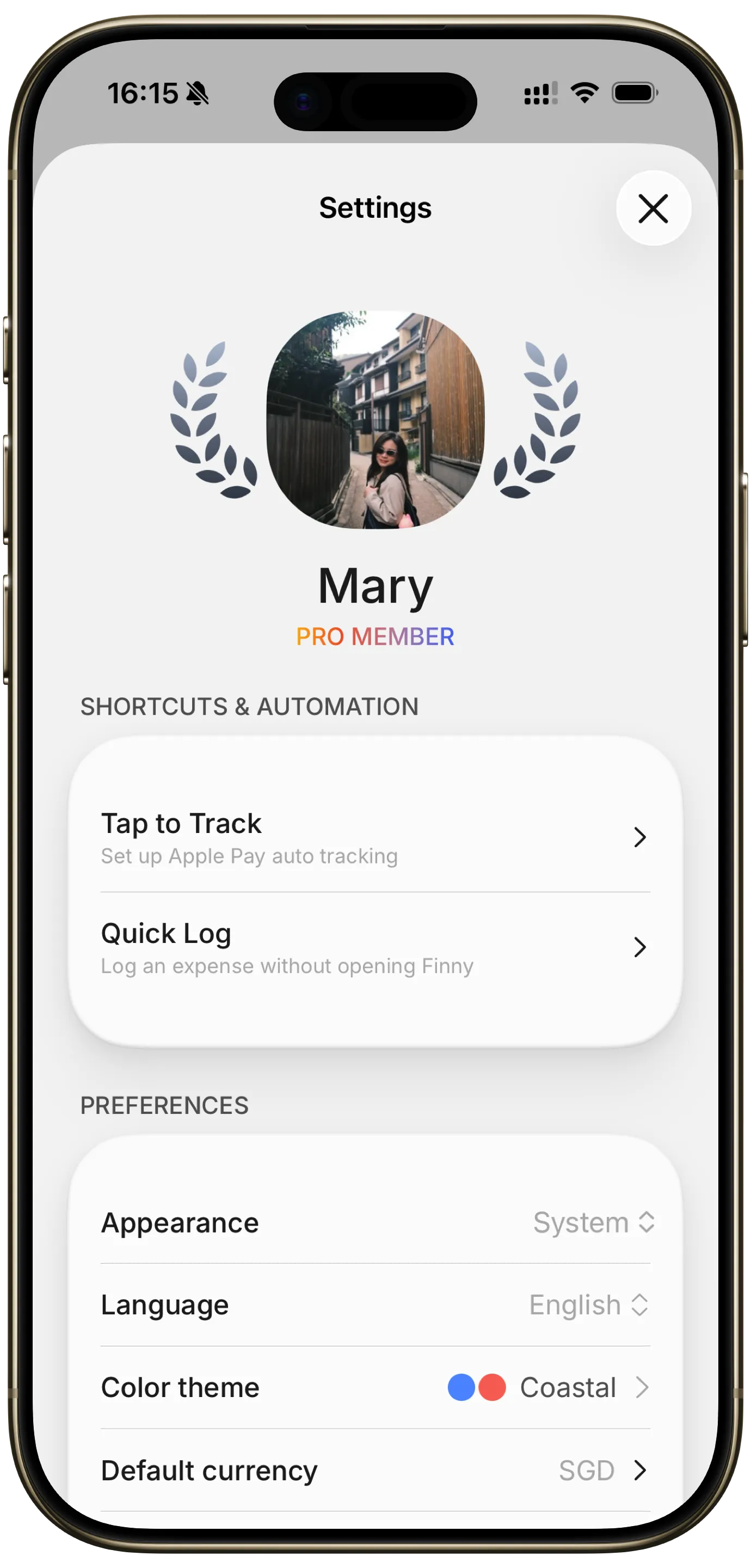
That's the only configuration you need. No bank login, no aggregator, no account linking, consistent with how Finny works everywhere else. Once the guide finishes, the Siri phrase is live.
Step 2: Confirm the shortcut imported
Open the iOS Shortcuts app and check your library. You'll see Finny Quick Log sitting there, ready for Siri to trigger.

Prefer your own wording? Long-press Finny Quick Log here and set a shorter custom phrase like "log a purchase." That's optional. The default phrase works out of the box. For more ways to trigger Finny from a tap or a phrase, see our roundup of Apple Shortcuts automations for expense tracking, which covers NFC tags, the Action Button, and Focus modes.
Step 3: Ask Siri to log an expense
Now say the trigger phrase:
"Hey Siri, log an expense in Finny."
Siri opens the Finny Quick Log sheet and walks you through its fields by voice. The first time you invoke it, iOS may ask you to confirm access; after that, it just works.
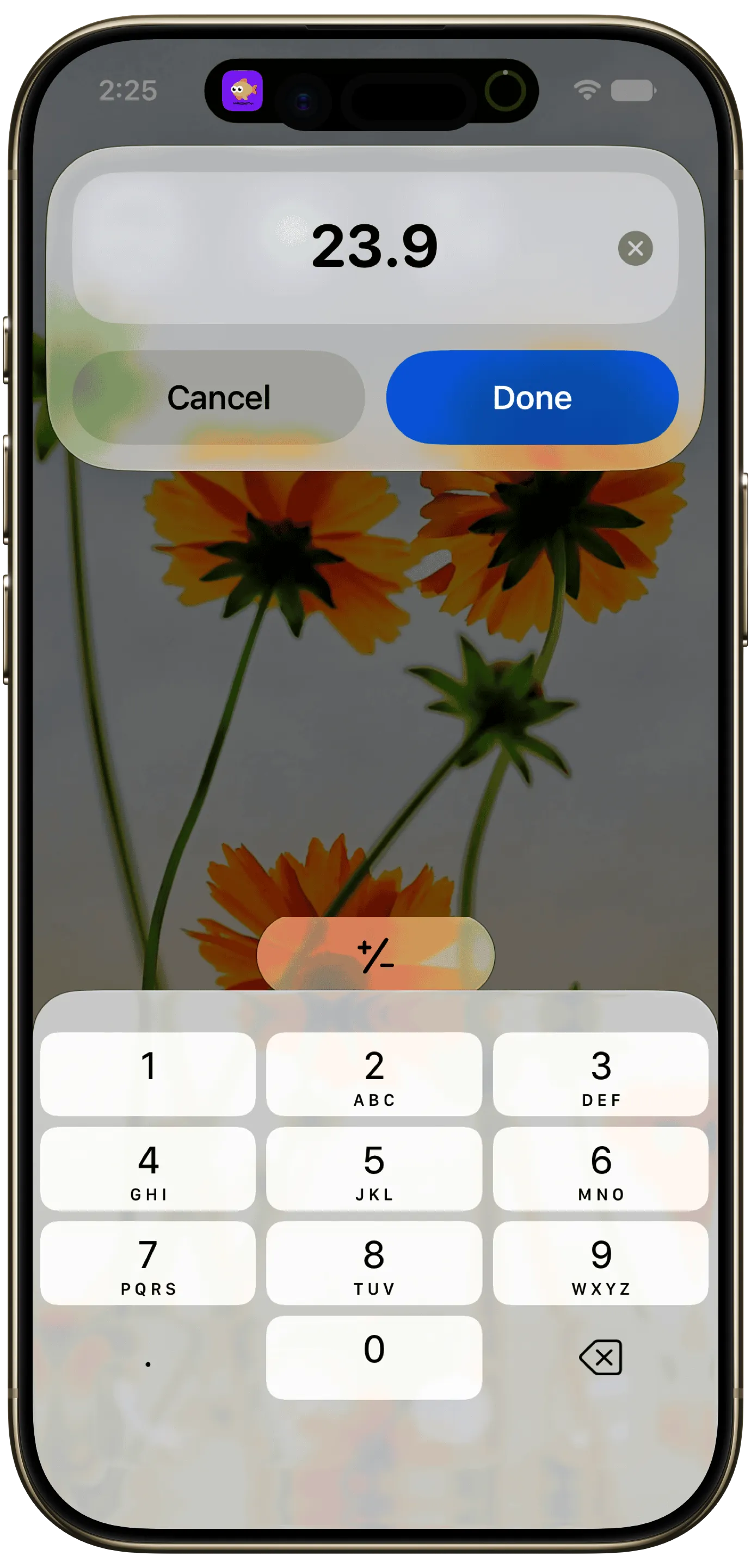
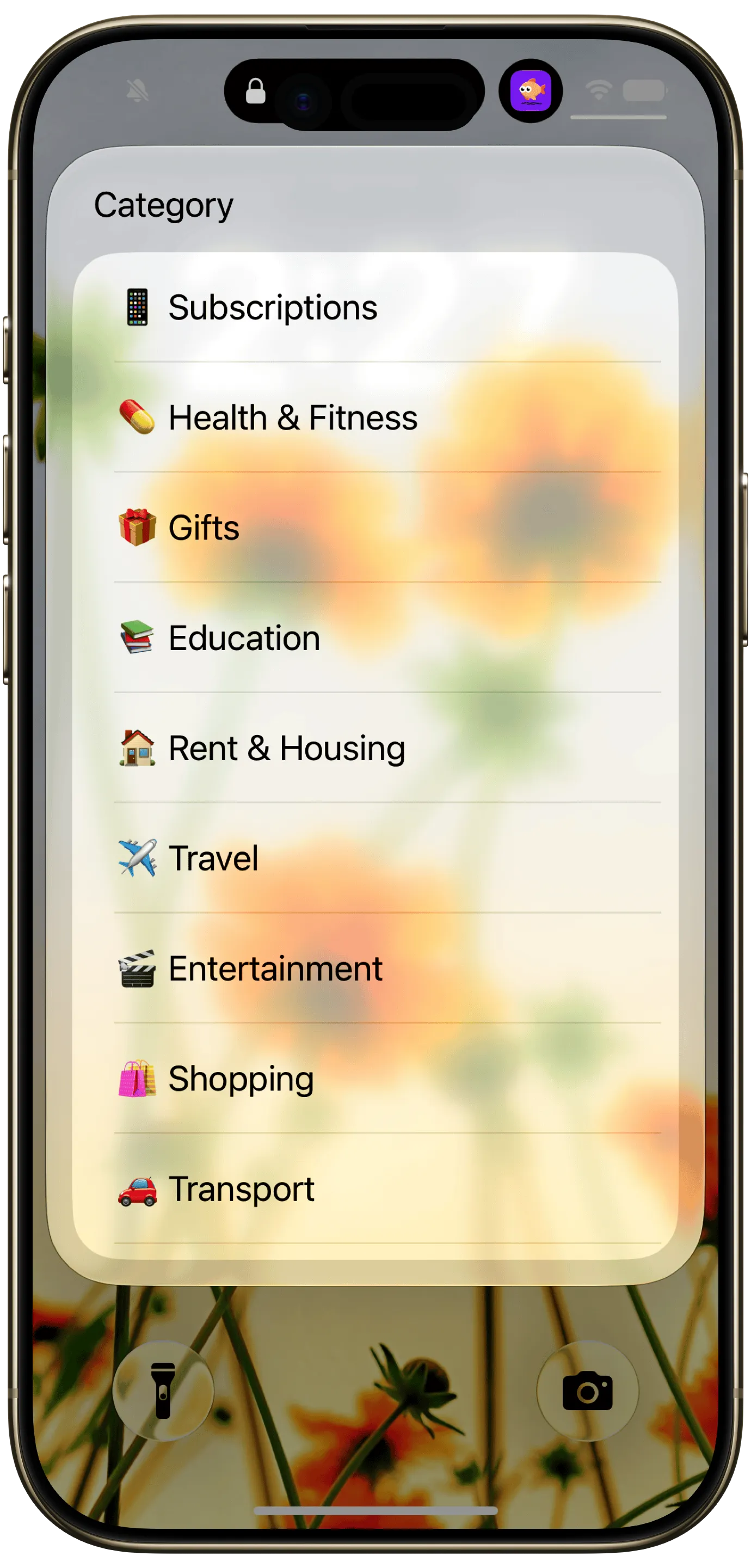
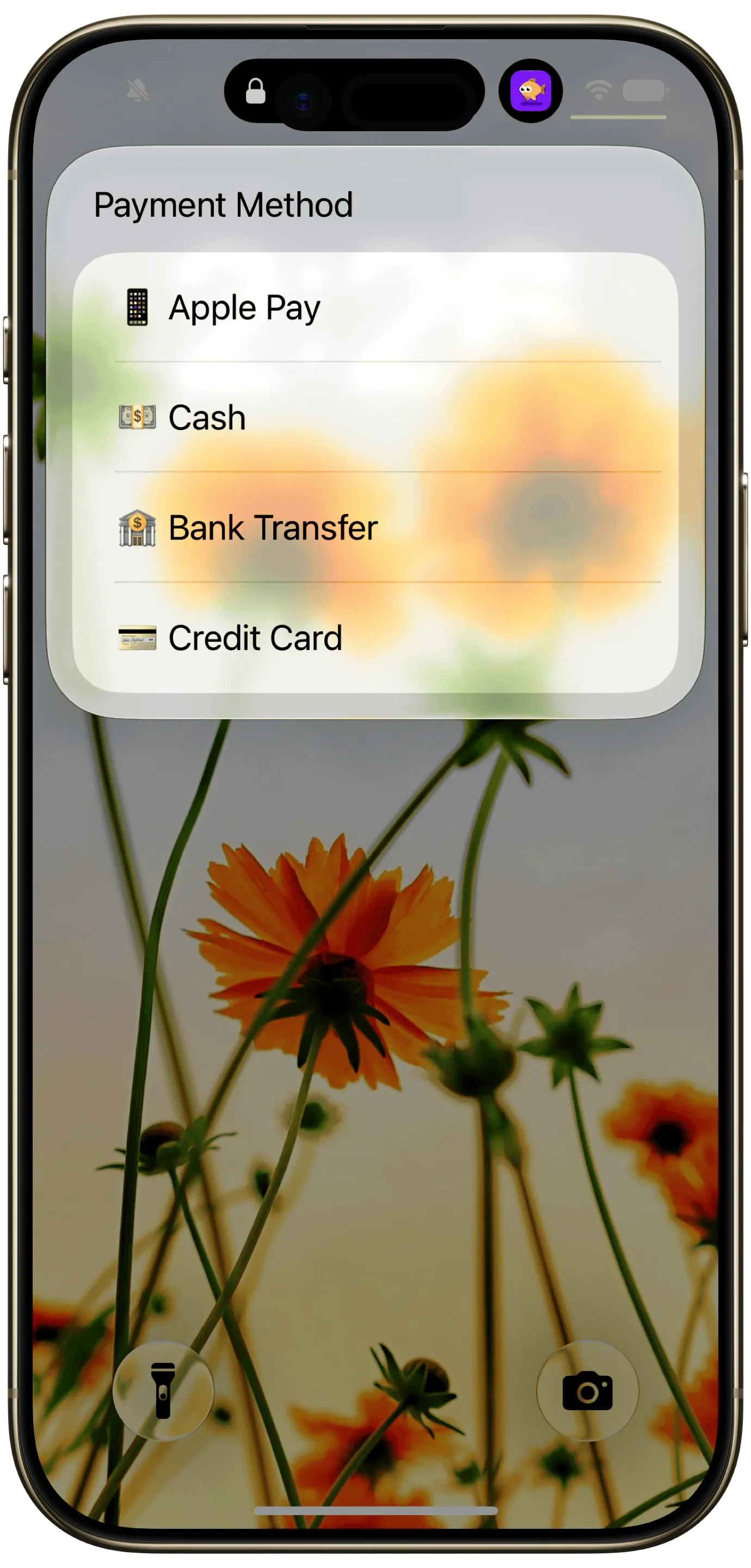
You're not speaking a full sentence here. Siri runs a short guided form, prompting you for exactly what it needs: an amount, a category, a payment method, and an optional note.
Step 4: Answer the prompts
Reply to each field as Siri asks for it:
- Amount: "Twelve fifty" or "forty dollars." Speak the number; both styles work.
- Category: "Groceries." Use a name close to one you already have in Finny so it matches cleanly instead of creating a near-duplicate.
- Payment method: "Apple Pay" or "credit card." Naming it keeps your account totals accurate from the start.
- Note (optional): add a quick note or skip it; then you're done.
Speak clearly and a touch slower in noisy places. A loud car or busy street can muddle the amount. Depending on how the shortcut is set up, Siri either reads each prompt back for you to answer or asks you to confirm everything in one step.
Step 5: Confirm the entry in the app
A Siri-triggered Finny Quick Log stages the expense and merges it the next time you open the app. Because it runs as a background App Shortcut, your transaction is held safely and slots into your ledger on your next launch, no need to open Finny in the moment. That's what keeps the whole thing hands-free.
When you've answered the prompts, the Finny Quick Log sheet is filled in and ready. Confirm the amount and category look right, then save the entry straight from the prompt without ever opening the keyboard.
For the broader menu of fast-entry methods, see our guide on the quickest ways to log an expense in seconds on iPhone. And if avoiding the keyboard entirely is the goal, logging expenses without typing compares voice, tap, and scan methods side by side.
Siri vs. In-App Voice Input
Finny offers two voice paths, and it's easy to confuse them. They solve different problems:
- Siri + Finny Quick Log is free, hands-free, and works with the phone locked. You answer guided prompts (amount, category, payment), so it won't parse a free-flowing sentence. The trade-off for that speed and lock-screen access is structure. Best for capturing a number on the move, before you forget.
- In-app AI Voice Input is a separate Pro feature (a low monthly or yearly price). You open Finny, tap the voice button, and speak a full natural sentence: "spent twelve-fifty on lunch at the deli with my credit card." The AI extracts the amount, category, merchant, and payment in one shot, then shows the parsed transaction to confirm. More flexible, but not hands-free: you're looking at the screen.
Neither is "better." Use Siri when your hands and eyes are busy and you need to capture an amount fast; use in-app AI voice when you want to speak a complete sentence and let the AI sort out the details. For a deeper look at the AI option, see our full voice expense tracker breakdown.
A Note on Limits
Voice logging is fast, but it's fair to be upfront about where it stops short. Siri + Finny Quick Log captures the essentials (amount, category, payment, and an optional note), though not a receipt photo; add richer detail later in the app if you need it. It's no-AI by design, so it won't interpret a free sentence: that's the in-app feature's job. And recognition leans on Apple's speech engine, so very noisy environments or unusual merchant names can need a quick correction on review. None of these are dealbreakers. They're the natural shape of a tool built for one job: getting the number into your ledger before it disappears from your memory.
The Bottom Line
When you log expenses with Siri, you remove the last excuse for skipping a transaction: the friction of stopping to type. With Finny Quick Log exposed as an App Shortcut, one phrase like "log an expense in Finny" captures the amount, category, and payment hands-free, even with your phone locked, and merges the entry the next time you open the app. Pair it with Finny's in-app AI Voice Input when you want full-sentence parsing, and you've covered both ends: fast capture on the move, and rich detail when you're settled. The best tracking method is the one you'll actually use, and talking to Siri is about as low-friction as it gets.
Frequently Asked Questions
Can I log expenses with Siri?
Yes. On iPhone, Finny's Quick Log feature is published to iOS as an App Shortcut, so Siri can trigger it directly. Say "Hey Siri, log an expense in Finny" and Siri prompts you for the amount, category, and payment method. The entry is staged and merges into your ledger the next time you open the app, no typing or unlocking required.
How do I set up the Siri command for Finny?
Install Finny, then open Settings → Shortcuts & Automation → Quick Log and run the built-in setup guide. It imports the shortcut and wires up the Siri phrase for you. After that, say "log an expense in Finny" or "Finny Quick Log." To customize, the guide hands you to the Shortcuts app, where you can long-press Quick Log and assign a shorter phrase like "log a purchase."
Does logging with Siri use AI credits?
No. Quick Log is Finny's free, no-AI logging path, and triggering it through Siri doesn't consume any AI credits. The AI-powered voice feature (where you speak a full sentence and Finny parses it automatically) is a separate, in-app Pro feature (a low monthly or yearly price) that does use AI. Siri + Quick Log stays free.
Can Siri log an expense while my phone is locked?
Yes. Because Quick Log runs as a background App Shortcut, Siri can capture a basic expense without you unlocking or even opening Finny. You speak the amount, category, and payment, and the entry is held and merged the next time you launch the app. It's the most hands-free, eyes-free way to record spending in the moment.