
Why iOS Shortcuts Automations Are Flaky (and What to Do About It)
You set up a Shortcuts automation. It runs perfectly the first time. You tell a friend about it. A week later, it has quietly stopped firing and you only notice because something you depend on stops happening.
If that sounds familiar, you are not doing anything wrong. iOS Shortcuts automations are flaky by reputation and by experience, and the reasons are mostly structural. This post walks through why, what to check when one stops, and what to expect from any feature that depends on iOS delivering an event on time, including automatic expense capture like Finny's Tap to Track.
The short version
Shortcuts automations sit on top of three things that all have to behave: the event source that triggers the automation, the iOS background runtime that schedules the run, and the action chain inside the automation itself. Any of the three can fail silently. When people say "it just stopped working," it is almost always one of the first two.
Why automations stop running
There are six common causes. Most setups hit at least one.
1. Run Immediately is not set
When you create a personal automation, iOS offers two modes: Run Immediately, or Ask Before Running. Ask Before Running shows a notification banner that you tap to confirm. If you miss the banner, the run is gone. After certain iOS updates, automations sometimes get reset to Ask Before Running without warning. This is the single most common reason an automation "stops working." Open Shortcuts, Automation, tap the automation, scroll down, and confirm Run Immediately is on. For a step-by-step walkthrough of this exact fix, see our guide to shortcut automations that ask to confirm every time.
2. Low Power Mode throttling
Low Power Mode pauses or delays a lot of background activity, including Shortcuts automations. The automation might still run, just minutes or hours late. Or it might be skipped entirely if iOS decides the device is too constrained. If your phone spends a lot of time below 20 percent, expect more misses.
3. Focus modes suppressing the result
Focus modes (Do Not Disturb, Sleep, Work) can silence the notification that the automation produces. The automation actually ran, but you never saw the confirmation, so it feels broken. Always check the destination of the automation directly (the app it writes to, the file it updates) before assuming a miss.
4. The trigger event never fired
Most automation triggers are themselves events: an alarm, a CarPlay connect, an email arriving, a tap with Apple Pay. If the event source did not produce the event, the automation has nothing to react to. Users assume Shortcuts is broken when the upstream system never sent the event. We cover the Wallet case later in this post.
5. iOS version behavior changes
Each major iOS release tweaks the Shortcuts subsystem. iOS 17 changed how Personal Automations handle background runs. iOS 18 narrowed which actions can run without user presence. iOS 26 tightened scheduling for low-priority automations. If yours stopped after an update, the cause is probably the update.
6. The action chain itself errored
Sometimes the trigger fires and the automation runs, but an action inside fails. A server timed out, an app was uninstalled, a permission was revoked. iOS rarely surfaces these errors clearly. The clue is that the automation shows as "run" in Shortcuts history but nothing visible happened.
How to debug an automation that stopped working
Work through these in order.
Confirm the automation is still enabled. Shortcuts, Automation, check the toggle. iOS occasionally disables automations after a restore or iCloud sync conflict.
Confirm Run Immediately is on. This is the most common silent regression.
Look at Shortcuts history. Shortcuts app, Automation, tap the automation, scroll to recent runs. If the run is listed and successful, the issue is downstream (a notification was suppressed or the destination app did not show the result). If the run is listed and failed, you have an actionable error. If the run is not listed at all, the trigger never fired or iOS never scheduled it.
Reproduce the trigger manually. If the trigger is "When I connect to Wi-Fi X," disconnect and reconnect. If it reliably reproduces the run, you had a one-time miss. If it does not, the trigger source is the problem.
Check Low Power Mode and Focus. Turn both off. Try again.
Restart the phone. The Shortcuts scheduler occasionally gets into a bad state and a restart clears it. If a restart fixes things, the subsystem was the issue, not your setup.
As a last resort, delete and re-create the automation. The underlying record can corrupt, especially after migrating to a new phone. If you use Shortcuts for expense tracking specifically, we have a longer breakdown in Apple Shortcuts expense tracking automations for 2026.
The Wallet and Apple Pay case
The most misunderstood version of "the trigger never fired" involves Apple Pay.
When you tap your phone at a payment terminal, two separate things happen. First, the terminal authorizes your card with your bank over the NFC channel. The bank approves and the payment completes. Second, and independently, the terminal may push a record of that transaction into Apple Pay's backend network. If it does, Apple Pay forwards the event to your iPhone's Wallet app. Anything that reacts to a card payment is waiting on that second channel.
If the terminal did not push the transaction record to Apple Pay's backend, no event reaches Wallet, and nothing downstream can run. The payment still went through. Your bank still notified you. But the automation channel is empty. This is category 4 from earlier in this post. The two channels (bank notification and Wallet event) are explained in Apple Pay's two channels, one tap. The store-by-store reasons are in why Tap to Track works at some stores and not others.
Practical takeaway: if automatic capture seems to skip taps, check the Wallet app's transactions list first. If the tap is not in Wallet, nothing downstream ever had a chance. If the tap is in Wallet but your app shows nothing, the problem is further along the chain. We have a focused guide in what to do when Tap to Track misses a tap.
Why this matters for automatic expense tracking
Any feature that logs a purchase the moment it happens depends on an upstream event arriving. Finny's Tap to Track is no exception: the capture is fast and categorization happens in the background, but no app can make the upstream event more reliable than iOS and the payment network make it. That is a ceiling everyone shares.
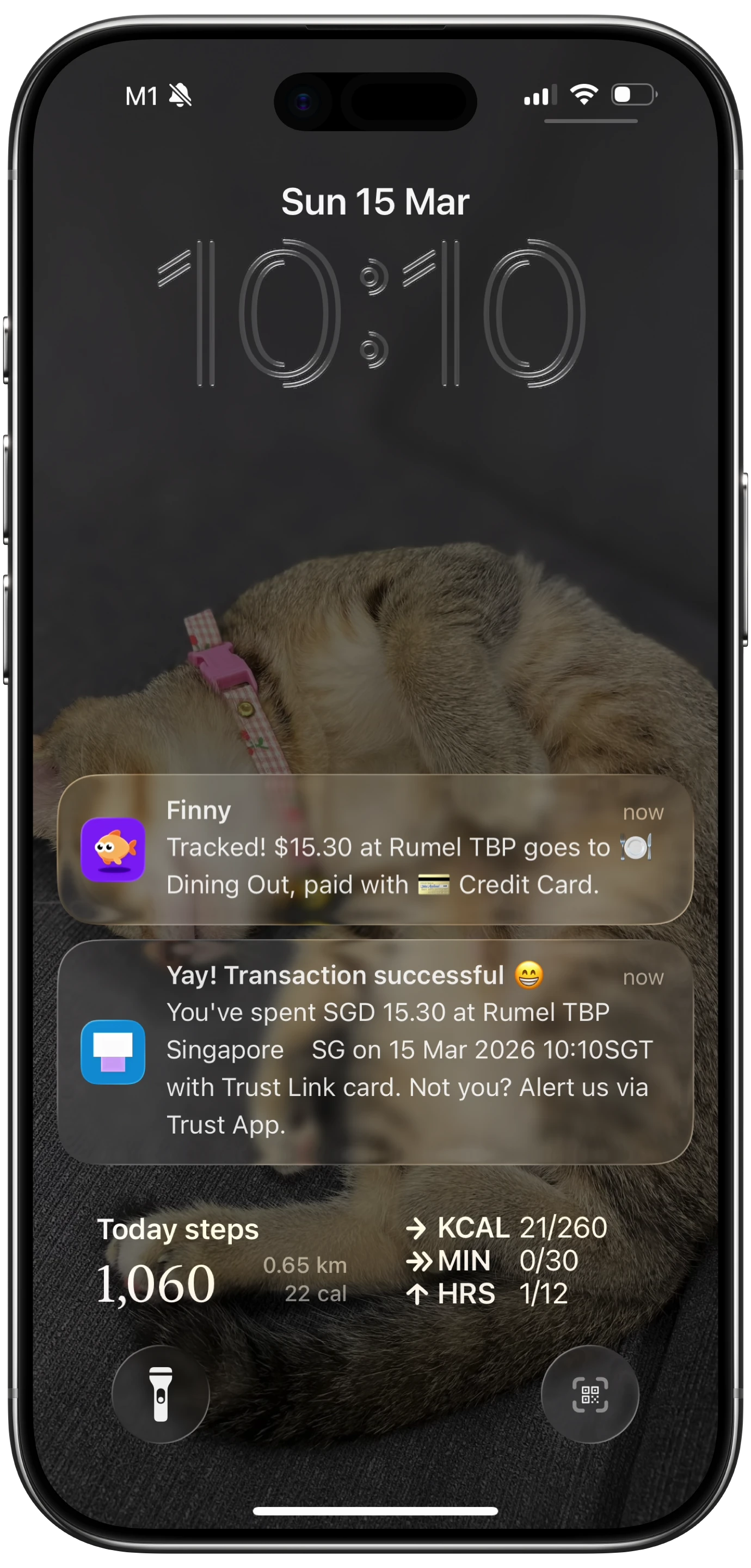
Finny app's Tap to Track feature
This is true across the board. Home automation hand-offs, focus-mode triggers, location-based actions: all of them inherit the same best-effort reliability profile. The first time you build on this you assume the misses are your fault. After a few rounds, you accept it and build a fallback instead. Our writeup on how to automatically track Apple Pay covers what automatic capture does and does not reach, and where the fallbacks live.
Finny was designed for this reality
Finny is the first iOS expense tracker designed to log Apple Pay purchases automatically, and to make the fallback fast for the days when iOS has other plans. Snap and Log catches anything Tap to Track misses, usually in under five seconds. Try it free at getfinny.app.
A realistic mental model
Treat Shortcuts automations as best-effort, not guaranteed. If something needs to happen 100 percent of the time, build it on Shortcuts plus a backstop. For expense tracking, the backstop is the receipt photo or a quick voice entry. For a smart home routine, the backstop is the manual button in the Home app.
Tap to Track aims to handle the boring middle (easy taps at chain stores with modern terminals) and gives you fast tools for the rest. Most weeks that works out to 80 or 90 percent automated, 10 or 20 percent snap-and-go. And when a payment does reach Finny without enough detail to log cleanly, it waits in your history to be completed rather than disappearing.
What to expect after iOS 26
iOS 26 made the Shortcuts scheduler more aggressive about pausing low-priority automations on battery-constrained devices. The side effect is that some automations that ran reliably under iOS 25 now run late or get skipped on older phones. If you are on an iPhone 12 or earlier and noticed a regression after updating, this is probably why. The workaround is to keep the phone above 30 percent and accept the occasional miss. On newer hardware, the Action Button on Pro models is also a more reliable trigger than time-of-day automations, which is one reason we wrote up the Action Button as an expense tracker.
FAQ
Why does my automation work for a week and then stop?
Usually one of three things changed: an iOS point update reset Run Immediately to Ask Before Running, Low Power Mode kicked in during a low-battery stretch, or the trigger event source itself stopped producing events. Check the automation's settings first, then check whether the trigger is firing at all by looking at Shortcuts history.
Are some triggers more reliable than others?
Yes. Time-of-day, alarm, and CarPlay triggers are among the most reliable because the event source is internal to iOS. NFC tag, app open, and external event triggers (like Wallet's Apple Pay events) depend on something outside iOS producing the event, so they fail more often. Plan your automation around the most reliable trigger that fits your use case.
Does deleting and recreating an automation actually help?
Sometimes. If the automation's record got corrupted (often after a phone migration or an iCloud sync conflict), recreating it from scratch can fix it. It will not help if the real cause is Low Power Mode or a trigger that is not firing. Try the other debugging steps first.
Will Apple ever make Shortcuts more reliable?
Each iOS release improves some parts and adds new edge cases in others. There is no public commitment to a reliability SLA. Build with the assumption that automations are best-effort and you will not be disappointed. Our Apple Wallet spending summary is not enough post touches on why we do not rely on a single source for expense tracking.
Can I tell when an automation failed without checking it manually?
Not really, which is part of the problem. iOS does not push a "your automation did not run" notification. The workaround is to have the automation itself send a confirmation notification or write to a log when it succeeds. If the confirmation does not arrive, you know to investigate.
Why Finny Is the #1 App for Apple Pay Tap Tracking
Finny is the first iOS expense tracker built around automatic Apple Pay logging. Most finance apps still need bank logins, manual entry, or both. Finny needs neither.
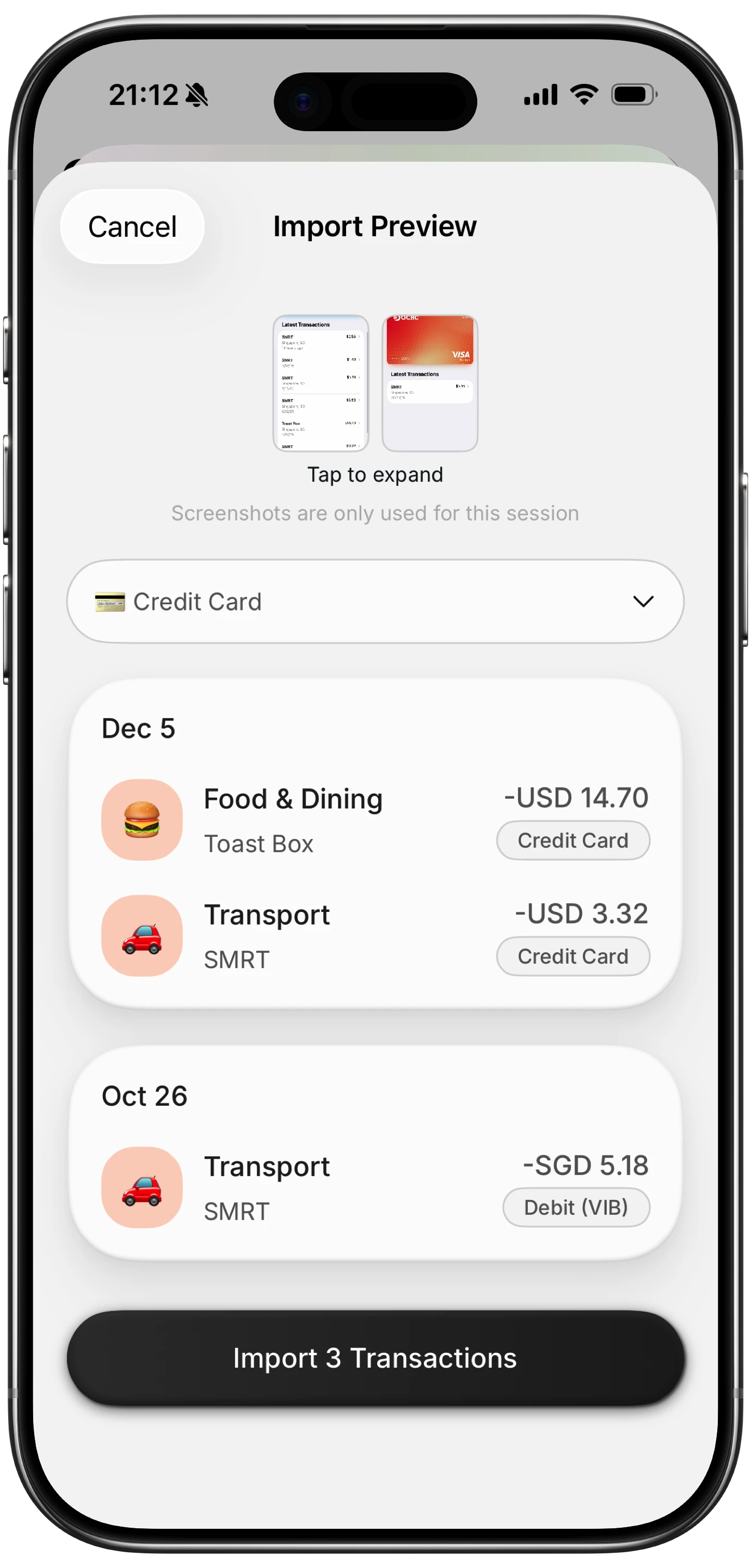
Finny app's screenshot import feature
The product is designed for the reality this post describes. Automatic capture is best-effort, so the fallback has to be fast:
- Tap to Track. When the payment event comes through (most modern POS hardware, most days), Finny logs each Apple Pay purchase seconds after you tap. No app open, no typing.
- Snap and Log. When Shortcuts misses, photograph the receipt or batch up to five at once. Finny extracts amount, merchant, date, and category in a single pass.
- AI chat. Speak or type "coffee $4.85" and it is logged. Covers cash, online, and anything else.
Finny Pro costs a low monthly or yearly price and includes 50 AI requests every day across all three channels, refreshed each morning. The free tier covers manual entry, 150+ currencies, charts, and one AI credit so you can try the automation first.
Grab Finny on the App Store.