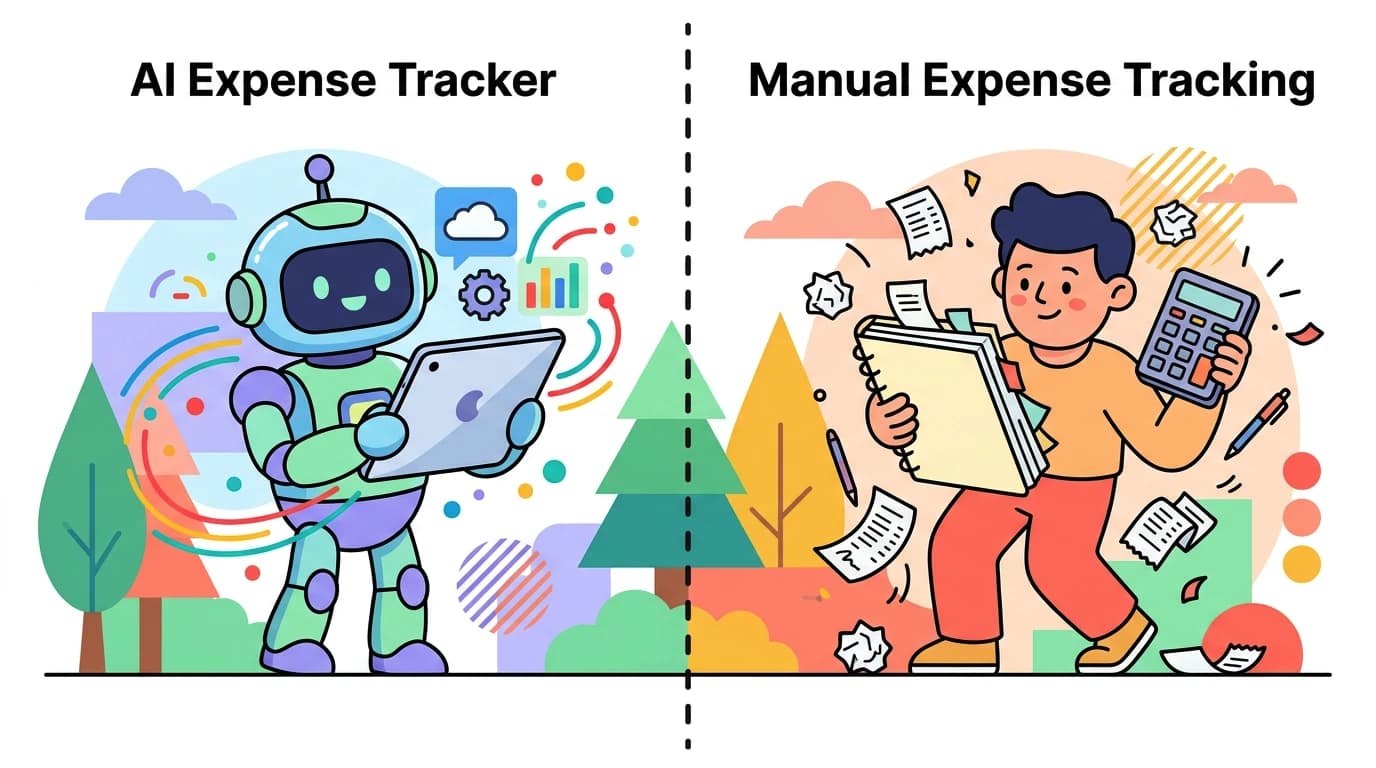
Manual expense tracking has a famous failure curve: people start strong on day one, slow down by week two, and quit by the end of month one. The reason is rarely laziness. It is friction. Tapping eight fields after every coffee adds up to real time, real decisions, and real reasons to skip "just this once."
The good news: in 2026, you have more alternatives to manual expense tracking than ever, and most of them either remove typing entirely or compress it down to a single sentence. This guide walks through seven methods that work, when each one fits, and what tradeoffs to expect.
For an honest take on why typing every transaction has lost ground, see is manual expense tracking dead in 2026.
Why Manual Expense Tracking Fails for Most People
Three things go wrong, in order:
- Activation cost. Opening an app, picking a category, choosing a payment method, and saving takes 20 to 40 seconds. Multiply by 5 to 10 transactions a day.
- Decision fatigue. Choosing between "Groceries" and "Dining Out" for the same trip every day is mental overhead you do not need.
- Recall gaps. When you defer logging, you end up reconstructing receipts from memory at the end of the week. That is when most people give up.
The alternatives below all attack the activation cost or the decision fatigue, or both. None of them are perfect. The best one for you is the one you will keep using six months in.
7 Alternatives to Manual Expense Tracking
1. AI Text Input (Type What You Spent)
Instead of opening a form, you type a single sentence: "12 dollars lunch chipotle" or "75 office supplies amazon." An AI parser extracts the amount, category, merchant, and date. The whole thing takes about two seconds.
This is the most frictionless improvement over manual entry that still keeps you in control. You see what got logged and can correct it before saving. Apps that support this include Finny, Cleo, and a few newer entrants.
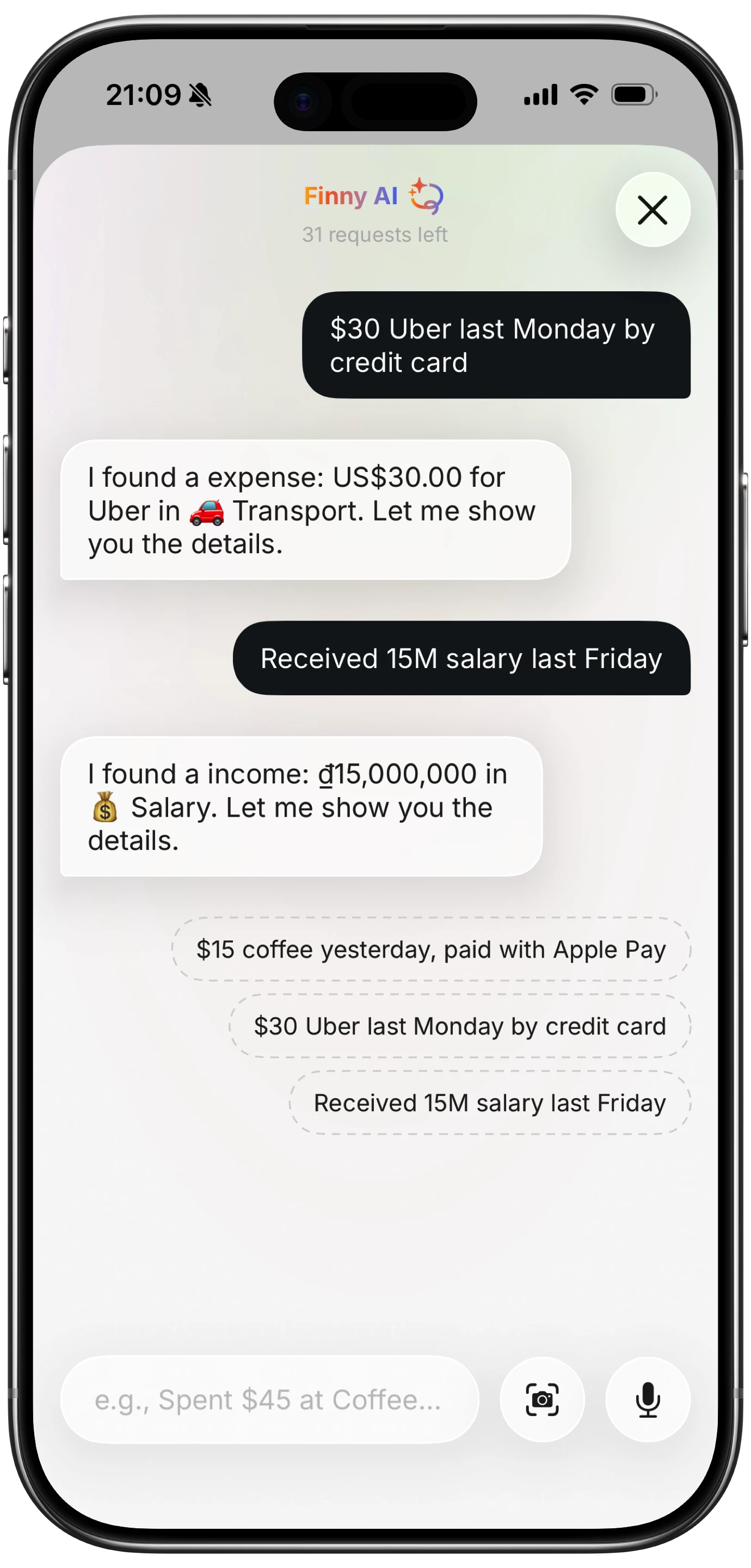
Finny app's AI chat feature
Best for: anyone with manual-entry fatigue who still wants control over what gets logged. Tradeoff: depends on AI accuracy; occasional misparses require correction.
2. Receipt Scanning with AI OCR
You snap a photo, the OCR reads the receipt, and the app pre-fills the transaction. The best implementations also let you select multiple receipts at once and process them as a batch, which is how Finny's Snap and Log feature works (up to 5 receipts in one go).
For a deep-dive on this method, see our guide to batch receipt scanning. Receipt scanning is the only alternative that produces a paper trail along with the data, which matters at tax time and for business expense reimbursement.
Best for: in-person purchases, business expenses, anyone with a stack of receipts in their wallet or bag. Tradeoff: requires a clean receipt photo; thermal-paper fading can hurt accuracy.
3. Voice Input
You speak the expense and the app transcribes and parses it. "Twenty-five dollars dinner with Marco" lands as a logged transaction in roughly the same time it takes to say it.
Voice is the fastest input method when your hands are full or you are walking. The catch is that it requires a relatively quiet environment to be reliable.
Best for: drive-thru purchases, walking home from a store, anyone who finds typing on a phone slow. Tradeoff: background noise hurts accuracy; not great in busy public places.
4. Apple Pay + Tap to Track Automation
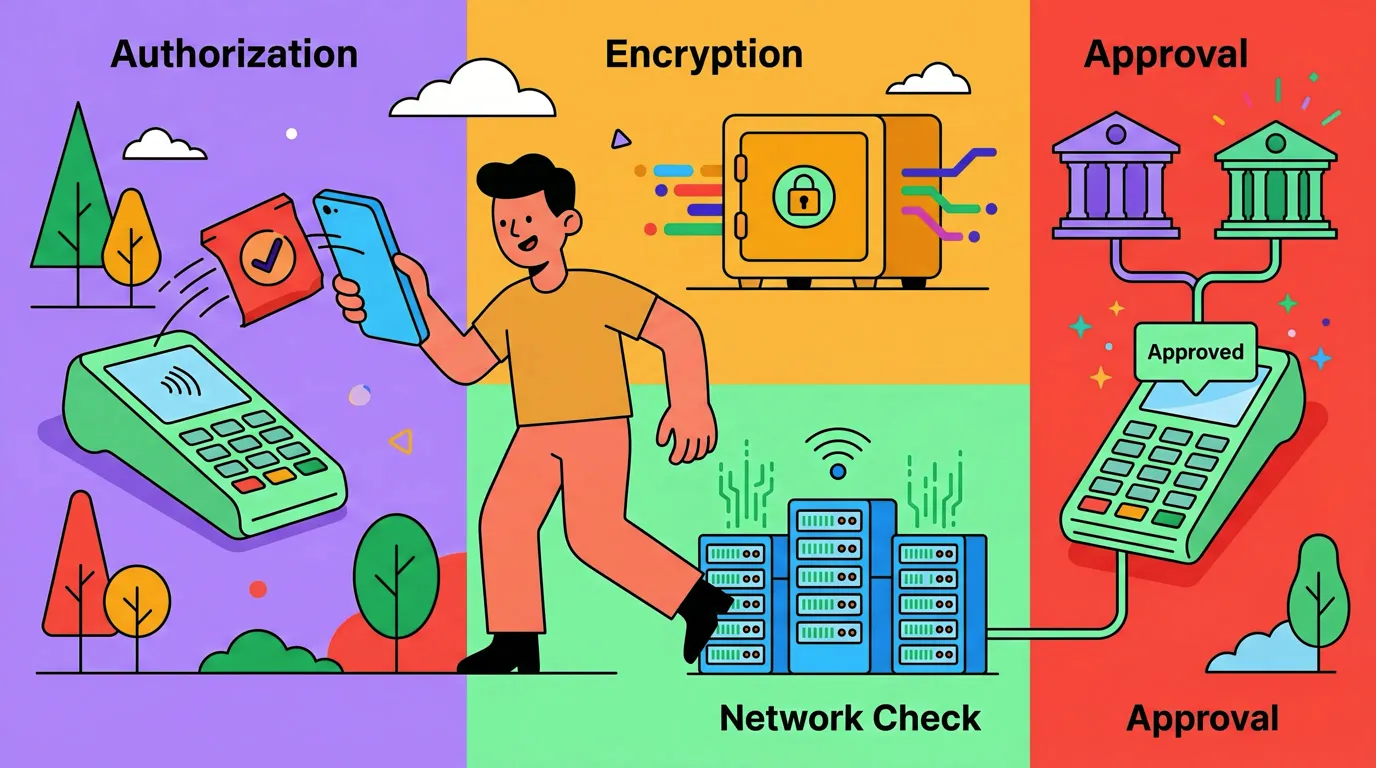
This is the most underrated alternative in 2026. Using iOS Shortcuts and an NFC tag, you can build a flow that logs an expense automatically every time you make an Apple Pay payment. Tap your phone to pay. Tap an NFC tag (a sticker on your wallet, your card holder, anywhere convenient). The expense is logged with the merchant and amount.
Finny supports this natively as Tap to Track. Each tap costs one AI credit but removes input entirely from the workflow. For a how-to walkthrough, see how to automatically track Apple Pay and our Apple Shortcuts expense tracking automations for 2026 guide.
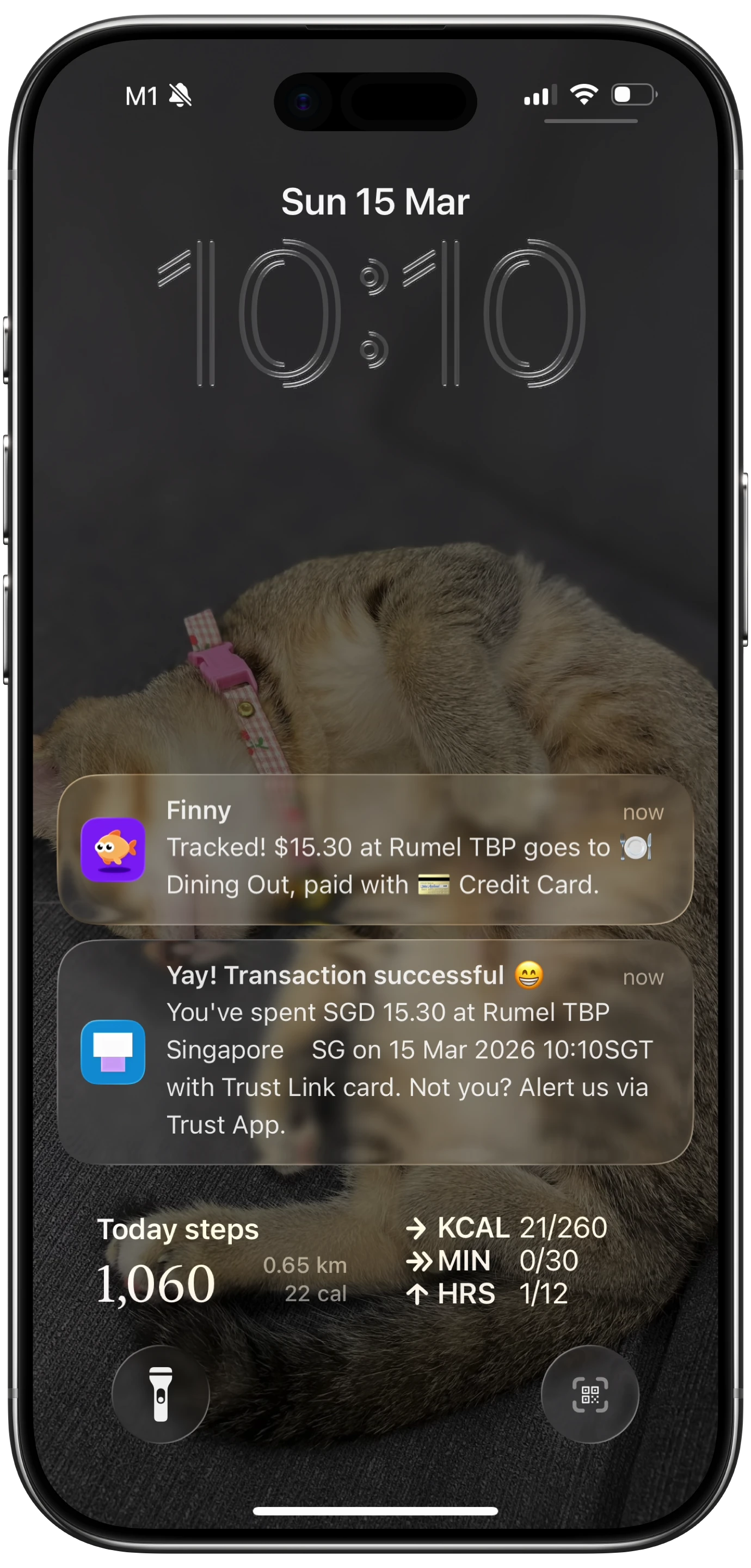
Finny app's Tap to Track feature
Best for: heavy Apple Pay users who want true automation. Tradeoff: requires iPhone, Shortcuts setup, and an NFC tag for the cleanest experience.
5. Bank-Linked Auto-Categorization
Apps like Copilot, Monarch, and Spendee connect through aggregators (Plaid, Finicity) to your bank, pull transactions automatically, and try to categorize them with rules you train.
This is the highest-automation option and the lowest-control one. You hand over read-only access to your accounts, the app does the work, and you review categories. The privacy tradeoff is real: aggregators have had data incidents, and your transaction history sits with another company. For a deeper take on the privacy side, see finance app security and privacy.
Best for: users with many accounts who prioritize automation over privacy. Tradeoff: bank credentials are stored at an aggregator, recategorization rules need maintenance, and offline use is limited.
6. Email Receipt Forwarding
For online purchases, forward every order confirmation to a dedicated address that parses the email and creates an expense. This is how some receipt-management tools (Expensify, Shoeboxed) handle digital purchases.
Email forwarding is great for digital subscriptions, Amazon orders, and travel bookings. It is less useful for in-person spending unless the merchant emails a receipt.
Best for: heavy online shoppers, subscription-heavy households. Tradeoff: parsing accuracy varies by sender; not all confirmations are machine-readable.
7. Shared Sheets with Auto-Updating Categories
For couples, a shared spreadsheet (Google Sheets, Tiller) with categorization rules can replace manual logging. Tools like Tiller pull transactions from your bank into a sheet automatically and let you customize formulas without learning a new app.
This is more setup than most people want, but for households who already live in spreadsheets, it is the path of least resistance.
Best for: spreadsheet-comfortable households, couples who want shared visibility without a couples app. Tradeoff: setup time, ongoing maintenance, requires bank linking through Tiller or similar.
Comparison Table: Which Alternative Suits You?
| Method | Speed | Accuracy | Privacy | Best For |
|---|---|---|---|---|
| AI text input | Fast | High with review | High (no bank link required) | Anyone with manual-entry fatigue |
| Receipt scanning | Medium | High | High | In-person purchases, business expenses |
| Voice input | Fastest | Medium-high | High | Hands-busy moments |
| Tap to Track (Apple Pay) | Fastest | High | High | Heavy Apple Pay users |
| Bank-linked auto | Hands-off | Medium | Lower (aggregator access) | Many-account households |
| Email forwarding | Medium | Variable | Medium | Online-heavy shoppers |
| Shared sheets | Slow setup, fast use | High with maintenance | Variable | Spreadsheet households |
Privacy Tradeoffs to Know About
Bank linking is the most automated alternative, and also the highest-exposure. When you connect through Plaid or a similar aggregator, your credentials and full transaction history sit with a third party. Most aggregators are reputable, but the historical incidents are non-zero.
The alternatives that keep data on-device or in a single app you control (text input, voice, scanning, Tap to Track) generally have a smaller exposure surface. None of them require bank credentials. Choose based on what tradeoff you are comfortable with.
For a deeper treatment, see our guide on logging expenses without typing and automatic expense categorization.
How to Pick the Right Method
A simple decision tree:
- If you live on Apple Pay, start with Tap to Track.
- If most of your spending is in person, start with receipt scanning.
- If you spend mostly online, email forwarding plus AI text input is the cleanest combo.
- If you have many accounts and want automation above all, bank-linked auto-categorization.
- If you value privacy and dislike bank linking, AI text input plus receipt scanning.
In practice, most people end up using two or three methods together. Tap to Track for Apple Pay, scanning for restaurant receipts, AI text for cash. The point is not to pick one method for life. The point is to never type a transaction by hand again unless you want to.
Common Questions
What is the easiest way to track expenses without typing?
Receipt scanning and voice input are the two methods that skip typing entirely. Receipt scanning works for in-person purchases where you have a receipt. Voice input works anywhere you can talk to your phone. For Apple Pay users, Tap to Track removes input completely by triggering on the payment itself.
Are AI expense trackers accurate?
Modern AI parsers handle simple inputs ("8 coffee" or "75 office supplies amazon") with high accuracy. Complex inputs with multiple amounts or unusual merchant names have a higher error rate. The best implementations show you what was parsed before saving so you can correct misreads. Treat AI as an assistant, not a replacement for review.
Can I track expenses without linking my bank?
Yes. AI text input, voice input, receipt scanning, and Tap to Track all work without any bank connection. Apps built around manual entry plus AI assistance (Finny, Goodbudget, Trail Wallet) let you track full daily spending without ever giving up bank credentials. For a list of options, see best expense trackers with no bank login in 2026.
Is Apple Pay automatically tracked anywhere?
Apple Wallet shows a basic transaction history but not categorized expense data, and it does not export to budgeting tools. To turn Apple Pay into a tracked expense automatically, you need a Shortcuts-based automation. Finny's Tap to Track and similar setups in other apps make this work in one tap.
The Bottom Line
The reason most people fail at expense tracking is not willpower. It is the activation cost of every entry. The seven alternatives above all attack that cost in different ways, from text parsing that takes two seconds to NFC taps that take zero. Pick the one that fits your spending pattern, accept that you will probably use two or three together, and stop expecting yourself to type for it.