Auto-Log Spending When You Open a Store App (2026)
There is a predictable moment right before you spend money. You open the coffee shop app to order, or the delivery app to check out, or the retailer's app to buy the thing in your cart. Your phone already knows you are about to spend. Why not let it nudge you to record it?
That is the idea behind a personal automation to log spending when you open an app. Instead of remembering to jot the purchase down afterward, you let iOS notice the app opening and hand you a quick logging prompt at the right moment. It is a reminder built into the act of spending, and it costs nothing.
This guide shows how to build one in the Apple Shortcuts app, which apps make good triggers, and where the trick falls short. If you want the wider list of ideas first, skim our Apple Shortcuts for expense tracking guide, then come back to build this specific one.
Step 1: Build a Quick Log Expense Shortcut
An open-app automation does not log anything on its own. It just runs a shortcut you already made, so the first job is to have a small "log expense" shortcut ready.
If you have never built one, follow our full iPhone expense tracker shortcut tutorial, which walks through it action by action. The short version:
- Open the Shortcuts app and tap the + to create a new shortcut.
- Add an Ask for Input action set to Number with a prompt like "How much?".
- Add a Choose from Menu action listing your usual categories.
- Add a Text action to combine the amount, category, and date into one line.
- Add a destination action, such as Add Row to Table for Numbers or Append to Note for Apple Notes.
- Name it "Log Expense" and run it once to confirm it works.
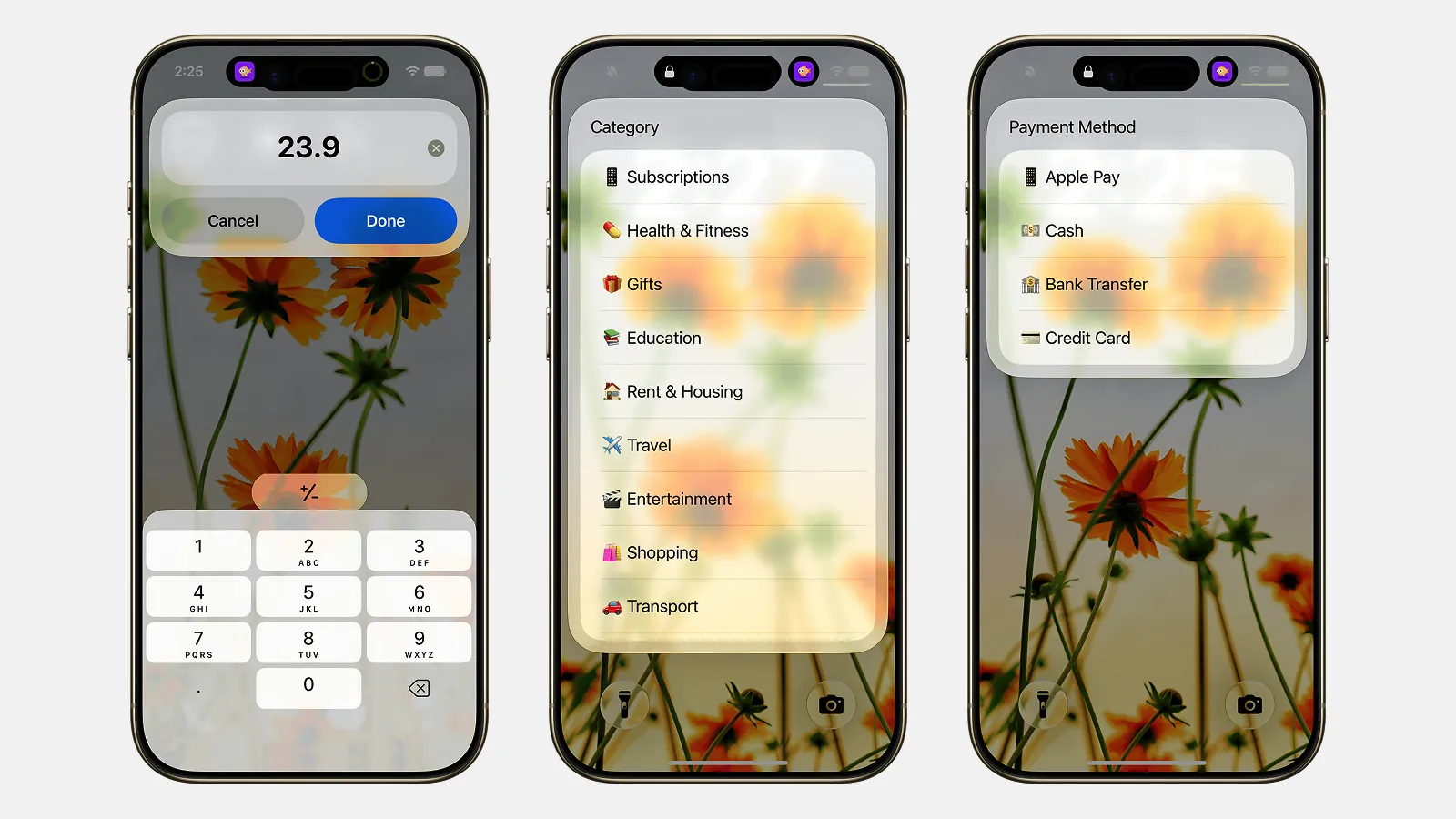
Finny app's Quick Log feature
Once that shortcut exists and works on its own, you are ready to trigger it automatically.
Step 2: Open the Automation Tab
Back in the Shortcuts app, tap the Automation tab at the bottom. This is where iOS lets an event, not a tap, start a shortcut for you.
Tap the + in the top right to create a new personal automation.
You will see a long list of triggers. The one you want is in the app section.
Step 3: Choose the "App" Trigger
Scroll to and tap App. This trigger fires based on an app opening or closing.
Tap Choose next to the app field, pick the store or delivery app you want to watch, and set the condition to run When [app] is Opened rather than when it is closed.
Good candidates are apps you open right before you spend:
- Your coffee shop app, so opening it to order prompts you to log the coffee.
- A food delivery app, so browsing for dinner prompts you to log the order.
- A retailer app like Amazon, so checking out prompts you to log the purchase.
Pick one app per automation. You can repeat the process for each app you want covered.
Step 4: Attach Your Log Expense Shortcut
Tap Next. On the action screen, search for Run Shortcut, add it, and tap the shortcut field to select your "Log Expense" shortcut.
Now, whenever you open that app, iOS will offer to run your logging prompt. Tap Next again to reach the final settings.
Step 5: Turn Off "Ask Before Running"
By default, personal automations ask for confirmation before they run. That banner stands between you and the logging prompt, which adds friction to something meant to be instant.
On the final screen, turn off Ask Before Running. Now the log prompt appears the moment the app opens, with no extra confirmation.
If that toggle is greyed out or your automation still nags you every time, our fix for shortcut automations that ask to confirm walks through the exact settings and the cases where iOS refuses to go fully silent.
Tap Done, and the automation is live. Open the app to test it.
Where This Trick Honestly Falls Short
This is a clever nudge, and for many people it is enough. Be honest about two limits, though, because they show up fast.
First, the automation fires when the app opens, not when you actually pay. You might open the coffee app to check the menu and buy nothing, or open it, get distracted, and pay ten minutes later. The prompt is a reminder to log, not a record of a real purchase, so the amount is still a guess you type by hand.
Second, it can double-fire. Switch away from the app and back, or reopen it a minute later, and iOS may run the automation again. You end up dismissing prompts or, worse, logging the same coffee twice.
The root cause is simple: opening an app is not the same event as spending money. The automation infers a purchase from your behavior instead of capturing the purchase itself.
This is where a purpose-built app earns its keep. Finny does not guess from an app opening. It captures the actual Apple Pay purchase at the moment you tap to pay, so the entry reflects a real transaction with the real amount, not a reminder you might ignore or answer twice.
A Cleaner Way to Catch Real Purchases
You can run the open-app automation forever, and it costs nothing. If the double-firing and the manual amounts start to grate, the fix is to trigger logging off the payment instead of the app.
Finny is an AI money manager that logs your Apple Pay spending the moment the purchase happens, using Shortcuts and NFC, so there is no app-open guesswork and no double entry. It sorts each expense into a category and keeps a running total. It is free to start, needs no bank connection, and works offline. Install Finny from the App Store and set it up inside the app.
The manual automation teaches you how iOS triggers work, and it is a fine first step. Just remember what it is: a well-timed nudge, not a true capture. For a wider look at the tools that read the payment itself, see our roundup of the best apps to track Apple Pay spending.
Frequently Asked Questions
Can an iPhone automation run when I open a specific app?
Yes. In the Shortcuts app, open the Automation tab, tap the plus button, and choose the App trigger. Select the app you want to watch and set it to run when that app is opened. Attach a Run Shortcut action pointing at your log expense shortcut, and iOS will offer the logging prompt each time you open the app.
Does the automation know how much I spent?
No. An open-app automation only knows that you opened the app, not what you paid or whether you paid at all. You still type the amount into the prompt by hand. If you want the real purchase amount captured automatically, you need something that reads the Apple Pay transaction itself rather than the app opening.
Why does my automation run twice for one purchase?
Because opening an app is not a single clean event. If you switch away and back, or reopen the app shortly after, iOS may fire the automation again. There is no reliable built-in way to stop this for the app trigger, which is why an open-app nudge suits low-stakes reminders more than precise, once-per-purchase logging.
How do I stop the confirmation prompt every time?
On the automation's final setup screen, turn off Ask Before Running. That removes the confirmation banner so the shortcut runs the instant the app opens. Some automation types still insist on a tap for safety reasons. Our guide on fixing automations that ask to confirm covers the exceptions and workarounds.
Is this better than logging spending by hand later?
It is better at timing. The nudge lands while the purchase is fresh, which beats trying to remember it that evening. It is not better at accuracy, since you still enter the amount yourself and it can misfire. The strongest setup pairs a good trigger with an app that captures the real transaction.
The Bottom Line
A personal automation that prompts you when you open a store app is a smart, free nudge that catches spending as it is about to happen. Build a log expense shortcut, attach it to the App trigger in the Automation tab, and turn off the confirmation for a smooth prompt. Just know its ceiling: it fires on the app opening, not the payment, so treat it as a reminder rather than a record. When you want the entry to reflect a real purchase, let the payment be the trigger.