
Automatic Expense Tracking: Bank Sync vs No Bank Sync
For years, expense tracking came with a simple, annoying trade-off. If you wanted your spending to show up on its own, you linked your bank and let a data aggregator pull your transactions. If you did not want a third party anywhere near your bank login, you typed every purchase yourself. Automatic meant linked. Private meant manual.
That trade-off has loosened. This guide compares the two routes to automatic expense tracking without bank sync and with it: what linking a bank through an aggregator actually involves, what it costs you in privacy and reliability, which no-bank-link methods can now log spending on their own, and who should pick which. If you are new to the idea of skipping the bank connection, start with our guide to tracking expenses without linking your bank, which covers the manual and AI-assisted side.
What bank sync actually involves
When a budgeting app offers to "connect your accounts," it almost never talks to your bank directly. It goes through an aggregator: a data provider that retrieves information from your bank and passes it to the app. That middle layer is what makes bank sync automatic, and it is also where its trade-offs come from. The two best-known bank-sync budgeting apps show how it works in practice.
Monarch
Monarch says it works with three data providers (Plaid, Finicity, now listed as Mastercard Data Connect, and MX), and that these providers retrieve data from your bank and pass it to the app. It pulls balances and transactions from every linked account, which gives you a complete picture, including accounts that never send alerts. Monarch also publishes a status page showing how well each bank connects through each provider, which tells you connection quality varies from bank to bank. Our review of whether Monarch Money is safe goes into its security setup.
Copilot
Copilot says it connects most institutions through Plaid, with Finicity, MX and Akoya as fallbacks, and it has direct integrations with a few institutions on top of the aggregators. It suits people who want everything imported. As with any sync app, what you see depends on what your bank shares with the data provider and when.
The trade-offs: privacy and reliability
Bank sync does something nothing else does: it imports every linked account, including balances and history. The price is paid in two places.
Privacy. Every bank link adds a company holding your data. Plaid's own end user privacy policy lists what it can collect from a connected account: account and routing numbers, current and available balances, transaction amounts, dates and payees, credit and loan details, investment holdings, and identity details like your name, email, phone and address. It also says it may collect your username and password when your bank requires them for the connection.
The concern is not hypothetical. In July 2022, a federal judge in California gave final approval to a $58 million class-action settlement with Plaid, brought by consumers who accused the company of improperly obtaining and profiting from bank credentials and financial data. Plaid denied wrongdoing, and the settlement required it to delete certain user data and disclose more about what it collects and stores. The point is not that Plaid is uniquely bad. It is that every bank link adds another company holding a detailed copy of your financial life.
Reliability. A synced transaction appears when your bank posts it and the provider passes it on, not when you pay. Its name is whatever the statement line says, which can be cryptic rather than the store you remember. And connections sometimes need fixing, which is why a status page per bank exists at all.
So people picked a side. Some accepted the aggregator for the convenience. Others went manual and, honestly, many of them quit within a few weeks because typing every coffee is a chore. We compared the accuracy of both approaches in AI expense tracker vs bank sync.
Automatic tracking without a bank link: four ways
You no longer have to choose between linking a bank and typing everything. Four kinds of capture can get spending into a tracker with no bank connection, and each covers different ground.
Bank and payment alerts turned into entries
Your bank already tells your phone about most of your spending. Turn on purchase alerts and you get a notification within seconds of paying: an amount, a store, often the last digits of the card. Payment and transit apps do the same for fares and transfers. That information was always there. It just never landed anywhere useful.
On iOS 27, an expense tracker built for it can take payment notifications from the apps you pick and turn them into entries on their own. A "you paid" alert becomes an expense, a "you've received" alert becomes income, and the amount and currency come straight from the notification. No one holds your login, and the app sees one alert at a time, only from the apps you chose. For a closer look at what a payment alert reveals, see our guide to the privacy of letting an app read payment notifications.
Here is a payment notification turning into an entry:
The limit is built in: alert-based tracking only sees what your apps announce. For a card that stays quiet, see our guide to tracking a credit card that doesn't send notifications.
Card-tap capture
Card payments can be logged as you make them, with no bank connection, so an in-store tap turns into an entry instead of waiting for a statement.
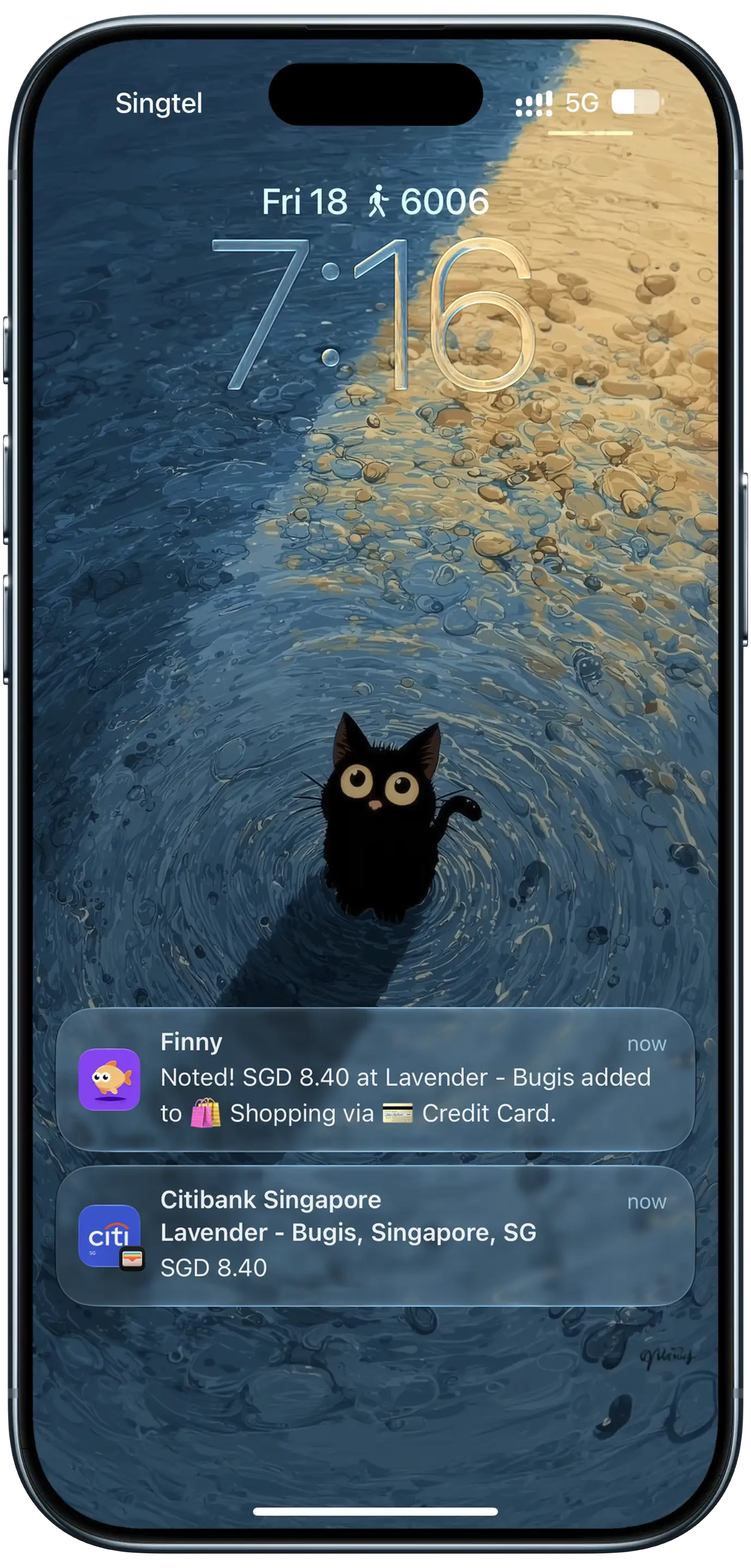
Finny app's Tap to Track feature
It is the natural choice for in-store taps, as in the lock screen above. It does not see online checkouts where you typed a card number, transfers, or income, which is where alerts and screen capture come in.
On-screen capture
A payment showing on your screen can be logged from what is on screen. That covers order confirmations, bank transfers and statements from accounts that send no alerts at all. Our guide to tracking online purchases on iPhone covers that case in detail.
Receipt scanning
Receipts can be captured in a photo, including several at once from your photo library. It is also the one capture route that reaches cash, which neither bank sync nor alerts can see. If you want the bigger picture of every no-typing method, our list of ways to log expenses without typing covers voice, receipts and chat too.
Bank sync vs no bank sync, side by side
The honest comparison is not "private vs automatic" anymore. It is about what each approach sees, how fast it is, and what it asks of you.
| Bank sync (Monarch, Copilot) | No bank link (alerts, taps, screen, receipts) | Manual typing | |
|---|---|---|---|
| Bank login or aggregator | Yes | No | No |
| Sees balances and full history | Yes | No | No |
| Logs on its own | Yes | Yes, for alerts and card taps | No |
| Timing | When the bank posts | When you pay or the alert arrives | Whenever you remember |
| Store name | Statement line | From the alert or screen | Whatever you type |
| Covers accounts with no alerts | Yes | Partly (screen capture, receipts) | Yes |
| Logs cash purchases | No | With a receipt | Yes |
Neither column is perfect. Bank sync covers silent accounts and history; no-bank capture keeps your login to yourself and logs at the moment you pay, but only for what your apps announce or what you capture.
Where Finny fits
Finny sits on the no-bank-link side and covers all four methods: Notification Log turns payment alerts into entries, Tap to Track logs card payments as you make them, Screen Log logs a payment from your screen, and Snap and Log reads receipts. It never asks for your bank login. Notification Log reads notifications only from the apps you choose and does not keep the notification itself; what stays is an ordinary entry. It needs iOS 27 and Finny Pro; see how Notification Log works and its limits.
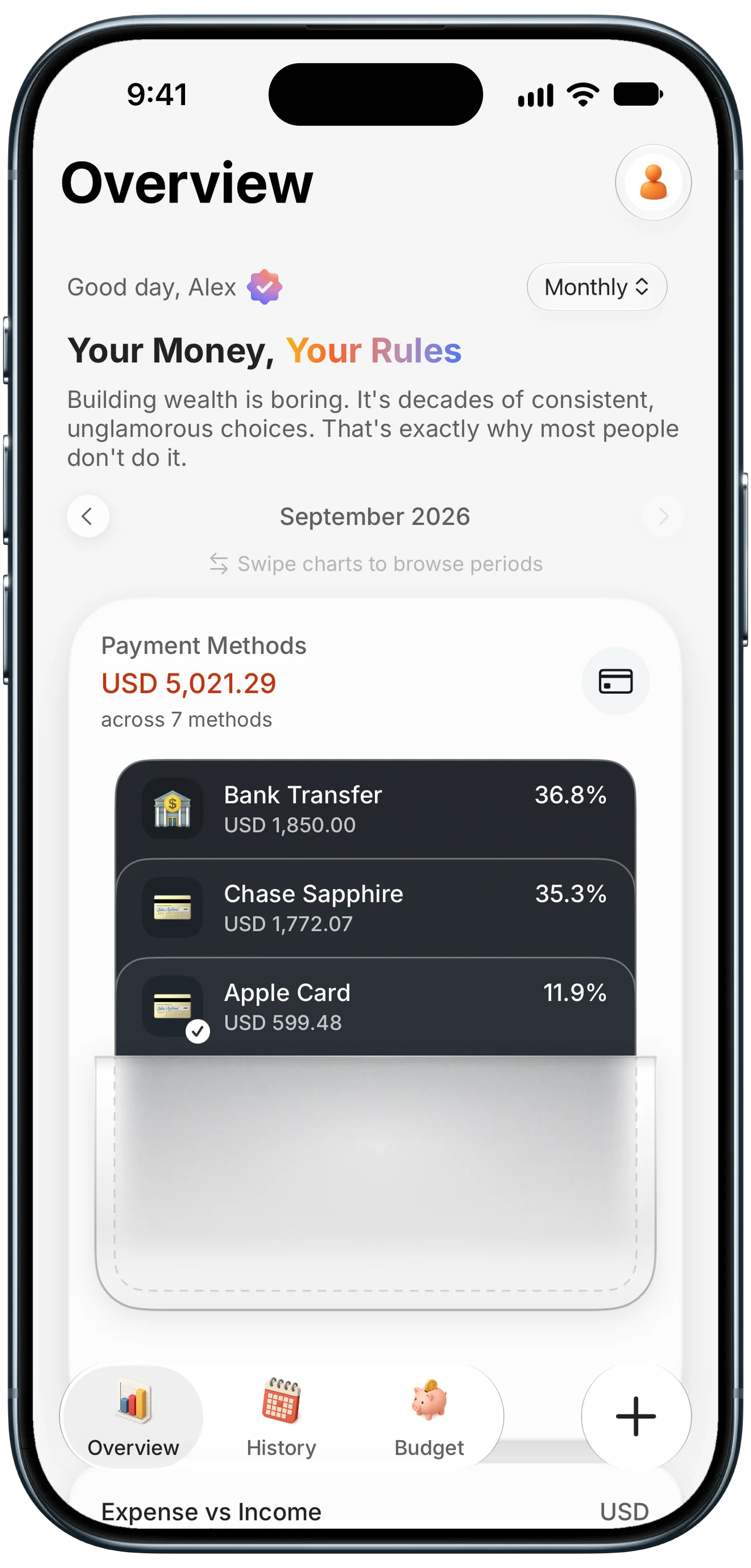
Finny app's Payment Methods feature
The category and payment method are guesses made from each alert, and when an alert does not say which card was used, your default payment method fills in. Setting a category and a card for each app keeps spending by card accurate, which matters if you track each card separately like in the wallet view above. Our guide to tracking credit card spending in real time explains why per-card totals are worth keeping. Every entry keeps its original currency, so a fare paid in euros on a trip is logged in EUR while your totals still add up in your home currency.
Who should pick which
The reason to link a bank used to be that nothing else was automatic. That is no longer true for most everyday spending.
- Choose bank sync if you want every account, including silent ones and investments, imported in one place, and you are comfortable with an aggregator holding a copy of that data.
- Choose no-bank capture if you want spending logged on its own while keeping your bank login to yourself. Use alerts for banks and payment apps, card-tap capture for in-store payments, and screen capture or receipts for the rest.
- Stay mostly manual if you like the ritual. AI chat, voice and receipt capture still make it fast. On iOS 26 or earlier, card-tap capture, screen capture and receipts all still work; only turning alerts into entries needs iOS 27.
For a side-by-side of apps that skip the bank connection entirely, see our roundup of the best expense trackers without bank login.
Common Questions About Bank Sync vs No Bank Sync
Can you track expenses automatically without bank sync?
Yes. Several methods log spending with no bank connection. On iOS 27, an expense tracker built for it can turn payment notifications from the apps you pick into entries. Card payments can be logged as you make them, a payment on your screen can be logged from what is shown, and receipts can be scanned. Accounts that send no alerts, and cash purchases, still need screen capture, a receipt or a quick manual entry.
Is it safe to link your bank to a budgeting app?
Bank sync runs through aggregators such as Plaid, Finicity and MX, which retrieve data from your bank and pass it to the app. Plaid's privacy policy lists balances, transaction details, account and routing numbers and identity details among what it can collect. In 2022 Plaid settled a $58 million class action over allegations that it improperly obtained and profited from bank data, while denying wrongdoing. Linking means another company holds a detailed copy of your finances.
What does bank sync see that no-bank tracking does not?
Balances, past transaction history, investment holdings, and accounts that never send you alerts. Alert-based tracking only sees what your chosen apps announce, one event at a time. Bank sync logs a purchase when the bank posts it and names it from the statement line; alert-based capture logs it when the alert arrives, named from the alert. Neither logs cash on its own, so receipts or manual entry fill that gap.
Does Finny see my bank balance or transaction history?
No. It has no bank connection and never asks for your bank login, so it cannot see balances, past transactions or accounts. Notification Log only reads notifications from the apps you choose, and it does not keep the notification itself. What is saved is an ordinary entry: amount, currency, store, category and card.
Ready for tracking that runs on its own, without your bank login?
Download Finny to turn payment alerts into entries, log card taps as you pay, and see every currency totaled in your home currency. No bank connection, ever.