
Track Expenses in Excel From iPhone With a Shortcut
Plenty of people already run their budget in Excel, with years of history and formulas that are dialed in. The weak spot is the phone: opening Excel on an iPhone, finding the right sheet, and typing into a tiny cell after every coffee is enough friction to break the habit.
This guide shows you how to track expenses in Excel from iPhone with an Apple Shortcut that asks for an amount, a category, and an optional note, then saves a new row with the date. We will be honest about what works in 2026, because Excel is the hardest of the big spreadsheets to automate from a phone. For the wider menu of ideas, skim our Apple Shortcuts for expense tracking guide first.
The Catch: Excel Has No "Add Row" Shortcut Action
Apple Numbers has a native Add Row to Table action in the Shortcuts app, which is why our Apple Numbers expense shortcut is so simple. Microsoft Excel for iPhone does not offer an equivalent. At the time of writing there is no Shortcuts action that writes a row into an Excel workbook, so any tutorial that tells you to search for "Add Row to Excel" in Shortcuts is describing something that does not exist.
That leaves three realistic routes, each with a different trade off:
| Route | Cost | Works offline | Setup effort | Best for |
|---|---|---|---|---|
| Append to a CSV file in iCloud Drive | Free | Yes | Low | Most personal budgets |
| Power Automate flow triggered by a URL | Premium license, listed at $15 per user per month | No | High | Work or school Microsoft 365 accounts |
| Microsoft Graph API with Get Contents of URL | Free | No | Very high | Developers comfortable with OAuth |
We build the free, offline CSV route below, then cover the other two so you know when they make sense.
What You Need Before You Start
- An iPhone with the Shortcuts app, which is preinstalled and free to reinstall from the App Store.
- iCloud Drive turned on, so the log file syncs to your other devices.
- Excel for iPhone, Mac, or Windows to view and analyze the data.
- About ten minutes. No coding is involved.
Step 1: Create the Log File With a Header Row
The shortcut appends one line per expense to a plain text file named expenses.csv. A CSV file is just rows of values separated by commas, and Excel reads it as a sheet.
The Append to Text File action creates the file if it does not exist yet, so the simplest setup is a one time shortcut:
- Open Shortcuts and tap + to start a new shortcut.
- Add a Text action and type
Date,Amount,Category,Note. - Add an Append to Text File action. Set the destination to iCloud Drive and the file path to
/Shortcuts/expenses.csv, and make sure Make New Line is on. - Run it once, then delete this setup shortcut.
Check iCloud Drive, Shortcuts in the Files app for expenses.csv with your header row. Keep the column order fixed from here on.
Step 2: Build the Logging Shortcut
Now create the shortcut you will actually use. Tap + again and add these actions in order.
- Ask for the amount. Add Ask for Input, set the input type to Number, and use a prompt like "How much?".
- Ask for the category. Add Choose from Menu with your usual categories as menu items, such as Groceries, Dining, Transport, Shopping, and Bills. Inside each menu item, add a Text action containing that category name, so the Menu Result variable carries it forward.
- Ask for a note. Add a second Ask for Input with the type set to Text and a prompt like "Note (optional)".
- Stamp the date. Add Format Date, set it to Current Date, choose a custom format, and type
yyyy-MM-dd. Excel recognizes that format reliably in any region. - Build the row. Add a Text action and insert the variables with commas between them: Formatted Date, Provided Input (the amount), Menu Result, and the note input. Wrap the note in straight double quotes, like
"Note", so a comma inside a note does not split it into an extra column. - Save the row. Add Append to Text File, point it at the same
/Shortcuts/expenses.csvpath in iCloud Drive, and keep Make New Line on.
Name the shortcut "Log to Excel" and pick an icon. Run it once with a test expense, then open expenses.csv in Files to confirm a new line appeared under the header.
Step 3: Open the Log in Excel
On your iPhone, open Excel, browse to iCloud Drive, Shortcuts, and tap expenses.csv. Excel opens it as a sheet with four columns. Depending on your version, Excel may treat a CSV as read only or offer to save a copy as a workbook. Viewing is fine either way.
The one rule: never save over the CSV as an .xlsx file. The shortcut appends plain text, so if the file at that path stops being a CSV, rows will fail or end up somewhere you do not expect.
Step 4: Pull the Log Into Your Real Workbook
The CSV is your inbox. Your formulas, charts, and pivot tables should live in a separate workbook that reads from it.
On a Mac or PC with Microsoft 365, open your budget workbook and go to Data, Get Data, From Text/CSV, then pick expenses.csv from your synced iCloud Drive folder (Windows needs the free iCloud for Windows app). Load it as a table. From then on, Data, Refresh All pulls in every new row your shortcut added, and your formulas keep working on top of it.
The phone only ever appends text, which is hard to break, and the analysis happens where Excel is strongest.
Step 5: Make It a One Tap Habit
Give the shortcut a quick trigger:
- Siri: say "Hey Siri, Log to Excel" and answer the prompts by voice.
- Home Screen or Lock Screen widget: add the Shortcuts widget so it is one tap away.
- Back Tap: assign the shortcut in Settings, Accessibility, Touch, Back Tap. Our guide to using Back Tap to log expenses walks through the setup.
Because the file lives in iCloud Drive, the append works with no signal and syncs once you are back online.
The Cloud Alternatives: Power Automate and Microsoft Graph
If you want rows to land directly inside an .xlsx table in OneDrive, two routes can do it. Both need a live connection, and both take far more setup.
Power Automate. You build a flow that starts with the When a HTTP request is received trigger and ends with the Excel connector's Add a row into a table action. The trigger gives you a URL, and your shortcut sends the expense to it using Get Contents of URL with the method set to POST and a JSON body. The catch is licensing: that HTTP trigger is a premium feature, and Power Automate Premium is listed at $15 per user per month on Microsoft's pricing page. Sensible if your employer already licenses it, expensive for a personal budget.
Microsoft Forms. A lighter variant: create a short form with Amount, Category, and Note fields, and have its responses flow into an Excel workbook, which Microsoft 365 business accounts can do without the premium trigger. Your shortcut then simply opens the form link with Open URLs. It is not hands free, since you still tap Submit, but it is free if you already have the account.
Microsoft Graph API. Graph has an endpoint that appends rows to a workbook table (/me/drive/root:/file.xlsx:/workbook/tables/Table1/rows/add), and Get Contents of URL can call it. The problem is authentication: Graph needs an OAuth access token, and those tokens expire, typically within about an hour, so the shortcut quietly fails unless you also build a token refresh step. That is a developer project, not a budgeting habit.
The Honest Limitations
The CSV shortcut is genuinely useful, and for many people it is enough. Be clear about the ceiling, though:
- No categorization smarts. You pick from the menu every time, and the log never learns your habits.
- Totals are your job. Charts, monthly summaries, and category breakdowns are all formulas and pivot tables you build and maintain.
- It is one direction. Fixing a typo means editing the CSV carefully, because a stray comma or a reformatted date can throw off the import.
If you are weighing whether the spreadsheet is still worth it, our piece on when to quit spreadsheet budgeting lays out the signs honestly.
When a Dedicated App Is Easier
At some point, maintaining the shortcut, the CSV, and the refresh step costs more time than it saves. An expense app removes that layer: you record the purchase and the totals update on their own.
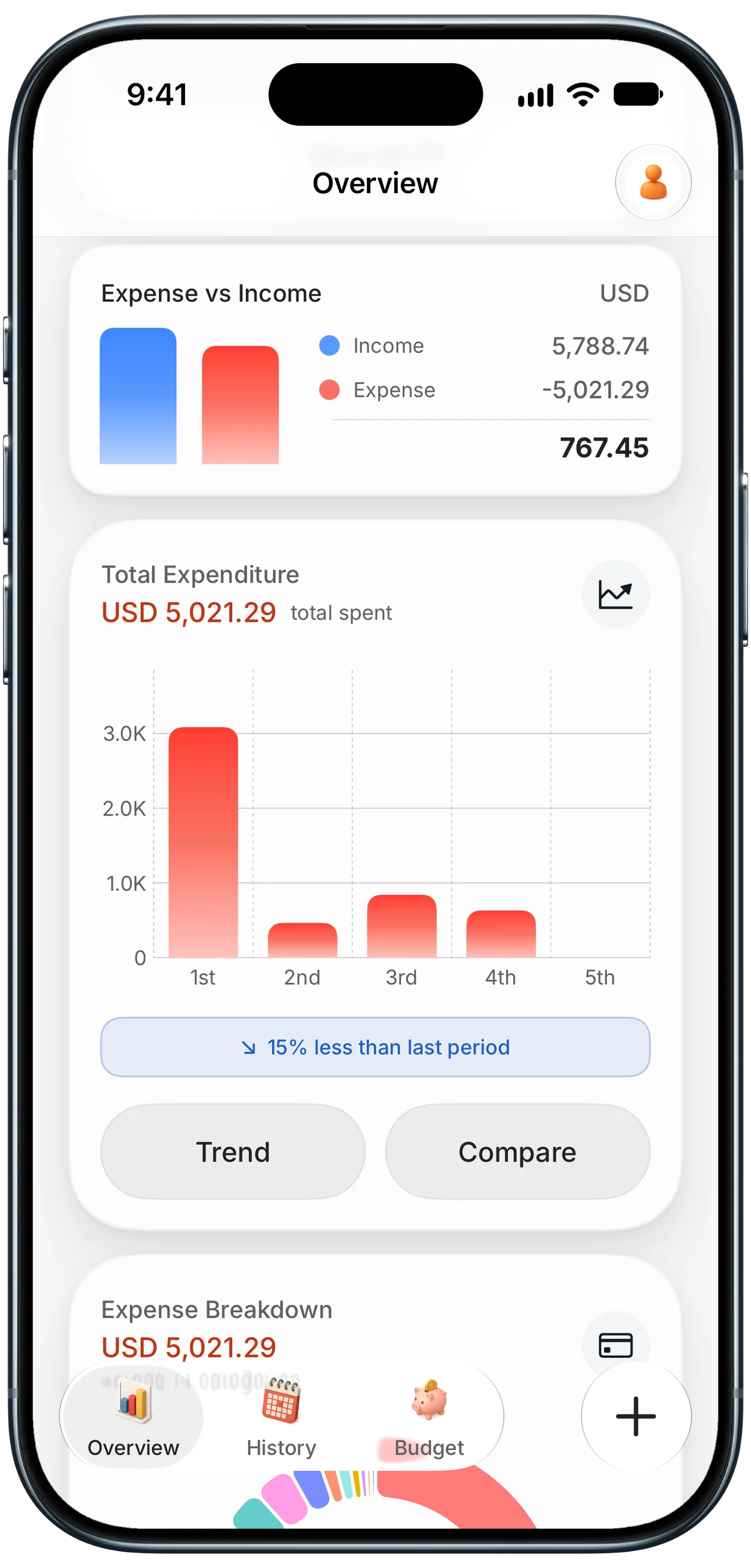
Finny app's Overview feature
Finny is built for that fast capture. You can type or say "12 coffee" and AI fills in the amount and category for you to confirm, it works offline, and it never asks for a bank connection. The overview keeps your income, spending, and period comparisons current without a single formula. Card payments get logged as you make them, which removes the step most shortcut setups depend on you remembering.
This short video shows Finny's Screen Log turning a payment on your iPhone screen into an entry.
The Best of Both: Log in an App, Analyze in Excel
You do not have to choose between an app and your workbook. Finny can export your transactions to a CSV file from Settings, with columns for Date, Type, Amount, Currency, Category, Payment Method, Note, and Tags. Save the export to iCloud Drive or send it to your computer, then load it with Data, Get Data, From Text/CSV exactly as in Step 4.
That gives you quick, categorized capture on the phone and Excel for the deep dives, like pivot tables or tax season summaries. The same idea works for other spreadsheets too, as our guide to logging expenses to Google Sheets with a shortcut shows.
Frequently Asked Questions
Can Apple Shortcuts add a row to an Excel spreadsheet?
Not directly. Excel for iPhone does not provide a Shortcuts action for adding rows, so there is no one step equivalent of the Numbers Add Row to Table action. The practical workaround is a shortcut that appends a line to a CSV file in iCloud Drive, which Excel opens as a sheet. For writing into an .xlsx table in OneDrive, you need a bridge such as a Power Automate flow or the Microsoft Graph API.
Does the Excel expense shortcut work offline?
The CSV version does. Append to Text File writes to the file on your iPhone, and iCloud Drive syncs the change when you reconnect, so you can log a purchase on a flight or in a parking garage. The Power Automate, Forms, and Graph routes all make a live network request, so they fail without a connection. If offline logging matters to you, stick with the CSV method.
Why do my amounts or dates look wrong when I open the CSV in Excel?
Usually it is formatting. Use the yyyy-MM-dd date format in the shortcut, since Excel reads it the same way in every region. If notes split into extra columns, a comma inside the note is the cause, so wrap the note in double quotes when you build the row. Finally, avoid typing a currency symbol into the amount, because Excel may then treat the value as text instead of a number.
Is Power Automate free for logging expenses to Excel?
Partly. Cloud flows using standard connectors come with many Microsoft 365 plans, but the When a HTTP request is received trigger that a shortcut needs is a premium feature. Microsoft lists Power Automate Premium at $15 per user per month at the time of writing, and some tenants offer a trial. For a personal budget, the free CSV route or a Microsoft Forms link is usually the better fit.
The Bottom Line
Excel is the trickiest spreadsheet to feed from an iPhone, but it is far from impossible. Append each expense to a CSV in iCloud Drive, pull that file into your real workbook with From Text/CSV, and refresh when you want fresh numbers. It costs nothing, works offline, and keeps your data in files you own.
If that pipeline starts to feel like a second job, let an app handle capture and export a CSV when you want Excel.
Ready to track expenses with less friction?
Download Finny to log expenses using AI, receipts, or text, then export to CSV whenever you want to work in Excel. No bank connections, offline support, and full control over your financial data.