How Much Have I Spent on the App Store? (2026 Guide)
App Store charges are some of the quietest money you spend. A $4.99 game unlock, a $2.99 storage bump, a free trial that turned into a yearly plan. None of them feels like a purchase in the moment, and Apple never sends you one figure that says what they added up to.
This guide answers how much have I spent on the App Store using the routes Apple offers as of November 2026: Purchase History on your iPhone, reportaproblem.apple.com, and a data download from Apple's privacy portal. It explains why none of them gives a lifetime total, how to add up one year quickly, and what to do with the number. If you mainly want to cut recurring charges, our guide to managing subscriptions on iPhone covers that side in depth.
Why Apple does not show a lifetime total
Apple keeps a detailed record of everything you buy, but it is a list, not a ledger. Purchase History shows items and dates, and you can search it by amount, yet nothing sums it. A few things make a total harder than it looks:
- Several purchases can share one charge. Apple's billing page says multiple purchases may be grouped onto one larger charge, so your statement and your purchase list rarely match line for line (grouping may not happen in Europe and India).
- Family Sharing moves the bill. With Purchase Sharing on, the family organizer pays for everyone's purchases, so a parent's card can carry a teenager's in-app coins.
- Refunds are separate events. Approved money comes back later, but the original purchase stays in the list.
- Balance and other accounts. Gift card credit pays before any card is charged, and an old Apple Account keeps its own history.
So a total takes a little assembly, but one year rarely takes more than half an hour.
What actually counts as App Store spending
Before adding anything up, decide what you are counting, since "App Store" covers several kinds of charges.
| Type of charge | Examples | Where it appears |
|---|---|---|
| Paid apps | A one-time app or game | Purchase History, email receipt |
| In-app purchases | Game currency, a pro unlock | Purchase History, email receipt |
| Apple subscriptions | iCloud+, Apple Music, Apple TV, Apple One | Purchase History, Subscriptions list |
| Third-party subscriptions billed by Apple | A streaming or fitness app you subscribed to inside the app | Purchase History, Subscriptions list |
| Family purchases (organizer only) | A family member's app or in-app buy | Receipt emailed to you |
One gap matters. If you signed up for a service on the company's own website, Apple never billed it, so it will not appear in your Apple records. That charge sits on your card statement under the company's name.
These buckets make the total useful. One-time apps are sunk cost, in-app purchases are a habit to watch, and subscriptions, usually most of the bill, are the part you can actually stop.
Method 1: Purchase History on your iPhone
The fastest look is on the phone itself. Apple's purchase history guide describes it this way as of late 2026:
- Open the App Store and tap your photo or initials at the top.
- Tap Apps & Purchase History, then Purchase History.
- Change the date filter. The list starts at "Last 90 days." Tap that label and choose a longer range.
- Search by amount if you are hunting for one charge.
Many iOS versions also reach it from Settings: tap your name, then Media & Purchases. Menu names shift between releases, so if a label differs, use the App Store route Apple documents.
Good for: a quick scan or spotting a charge you do not recognize. Limits: a phone is a slow place to copy a year of lines, and the list covers only the Apple Account you are signed in to. Family members' purchases do not show in your own list, even when your card paid for them.
Method 2: reportaproblem.apple.com on a computer
The same history lives on the web at reportaproblem.apple.com. Sign in with your Apple Account and you get the purchase list in a browser, with the same search by amount.
This is the better route for a full year. A laptop shows far more lines at once, and you can copy each one into a spreadsheet in a second window. It is also where refunds start: Apple's refund guide says to choose "I'd like to," then "Request a refund," pick a reason, and select the item. Apple usually responds within 24 to 48 hours, approved money goes back to the original payment method, and eligibility varies by country or region.
Good for: building a yearly total, matching a grouped charge to its parts, and requesting refunds while you are already looking. Limits: there is no export button and no sum, so you copy by hand. If something seems missing, check the emailed receipt to confirm which Apple Account made the purchase, since a second account is the usual reason a charge seems to vanish.
Method 3: Apple's data download and your receipts
For a record across many years, ask Apple for your data. Per Apple's Data & Privacy guide, sign in at privacy.apple.com, choose Request a copy of your data, and select the App Store, iTunes Store and Apple Books records. Apple verifies the request, posts the files to the same page, and notifies you. You have 14 days to download them.
The purchase records arrive as spreadsheet-style files you can open in Numbers, Excel or Google Sheets. Expect raw data: free downloads may appear at zero and refunds may not be netted out, so use a SUMIF by year. Processing can take several days.
Two lighter cross-checks help too. Apple emails a receipt for each purchase, so searching your mail for Apple receipts in one year gives you a second list to compare. And your card statement shows what actually left your account; Apple's Apple Card help notes that Apple Services charges can appear as apple.com/bill or itunes.com/bill.
How to total one year in about 20 minutes
One recent year tells you nearly everything:
- Pick the year. The last calendar year works, or the last 12 months.
- Open reportaproblem.apple.com on a computer, next to a blank spreadsheet.
- Make five columns: date, item, type (app, in-app, Apple subscription, third-party subscription, family), amount, refunded.
- Copy each line for the year, skipping free items.
- Subtract refunds, then sum the amount column.
- Total each type with a filter or SUMIF, and divide the subscription total by 12 for a monthly figure.
That split is the point. Most people find a forgotten subscription or two, an in-app pattern in one game, and a storage plan that crept up a tier. If the year includes family purchases, keep them as their own type so a household number does not read as your personal spending.
If copying feels slow, do one quarter at a time. The shape of the spending matters more than the cents.
Turn the total into a subscription audit
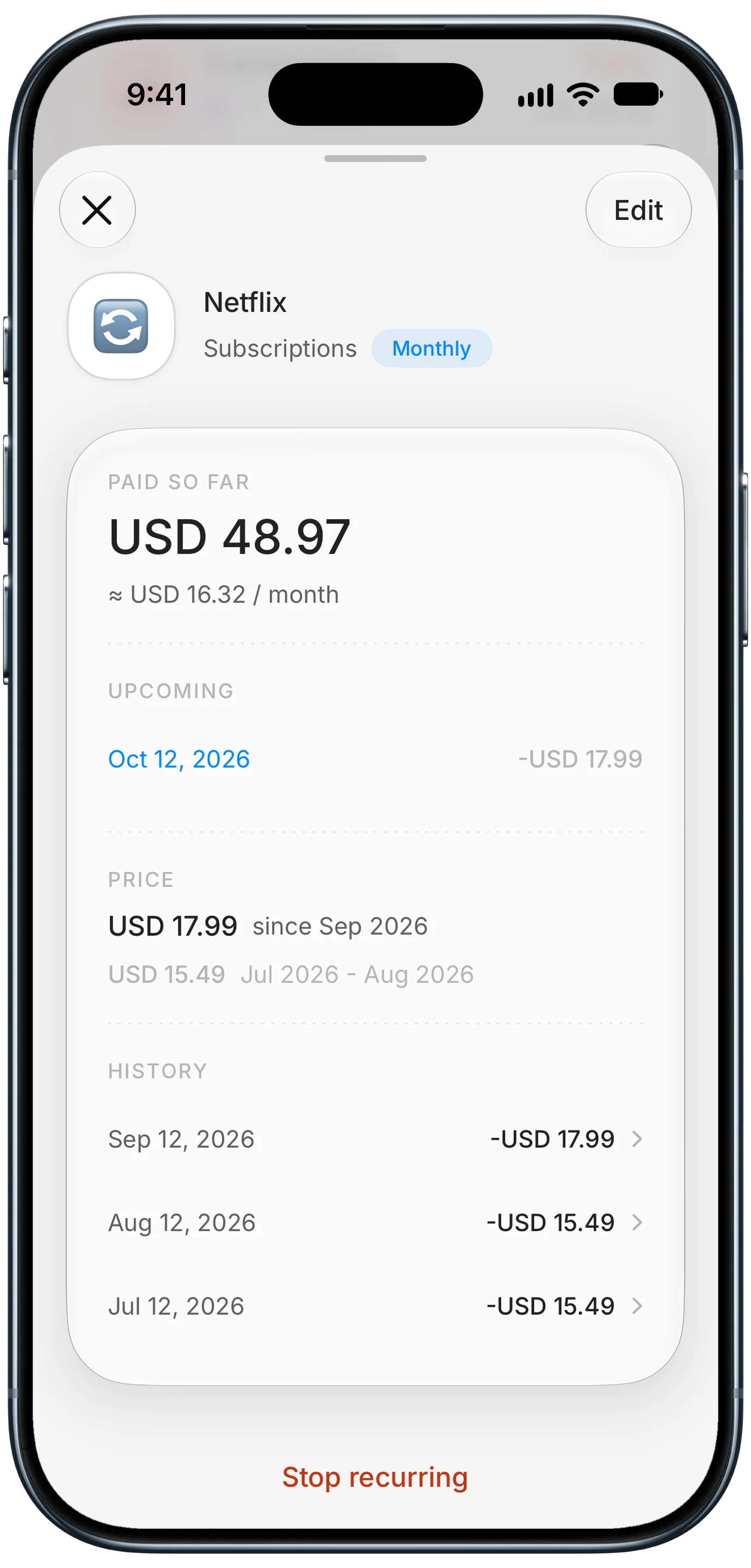
Finny app's subscription price history feature
A yearly figure only helps if it changes a decision. Start with subscriptions, since they keep billing on their own. Open Settings, tap your name, then Subscriptions, and compare the active list with your spreadsheet. For each one, ask whether you used it in the last 30 days and whether you would sign up again at today's price. For a free trial you do not want, Apple says to cancel at least 24 hours before it ends.
Then look at price, not just presence. Subscriptions rarely jump; they step up a dollar at a time, which is why they survive. The screen above, from Finny, shows one recurring charge with each price change on a timeline, so a quiet increase is plain to see. With Pro, a recurring bill's detail view also shows what you have paid over its lifetime and its true monthly cost. Recurring rules and reminders are free.
Our subscription creep audit walks through cutting the list, and the iPhone cancellation guide covers what to do when the cancel button is missing.
Keep a running total going forward
A running total means you never dig through Purchase History again. The simplest habit is to log each App Store charge when its receipt arrives, in a real category: Subscriptions for recurring plans, Entertainment for games. App Store is the store, not what you bought.
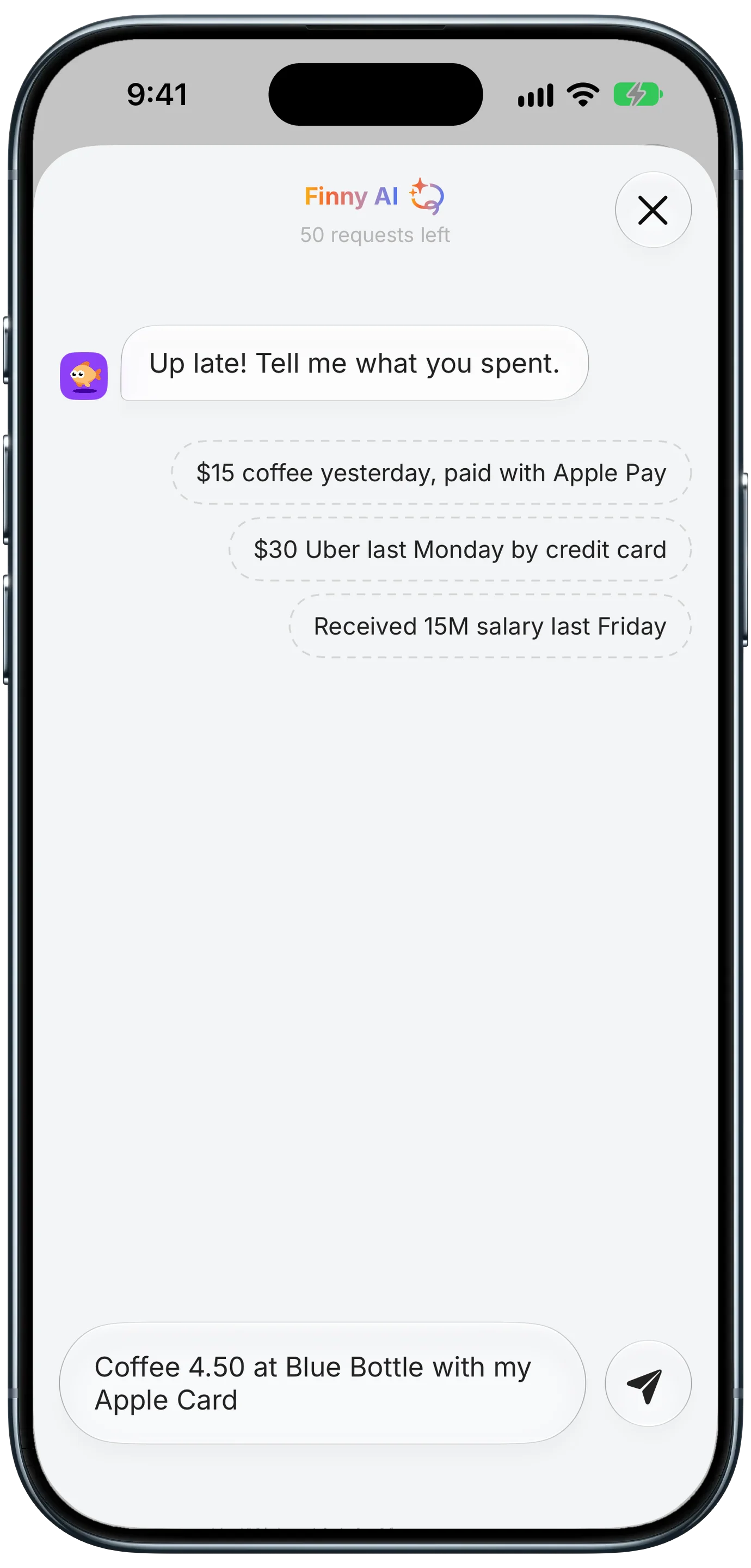
Finny app's AI Log feature
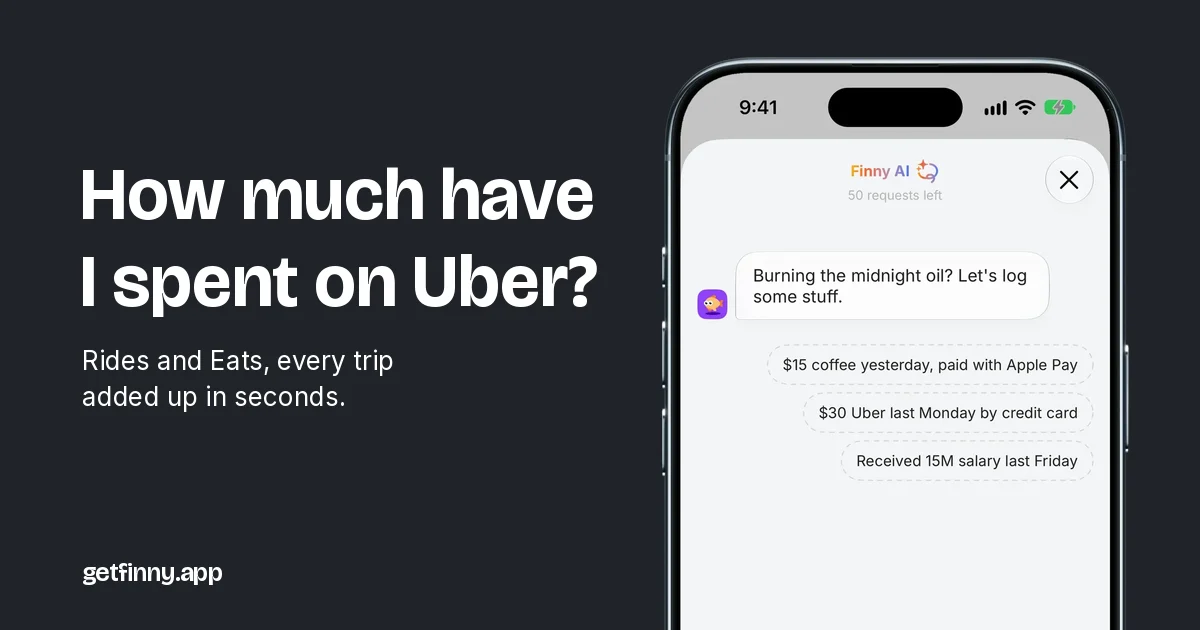
In Finny, a plain sentence typed into AI Log, like the coffee example on this screen, becomes an entry with the amount, place and card filled in. "iCloud+ 2.99 on Apple Card" works the same way. AI input is part of Pro, which has a 3-day free trial. Later, searching "Apple" in History shows a receipt-style total at the top of the results, split by category and payment method, and that part is free.
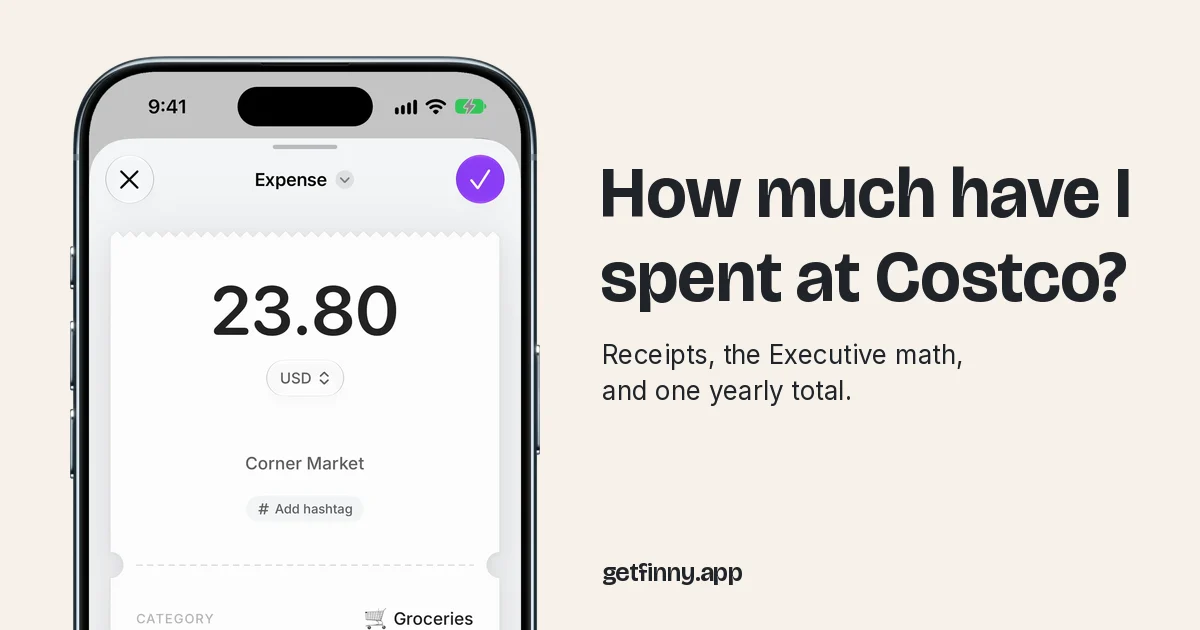
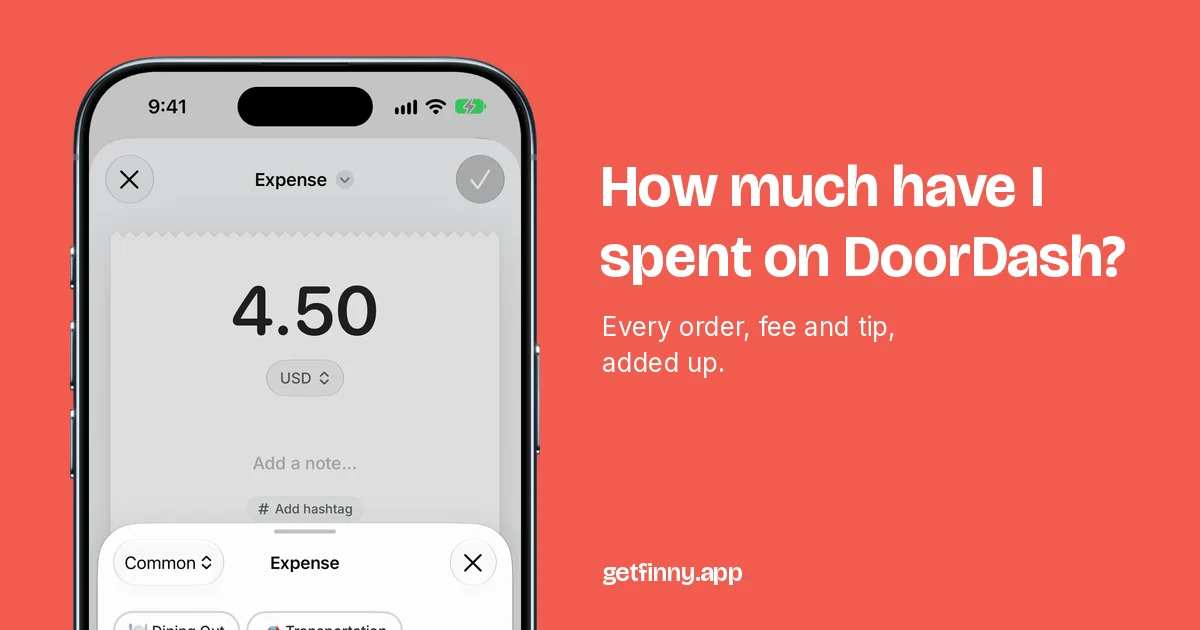
If you would rather capture the receipt itself, here is how a payment on your screen becomes an entry:
No bank connection is needed, and you can export your entries to CSV any time.
Common Questions About App Store Spending
Can I see my total App Store spending in one number?
No. Apple shows a list of purchases, not a total, on the iPhone, on reportaproblem.apple.com, and in the data download. To get a figure, filter Purchase History to one year, copy the amounts into a spreadsheet, subtract refunds, and add them up. The privacy.apple.com download is the easiest way to sum several years, since you can total it with a formula.
How do I see App Store purchase history from years ago?
In Purchase History on your iPhone, tap the "Last 90 days" filter and choose a longer range. For a complete multi-year record, request a copy of your data at privacy.apple.com and select the App Store, iTunes Store and Apple Books records. If an old purchase is still missing, search your email for the Apple receipt to see which Apple Account made it.
Why is my apple.com/bill charge bigger than any single purchase?
Apple may group several purchases into one charge, so one card line can cover an app, an in-app purchase and a renewal. Match it against Purchase History or your emailed receipts to see the parts. If you are a Family Sharing organizer with Purchase Sharing on, family members' purchases are billed to your payment method too, and Apple emails you their receipts.
Do family members' purchases count toward my App Store spending?
If you are the family organizer and Purchase Sharing is on, you pay for everyone's purchases unless another adult uses their own payment method. Those purchases are not in your own Purchase History, but Apple emails you each receipt and the organizer can check family purchase history. Track them as a separate type so household and personal spending stay distinct.
Know your App Store number, then keep it current.
Download Finny to log subscriptions and app purchases in seconds, see every recurring price change, and get a total for any search, with no bank connection.