How to Store Receipts Digitally on iPhone and Go Paperless
Paper receipts pile up in wallets, glove boxes, and kitchen drawers, and then they fade. By the time you need one for a return, a warranty claim, or a tax deduction, it is either lost or blank. The good news is that you already carry a receipt scanner, a filing cabinet, and a backup system in your pocket.
This guide shows how to store receipts digitally on iPhone, step by step. It compares the four places a receipt can live (Photos, Notes, Files, and an expense app), explains which one fits which kind of receipt, and gives you a simple paperless routine that keeps every receipt private and easy to find later. If you are not sure which receipts are worth keeping at all, start with our guide on how long to keep receipts.
Why store receipts digitally at all
A digital receipt beats a paper one on almost every count:
- It does not fade. Most store receipts are thermal paper, which can go blank in months. A photo stays legible.
- It is searchable. You can find a receipt by store, date, or amount instead of digging through a drawer.
- It is backed up. A receipt that lives in iCloud survives a lost wallet or a flooded basement.
- It is accepted. The IRS accepts legible electronic copies, and most stores and manufacturers accept a photo as proof of purchase.
- It takes no space. Seven years of receipts fit on your phone with room to spare.
The catch is that "take a photo" is not a system. A camera roll with 400 receipts mixed in among vacation photos and screenshots is just a digital shoebox. The goal is to store each receipt somewhere you can find it again in under a minute, without exposing more of your life than necessary.
Option 1: The Photos app
The fastest way to save a receipt is to snap a photo. iPhone's Live Text can read the text in it, and Photos search can surface images containing words like a store name.
How to do it well:
- Photograph the whole receipt flat, in good light, with the store, date, and total visible.
- Add it to an album called "Receipts" right away, so it does not drown in your library.
- Add a caption in the photo's info panel with what it was for.
Best for: quick returns and short-lived receipts. Weak spot: your camera roll mixes personal photos with financial records, and everything synced to shared albums or a partner's device can expose receipts you meant to keep private. Photos also has no idea what a receipt cost, so you still have to record the amount somewhere else if you budget, and searching for "Target" will surface every photo with a Target bag in it.
Option 2: Scan into Notes
The Notes app has a built-in document scanner that flattens and crops a receipt automatically, which gives you a cleaner image than a regular photo.
How to do it:
- Open Notes and create a note called "Receipts 2026" (or one note per category).
- Tap the attachment button, choose Scan Documents, and hold the phone over the receipt.
- Save the scan and add a line of text below it: store, amount, and purpose.
Best for: people who want a clean scan with notes alongside. Weak spot: a long note full of scans gets slow to search, and nothing ties the scan to the actual amount you spent. Notes also syncs to every device signed in to your Apple Account, so think twice before mixing receipts into notes you share with family. One note per year keeps things manageable, and you can lock a note that holds sensitive receipts.
Option 3: Folders in the Files app
The Files app can also scan documents, and it saves them as PDFs in folders you control, in iCloud Drive or on your phone.
A folder structure that works:
Receipts/2026/Taxfor deductible expensesReceipts/2026/Warrantyfor electronics and appliancesReceipts/2026/Homefor improvements that affect your home's cost basis
Name each file with the date first, like 2026-09-14 Best Buy laptop 1299.pdf, so folders sort chronologically and the amount is searchable.
Best for: tax and warranty receipts you want to keep for years, and anyone who hands records to an accountant. Weak spot: it is the most manual option, and it lives completely apart from your budget. That is fine for a few dozen important receipts a year, and tedious for the hundreds of everyday ones. Treat Files as the archive for receipts with a long shelf life, and use something faster for the rest.
Option 4: An expense app that keeps the receipt with the expense
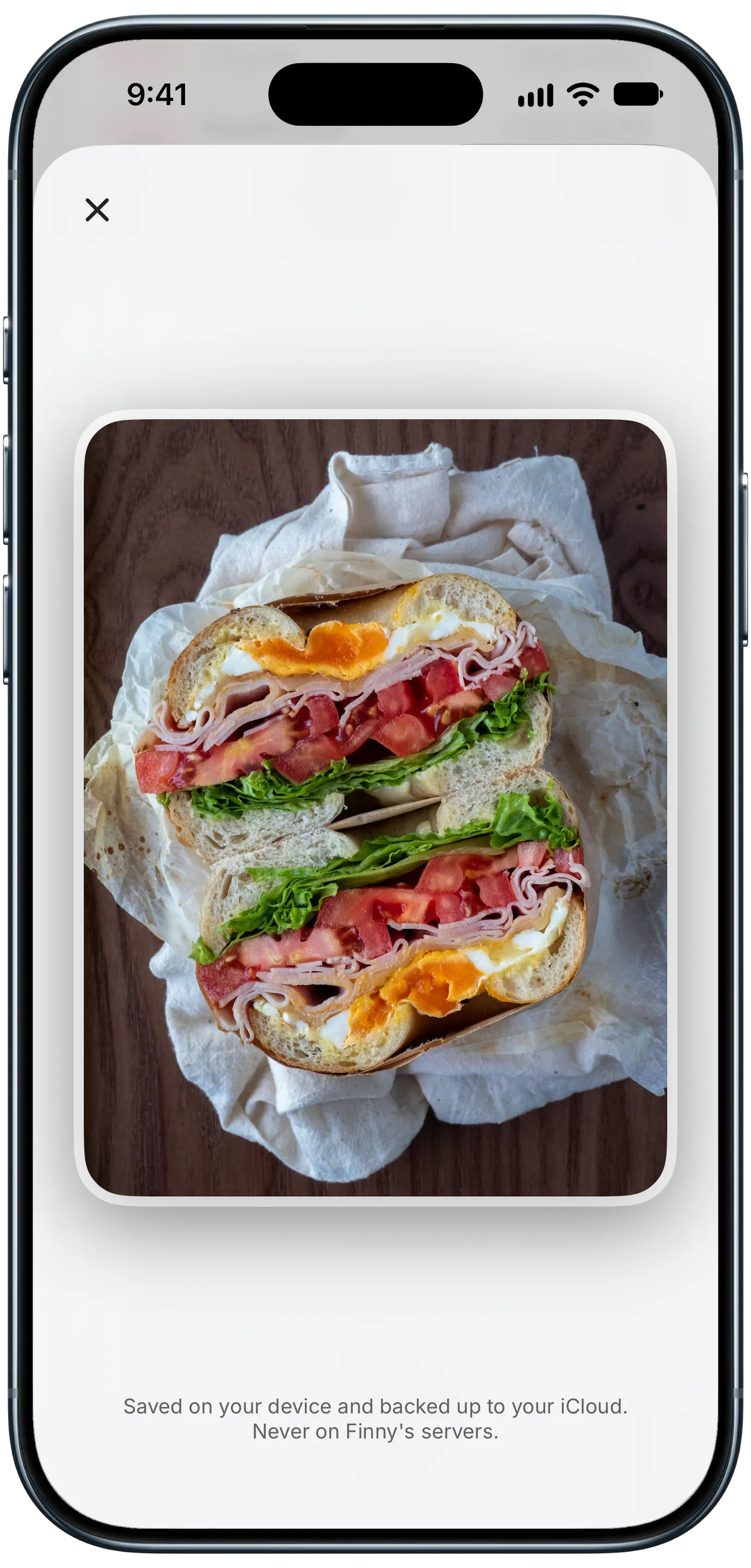
Finny app's private photo storage feature
The first three options store the receipt. An expense app stores the receipt and the purchase it proves. The photo is attached to a transaction with a date, amount, store, and category, so you find receipts the way you remember purchases: "the dinner in March," or "something around $300 at Costco."
Finny works this way without connecting your bank. Snap a receipt and AI reads the store, total, and date into an expense, with the photo pinned to it. Receipt photos are saved on your device and backed up to your own iCloud, never on Finny's servers. Digital receipts work too: when an order confirmation or e-receipt is on your screen, Screen Log captures it and logs the payment with the capture attached as its photo, without adding a screenshot to your camera roll.
Here is Screen Log storing a digital receipt from the screen:
Best for: everyday and medium-term receipts, and anyone who also wants to know where their money goes. Weak spot: for receipts you must keep seven years, still export a yearly backup.
Which option fits which receipt
You do not have to choose one. Most people end up with a two-layer system:
| Receipt | Best home | Why |
|---|---|---|
| Groceries, dining, everyday shopping | Expense app | Logged and categorized, then the paper goes |
| Online orders and e-receipts | Expense app | Captured from the screen, no inbox digging |
| Returns | Photos album or expense app | Short-lived, needs to be fast |
| Warranties and big purchases | Files folder plus expense app | Long-lived, needs a durable copy |
| Tax deductions | Files folder plus expense app | Kept 3 to 7 years, exported yearly |
| Medical and HSA | Files folder | Needed whenever you reimburse yourself |
If you have a backlog, do not do it one receipt at a time. Gather a stack, photograph them, and scan them in one batch. Our guide to batch receipt scanning walks through clearing a pile in a single sitting.
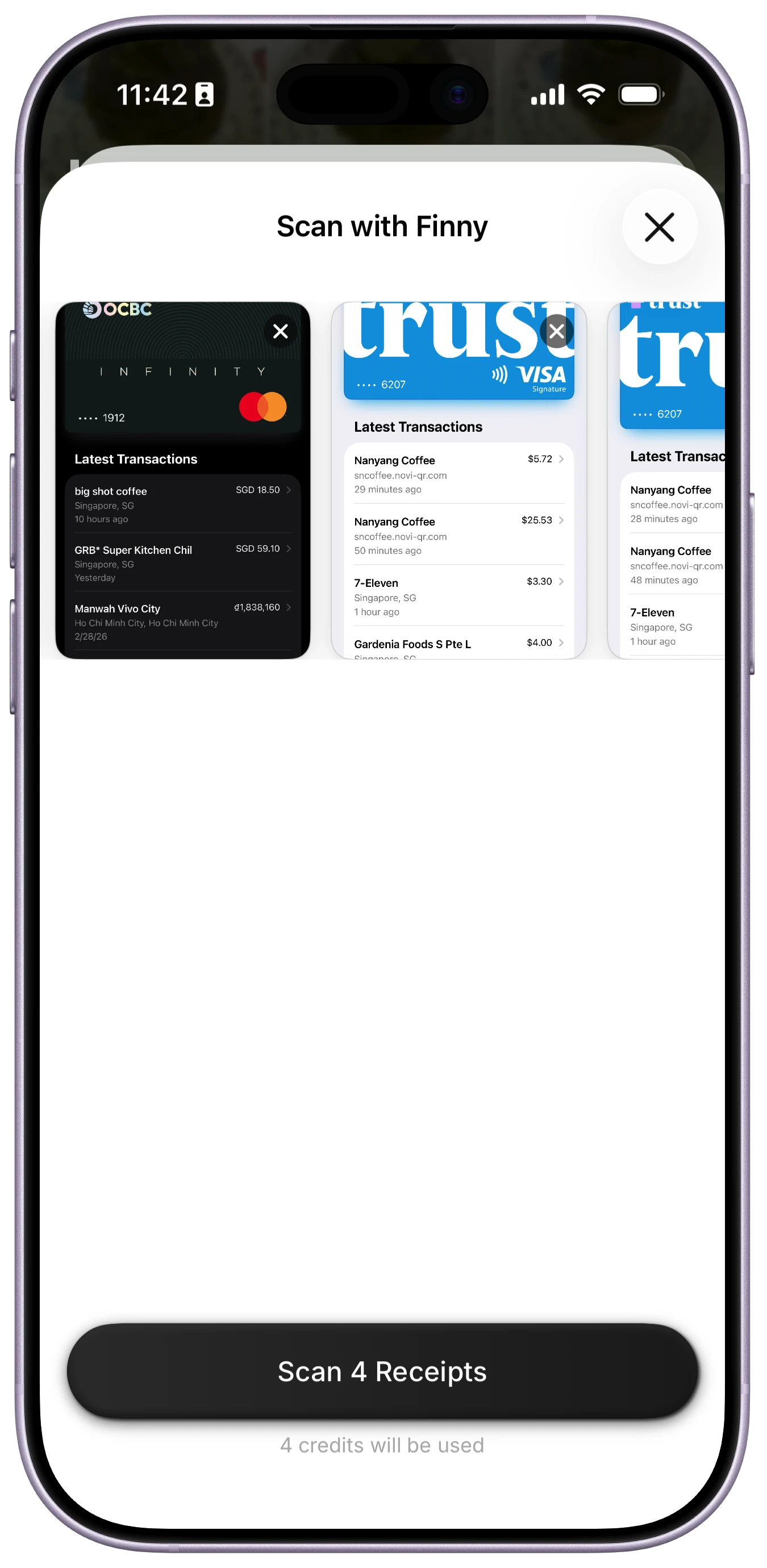
Finny app's batch scanning feature
A 5-minute paperless routine
The system only works if it happens without thinking. Here is a routine that takes a few minutes a week:
- At the register: capture the receipt before you leave the store, or as soon as you get home. Thermal ink starts fading right away.
- For online orders: log the payment from the confirmation screen instead of saving the email for later.
- Once a week: clear any paper that piled up in your wallet. Scan the whole stack at once.
- Shred the originals once the digital copy is saved and the expense is logged, unless a store insists on paper.
- Once a year: export the year's expenses to CSV and copy tax and warranty receipts into your Files folders.
Privacy is worth a minute of thought. Receipts reveal where you shop, what you buy, and when you are away from home. Keep them out of shared albums, avoid uploading them to services you have not vetted, and prefer tools that keep images on your device or in your own iCloud. Our guide on whether receipt scanning apps are safe covers what to check.
Frequently Asked Questions
What is the best way to store receipts digitally?
Keep each receipt attached to the expense it proves, in an expense app that stores photos privately, and add a Files folder for long-term tax and warranty records. That way everyday receipts are searchable by date, amount, and store, while receipts you need for years have a durable, exportable copy.
Are digital copies of receipts legally valid?
Yes, in most cases. The IRS accepts electronic records that are legible and complete, and most retailers and manufacturers accept a photo or PDF as proof of purchase. Make sure the store name, date, items, and total are all readable in the image.
Can I scan receipts with my iPhone without an app?
Yes. Both the Notes and Files apps have a built-in document scanner that crops and flattens receipts. The trade-off is that the scan is not linked to your spending, so you will still need to record the amount somewhere if you budget.
How do I organize receipts on my iPhone?
Use one place per job: an expense app for everyday purchases, and dated folders in Files for tax, warranty, and home receipts. Name files with the date first, add a short note about the purpose, and back everything up to iCloud.
The bottom line
Storing receipts digitally is less about the scanner and more about where the receipt ends up. Photos and Notes are fine for quick, short-lived receipts. Files folders are best for tax and warranty records you keep for years. An expense app that attaches the receipt to the purchase covers everything in between, and turns your receipts into a budget at the same time. Capture at the register, clear the stack weekly, export once a year, and the paper drawer can go.