How to Track Email Receipts From Amazon, Uber, and DoorDash
A growing share of what you spend never produces a paper receipt. Rides, food delivery, online orders, app subscriptions, and concert tickets all send their receipts by email, where they land between newsletters and promotions and then sink. When you finally look at your budget, the $23 dinner delivery and the three Uber rides from last weekend are nowhere to be found.
This guide shows how to track email receipts so they actually reach your budget. You will set up filters that collect every receipt in one place in Gmail or Apple Mail, learn the search terms that find receipts from the big US services, and build a quick routine for logging each one, without forwarding your inbox to a third party or connecting your bank. For the broader picture of online spending, see our guide to tracking online shopping spending.
Why email receipts slip through your budget
Email receipts have three problems that paper receipts do not:
They arrive out of sight. A paper receipt is in your hand. An email receipt arrives silently, often filed under Promotions or Updates, and you never open it.
They are split up. One Amazon order can send an order confirmation, a shipment email for each package, and a separate charge notice. Uber sends a receipt per ride. A month of food delivery can mean thirty emails.
The card statement does not help much. Charges show up as "AMZN Mktp US," "UBER *TRIP," or "DD *DOORDASH," with no detail about what you bought. A budget built from the statement alone puts everything into vague buckets.
The email is actually the best record you have. It shows the real store, the items, the tip, the tax, and the exact total. The job is just to get it from your inbox into your budget before it sinks.
Step 1: Route every receipt into one folder
Start by making receipts collect themselves.
In Gmail:
- In the search bar, type:
subject:(receipt OR "order confirmation" OR "your order" OR "payment received") - Click Show search options, then Create filter.
- Choose Apply the label, create a label called Receipts, and tick Never send it to Spam.
- Optionally tick Skip the Inbox if you want receipts out of the way until review day.
In Apple Mail (iCloud):
- On iCloud.com, open Mail, then Settings and Rules.
- Add a rule: if the subject contains "receipt," move it to a folder called Receipts.
- Repeat for "order confirmation" and "your order."
Search terms for the services most people use:
| Service | Search that finds receipts |
|---|---|
| Amazon | from:auto-confirm@amazon.com |
| Uber and Uber Eats | from:uber.com subject:receipt |
| DoorDash | from:doordash.com subject:order |
| Lyft | from:lyftmail.com subject:ride |
| Apple subscriptions and App Store | from:apple.com subject:receipt |
| PayPal | from:paypal.com subject:receipt |
Sender addresses change from time to time, so check the "from" line on a recent receipt and adjust.
Step 2: Log receipts from the screen, not by retyping
Collecting receipts is half the job. They only matter once they are in your budget with a real category. Retyping each one is where most people give up, so skip the typing.
Finny has a feature that fits email receipts well. Screen Log reads the payment showing on your screen and logs it in one press. Open an Uber receipt, log it, and the amount, merchant, and date are filled in. You choose the category. The capture is attached to the entry as its photo, so the full email receipt stays with the expense, and it never adds a screenshot to your camera roll. Nothing about your inbox is shared: Finny never reads your email, it only sees what you choose to log.
Here is Screen Log capturing a payment from the screen:
If you have a backlog, screenshot several receipts and scan them together. AI reads each one and stages the transactions for review.
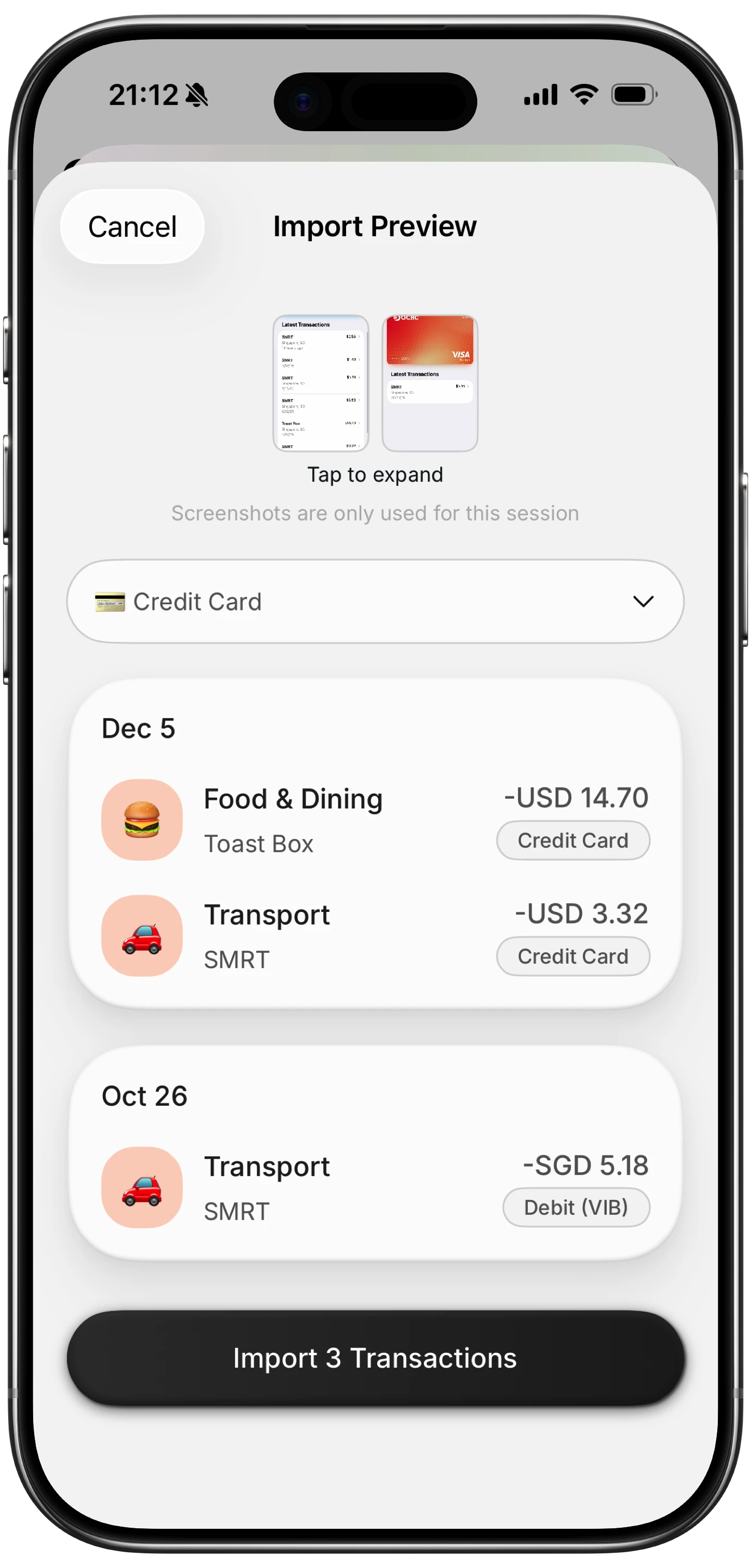
Finny app's screenshot import feature
Step 3: A weekly receipt review
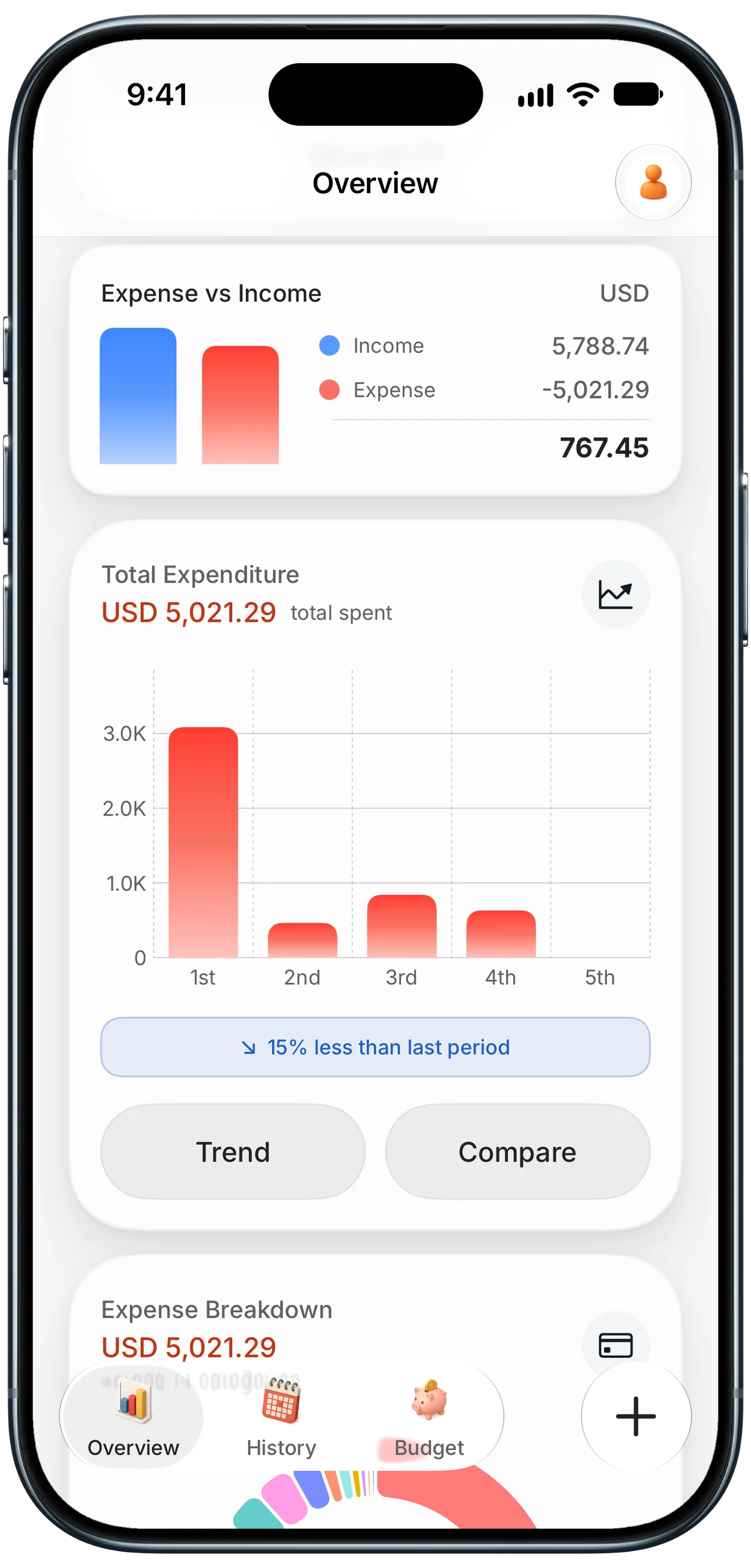
Finny app's Overview feature
Even with filters, receipts need a regular moment of attention. A weekly review takes about five minutes:
- Open the Receipts label or folder on the same day each week.
- Log every receipt you have not logged yet. Start with the oldest.
- Archive each email once it is logged, so the folder only ever holds what is left to do.
- Check the calendar in your tracker for days that look too empty. A Saturday with no food spending usually means a missing delivery receipt.
- Unsubscribe from any marketing that slipped into the folder.
The "inbox zero for receipts" approach is what makes this sustainable. When the folder is empty, you know your budget is complete. When it is not, you know exactly what is missing.
Special cases: tips, refunds, and split orders
Tips added later. Delivery and ride apps sometimes send a second receipt when you adjust the tip. Update the original entry instead of logging a new one, so you do not double count.
Refunds. Keep refund emails in the same folder. When a refund arrives, reduce the original expense or log a negative amount in the same category. Do not treat it as income.
Split shipments. Log the order confirmation total once, then archive the shipment emails without logging them. Amazon may charge your card per shipment, but your budget only needs the order.
Subscriptions. Recurring receipts from Apple, Netflix, or Spotify are better set up once as recurring expenses with reminders. Then the monthly email is just a confirmation, not a to-do. Our guide to stopping subscription creep shows how to audit them.
Venmo and PayPal. Payment app emails often describe a person, not a purchase. Add a note about what the payment was for when you log it. Our guide to tracking Venmo and Zelle payments covers peer-to-peer spending in depth.
Should you connect your inbox to an app?
Some apps offer to scan your email automatically for receipts. It is convenient, but it means giving a third party read access to your entire inbox: bank notices, medical messages, password resets, and personal mail, not just receipts.
| Approach | Convenience | Privacy |
|---|---|---|
| Filters plus manual logging | Medium | Inbox stays private |
| Filters plus logging from screen | High | Inbox stays private |
| Forwarding receipts to an app's email address | High | Only forwarded emails are shared |
| Full inbox access for an app | Highest | App can read everything |
For most people, filters plus logging from the screen hits the sweet spot. You keep the speed without handing over your inbox. If you do choose an app with inbox access, check whether you can limit it to a single label, how long it keeps copies of your email, and how to revoke access in your Google or Apple account settings later.
Frequently Asked Questions
How do I keep track of email receipts?
Create a filter in Gmail or Apple Mail that sends every email with "receipt," "order confirmation," or "your order" in the subject to a dedicated folder. Then review that folder weekly, log each receipt in your budget with a real category, and archive it once it is logged.
How do I find all my receipts in Gmail?
Search for subject:(receipt OR "order confirmation" OR "your order") to find most receipts at once. Add from: with a company's domain to narrow it down, such as from:uber.com. Save the search as a filter with a label so future receipts collect automatically.
Is it safe to let an app scan my email for receipts?
It depends on the access you grant. Full inbox access lets an app read every message, not just receipts. Safer options are forwarding only receipts to the app, or logging receipts yourself from the screen, which keeps your inbox private.
Do I need to keep email receipts after I log them?
Keep them archived, not deleted. Email storage is cheap and archived receipts stay searchable for returns, warranty claims, and taxes. For anything tax-related, keep a copy for at least three years.
The bottom line
Email receipts are the most detailed record of your online spending, and the easiest to lose. Route them into one folder with a filter, log each one from the screen instead of retyping it, and empty the folder once a week. Handle tips, refunds, and split shipments on purpose, keep your inbox private, and the rides, deliveries, and orders that used to vanish will finally show up in your budget.