The 2-Second Log-Anything Shortcut for iPhone (2026)
Most tracking habits die the same way. The thing you want to record happens, you mean to write it down, and by the time you have unlocked your phone and found the right app, the moment is gone. A coffee, a glass of water, a workout, a mood dip: all of it slips past because logging took too long.
There is a fix, and it is one pattern you build once. A log anything shortcut is a tiny automation that asks a question, stamps the time, and drops the answer into a destination you already use. It takes about two seconds to run, and the exact same skeleton works for money, health, and habits.
We will build the pattern in the Apple Shortcuts app, then point it at five different jobs. Expenses is the flagship and gets the most attention. The rest are quick variations on the same moves.
The One Pattern Behind Everything
Every quick-log shortcut, no matter what it tracks, is the same four steps:
- Ask for Input. Collect one value: an amount, a number, a word.
- Choose from Menu (optional). Pick from a short fixed list when you need a category or a label.
- Add a timestamp. Grab the Current Date so every entry knows when it happened.
- Append to a destination. Write the combined line to a Note, a Numbers table, a Reminders list, or an app that exposes Shortcut actions.
That is the whole trick. Change what you ask and where you send it, and the same skeleton logs your spending or your water intake.
The Flagship: An Expense Logger
Money is where fast logging pays off most, because the gap between spending and recording is where budgets quietly fall apart.
- Open the Shortcuts app and tap the + to start a new shortcut.
- Add an amount prompt. Search for Ask for Input, set the type to Number, and use a prompt like "How much?".
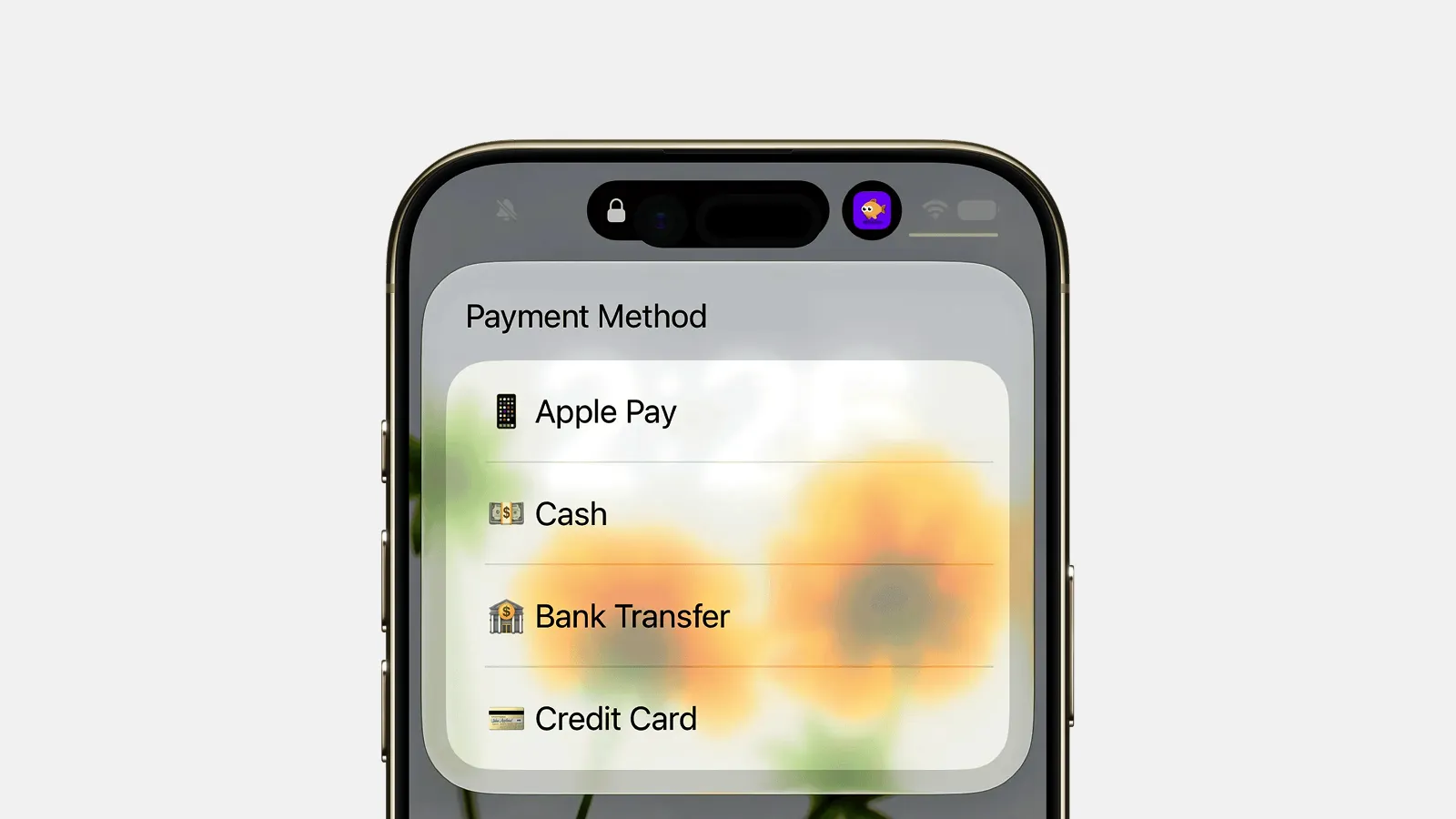
- Add a category. Add Choose from Menu and list your usual buckets: Food, Transport, Groceries, Fun, Bills. A fixed menu is faster and cleaner than free typing.
- Build the row. Add a Text action and combine the pieces, for example
[Provided Input] - [Menu Result] - [Current Date]. Tap the variable chips to insert them. - Send it somewhere. Add Add Row to Table for a Numbers sheet, Append to Note for Apple Notes, or Add New Reminder for a list.
- Name and test. Call it "Log Expense", add it to your Home Screen, run it once, and confirm the row lands.
For the full step-by-step build, follow our iPhone expense tracker shortcut tutorial. If a spreadsheet is your destination, our guide to tracking expenses with Apple Numbers and a Shortcut covers the table setup.
Where the Money Version Starts to Hurt
Here is the one honest catch, and it is specific to expenses. A shortcut is brilliant at capture, but a pile of logged rows still needs work. You are the categorizer every time, there are no running totals, and a Note never adds itself up. Capture is solved. Sense-making is not.
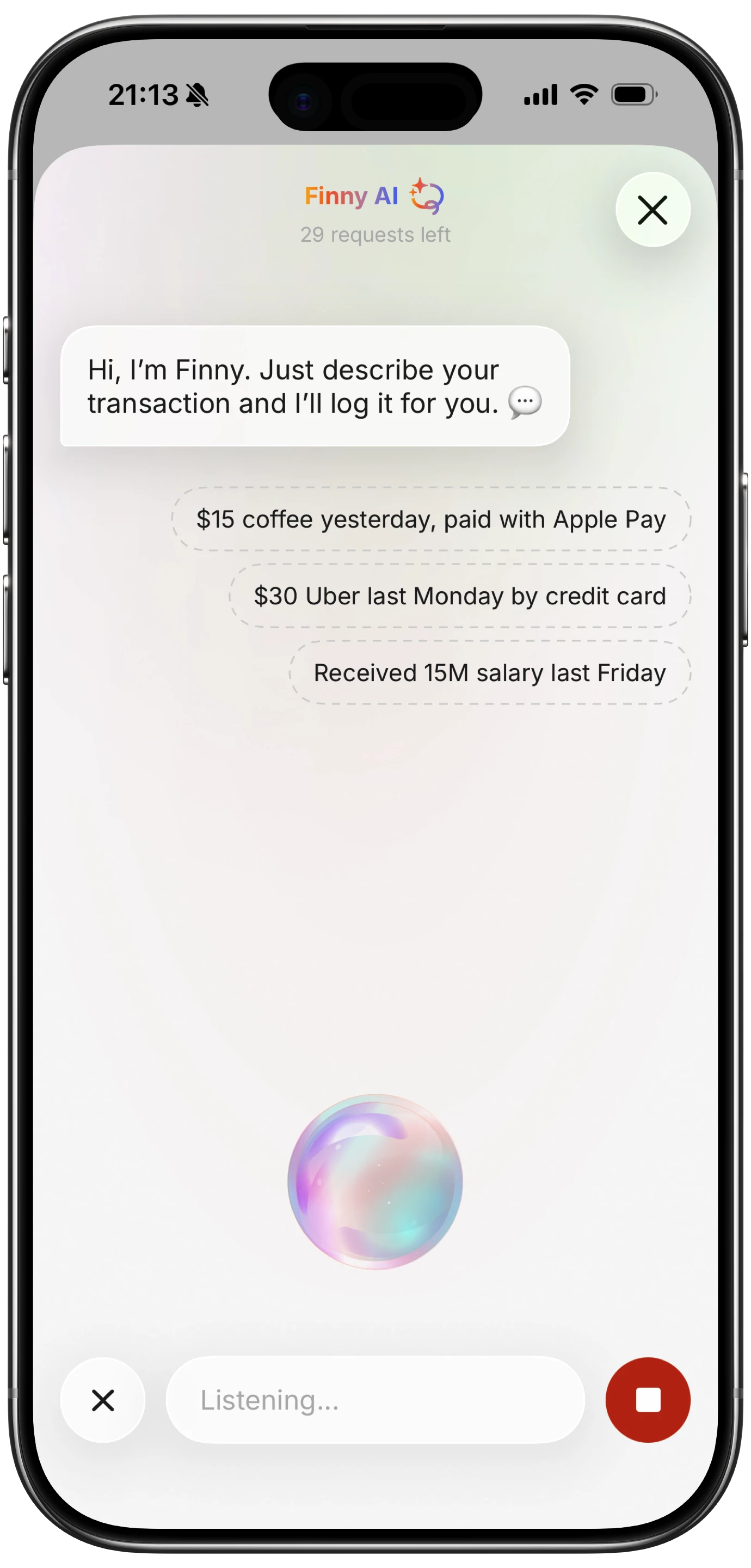
Finny app's voice input feature
This is the one place a maintained app beats a DIY shortcut. Finny exposes the same kind of Shortcut actions you just wired up, then adds AI categorization and running totals, so a spoken "twelve dollars, coffee" lands in the right category with the math already done. You download Finny from the App Store, and because the shortcut lives inside the app, there is nothing to re-download when it updates. If speed of entry is all you want, the DIY version is fine. If you want the totals too, that is the difference.
The Same Trick, Four More Ways
Now the fun part. Money aside, the identical pattern handles plenty of daily tracking, and for these you do not need any app at all. Pure DIY is the right call.
Water Intake
Drop the category menu, ask for a number of glasses or milliliters, and append it to a note titled "Water" or feed it straight into Apple Health with the Log Health Sample action. One tap, one number, done. Because Health already charts your day, you get a running total for free.
Habits
For a simple done-tick, you barely need input at all. A shortcut that appends "Read - [Current Date]" to a "Habits" note logs the streak with a single tap. Add a Choose from Menu if you track several habits from one button: Read, Stretch, Journal, Floss.
Mood
Swap the number prompt for a small scale. Use Choose from Menu with 1 to 5, or a few words like Rough, Okay, Good, Great, then append it with the time. Over a couple of weeks that note becomes a surprisingly honest record of your patterns, at two seconds a day.
Workouts
Ask for an exercise name or pick from a menu, add reps or minutes as a number, and append the line to a "Training" note. It is not a full fitness platform, and it does not need to be: it is a frictionless log you will actually keep, which beats the elaborate tracker you abandon by February.
Wire It to a Trigger
A shortcut you have to hunt for is a shortcut you stop using. Give it a trigger:
- Home Screen or Lock Screen widget: one tap from your first screen.
- Siri: say the shortcut name and answer by voice, hands free.
- NFC tag: stick a programmable tag on your wallet, water bottle, or gym bag, then attach the shortcut under Automation.
- Back Tap: double or triple tap the back of the phone to fire it instantly.
For a wider menu of money-specific triggers and speed tricks, our roundup of ways to log an expense in seconds on iPhone is a good next read.
Frequently Asked Questions
What is a log anything shortcut?
It is a single reusable Shortcuts pattern that captures one piece of information and files it with a timestamp. The skeleton is always the same: ask for input, optionally pick from a menu, add the current date, then append the result to a note, a spreadsheet, Reminders, or an app. Because the structure never changes, you can duplicate it and re-point it at expenses, water, or habits in about a minute.
Do I need a separate shortcut for each thing I track?
Usually yes, and that is fine. Duplicate your working shortcut, change the prompt and the destination, and rename it. Keeping one shortcut per job means each trigger does exactly one thing, which is faster than a giant menu. If you prefer, build a single shortcut that opens with a Choose from Menu asking what to log, then branches from there.
Where should a quick-log shortcut save its data?
Match the destination to the data. Apple Notes and Reminders suit habits, mood, and quick text logs. Apple Numbers fits anything you will want to sort or total later. Apple Health is ideal for water, weight, and workouts because it charts them automatically. For expenses, a finance app that exposes Shortcut actions saves the categorizing and totaling work a plain note leaves to you.
Do these shortcuts work offline?
Shortcuts that write to on-device destinations like Notes, Reminders, or Apple Health run with no internet at all, which is what makes them so quick. Only shortcuts that write to a cloud service, such as a Google Sheet, need a connection to sync, and even those can often queue the entry and send it later. For most quick-log jobs, offline is the normal case.
Is a shortcut enough, or do I need an app?
For habits, water, mood, and workouts, a DIY shortcut is genuinely enough, and we would not push you toward an app you do not need. Expenses are the exception: capture is easy, but categorizing and totaling a growing pile of entries is real work a note cannot do. That is the one place a purpose-built app earns its keep, while everything else stays do-it-yourself.
The Bottom Line
One pattern, many uses. Build the four-step skeleton once, then re-point it at whatever you keep meaning to track. The magic is not in any single shortcut, it is in the two-second habit, and a two-second habit beats a perfect system you abandon in a week. Start with the expense logger, wire it to a trigger, and duplicate it for water or habits when you are ready.