
How to See How Much You've Spent on Amazon (2026)
Amazon makes buying easy and adding up nearly impossible. A pack of batteries here, a phone case there, a Subscribe and Save order you forgot you set up. Each one feels small, but over a year they add up to a number most people have never seen, and are a little afraid to.
This guide shows how to see how much you've spent on Amazon, using the tools Amazon gives you in 2026: the Your Orders page, the Transactions page, and a full data request. It also explains why Amazon no longer offers a simple spending report, how to turn the total into something useful, and how to track Amazon purchases going forward so you never have to dig for the number again. For online shopping in general, see our guide to tracking online shopping spending.
Why Amazon does not show you a total
There is no "you spent $X this year" button on Amazon. The company used to offer an Order History Report that exported orders to a spreadsheet, but it removed that report in March 2023. Since then, getting a total takes a little work.
A few things make the number harder to pin down than it sounds:
- Orders and charges are different. One order can be charged as several shipments, on different days.
- Returns and refunds reduce what you actually spent, but they show up separately.
- Gift cards and promotional credit pay for part of some orders.
- Shared accounts mix your purchases with a partner's or family member's.
- Subscriptions like Prime, Kindle Unlimited, and Audible bill outside the normal order list.
Pick the method below that matches how precise you need to be. For a rough yearly figure, the first one takes a few minutes. For an exact accounting, use the data request.
Method 1: Your Orders, filtered by year
The quickest way to see your Amazon spending is the Your Orders page.
- Go to Amazon and open Returns & Orders (on the app, tap the profile icon, then Your Orders).
- Change the filter from "past 3 months" to a specific year, like 2026.
- Scroll through the orders. Amazon shows the number of orders for that year at the top, and each order shows its total.
- Add up the totals in a spreadsheet or calculator, skipping any orders you returned.
Good for: a rough answer in ten minutes, or spotting categories of spending. Limits: you have to add the numbers yourself, and refunds, digital orders, and subscriptions may not be included in the list. Gift card and promotional credit also make some totals look higher than what you actually paid. If you shop a lot, it can help to do one month at a time rather than a whole year in one sitting.
Method 2: The Transactions page
Amazon's Transactions page lists the actual charges and refunds against your payment methods, which is closer to what hit your bank account.
- Open Your Account and choose Your Payments, then Transactions.
- Scroll by date. Each line shows the amount, the card used, and the related order number. Refunds appear as credits.
- Copy each line for the period you care about into a spreadsheet, and subtract refunds.
Good for: matching Amazon spending to your card statements and budgets, since it shows what was charged and when. Limits: it is a long scroll for a full year, and there is no export button. It also shows charges per shipment, so a single order can appear several times. That is useful when you are matching a card statement, but it means the number of lines will not match your number of orders. Add a column for refunds so the net total is easy to read.
Method 3: Request your Amazon data
For a complete, exact record, ask Amazon for your data.
- Go to Amazon's Privacy Central and choose Request Your Data.
- Select "Your Orders" from the list of categories and submit the request.
- Confirm the request from the email Amazon sends you.
- Wait for the download link. It can take several days.
- Open the order history CSV in Numbers, Excel, or Google Sheets and sum the total amount column for the dates you want.
Good for: an exact multi-year total, or tax and business records. Limits: it is slow, and the files are raw, so you will need to filter out cancelled orders and refunds yourself. Use a pivot table or a simple SUMIF by year to get annual totals in seconds.
Browser extensions that rebuild the old order report also exist. They work, but they need access to your signed-in Amazon account, so read the permissions carefully before installing one.
Turn the total into something useful
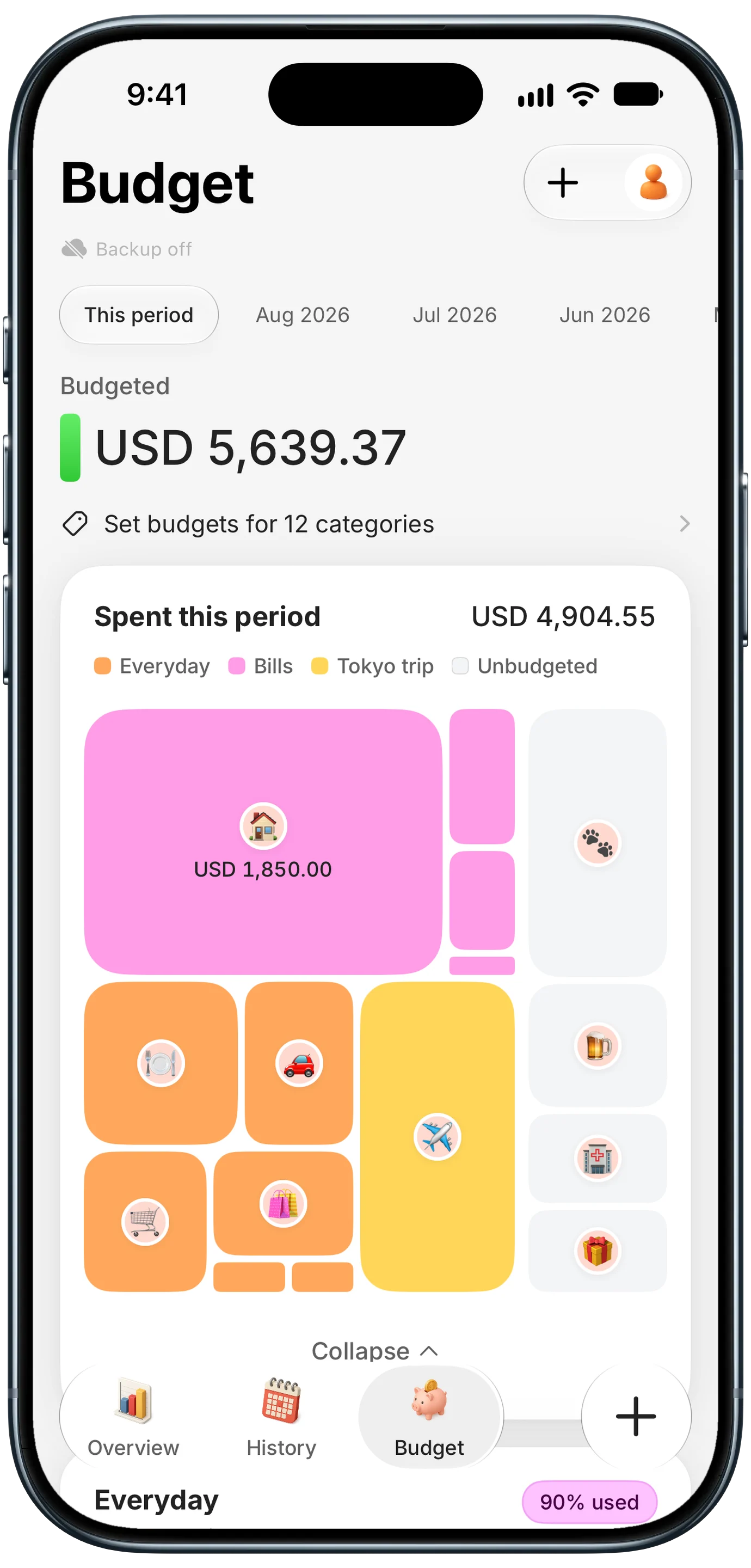
Finny app's budget map feature
A single number is a shock, not a plan. To make it useful, break it down:
| Question | What it tells you |
|---|---|
| What share was household essentials? | How much is genuine need versus convenience |
| How much was under $25? | The "small stuff" that adds up fastest |
| How many orders per month? | Whether shopping has become a habit |
| What did subscriptions cost? | Prime, Subscribe and Save, and digital plans |
| What did you return? | Purchases that were impulse buys in disguise |
The most useful category split is not "Amazon." It is what you bought: groceries, household, kids, gifts, electronics, hobbies. Amazon is a store, not a budget category. Once you see that a third of your "Amazon spending" was actually groceries, your grocery budget makes much more sense. Our explainer on impulse spending covers why small, frictionless purchases are the ones that get away from you.
Track Amazon spending going forward
Digging up a yearly total once is fine. Doing it every year is not. The easier path is to record each order when you place it, so the number is always up to date.
Finny makes this a one-press habit with Screen Log: when the order confirmation is on your screen, Finny reads the payment and logs it with the amount, store, and date. You choose the real category (household, gifts, groceries), so Amazon spending lands where it belongs. The capture is saved with the entry as its photo, which doubles as your receipt for returns, and no bank connection is needed.
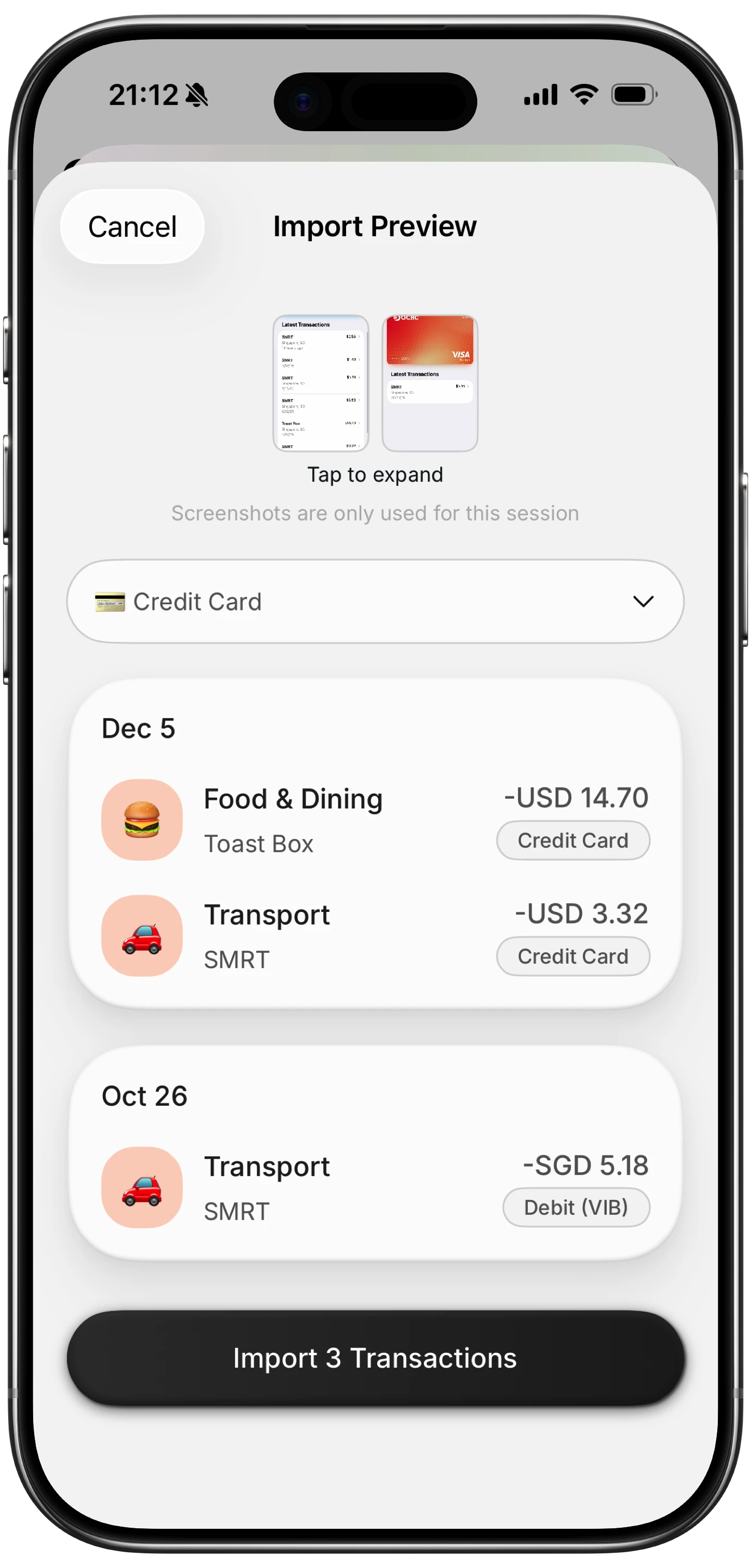
Finny app's screenshot import feature
Here is Screen Log in action:
Logging the order total at checkout also avoids the split-shipment mess, since you record the order once rather than matching three separate charges later. If Amazon order emails are your main record, our guide to tracking email receipts shows how to collect them automatically.
Frequently Asked Questions
How do I see my total Amazon spending for the year?
Open Your Orders, filter by the year, and add up the order totals, skipping returns. For an exact figure, go to Privacy Central, choose Request Your Data, select Your Orders, and sum the total column in the CSV Amazon sends you. The data request is the only way to get a complete, exportable list.
Can I still download my Amazon order history report?
Not the old one. Amazon removed the Order History Report in March 2023. The official replacement is a data request through Privacy Central, which includes your order history as a CSV file. Some browser extensions recreate the old report, but they require access to your Amazon account.
Does Amazon show spending by month?
Not directly. Your Orders can be filtered by year or recent months, and the Transactions page lists charges by date, but neither shows monthly totals. To see Amazon spending by month, export your data or log orders in a budgeting app as you place them.
How can I spend less on Amazon?
Start by tracking every order in real categories for a month. Then remove your saved card or turn off one-click buying, leave non-essentials in your cart for 24 hours, review Subscribe and Save items, and set a monthly limit for online shopping. Seeing the real number is often enough to change the habit.
The bottom line
To see how much you've spent on Amazon, use Your Orders for a quick estimate, the Transactions page to match real charges, and a data request for an exact multi-year total. Then break the number down by what you actually bought, not by store. Once you know it, log each order as you place it, and the Amazon total stops being a scary annual surprise and becomes just another line in your budget.