
iOS 27 Reads Receipts. Do You Still Need a Scanner App?
Point an iPhone 16 at a restaurant receipt in iOS 27 and Siri reads it: every line item, the tax, the tip, as a digital copy you can act on. Apple built this for splitting the bill with Apple Cash, but the question it raises is broader. If the camera can read a receipt now, do you still need a receipt scanner app?
The short answer is that iOS 27 reads receipts and a scanner app keeps them, and those are different jobs. This guide goes through exactly what Siri mode in the Camera app does with a receipt, what happens to the result, where it stops, and which tool fits which person. If you are choosing an app, our best receipt scanner apps for iPhone roundup is the full comparison.
What iOS 27 does with a receipt
Siri mode is the new Apple Intelligence layer inside the Camera app. Apple's September announcement describes it as letting users get information and take action on what is in front of them, and names splitting a bill as the example. Apple's June announcement adds that users can scan a receipt with the camera, or use a photo of a bill, to split it with friends.
In practice, with a receipt in frame you can:
- Read it. Siri makes an itemized digital copy of the receipt: each line, its price, the subtotal, tax and tip. MacRumors' Wallet guide describes Visual Intelligence scanning the receipt and making a digital copy of everything on the list.
- Split it. Tap Split Bill with Apple Cash, assign items to people, and send requests with tax and tip apportioned. Our step-by-step bill splitting guide covers that flow and its requirements.
- Ask about it. Siri mode is conversational, so "what was the tax" or "how much was the wine" work against the receipt on screen.
- Extract the text. Visual Intelligence's copy and extract actions carry over, and in Shortcuts the Extract Text from Image action now has a Tables mode that turns a receipt into rows. Our iOS 27 Shortcuts for money guide has a two-action build for that.
The requirements are the same as the rest of Siri AI: an iPhone 15 Pro, or any iPhone 16 or later, and Siri AI is rolling out as a beta in English first. Bill splitting adds Apple Cash and is US only. On an iPhone 15 or older, Siri mode does not exist, and our guide to iOS 27 on an older iPhone covers what that phone gets instead.
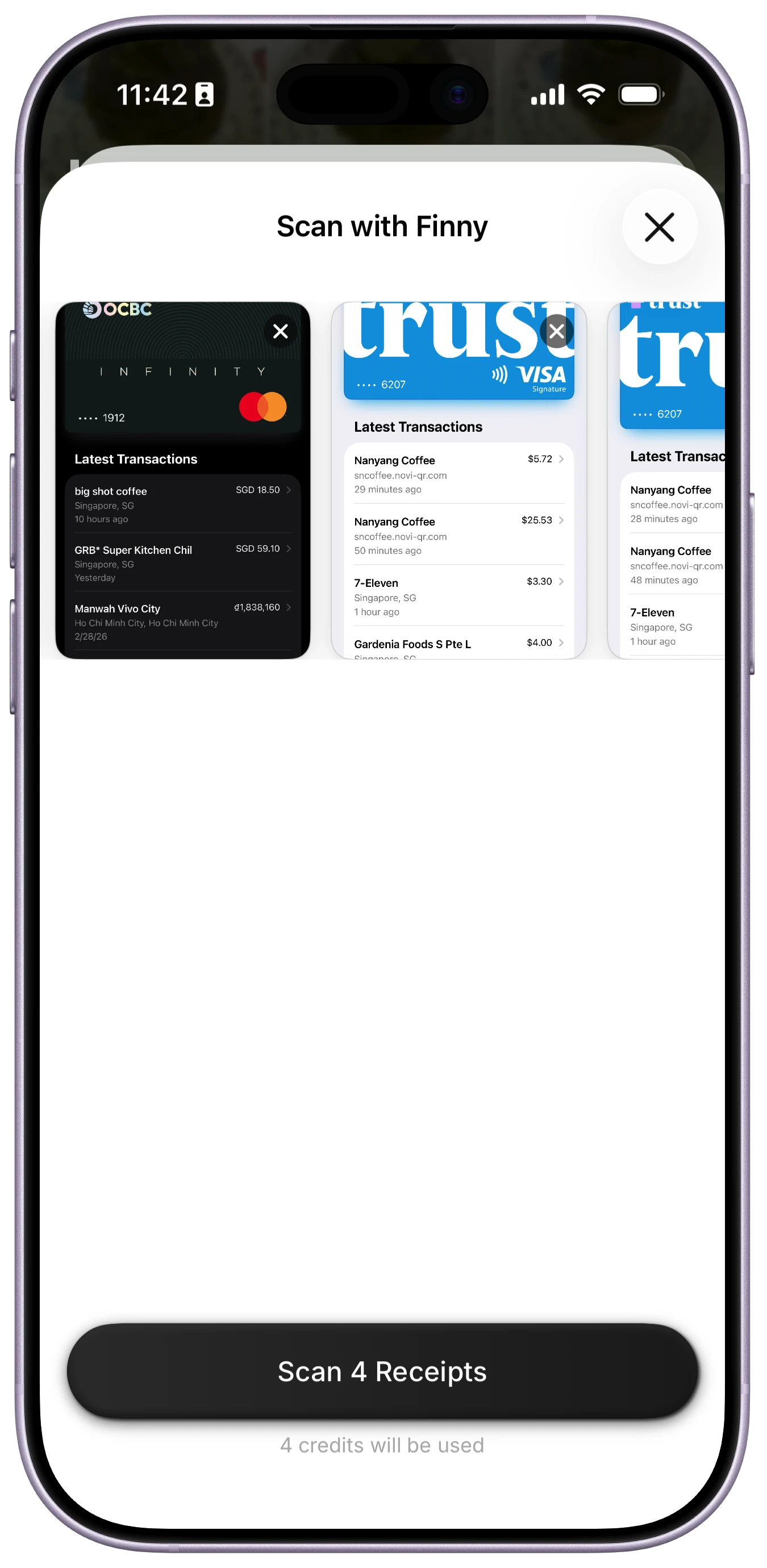
Finny app's batch scanning feature
What happens to the receipt afterward
Nothing. That is the whole comparison in one word.
Siri reads the receipt for the task in front of it, splitting or answering, and then the reading is gone. It is not saved as a document, not attached to a transaction, not categorized as dining, not added to a monthly total, and not searchable next April. If you photographed the receipt first, you have a photo in your library, which is what you had before iOS 27.
For a bill split, that is fine, since the job is done the moment the requests are sent. For expense tracking it is the opposite of what you need. A receipt is worth keeping precisely because of what happens after the meal: the entry in your budget, the total for the month, the proof for a return or a reimbursement.
What a receipt scanner app does that Siri does not
| iOS 27 Siri mode | Receipt scanner app | |
|---|---|---|
| Reads line items, tax, tip | Yes | Yes |
| Creates an expense entry | No | Yes |
| Categorizes the purchase | No | Yes |
| Keeps the receipt image with the entry | No | Yes |
| Several receipts at once | No, one at a time | Yes, in the better apps |
| Receipts from the photo library or email | Photo, yes; email, no | Yes |
| Monthly totals and history | No | Yes |
| Foreign-currency receipts converted | No | Yes, in travel-aware apps |
| Works on an iPhone 15 or older | No | Yes |
| Works offline | Partly | Yes, in offline-first apps |
Three rows decide it. Creates an entry is the reason to scan a receipt at all if you track spending. Several at once is the difference between doing it and not doing it, because receipts pile up and nobody scans them one by one on a Tuesday night. And works on any iPhone is the row that matters to most people, since Siri mode needs a phone from the last two years.
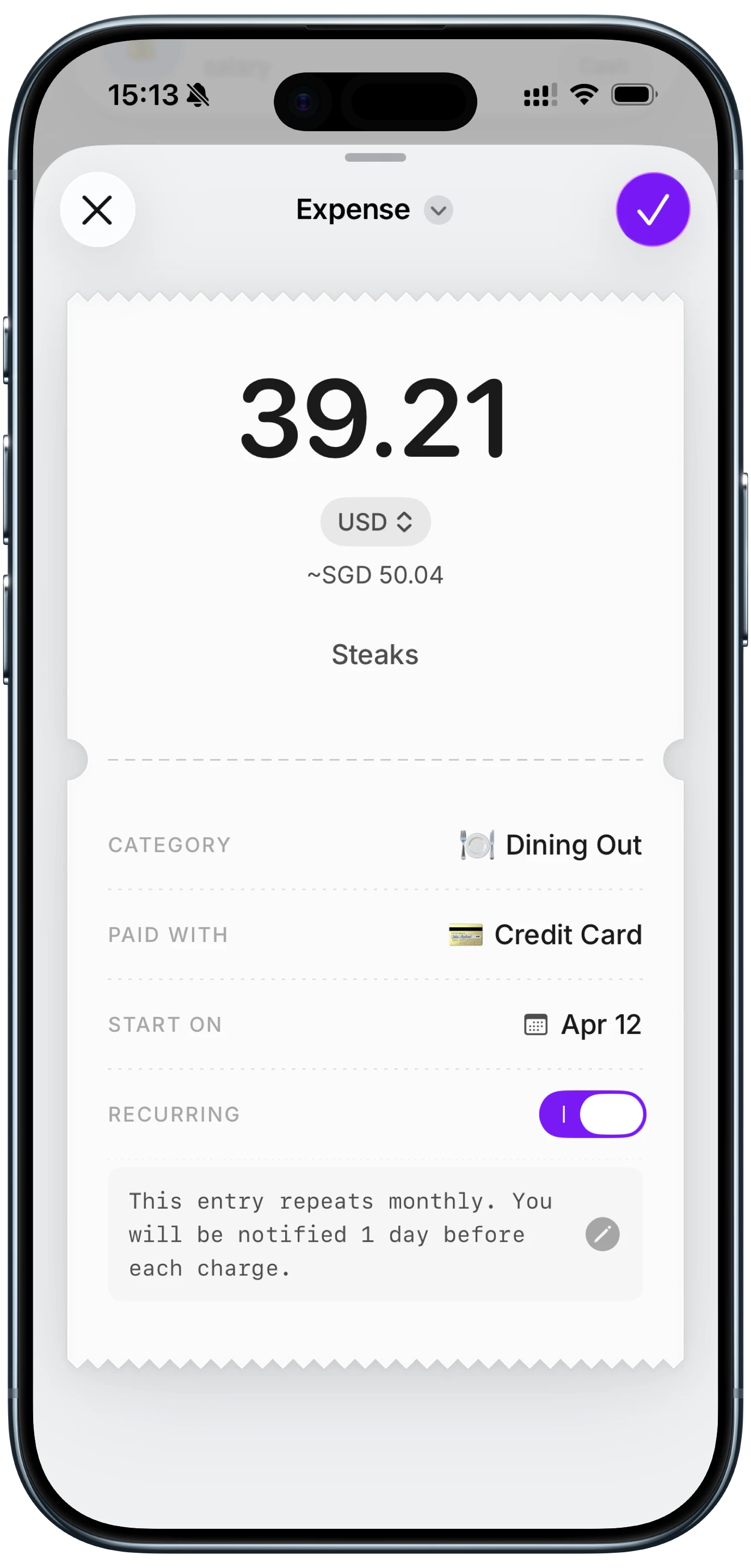
Finny app's expense entry feature
The apps, briefly
The best receipt scanner apps for iPhone roundup has the full comparison. The short version, by who each one is for:
Finny: personal spending
Reads a receipt from the camera or the photo library, several at once, and turns each into a categorized entry with the image attached and the amount converted if it is in another currency. Batch scanning is the feature that makes a backlog of receipts a two-minute job rather than a chore. No bank connection, works offline. The app is free to start and Pro is a low monthly price.
Expensify: expense reports
The business standard. SmartScan reads a receipt into a report line, and the value is in the approval and reimbursement workflow behind it. Right for anyone who submits expenses to an employer, more than most people need for their own money.
Smart Receipts: tax records
Built for keeping receipts as documents, with PDF and CSV export organized for tax time. Strong on the archive, light on the budget side.
Wave and QuickBooks: small business
Receipt capture as part of bookkeeping. If the receipt is going into a ledger that also handles invoices and taxes, one of these is the right home for it.
When Siri mode is enough
If you never track spending and only want the receipt read in the moment, Siri mode is genuinely good, and it is free. Splitting a dinner, checking a tip, confirming an item was charged correctly before you leave the table: all of that is faster in the Camera app than in any scanner.
The moment you want the receipt to mean something next week, you have moved into scanner-app territory. That is not a criticism of Apple's feature. It was built to settle a bill, and it does.
How the two fit together
The practical setup for someone with an Apple Intelligence phone: use Siri mode at the table for the split, then log your own share with a scanner app so it lands in your budget. The receipt photo you already took for the split is the input for the scan, so the second step is a few seconds. Our bill splitting guide covers logging the share.
Here is a short look at logging a payment from what is on screen, which handles the digital receipts, order confirmations and statements that no camera can photograph.
For more on how well AI reading of receipts actually holds up, including the faded-thermal-paper problem that affects Siri mode and scanner apps alike, our piece on AI receipt OCR accuracy goes through the failure cases.
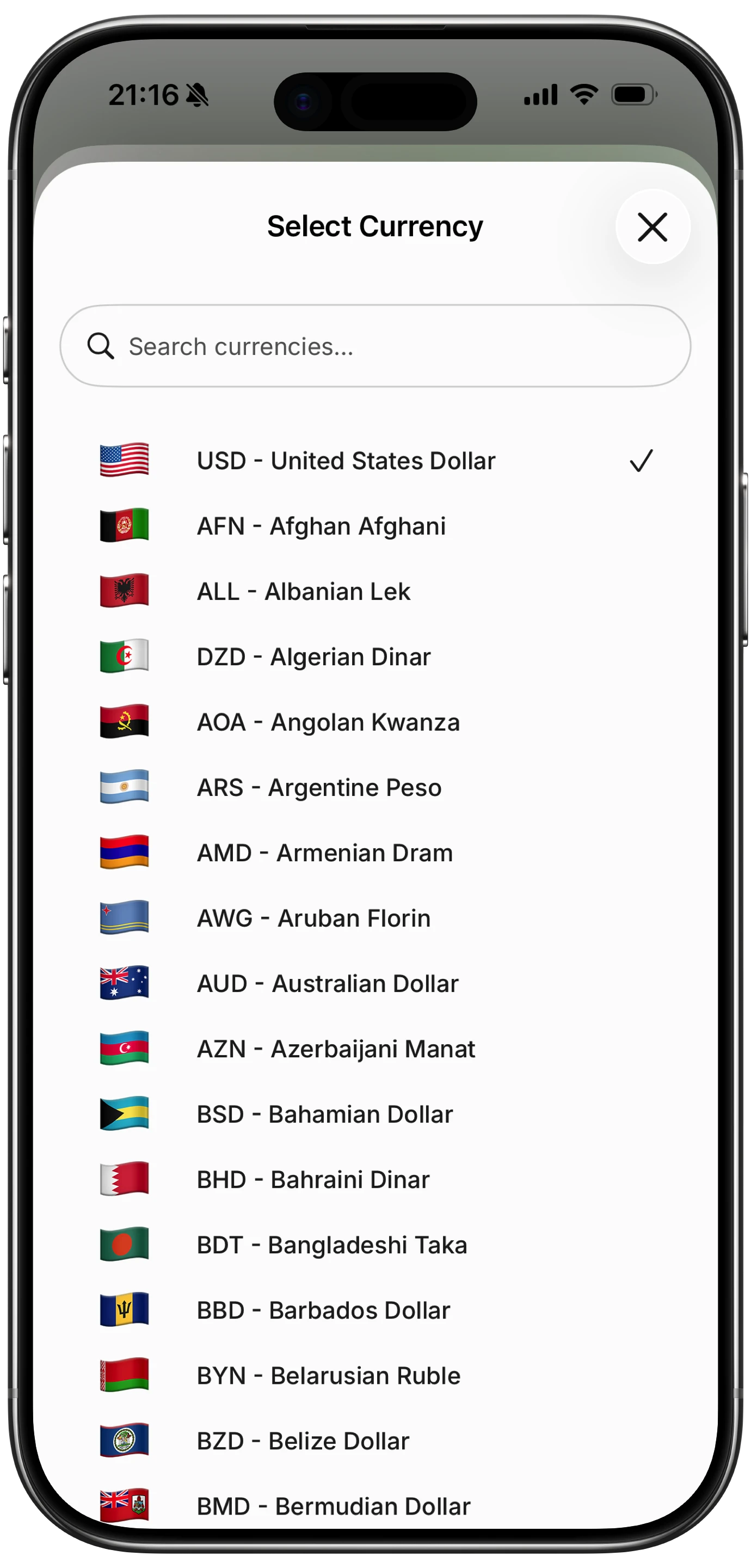
Finny app's multi-currency feature
Common Questions About Receipt Scanning in iOS 27
Can iOS 27 scan receipts?
Yes, on an Apple Intelligence iPhone. Siri mode in the Camera app reads an itemized receipt into a digital copy, answers questions about it, and can split it with Apple Cash. It does not save the receipt, create an expense entry or categorize the purchase, so for tracking spending you still need a scanner app.
Does iOS 27 replace a receipt scanner app?
Not for expense tracking. Siri mode reads a receipt for the task in front of it and keeps nothing afterward. A scanner app turns the receipt into a categorized entry with the image attached, handles several receipts at once, and keeps the history. If you only ever split bills, Siri mode is enough.
Which iPhones can read receipts with Siri in iOS 27?
iPhone 15 Pro and 15 Pro Max, and every iPhone 16 and later, since Siri mode is part of Siri AI and needs Apple Intelligence. Siri AI is rolling out as a beta in English first. On older iPhones, a receipt scanner app does the reading instead.
Can I scan several receipts at once in iOS 27?
Not with Siri mode, which works on one receipt at a time. Batch scanning, where you select a stack of receipt photos and get an entry for each, is a scanner-app feature. It is the one that makes a backlog of receipts manageable.
Does Siri mode save the receipt anywhere?
No. If you photographed the receipt, the photo is in your library as it always was. The itemized reading Siri produces is used for the split or the question and then discarded. To keep a receipt attached to an expense, scan it with an app that stores the image with the entry.
iOS 27 reads the receipt. Your budget needs it kept. Finny scans receipts in batches into categorized entries with the image attached, on any iPhone, with no bank connection. Free to start, Pro at a low monthly price.