Split Any Bill in iOS 27: Scan the Receipt, Pay by Item
Splitting a dinner bill evenly takes ten seconds and is wrong most of the time. Splitting it by what each person actually ordered, with tax and tip apportioned fairly, is the version everyone wants and nobody does, because it means a calculator, a photo of the receipt in the group chat, and someone being the accountant.
iOS 27 automates exactly that half. Point the camera at an itemized receipt, let each person tap what they had, and Wallet works out everyone's share including tax and tip, then sends Apple Cash requests. This guide covers how to split bills in iOS 27 end to end: the requirements that trip people up, the steps, what the other people at the table see, and the one thing the feature does not do, which is remember that the dinner happened at all. Our roundup of Splitwise alternatives covers the apps that keep a running ledger, for the cases where you need one.
Requirements before you start
Apple lists the conditions in the footnote to its June announcement, and every one of them matters:
- US only. Settlement runs through Apple Cash, which is a US-only service. Apple's own footnote reads: only available in the U.S. on eligible iPhone and iPad devices.
- Siri AI on an Apple Intelligence phone. The receipt reading is a Siri AI feature, so you need an iPhone 16 or later, or an iPhone 15 Pro or Pro Max. Siri AI is also rolling out as a beta, in English first, per Apple's Siri AI announcement, and is not available to users under 13.
- Apple Cash set up. Settings, then Wallet & Apple Pay, then Apple Cash. Apple's Apple Cash page covers setup and the identity verification that unlocks higher limits.
- An itemized receipt. The feature parses line items. A card slip with a single total gives it nothing to split by item, though an even split still works.
- Everyone else needs Apple Cash too, to pay their share. A friend on Android, or on an iPhone without Apple Cash configured, can still see how much they owe but cannot settle through this flow.
That last one is the practical ceiling. At a table of six, one person outside the ecosystem sends the whole group back to the group chat. Plan for it rather than discovering it at the table. Apple Cash setup is step one in our iOS 27 money settings to change on day one list for exactly this reason, and iOS 27 Wallet: bill splitting, Insights and the gaps covers what else changed in Wallet.
How to split a bill in iOS 27
- Open the Camera app and switch to Siri mode. You can also start from a photo of the receipt in your library, or from the receipt-scan option in Messages or Wallet. Apple's newsroom describes Siri mode as the Camera integration that lets you get information and take action on what is in front of you, and names splitting a bill as the example.
- Point the camera at the receipt. Flat, well lit, whole receipt in frame. Siri reads the line items and builds a digital copy.
- Tap the Split Bill with Apple Cash button when it appears.
- Choose the people at the table from your contacts.
- Assign items. Each person selects what they had. Tax and tip are apportioned automatically in proportion to each person's subtotal, so the person who had the $9 salad is not covering a fifth of the $60 bottle.
- Review the amounts, then choose Request to ask each person for their share, or Pay Your Share if someone else picked up the check and you are settling with them.
- Send. Each person gets an Apple Cash request in Messages that they can pay with a tap.
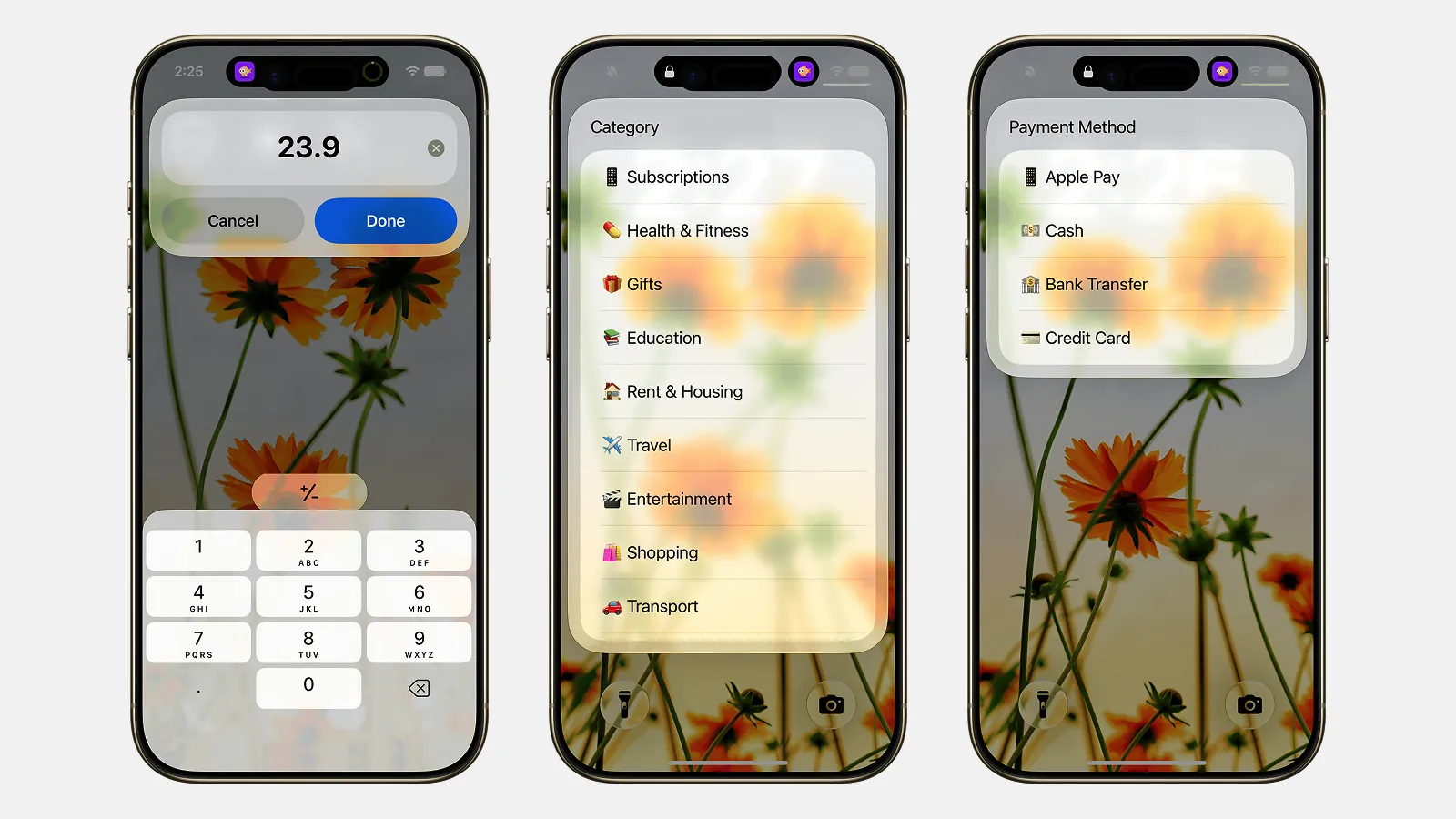
Finny app's Quick Log feature
Engadget's walkthrough adds one setup tip: if you use Visual Intelligence from Control Center rather than the Camera app, add the Visual Intelligence control first, since it is not in the default layout.
What the other people see
Each person receives a standard Apple Cash request in Messages, with the amount and a Pay button. They do not need to have been part of the scan or to install anything, as long as Apple Cash is on their phone. If they have never set it up, they will need to before they can pay, and that is a poor moment to be doing identity verification, which is why the requirements section leads with it.
Requests sit in Messages until paid, so there is a record of who has settled. There is no group view of the whole bill afterward, and that leads to the gap.
What it does not do: the ledger
Apple's feature settles one bill, once. It does not keep a running balance between you and a roommate, remember that you covered the cab and they covered dinner, or add the dinner to your own spending for the month.
For the shared-household case, a dedicated app still wins. Splitwise keeps the running balance, and our Splitwise pricing breakdown covers what the free tier still includes. For a trip, our guide to splitting expenses on a trip walks through the setup.
For your own budget, the missing step is logging your share. Whether you paid the whole check and got reimbursed, or paid your slice by Apple Cash, the number that belongs in your spending is what you ended up out of pocket, and nothing in the split flow writes that anywhere. Our piece on Apple Cash vs Apple Pay for tracking explains why Apple Cash payments in particular slip through most tracking.
Logging your share in seconds
The whole point of the iOS 27 flow is that nobody types anything, so the logging step should not undo that. A modern expense tracker app takes a line like "32 dinner with Sam, Apple Cash" typed or spoken and turns it into a categorized entry, or reads the receipt photo you already took for the split.
Finny does both, and if you paid the check on a card, the payment can be logged as you make it, so the entry is already there and you only adjust the amount down to your share once the reimbursements land. That is the shape that keeps a group dinner from becoming a $180 line in your food budget when your part was $32.
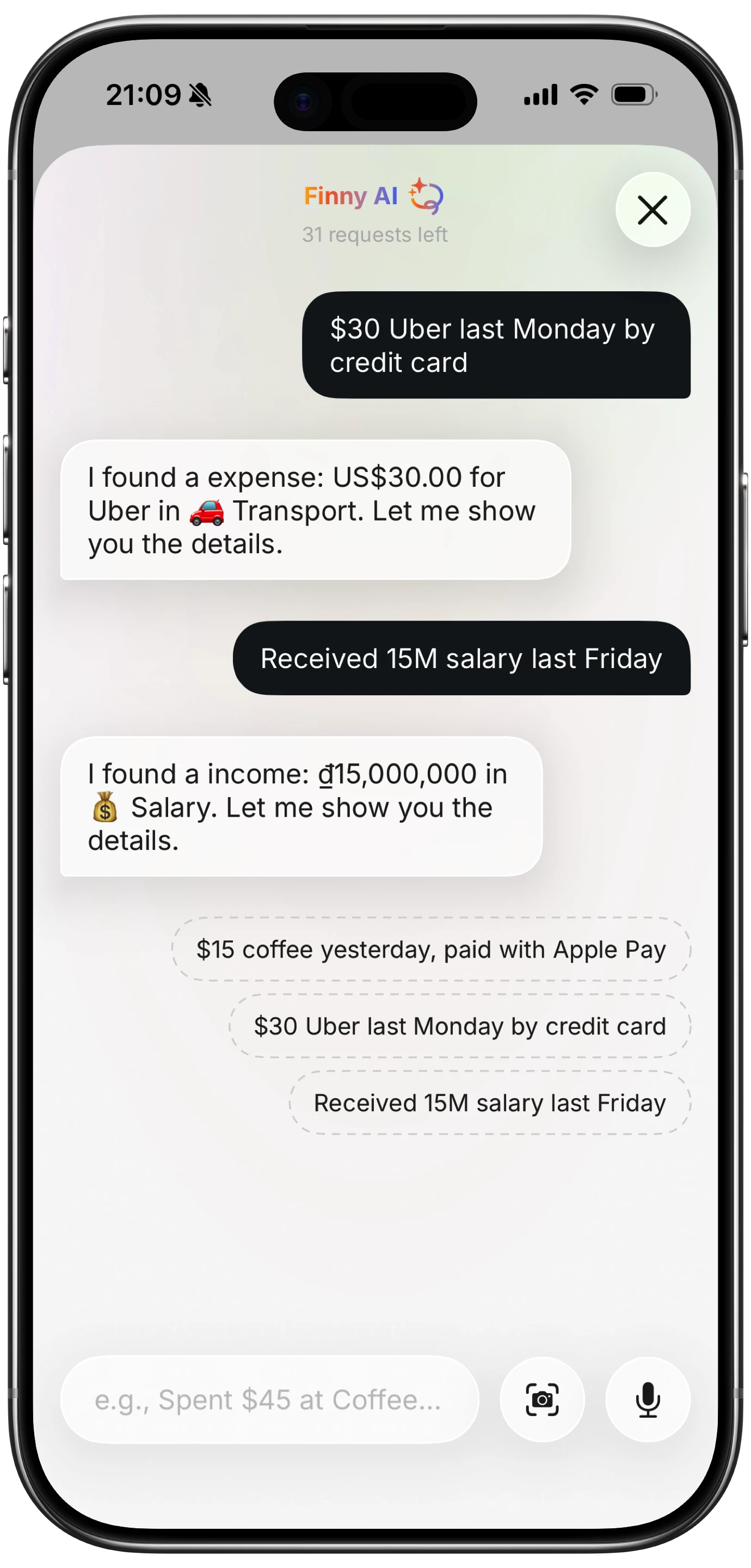
Finny app's AI chat feature
Here is a quick look at logging any payment from what is on screen, which covers an Apple Cash request the moment you pay it.
For a broader hands-on with the iOS 27 features around this one, Joanna Stern's iOS 27 video covers Siri mode in the Camera app.
Troubleshooting
The Split Bill button never appears. Check the three requirements in order: you are in the US, the phone supports Apple Intelligence and Siri AI is on, and Apple Cash is set up. The button is a Siri AI action, so on an iPhone 15 or older it will not exist.
The receipt scanned but items are wrong. Retake it flat and closer. Faded thermal receipts and receipts with handwritten additions read badly. If the scan is still off, an even split of the total is the fallback.
One person cannot pay. They do not have Apple Cash. You can still see their share and settle any other way, and the request will sit in Messages if they set Apple Cash up later.
Tip is not on the receipt. Add it before assigning items so it is apportioned. If it was written on the slip after the itemized receipt printed, enter it by hand.
Common Questions About Splitting Bills in iOS 27
Does iOS 27 split bills automatically?
Yes, in the US. Scan an itemized receipt using Siri mode in the Camera app, or from a photo, choose the people, and each person picks the items they had. Wallet apportions tax and tip and sends Apple Cash requests for each share. It needs Siri AI on an iPhone 16 or later or an iPhone 15 Pro, plus Apple Cash.
Which iPhones can split bills in iOS 27?
Any iPhone that runs Apple Intelligence and Siri AI: iPhone 16 models and later, including iPhone Air, and iPhone 15 Pro and 15 Pro Max. Older iPhones get the rest of iOS 27 but not this feature, since the receipt reading is a Siri AI action.
Do my friends need Apple Cash to split a bill?
To pay through the feature, yes. Each person receives an Apple Cash request in Messages and settles with a tap. Someone without Apple Cash, or on Android, can still see their share, but you will need to collect it another way.
Does the iOS 27 bill split handle tax and tip?
Yes. Tax and tip are divided in proportion to each person's items rather than evenly, so someone who ordered less pays less of both. Add the tip before assigning items if it is not printed on the receipt.
Does splitting a bill in iOS 27 track my spending?
No. The flow settles one bill and then forgets it. Your own share is not recorded anywhere, so if you budget, log what you were actually out of pocket in an expense tracker afterward. Card payments can be logged as they happen, and an Apple Cash share can be logged from the screen or a typed line in a few seconds.
iOS 27 settles the bill. Your budget still needs your share. Finny logs it from a receipt, a typed line, or the payment itself, with no bank connection. Free to start, Pro at a low monthly price.