Track Online Purchases Automatically on iPhone (2026)
Paying in a store leaves a trail you can feel. You tap your phone, the terminal beeps, and you know you just spent money. Online checkout has none of that. Your card is saved at Amazon, your streaming services bill themselves on the same day every month, and a food delivery order takes two taps. The money leaves, but nothing in your hand marks the moment.
This guide covers how to track online purchases automatically on iPhone: why online spending is the part of a budget that slips through, which methods actually catch card-on-file charges, how they compare, and how to avoid logging the same purchase twice. None of the methods below need a bank connection. If you want the bigger picture on online spending habits first, read our guide to tracking online shopping spending.
Why online purchases are the hardest to track
In-person spending has a natural capture point: the moment you pay. That is why automatic tracking of card taps works so well. An expense tracker that logs Apple Pay card payments as you make them, with no bank connection, can put a coffee or a grocery run in your budget before you have left the counter, as in the lock screen below.
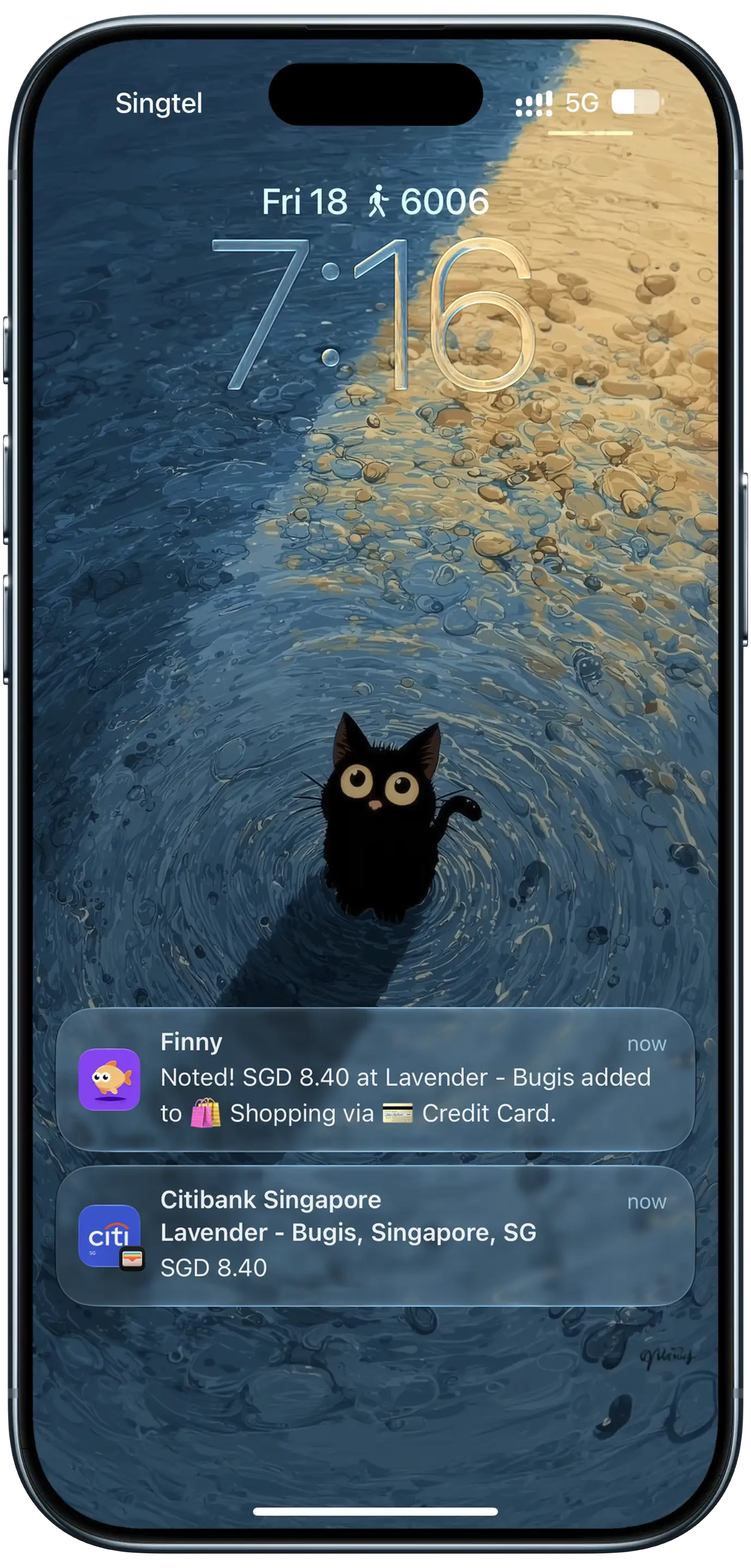
Finny app's Tap to Track feature
Online purchases do not work that way. There is no tap, so tap-based tracking does not catch them. And online spending has its own quirks that make it easy to lose:
- Saved cards remove the pause. A one-click checkout gives you no moment to notice the total.
- Charges land later than the order. Many large retailers, Amazon included, charge your card when an item ships, not when you order. A single order can show up as several charges over a few days.
- Card-on-file billing is invisible. Subscriptions, app purchases, ride shares, and delivery apps charge a card you entered months ago. You never see a checkout page at all.
- Foreign stores bill in other currencies. An order from an overseas shop may charge in euros or pounds, and the dollar amount on your statement will not match the price you saw.
The result: in-store spending gets tracked, online spending gets estimated, and the estimate is usually low. Our breakdown of how much you have really spent on Amazon shows how big that gap can get.
Method 1: Turn card purchase alerts into entries automatically
Your card issuer already knows about every online charge, and most issuers can tell you about it the moment it happens. The first step is on the bank side:
- Open your card's app and find Alerts or Notifications.
- Turn on alerts for every purchase, with the threshold as low as the app allows, ideally $0 or $1.
- Add alerts for online or card-not-present charges if your issuer offers them, since that is exactly the category you want covered.
- Choose push notifications, so the alert reaches your iPhone within seconds.
Our walkthrough on turning bank alerts into an expense tracker has the menu paths for Chase, Bank of America, Wells Fargo and Capital One.
On iOS 27, Finny can take it from there with Notification Log. Payment notifications from the apps you pick become entries on their own. When your card app sends its "you made a purchase" alert for an Amazon order, the charge is logged with the amount and currency from the alert, and a confirmation shows what was filed, something like "Got it! USD 34.99 at Amazon, filed under Shopping via Chase Sapphire."
Here is what that looks like on an iPhone:
Why this works well for online spending:
- It catches card-on-file charges. Subscriptions, in-app purchases, and delivery orders all produce a purchase alert if your issuer sends one for every charge, so they get logged even though you never saw a checkout page.
- Category and card are filled in. Both are guessed from each notification, and you can set a category and card for each app, which is the way to get the right card every time.
- Your card's own app is the right source. A shopping app that sends promotions all day is not.
- No bank connection. Only notifications from the apps you pick are read, the notification itself is not kept, and no bank login is involved.
It needs iOS 27 and Finny Pro; see how Notification Log works and its limits.
Method 2: Log the order confirmation from your screen
Sometimes you want more than the card alert gives you. A purchase alert says "Amazon, USD 34.99." The order confirmation says what you actually bought. If you care about the difference between household supplies and a gift, logging from the confirmation is the more detailed record.
The confirmation page already has the store, total, and date in one place, and so does the receipt in your email or the transaction in your card's app. You can type those details in, or use an expense tracker that logs a payment straight from what is on your screen. Here is what logging an online order from the screen looks like:
The tradeoff is that this happens at checkout, when you choose to log. It will not catch the subscription that renews at 3 a.m. For that, the card alert is the better net.
Method 3: Email receipts and manual entry
Almost every online purchase sends an email receipt, which makes your inbox a complete, if messy, record. A weekly pass through your receipts folder, logging each one, catches everything as long as you keep the habit. Our guide to tracking email receipts covers filters and folders that make this faster.
Manual entry is the fallback that always works. Type the amount, pick a category and card, done. With AI text input you can type "Amazon 34.99 shopping" and get a filled-in entry to confirm.
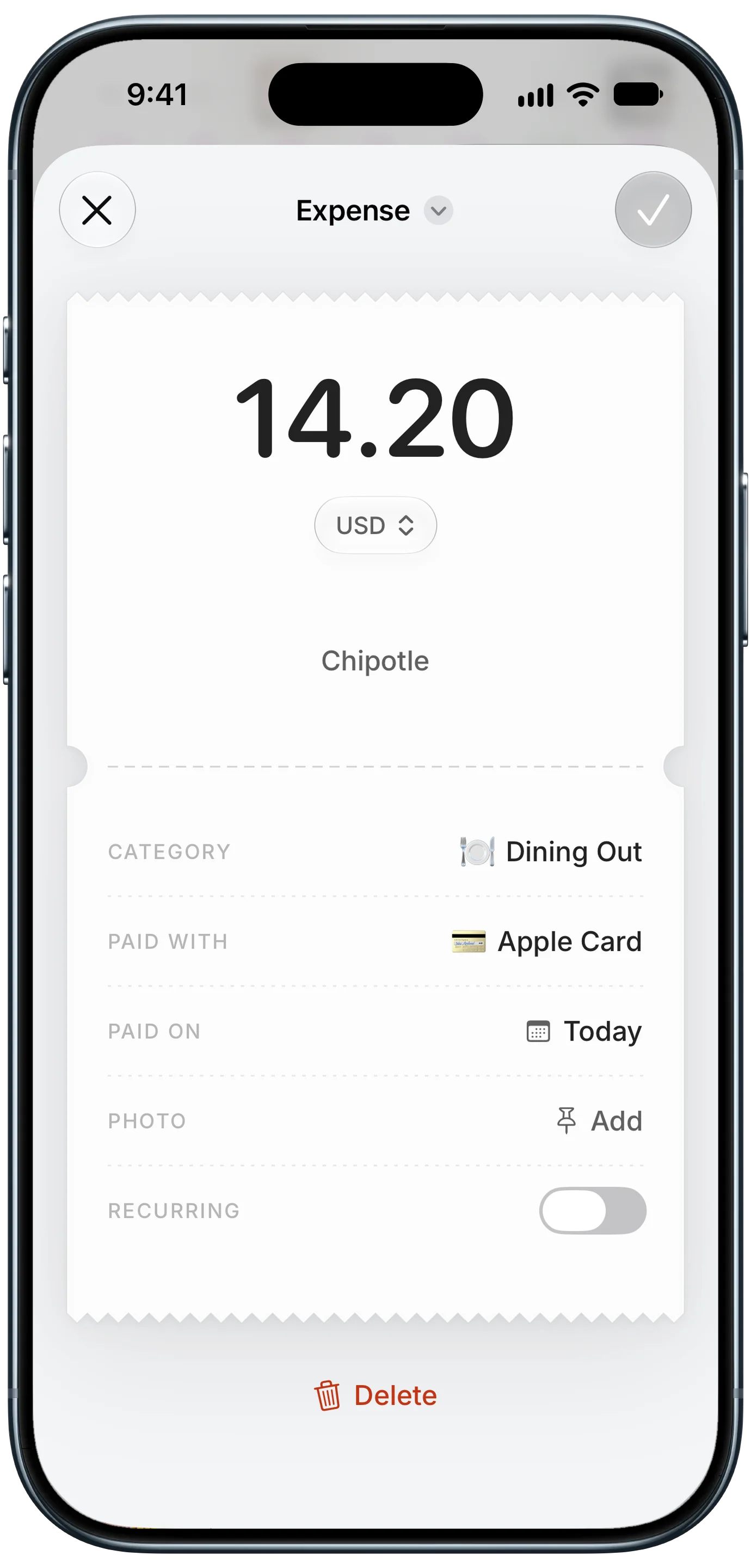
Finny app's expense entry feature
The weakness of both is the same: they depend on you remembering. Online spending is exactly the kind you forget, which is why the automatic options above exist.
Comparing the methods
| Method | What it catches | Effort | Detail | Needs |
|---|---|---|---|---|
| Card alert becomes an entry | Every charge your issuer alerts on, including subscriptions | None after setup | Store, amount, card | iOS 27, issuer alerts on, an app that logs alerts |
| Order confirmation on screen | Orders you log at checkout | One step per order | Store, total, items on screen | A tracker that logs from your screen, or typing |
| Apple Pay tap capture | In-store card taps only, not online purchases | None after setup | Store, amount, card | A tracker that logs Apple Pay taps |
| Weekly email receipt review | Everything with a receipt | High | Full receipt | A weekly habit |
| Manual entry | Whatever you remember | Medium per purchase | Whatever you type | Nothing |
| Bank-sync budget app | Posted transactions | None after setup | Merchant string, often cryptic | Bank login, 1 to 3 days delay |
For most iPhone users on iOS 27, the strongest setup is card alerts for automatic capture, plus the order confirmation when you want item detail on a specific order. If you are on iOS 26 or earlier, logging the confirmation at checkout and a weekly email receipt pass cover the same ground with a little more effort.
Avoid logging the same purchase twice
Combining methods is smart, but two methods aimed at the same purchase will produce two entries. The bookkeeping rule is simple: give every purchase one path into your tracker. Watch for these overlaps:
- Card alert plus order confirmation. If your card alert already logs every Amazon charge, logging the order confirmation too will double it. Pick one path per store: alerts for routine charges, or the confirmation for orders where you want detail. If both land, delete the extra entry.
- Card alert plus an Apple Pay record. Some banks send a notification for every Apple Pay tap. If you also record those taps another way, decide which source owns that card.
- Card alert plus a recurring entry. If you already set up a subscription as a recurring expense, the card alert for that same charge is a second copy. Either keep the recurring entry or rely on the alert, not both. Our guide to tracking subscriptions on iOS 27 covers the recurring side.
- Paying off the card itself. Paying a credit card from checking can send one alert per side. Neither is a purchase, since the purchases were already counted when you made them, so leave both out of your spending.
A quick weekly scan of your history for two entries with the same amount on the same day catches most doubles before they distort a month.
Online purchases in other currencies
Ordering from a store abroad is where online tracking usually breaks down. The price on the site was in euros, the alert may show either currency depending on your issuer, and the statement shows a dollar figure that includes a conversion you never saw.
The fix is to record each purchase in the currency it was charged in and let your expense tracker convert the total. Pick one that keeps the original amount on each entry and adds everything up in your home currency. That way a GBP order, a JPY app purchase, and your usual USD spending all land in one monthly total without you converting anything, and you can still see what each order cost in the store's own currency.
The bottom line
Online purchases slip past budgets because there is no moment of payment to capture. The fix is to move the capture point somewhere that does exist: your card's purchase alert, the order confirmation, or your inbox. On iOS 27, turning card alerts into entries is the closest thing to fully automatic. Logging the order confirmation fills in item-level detail when you want it, and email receipts plus manual entry remain a reliable backstop. Whichever you combine, give each purchase one path into your tracker, and your online spending will finally match your statement. For more ways to track without linking accounts, see our roundup of expense trackers with no bank login.
Common Questions About Tracking Online Purchases
Can I track online purchases automatically without linking my bank?
Yes. Turn on purchase alerts in your card issuer's app, then use an expense tracker that turns those alerts into entries. On iOS 27, Finny's Notification Log does this, reading only the notifications from apps you choose and not keeping them. No bank login or account connection is involved, and the entry is logged as soon as the alert arrives.
Does Apple Pay tracking catch online purchases?
Tap-based tracking logs in-store Apple Pay card taps as you make them. It does not catch online purchases, card-on-file subscriptions, or orders placed on a website with a saved card. For those, use your card's purchase alerts, log the order confirmation from your screen, or review email receipts. Most people combine tap capture for stores with one of these for online spending.
How do I track subscriptions charged to a saved card?
Make sure your card issuer sends an alert for every charge, not just large ones, so renewals produce a notification. Then either let those alerts become entries automatically or set each subscription up as a recurring expense. Use one approach per subscription so the same charge is not logged twice.
Why does one Amazon order show up as several charges?
Amazon and many other large retailers charge your card when items ship, not when you place the order. If an order ships in several boxes, you can see several smaller charges on different days. Tracking from card alerts records each charge as it happens, which matches your statement, even when the order total on the confirmation page does not.
Do I need iOS 27 to track online purchases on iPhone?
Only for turning payment notifications into entries automatically, which needs iOS 27 and an app built for it. On earlier versions, you can still log order confirmations from your screen, scan email receipts, or add entries by text, voice, or manual input. Turning on purchase alerts with your card issuer helps on any iOS version, since each alert reminds you to log the charge.
Ready to catch the purchases that never touch a card reader?
Download Finny to log online orders, card alerts, and in-store taps in one place. No bank connections, totals in your home currency, and full control over your financial data.