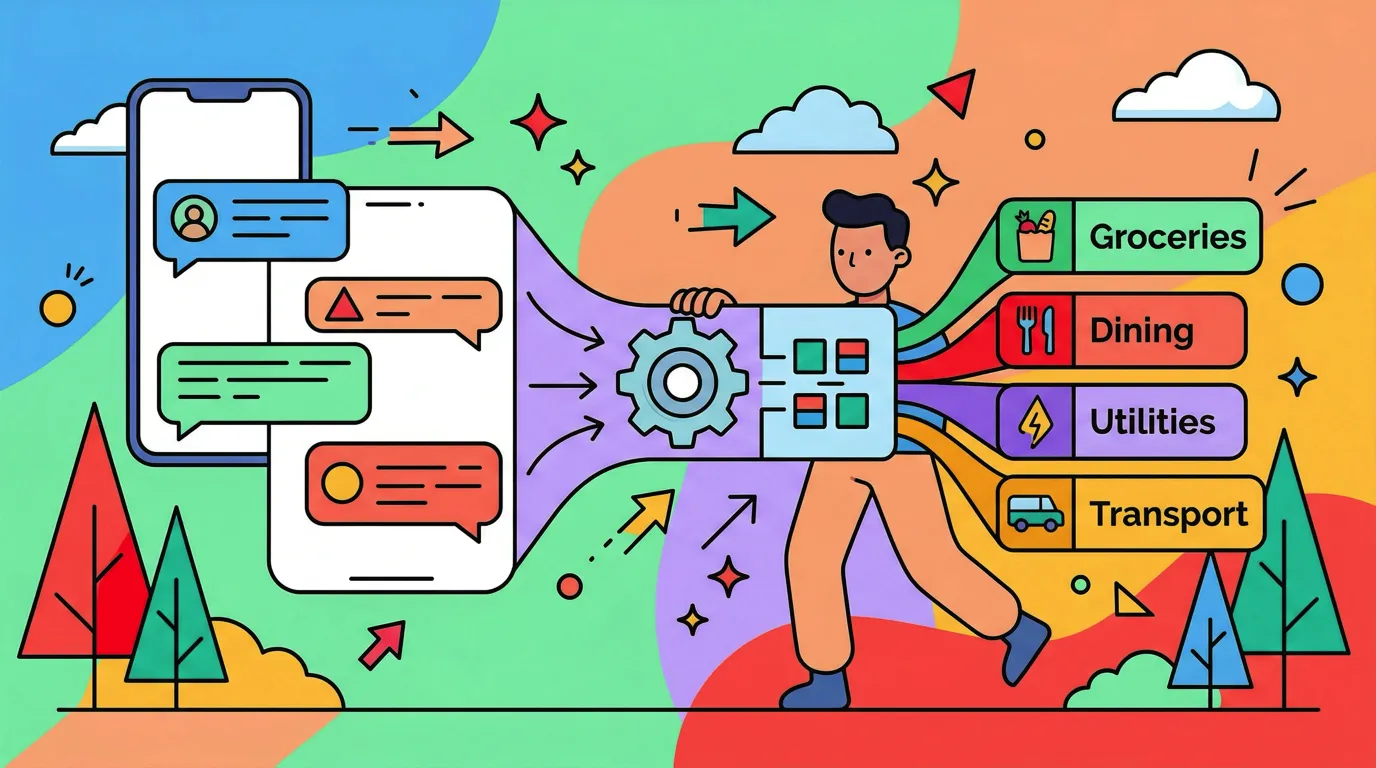
5 Money Shortcuts iOS 27 Finally Makes Possible
iOS 27 is out today, and the Shortcuts app got the biggest rebuild it has had since Apple bought it. You can now describe what you want in a sentence and have the shortcut written for you, automations live inside shortcuts instead of in a separate tab, one shortcut can fire from several triggers, and, for the first time, a shortcut can remember a number between runs.
That last one matters more for money than anything else on the list. This guide covers what changed in iOS 27 Shortcuts and then walks through five money shortcuts worth building with the new pieces, from a two-minute expense logger to a running monthly total that resets itself. If you are new to money shortcuts altogether, our Apple Shortcuts for expense tracking guide is the starting point, and the best money shortcuts for iPhone roundup is the wider list.
What changed in Shortcuts in iOS 27
MacStories' iOS 27 review has the exhaustive version. The short one:
Describe a Shortcut. Creating a new shortcut now opens with a text box. Type what you want, and Apple Intelligence assembles the actions, fills in the parameters it can, and hands you a finished shortcut you can then edit or refine by describing a change. It runs on device with a reasoning window of around 30 seconds, handles simple-to-medium shortcuts well, and is the default for new shortcuts, with the classic editor available in Settings. It needs an Apple Intelligence phone: iPhone 15 Pro, or any iPhone 16 or later.
Automations became trigger actions. Automations no longer live in a separate section of the app. A trigger is an action at the top of a shortcut, you can stack more than one on the same shortcut, and a shortcut with triggers can be shared. A shared automation arrives switched off on the recipient's phone, which is a sensible default. A separate Automations page still lists them for switching on and off.
Storage actions. Three new actions, Store Content, Get Stored Content and Delete Stored Content, let a shortcut save a value and read it back next time it runs. Before iOS 27, keeping a running total meant writing to a note or a spreadsheet and parsing it back. Now the shortcut just remembers.
Better text extraction. Extract Text from Image gained modes for lists and tables, so a photo of a receipt can come back as rows rather than a wall of text. Get What's On Screen and Get Selected Text arrived as actions, and If finally has an Otherwise If.
Everything except Describe a Shortcut works on any iPhone that runs iOS 27, iPhone 11 included. Our guide to iOS 27 on an older iPhone sorts the rest of the release the same way.
For a five-minute video walkthrough of the new editor, this hands-on with AI shortcut creation shows the describe-and-refine loop.
1. The two-minute expense logger, now written for you
The classic money shortcut: ask for an amount, ask for a category, append a row to a spreadsheet. In iOS 27 you can build it by describing it.
- Open Shortcuts, tap the plus button, and in the Describe a Shortcut box type: Ask me for an amount and a category, then add a row with today's date, the amount and the category to the Expenses table in my Budget spreadsheet in Numbers.
- Wait for the shortcut to assemble. It should produce two Ask for Input actions and an Add Row to Table action pointed at your sheet.
- Check the Add Row action. If the sheet or table name did not resolve, pick it by hand.
- Run it once from the editor, then add it to your Home Screen.
If you do not have an Apple Intelligence phone, the manual build is the same three actions, and our track expenses in Apple Numbers with a shortcut guide walks through it step by step, including the Google Sheets version.
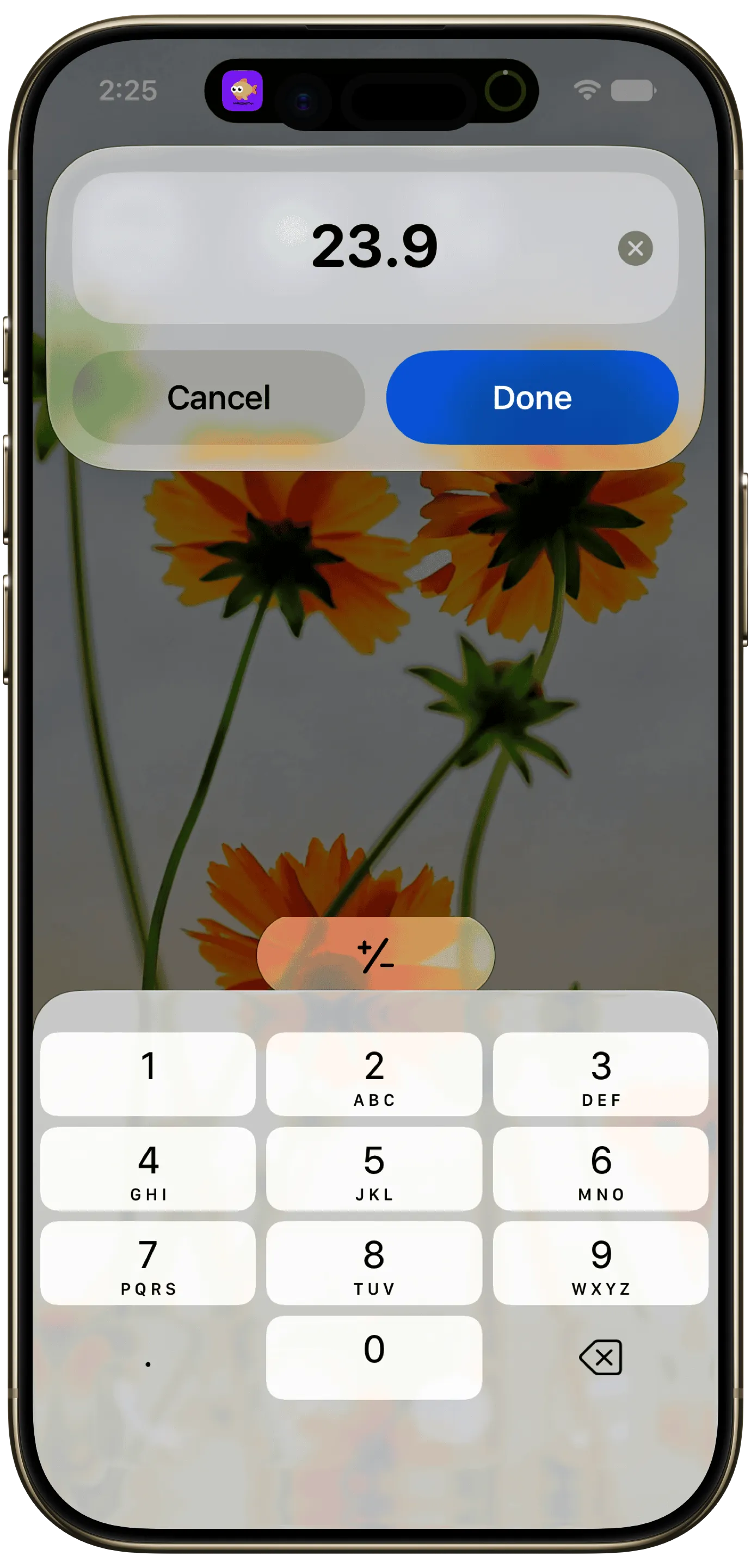
Finny app's Quick Log feature
2. A running monthly total that resets itself
This is the shortcut the storage actions were made for. One shortcut logs and totals; a second resets the total on the first of the month.
The logger:
- Ask for Input (Number): "How much?"
- Get Stored Content with the key
month-total. If nothing is stored yet, treat it as 0. (An If on "has any value" handles the first run.) - Calculate: stored total plus the input.
- Store Content: save the result under
month-total. - Show Notification: "Logged. $X so far this month."
The reset:
- Add a Time of Day trigger to a second shortcut: 12:05 AM on the 1st of every month.
- Store Content: save 0 under
month-total.
You now have a spending counter that lives in the shortcut, with no note, no spreadsheet, and nothing to parse. Add a Store Content under a second key, say month-count, if you want the number of entries too. The limit is that it stores a total and nothing else: no categories, no history, no way to see what the $412 was. That is the line where an app takes over, and it comes up again below.
3. A receipt photo to a table in Notes
The new table mode on Extract Text from Image turns a receipt into rows.
- Select Photos, or receive images passed in from Photos.
- Extract Text from Image with the mode set to Tables.
- Create Note with the result. Notes supports markdown in iOS 27, so the table renders as a table.
It is a lookup tool rather than a ledger: it gives you a searchable copy of the receipt, not an expense entry. For turning receipts into entries with amounts and categories, our scan receipts with an Apple Shortcut guide covers the longer build, and the iOS 27 receipt scanning comparison covers where the camera's own reading stops.
4. One subscription check, two triggers
Stacked triggers are the quiet win of the rebuild. A shortcut that reminds you to review subscriptions can fire on a schedule and when you do the thing that usually leads to a new one.
- Add a Time of Day trigger: 9:00 AM on the 1st of every month.
- Add an App trigger: when the App Store is opened.
- Get Stored Content with the key
subs, where you have previously stored a list of your subscriptions with amounts (a Store Content action with a typed list does it once). - Show Alert: "You are paying for: [list]. Still want all of them?"
One shortcut, two moments. The App Store trigger is the one that pays for itself, because it interrupts the exact moment a new subscription usually starts. For the audit itself, our 20-minute subscription audit is the checklist, and tracking subscriptions on iPhone in iOS 27 covers the Apple Card Recurring hub.
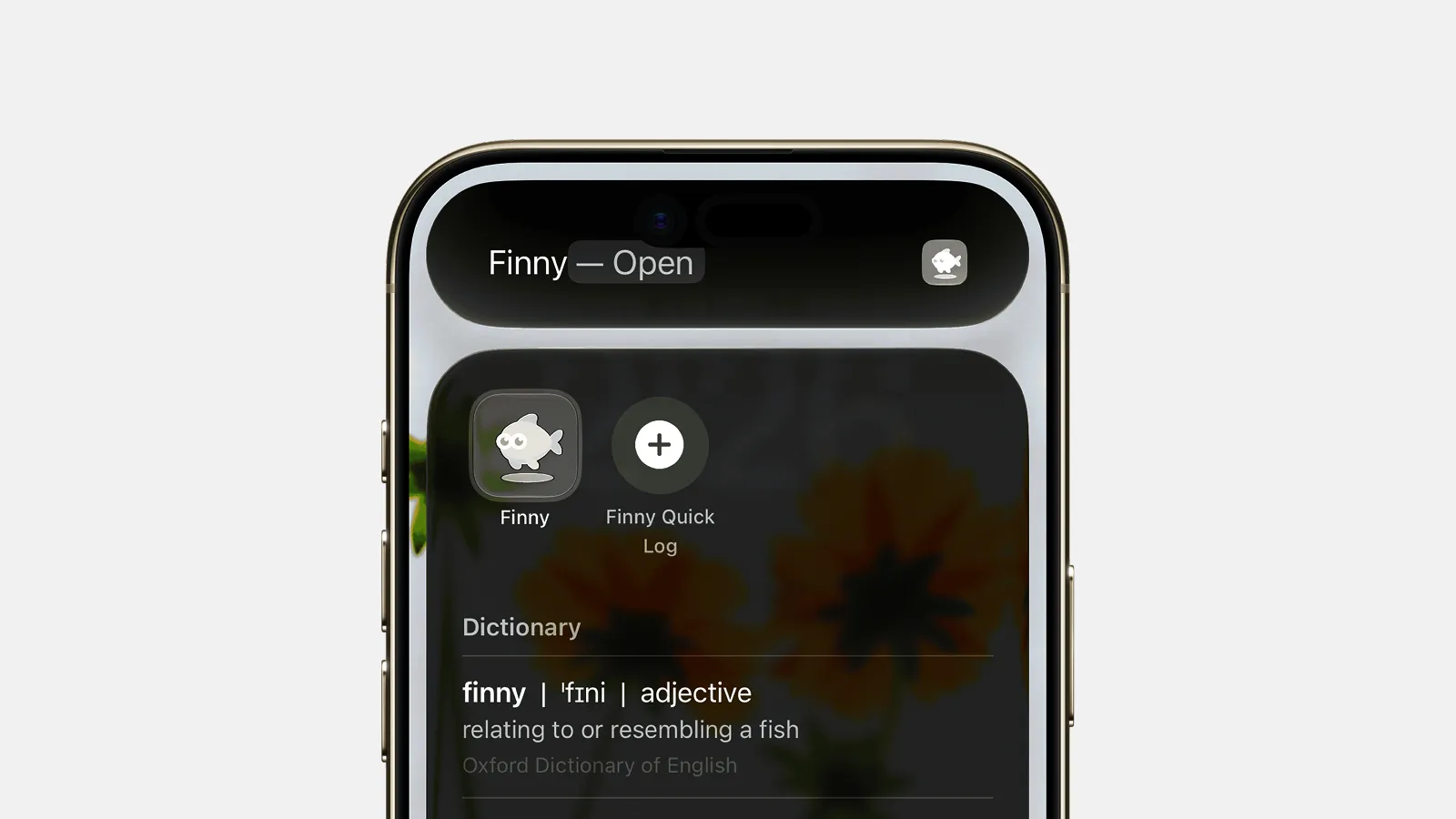
Finny app's Quick Log feature
5. A Sunday review with Otherwise If
A weekly nudge that says something different depending on how the week went.
- Time of Day trigger: Sunday, 6:00 PM.
- Get Stored Content:
month-totalfrom shortcut 2. - If total is greater than your monthly budget: notification "Over budget by $X." Otherwise If total is greater than 80% of budget: "Close to the line: $X of $Y." Otherwise: "On track: $X of $Y."
Before iOS 27 this took nested Ifs that were painful to read. Now it is three branches in one action.
Where a DIY shortcut stops
Every build above shares a ceiling: a shortcut can store a number, but it cannot keep a history, categorize, show a chart, or tell you what the total is made of. Shortcut 2 knows you have spent $412 this month. It does not know that $180 of it was groceries, and it cannot show you last month for comparison.
That is the point where an expense tracker app earns its place, and the two approaches stack rather than compete. Finny exposes its logging to Shortcuts, so the same "ask for an amount" shortcut can land an entry in a real ledger with a category, a running total per category and a history you can search. Beyond that, a card payment can be logged as you make it and a receipt can be read from a photo, which no DIY shortcut reproduces. If a running number is all you want, shortcut 2 is genuinely enough. If you want to know what the number is made of, that is the difference.
Here is a short look at a payment being logged from what is on screen, the kind of capture that sits past what a shortcut can do on its own.
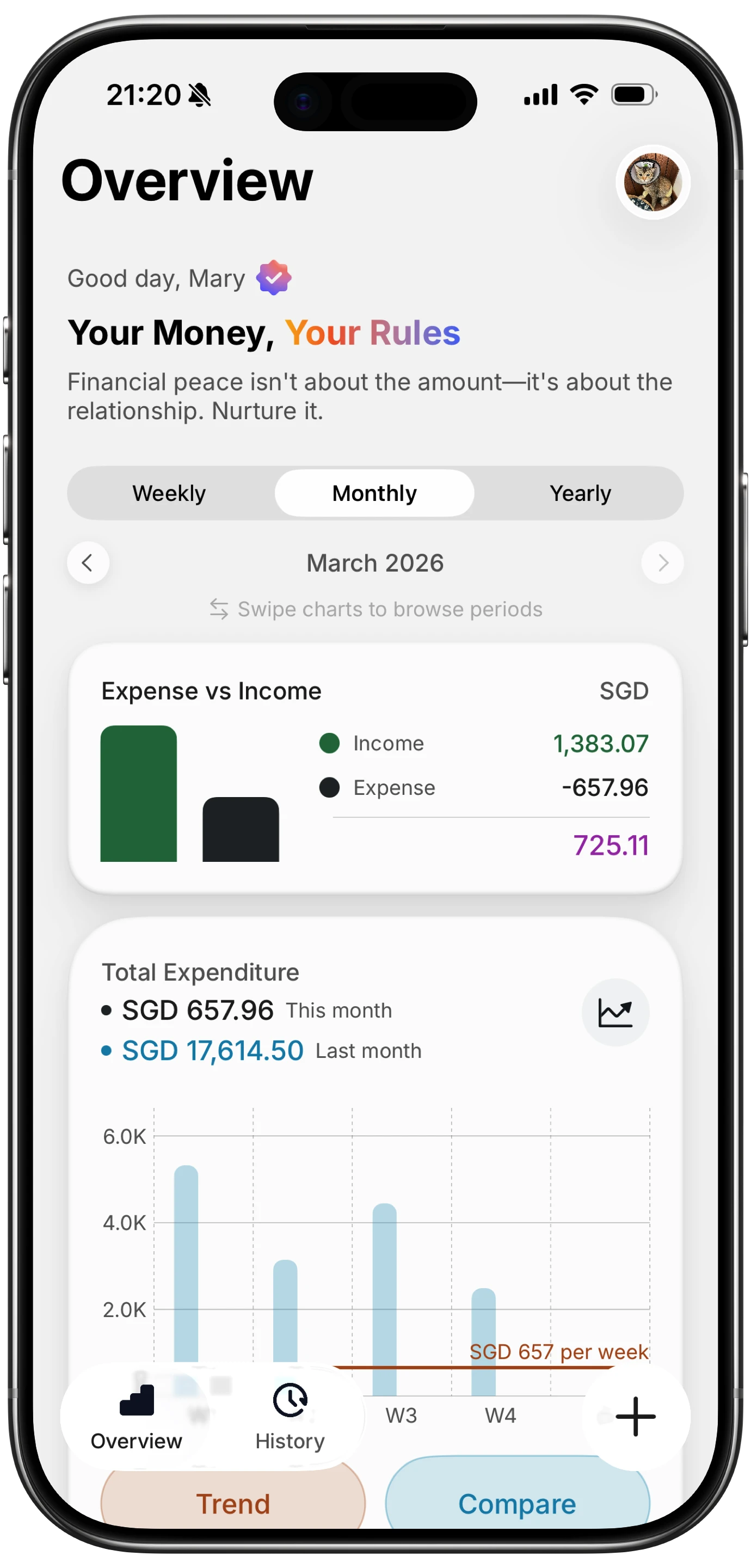
Finny app's Overview feature
After you update: check your existing automations
Two things to do once on iOS 27. Open any automation you rely on and confirm it is still switched on, since it now appears as a trigger at the top of its shortcut. And if one has started asking for confirmation before it runs, our guide to fixing shortcut automations that ask to confirm covers the setting, which did not change in the rebuild but occasionally resets on a major update.
Common Questions About iOS 27 Shortcuts
What is new in Shortcuts in iOS 27?
You can describe a shortcut in plain English and have Apple Intelligence build it, automations are now trigger actions inside shortcuts with several triggers allowed per shortcut, and new Store Content and Get Stored Content actions let a shortcut remember values between runs. Extract Text from Image gained table and list modes, and If gained Otherwise If.
Does Describe a Shortcut need Apple Intelligence?
Yes. It needs an iPhone 15 Pro or any iPhone 16 or later. The classic editor is still there for every other iPhone that runs iOS 27, and the storage actions, stacked triggers and new text extraction work on all of them.
Can a shortcut keep a running total in iOS 27?
Yes, with the new storage actions. Get Stored Content reads the saved total, Calculate adds the new amount, and Store Content saves it back. A second shortcut on a Time of Day trigger can reset it on the first of the month. It stores the number only, not the entries behind it.
Where did automations move in iOS 27?
Automations now live as trigger actions at the top of a shortcut, so a shortcut and its trigger are one object and can be shared together. A separate Automations page still lists them for switching on and off. Shared automations arrive switched off until you enable them.
Can Shortcuts replace an expense tracker app?
For a single running number, yes. For categories, history, charts, receipts and comparing months, no, since a shortcut stores values rather than a ledger. Most people end up with both: a shortcut for the fastest possible entry and an app that exposes its logging to Shortcuts to hold the result.
A shortcut can remember a number. An app can tell you what it is made of. Finny takes entries from Shortcuts, from a card payment as you make it, and from a receipt photo, with no bank connection. Free to start, Pro at a low monthly price.