
How to Log Expenses by Text, Like Messaging a Friend
Most expense trackers ask you to fill out a form: amount, then category, then date, then payment method, then a note. Four taps and a keyboard switch for a $5 coffee. It is no wonder people stop after a week. But think about how you would tell a friend what you spent: "lunch 14 at Chipotle." One line, no form.
This guide shows how to log expenses by text, the way you would write a message. It compares the simple do-it-yourself versions (a running note, a message to yourself, a general chatbot) with AI expense trackers that turn a casual sentence into a categorized entry, and explains how to phrase things so the result is accurate the first time. For more ways to skip the keypad entirely, see our guide to logging expenses without typing.
What logging by text actually means
Logging by text means writing an expense as a plain sentence instead of filling in fields. Software then pulls out the structure: the amount, what it was for, where, when, and how you paid.
A few examples of what that looks like:
| What you type | What gets logged |
|---|---|
coffee 5.50 | $5.50, Coffee, today |
lunch 14 chipotle | $14.00, Dining Out, Chipotle, today |
uber 23 last night | $23.00, Transport, Uber, yesterday |
groceries 86.40 trader joes apple card | $86.40, Groceries, Trader Joe's, Apple Card |
dinner 120 split with sam, my half | $60.00, Dining Out, with a note |
The appeal is speed and memory. Typing a sentence is fast, and because you describe the purchase in your own words, the record makes sense when you look at it a month later. It also lets you log several things at once: "coffee 5, parking 12, lunch 16" can become three entries.
Option 1: A running note or a message to yourself
The simplest version needs no new app. Keep a pinned note called "Spending" in Notes, or send a message to yourself, and add a line for each purchase: 9/28 lunch 14 chipotle.
What works: it is instant, free, works offline, and you already know how to do it. Writing the line forces a moment of attention, which is half the value of tracking.
What does not: the note never becomes a budget. There are no totals, no categories, and no charts unless you copy everything into a spreadsheet later. Most people find the end-of-month cleanup is where the habit dies. A note also cannot tell you how much is left in your dining budget on a Thursday, which is the moment that information is actually useful. If you like the spreadsheet route, our guide to logging expenses to Google Sheets with a shortcut automates part of that step.
Option 2: A general chatbot
You can tell ChatGPT or another chatbot "I spent $14 on lunch at Chipotle" and ask it to keep a running total. It understands the sentence perfectly.
What works: it is flexible, handles odd phrasing, and can answer questions like "how much did I spend on food this week?"
What does not: a chat is not a ledger. Conversations get long and forgotten, totals can drift as the chat grows, and you are pasting your spending history into a general-purpose service. Our breakdown of whether ChatGPT can track your expenses goes through the limits in detail. A chatbot also cannot attach a receipt, track spending by card, or remind you about a bill that is due tomorrow. It is a good calculator for one-off questions, and a poor home for a year of spending records you expect to rely on, month after month, and that you may one day need to search.
Option 3: An AI expense tracker with text input
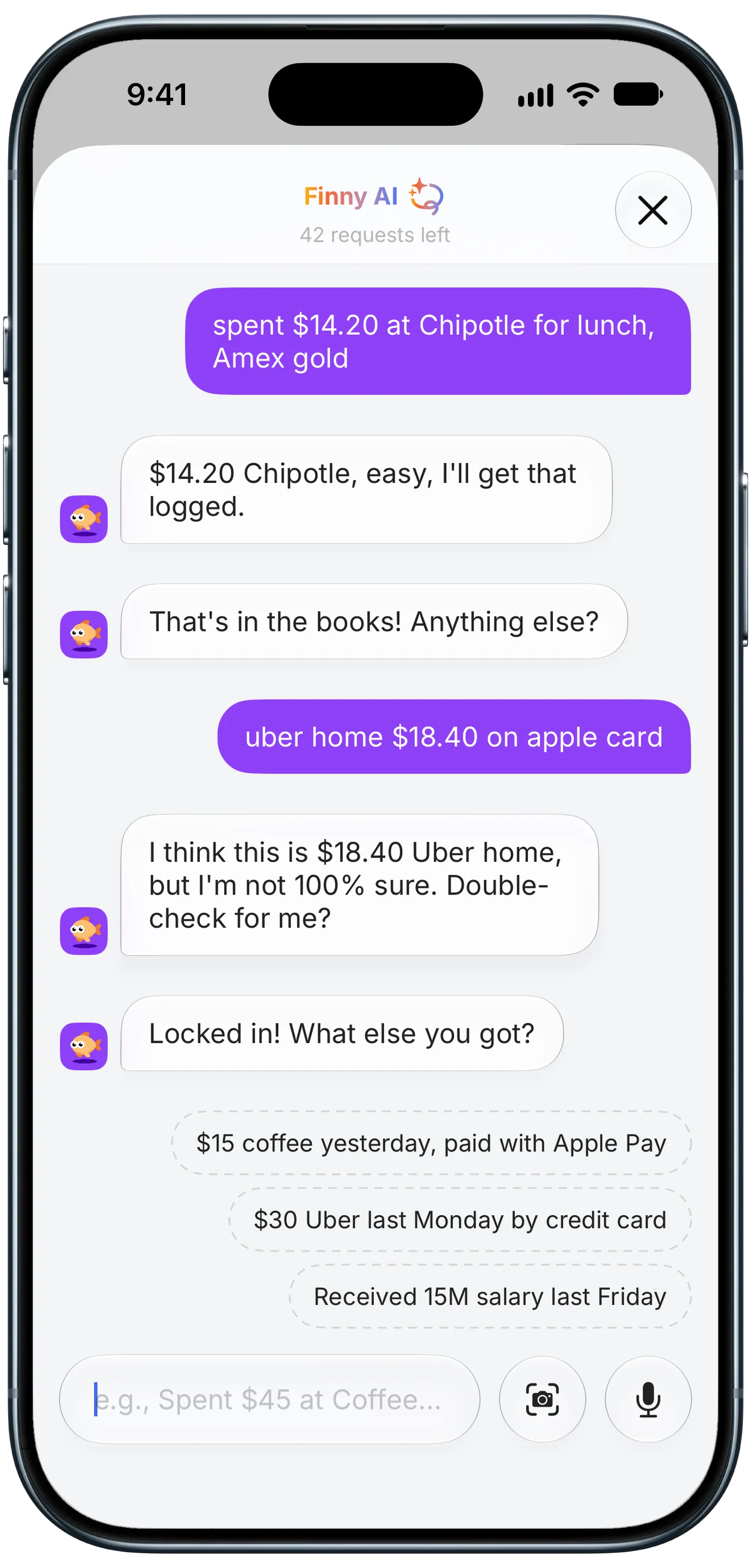
Finny app's AI chat feature
An AI expense tracker gives you the chatbot's understanding with a real ledger underneath. You type a sentence, and it becomes a proper entry with a category, date, and payment method, counted in your budgets and charts.
Finny works this way. Type "lunch 14 chipotle, uber 23" and the AI creates both expenses, picks categories, and fills in the date. It shows you what it understood before saving, and when something is ambiguous it asks you to double-check rather than guessing. It handles other currencies too: "ramen 1200 yen" is logged in JPY and converted into your home-currency totals. No bank connection is involved, and the result lives in your own tracker, not a chat history.
Prefer talking? The same works by voice.
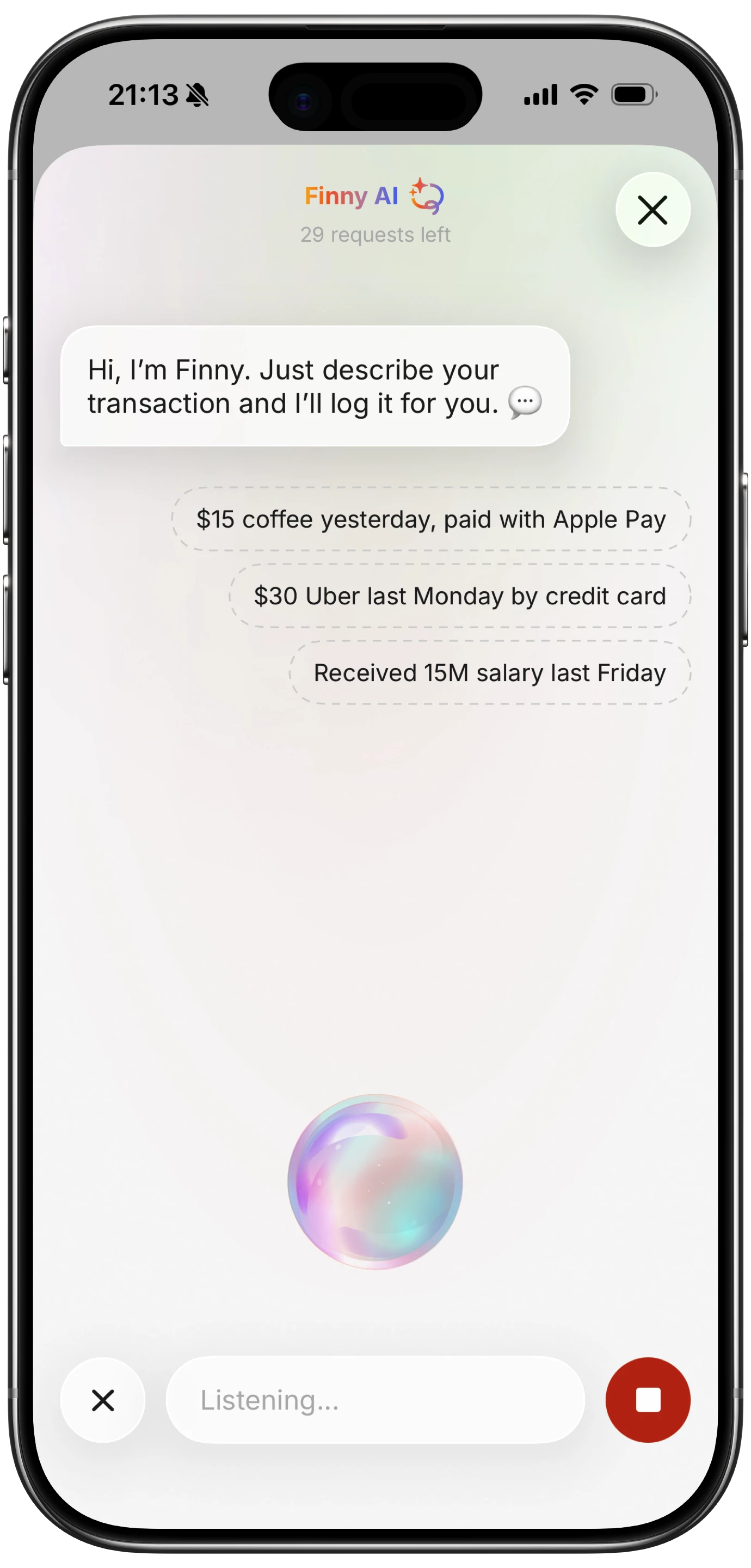
Finny app's voice input feature
For payments that are already on your screen, you can skip typing altogether. Here is Screen Log logging a payment straight from the screen:
How to phrase expenses so AI gets them right
AI text input is forgiving, but a little structure makes it accurate every time:
- Lead with what it was, then the amount. "Lunch 14" is clearer than "14 lunch," because the word sets the category.
- Add the store when it matters. "Coffee 5.50 blue bottle" helps you search later and helps categorize.
- Use relative dates freely. "Yesterday," "last night," and "Saturday" all work. No need to type a date.
- Name the card if you track by payment method. "Groceries 86 amex" puts it on the right card.
- Separate multiple items with commas. "Gas 52, car wash 18" becomes two clean entries.
- Say the currency when it is not your home one. "Taxi 40 euro" avoids a wrong conversion.
- Glance before saving. Confirmation is a feature, not a chore. It takes a second and keeps your data trustworthy.
Comparing the options
| Approach | Speed | Becomes a budget? | Privacy | Best for |
|---|---|---|---|---|
| Notes or a message to yourself | Fast | No, manual cleanup | Private | Trying the habit for free |
| General chatbot | Fast | Not reliably | Data goes to a general AI service | Occasional questions |
| Spreadsheet shortcut | Medium | Yes, with formulas | Private | Spreadsheet fans |
| AI expense tracker | Fast | Yes, automatically | Depends on the app | Daily tracking that sticks |
If you want to compare AI trackers that support text input, our roundup of the best AI chat expense trackers covers the main options and how accurate they are. Whichever you choose, the test is simple: after two weeks, are you still logging? The method that survives two weeks is the right one for you.
Frequently Asked Questions
Can I log expenses by texting?
Yes. You can keep a running note or send yourself messages, but the most practical option is an AI expense tracker with text input, where you type a sentence like "lunch 14 chipotle" and it creates a categorized expense with the date and amount filled in.
Is AI accurate at reading typed expenses?
For short, clear sentences, very accurate. Amounts, stores, and relative dates like "yesterday" are read reliably. Accuracy drops with ambiguous phrasing, so good apps show what they understood before saving and ask you to confirm anything uncertain.
Can I log several expenses in one message?
With most AI expense trackers, yes. Separate them with commas, like "coffee 5, parking 12, lunch 16," and each becomes its own entry with its own category. Review the list before saving.
Is logging by text faster than a normal expense form?
Usually. A sentence takes a few seconds and skips choosing a category, date, and payment method from menus. The bigger win is consistency: when logging feels like sending a message, people keep doing it.
The bottom line
Logging expenses by text turns tracking into something you already do every day: writing a quick message. A note or a chatbot is fine for a test run, but an AI expense tracker turns the same casual sentence into a real, categorized entry that feeds your budget. Lead with what it was, add the amount, glance before saving, and your spending log keeps itself up to date one line at a time.