
How to Log Expenses to Google Sheets With a Shortcut (2026)
A spreadsheet is still one of the best places to keep your spending. It is free, it is yours, and it works on every device you own. The only weak point is data entry: opening the file, finding the right tab, and typing a row is enough friction to break the habit within a week.
This guide shows you how to log expenses to Google Sheets with a shortcut, so a tap or a quick voice command drops a new row into your sheet without opening it. We will build it for free and be honest about where it gets fiddly. For the wider set of ideas, our Apple Shortcuts for expense tracking guide covers the full menu.
The Catch: There Is No Native Google Sheets Action
Here is the part most tutorials skip. Apple's Shortcuts app has no built-in, first-party action for writing to Google Sheets, and Google does not ship one either. You cannot just pick "Add Row to Google Sheet" the way you can with Apple Numbers.
You need a bridge. The most reliable free route is a tiny web app you attach to your sheet with Google Apps Script. The shortcut sends your expense to that web app, and the script appends the row. It sounds technical, but it is about fifteen lines and a copy-paste.
What You Need Before You Start
- An iPhone with the Shortcuts app, which is preinstalled and free to reinstall.
- A Google account and a blank Google Sheet.
- About fifteen minutes, most of it on the one-time script setup.
- No coding experience. You paste a script, you do not write one.
Step 1: Build Your Google Sheet
Open a new Google Sheet and rename the first tab to Expenses. In row one, add four column headers: Date, Amount, Category, and Note. That is the entire structure.
Keep the tab name exactly as Expenses, because the script looks for it by name. Rename it later and the shortcut stops working until you update the script to match.
Step 2: Add the Apps Script Bridge
In your sheet, open the Extensions menu and choose Apps Script. A code editor opens in a new tab. Delete whatever placeholder code is there, then paste this:
function doPost(e) {
  var sheet = SpreadsheetApp.getActiveSpreadsheet().getSheetByName("Expenses");
  var p = e.parameter;
  sheet.appendRow([p.date, p.amount, p.category, p.note]);
  return ContentService.createTextOutput("ok");
}
The doPost function runs whenever your shortcut sends data. It grabs the four values, appends them as a new row, and replies "ok". Click the save icon before moving on.
Step 3: Deploy It as a Web App
Now you turn the script into a live URL. In the Apps Script editor, click Deploy, then New deployment, and choose the Web app type.
Set Execute as to yourself, and set Who has access to Anyone. That second setting sounds risky, but the URL is a long random string only you know, and the script only appends a row. Click Deploy, approve the permission prompt, then copy the Web app URL. This is the address your shortcut will post to, so keep it handy and private.
Step 4: Build the Shortcut
Open the Shortcuts app and tap the plus button for a new shortcut. Add four actions in order.
- Ask for the amount. Add an Ask for Input action, set the type to Number, and use a prompt like "How much?".
- Ask for the category. Add a Choose from Menu action and list your usual categories as menu items, such as Food, Transport, Groceries, and Bills. A fixed menu is faster than typing.
- Send it to your web app. Add a Get Contents of URL action and paste the Web app URL from Step 3. Change the method from GET to POST, set the request body to Form, and add four fields:
date,amount,category, andnote. Filldatewith the Current Date variable and the rest with the answers from your earlier actions.
- Name and test. Rename the shortcut "Log to Sheet" and run it once. Enter a test amount, pick a category, and check that a fresh row appears in your sheet within a second or two.
If the row lands, you are done building. If it does not, the usual culprit is a mismatched tab name or a field name that does not match the script.
Step 5: Trigger It Hands-Free
A shortcut only helps if you reach it. Give it a fast trigger:
- Siri: say "Hey Siri, Log to Sheet" and answer the prompts by voice.
- Home Screen: tap Add to Home Screen so it sits next to your apps.
- NFC tag: stick a programmable tag on your wallet and attach the shortcut under Automation, so a tap logs a purchase.
The No-Code Alternative
If pasting a script is not for you, a no-code tool can be the bridge instead. Services like Zapier or Make let you create a webhook, then connect it to an "Add Row" step in Google Sheets. Your shortcut posts to the webhook URL exactly as above, minus the Apps Script.
The trade-off is cost. These tools are free only up to a low monthly task limit, then you pay a subscription. For a personal log, the Apps Script route stays free forever, which is why it is the better default.
Where This Setup Gets Fiddly
Be honest about the ceiling, because it shows up fast:
- The setup is delicate. One renamed tab or mistyped field and rows stop appearing silently.
- It needs internet. Every entry is a live network call, so it fails offline. If you want an offline sheet, our Apple Numbers expense shortcut guide writes to an on-device file instead, and the add expenses to Notion walkthrough covers a similar cloud route. If you work in Microsoft Excel instead, our Excel expense shortcut covers an offline CSV route.
- The deployment expires. Google occasionally asks you to re-authorize the web app, and until you do, logging quietly breaks.
- There is no intelligence. You pick the category every time, and the sheet gives you rows, not totals or insight.
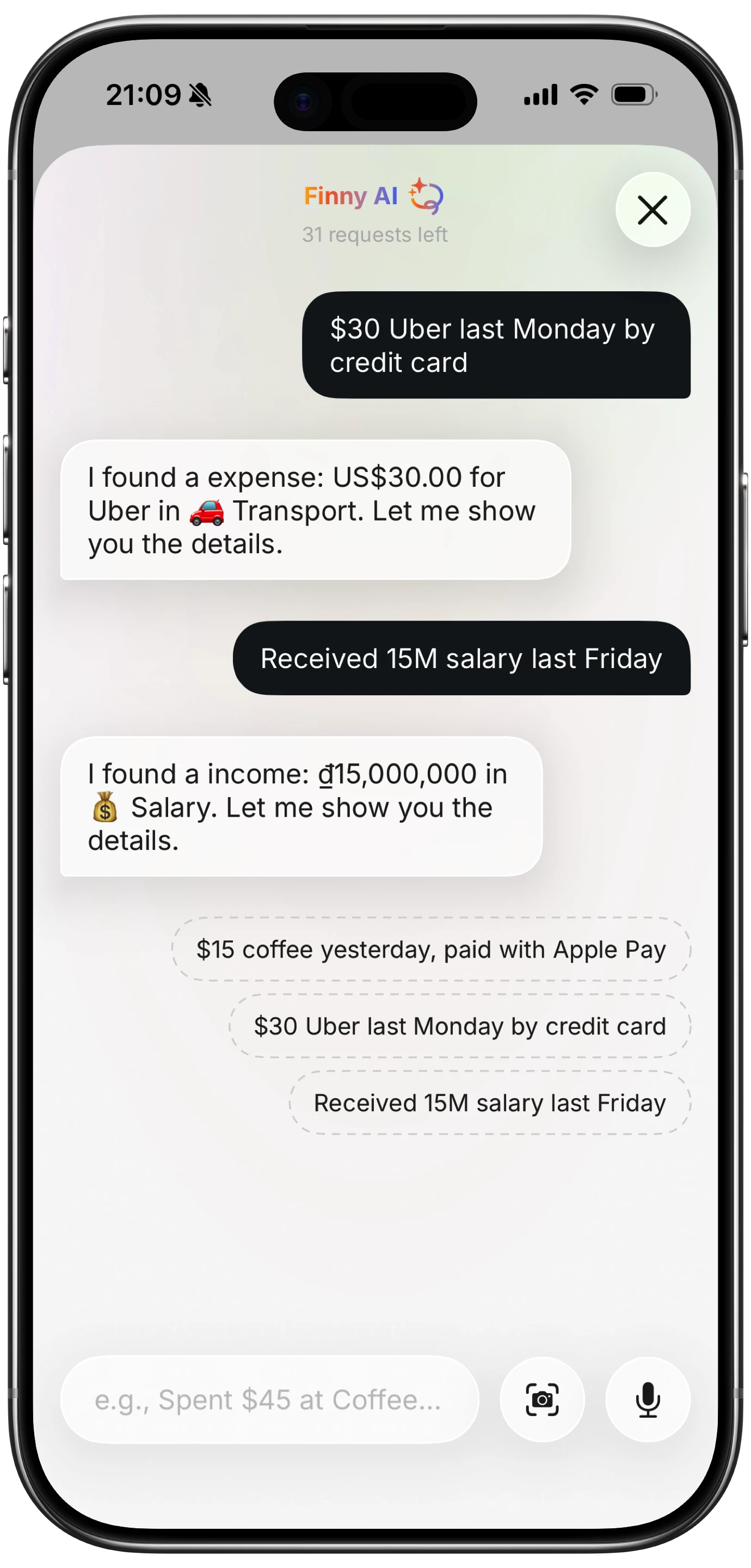
Finny app's AI chat feature
This is where a purpose-built app earns its place. Something like Finny takes a plain phrase such as "twelve dollars, coffee", categorizes it automatically, and keeps a running total, so you skip both the script maintenance and the manual sorting.
The Faster Option
The sheet setup above is free forever and teaches you how the pieces fit together. If you would rather not babysit a script, Finny offers the same fast capture with automatic categorization built in, no bridge to maintain. It is free to start and needs no bank connection. Install it from the App Store when the upkeep stops being worth it, or weigh your options in our best iOS budget apps roundup.
Frequently Asked Questions
Can Apple Shortcuts write directly to Google Sheets?
Not on their own. Apple Shortcuts has no native Google Sheets action, and Google does not publish one either. To log expenses to Google Sheets with a shortcut, you need a bridge, either a free Apps Script web app attached to your sheet or a paid webhook service like Zapier. The shortcut sends your data to that bridge, which then appends the row for you.
Is the Apps Script method safe to use?
Yes, for a personal log. The web app URL is a long random string that is hard to guess, and the script you paste only ever appends a row to your own sheet. It never reads or shares existing data. Setting access to "Anyone" simply means the URL works without a Google sign-in, which is what lets your shortcut post to it. Keep the URL private.
Why did my shortcut stop adding rows to the sheet?
The three common causes are a renamed sheet tab, a mismatch between the field names in your shortcut and the script, or an expired deployment. Google sometimes requires you to re-authorize the web app after a period, which silently blocks new rows. Reopen Apps Script, redeploy, approve the prompt, and confirm the tab is still named exactly Expenses.
Do I need internet for this shortcut to work?
Yes. Writing to Google Sheets is a live network request, so this shortcut fails without a connection. If you want logging that works offline, point a shortcut at an on-device destination like Apple Numbers or Apple Notes instead. Those write locally and sync later. A cloud sheet is great for access anywhere, but it always depends on being online at the moment you log.
The Bottom Line
A shortcut turns your spreadsheet from a chore into a two-second habit, and the free Apps Script route gets you there for nothing. Build the sheet, paste the script, deploy it, and wire up the shortcut, and you can log a purchase the moment it happens. If the upkeep ever wears thin, hand the job to an app that keeps capture fast and sorts entries for you. Either way, the win is the same: record the expense before you forget it.