
Spending Calendar App: See Your Money Day by Day
A monthly total tells you how much you spent. It doesn't tell you when. And "when" is where most overspending hides: the Friday nights, the weekend after payday, the three days of takeout during a busy week at work. A pie chart flattens all of that into one slice labeled Dining Out.
A spending calendar app puts your money back on the calendar. Each day shows what you spent and on what, so the month reads like a timeline instead of a total. This guide explains how to read a spending calendar, the patterns it makes obvious, and how to set one up on your iPhone. For the daily habit behind it, see our guide on how to track daily spending.
What is a spending calendar?
A spending calendar is a month view where each day shows your total spending, and usually a hint of what it went to. Instead of scrolling a transaction list or reading a category chart, you see the whole month at once: quiet days, expensive days, paydays, and the days you spent nothing.
It answers questions a chart can't:
- Which days of the week do I spend the most?
- What happens to my spending right after payday?
- How many days this month did I spend nothing at all?
- Was that expensive week a one-off or a pattern?
How to read a spending calendar
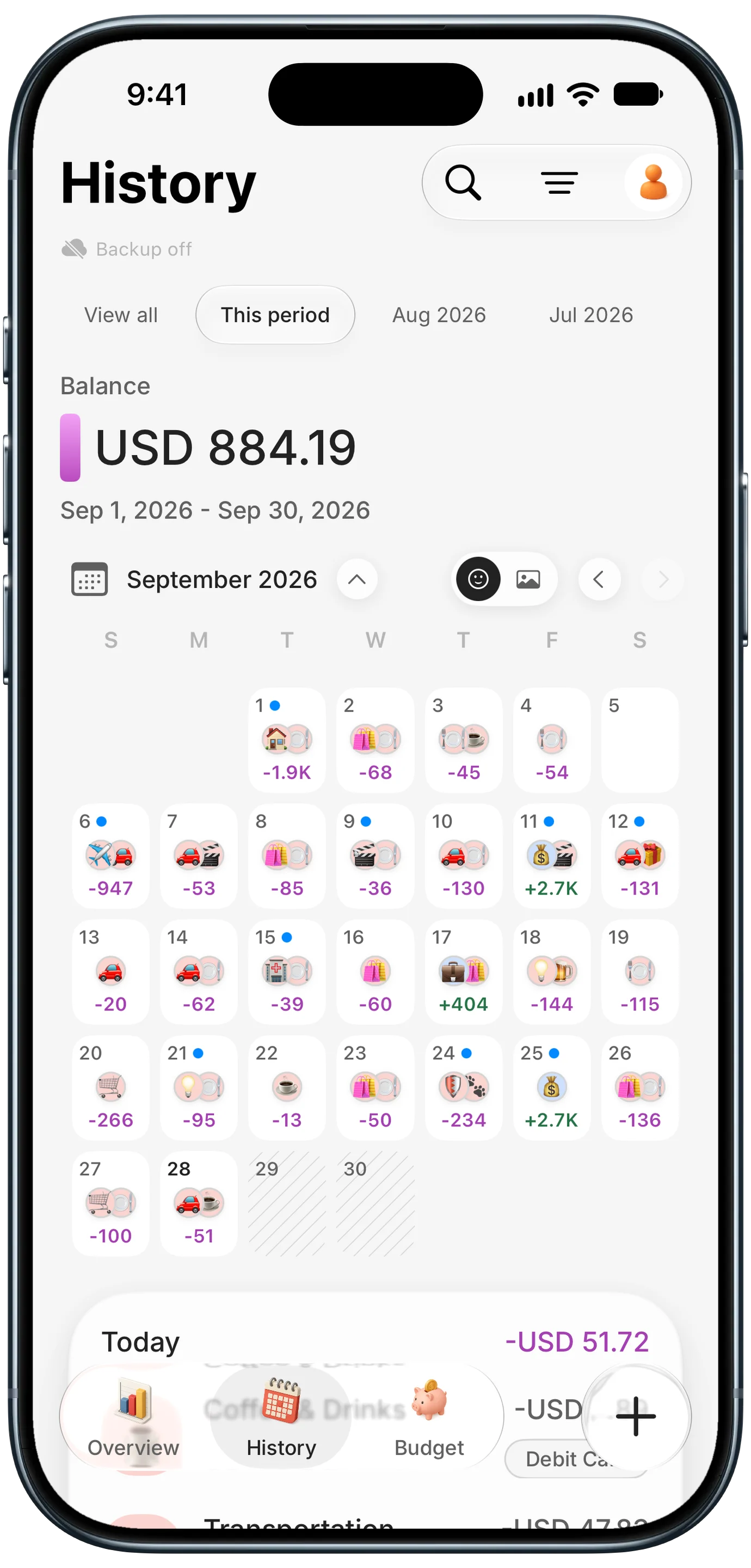
A good spending calendar packs a lot into each day tile. In Finny's History tab, each day shows:
- The daily total, so big days stand out at a glance.
- Icons for the day's top categories, like a shopping bag, a coffee cup, or a plane, so you know what the money went to without opening the day.
- Income in a different color, so paydays are easy to spot.
- A dot on days with a recurring charge, like rent or a subscription.
- Empty tiles for no-spend days, which become a small reward to look at.
Tap any day to see its full list of expenses. The month's balance sits above the calendar, so you see both the total and how you got there.
Patterns a spending calendar reveals
Look at two or three months side by side and patterns show up quickly.
The payday spike. Spending jumps in the two or three days after a paycheck lands, then tightens before the next one. If that's you, a budget period that starts on payday instead of the 1st will match how you actually spend. Our guide on why budget apps split your paycheck explains how.
The weekend effect. Fridays and Saturdays often carry most of the dining and entertainment spending. Seeing it on the calendar makes it easier to plan than a monthly category total.
Clusters, not one-offs. A single expensive day is fine. Four in a row usually means something changed: a trip, a busy stretch, a stressful week. The calendar shows clusters clearly.
No-spend days. Counting the empty tiles is surprisingly motivating. Our explainer on what a no-spend day is shows how to use them on purpose.
Photo mode: a calendar you'll want to open
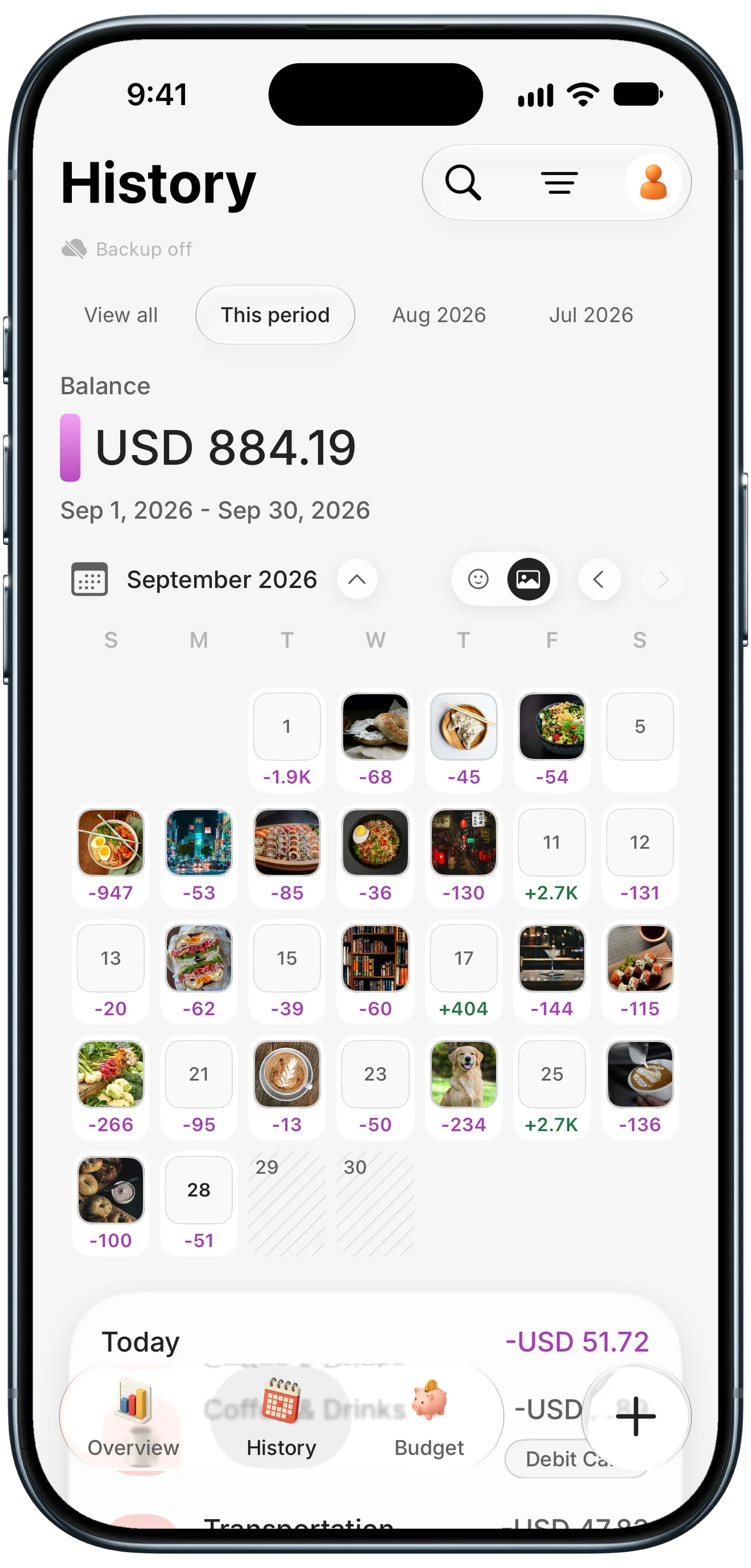
A spending calendar gets more useful the more often you open it. Finny's calendar has a photo mode: if you attach a photo to an expense, that day's tile shows the photo instead of icons. A month turns into a board of the meals, trips, and moments you spent money on.
It sounds like a small touch, but it changes the habit. A calendar of numbers is something you check. A calendar of your own photos is something you look at, and every look is a chance to notice a pattern. We cover this in more depth in our guide to expense trackers with photos.
How to set up a spending calendar on iPhone
You can build a spending calendar a few ways:
- Use an app with a built-in calendar view. This is the easiest option. Log each expense with the right date and the calendar fills itself in. Money Manager by Realbyte and Finny both have a month view of daily spending.
- Build one in a spreadsheet. A sheet with dates in rows and a daily total column works, and conditional formatting can shade expensive days. It takes more upkeep.
- Use a paper wall calendar. Write each day's total in the box. It's low-tech but visible every day.
Whatever you choose, the calendar is only as accurate as your logging. Capturing card payments as you make them keeps it complete without extra effort. Here's what that looks like:
Keep the calendar on your Home Screen
The strongest spending calendar is one you see without opening an app. Finny's calendar widget shows the month's days on your Home Screen, so a glance while unlocking your phone tells you how the week is going. Our guide to setting up your iPhone Home Screen for budgeting covers widget placement.
Frequently Asked Questions
What is the best app to see spending on a calendar?
Look for an app that shows a daily total on each day of a month view and lets you tap a day to see its expenses. Money Manager by Realbyte and Finny both offer a calendar view on iPhone. Finny also shows each day's top categories as icons, marks recurring charges, and can show photos from your expenses on the calendar.
How do I see my daily spending on iPhone?
Use an expense tracking app with a calendar or daily view, log each purchase with the correct date, and check the calendar at the end of the day. Some apps also offer a Home Screen widget, so you can see this month's spending by day without opening the app.
Why is a spending calendar better than a monthly budget chart?
A chart shows how much you spent by category. A calendar shows when you spent it, which reveals patterns a chart hides: payday spikes, expensive weekends, clusters of busy days, and no-spend days. Most people use both: the calendar for daily awareness, and the chart for the monthly review.
Can I track no-spend days on a calendar?
Yes. On a spending calendar, a no-spend day is simply an empty tile. Counting them each month is an easy way to measure progress, and many people set a goal, like eight no-spend days a month, and watch the calendar fill in. Seeing the empty tiles add up through the month is a simple, visible reward for spending less.
The bottom line
A spending calendar app turns a monthly total into a story you can read: when you spent, on what, and what patterns repeat. Log consistently, look at the month every few days, and let the calendar show you the payday spikes and busy weekends that a chart would hide. Add photos, and it becomes a calendar you'll actually want to open.