Apple Card Recurring Transactions in iOS 27, Explained
Subscriptions rarely hurt because of their size. They hurt because they're easy to forget: the streaming plan that went up by $2, the annual renewal you agreed to eleven months ago, the free trial that quietly became a charge. iOS 27 gives Apple Card holders a new tool for exactly this.
This guide explains how Apple Card recurring transactions work in iOS 27: where to find the new Recurring view, how the Upcoming Transactions notifications work, how accurate the predictions are, and what to do about the recurring charges on your other cards. For the full picture across every card and the App Store, see our guide to tracking subscriptions on iPhone in iOS 27.
What's new for Apple Card in iOS 27
iOS 27 adds two related features to Apple Card in the Wallet app:
- A Recurring view. A dedicated section that lists your upcoming recurring Apple Card charges, as a list or on a monthly calendar.
- Upcoming Transactions notifications. An optional alert that warns you before a predicted recurring charge posts.
Both are built from your Apple Card transaction history. Apple doesn't ask you to connect other accounts or enter anything, and neither feature involves a third-party subscription service. 9to5Mac's rundown of the new Apple Card features has screenshots of both.
How to see recurring Apple Card charges
- Open the Wallet app and tap your Apple Card.
- Tap the three-dot button in the top-right corner.
- Choose Recurring.
- Switch between the list of upcoming charges and the monthly calendar view.
The list is the fastest way to audit your subscriptions: scroll it once and ask, for each line, "Would I sign up for this again today?" The calendar is better for cash flow, since it shows which week of the month your recurring charges cluster in. If most of them land right before payday, that's worth knowing.
How to turn on Upcoming Transactions alerts
- Open Wallet and tap your Apple Card.
- Tap the three-dot button, then Notifications.
- Turn on Upcoming Transactions.
Apple Card will then predict when a recurring charge is about to post and notify you ahead of time. That's the useful part: an alert before an annual renewal gives you time to cancel, while an alert after it only tells you the money is gone. The alerts are optional and you can turn them off at any time from the same screen.
How accurate are the predictions?
Apple is upfront that this is a prediction, not a bill schedule. The Wallet app includes a disclaimer saying that dates and amounts shown are predicted from your transaction history and may not be exact, and that routine spending may incorrectly appear as recurring.
In practice, that means:
- Monthly subscriptions with a fixed price (streaming, cloud storage, gym) are predicted well once they have a few months of history.
- Annual renewals need at least one previous charge on Apple Card to be recognized. A subscription you moved to Apple Card last month won't show up until it has charged there.
- Variable bills like utilities may appear with an estimated amount that differs from the real one.
- Routine purchases such as a weekly grocery run can be mistaken for a recurring charge.
Treat the Recurring view as a strong starting list, and double-check anything you're about to cancel against the merchant's own account page.
What Apple Card recurring transactions can't do
The feature is a real improvement, and it's free. It also has clear limits:
- It only covers Apple Card. Recurring charges on a Chase, Amex, Capital One, or debit card don't appear. For most Americans, that's the majority of their subscriptions.
- It doesn't cancel anything. It shows you what's coming. Cancelling is still done with the merchant, or in Settings for anything billed through Apple.
- It's US only. Apple Card is only available in the US.
- Wallet Insights isn't here yet. The broader Wallet feature that tracks spending and recurring charges across connected accounts is launching in select countries first and isn't part of the US release. Our Wallet Insights vs a budgeting app comparison covers what it would add.
How to track recurring charges on your other cards
If your subscriptions are spread across several cards, you have three practical options.
Consolidate onto Apple Card. Move subscriptions to Apple Card on purpose, and the Recurring view covers them all. It's a one-afternoon job and works well if Apple Card is already your main card. Our guide to tracking Apple Card spending covers the rest of that setup.
Check each bank's recurring view. Most large US banks now flag recurring charges in their apps. The downside is one list per bank, with no combined total.
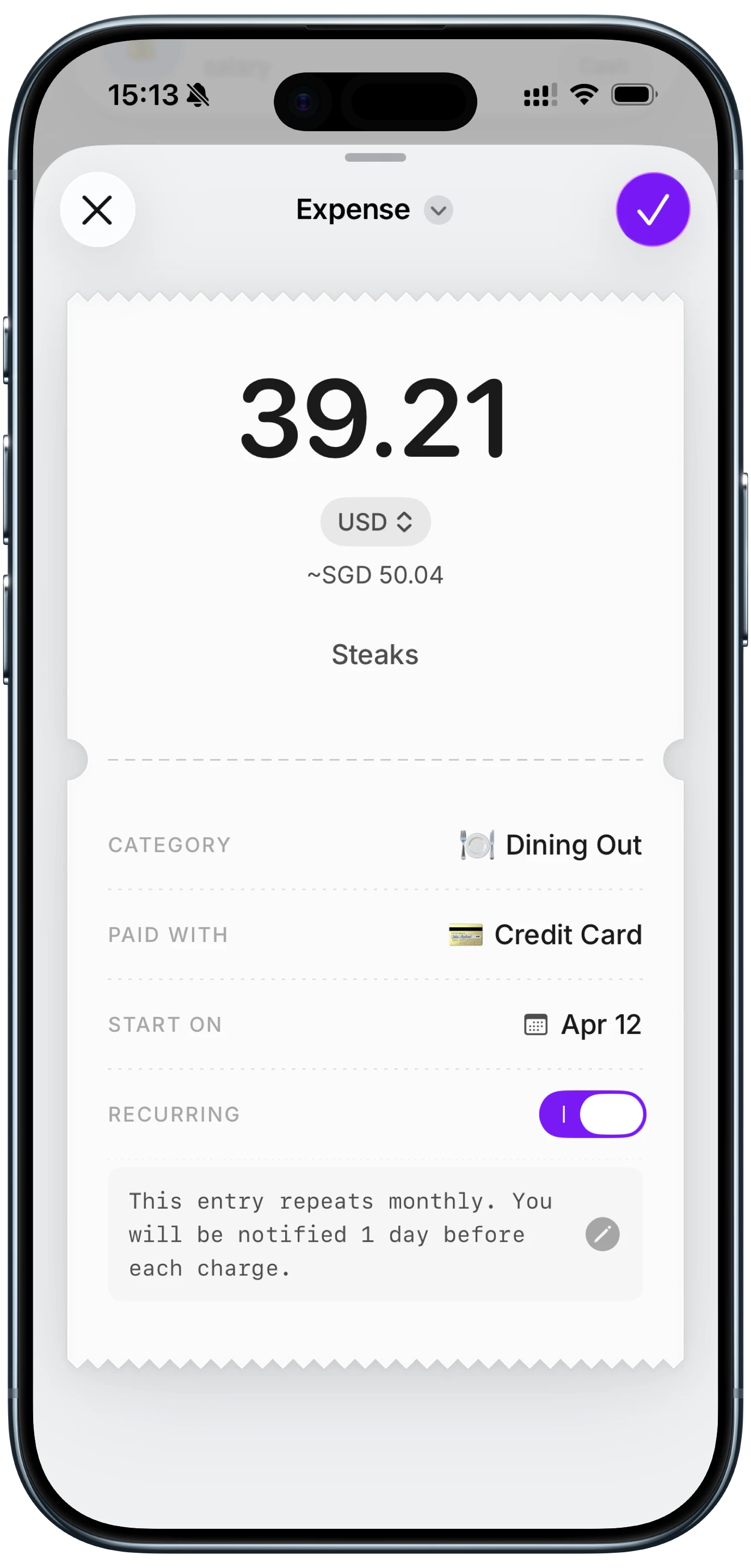
Log recurring charges yourself, once. Set each subscription up as a recurring entry in a money tracking app, with the amount, renewal date, and a reminder. It covers every card and every bill, and a price increase stands out because the charge no longer matches what you logged. Finny does this with a recurring toggle on any entry and a reminder before renewal. Card payments are also logged as you make them, so the actual charge shows up next to the one you expected, with no bank connection.
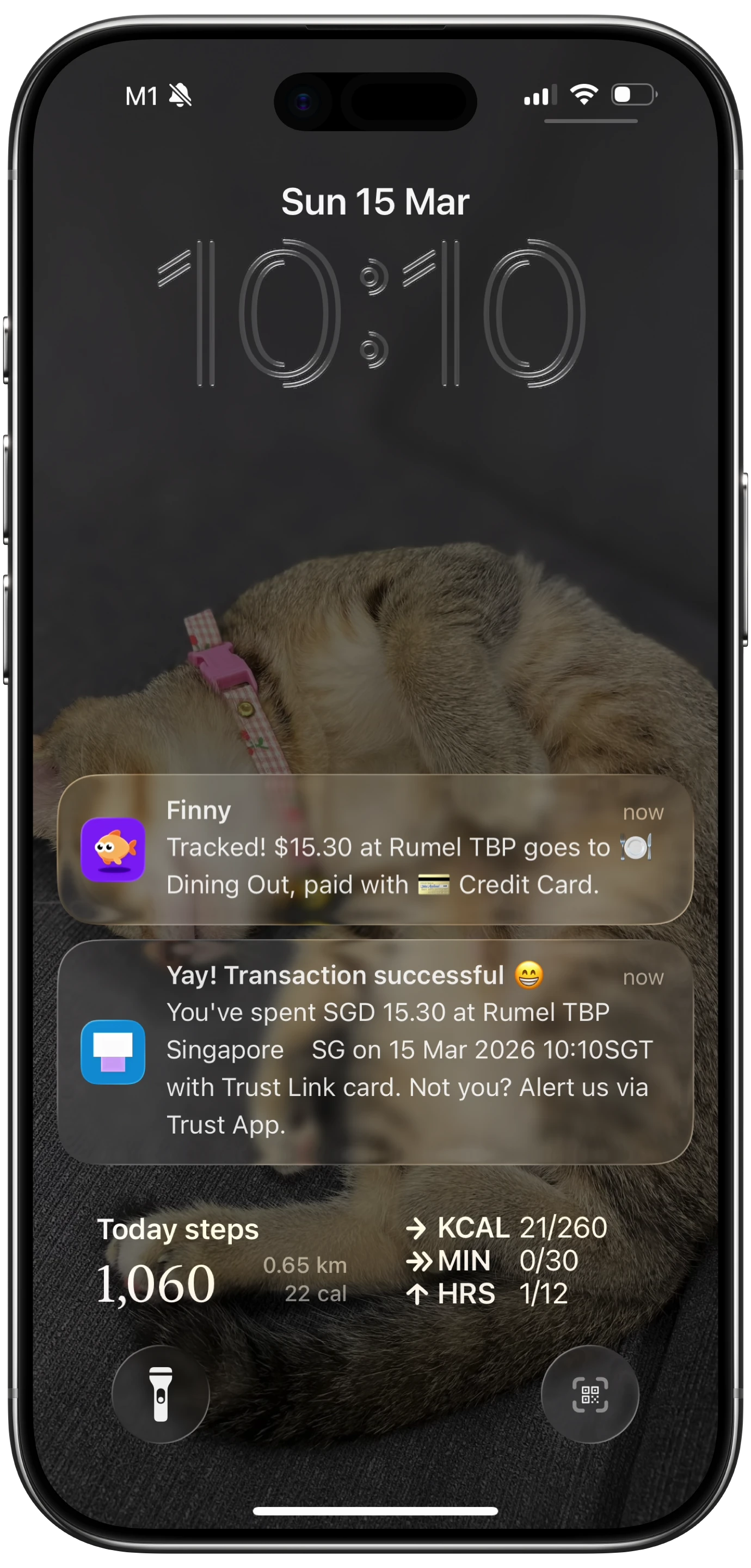
Here's what that automatic capture looks like on an iPhone:
If you'd rather have a dedicated app that finds subscriptions for you, our best subscription tracker apps roundup compares the options, including ones that don't need a bank connection.
A 15-minute subscription audit using the Recurring view
- Open Apple Card's Recurring list and screenshot it.
- Open Settings, tap your name, then Subscriptions, and screenshot that list too. It covers App Store billing, which may be charged to any card.
- Check your other cards' apps for recurring charges and add them to the list.
- Mark each line keep, downgrade, or cancel.
- Cancel today, not later. Most of the savings come from acting while the list is in front of you.
- Turn on Upcoming Transactions so the next renewal doesn't surprise you.
For more on why small charges add up, see our guide to stopping subscription creep.
Frequently Asked Questions
Where are recurring transactions on Apple Card?
In iOS 27, open the Wallet app, tap your Apple Card, tap the three-dot button in the top-right corner, and choose Recurring. You'll see your predicted upcoming recurring charges as a list or on a monthly calendar. The view needs iOS 27 and some Apple Card transaction history to make predictions.
How do I get notified before an Apple Card subscription renews?
Open Wallet, tap your Apple Card, tap the three-dot button, choose Notifications, and turn on Upcoming Transactions. Apple Card will predict when a recurring charge is about to post and alert you in advance. You can turn the alerts off at any time from the same screen. For other cards, set a reminder a few days before each renewal date.
Why is a regular purchase showing as recurring on my Apple Card?
The Recurring view is built from patterns in your transaction history, so a purchase you make on a regular schedule, like a weekly grocery trip, can look like a subscription. Apple notes that routine spending may incorrectly appear as recurring. Treat the list as a guide and confirm anything before you cancel it.
Can I see recurring charges from other cards in Apple Wallet?
Not in the US release of iOS 27. The Recurring view covers Apple Card only. Wallet Insights, which shows recurring transactions across connected accounts, is launching in select countries first. For other cards, use your bank's app, a subscription tracker, or log each recurring charge in a money tracking app.
The bottom line
Apple Card recurring transactions in iOS 27 are a genuinely useful, free way to see what's about to charge you, and the Upcoming Transactions alert turns that into a warning you can act on. The catch is scope: it only sees Apple Card. If that's your main card, it may be all you need. If not, pair it with a simple way to track the recurring charges on every other card.