Send Message Automation Requires Confirmation: 2026 Fix
You built a small money habit into your iPhone. Every Sunday evening it should text your partner what the two of you spent this week, or remind them three days before rent is due. You turned off the confirmation on the automation. And still, at 7 PM, a banner or a half-written message sits on your screen waiting for a tap.
If your shortcut send message automation requires confirmation even after you switched it to run on its own, you are not misreading the settings. There are several separate layers that can each stop a message, and only some of them are yours to switch off. This guide separates the fixable settings from the limits Apple and app makers hold on purpose, then gives you alternatives that work. If your automation asks before running for reasons that have nothing to do with messages, start with our guide to fixing shortcut automations that ask to confirm.
Why the Prompt Survives "Run Immediately"
A messaging automation passes through four checkpoints, and any one of them can pause it.
1. The trigger. This is the switch most people already found: Run Immediately versus Run After Confirmation on iOS 17 to iOS 26, or Confirm Before Run on iOS 27. It decides whether the automation starts without asking. It says nothing about what the actions inside do.
2. The action. The Send Message action has its own option, labeled Show When Run on older versions and Show Compose Sheet on newer ones. If it is on, the shortcut opens a filled-in message and waits for you to press send. Apple's own guide notes that besides the trigger setting, you may also need to set individual actions to run automatically.
3. Privacy. The first time a shortcut hands data to another app or person, the Shortcuts app can show a privacy dialog with Allow Once, Always Allow and Don't Allow. Apple documents these in its Shortcuts privacy settings guide.
4. The app. For third-party actions like WhatsApp, the app itself decides whether its send action finishes in the background or opens its own screen. No iPhone setting overrides that.
What Changed From iOS 17 to iOS 27
Much of the conflicting advice online comes from guides written for different versions. Here is how messaging automations have shifted, based on Apple's Shortcuts User Guide for each release and reporting from Shortcuts expert Matthew Cassinelli.
| iOS version | Can the automation start on its own? | What it means for messages |
|---|---|---|
| iOS 16 and earlier | Message, Email, Arrive, Leave, Wi-Fi and Bluetooth triggers always asked | Any automation started by those triggers needed a tap first |
| iOS 17 | Run Immediately added for almost every trigger, Message included | The trigger stopped being the blocker; the action options still applied |
| iOS 18 | Same model as iOS 17 | Messages gained Send Later for scheduling a single iMessage |
| iOS 26 | Run Immediately, Run After Confirmation, Don't Run, set in the Automation tab | Same rules; check the Send Message action separately |
| iOS 27 | Triggers moved to the top of the shortcut, with Confirm Before Run | Allow Running When Locked, under Privacy, lets it run without confirming |
The iOS 27 change catches people out after updating. Automations are now trigger actions at the top of a shortcut, which our roundup of money shortcuts iOS 27 makes possible covers in detail. Apple's iOS 27 automation guide says that turning on Allow Running When Locked lets some automations run without asking, and that they then stop notifying you when they fire.
Build the Weekly Spending Text Step by Step
Here is a working version of the Sunday check-in, written for iOS 27 with notes for iOS 26. It reads a weekly total the shortcut has been keeping, texts it, and resets the total. On iOS 27 the Store Content and Get Stored Content actions keep that number between runs; the iOS 27 roundup linked above shows a logging shortcut that adds to it.
- Create a new shortcut and add Get Stored Content with the key
week-total. - Add a Text action such as: "Money check-in: we spent $[Stored Content] this week. Rent goes out on the 1st."
- Add Send Message. Set the message to the Text output and the recipient to your partner. Tap the arrow on the recipient and pick one specific phone number or email, so the shortcut never has to ask which one.
- Expand the Send Message action and turn off Show Compose Sheet (Show When Run on older versions).
- Add Store Content to save 0 under
week-total, so next week starts fresh. - Add the trigger. On iOS 27, tap Edit, then Automation, then Time of Day, and set Sunday at 7 PM, weekly. Expand the trigger, keep Automation on and turn Confirm Before Run off. On iOS 26, use the Automation tab, choose Time of Day, pick Run Immediately, then select this shortcut.
- Allow it to run locked. On iOS 27, tap the Info button, then Privacy, and turn on Allow Running When Locked.
- Run it once by hand and answer any privacy dialog with Always Allow if it is offered. That first answer is what keeps later runs silent.
Why WhatsApp Still Asks (and What You Can Do)
This is the case behind most "WhatsApp automation requires confirmation iPhone" searches, and it deserves a straight answer. The WhatsApp action in Shortcuts is built by WhatsApp, not Apple. Apple controls whether your automation starts and whether Shortcuts asks for privacy permission. WhatsApp controls what happens when its action runs: whether it sends in the background, opens a chat screen, or stops to confirm.
So work through what you can control first. Set the trigger to run without confirming. Open the WhatsApp action and, if your version shows a Show When Run switch, turn it off. Pick one exact number for the contact, because a contact with several numbers makes the shortcut stop to ask which one, and a locked phone cannot answer. Keep WhatsApp updated, since its Shortcuts support changes with app releases. Then test with the phone unlocked, and again locked.
If it still opens WhatsApp or waits for a tap after all that, there is no setting left to change. That is the app's design, and no iOS version lets Shortcuts skip it. The honest fallbacks are to let the automation prepare the message and accept the one tap, or move the reminder to a channel that can send silently, which the next two sections cover.
Fixable Setting or Apple's Limit?
Use this table to identify what you are actually looking at when a messaging automation stalls.
| What you see | Cause | Fixable? |
|---|---|---|
| A banner asking to run the automation | Trigger set to confirm | Yes: Run Immediately, or Confirm Before Run off |
| A filled-in message waiting for Send | Show Compose Sheet or Show When Run on | Yes: turn it off in the action |
| A dialog with Allow Once and Always Allow | Privacy permission | Yes, if Always Allow is offered |
| "Which one?" for a contact | Contact has several numbers | Yes: pick one number in the action |
| Nothing happens while locked | A prompt cannot show on the Lock Screen | Usually: Allow Running When Locked, no prompts |
| Nothing seems to happen at all | Focus hid the confirmation banner | Yes: allow Shortcuts in that Focus |
| Message blocked for one contact | Screen Time Communication Limits | Only by whoever manages Screen Time |
| WhatsApp opens or waits for a tap | WhatsApp's own action behavior | No |
Two rows need a word. Focus does not stop a shortcut from sending, but if the automation is still set to confirm, Focus can silence the banner you were supposed to tap, so the run looks broken. Our guide to why iOS Shortcuts automations get flaky covers that and other silent failures. Screen Time Communication Limits, common on a teen's or managed iPhone, can block messages to anyone outside the allowed list regardless of what the shortcut says.
Alternatives That Work When Sending Cannot Be Silent
If the message itself is the sticking point, the goal behind it, keeping money conversations on schedule, often has a better route.
Messages Send Later. Since iOS 18, you can schedule a single iMessage from the plus button in a conversation, then More, then Send Later. It works only for iMessage conversations and up to 14 days ahead, according to MacRumors. It suits a one-off bill reminder, though not a recurring weekly total.
A shared reminder instead of a text. A shared Reminders list with due dates notifies both of you on time with no sending involved. For recurring bills, this is often more reliable than any automation, and our guide on never missing a bill payment builds the system around it.
Notify yourself, send by hand. Have the automation show a notification with the weekly total, then forward it yourself. One tap is a small price for a message that always arrives.
Keep it in a sheet both of you can open. If the point is visibility, logging to a shared spreadsheet removes the need to text at all. See our walkthroughs for Apple Numbers, Google Sheets, and Excel.
The Number Is the Hard Part
Once the text sends reliably, a quieter problem shows up. The weekly total is only as accurate as what went into it, and a stored number in a shortcut depends on you remembering to log every coffee and every fuel stop. Miss three purchases and Sunday's message is confidently wrong.
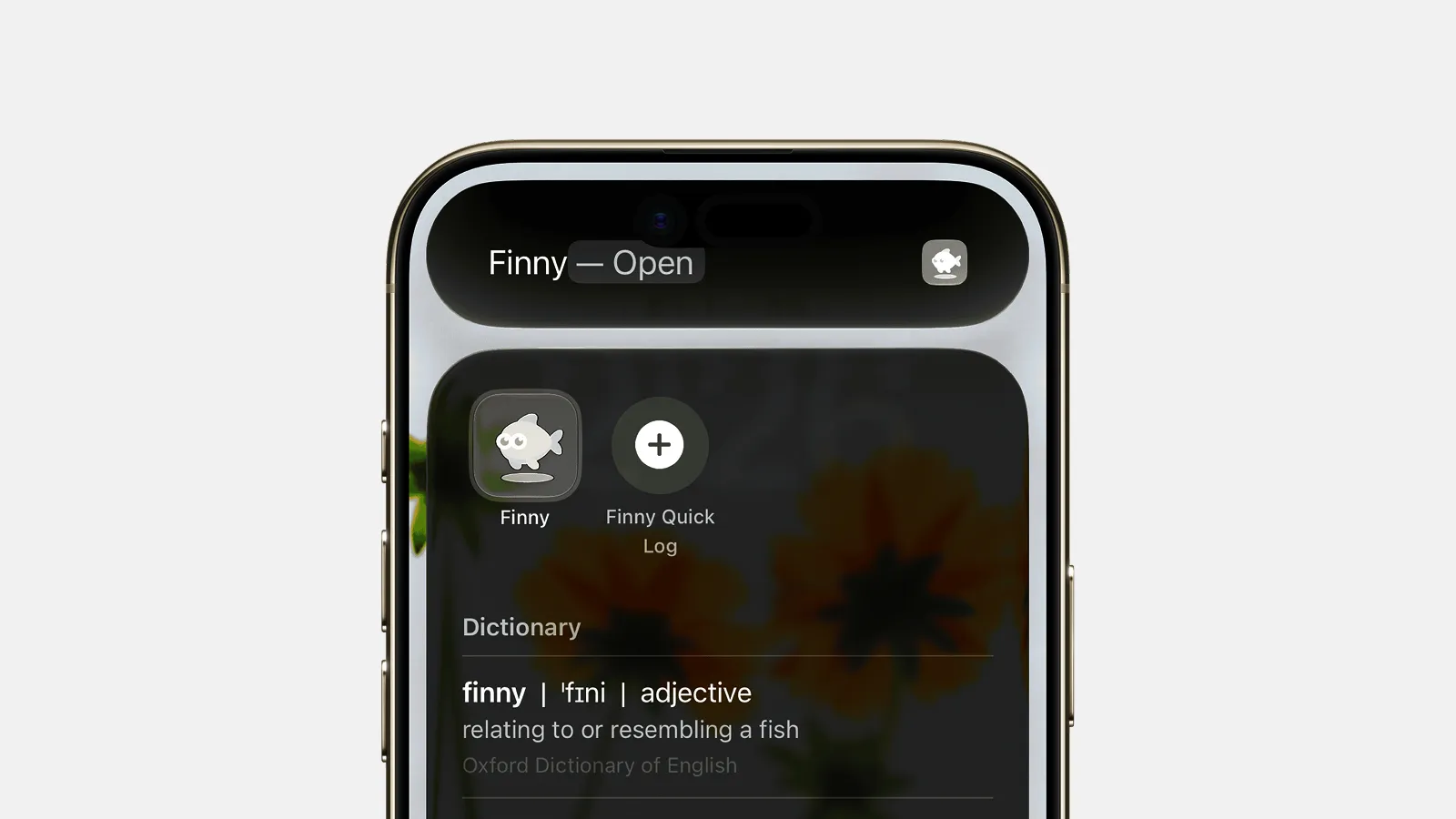
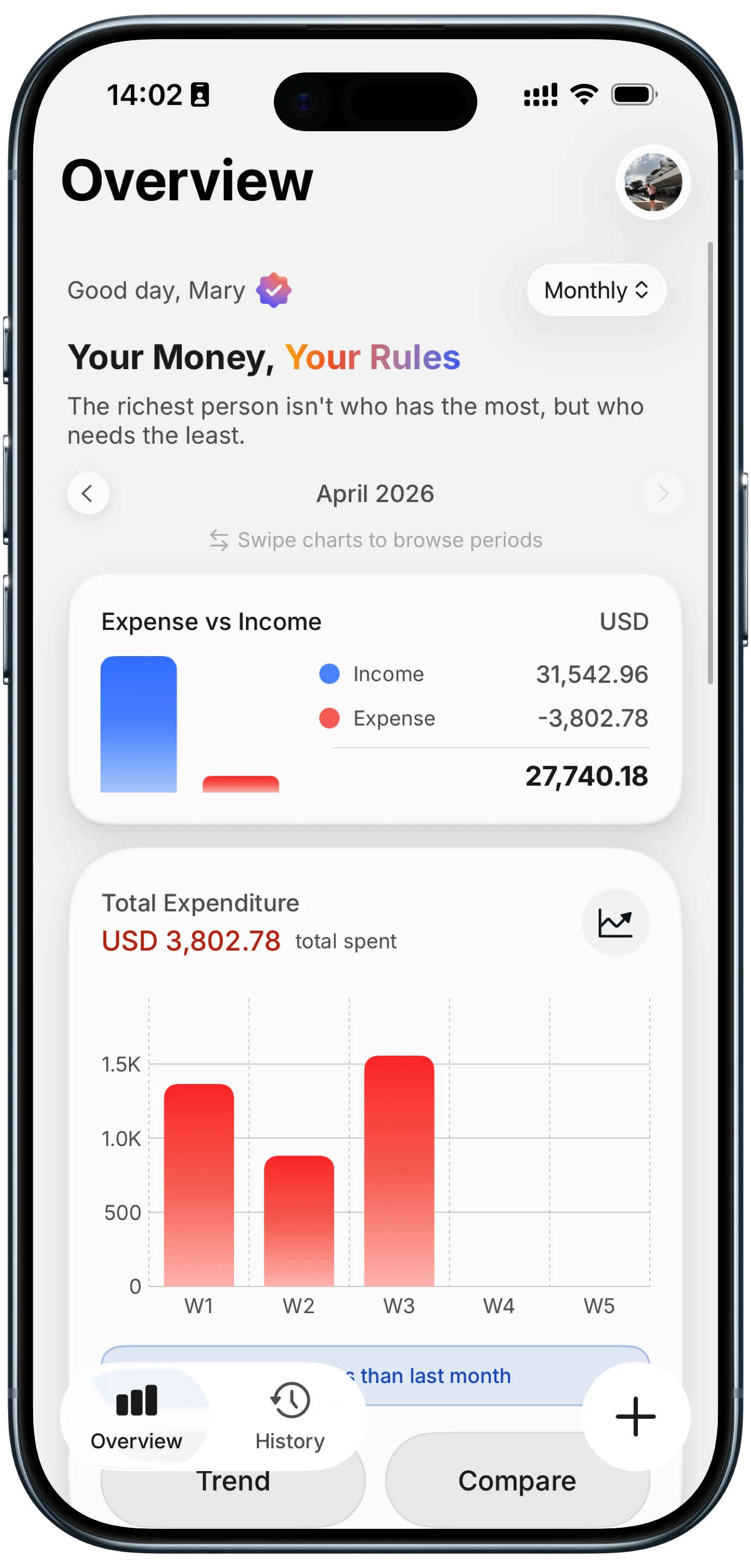
Finny app's Quick Log feature
That is the part worth handing to a dedicated tracker. In Finny, Quick Log logs an expense in a few seconds without opening the app, so the weekly figure you share reflects what you actually spent. For a wider list of logging ideas, our hub of the best money shortcuts for iPhone compares the main options.
If you would rather card spending log itself, this short video shows Finny's Tap to Track recording card payments as you make them.
Then the Sunday text becomes a summary you trust, and talking about money each week, the habit behind a good money date, gets easier because the numbers are already right.
Common Questions About Send Message Automations
Why does my Send Message automation still ask for confirmation?
Usually because two separate settings are involved. The trigger setting (Run Immediately on iOS 17 to 26, Confirm Before Run on iOS 27) only controls whether the automation starts. The Send Message action has its own Show Compose Sheet or Show When Run option, which opens the message and waits for you to press send. Turn both off, choose one specific number for the recipient, and run the shortcut once by hand to answer any privacy dialog with Always Allow.
Can a WhatsApp automation send without confirmation on iPhone?
Sometimes, but it is not fully in your control. Apple decides whether the automation starts on its own; WhatsApp decides how its send action behaves. Turn off the confirmation on the trigger, turn off Show When Run on the WhatsApp action if it appears, and pick a single number for the contact. If WhatsApp still opens a chat or waits for a tap after that, no iPhone setting can bypass it, so accept the tap or switch channels.
Will a send message automation run while my iPhone is locked?
It can, as long as nothing in the shortcut needs your input. A compose sheet, a privacy dialog or a "Which one?" question cannot be answered on the Lock Screen, so the run stalls. On iOS 27, turn on Allow Running When Locked under the shortcut's Privacy settings, turn off Show Compose Sheet, and answer any privacy prompt once while unlocked. After a restart, unlock the phone once before relying on it.
Is there a way to schedule a text on iPhone without Shortcuts?
Yes. Since iOS 18, Messages has Send Later: open a conversation, tap the plus button, choose More, then Send Later, and pick a time. It works only in iMessage conversations, not SMS or RCS, and schedules up to 14 days ahead. It handles a single reminder, like a bill due next week, but it does not repeat, so a recurring weekly money summary still needs a shortcut or a shared reminder.
Want the weekly number to be right before you send it?
Download Finny from the App Store to log spending in seconds with no bank connection, free to start, and let Sunday's money check-in tell the truth.