Log Expenses to Apple Notes With a Shortcut (2026)
Apple Notes is the app most people already open a dozen times a day. It syncs, it works offline, and it never asks you to design a spreadsheet. That makes it a surprisingly good place to keep a simple spending log, as long as getting each purchase into it takes seconds instead of a minute of scrolling and typing.
This guide shows you how to log expenses to Apple Notes with a shortcut: a free shortcut that asks for an amount, a category and a note, then appends a dated line to this month's note, creating it on the first purchase of each month. Then we tackle the part most tutorials skip: Notes cannot add numbers, so a second shortcut totals the month for you. Our iPhone expense tracker shortcut tutorial covers the basics if Shortcuts is new to you.
Why Apple Notes Works (and the One Thing It Cannot Do)
The appeal is that Notes needs no setup. The Shortcuts app has a native Append to Note action and a Find Notes action that can filter by a note's name, folder or dates, so a shortcut can write straight into Apple Notes without any bridge, login or script. Because notes live on your iPhone and sync through iCloud, the shortcut keeps working with no signal and catches up later.
The limit is just as clear. A note is text, not a table. Notes will not total a column of amounts, sort by category, or filter to last week. Math Notes, added in iOS 18, solves an expression when you type an equals sign after it, so 12.50 + 8 + 41 = works, but it does not add up a log that grows one line at a time.
So the plan has two parts. One shortcut writes each expense as a consistent, machine-readable line. A second shortcut reads the month's note, pulls out every amount and adds them up. All you need is an iPhone with Shortcuts and Notes, both free from Apple, and about fifteen minutes.
Step 1: Build the Logging Shortcut
Open Shortcuts, tap + to create a new shortcut, and name it "Log to Notes". Add these actions in order.
- Ask for the amount. Add Ask for Input, set the type to Number, and use the prompt "How much?". The number keypad keeps stray letters out of your amounts.
- Pick a category. Add a List action and type your categories, one per item: Groceries, Dining, Transport, Shopping, Bills, Fun. Then add Choose from List below it, so categories live in one place.
- Add an optional note. Add a second Ask for Input, type Text, prompt "Note (optional)". You can leave it empty when you run it.
- Stamp the date. Add Format Date with Current Date, choose Custom, and enter
MMM d, which gives "Oct 28".
- Build the line. Add a Text action and insert the variables like this:
Formatted Date | $Amount | Chosen Item | Note, using the first Ask for Input result for Amount and the second for Note. A finished line readsOct 28 | $12.5 | Dining | lunch with Sam.
The format matters more than it looks. The dollar sign directly before every amount is what the totaling shortcut will search for, so keep it there and never type a dollar sign anywhere else in a line.
Step 2: Send Each Entry to This Month's Note
One long note for every purchase you ever make gets slow to scroll and hard to total. A note per month stays short, and the shortcut can create it on its own. Keep building the same shortcut.
- Name the month. Add another Format Date with Current Date, custom format
yyyy-MM, then a Text action readingExpensesfollowed by that formatted date. The result is "Expenses 2026-10". - Look for the note. Add Find Notes, add a filter where Name is the Text from the previous step, and set Limit to 1.
- Create it if it is missing. Add If, with the condition that Notes has any value. Inside If, add Set Variable named
Logwith the found note. Under Otherwise, add Create Note with the month's Text as the body (Notes uses the first line as the title), pick a folder such as "Money", then Set VariableLogto the new note. - Append the line. After End If, add Append to Note, set the note to the
Logvariable, and the text to the line from Step 1.
- Confirm it worked. Finish with Show Notification reading "Logged $Amount to Expenses 2026-10" so you know the line landed.
Run it twice with test amounts. The first run creates "Expenses 2026-10" in your Money folder; the second adds a line under it. On November 1 it starts a fresh note on its own.
Step 3: Total the Month With a Second Shortcut
Now the part Notes cannot do itself. Create a new shortcut named "Month Total" with these actions.
- Find this month's note with the same Format Date (
yyyy-MM), Text and Find Notes steps from Step 2. - Pull out the amounts. Add Match Text, which searches text for a regular expression and returns every match as a list. Use this pattern:
(?<=\$)[0-9,]+(\.[0-9]+)?. In plain English: any number that comes right after a dollar sign. Dates and notes without a dollar sign are ignored.
- Add them up. Add Calculate Statistics and set the operation to Sum. If you search the action list for "add" it will not appear; search for "sum" or "statistics" instead.
- Count the entries. Add Count on the Match Text result, so you also see how many purchases you logged.
- Show the result. Add Show Alert with text like "October so far: $Sum across Count entries".
Test it with a purchase over $1,000 too, since a thousands separator is the likeliest thing to trip the pattern.
For a category total, duplicate the shortcut, add Choose from List with your categories at the top, and change the pattern to (?<=\$)[0-9,]+(\.[0-9]+)?(?= \| Dining), replacing Dining with the chosen category variable. If you are on iOS 27 and only need one running number, the new storage actions can keep it without parsing anything, as our guide to money shortcuts iOS 27 makes possible shows.
Troubleshooting the Notes Log
A few things break a Notes log. Check these when a total looks wrong or a line goes missing.
- A new note appears every time. The Find Notes name filter did not match. Check that the month Text in both shortcuts is identical, including the space after "Expenses", and that you did not rename the note by editing its first line.
- The total is too low. A line is missing its dollar sign, or you typed one by hand with a space after it. Open the note and fix the line so it reads
$12.5, not$ 12.5. - A large purchase counts as a small one. The amount was written with a separator the pattern did not expect, often in a non-US region format. Edit the line, or adjust the pattern for your region.
- Nothing gets appended. If you locked the note, a shortcut may not be able to write to it. Keep the log note unlocked and protect your iPhone with Face ID instead.
- It stops at a prompt in an automation. Ask for Input always needs you, so this shortcut belongs on a button, not on an unattended trigger. If a shortcut that should run on its own keeps asking, our guide on why a send message automation requires confirmation explains the layers involved.
For speed, put "Log to Notes" on your Home Screen, in a widget, or on the Action Button. Our hub of the best money shortcuts for iPhone compares every trigger.
Notes vs Numbers vs Google Sheets vs Excel
Notes is one of four destinations in this series, and each one trades setup effort for analysis power differently.
| Destination | Native Shortcuts action | Works offline | Totals | Setup | Best for |
|---|---|---|---|---|---|
| Apple Notes | Yes: Append to Note | Yes | Second shortcut with Match Text and Sum | Low | A light log you read like a diary |
| Apple Numbers | Yes: Add Row to Table | Yes | Formulas and charts | Low to medium | Real budgets that stay in Apple's apps |
| Google Sheets | No: Apps Script bridge | No | Formulas, shareable anywhere | Medium | Sharing with a partner on any device |
| Excel | No: append to a CSV file | Yes, for the CSV route | Formulas after importing the CSV | Medium | Existing Excel workbooks |
Notes wins on simplicity and readability: a glance at the month shows "Oct 12 | $64 | Dining | birthday dinner" in plain words. It loses everywhere structure matters: no charts, no budgets, no year-over-year view, and every total depends on the line format staying perfect. A shared note does let a partner append from their own phone.
A useful rule: if you only want to know where the money went this month, Notes is enough. If you want to plan next month, move up to Numbers or a spreadsheet, or see our guide on when to quit spreadsheet budgeting if even that sounds like too much upkeep.
When a Note Stops Being Enough
The Notes log is honest about its ceiling. You still tap through three prompts per purchase, the category is whatever you remember to pick, and the total only exists when you run a second shortcut. After a few busy weeks, the gaps usually come from purchases you never logged at all.
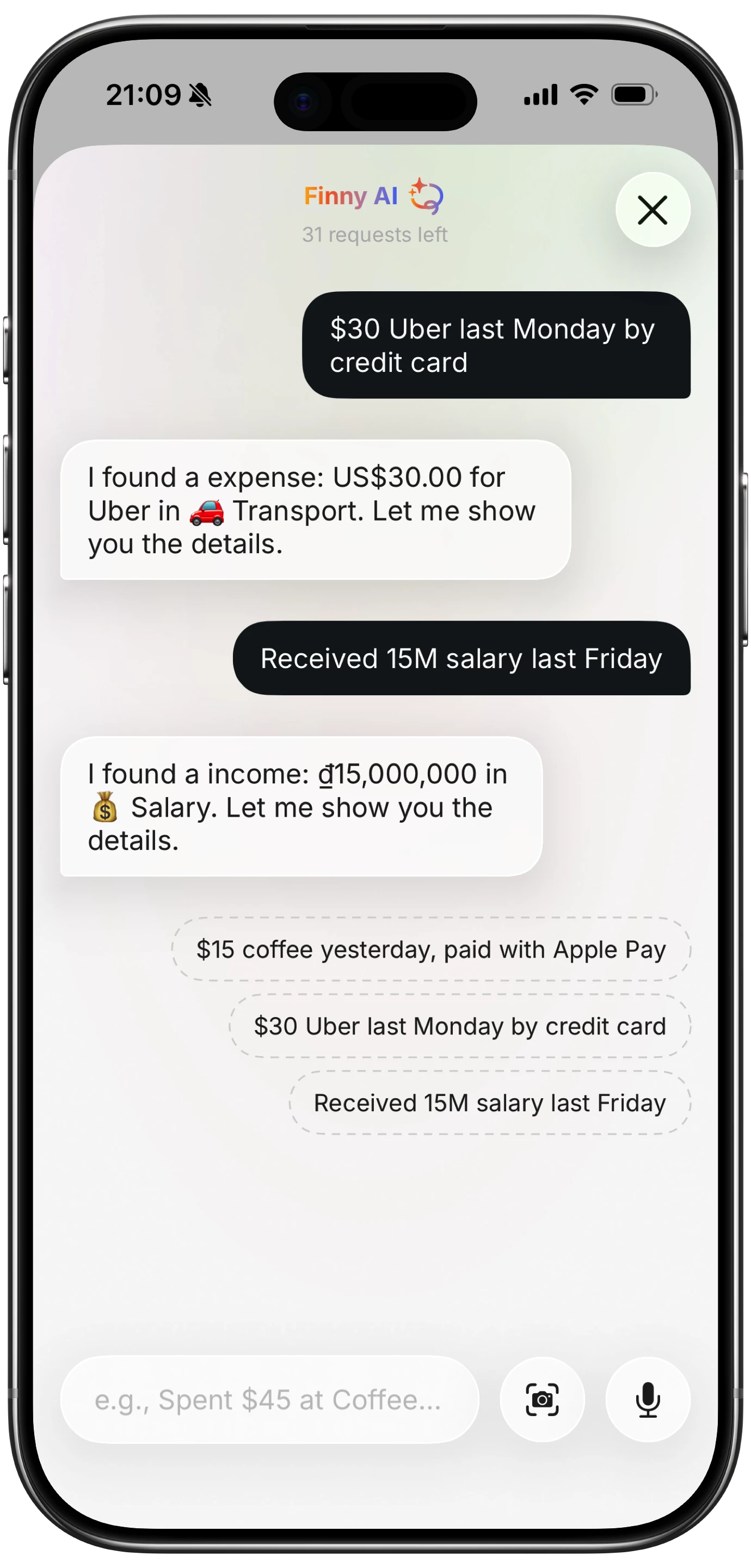
Finny app's AI chat feature
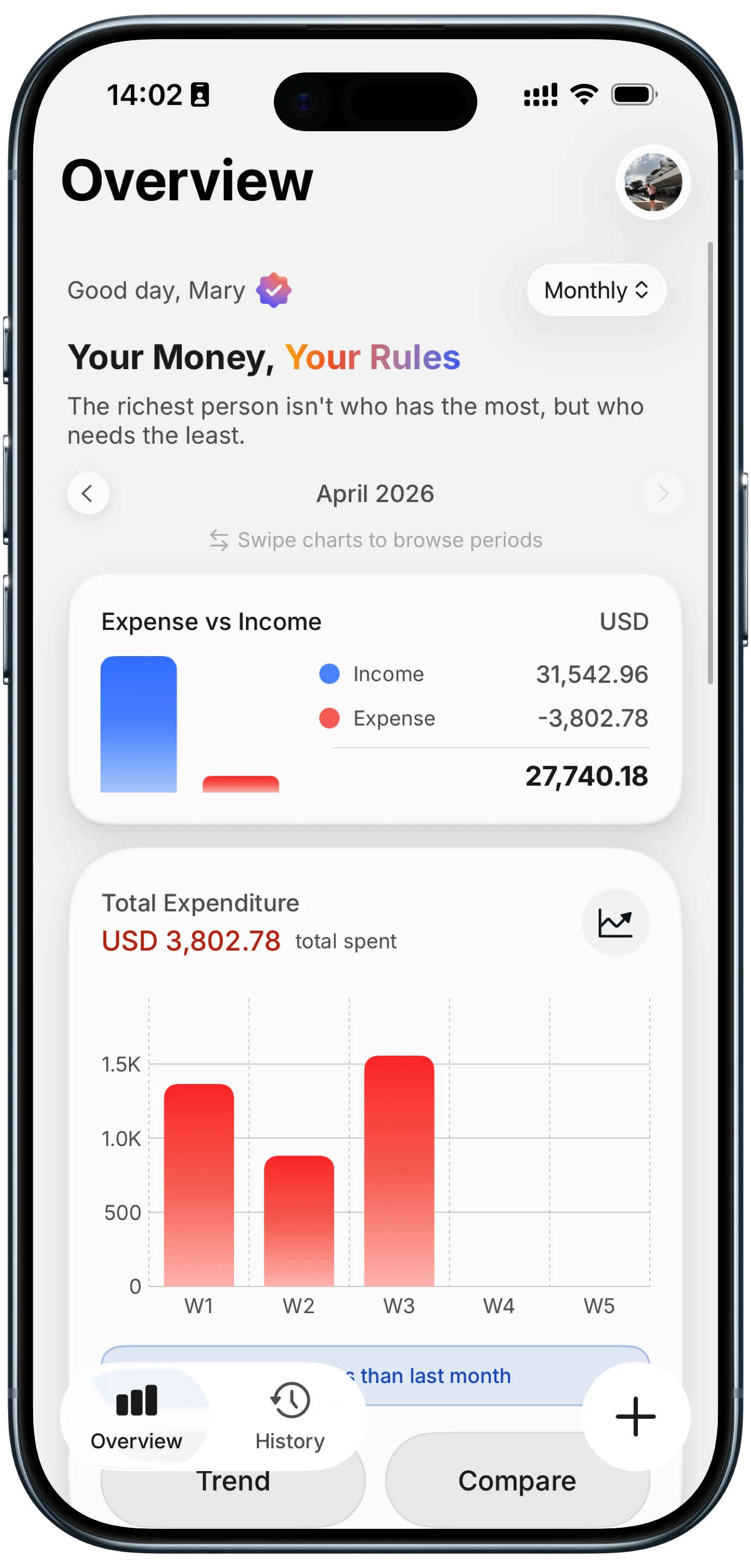
That is the gap a dedicated tracker fills. In Finny, you can type a plain sentence like "$15 coffee yesterday" and AI turns it into a categorized entry for you to confirm, while Quick Log records an amount, category and payment method without opening the app. Totals, budgets and charts update as you go, there is no bank connection, and the free tier covers unlimited manual entries.
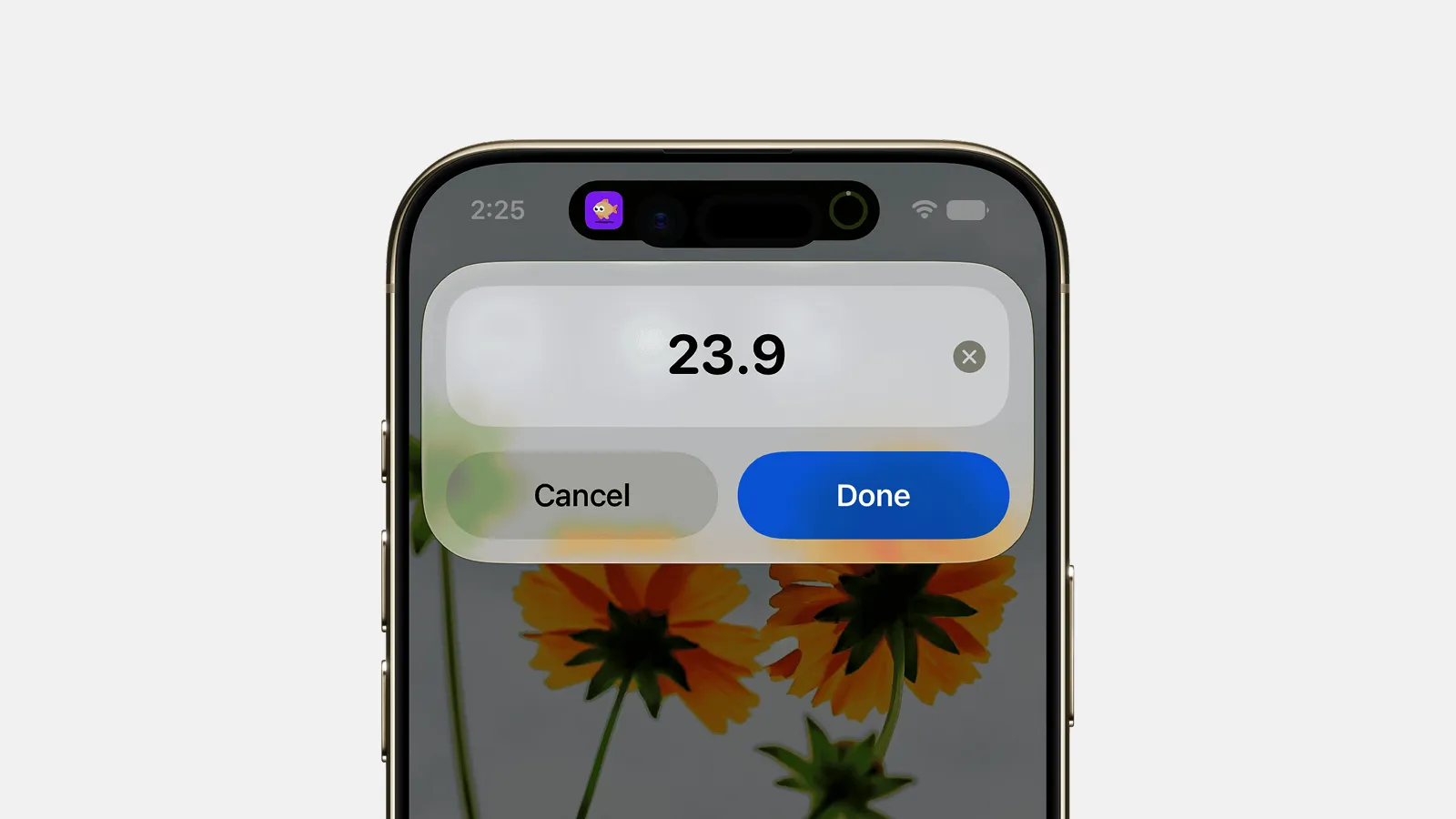
Finny app's Quick Log feature
And for payments you would rather not type at all, this short video shows Finny's Screen Log turning a payment on your iPhone screen into an entry.
Common Questions About Logging Expenses to Apple Notes
Can Apple Notes add up numbers automatically?
Not a list of entries. Math Notes, available since iOS 18, solves an expression when you type an equals sign after it, so you can write a sum by hand and get the answer. It does not total amounts that a shortcut appends over a month. For that, use a second shortcut that finds the note, extracts every amount with Match Text, and adds them with Calculate Statistics set to Sum, then shows the total in an alert.
How do I append to a note with an iPhone shortcut?
Add the Append to Note action in the Shortcuts app and choose the note it should write to. To target a note that changes, like one per month, use Find Notes with a filter on the note's name first, then pass the result into Append to Note. Each run adds your text to the end of the note, so a consistent line format turns the note into a simple log you can scan or total later.
Does an Apple Notes expense tracker work offline?
Yes. Notes stores your notes on the iPhone and syncs through iCloud when a connection returns, so the logging and totaling shortcuts both work in airplane mode or a basement store with no signal. That is an advantage over the Google Sheets route, which needs a live connection for every entry. Just make sure the month's note exists or can be created on the device you are using.
Is Apple Notes good enough to track spending?
For a light habit, yes. If you want a readable record of where the money went this month, a dated line per purchase in a monthly note does the job for free. It falls short once you want budgets, category charts, trends or shared totals, because Notes has no structure beyond text. At that point a spreadsheet like Numbers or a dedicated expense app saves you from maintaining parsing shortcuts.
Want the totals without the second shortcut?
Download Finny from the App Store to log spending in seconds with AI, no bank connection and totals that update themselves, free to start.