Apple Pay Notifications Not Working? 9 Fixes (iOS 27)
You tap your iPhone at the register, the payment goes through, and nothing lands on your lock screen. Last week the same card sent an alert every time.
When apple pay notifications not working is the problem, the cause is almost always one of three things: the card's own notification switch inside Wallet is off, the Wallet app's notifications are being held back by an iPhone setting (Focus, Scheduled Summary, or an Apple Intelligence filter), or the card simply does not send transaction details to Wallet at all. The fixes below run from most likely to least likely, with the exact Settings paths from Apple's iOS 27 user guide.
If your alerts come from your bank's own app rather than Wallet, the fixes are different, and our guide to not getting bank notifications on iPhone covers that side.
Fixes 1 to 3: Check the Card and the Wallet App First
Most silent cards are fixed in these first three steps. Do them in order.
1. Check whether your card shows recent activity in Wallet. Open the Wallet app, tap the card, and scroll down. Apple's guide says recent activity appears "on a supported card." If the card shows no transactions at all, Wallet is not receiving details for it, and no iPhone setting will produce an alert. Skip to the section on why some cards never notify.
2. Turn on the card's own transaction notifications. For Apple Card, Apple's steps are: in Wallet, go to Apple Card, tap the More button, tap Notifications, then turn on Transactions. For other cards, tap the card, tap the More button, and look for a notification option. Apple notes that depending on the type of card, you can adjust notification settings, and that not all options are available on all cards.
3. Make sure Wallet is allowed to notify you. Go to Settings > Notifications, then tap Wallet below Notification Style. Turn on Allow Notifications. Under Alerts, make sure Lock Screen, Notification Center, and Banners are selected, so an alert is not arriving somewhere you never look. If you use Scheduled Summary, the same screen has one more setting that matters, covered in fix 4.
Fixes 4 to 6: Find What Is Holding Alerts Back
If the switches above are on but alerts still arrive late or not at all, something on the iPhone is likely delaying or silencing them.
4. Take Wallet out of Scheduled Summary. Scheduled Summary batches notifications and delivers them at set times. Go to Settings > Notifications > Wallet, and under Notification Delivery choose Immediate Delivery. To check the summary itself, go to Settings > Notifications > Scheduled Summary and look at which apps are included.
5. Check your Focus. A Focus such as Do Not Disturb, Sleep, or Work can silence Wallet. Open Control Center: if a Focus is lit, tap it to turn it off. To keep it on but let payment alerts through, go to Settings > Focus, choose the Focus, tap Apps, make sure Allow Notifications From is selected, and add Wallet. Apple also notes that if Share Across Devices is on, a Focus on your iPad or Apple Watch can follow you to your iPhone. You cannot allow app notifications in the Driving Focus.
6. Check Apple Intelligence filtering on iOS 27. On supported iPhones, the Reduce Interruptions Focus shows only notifications it judges important and silences the rest, and Intelligent Breakthrough & Silencing does the same inside other Focus modes. Apple says notifications you specifically allow will always be allowed, so adding Wallet under Settings > Focus > [your Focus] > Apps fixes this too. Summarize Notifications only condenses alerts, it does not block them, but a summarized stack is easy to skim past.
Fixes 7 to 9: Apple Watch, Updates, and Re-adding the Card
These are less common, but they explain cases where everything above looks correct.
7. Look at your Apple Watch. Apple says that by default, notifications go to either your Apple Watch or your iPhone, not both. If your iPhone is locked, the alert goes to your watch, and dismissing it there also dismisses it on the phone. To control this, open the Apple Watch app on your iPhone, tap My Watch, tap Notifications, then tap Wallet in the list of apps and choose Mirror my iPhone, or tap Custom and pick Allow Notifications.
8. Restart and update iOS. A restart clears a stuck notification service more often than you would expect. Then go to Settings > General > Software Update and install any update shown.
9. Remove the card and add it again. In Wallet, tap the card, tap the More button, tap Card Details, then tap Remove Card. Add it again from Wallet afterward, and expect your bank to ask you to verify it again, by text or in its app. Apple notes that removing a card on your iPhone does not remove it from Wallet on your other devices.
On delays: Wallet shows what your issuer sends it, and Apple says some transactions can look different from the final charge.
Why Some Cards Never Send Apple Pay Notifications
If fix 1 showed no recent activity, the problem is not your iPhone. Wallet transaction alerts depend on the card issuer sending transaction details to Apple, and not every issuer does.
Apple's own wording reflects this. Its iPhone guide says recent activity appears "on a supported card," and that notification settings are available depending on the type of card. Apple Card has a Transactions switch built in. For other credit and debit cards, the bank decides whether Wallet gets transaction details at all. Apple does not publish a list of which issuers support it, so the fastest way to know is to look at the card in Wallet: no activity list means no Wallet alerts.
A few other patterns explain silence even on supported cards:
- The purchase was not made with Apple Pay. A charge from your physical card, or a card number saved on a website, may or may not show up in Wallet depending on the issuer.
- Store and business cards. Co-branded store cards and cards managed by an employer can offer limited alerts of any kind, in Wallet or in the bank's app.
- Pending amounts. Transit fares and pay-at-the-pump holds can post later or at a different amount.
For a deeper look at why Wallet and your bank's app can disagree, see the two channels behind every Apple Pay tap.
When to Call Your Bank
Call the number on the back of your card when the problem is clearly on the issuer's side. That means the card shows no recent activity in Wallet even though you use it with Apple Pay, alerts stopped for one card while your other cards still notify normally, or the amounts in Wallet do not match your statement.
Before you call, set up the bank's own alerts in its app. Most large US banks let you choose push, text, or email alerts for purchases, often with a dollar threshold you pick. Set it to the lowest amount allowed for a second alert that does not depend on Wallet. Our guide to tracking a credit card that doesn't send notifications covers what to do when a card offers nothing.
When you reach the bank, ask two questions: does this card send transaction details to Apple Wallet, and are alerts enabled on my account? The answers tell you whether to keep troubleshooting your phone.
If the bank confirms a charge you never saw anywhere, our guide to what to do when your bank says you were charged but your finance app shows nothing explains how to find and record it.
Keeping a Record of Apple Pay Spending
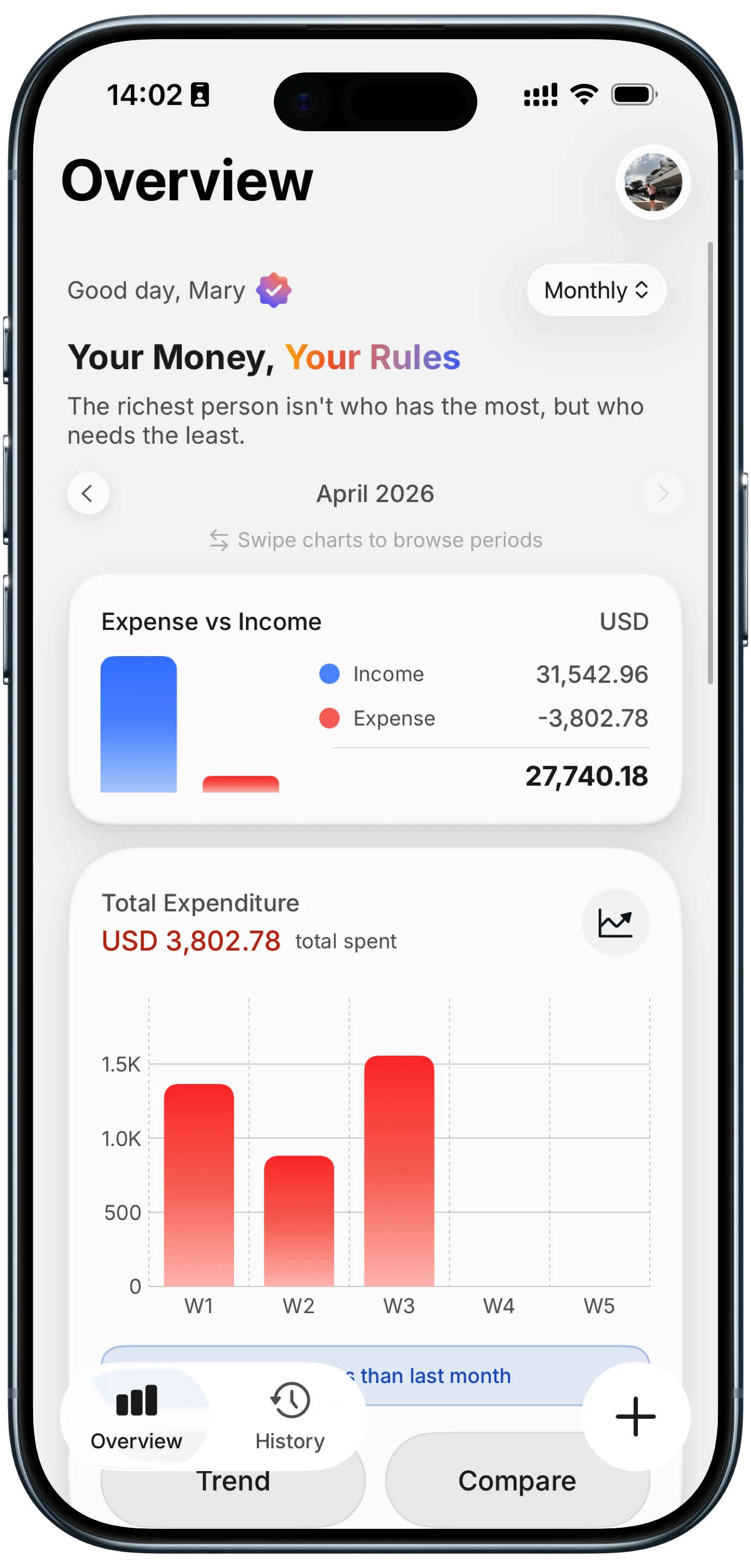
Many people chase a missing alert because they use alerts to keep track of spending. If that is your goal, a record you control helps. Finny is an iOS expense tracker with no bank connection, and its Tap to Track feature (Pro) logs Apple Pay card purchases as you make them, with the amount, merchant, and date filled in.
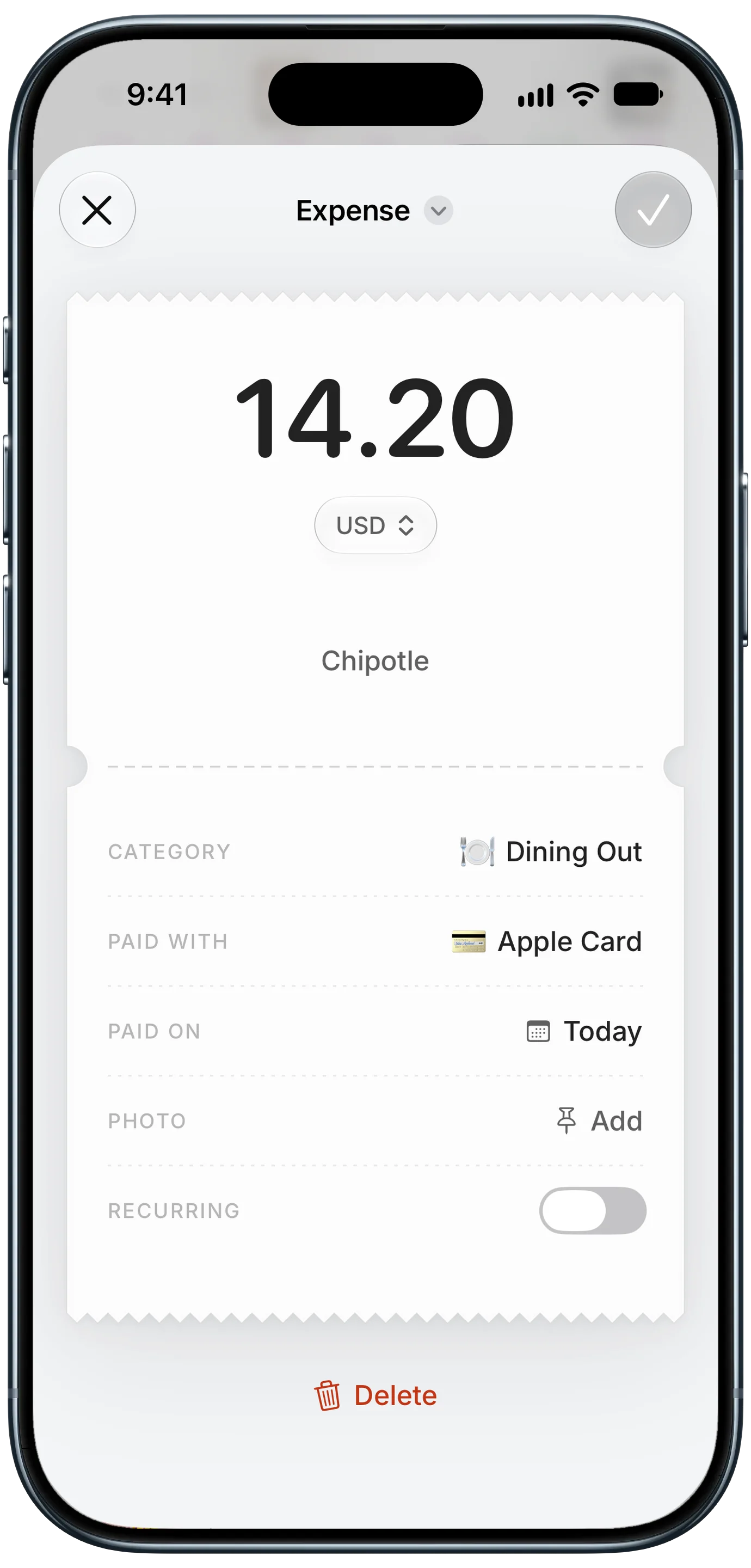
Finny app's expense entry feature
Each logged purchase becomes a normal entry, like this USD 14.20 Chipotle charge filed under Dining Out on an Apple Card, and you can change the category or add a note at any time. If a payment comes through without enough detail to log, Missed Payments keeps it waiting in History so you can finish it, instead of letting it vanish. This short video shows Tap to Track logging card payments as they happen:
For setup and coverage details, see how to automatically track Apple Pay purchases.
Common Questions About Apple Pay Notifications
Why did my Apple Pay notifications suddenly stop?
The most common causes are a Focus that turned on by schedule, Wallet moved into Scheduled Summary, or the card's own notification switch inside Wallet being off. Check Settings > Notifications > Wallet first, then the card's settings in Wallet. If only one card went silent while others still notify, the change is more likely on the issuer's side, such as a replacement card that has not been added to Wallet yet.
Do all cards send Apple Pay transaction notifications?
No. Apple's guide says recent activity appears on supported cards and that notification options vary by card type. Apple Card has a Transactions notification switch built in. For other credit and debit cards, the issuer decides whether Wallet receives transaction details. No recent activity on the card in Wallet means no Wallet alerts; use the bank's app alerts instead.
Why do I get Apple Pay notifications on my Apple Watch but not my iPhone?
By default, Apple sends a notification to either your Apple Watch or your iPhone, not both. When your iPhone is locked and your watch is unlocked on your wrist, the alert goes to the watch, and dismissing it there clears it from the phone too. You can change how Wallet behaves on the watch in the Apple Watch app under My Watch, Notifications.
Why are my Apple Pay notifications delayed?
Delays usually come from Scheduled Summary or a Focus holding alerts back, so check Settings > Notifications > Wallet and set Notification Delivery to Immediate Delivery. If settings are correct, the delay may be on the issuer's side: Wallet shows what the issuer sends, and some charges, such as transit fares or gas pump holds, post later or at a different amount.
Does turning off Wallet notifications stop Apple Pay from working?
No. Notifications only report payments after they happen, so Apple Pay keeps working with them off. The tradeoff is security: Apple describes Apple Card transaction notifications as a way to get an alert every time your card is used, so you can catch suspicious activity. If you turn Wallet alerts off, turn on purchase alerts in your bank's app instead.
Want a record of every Apple Pay purchase, not just an alert?
Download Finny to log card payments as you make them, with no bank connection and no login to share.