Does Apple Card Have a Year-End Summary?
No, not as a document. Apple Card does not produce an annual statement or a downloadable year-end report the way some issuers do. What it does have is a Year view in the Wallet app that shows your total spending for the year, broken down by category, with a comparison to the year before. You can look at it, but you cannot download or print it.
So the honest answer to "where is my apple card year end summary" is that you build it. Apple gives you the raw material: monthly PDF statements, and a transaction export that works for a single statement or for any date range you pick, including January 1 to December 31. One export plus a spreadsheet pivot gets you a real yearly summary in about half an hour.
If you carry other cards too, our credit card year-end summary guide covers Chase, Amex and Capital One.
What Apple Card Gives You, and What It Doesn't
Apple's own support pages describe four tools. Only two of them produce a file you can keep.
| Tool | Where | What you get | Downloadable |
|---|---|---|---|
| Year view | Wallet app, Apple Card activity | Total spent, spending by category, change vs the previous year | No |
| Monthly statement | Wallet (Card Balance) or card.apple.com | One PDF per month | Yes, PDF |
| Statement export | Wallet (Card Balance) | That month's transactions as a file | Yes |
| Date-range export | Wallet (Card Balance) or card.apple.com | Transactions between any two dates | Yes |
The Year view is the closest thing to a summary, but it is a screen, not a report. There is no "Download year" button, no annual PDF and no yearly email.
The web portal does not add one either. According to Apple's Apple Card web guide, card.apple.com handles payments, balances, installments, statements and exports, with no spending summary. The Year view only exists on your iPhone.
Apple's pages also do not state how many years of statements stay available. One documented limit applies to Apple Card Family: shared statements only start from the month the owner and co-owner set up the shared account.
How to See Your Yearly Spending in Wallet
If all you want is the headline number, Wallet already has it. These steps follow Apple's support article on spending history:
- Open the Wallet app and tap Apple Card.
- Tap the Monthly Activity spending summary under Card Balance.
- Tap Year at the top to switch from Week or Month.
- Swipe right to see earlier years.
The Year view shows your total spending and a note under it saying whether you spent more or less than the previous year. Below that, spending is grouped into Apple's categories, such as Shopping, Food & Drinks, and Services. You can recategorize a purchase if it landed in the wrong place.
Two limits are worth knowing before you rely on it. First, the categories are Apple's, so a hardware store run and a new sweater can both sit under Shopping. Second, it only covers Apple Card. If you also pay with a debit card, another credit card or cash, the Year view sees none of that, which is the gap our post on why the Apple Wallet spending summary is not enough digs into.
A screenshot is the only way to keep it.
How to Export a Full Year of Apple Card Transactions
You do not need twelve separate monthly exports. Apple's statement and export instructions include a date-range option, so one file can cover the whole year.
On iPhone:
- Open Wallet and tap Apple Card.
- Tap Card Balance.
- Tap Export Transactions under Statements.
- Choose a start date of January 1 and an end date of December 31.
- Pick a file format, then save the file to Files or send it to yourself.
At card.apple.com: sign in with your Apple Account, click Statements in the sidebar, click Export Transactions, choose the start and end dates and a format, then click Export.
Apple's iPhone User Guide lists CSV, OFX, QFX and QBO. Pick CSV for a spreadsheet. QFX is for Quicken and QBO for QuickBooks.
To work month by month instead, open a statement under Card Balance and tap Export Transactions or Download PDF Statement. Save the twelve PDFs either way: the PDF is the statement itself, the CSV is just the data. Since it is late November, export January 1 to today for a first look, then rerun it after your December statement closes.
Build Your Own Apple Card Year-End Summary
With one CSV in hand, a spreadsheet does the rest. Numbers, Excel and Google Sheets all handle this.
- Open the CSV and check it has one row per transaction with a date, a description and an amount.
- Remove what is not spending. Delete your payments to Apple Card. Leave them in and the year looks like you spent twice as much.
- Keep refunds as negatives so a return cancels its purchase.
- Check the categories. If your export has a category column, treat it as a starting point and fix the big merchants. If not, add one and fill it for your top 20 merchants first. They usually cover most of the money.
- Insert a pivot table with category as rows and amount as values. That is your spending by category for the year.
- Make two more pivots: one by merchant, sorted largest first, and one by month.
Those three pivots answer what a year-end summary is for: how much, where it went, and which month ran hot. Merchant totals are often the most revealing.
For a fuller recap, our spending wrapped guide lists the nine numbers worth pulling, and the year-end money review turns them into next year's targets.
What You Can and Cannot Get for Taxes
Your Apple Card records help at tax time, but they are not a tax document. Apple Card has no tax report, and neither the Year view nor the export knows which purchases are deductible.
What helps. The IRS lists credit card receipts and statements among the documents that support business expenses. Your monthly PDFs show the payee, amount and date for each charge. The IRS also says a combination of documents may be needed, so keep the receipt or invoice for anything you plan to deduct.
What doesn't. Apple's categories are spending categories, not tax categories. Shopping does not tell your accountant whether something was office supplies. The statement also has no line items, just the merchant and total. And interest on a card used for personal purchases is not deductible: the IRS lists credit card interest for personal expenses as personal interest.
What to do. In your spreadsheet, add a "Tax" column and mark only the purchases that matter: business costs, charitable gifts, medical bills. Filter on it at the end. Our guide on how to track expenses for taxes covers setting this up from day one so January is not a hunt.
What the Chase Transition Means for Your Records
Apple Card is changing issuers. On January 7, 2026, Apple announced that Chase will become the new issuer, replacing Goldman Sachs, with the transition expected to take about 24 months. Apple says cardholders can keep using the card as they normally do, Mastercard stays the network, and features like Daily Cash and the spending tools continue.
What Apple has not said yet is how statement history and past transactions will carry over. The announcement does not address it, and Apple says more details will come as the transition date approaches.
That uncertainty is a good reason to keep your own copies. Once a year, save the twelve monthly PDFs and one full-year CSV somewhere you control, such as a folder in Files or iCloud Drive. If anything about access to old statements changes during the move, your records will not depend on it. Our guide to the Apple Card move to Chase covers what is known so far and what to watch for.
A Year-End Summary That Builds Itself
The export method works, but it covers one card and needs cleaning every year. If spending is logged as it happens, the summary is already there in January.
Yearly totals at a glance
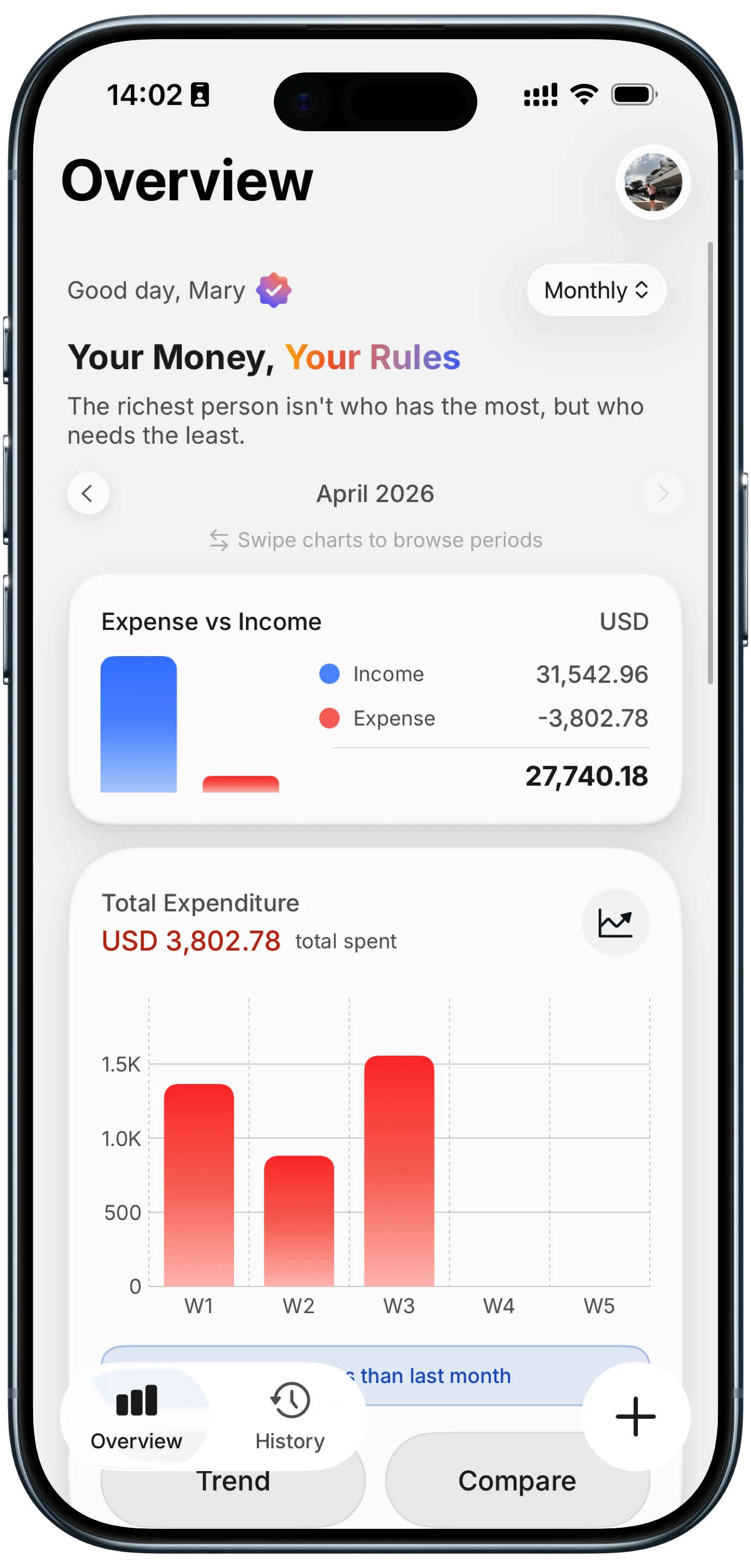
In Finny, Overview shows total spending for the period you choose, including a year, with the change against the previous period, so your biggest month and overall direction are charted without a spreadsheet.
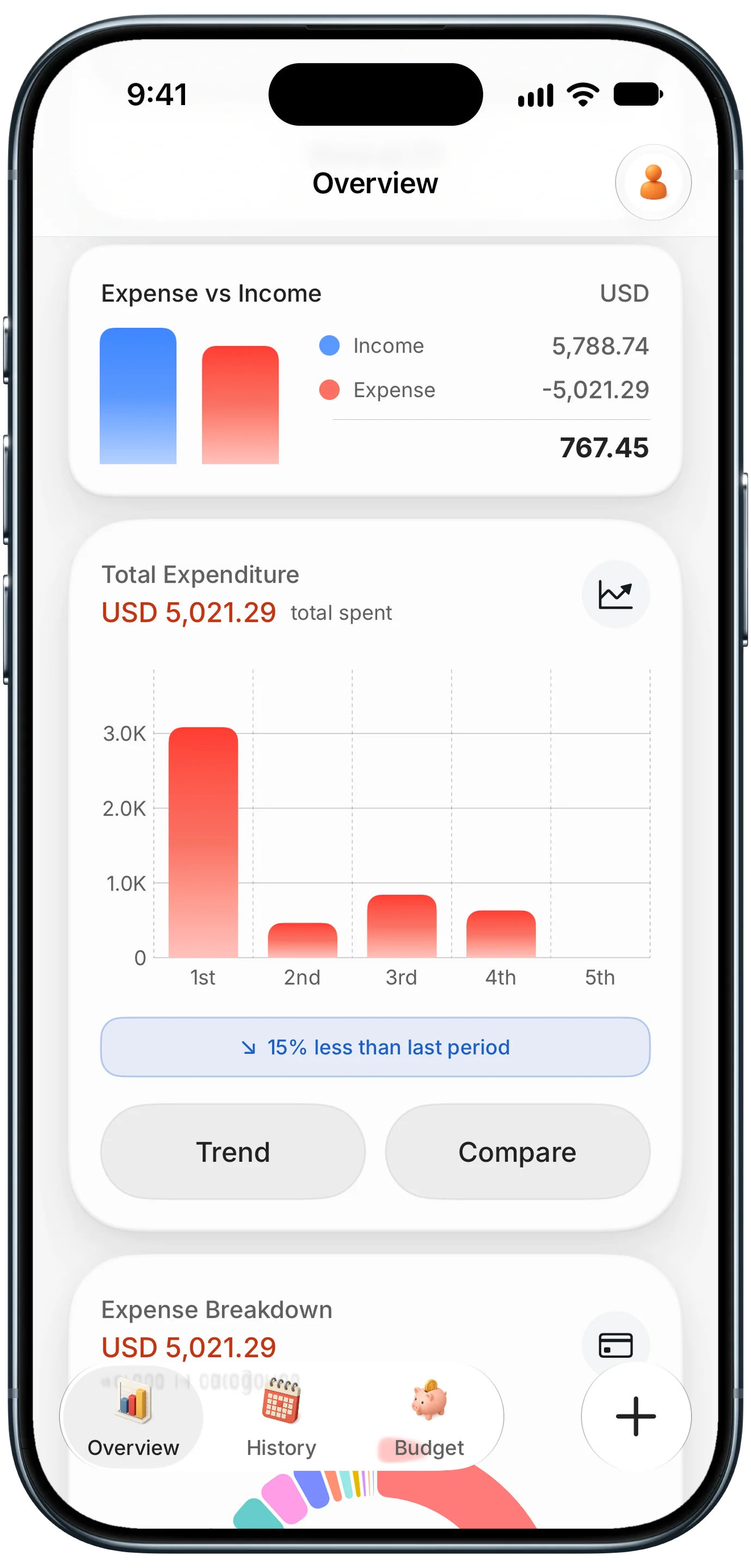
Finny app's Overview feature
Where it went, by category and card
The Budget tab has a "Spent this period" map where every category is a box sized by what you spent, so the biggest spend is simply the biggest box. Every payment method also gets its own card on Overview with its share of spending, and searching a card shows a receipt-style total split by category. That covers Apple Card alongside your debit card and cash, with no bank connection.
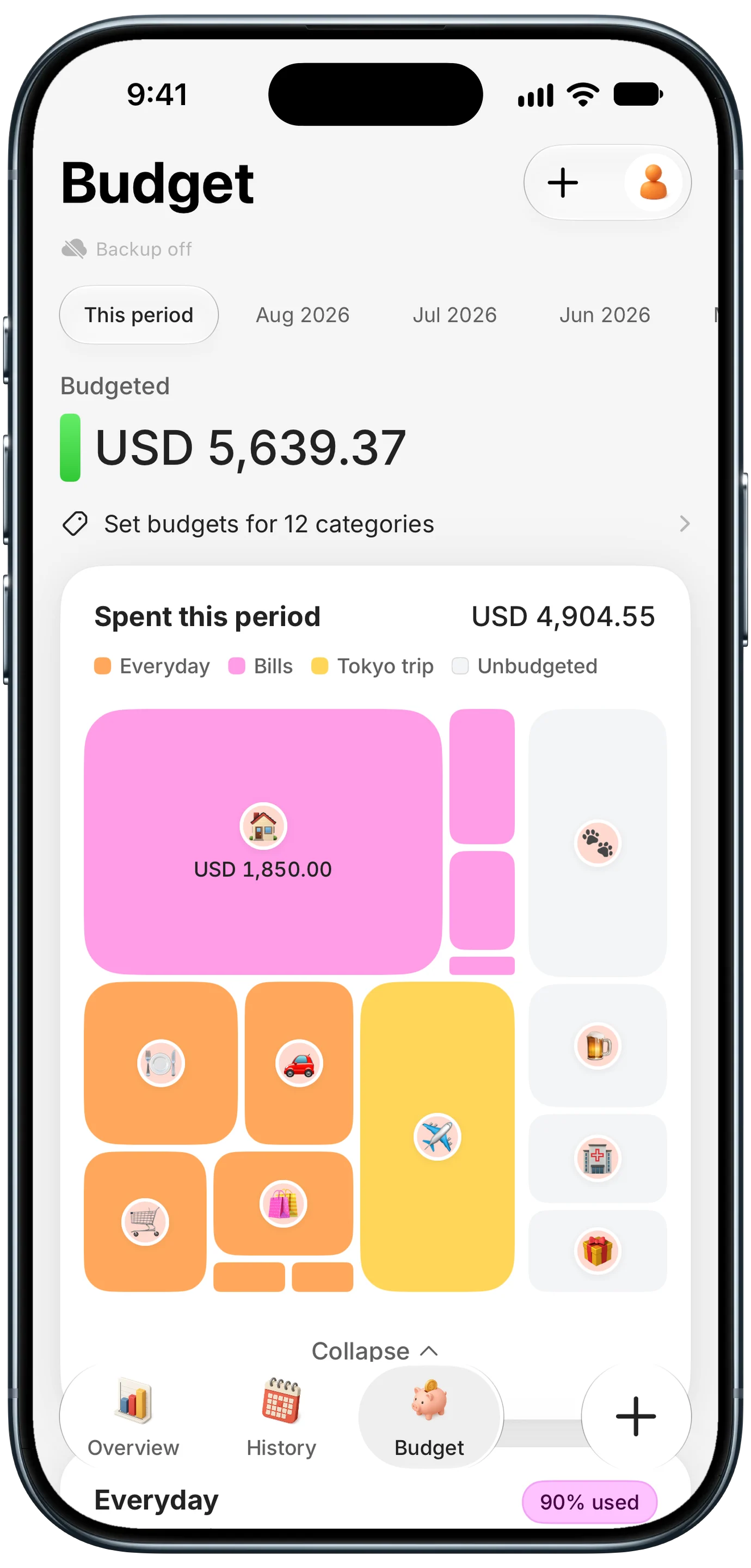
Finny app's budget map feature
Apple Card purchases, logged as you pay
Here is Tap to Track logging card payments as you make them:
Tap to Track is part of Pro. CSV import is free, so this year's Apple Card export can come in too. For other ways to follow the card through the year, see how to track Apple Card spending.
Common Questions About the Apple Card Year-End Summary
Does Apple Card send an annual statement?
No. Apple Card issues monthly statements only, available as PDFs in Wallet under Card Balance and at card.apple.com. There is no annual statement, no yearly PDF and no year-end email. The closest substitute is Wallet's Year view for a quick look, plus a date-range export covering January 1 to December 31 if you need a file to keep or hand to someone.
Can I export the Year view in Wallet?
No. The Year view shows totals and categories on screen, but Apple offers no way to export or print it. You can take a screenshot to keep the headline numbers. For anything you want to sort, total or share, use Export Transactions under Card Balance with a full-year date range, then summarize the file in a spreadsheet.
How far back can I download Apple Card statements?
Apple's support pages do not state a limit. Statements are listed newest first in Wallet under Card Balance and at card.apple.com under Statements, and you can scroll back through earlier months. One documented exception: with Apple Card Family, shared statements only begin from the month the shared account was set up. Earlier months show each person's individual statements.
Is the Apple Card export enough for my taxes?
It is a useful record, not a complete one. The IRS lists credit card statements among the documents that support business expenses, but it also says you may need a combination of documents. Keep receipts or invoices for anything you deduct, since statements show only the merchant and total. Apple's categories are not tax categories, so mark deductible purchases yourself.
Want next year's summary ready on January 1?
Download Finny to see yearly totals by category and by card, built as you spend, with no bank connection.