Pay Later at Apple Pay Checkout in iOS 27: How to Say No
Double-click the side button in iOS 27 and the Apple Pay sheet looks different. Your other cards peek in from the sides so you can swipe between them, and for eligible cards the sheet now shows what Apple's June announcement calls important information: rewards balances, debit account balances, pay later options, and more, right there before you confirm.
Most of that is helpful. The pay-later row is the one to think about, because it puts buy-now-pay-later one tap away on every purchase, at the exact moment you are least likely to pause. This guide covers what the new Apple Pay pay later options actually are, how they get onto your checkout sheet in the first place, how to keep them off if you would rather not see them, and, if you do use one, how to keep a split purchase from quietly wrecking a budget. For the mechanics of the tap itself, our explainer on what happens when you tap your phone to pay is the companion.
What changed in the checkout sheet
9to5Mac's look at the redesign covers the layout: cards visible on either side of your default so you swipe to switch, more information on screen at once, and colored icons for shipping, billing and the rest so you can check everything before the double-click. It works on every iPhone that runs iOS 27, since it is not an Apple Intelligence feature.
The per-card information is the new part. Depending on the card, the sheet can show your rewards points, a debit account's balance, and any pay-later options attached to that card or set up in Wallet. Apple also says that later this year you will be able to add funds to an eligible debit card from Apple Pay directly. Our roundup of everything new in Wallet for iOS 27 covers the rest.
Where the pay-later options come from
This is the part most coverage skips, and it is the part that decides whether you see them at all.
Affirm and Klarna are opt-in. Apple added both to Apple Pay in September 2025, and MacRumors' report at the time describes the setup: tap the plus button in Wallet, choose Pay Later Options, and pick a service. Only then does it appear at checkout, online and in stores. Affirm splits eligible purchases into biweekly or monthly payments at 0% to 36% APR depending on approval. Klarna in the US offers Pay in 4, four interest-free installments, Pay Later for the full amount within 30 days, and Financing with monthly installments for larger purchases. Both are US, with Klarna also in the UK.
Card-issuer installments come with the card. Some issuers offer their own installment plans on eligible cards through Apple Pay, and those appear for that card without you adding anything. This is the "pay later options" Apple means when it says the sheet surfaces them for an eligible card in Wallet.
Apple's own Pay Later is gone. Apple discontinued Apple Pay Later in 2024 in favor of the third-party integrations above, so there is no Apple-run plan in the sheet.
So if you have never added Affirm or Klarna in Wallet, what you will see in iOS 27 is at most an issuer's installment offer on a card that has one. If you have added them, they are now a swipe away on every purchase.
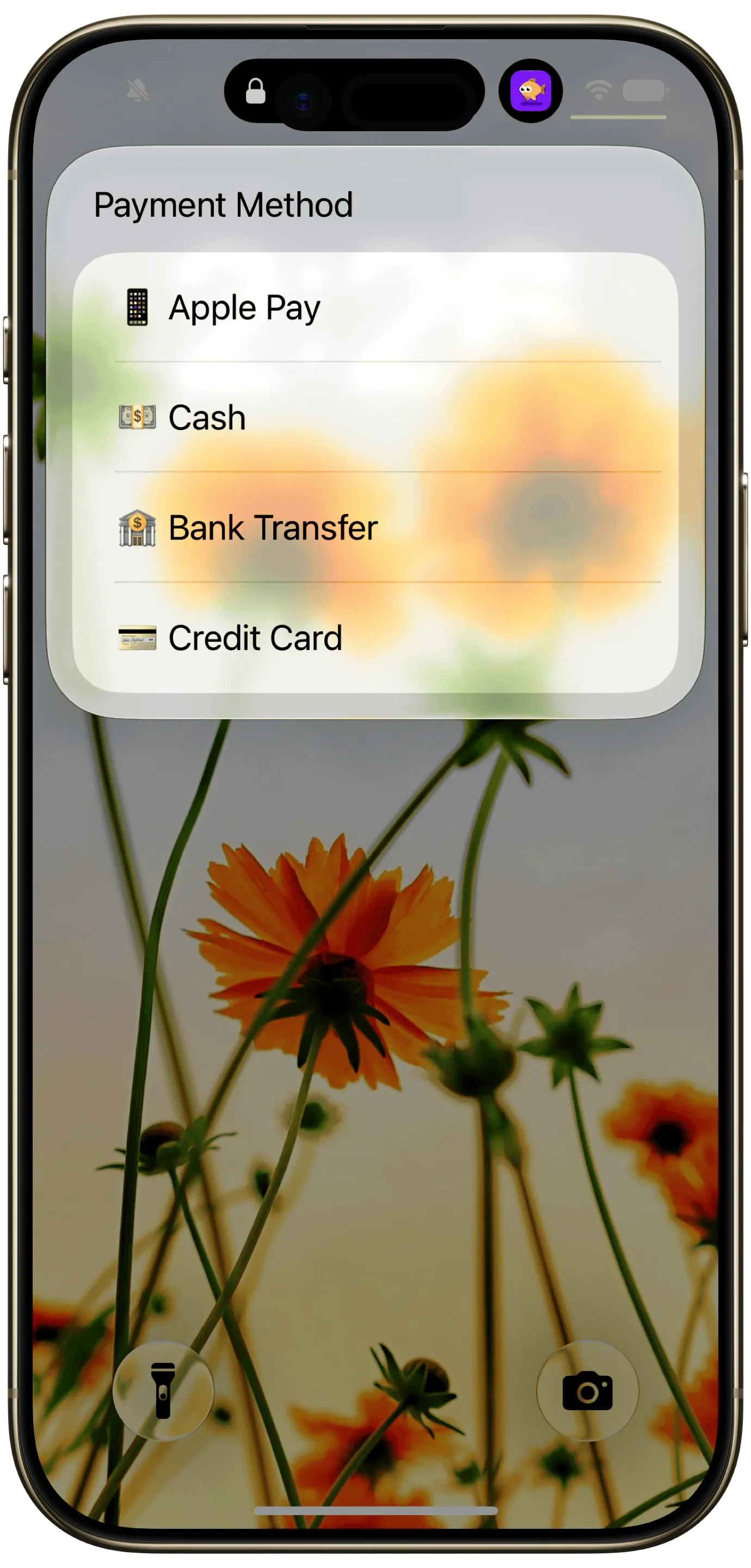
Finny app's Quick Log feature
How to keep pay later off your checkout sheet
- Do not add it. If Affirm or Klarna is not in Wallet, it is not at checkout. This is the whole answer for most people.
- Remove it if you added it. Open Wallet, tap the Affirm or Klarna card, tap the more button, and choose Remove. It disappears from the checkout sheet immediately. You can add it back any time you actually want to finance something.
- Pick a default card without an installment offer. Issuer plans are attached to specific cards. If one of yours shows an offer at checkout and you would rather not see it, make a different card the default in Settings, then Wallet & Apple Pay, then Default Card. The offer only appears when that card is selected.
- Know that it is one swipe, not one tap. The default is still your default card paid in full. Choosing a pay-later option means selecting it before you double-click. It does not happen by accident, which is worth knowing so the row does not feel like a trap.
There is no single switch that hides every pay-later option, because the issuer offers are part of the card. The three steps above cover the practical cases.
If you do use pay later: the budgeting problem
Installment plans are not the villain. Four interest-free payments on something you were buying anyway can be a fine use of the product. The problem is what they do to a budget that counts money when it leaves the account.
A $400 purchase on Pay in 4 shows up as $100 today, $100 in two weeks, and two more after that. Your spending for this month reads $100. You spent $400. Do that three times in a quarter and the budget is telling you that you are under, while the next six weeks are already committed. That is how installment plans produce the sensation, common in every survey of BNPL users, of having no idea how much is actually owed.
The fix is a rule, not a tool: log the full price on the day you buy, against the category the thing belongs to. A $400 jacket is $400 of clothing on the day, not four $100 lines that read like nothing. Then either mark the remaining installments as a recurring payment so the outflows are expected, or, in an app that lets you note a payment method, record the method as Affirm or Klarna so you can see at a glance how much of a month went to plans rather than to purchases.
A budgeting app that tracks by payment method makes this a two-second habit. Finny logs the full amount on the day, lets you set the remaining installments as a recurring entry with a reminder before each one, and shows spend by payment method on the overview, so "how much is committed to plans" is a number rather than a feeling. Card payments can also be logged as you make them, so the first installment landing on your card is already in the ledger.
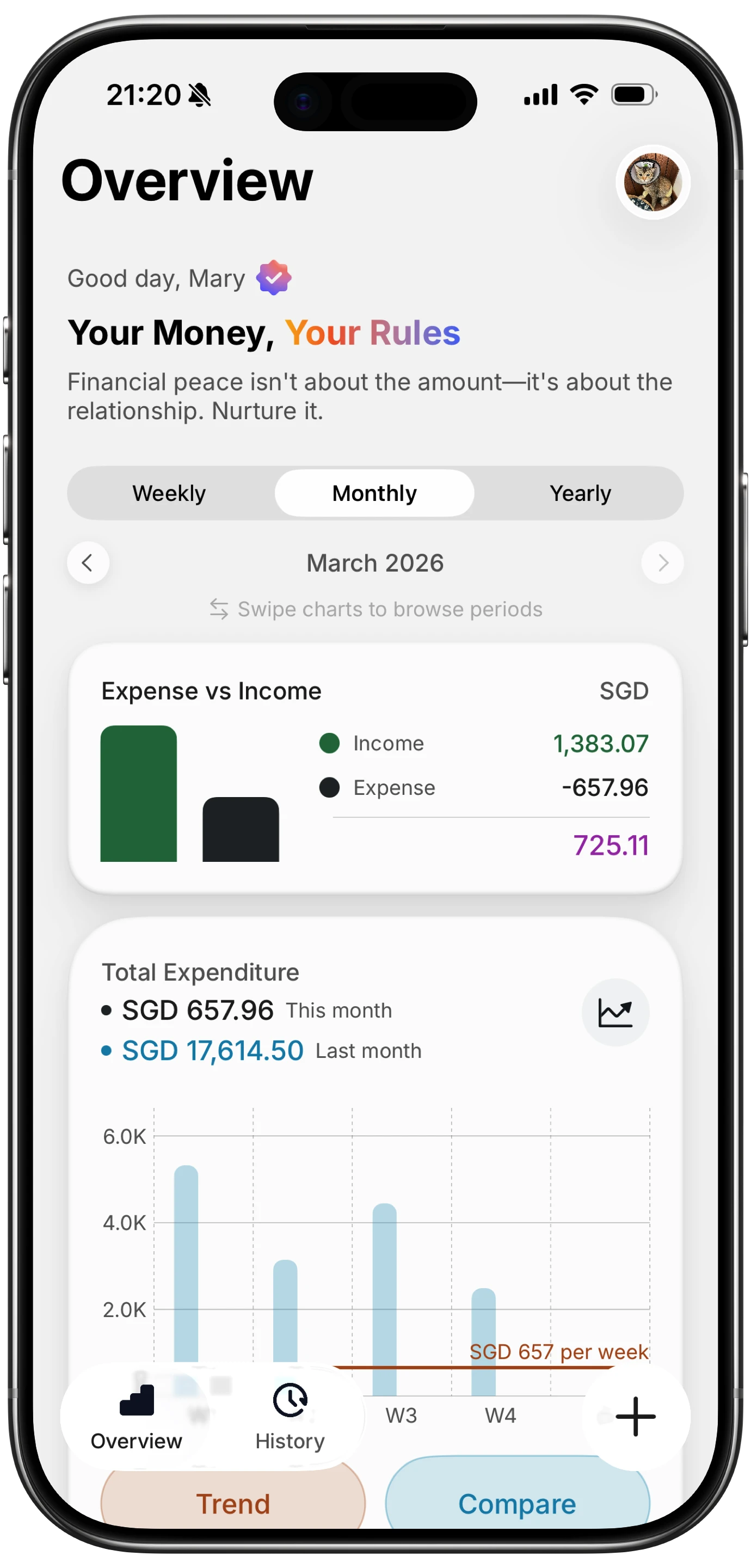
Finny app's Overview feature
Here is a short look at a card payment being logged as it happens, which is how each installment shows up without anyone typing it.
Rewards and balances: the helpful half
The same sheet that surfaces pay later also surfaces two things worth having. Seeing a debit balance before you confirm is a small guard against an overdraft. Seeing a rewards balance is a nudge to use the right card for the category, which our guide to tracking Apple Pay spending automatically argues is the only reason to carry more than one card.
Neither replaces a record of the purchase. The balance tells you what is left; it does not tell you where the rest went. That is still the job of logging the payment, and the good news is that in iOS 27 the Wallet notification for a payment is already the receipt, and a payment showing on your screen can be logged from there.
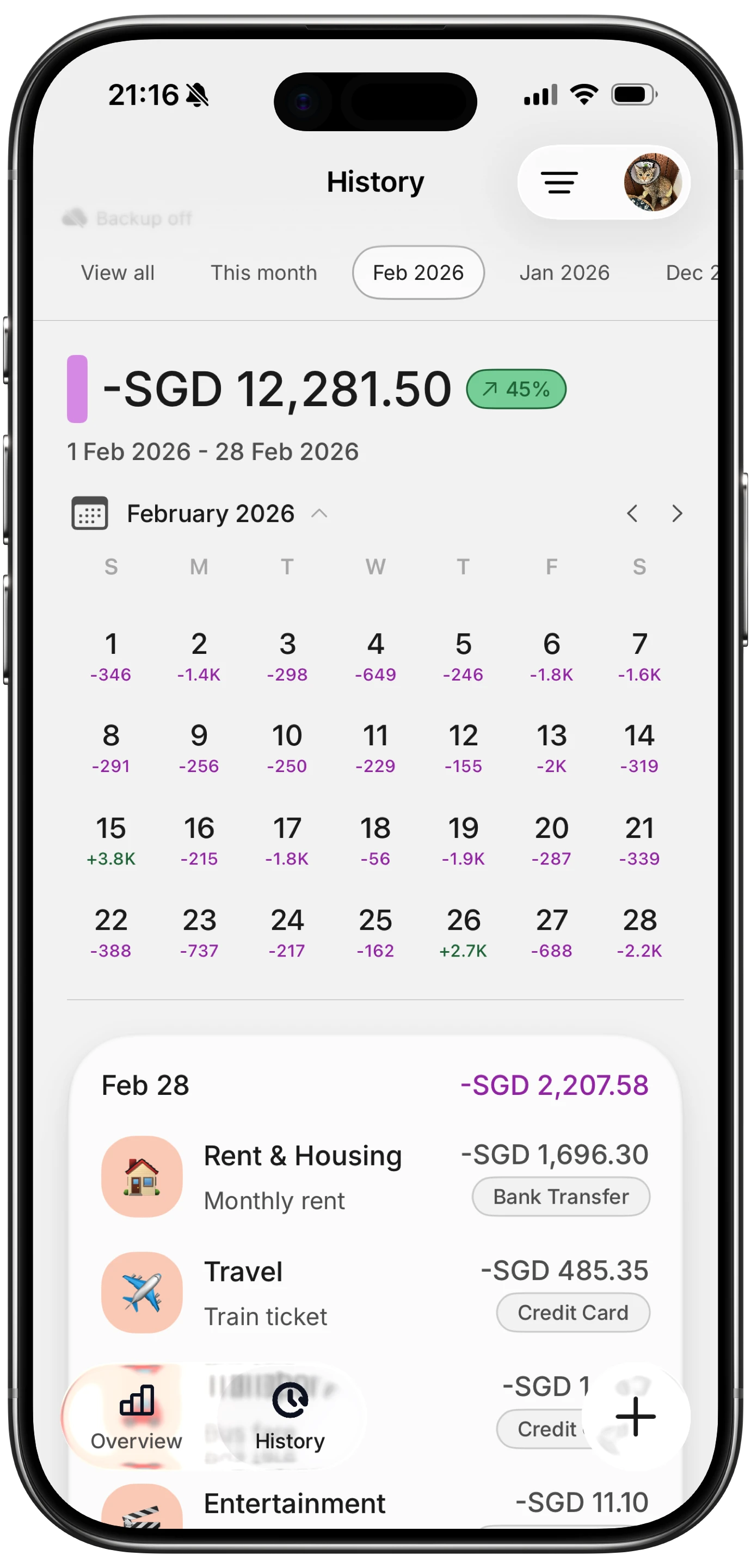
Finny app's History calendar feature
Two settings while you are there
Since you are in Wallet & Apple Pay anyway: turn on transaction notifications for every card, so each tap produces a banner with the amount, and if you have kids on Family Sharing, keep Ask to Buy on so a pay-later option is never one swipe away on a teenager's phone. Both are in our iOS 27 money settings to change on day one list. And if you are trying to talk yourself out of a purchase rather than finance it, Safari's new Notify Me price alerts let the price come to you instead.
Common Questions About Pay Later at Apple Pay Checkout
Does Apple Pay have pay later in iOS 27?
Yes, through third parties. Affirm and Klarna can be added to Wallet under Pay Later Options and then appear at checkout online and in stores, and some card issuers offer installment plans on eligible cards. The iOS 27 checkout redesign shows these options, along with rewards and balances, on the sheet before you confirm. Apple's own Apple Pay Later was discontinued in 2024.
How do I remove Affirm or Klarna from Apple Pay?
Open Wallet, tap the Affirm or Klarna card, tap the more button, and choose Remove. It leaves the checkout sheet immediately and can be added back later. If you never added either one, neither appears at checkout in the first place.
Can I turn off pay later options at Apple Pay checkout?
There is no single switch. Removing Affirm and Klarna from Wallet removes them from checkout. Installment offers from a card issuer are tied to that card and appear only when it is selected, so setting a different default card keeps them off the sheet for ordinary purchases.
Does the iOS 27 Apple Pay redesign work on older iPhones?
Yes. The redesigned checkout sheet, including swiping between cards and the per-card rewards, balance and pay-later information, is part of iOS 27 itself rather than Apple Intelligence, so it works on every iPhone that runs iOS 27, back to the iPhone 11.
How should I budget a buy now pay later purchase?
Log the full price on the day you buy, in the category the item belongs to, rather than logging each installment as it comes. Then set the remaining payments as recurring entries so they are expected, and record the payment method as the plan provider so you can see how much of a month is committed to installments.
The checkout sheet shows the option. Your budget should show the whole price. Finny logs the full amount on the day, tracks installments as recurring payments, and shows spend by payment method, with no bank connection. Free to start, Pro at a low monthly price.