iOS 27 for Your Money: 10 Settings to Change on Day One
iOS 27 arrives Monday, September 14, and most of the day-one settings lists are about the Liquid Glass slider and alarm volume. Fair enough. But a handful of the new features, and a few old settings that the new features make matter more, decide whether your iPhone helps you keep track of money or quietly makes it harder.
This is the money-specific list. Ten iOS 27 settings worth two minutes each, in the order we would do them, with the exact path for each. A few are new in iOS 27, several are older settings that the new Wallet and Siri features change the stakes on. For what is actually changing in Wallet, our iOS 27 Wallet: bill splitting, Insights and the gaps piece has the detail, and Apple's iOS 27 release notes are the primary source for every feature named here.
For a general tour before you start, MacRumors' iOS 27 video covers the headline features in ten minutes.
1. Set up Apple Cash, before you need it at a table
Settings > Wallet & Apple Pay > Apple Cash
The iOS 27 feature everyone will try first is bill splitting: scan a receipt, each person picks their items, and Wallet sends Apple Cash requests with tax and tip apportioned. Apple's June announcement footnotes it as US only and requiring Siri AI on an Apple Intelligence phone, and the whole thing settles through Apple Cash.
Setting Apple Cash up involves identity verification you do not want to be doing while five people wait for the check. Do it now. Our step-by-step bill splitting guide covers the rest.
2. Pick your default card on purpose
Settings > Wallet & Apple Pay > Default Card
iOS 27 redesigned the Apple Pay checkout sheet. You swipe to switch cards, and for eligible cards it now surfaces rewards balances, debit account balances and pay-later options right at the point of sale. That is convenient and it is also a nudge: a pay-later option you did not go looking for is now one tap away every time you check out.
Choose the card you want to reach for by default, and know that the pay-later row is there so it does not surprise you. If you track spending by payment method, one default card also keeps your history clean. Our guide to tracking Apple Pay spending automatically covers why that matters.
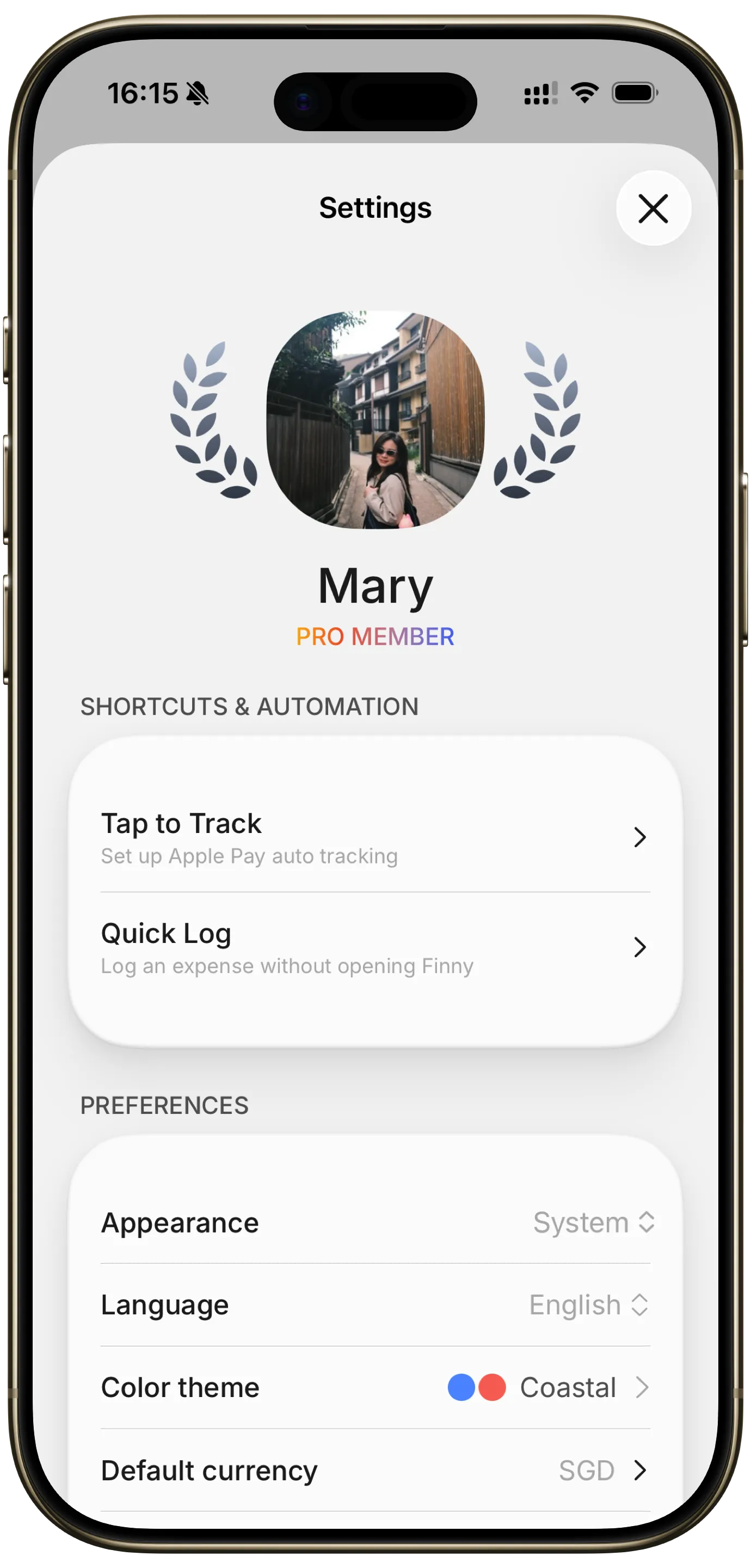
Finny app's Settings feature
3. Turn on transaction notifications for every card in Wallet
Wallet > tap the card > more button > Notifications
Not new, but the single most useful money setting on the phone, and iOS 27's cleaner Wallet makes it easier to find. With notifications on, every tap produces a banner with the merchant and amount within seconds. That is your fraud alert, your receipt, and, if you use an app that can log a payment from what is on screen, your expense entry.
Do it for each card, not just Apple Card. Bank-issued cards support it through the issuer, and the toggle lives in the same place.
Here is what the notification-to-entry step looks like when a payment gets logged as you make it.
4. Open the Apple Card Recurring hub once
Wallet > Apple Card > more button > Recurring
New in iOS 27 and Apple Card only. It lists upcoming recurring charges on the card as a calendar or a list, and tapping a merchant shows its past charges, which is where a price increase shows up. Spend five minutes in it on day one and you will probably find one thing to cancel. Our guide to tracking subscriptions on iPhone in iOS 27 covers what to do for every card that is not Apple Card, which is most of them.
5. Point Safari's Notify Me at the pricing pages you care about
Safari > open the page > page menu > Notify Me
Apple's release notes describe Notify Me as a way to periodically check a webpage for updates, like price changes and item availability. It is built for restocks. It works just as well pointed at a streaming service's plan page, your internet provider's pricing, or the gym's membership page, and it means you hear about an increase from Safari rather than from your statement. Pair it with the subscription price increase trackers we compared for the charges that do not have a public page.
6. Turn off notification summaries for banking apps
Settings > Notifications > Summarize Notifications
Apple Intelligence can condense a stack of notifications into one line. That is fine for a group chat and wrong for a bank. A fraud alert, a low-balance warning, or a "$1,240.00 charged" banner should reach you verbatim, not paraphrased. Go through the list and deselect every bank, card and payment app. Keep the raw notification for anything with a dollar sign in it.
7. Decide which finance apps Siri can learn from
Settings > Siri > App Access
The section that used to be Apple Intelligence & Siri is now just Siri in iOS 27, and the single switch that turned all of Apple Intelligence off is gone in favor of per-feature and per-app controls. Siri AI's personal context can index what apps share with it, and App Access is where you decide, app by app.
For most people the useful setting is the permissive one: let Siri see your expense tracker so that "how much did I spend on groceries" has somewhere to look. Our piece on asking Siri about your spending in iOS 27 covers what it can answer. If you would rather Siri not index a specific bank app, this is the place to say so.
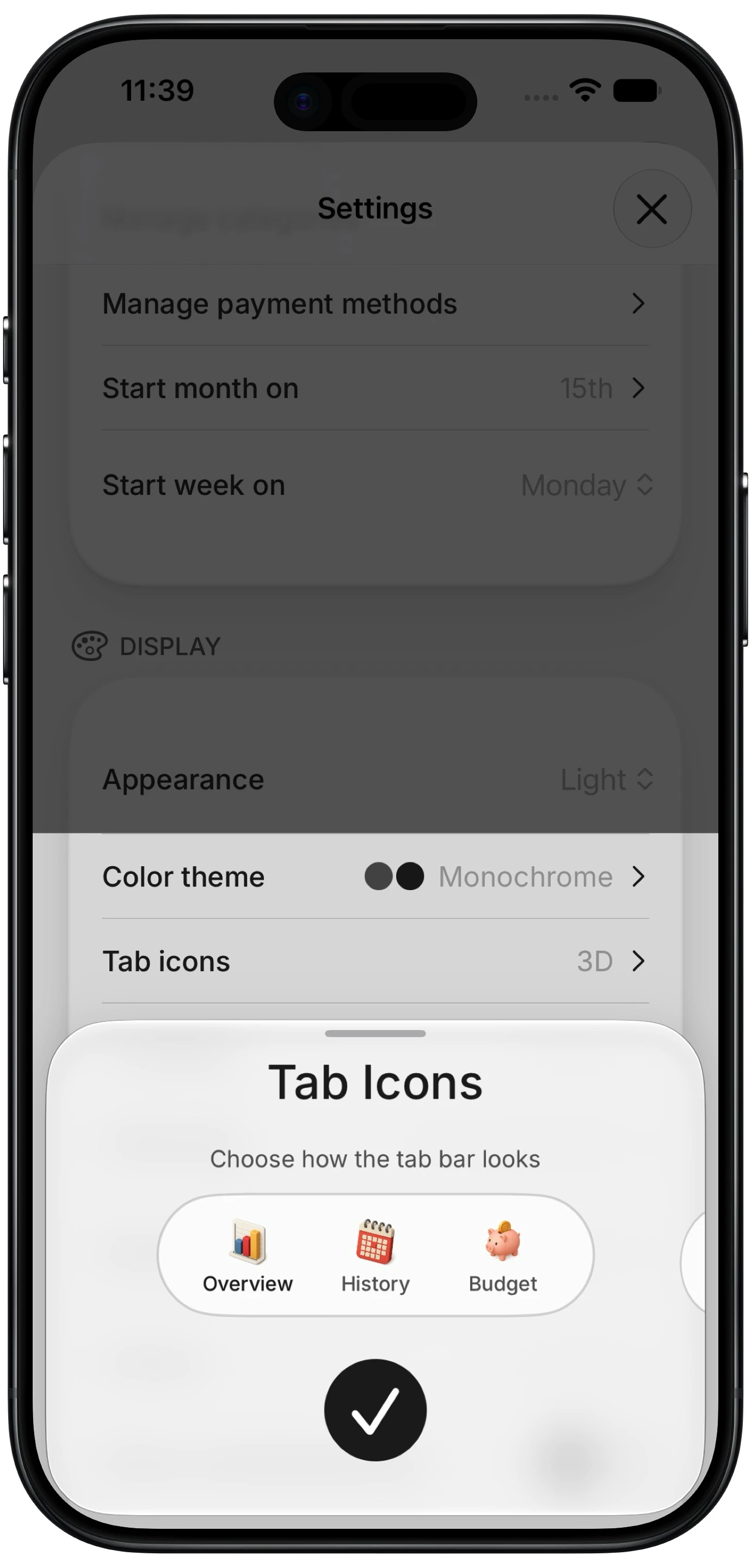
Finny app's custom tab icons feature
8. Require a password for every purchase, and turn on renewal receipts
Settings > your name > Media & Purchases > Password Settings, then Settings > your name > Subscriptions > Renewal Receipts
Two older settings that matter more now that checkout is one swipe faster. Set purchases and in-app purchases to Always Require, so a Face ID glance is between you and every App Store charge. Then turn on Renewal Receipts so every subscription renewal through Apple emails you. Those emails are the cheapest subscription audit there is: if you see one you did not expect, our guide to cancelling subscriptions on iPhone takes it from there.
9. Use the redesigned Screen Time for kids' spending
Settings > Screen Time
iOS 27 rebuilt the Screen Time settings for parents, with Time Allowances that cap how long a kid can use an app and Schedules that decide which apps are available when. Neither is a money setting on its face, but a shopping app or a game with in-app purchases that is only available for an hour on weekends is a spending control. Combine it with Ask to Buy in Family Sharing so every purchase request comes to you. If your teen has Apple Cash, our guide to Apple Cash for family and teen spending covers the tracking side.
10. Tune Liquid Glass until the numbers are readable
Settings > Appearance > Liquid Glass
The one setting on every list, and it earns its place here for a narrow reason: a translucent toolbar over a transaction list is the difference between reading $1,240 and $1,210. iOS 27 replaces the on-off toggle with a slider from ultra-clear to fully tinted, and Apple's notes say the refinements are aimed at readability. Drag it toward tinted and open your bank app and your budget app. If the figures are still hard to read, Reduce Transparency in Accessibility gives you solid backgrounds everywhere. Techlicious has a good walkthrough of the slider itself.
Bonus: put a budget on the Lock Screen
Not new in iOS 27 but the natural last step: a Lock Screen or Home Screen widget with your month's spending so the number is in front of you without opening anything. Our roundups of the best iPhone Lock Screen budget widgets and the iPhone home screen budgeting setup cover the options.
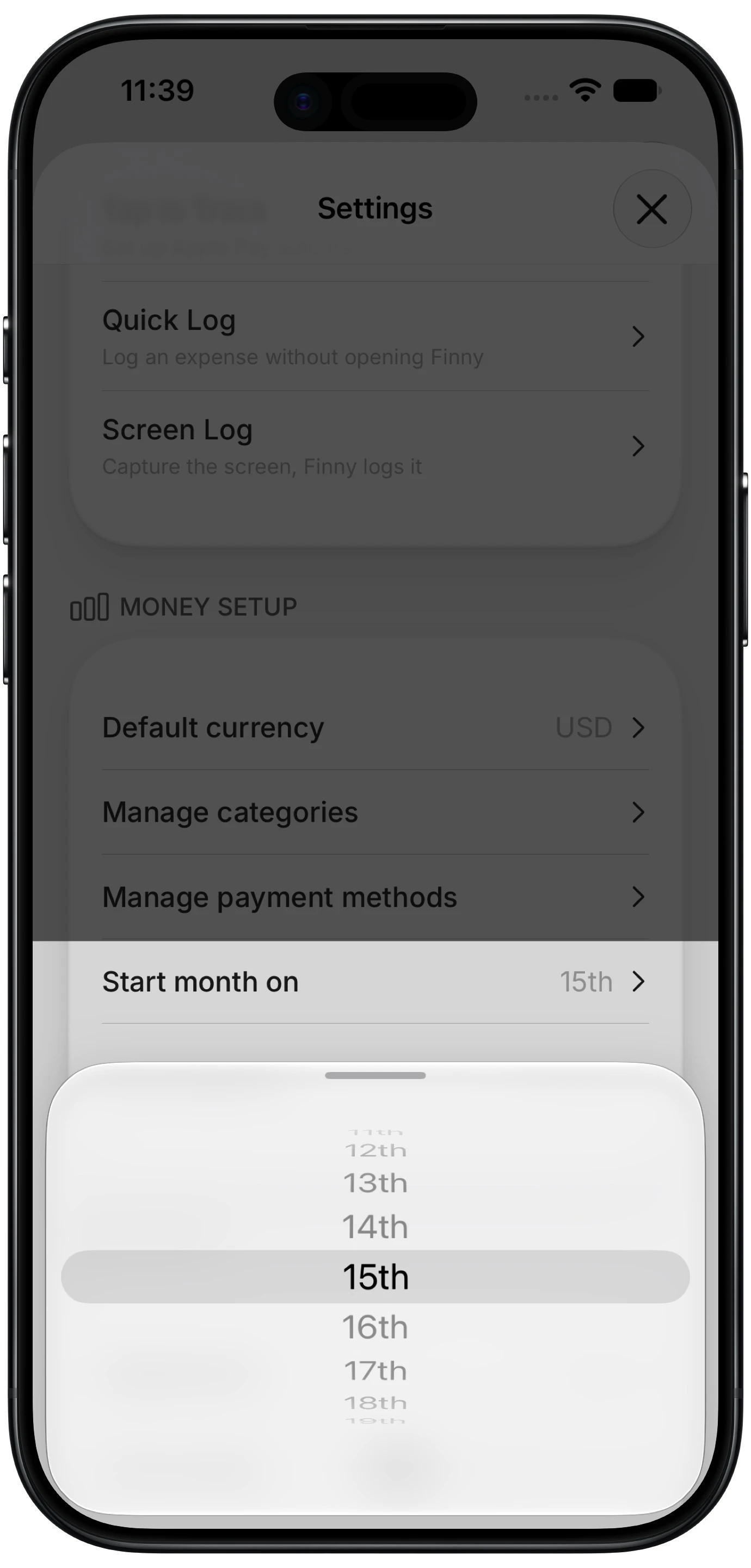
Finny app's custom month start feature
One setting that lives in your money app rather than in iOS: if you are paid on a day other than the 1st, set your tracking month to start on payday. A budget that runs from the 25th to the 24th matches how the money actually arrives. Finny does this, and so do a few others; our guide to budget apps with a custom month start compares them.
Common Questions About iOS 27 Money Settings
What iOS 27 settings should I change first?
For money: set up Apple Cash if you plan to use bill splitting, turn on transaction notifications for every card in Wallet, turn off notification summaries for banking apps, and check Siri's App Access for your finance apps. Then set purchase passwords to Always Require and turn on renewal receipts.
Where did the Apple Intelligence settings go in iOS 27?
The section formerly named Apple Intelligence & Siri is now just Siri in Settings, with subsections for Requests, Your Data, App Access and Suggestions. The single switch that turned all of Apple Intelligence off is gone; features are controlled individually.
Does iOS 27 have a subscription tracker?
Apple Card gets a Recurring hub in Wallet showing upcoming charges as a calendar or list. Wallet Insights, which tracks recurring transactions across connected accounts, is launching in select territories and is not in the US release. App Store subscriptions are listed under your name in Settings, as before.
How do I get price drop alerts in iOS 27?
Open the page in Safari and choose Notify Me from the page menu. Apple's release notes say Safari will periodically check the page for updates such as price changes and item availability, and notify you. It works on any page, including a subscription's pricing page.
Is the Liquid Glass slider in iOS 27 worth changing?
If you find numbers hard to read through translucent toolbars, yes. Settings > Appearance > Liquid Glass runs from ultra-clear to fully tinted; tint it up for readability. Reduce Transparency under Accessibility is the stronger option if the slider is not enough.
iOS 27 gives you the notifications. Your budget still needs the entries. Finny logs card payments as you make them, reads receipts, and works without a bank connection. Free to start, Pro at a low monthly price.