Use iPhone Focus and Screen Time to Stop Impulse Buys
Most impulse buys start the same way: a notification. A flash sale, a price drop, "your cart misses you." You tap it, your card is already saved, and checkout takes one tap. The whole decision can happen in under a minute, which is exactly how shopping apps are designed.
Your iPhone already has the tools to slow that down. This guide shows how to use iPhone Focus and Screen Time to stop impulse buys: silence shopping apps, add a pause before checkout, remove the one-tap payment path, and keep your real spending in view. None of it requires willpower in the moment, which is the point. For the psychology behind it, see our explainer on what impulse spending is.
Why your phone makes impulse buying easy
Three things make phone shopping frictionless:
- Notifications create the urge. Sales alerts and cart reminders arrive when you weren't thinking about shopping at all.
- Saved payment removes the pause. With a card saved in the app or in Safari AutoFill, there's no moment to reconsider.
- The spending is invisible. A USD 38 order doesn't feel like much when you can't see this month's total next to it.
Each fix below targets one of those three.
Step 1: Silence shopping notifications
The single most effective change is turning off notifications from shopping and deal apps.
- Open Settings, then Notifications.
- Go through each shopping app (Amazon, Target, Temu, fashion and deal apps) and turn off Allow Notifications, or at least turn off promotional notifications inside the app's own settings.
- Keep order and delivery updates only if you need them. Most shopping apps let you choose.
You'll still shop when you need something. You just won't be prompted to shop when you don't. Our guide to spending triggers explains why cues like these are so powerful.
Step 2: Create a Focus that hides shopping apps
A Focus lets you decide which apps can notify you, and which Home Screen pages you see, at different times of day.
- Open Settings, then Focus, and create a custom Focus, for example "Evening".
- Under Allowed Notifications, don't allow your shopping apps.
- Customize the Home Screen for that Focus so the page with your shopping apps is hidden.
- Set it to turn on automatically at the times you tend to browse, like late evenings or weekends.
A Focus doesn't block apps; you can still open them through search. What it does is remove the prompts and the visual cue of the icon, which is where most impulse buys start.
Step 3: Add a time limit with Screen Time
For a firmer barrier, Screen Time can limit how long you spend in shopping apps.
- Open Settings, then Screen Time, then App Limits.
- Add a limit for the Shopping and Food category, or pick specific apps.
- Set a short daily limit, like 10 or 15 minutes.
- Turn on Block at End of Limit and set a Screen Time passcode that someone else chooses, if you want the limit to hold.
When the limit is reached, the app is dimmed until tomorrow. A short daily allowance still lets you order what you actually need.
Step 4: Remove the one-tap payment
The pause before paying is where impulse buys die. Bring it back:
- Delete saved cards from shopping apps you tend to overuse. Typing a card number is a small hurdle that makes you think twice.
- Review Safari AutoFill. In Settings, open Safari and then AutoFill to see which saved cards fill in automatically at checkout.
- Leave items in the cart overnight. A 24-hour wait, or 30 days for larger purchases, filters out most regret buys. Our explainer on the 30-day rule shows how it works.
Step 5: Keep your spending where you can see it
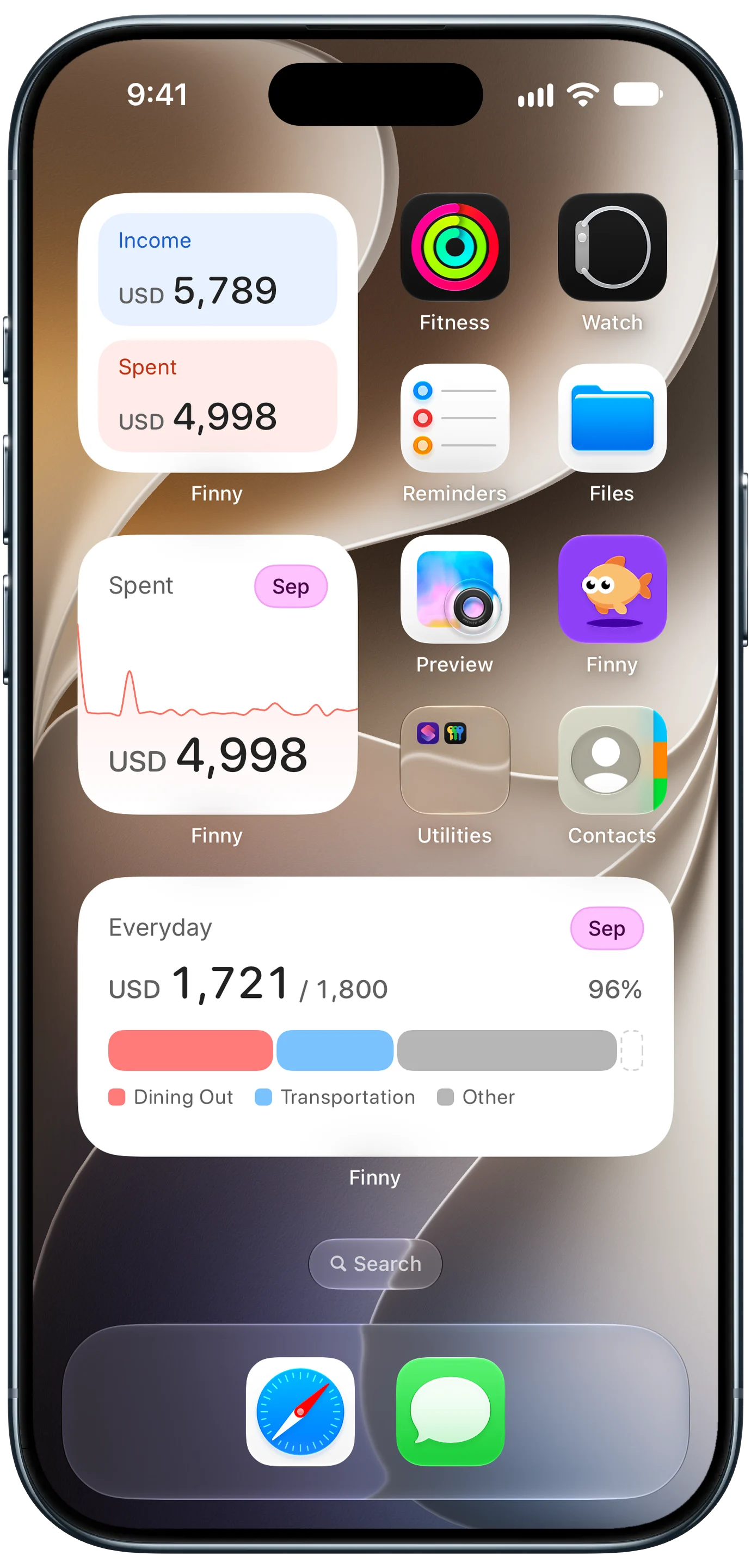
The last fix works on the invisible-spending problem. When this month's spending sits on your Home Screen, a new order has context: it's not "only USD 38," it's USD 38 on top of the USD 4,998 already spent.
- Add a spending widget to the Home Screen page you see first. Finny's widgets show this month's income and spending, a spending trend, and a budget's progress.
- Log online orders as you place them, so the total is always current. Our guide to tracking online shopping spending covers split shipments and returns.
- Give online shopping its own monthly limit and check it before you check out.
Here's Screen Log recording an online payment straight from the screen, which keeps the widget total honest:
If you like automation, Shortcuts can also run an action when you open a particular app, like showing a reminder of your shopping limit before a store app opens. Our guide to app-open automations for spending covers the setup.
Frequently Asked Questions
How do I stop impulse buying on my phone?
Turn off notifications from shopping and deal apps, create a Focus that hides shopping apps at the times you usually browse, and set a Screen Time app limit for the Shopping and Food category. Then remove saved cards from apps you overuse and wait 24 hours before buying anything non-essential. Together these remove the prompts and add a pause before checkout.
Can Focus mode block shopping apps on iPhone?
Not completely. A Focus can silence notifications from shopping apps and hide their Home Screen pages, but you can still open the apps through search. For a real block, use Screen Time App Limits with Block at End of Limit turned on, ideally with a passcode someone else sets.
How do I limit time on shopping apps with Screen Time?
Open Settings, then Screen Time, then App Limits, and add a limit for the Shopping and Food category or for specific apps. Choose a short daily limit and turn on Block at End of Limit. When you reach the limit, the apps are dimmed for the rest of the day unless you enter the Screen Time passcode.
Does seeing my spending really reduce impulse purchases?
It helps, because impulse buys feel small in isolation. When this month's total is visible on your Home Screen, each new purchase is weighed against everything you've already spent. Pairing a spending widget with a monthly limit for online shopping gives every checkout a quick reality check.
The bottom line
Using iPhone Focus and Screen Time to stop impulse buys works because it changes the environment instead of relying on willpower. Silence the notifications that start the urge, hide the apps when you're most tempted, cap the time you spend in them, and bring back the pause at checkout. Keep your month's spending on the Home Screen, and most impulse buys never make it past the cart.