Spending Wrapped 2026: Find and Read Your Year in Money
Every December, music and fitness apps hand you a tidy recap of your year. Your bank mostly hands you twelve statements. The numbers are all there, but nobody has added them up, so "how much did I spend in 2026?" stays oddly hard to answer.
A spending wrapped is that recap for your money: one page with how much you spent in 2026, where it went and what surprised you. This guide covers which banks and cards already offer a yearly spending summary, how to build one from statements when yours does not, the nine numbers worth pulling and how to read them without guilt. When you are ready to plan, our year-end money review handles the planning step.
Which Cards Offer a Credit Card Year-End Summary
Some issuers do the adding up for you. What follows is only what each issuer's own pages describe as of November 2026. Menus change, and some features depend on your card type, so check your account if your screen looks different.
| Issuer | What its pages describe | Export |
|---|---|---|
| American Express | Year-End Summary of the prior year by month and category, from January 1 | PDF, Excel, CSV, Quicken, QuickBooks |
| Chase | Year-end spending report after sign-in; Spending Planner views by year | CSV, QFX, QIF, QBO on desktop |
| Capital One | Year-end summary by category for small business cards | Not documented for personal cards |
| Discover | Spend Analyzer by category, monthly comparisons | Not documented |
| Apple Card | Week, month and year spending views in Wallet | Transaction export, including CSV |
American Express has the most complete version. Its Year-End Summary covers the previous calendar year's charges by month and spending category. Amex says it is viewable online on or after January 1, with an email once your January statement closes.
Chase has a credit card year-end spending report page that asks you to sign in. Its Spending Planner, for checking and credit card customers, can show spending by month, quarter or year, and its Spending Summary tab offers downloads for this year and last.
Capital One promises a year-end summary by category on small business cards. Its guide to personal card statements describes a year-end section that covers only fees and interest charged so far this year.
Discover offers Spend Analyzer, which breaks your purchases down by category and compares monthly patterns. Its pages do not describe a year-end summary.
Apple Card shows spending by week, month or year in Wallet, with how much more or less you spent than the previous period. You can also export transactions for a custom date range.
The DIY Method: Build It From Statements
If your issuer does not offer a summary, or you have several cards and one bank account, a spreadsheet gets you there in about an hour. The goal is one list of every 2026 purchase, in one place.
- Export each account. Download transactions for January 1 to today as CSV where you can. Many issuers let you pick a date range rather than one month at a time. Where only PDF statements exist, our guide to tracking expenses from a bank statement covers that route.
- Combine them. Paste every export into one sheet with the same columns: date, merchant, amount, account.
- Remove what is not spending. Delete credit card payments from your checking export, transfers between your own accounts and any cash advances. Card payments are the big one: leave them in and every purchase counts twice.
- Net out refunds. Keep returns as negative amounts so a returned jacket cancels its purchase.
- Add a category column. Fill it for the biggest merchants first. The top 30 merchants usually cover most of your spending, and the long tail can be "Other."
- Pivot. A pivot table by category, by merchant and by month gives you most of the numbers below.
It is mid-November, so your year has about six weeks left. Pull the numbers now for a first look, then rerun the sheet in early January for the final version.
The Nine Numbers Worth Pulling
A good wrapped is short. These nine numbers answer almost every question worth asking about a year of spending, and each one comes straight from the sheet or app you already have.
- Total spent. All purchases minus refunds, excluding transfers and card payments. Your headline.
- Top three categories. Usually housing, food and transportation. The order is the interesting part.
- Top five merchants. Often more revealing than categories, because "Amazon" or "Costco" can quietly beat a whole category.
- Biggest month. Find it, then name why: travel, a car repair, the holidays.
- Average day. Total spent divided by days so far. Someone at $41,600 for the full year averages about $114 a day. Our guide to average daily spending shows what is typical.
- Subscriptions, per year. Add every recurring charge and multiply monthly ones by twelve. Annual numbers make small charges visible.
- Delivery and rideshare. Food delivery, grocery delivery and rides combined. This is the category people most often underestimate.
- Spending by card. Which card carried the most, and whether that is the one earning the best rewards for it.
- The one surprise. The number you would not have guessed. There is always one, and it is usually the most useful finding.
Write all nine on one page. That page is your wrapped.
How to Read Your Numbers Without Guilt
Looking at a full year of spending can feel like reading a report card. It is not one. The numbers describe what happened, and the only fair comparison is with yourself.
Separate the one-offs. A move, a wedding, a new baby or a medical bill can dominate a year. Note them on their own line so the everyday pattern underneath stays visible. A year with a $6,000 car repair is not a year of careless spending.
Compare against your own baseline, not someone else's. National averages and a friend's budget hide differences in rent, income, kids and location. If you have last year's numbers, that comparison is the only one that matters. Our guide to comparing monthly spending explains how to spot a real trend versus a noisy month.
Ask "was it worth it?" instead of "was it too much?" A big travel number you loved is a good result. A big delivery number on nights you were too tired to cook is a different story, and probably the one worth acting on.
Look for drift, not sins. Subscriptions that crept from three to nine, a coffee habit that doubled, delivery that went from occasional to weekly. Drift is easy to reverse once you can see it.
Turning Your Wrapped Into 2027 Targets
The recap becomes useful when it changes next year. Pick at most three targets, each tied to one of your nine numbers and each with a figure attached.
- From the surprise: "Delivery from $2,900 to under $1,800." A specific cap is easier to keep than "order less."
- From subscriptions: "Cancel or downgrade until the annual total is under $600." Our guide to auditing subscriptions in 20 minutes makes this quick.
- From the biggest month: If December is always the peak, set aside a holiday amount each month starting in January so the spike stops feeling like a shock.
Then turn each target into a monthly number, since a yearly cap is too far away to steer by. $1,800 a year of delivery is $150 a month, which you can check in a few seconds.
The broader planning, from net worth to deadline items like retirement contributions, belongs to the year-end money review. For building the full plan, see our 2027 budget reset.
Making Next Year's Wrapped Automatic
The DIY method works, but it is a once-a-year scramble. If your spending is logged as it happens, the recap is just a few screens you already have. Here is what that looks like in Finny, which works without a bank connection.
Totals and trends
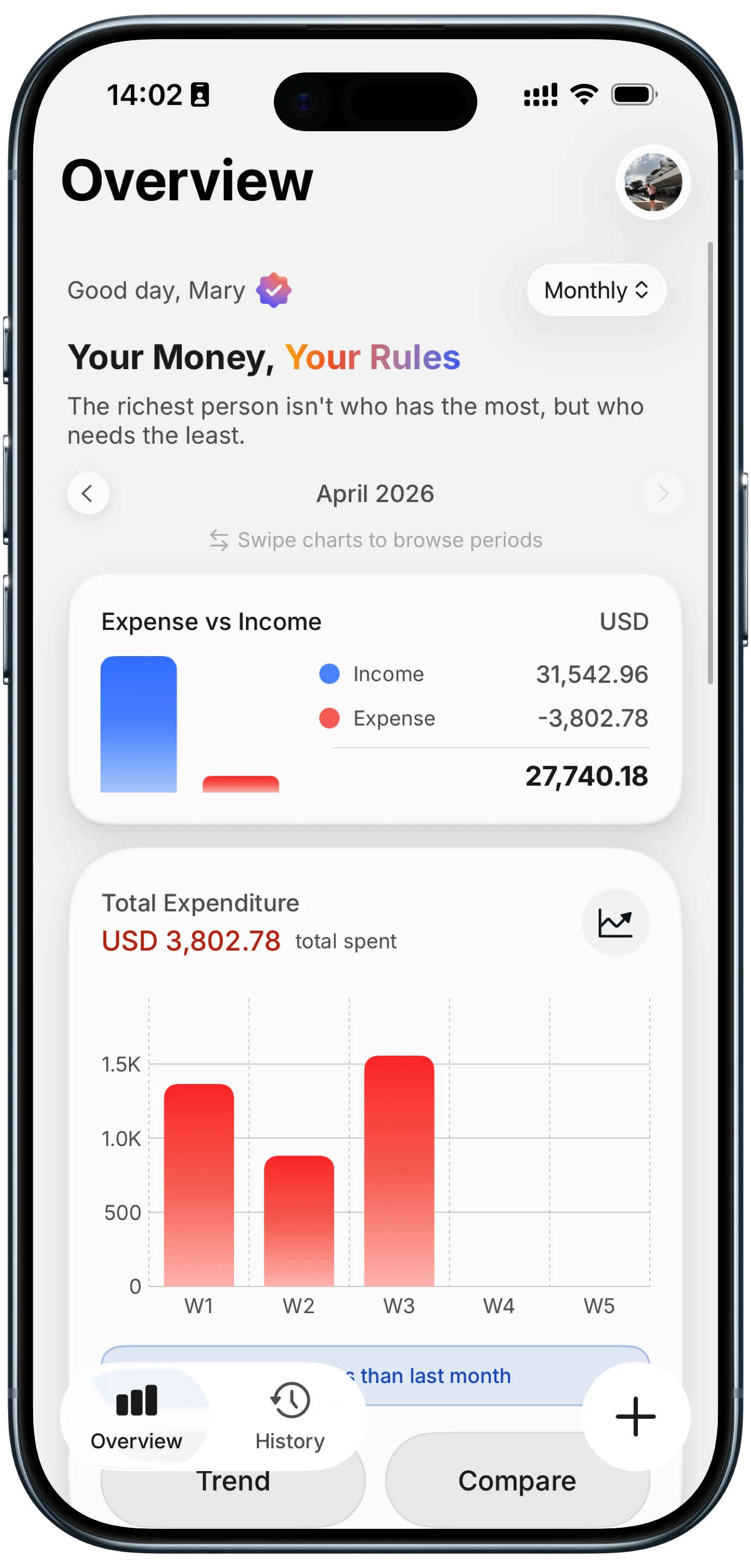
Overview shows total expenditure for the period you choose, with the change against the last period and Trend and Compare views, so your biggest month and the overall direction are already charted.
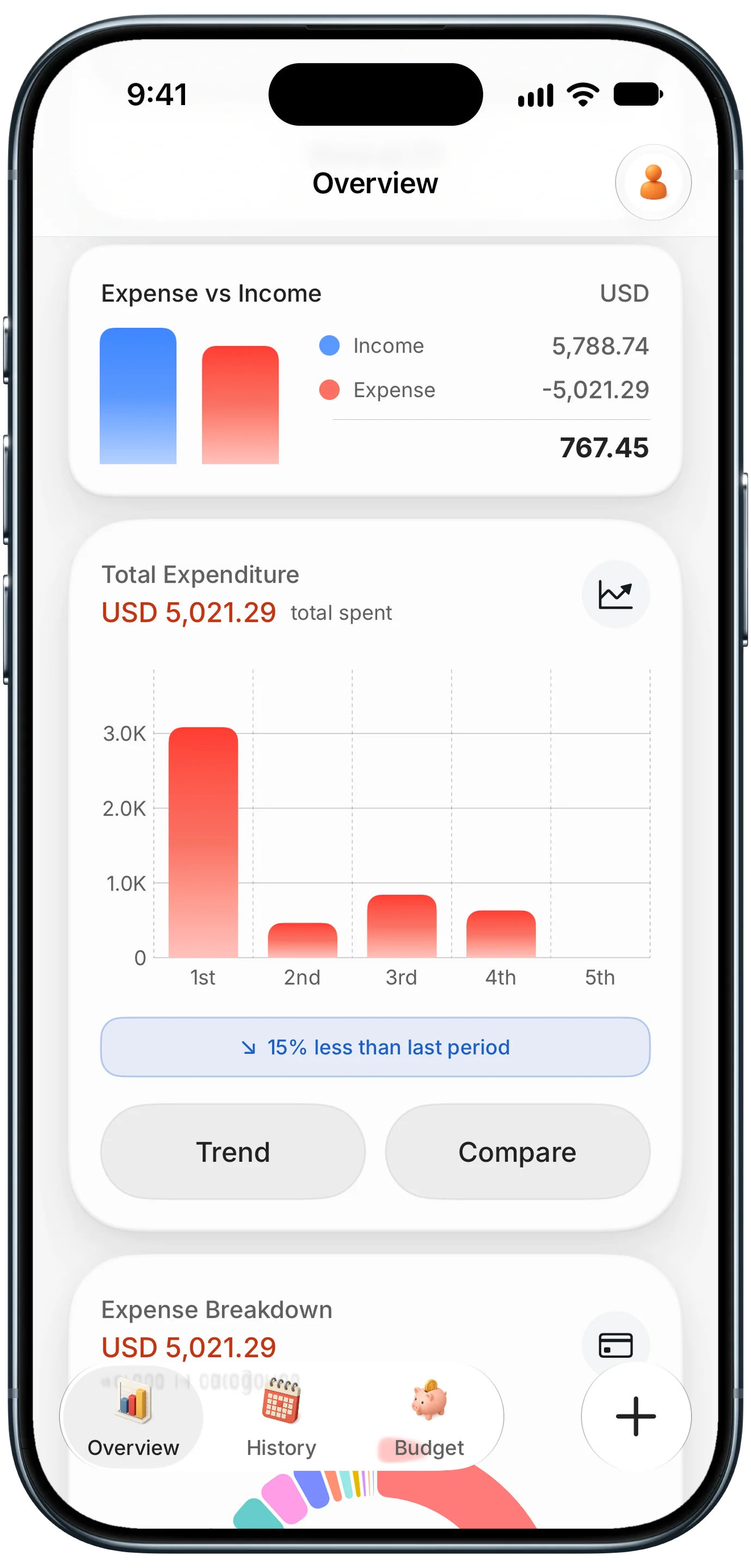
Finny app's Overview feature
Spending by card
Every payment method you used becomes a card in a wallet on Overview, with its share and amount, so number eight takes a glance.
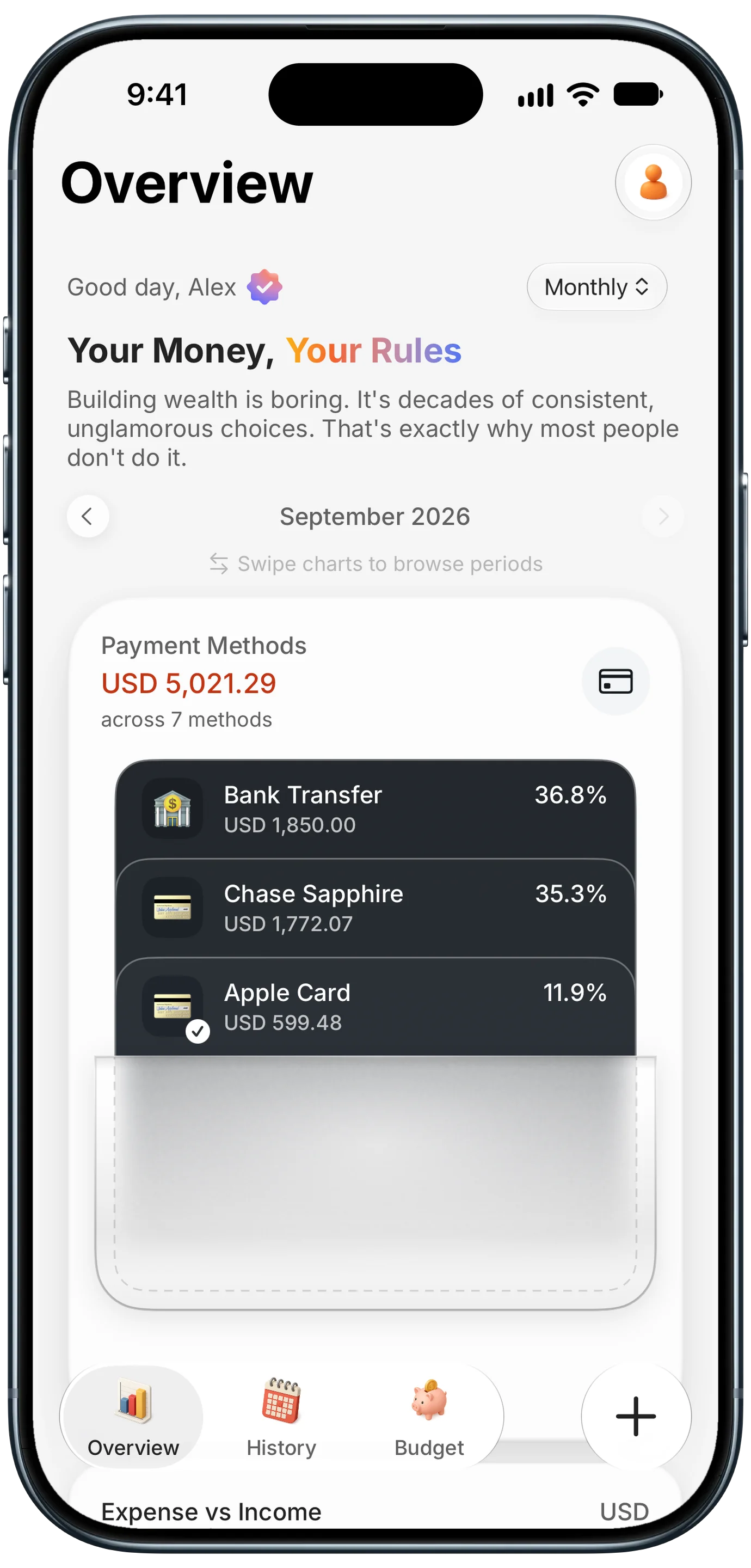
Finny app's Payment Methods feature
Day by day and search totals
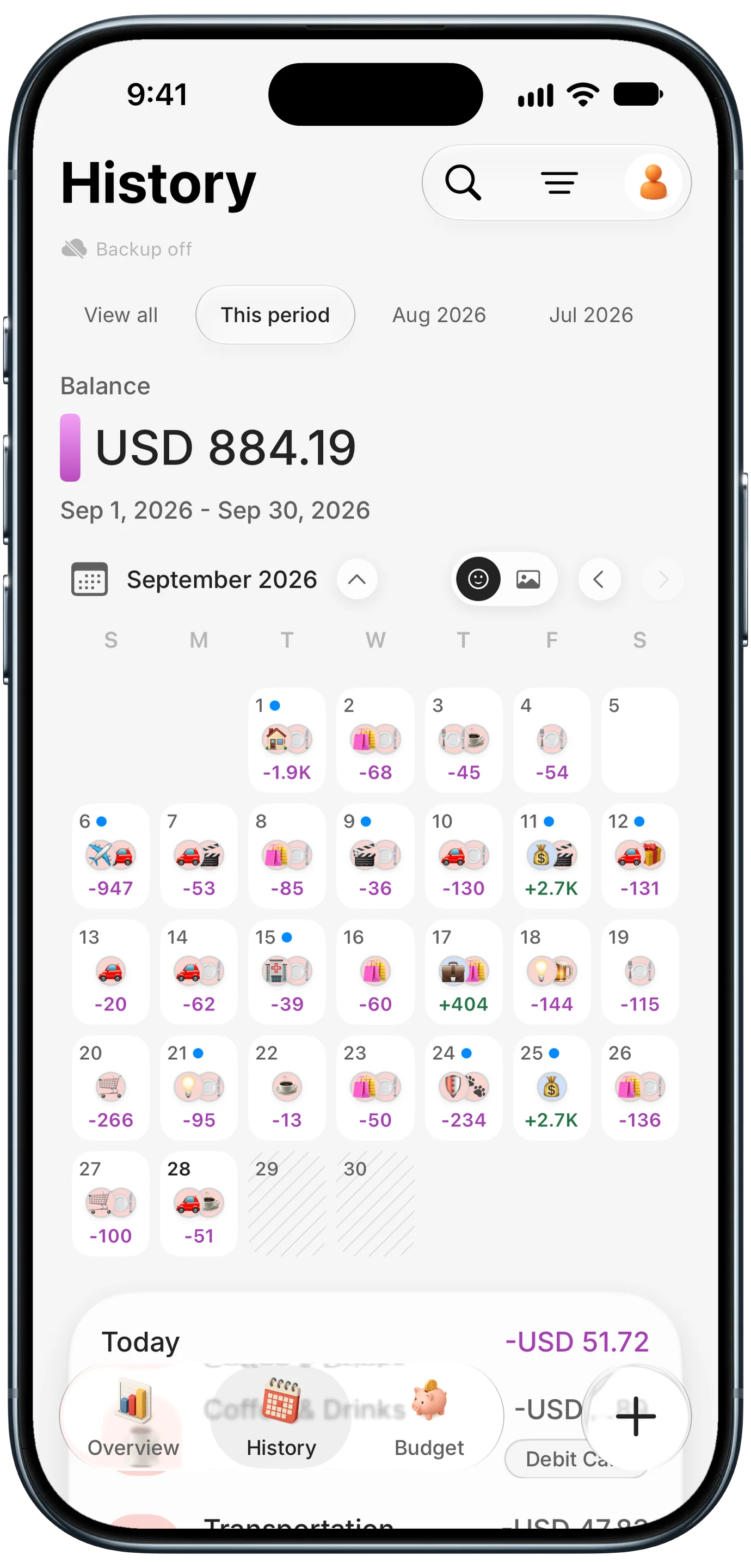
The History calendar shows a total on every day, which makes your expensive days easy to spot. Search "DoorDash" or a category and the results open with a receipt-style total, split by category and payment method. CSV export is free if you want the spreadsheet too.
Finny app's History calendar feature
This short video shows card payments being logged as you make them:
Common Questions About Spending Wrapped
How do I see how much I spent in 2026?
Start with your card issuer. American Express publishes a Year-End Summary after January 1, Chase offers yearly views in its Spending Planner and Apple Card shows a yearly spending view in Wallet. For everything else, export each account's transactions as CSV, combine them in one spreadsheet, remove card payments and transfers, and add up what is left.
Does my credit card give a year-end summary?
It depends on the issuer and the card. American Express documents a Year-End Summary by month and category. Capital One documents a categorized year-end summary for small business cards, while its personal card statements show year-to-date fees and interest. Discover documents a Spend Analyzer by category but not a year-end summary. Check your account's statements or documents section in January.
What should a yearly spending summary include?
Nine numbers cover it: total spent, top three categories, top five merchants, your biggest month, your average day, subscriptions as an annual total, delivery and rideshare combined, spending by card and the one number that surprised you. Keep one-off events like a move or a car repair on a separate line so the everyday pattern stays visible.
When should I do my year in review spending?
Do a first pass in mid-November or early December, while there is still time to act on what you find, then a final pass in early January once December charges post. Amex says its Year-End Summary becomes available on or after January 1, so January is also when issuer summaries appear. The early pass catches subscriptions before renewals.
Want next year's wrapped to take five minutes?
Download Finny to log spending as it happens, see totals by category, card and day, and export to CSV anytime, with no bank connection.