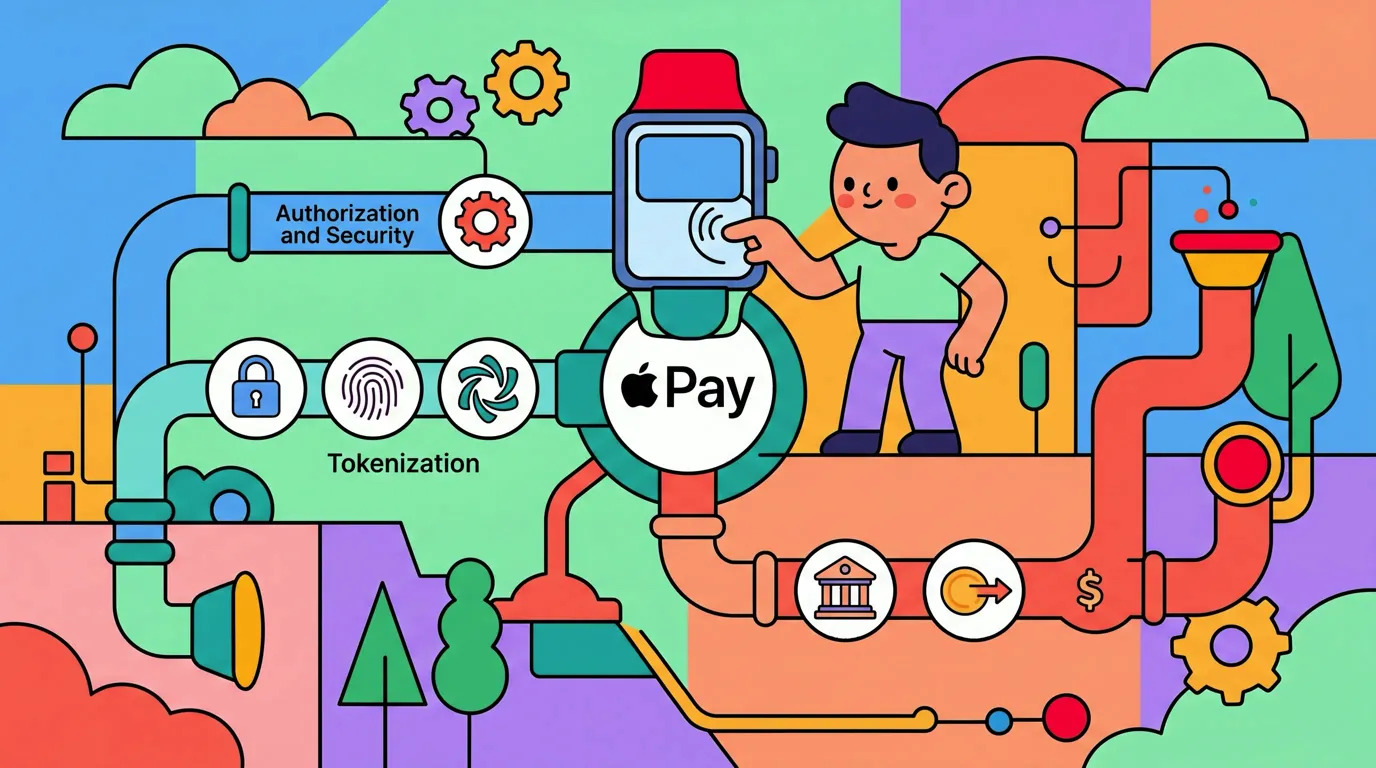
Tap to Track vs Notification Log: Which Should You Use?
Finny now has two ways to log spending without you typing anything, and both work without a bank connection. Tap to Track logs Apple Pay card payments as you make them. Notification Log, new on iOS 27, turns payment alerts from the apps you pick into entries. They overlap in one place and cover very different ground everywhere else.
This guide compares Tap to Track vs Notification Log side by side, then goes situation by situation: paying in a store, shopping online, Venmo and other payment apps, transit, income, staying on iOS 26, and what to do when your bank alerts you on every tap. For the full picture of Notification Log on its own, start with our guide to payment alerts that log themselves on iOS 27.
The short answer
Use Tap to Track for Apple Pay purchases in stores. Use Notification Log for everything your bank and payment apps tell you about that isn't an Apple Pay tap: online orders, transfers, person-to-person payments, and income. If one bank would be covered by both, pick one for that bank so nothing gets logged twice.
Most people who are on iOS 27 end up running both, split by bank or by app. People on iOS 26 or earlier use Tap to Track, since Notification Log isn't available there.
How the two compare
| Tap to Track | Notification Log | |
|---|---|---|
| What it logs | Apple Pay card payments as you make them | Payment alerts from the apps you pick |
| Expenses | Yes | Yes |
| Income | No | Yes, from "you've received" alerts |
| Online card purchases | Only if paid with Apple Pay | Yes, if your card issuer sends an alert |
| Bank transfers | No | Yes, if your bank sends an alert |
| Payment apps like Venmo | No | Yes, if the app sends a payment notification |
| Cards not in Apple Wallet | No | Yes, if the issuer sends alerts |
| Bank connection | None | None |
| iOS version | Works on iOS 26 too | iOS 27 only |
| Plan | Finny Pro | Finny Pro |
| Main caveat | Some stores don't report the tap | Works best with apps that mostly send payment alerts |
Both create normal Finny entries you can edit, and both show you a confirmation of what was logged. Neither needs your bank login.
Paying with Apple Pay in a store
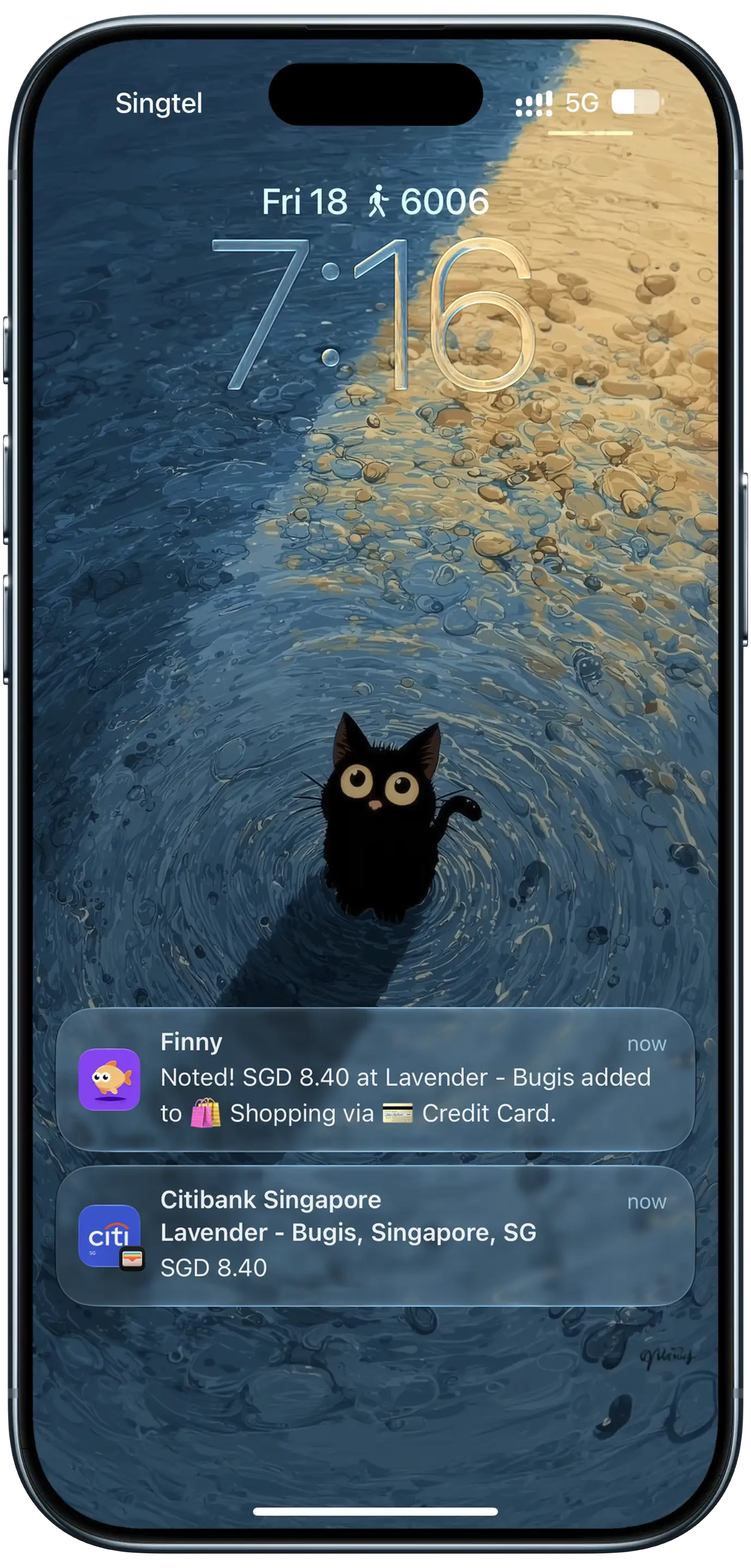
Finny app's Tap to Track feature
Pick Tap to Track. This is exactly what it was built for. You tap your phone at the register and the card payment is logged as you make it, with the amount and merchant.
The screenshot shows something worth noticing: the bank's own alert sits right under Finny's confirmation. That's the overlap. If you also picked that bank for Notification Log, the same purchase would be logged twice. More on that below.
Tap to Track has one known gap in stores: some payment terminals don't report the tap the way Apple Pay expects, so the occasional purchase at a particular store never shows up. Our explainer on why Tap to Track works at some stores and not others covers why, and what to do after a missed tap covers the quick fix. If your bank alerts you on every purchase, those stores are one place Notification Log can cover instead.
Here's Tap to Track logging an Apple Pay purchase:
Shopping online
Pick Notification Log, if your card issuer sends purchase alerts. Online checkouts often skip Apple Pay entirely: you type a card number, or the site uses a card saved in your account. Tap to Track never sees those. But most major US card issuers will send a push alert for every purchase if you turn it on, with the threshold set to $0 or $1. With that card's app picked in Notification Log, each online order becomes an entry.
If you do pay online with Apple Pay, the same one-capture-per-bank rule applies as in stores.
If your card sends no alerts at all, neither feature will catch those online charges. Screen Log can log a payment that's showing on your screen, like an order confirmation, and our guide to tracking a credit card that doesn't send notifications has a weekly routine for silent cards.
Venmo and other payment apps
Pick Notification Log. Person-to-person payments don't go through Apple Pay, so Tap to Track can't help. Venmo sends a push notification when money moves, and so do many bank apps when a transfer goes out or comes in. Pick the app in Notification Log, and those payments land in Finny as expenses or income, whichever the alert says.
Two things to know. Notification Log works best with apps that mostly send payment alerts, and Venmo also sends other kinds of notifications, like account updates and offers. In Venmo's own notification settings, turn off what you don't need. And some alerts don't say who was paid, so an entry can come through with an odd name. A quick rename fixes it.
For the habits that keep shared expenses and paybacks straight, see our guide to tracking Venmo and Zelle payments in your budget.
Transit and fares
Pick Notification Log, if your transit or fare app sends a notice when you pay or reload. That notice can become an entry like any other payment alert.
Fares are small and frequent, which makes them easy to under-count. The first week you use either feature for transit, compare your entries with the trip or payment history in your transit app or on your card statement, so you know how complete your coverage is before you rely on it.
Income
Pick Notification Log. This is the clearest split between the two. Tap to Track only logs spending. Notification Log logs income too: a "you've received" alert from your bank or a payment app becomes an income entry with the amount and currency from the alert.
That covers paychecks if your bank sends a deposit alert, money friends send you, refunds, and freelance payments. If you have variable income, having each deposit logged as it arrives makes the month's real total much easier to see.
Staying on iOS 26
Use Tap to Track. Notification Log needs iOS 27 and isn't available on iOS 26 or earlier. On iOS 26 you still have Tap to Track for Apple Pay card payments, Screen Log for payments on your screen, receipt scanning, and quick manual entry for everything else.
iOS 27 runs on iPhone 11 and later and the second-generation iPhone SE and later, so if your phone is in that range, updating is what unlocks Notification Log.
When your bank alerts you on every tap
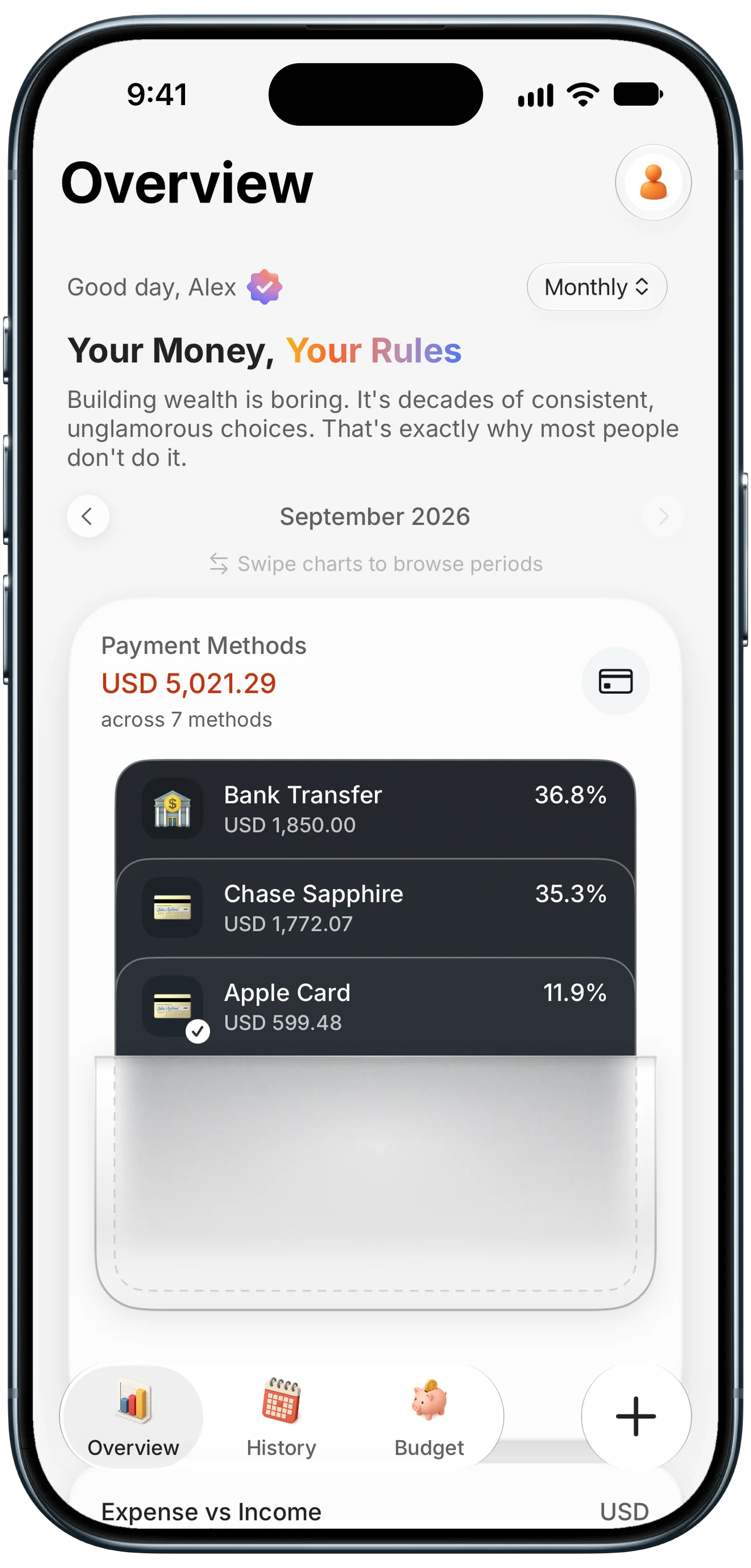
Finny app's Payment Methods feature
Pick one per bank. Some banks send a push alert for every Apple Pay tap. If you use Tap to Track and also pick that bank for Notification Log, both log the same purchase and your spending doubles.
A simple way to decide, bank by bank:
- You use the card almost only with Apple Pay in stores. Keep Tap to Track for it, and leave that bank out of Notification Log.
- You use the card for a mix of Apple Pay, online, and typed-in purchases, and the bank alerts on all of them. Pick that bank in Notification Log, so one source covers every charge on that card.
- The bank only alerts on large purchases. Keep Tap to Track for that card. Notification Log can only log what the bank tells you about, so it would miss the small charges.
Two related double-log cases to watch. Transfers between your own accounts often produce two alerts, one per side, and both can become entries. And if you set a card per app in Notification Log, make sure it matches the card that bank actually issued you, so the payment methods view stays accurate.
The bottom line
Tap to Track and Notification Log aren't rivals. Tap to Track owns the register: Apple Pay card payments logged as you make them, on iOS 26 or 27. Notification Log owns everything else your apps tell you about: online orders, transfers, payment apps, transit notices, and income, on iOS 27. Run both, decide bank by bank where they overlap, and you cover far more of your money than either one alone.
Here's Notification Log turning a payment notification into an entry:
Common Questions About Tap to Track and Notification Log
Can I use Tap to Track and Notification Log at the same time?
Yes, and most people on iOS 27 do. Split them by bank or by app: Tap to Track for Apple Pay purchases in stores, Notification Log for banks and payment apps whose alerts cover online orders, transfers, and income. The one thing to avoid is picking a bank in Notification Log when that bank also alerts you on every Apple Pay tap you already log with Tap to Track.
Why did the same purchase get logged twice?
Usually because both features saw it. If your bank sends a notification for every Apple Pay tap and you picked that bank in Notification Log, Tap to Track and Notification Log each log the purchase. Pick one for that bank. Transfers between your own accounts can also log twice, since each side often sends its own alert. Delete the extra entry.
Which one logs income?
Only Notification Log. Tap to Track logs Apple Pay card payments, which are spending. Notification Log files a "you've received" alert from your bank or a payment app as income, with the amount and currency from the alert. That covers deposits, refunds, and money friends send you, as long as the app sends a notification for it.
Does Notification Log replace Tap to Track?
No. They cover different payments. Tap to Track is the direct way to log Apple Pay purchases in stores, and it works on iOS 26 as well. Notification Log adds what Tap to Track can't see: online card purchases, transfers, payment apps, and income. It needs iOS 27. Both are part of Finny Pro and neither needs a bank connection.
Do either of them need my bank login?
No. Tap to Track logs Apple Pay card payments as you make them, and Notification Log works from the notifications your apps already send. Finny only reads notifications from the apps you pick and doesn't keep the notification. Neither feature asks for your banking credentials or connects to your bank through a data aggregator.
Want your spending logged without the typing?
Download Finny to log Apple Pay taps as you make them, turn payment alerts into entries on iOS 27, and see every currency in one home-currency total. No bank connection required.